UnityPlayableGraphMonitorTool
v2.6.0

中文
A tool for monitoring the PlayableGraph in real-time within the Unity Editor.
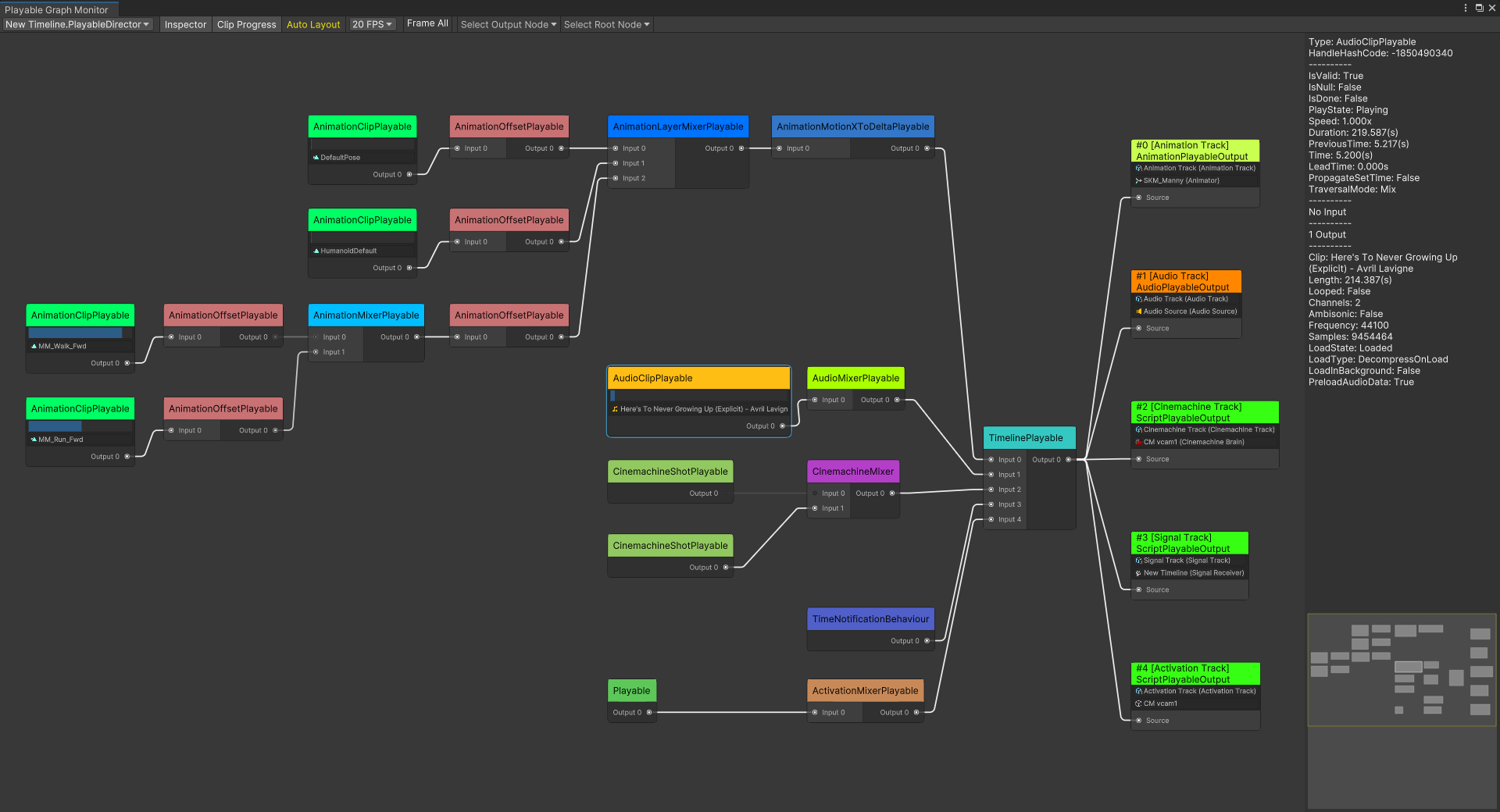
Screenshots
Unity 2019.4 and later.
Install this package for free via OpenUPM
or
Buy this package from Unity Asset Store to support this project.
Open the PlayableGraph Monitor in Unity Editor menu Window/Analysis/PlayableGraph Monitor. In the top-left popup list, select a PlayableGraph to view its topology. Use the left mouse button to click on a node to display its details in the embedded Inspector.
Use the PlayableGraphMonitorWindow.Open(IReadOnlyDictionary<PlayableHandle, string>) or PlayableGraphMonitorWindow.TrySetNodeExtraLabelTable(IReadOnlyDictionary<PlayableHandle, string>) method to add additional text labels to Playable nodes.
After disabling the Auto Layout option in the toolbar of the monitor window, you can manually drag nodes to adjust the layout.
When there are circular references in the nodes of a PlayableGraph, the monitoring tool cannot automatically calculate the node layout. If you find that the monitoring tool fails to layout nodes properly, check the console log to see if it indicates circular references in the PlayableGraph. In this case, you can disable the Auto Layout option, and then manually drag nodes to identify the circular references in the PlayableGraph.
It should be noted that if there is a group of Playables where each Playable serves as an input to another one or more Playables in the group (i.e., there is no root Playable), and none of them are connected to a PlayableOutput, then this group of Playables will not appear in the graph view and may not trigger any error messages.
The following methods can significantly improve performance when displaying a large PlayableGraph:






