genai for marketing
v2.1.0

Resources enabling generative AI-powered marketing use cases on Google Cloud.
This repository showcases the application of Google Cloud's Generative AI to marketing scenarios. It contains detailed, step-by-step instructions to deploy a solution implementing marketing-centric Generative AI capabilities, including capabilities to craft marketing materials like blog posts and social media content. This video walks through the functionality in the solution.
The architecture of the deployed solution:
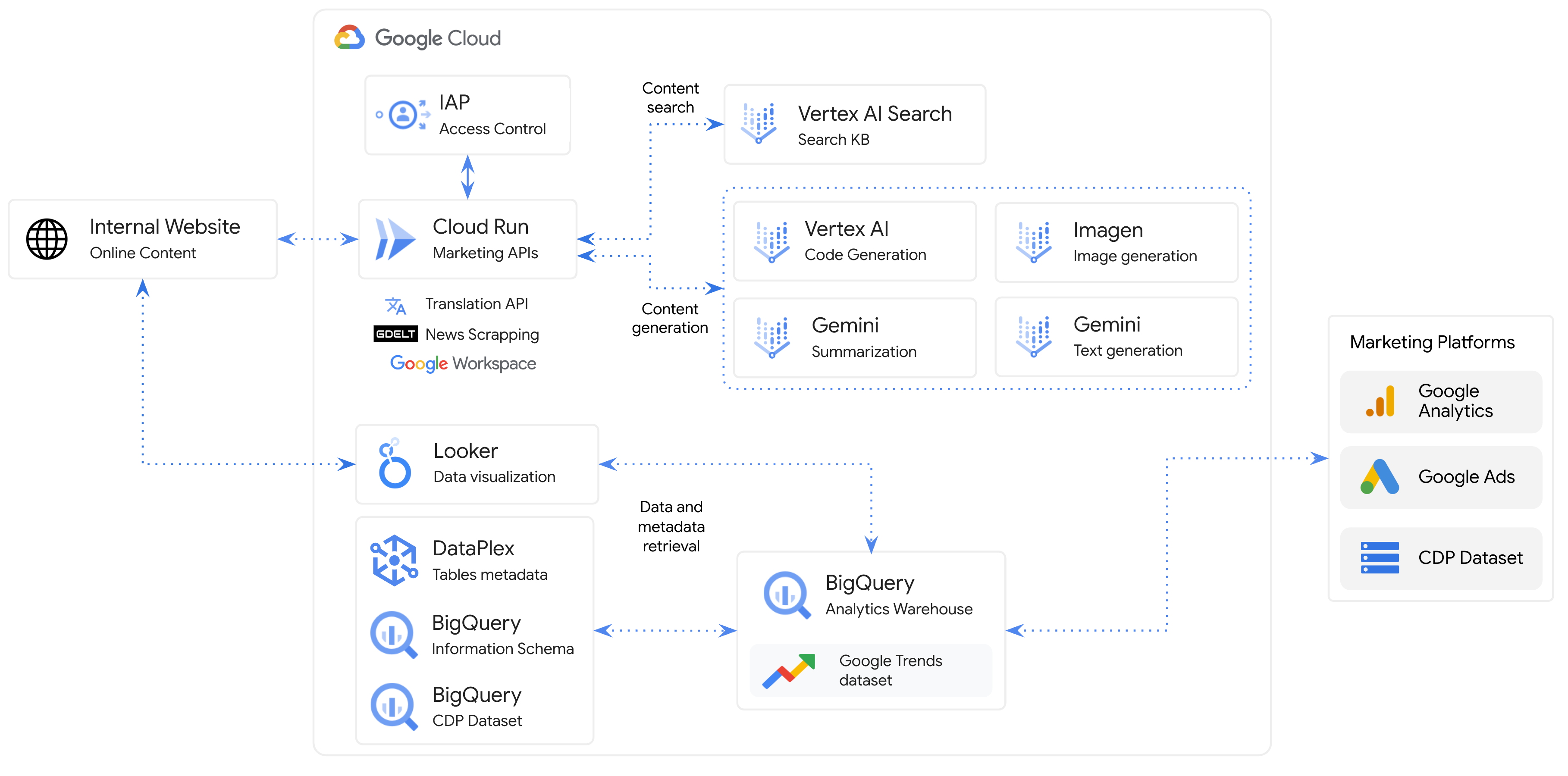
Additionally, supplementary Jupyter notebooks are provided to aid users in grasping the concepts explored in the solution.
.
├── app
└── backend_apis
└── frontend
└── notebooks
└── templates
└── infra
/app: Architecture diagrams and images./backend_apis: Source code for backend APIs./frontend: Source code for the frontend UI./infra: Scripts and configuration for deploying the solution./notebooks: Notebooks demonstrating and explaining how to use Google Cloud's Generative AI for marketing scenarios, including scenarios included in the solution./templates: Workspace Slides, Docs and Sheets templates used in the solution.The deployed solution supports the following demonstrations:
Follow the instructions in the deployment guide to deploy with Terraform.
This video walks through the automated deployment process.
The notebooks listed below were developed to explain the concepts featured in this solution:
The following additional (external) notebooks provide supplementary information on the concepts discussed in this repository:
Some of the solution's behavior can be changed by adjusting configuration.
When deploying the Google Cloud Generative AI for Marketing solution, various settings for the deployment are pulled from the infra/variables.tf file.
If your deployment needs do not match the default deployment, some of your deployment needs might be met by adjusting the defaults in variables.tf prior to beginning deployment.
Make changes to variables.tf prior to running terraform init, making changes afterwards may result in unexpected behavior including irrecoverable deployment failures.
When deploying, after terraform apply completes successfully, there will be a file called config.toml in backend_apis/app. config.toml is generated from infra/templates/config.toml.tftpl.
config.toml acts as a control center for a marketing content generation, providing the necessary settings, prompts, and data to automate the creation of personalized and brand-consistent marketing materials.
You can adjust some of the values in config.toml to change the behavior of your deployment. If you adjust the values in config.toml, rerun the backend deployment (infra/scripts/backend_deployment.sh) to push the updated config to the backend
The following are the key sections of config.toml and their functions:
You can display your own Looker Dashboards in the Marketing Insights and Campaign Performance pages.
For Marketing Insights, edit /frontend/src/app/marketing-insights/marketing-insights.component.html and for Campaign Performance edit /frontend/src/app/marketing-insights/marketing-insights.component.html. The procedure is the same for both of these files:
<select class="select-theme-dropdowns" name="state" ngModel (ngModelChange)="onClick($event)">. If you are on a fresh deployment, the line below is <option value="Overview">Overview</option>.<option value="Display Name in Dropdown">newdash</option>, where value is what will be displayed in the UI and inside the > and < is the identifier you'll use below to link to the dashboard. In this case we're adding a dashboard that will be identified as "Display Name in Dropdown" and below we'll link this dashboard using the newdash identifier.On a fresh deployment at the bottom of the file, you'll see something like this:
<div *ngIf="overview" class="overviewcss">
  <iframe width="1000" height="1000" src="https://googledemo.looker.com/embed/dashboards/2131?allow_login_screen=true" ></iframe>
</div>
At the end of the file, add three similar lines for each dashboard, replacing the following:
*ngIF= to the identifier of the new dashboard that you specified in the dropdown. E.g. <div *ngIf="newdash" class="overviewcss">.src= to the embed link to your dashboard. The allow_login_screen=true in the URL will open the authentication page from Looker to secure the access to your account. E.g., <iframe width="1000" height="1000" src="https://googledemo.looker.com/embed/dashboards/YOURDASH?allow_login_screen=true" ></iframe>
If you have your Google Ads and Google Analytics 4 accounts in production, you can deploy the Marketing Analytics Jumpstart solution, build the Dashboards, and link them into these pages in the Generative AI for Marketing UI.
If you have any questions or if you found any problems with this repository, please report through GitHub issues.





