epub_to_audiobook
v0.6.1

出於任何疑問或討論,加入我們的Discord服務器。
該項目提供了一個命令行工具,將EPUB電子書轉換為有聲讀物。現在,它支持Microsoft Azure Azure到語音API(替代性Edgetts)和OpenAI Totex-toepech API,以生成電子書中每一章的音頻。輸出音頻文件已優化,可與Audiobookshelf一起使用。
該項目是在Chatgpt的幫助下開發的。
如果您有興趣聽到該工俱生成的有聲讀物的樣本,請檢查鏈接Bellow。
該項目生成的有聲讀物已優化,可與Audiobookshelf一起使用。 EPUB文件中的每個章節都將轉換為單獨的MP3文件,並提取了章節標題,並將其包含在元數據中。
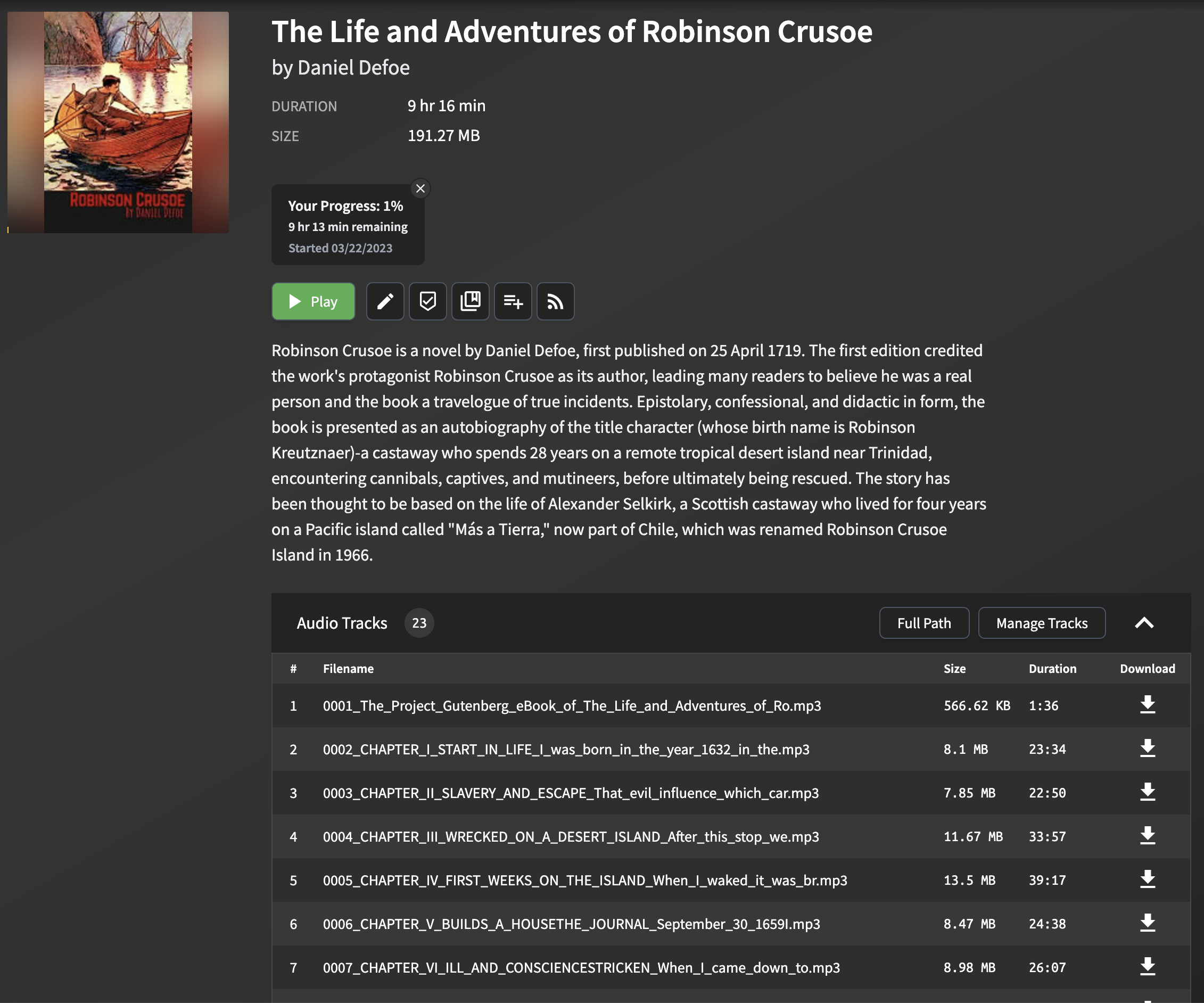
從ePub文件中解析和提取章節標題可能具有挑戰性,因為不同的電子書之間的格式和結構可能會有很大差異。該腳本採用一種簡單但有效的方法來提取章節標題,該章節適用於大多數epub文件。該方法涉及分析EPUB文件並在每章的HTML內容中尋找title標籤。如果標題標籤不存在,則使用本章文本的前幾個單詞生成後備標題。
請注意,此方法可能無法完全適用於所有EPUB文件,尤其是那些具有復雜或異常格式的文件。但是,在大多數情況下,它提供了一種可靠的方法來提取用於Audiobookshelf的章節標題。
當您將生成的MP3文件導入AudioBookshelf時,將顯示章節標題,從而易於在章節之間導航並增強您的聆聽體驗。
克隆這個存儲庫:
git clone https://github.com/p0n1/epub_to_audiobook.git
cd epub_to_audiobook
創建虛擬環境並激活它:
python3 -m venv venv
source venv/bin/activate
安裝所需的依賴項:
pip install -r requirements.txt使用Azure文本到語音API憑據設置以下環境變量,或者如果使用OpenAI TTS,則設置OpenAI API鍵:
 export MS_TTS_KEY= < your_subscription_key > # for Azure
export MS_TTS_REGION= < your_region > # for Azure
export OPENAI_API_KEY= < your_openai_api_key > # for OpenAI 要將epub電子書轉換為有聲讀物,請運行以下命令,並使用--tts選項指定您選擇的TTS提供商:
python3 main.py < input_file > < output_folder > [options]要檢查此腳本的最新選項描述,您可以在終端中運行以下命令:
python3 main.py -husage: main.py [-h] [--tts {azure,openai,edge,piper}]
[--log {DEBUG,INFO,WARNING,ERROR,CRITICAL}] [--preview]
[--no_prompt] [--language LANGUAGE]
[--newline_mode {single,double,none}]
[--title_mode {auto,tag_text,first_few}]
[--chapter_start CHAPTER_START] [--chapter_end CHAPTER_END]
[--output_text] [--remove_endnotes]
[--search_and_replace_file SEARCH_AND_REPLACE_FILE]
[--voice_name VOICE_NAME] [--output_format OUTPUT_FORMAT]
[--model_name MODEL_NAME] [--voice_rate VOICE_RATE]
[--voice_volume VOICE_VOLUME] [--voice_pitch VOICE_PITCH]
[--proxy PROXY] [--break_duration BREAK_DURATION]
[--piper_path PIPER_PATH] [--piper_speaker PIPER_SPEAKER]
[--piper_sentence_silence PIPER_SENTENCE_SILENCE]
[--piper_length_scale PIPER_LENGTH_SCALE]
input_file output_folder
Convert text book to audiobook
positional arguments:
input_file Path to the EPUB file
output_folder Path to the output folder
options:
-h, --help show this help message and exit
--tts {azure,openai,edge,piper}
Choose TTS provider (default: azure). azure: Azure
Cognitive Services, openai: OpenAI TTS API. When using
azure, environment variables MS_TTS_KEY and
MS_TTS_REGION must be set. When using openai,
environment variable OPENAI_API_KEY must be set.
--log {DEBUG,INFO,WARNING,ERROR,CRITICAL}
Log level (default: INFO), can be DEBUG, INFO,
WARNING, ERROR, CRITICAL
--preview Enable preview mode. In preview mode, the script will
not convert the text to speech. Instead, it will print
the chapter index, titles, and character counts.
--no_prompt Don ' t ask the user if they wish to continue after
estimating the cloud cost for TTS. Useful for
scripting.
--language LANGUAGE Language for the text-to-speech service (default: en-
US). For Azure TTS (--tts=azure), check
https://learn.microsoft.com/en-us/azure/ai-
services/speech-service/language-
support?tabs=tts#text-to-speech for supported
languages. For OpenAI TTS (--tts=openai), their API
detects the language automatically. But setting this
will also help on splitting the text into chunks with
different strategies in this tool, especially for
Chinese characters. For Chinese books, use zh-CN, zh-
TW, or zh-HK.
--newline_mode {single,double,none}
Choose the mode of detecting new paragraphs: ' single ' ,
' double ' , or ' none ' . ' single ' means a single newline
character, while ' double ' means two consecutive
newline characters. ' none ' means all newline
characters will be replace with blank so paragraphs
will not be detected. (default: double, works for most
ebooks but will detect less paragraphs for some
ebooks)
--title_mode {auto,tag_text,first_few}
Choose the parse mode for chapter title, ' tag_text '
search ' title ' , ' h1 ' , ' h2 ' , ' h3 ' tag for title,
' first_few ' set first 60 characters as title, ' auto '
auto apply the best mode for current chapter.
--chapter_start CHAPTER_START
Chapter start index (default: 1, starting from 1)
--chapter_end CHAPTER_END
Chapter end index (default: -1, meaning to the last
chapter)
--output_text Enable Output Text. This will export a plain text file
for each chapter specified and write the files to the
output folder specified.
--remove_endnotes This will remove endnote numbers from the end or
middle of sentences. This is useful for academic
books.
--search_and_replace_file SEARCH_AND_REPLACE_FILE
Path to a file that contains 1 regex replace per line,
to help with fixing pronunciations, etc. The format
is: <search>==<replace> Note that you may have to
specify word boundaries, to avoid replacing parts of
words.
--voice_name VOICE_NAME
Various TTS providers has different voice names, look
up for your provider settings.
--output_format OUTPUT_FORMAT
Output format for the text-to-speech service.
Supported format depends on selected TTS provider
--model_name MODEL_NAME
Various TTS providers has different neural model names
edge specific:
--voice_rate VOICE_RATE
Speaking rate of the text. Valid relative values range
from -50%(--xxx= ' -50% ' ) to +100%. For negative value
use format --arg=value,
--voice_volume VOICE_VOLUME
Volume level of the speaking voice. Valid relative
values floor to -100%. For negative value use format
--arg=value,
--voice_pitch VOICE_PITCH
Baseline pitch for the text.Valid relative values like
-80Hz,+50Hz, pitch changes should be within 0.5 to 1.5
times the original audio. For negative value use
format --arg=value,
--proxy PROXY Proxy server for the TTS provider. Format:
http://[username:password@]proxy.server:port
azure/edge specific:
--break_duration BREAK_DURATION
Break duration in milliseconds for the different
paragraphs or sections (default: 1250, means 1.25 s).
Valid values range from 0 to 5000 milliseconds for
Azure TTS.
piper specific:
--piper_path PIPER_PATH
Path to the Piper TTS executable
--piper_speaker PIPER_SPEAKER
Piper speaker id, used for multi-speaker models
--piper_sentence_silence PIPER_SENTENCE_SILENCE
Seconds of silence after each sentence
--piper_length_scale PIPER_LENGTH_SCALE
Phoneme length, a.k.a. speaking rate例子:
python3 main.py examples/The_Life_and_Adventures_of_Robinson_Crusoe.epub output_folder執行上述命令將生成一個名為output_folder的目錄,並使用默認的TTS提供商和語音保存其中的每個章節的MP3文件。生成後,您可以將這些音頻文件導入Audiobookshelf或與您選擇的任何音頻播放器一起播放。
在將epub文件轉換為有聲讀物之前,您可以使用--preview選項來獲取每章的摘要。這將為您提供每一章的角色數量和總數,而不是將文本轉換為語音。
例子:
python3 main.py examples/The_Life_and_Adventures_of_Robinson_Crusoe.epub output_folder --preview您可能需要搜索和替換文本,以擴展縮寫或幫助發音。您可以通過指定搜索和替換文件來做到這一點,該文件包含一個正則搜索,每行替換為“ ==':
例子:
search.conf :
 # this is the general structure
<search>==<replace>
# this is a comment
# fix cardinal direction abbreviations
N.E.==north east
# be careful with your regexes, as this would also match Sally N. Smith
N.==north
# pronounce Barbadoes like the locals
Barbadoes==Barbayduss
python3 main.py examples/The_Life_and_Adventures_of_Robinson_Crusoe.epub output_folder --search_and_replace_file search.conf例子:
python3 main.py examples/The_Life_and_Adventures_of_Robinson_Crusoe.epub output_folder --preview該工具可作為Docker映像可用,可以輕鬆運行而無需管理Python依賴性。
首先,請確保系統上安裝了Docker。
您可以從github容器註冊表中提取docker映像:
docker pull ghcr.io/p0n1/epub_to_audiobook:latest然後,您可以使用以下命令運行工具:
docker run -i -t --rm -v ./:/app -e MS_TTS_KEY= $MS_TTS_KEY -e MS_TTS_REGION= $MS_TTS_REGION ghcr.io/p0n1/epub_to_audiobook your_book.epub audiobook_output --tts azure對於Openai,您可以運行:
docker run -i -t --rm -v ./:/app -e OPENAI_API_KEY= $OPENAI_API_KEY ghcr.io/p0n1/epub_to_audiobook your_book.epub audiobook_output --tts openai用您的Azure文本到語音API憑據替換$MS_TTS_KEY和$MS_TTS_REGION 。用您的OpenAI API鍵替換$OPENAI_API_KEY 。用輸入epub文件的名稱替換your_book.epub ,然後用audiobook_output替換要保存輸出文件的目錄名稱。
-v ./:/app選項將當前目錄( . )安裝到Docker容器中的/app目錄。這允許該工具讀取輸入文件並將輸出文件寫入本地文件系統。
需要-i和-t選項來啟用交互式模式並分配偽tty。
您還可以檢查此示例配置文件中的Docker組合用法。
對於Windows用戶,尤其是如果您對命令行工具不太熟悉,我們已為您提供服務。我們了解挑戰,並為您創建了專門為您量身定制的指南。
檢查本步驟指南,並在遇到問題時留言。
資料來源:https://learn.microsoft.com/en-us/azure/cognitive-services/speech-service/get-started-text-text-text-to-spech#prerequisites
檢查https://platform.openai.com/docs/quickstart/account-setup。確保在使用前檢查價格詳細信息。
Edge TTS和Azure TTS幾乎相同,區別在於Edge TT不需要API鍵,因為它基於Edge讀取大聲功能,並且參數受到限制,例如自定義SSML。
檢查https://gist.github.com/bettyjj/17cbaa1de96235a7f57773b8690a20462以獲取支持的聲音。
如果您想快速嘗試此項目,強烈建議使用Edge TTS。
您可以通過在運行腳本時傳遞--voice_name和--language選項來自定義文本轉換的語音和語言。
Microsoft Azure為文本到語音服務提供了一系列的聲音和語言。有關可用選項的列表,請諮詢Microsoft Azure文本到語音文檔。
您還可以在Azure TTS語音庫中收聽可用聲音的示例,以幫助您為有聲讀物選擇最佳的聲音。
例如,如果您想使用英國英語女性語音進行轉換,則可以使用以下命令:
python3 main.py < input_file > < output_folder > --voice_name en-GB-LibbyNeural --language en-GB對於OpenAI TTS,您可以分別使用--model_name , --voice_name和--output_format指定模型,語音和格式選項。
以下是一些證明各種選項組合的示例:
使用默認設置的Azure進行基本轉換
此命令將使用Azure的默認TTS設置將EPUB文件轉換為有聲讀物。
python3 main.py " path/to/book.epub " " path/to/output/folder " --tts azure使用自定義語言,語音和記錄級別的Azure轉換
將EPUB文件轉換為具有指定語音的有聲讀物和用於調試目的的自定義日誌級別。
python3 main.py " path/to/book.epub " " path/to/output/folder " --tts azure --language zh-CN --voice_name " zh-CN-YunyeNeural " --log DEBUG Azure轉換與章節範圍和中斷持續時間
將指定的章節從epub文件轉換為段落之間的自定義中斷持續時間的有聲讀物。
python3 main.py " path/to/book.epub " " path/to/output/folder " --tts azure --chapter_start 5 --chapter_end 10 --break_duration " 1500 "使用OpenAI帶有默認設置的基本轉換
此命令將使用OpenAI的默認TTS設置將EPUB文件轉換為有聲讀物。
python3 main.py " path/to/book.epub " " path/to/output/folder " --tts openai使用高清模型和特定聲音的OpenAI轉換
使用高清OpenAI模型和特定的語音選擇將EPUB文件轉換為有聲讀物。
python3 main.py " path/to/book.epub " " path/to/output/folder " --tts openai --model_name " tts-1-hd " --voice_name " fable " OpenAI轉換,預覽和文本輸出
啟用預覽模式和文本輸出,它將顯示章節索引和標題,而不是轉換它們,並且還將導出文本。
python3 main.py " path/to/book.epub " " path/to/output/folder " --tts openai --preview --output_text使用Edge的基本轉換與默認設置
此命令將使用Edge的默認TTS設置將EPUB文件轉換為有聲讀物。
python3 main.py " path/to/book.epub " " path/to/output/folder " --tts edge使用自定義語言,語音和日誌記錄級別的邊緣轉換將EPUB文件轉換為帶有指定語音的有聲讀物和用於調試目的的自定義日誌級別。
python3 main.py " path/to/book.epub " " path/to/output/folder " --tts edge --language zh-CN --voice_name " zh-CN-YunxiNeural " --log DEBUGEdge Conversion用章節範圍和中斷持續時間轉換,將指定的章節從epub文件轉換為段落之間具有自定義中斷持續時間的有聲讀物。
python3 main.py " path/to/book.epub " " path/to/output/folder " --tts edge --chapter_start 5 --chapter_end 10 --break_duration " 1500 "確保已安裝了Piper TTS,並具有ONNX模型文件和相應的配置文件。檢查Piper TTS以獲取更多詳細信息。您可以按照他們的說明安裝Piper TT,下載模型和配置文件,使用它,然後回來嘗試以下示例。
此命令將使用裸露的最小參數使用Piper TTS將EPUB文件轉換為有聲讀物。您始終需要指定一個ONNX模型文件,並且piper可執行文件需要在當前$路徑中。
python3 main.py " path/to/book.epub " " path/to/output/folder " --tts piper --model_name < path_to > /en_US-libritts_r-medium.onnx您可以使用--piper_path參數將自定義路徑指定到Piper可執行文件。
python3 main.py " path/to/book.epub " " path/to/output/folder " --tts piper --model_name < path_to > /en_US-libritts_r-medium.onnx --piper_path < path_to > /piper一些模型支持多個聲音,可以使用Voice_name參數指定。
python3 main.py " path/to/book.epub " " path/to/output/folder " --tts piper --model_name < path_to > /en_US-libritts_r-medium.onnx --piper_speaker 256您還可以指定速度(piper_length_scale)和暫停持續時間(piper_sentence_silence)。
python3 main.py " path/to/book.epub " " path/to/output/folder " --tts piper --model_name < path_to > /en_US-libritts_r-medium.onnx --piper_speaker 256 --piper_length_scale 1.5 --piper_sentence_silence 0.5 Piper TTS輸出wav格式文件(或RAW)在默認情況下您應該能夠通過--output_format參數指定任何合理格式。 opus和mp3是大小和兼容性的好選擇。
python3 main.py " path/to/book.epub " " path/to/output/folder " --tts piper --model_name < path_to > /en_US-libritts_r-medium.onnx --piper_speaker 256 --piper_length_scale 1.5 --piper_sentence_silence 0.5 --output_format opus這可能是因為您使用的Python版本小於3.8。您可以嘗試通過pip3 install importlib-metadata手動安裝它,也可以使用更高的Python版本。
確保可以從您的路徑訪問FFMPEG二進制。如果您在Mac上使用並使用Homebrew,則可以在Ubuntu上進行brew install ffmpeg ,您可以進行sudo apt install ffmpeg
有關與安裝相關的問題,請參閱Piper TTS存儲庫。重要的是要注意,如果您通過PIP安裝piper-tts ,目前僅支持Python 3.10。使用下載的二進製文件時,Mac用戶可能會遇到其他挑戰。有關特定於MAC問題的更多信息,請檢查此問題和此提取請求。
如果您在Piper TTS方面遇到麻煩,還請檢查一下。
該項目已根據MIT許可獲得許可。有關詳細信息,請參見許可證文件。





