epub_to_audiobook
v0.6.1

질문이나 토론을 위해 Discord 서버에 가입하십시오.
이 프로젝트는 Epub eBook을 오디오 북으로 변환하는 명령 줄 도구를 제공합니다. 이제 Microsoft Azure Text-Steepee API (Alternativally Edgetts)와 OpenAi Text-Topeech API를 모두 지원하여 전자 책의 각 장에 대한 오디오를 생성합니다. 출력 오디오 파일은 AudioBookShelf와 함께 사용하도록 최적화되었습니다.
이 프로젝트는 Chatgpt의 도움으로 개발되었습니다.
이 도구에서 생성 된 오디오 북 샘플을 듣고 싶다면 링크를 확인하십시오.
이 프로젝트에서 생성 된 오디오 북은 AudioBookshelf와 함께 사용하도록 최적화되었습니다. EPUB 파일의 각 장은 별도의 MP3 파일로 변환되며, 제목 제목이 추출되어 메타 데이터로 포함됩니다.
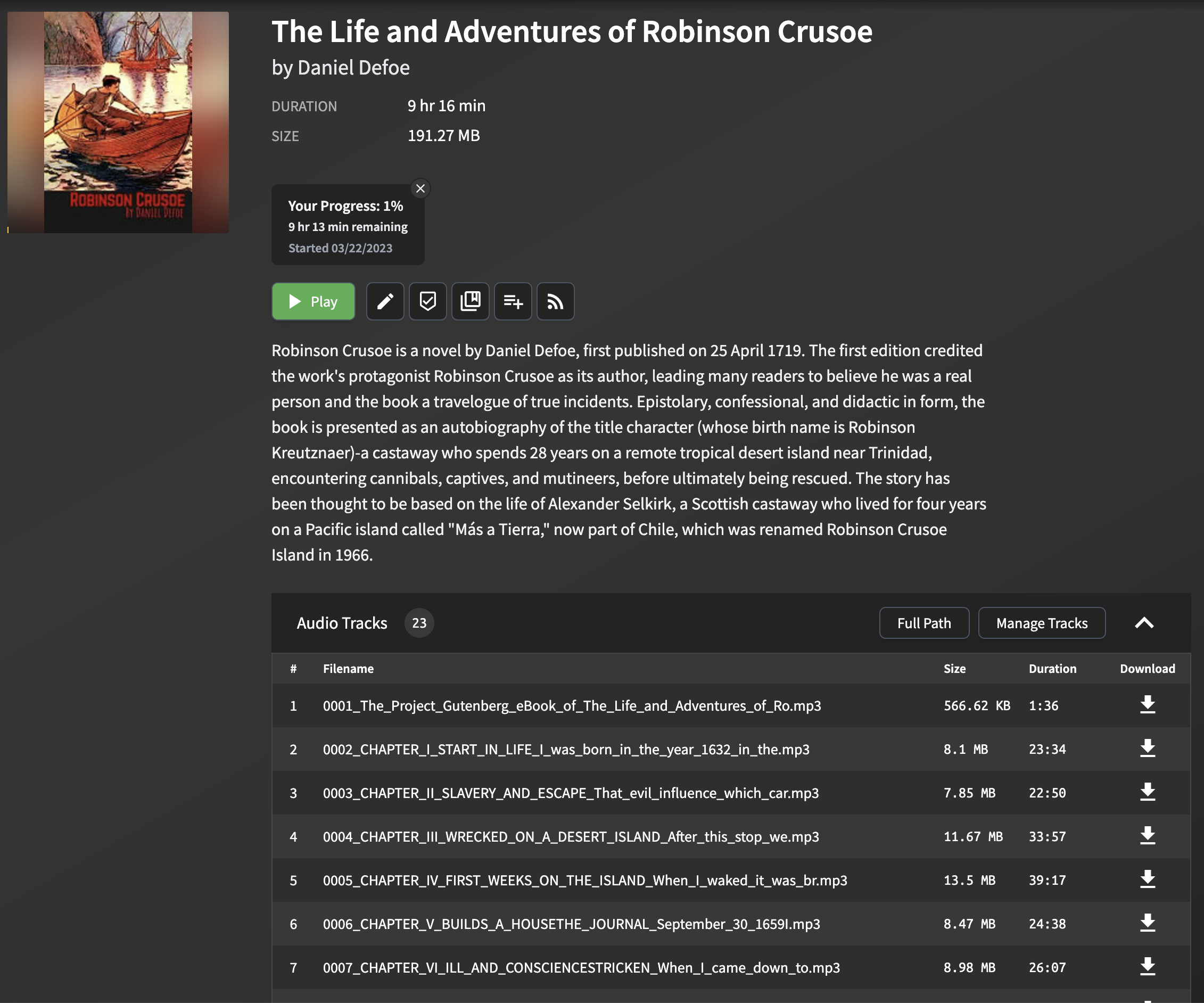
형식과 구조가 다른 eBook마다 크게 다를 수 있으므로 EPUB 파일에서 챕터 제목을 구문 분석하고 추출하는 것은 어려울 수 있습니다. 이 스크립트는 대부분의 EPUB 파일에서 작동하는 장 제목을 추출하는 간단하지만 효과적인 방법을 사용합니다. 이 방법에는 EPUB 파일을 구문 분석하고 각 장의 HTML 컨텐츠에서 title 태그를 찾는 것입니다. 제목 태그가없는 경우 챕터 텍스트의 처음 몇 단어를 사용하여 폴백 제목이 생성됩니다.
이 접근법은 모든 EPUB 파일, 특히 복잡하거나 특이한 형식을 가진 파일에 완벽하게 작동하지 않을 수 있습니다. 그러나 대부분의 경우 AudioBookshelf에서 사용할 장 제목을 추출하는 신뢰할 수있는 방법을 제공합니다.
생성 된 MP3 파일을 AudioBookshelf로 가져 오면 장 제목이 표시되므로 장을 쉽게 탐색하고 청취 경험을 향상시킬 수 있습니다.
이 저장소를 복제하십시오.
git clone https://github.com/p0n1/epub_to_audiobook.git
cd epub_to_audiobook
가상 환경을 만들고 활성화하십시오.
python3 -m venv venv
source venv/bin/activate
필요한 종속성 설치 :
pip install -r requirements.txtOpenAi TTS를 사용하는 경우 Azure Text-To-Speech API 자격 증명 또는 OpenAI API 키로 다음 환경 변수를 설정하십시오.
 export MS_TTS_KEY= < your_subscription_key > # for Azure
export MS_TTS_REGION= < your_region > # for Azure
export OPENAI_API_KEY= < your_openai_api_key > # for OpenAI epub ebook을 오디오 북으로 변환하려면 다음 명령을 실행하여 --tts 옵션을 사용하여 선택한 TTS 제공 업체를 지정하십시오.
python3 main.py < input_file > < output_folder > [options]이 스크립트의 최신 옵션 설명을 확인하려면 터미널에서 다음 명령을 실행할 수 있습니다.
python3 main.py -husage: main.py [-h] [--tts {azure,openai,edge,piper}]
[--log {DEBUG,INFO,WARNING,ERROR,CRITICAL}] [--preview]
[--no_prompt] [--language LANGUAGE]
[--newline_mode {single,double,none}]
[--title_mode {auto,tag_text,first_few}]
[--chapter_start CHAPTER_START] [--chapter_end CHAPTER_END]
[--output_text] [--remove_endnotes]
[--search_and_replace_file SEARCH_AND_REPLACE_FILE]
[--voice_name VOICE_NAME] [--output_format OUTPUT_FORMAT]
[--model_name MODEL_NAME] [--voice_rate VOICE_RATE]
[--voice_volume VOICE_VOLUME] [--voice_pitch VOICE_PITCH]
[--proxy PROXY] [--break_duration BREAK_DURATION]
[--piper_path PIPER_PATH] [--piper_speaker PIPER_SPEAKER]
[--piper_sentence_silence PIPER_SENTENCE_SILENCE]
[--piper_length_scale PIPER_LENGTH_SCALE]
input_file output_folder
Convert text book to audiobook
positional arguments:
input_file Path to the EPUB file
output_folder Path to the output folder
options:
-h, --help show this help message and exit
--tts {azure,openai,edge,piper}
Choose TTS provider (default: azure). azure: Azure
Cognitive Services, openai: OpenAI TTS API. When using
azure, environment variables MS_TTS_KEY and
MS_TTS_REGION must be set. When using openai,
environment variable OPENAI_API_KEY must be set.
--log {DEBUG,INFO,WARNING,ERROR,CRITICAL}
Log level (default: INFO), can be DEBUG, INFO,
WARNING, ERROR, CRITICAL
--preview Enable preview mode. In preview mode, the script will
not convert the text to speech. Instead, it will print
the chapter index, titles, and character counts.
--no_prompt Don ' t ask the user if they wish to continue after
estimating the cloud cost for TTS. Useful for
scripting.
--language LANGUAGE Language for the text-to-speech service (default: en-
US). For Azure TTS (--tts=azure), check
https://learn.microsoft.com/en-us/azure/ai-
services/speech-service/language-
support?tabs=tts#text-to-speech for supported
languages. For OpenAI TTS (--tts=openai), their API
detects the language automatically. But setting this
will also help on splitting the text into chunks with
different strategies in this tool, especially for
Chinese characters. For Chinese books, use zh-CN, zh-
TW, or zh-HK.
--newline_mode {single,double,none}
Choose the mode of detecting new paragraphs: ' single ' ,
' double ' , or ' none ' . ' single ' means a single newline
character, while ' double ' means two consecutive
newline characters. ' none ' means all newline
characters will be replace with blank so paragraphs
will not be detected. (default: double, works for most
ebooks but will detect less paragraphs for some
ebooks)
--title_mode {auto,tag_text,first_few}
Choose the parse mode for chapter title, ' tag_text '
search ' title ' , ' h1 ' , ' h2 ' , ' h3 ' tag for title,
' first_few ' set first 60 characters as title, ' auto '
auto apply the best mode for current chapter.
--chapter_start CHAPTER_START
Chapter start index (default: 1, starting from 1)
--chapter_end CHAPTER_END
Chapter end index (default: -1, meaning to the last
chapter)
--output_text Enable Output Text. This will export a plain text file
for each chapter specified and write the files to the
output folder specified.
--remove_endnotes This will remove endnote numbers from the end or
middle of sentences. This is useful for academic
books.
--search_and_replace_file SEARCH_AND_REPLACE_FILE
Path to a file that contains 1 regex replace per line,
to help with fixing pronunciations, etc. The format
is: <search>==<replace> Note that you may have to
specify word boundaries, to avoid replacing parts of
words.
--voice_name VOICE_NAME
Various TTS providers has different voice names, look
up for your provider settings.
--output_format OUTPUT_FORMAT
Output format for the text-to-speech service.
Supported format depends on selected TTS provider
--model_name MODEL_NAME
Various TTS providers has different neural model names
edge specific:
--voice_rate VOICE_RATE
Speaking rate of the text. Valid relative values range
from -50%(--xxx= ' -50% ' ) to +100%. For negative value
use format --arg=value,
--voice_volume VOICE_VOLUME
Volume level of the speaking voice. Valid relative
values floor to -100%. For negative value use format
--arg=value,
--voice_pitch VOICE_PITCH
Baseline pitch for the text.Valid relative values like
-80Hz,+50Hz, pitch changes should be within 0.5 to 1.5
times the original audio. For negative value use
format --arg=value,
--proxy PROXY Proxy server for the TTS provider. Format:
http://[username:password@]proxy.server:port
azure/edge specific:
--break_duration BREAK_DURATION
Break duration in milliseconds for the different
paragraphs or sections (default: 1250, means 1.25 s).
Valid values range from 0 to 5000 milliseconds for
Azure TTS.
piper specific:
--piper_path PIPER_PATH
Path to the Piper TTS executable
--piper_speaker PIPER_SPEAKER
Piper speaker id, used for multi-speaker models
--piper_sentence_silence PIPER_SENTENCE_SILENCE
Seconds of silence after each sentence
--piper_length_scale PIPER_LENGTH_SCALE
Phoneme length, a.k.a. speaking rate예 :
python3 main.py examples/The_Life_and_Adventures_of_Robinson_Crusoe.epub output_folder 위 명령을 실행하면 output_folder 라는 디렉토리가 생성되고 기본 TTS 제공 업체 및 음성을 사용하여 각 장의 MP3 파일을 저장합니다. 일단 생성되면 이러한 오디오 파일을 AudioBookshelf로 가져 오거나 원하는 오디오 플레이어와 함께 재생할 수 있습니다.
Epub 파일을 오디오 북으로 변환하기 전에 --preview 옵션을 사용하여 각 장의 요약을 얻을 수 있습니다. 이렇게하면 텍스트를 음성으로 변환하는 대신 각 장의 문자 수와 총 카운트가 제공됩니다.
예 :
python3 main.py examples/The_Life_and_Adventures_of_Robinson_Crusoe.epub output_folder --preview약어를 확장하거나 발음을 돕기 위해 텍스트를 검색하고 바꾸고 싶을 수도 있습니다. 검색 및 교체 파일을 지정하여이를 수행 할 수 있습니다. 파일은 단일 Regex 검색 및 '=='로 분리 된 한 줄 당 교체를 포함하는 파일을 포함시킬 수 있습니다.
예 :
search.conf :
 # this is the general structure
<search>==<replace>
# this is a comment
# fix cardinal direction abbreviations
N.E.==north east
# be careful with your regexes, as this would also match Sally N. Smith
N.==north
# pronounce Barbadoes like the locals
Barbadoes==Barbayduss
python3 main.py examples/The_Life_and_Adventures_of_Robinson_Crusoe.epub output_folder --search_and_replace_file search.conf예 :
python3 main.py examples/The_Life_and_Adventures_of_Robinson_Crusoe.epub output_folder --preview이 도구는 Docker 이미지로 제공되므로 파이썬 종속성을 관리 할 필요없이 쉽게 실행할 수 있습니다.
먼저 시스템에 Docker가 설치되어 있는지 확인하십시오.
Github 컨테이너 레지스트리에서 Docker 이미지를 가져올 수 있습니다.
docker pull ghcr.io/p0n1/epub_to_audiobook:latest그런 다음 다음 명령으로 도구를 실행할 수 있습니다.
docker run -i -t --rm -v ./:/app -e MS_TTS_KEY= $MS_TTS_KEY -e MS_TTS_REGION= $MS_TTS_REGION ghcr.io/p0n1/epub_to_audiobook your_book.epub audiobook_output --tts azureOpenAi의 경우 다음을 실행할 수 있습니다.
docker run -i -t --rm -v ./:/app -e OPENAI_API_KEY= $OPENAI_API_KEY ghcr.io/p0n1/epub_to_audiobook your_book.epub audiobook_output --tts openai $MS_TTS_KEY 및 $MS_TTS_REGION Azure Text-To-Steech API 자격 증명으로 교체하십시오. $OPENAI_API_KEY OpenAI API 키로 바꾸십시오. 입력 epub 파일의 이름으로 your_book.epub 대체하고 출력 파일을 저장하려는 디렉토리의 이름으로 audiobook_output 바꾸십시오.
-v ./:/app 옵션은 현재 디렉토리 ( . )를 Docker 컨테이너의 /app 디렉토리에 장착합니다. 이를 통해 도구는 입력 파일을 읽고 출력 파일을 로컬 파일 시스템에 쓸 수 있습니다.
대화식 모드를 활성화하고 의사 Tty를 할당하려면 -i 및 -t 옵션이 필요합니다.
Docker Compose 사용에 대한이 예제 구성 파일을 확인할 수도 있습니다.
Windows 사용자의 경우, 특히 명령 줄 도구에 익숙하지 않은 경우, 우리는 귀하를 다루었습니다. 우리는 도전을 이해하고 당신을 위해 특별히 맞춤화 된 가이드를 만들었습니다.
이 단계별 가이드를 확인하고 문제가 발생하면 메시지를 남겨주세요.
출처 : https://learn.microsoft.com/en-us/azure/cognitive-services/speech-service/get-started-text-text-speech#perrequisites
https://platform.openai.com/docs/quickstart/account-setup을 확인하십시오. 사용하기 전에 가격 세부 정보를 확인하십시오.
Edge TTS 및 Azure TTS는 거의 동일합니다. 차이는 Edge TTS가 API 키가 필요하지 않다는 것입니다. Edge Read Aloud 기능을 기반으로하기 때문에 Custom SSML과 같이 매개 변수가 약간 제한됩니다.
지원되는 목소리는 https://gist.github.com/bettyjj/17cbaa1de96235a7f5773b8690a20462를 확인하십시오.
이 프로젝트를 빨리 시도하려면 Edge TTS를 적극 권장합니다.
스크립트를 실행할 때 --voice_name 및 --language 옵션을 전달하여 텍스트 음성 변환에 사용되는 음성 및 언어를 사용자 정의 할 수 있습니다.
Microsoft Azure는 텍스트 음성 서비스 서비스를위한 다양한 음성과 언어를 제공합니다. 사용 가능한 옵션 목록을 보려면 Microsoft Azure Text-Steech 문서를 참조하십시오.
Azure TTS Voice Gallery에서 사용 가능한 목소리 샘플을들을 수있어 오디오 북에 가장 적합한 목소리를 선택할 수 있습니다.
예를 들어, 전환에 영국 영어 여성 음성을 사용하려면 다음 명령을 사용할 수 있습니다.
python3 main.py < input_file > < output_folder > --voice_name en-GB-LibbyNeural --language en-GB OpenAi TTS의 경우 --model_name , --voice_name 및 --output_format 을 사용하여 모델, 음성 및 형식 옵션을 지정할 수 있습니다.
다음은 다양한 옵션 조합을 보여주는 몇 가지 예입니다.
기본 설정과 함께 Azure를 사용한 기본 변환
이 명령은 EPUB 파일을 Azure의 기본 TTS 설정을 사용하여 오디오 북으로 변환합니다.
python3 main.py " path/to/book.epub " " path/to/output/folder " --tts azure 사용자 정의 언어, 음성 및 로깅 레벨로 전환
EPUB 파일을 지정된 음성 및 디버깅 목적으로 사용자 정의 로그 레벨로 오디오 북으로 변환합니다.
python3 main.py " path/to/book.epub " " path/to/output/folder " --tts azure --language zh-CN --voice_name " zh-CN-YunyeNeural " --log DEBUG 장 범위 및 휴식 시간을 통한 Azure 변환
지정된 챕터를 EPUB 파일에서 단락 사이에 맞춤형 중단 기간을 갖춘 오디오 북으로 변환합니다.
python3 main.py " path/to/book.epub " " path/to/output/folder " --tts azure --chapter_start 5 --chapter_end 10 --break_duration " 1500 " 기본 설정과 함께 OpenAI를 사용한 기본 변환
이 명령은 OpenAI의 기본 TTS 설정을 사용하여 EPUB 파일을 오디오 북으로 변환합니다.
python3 main.py " path/to/book.epub " " path/to/output/folder " --tts openai HD 모델 및 특정 음성으로 개방형 변환
고화질 OpenAI 모델과 특정 음성 선택을 사용하여 EPUB 파일을 오디오 북으로 변환합니다.
python3 main.py " path/to/book.epub " " path/to/output/folder " --tts openai --model_name " tts-1-hd " --voice_name " fable " 미리보기 및 텍스트 출력으로 OpenAI 변환
미리보기 모드 및 텍스트 출력을 활성화하여 장 색인 및 제목을 변환하는 대신 표시하고 텍스트를 내보낼 수 있습니다.
python3 main.py " path/to/book.epub " " path/to/output/folder " --tts openai --preview --output_text 기본 설정과 함께 Edge를 사용한 기본 변환
이 명령은 edge의 기본 TTS 설정을 사용하여 EPUB 파일을 오디오 북으로 변환합니다.
python3 main.py " path/to/book.epub " " path/to/output/folder " --tts edge사용자 정의 언어, 음성 및 로깅 레벨로 전환하면 EPUB 파일을 지정된 음성과 디버깅 목적으로 사용자 정의 로그 레벨을 사용하여 오디오 북으로 변환합니다.
python3 main.py " path/to/book.epub " " path/to/output/folder " --tts edge --language zh-CN --voice_name " zh-CN-YunxiNeural " --log DEBUG챕터 범위 및 중단 시간으로의 에지 변환은 지정된 챕터 범위를 EPUB 파일에서 오디오 북으로 변환하여 단락 사이의 사용자 정의 중단 기간으로 변환합니다.
python3 main.py " path/to/book.epub " " path/to/output/folder " --tts edge --chapter_start 5 --chapter_end 10 --break_duration " 1500 "Piper TTS를 설치하고 ONNX 모델 파일과 해당 구성 파일이 있는지 확인하십시오. 자세한 내용은 Piper TTS를 확인하십시오. 지침을 따라 Piper TTS를 설치하고 모델 및 구성 파일을 다운로드 한 다음이를 재생 한 다음 아래 예제를 시도해 볼 수 있습니다.
이 명령은 EPUB 파일을 최소 매개 변수를 사용하여 Piper TTS를 사용하여 오디오 북으로 변환합니다. 항상 Onnx 모델 파일을 지정해야하며 piper 실행 파일은 현재 $ 경로에 있어야합니다.
python3 main.py " path/to/book.epub " " path/to/output/folder " --tts piper --model_name < path_to > /en_US-libritts_r-medium.onnx --piper_path 매개 변수를 사용하여 Piper 실행 파일에 대한 사용자 정의 경로를 지정할 수 있습니다.
python3 main.py " path/to/book.epub " " path/to/output/folder " --tts piper --model_name < path_to > /en_US-libritts_r-medium.onnx --piper_path < path_to > /piper일부 모델은 여러 음성을 지원하며 Voice_Name 매개 변수를 사용하여 지정할 수 있습니다.
python3 main.py " path/to/book.epub " " path/to/output/folder " --tts piper --model_name < path_to > /en_US-libritts_r-medium.onnx --piper_speaker 256속도 (PIPER_LENGTH_SCALE) 및 일시 정지 시간 (PIPER_SENTENCE_SILENCE)을 지정할 수도 있습니다.
python3 main.py " path/to/book.epub " " path/to/output/folder " --tts piper --model_name < path_to > /en_US-libritts_r-medium.onnx --piper_speaker 256 --piper_length_scale 1.5 --piper_sentence_silence 0.5 PIPER TTS 출력 wav 형식 파일 (또는 RAW) 기본적으로 --output_format 매개 변수를 통해 합리적인 형식을 지정할 수 있어야합니다. opus 와 mp3 크기와 호환성에 대한 좋은 선택입니다.
python3 main.py " path/to/book.epub " " path/to/output/folder " --tts piper --model_name < path_to > /en_US-libritts_r-medium.onnx --piper_speaker 256 --piper_length_scale 1.5 --piper_sentence_silence 0.5 --output_format opus 사용중인 파이썬 버전이 3.8 미만이기 때문일 수 있습니다. pip3 install importlib-metadata 수동으로 설치하거나 더 높은 Python 버전을 사용할 수 있습니다.
경로에서 ffmpeg binary에 액세스 할 수 있는지 확인하십시오. Mac에 있고 홈브류를 사용하는 경우 brew install ffmpeg 수 있습니다. Ubuntu에서는 sudo apt install ffmpeg 수행 할 수 있습니다.
설치 관련 문제는 Piper TTS 저장소를 참조하십시오. PIP를 통해 piper-tts 설치하는 경우 현재 Python 3.10 만 지원됩니다. MAC 사용자는 다운로드 된 바이너리를 사용할 때 추가 문제가 발생할 수 있습니다. MAC 특정 문제에 대한 자세한 내용은이 문제 와이 풀 요청을 확인하십시오.
또한 파이퍼 TTS에 문제가있는 경우 확인하십시오.
이 프로젝트는 MIT 라이센스에 따라 라이센스가 부여됩니다. 자세한 내용은 라이센스 파일을 참조하십시오.





