epub_to_audiobook
v0.6.1

出于任何疑问或讨论,加入我们的Discord服务器。
该项目提供了一个命令行工具,将EPUB电子书转换为有声读物。现在,它支持Microsoft Azure Azure到语音API(替代性Edgetts)和OpenAI Totex-toepech API,以生成电子书中每一章的音频。输出音频文件已优化,可与Audiobookshelf一起使用。
该项目是在Chatgpt的帮助下开发的。
如果您有兴趣听到该工具生成的有声读物的样本,请检查链接Bellow。
该项目生成的有声读物已优化,可与Audiobookshelf一起使用。 EPUB文件中的每个章节都将转换为单独的MP3文件,并提取了章节标题,并将其包含在元数据中。
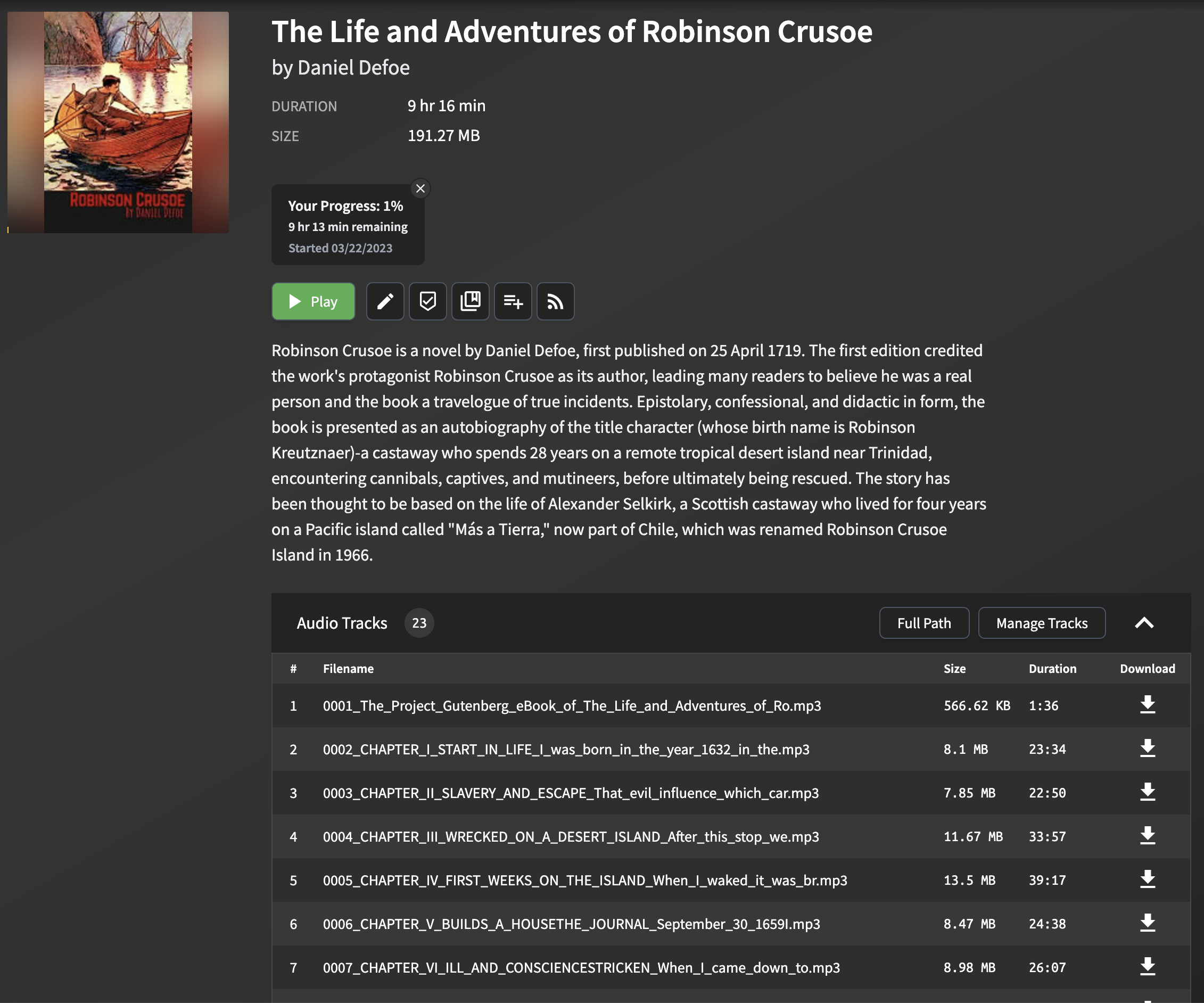
从ePub文件中解析和提取章节标题可能具有挑战性,因为不同的电子书之间的格式和结构可能会有很大差异。该脚本采用一种简单但有效的方法来提取章节标题,该章节适用于大多数epub文件。该方法涉及分析EPUB文件并在每章的HTML内容中寻找title标签。如果标题标签不存在,则使用本章文本的前几个单词生成后备标题。
请注意,此方法可能无法完全适用于所有EPUB文件,尤其是那些具有复杂或异常格式的文件。但是,在大多数情况下,它提供了一种可靠的方法来提取用于Audiobookshelf的章节标题。
当您将生成的MP3文件导入AudioBookshelf时,将显示章节标题,从而易于在章节之间导航并增强您的聆听体验。
克隆这个存储库:
git clone https://github.com/p0n1/epub_to_audiobook.git
cd epub_to_audiobook
创建虚拟环境并激活它:
python3 -m venv venv
source venv/bin/activate
安装所需的依赖项:
pip install -r requirements.txt使用Azure文本到语音API凭据设置以下环境变量,或者如果使用OpenAI TTS,则设置OpenAI API键:
 export MS_TTS_KEY= < your_subscription_key > # for Azure
export MS_TTS_REGION= < your_region > # for Azure
export OPENAI_API_KEY= < your_openai_api_key > # for OpenAI 要将epub电子书转换为有声读物,请运行以下命令,并使用--tts选项指定您选择的TTS提供商:
python3 main.py < input_file > < output_folder > [options]要检查此脚本的最新选项描述,您可以在终端中运行以下命令:
python3 main.py -husage: main.py [-h] [--tts {azure,openai,edge,piper}]
[--log {DEBUG,INFO,WARNING,ERROR,CRITICAL}] [--preview]
[--no_prompt] [--language LANGUAGE]
[--newline_mode {single,double,none}]
[--title_mode {auto,tag_text,first_few}]
[--chapter_start CHAPTER_START] [--chapter_end CHAPTER_END]
[--output_text] [--remove_endnotes]
[--search_and_replace_file SEARCH_AND_REPLACE_FILE]
[--voice_name VOICE_NAME] [--output_format OUTPUT_FORMAT]
[--model_name MODEL_NAME] [--voice_rate VOICE_RATE]
[--voice_volume VOICE_VOLUME] [--voice_pitch VOICE_PITCH]
[--proxy PROXY] [--break_duration BREAK_DURATION]
[--piper_path PIPER_PATH] [--piper_speaker PIPER_SPEAKER]
[--piper_sentence_silence PIPER_SENTENCE_SILENCE]
[--piper_length_scale PIPER_LENGTH_SCALE]
input_file output_folder
Convert text book to audiobook
positional arguments:
input_file Path to the EPUB file
output_folder Path to the output folder
options:
-h, --help show this help message and exit
--tts {azure,openai,edge,piper}
Choose TTS provider (default: azure). azure: Azure
Cognitive Services, openai: OpenAI TTS API. When using
azure, environment variables MS_TTS_KEY and
MS_TTS_REGION must be set. When using openai,
environment variable OPENAI_API_KEY must be set.
--log {DEBUG,INFO,WARNING,ERROR,CRITICAL}
Log level (default: INFO), can be DEBUG, INFO,
WARNING, ERROR, CRITICAL
--preview Enable preview mode. In preview mode, the script will
not convert the text to speech. Instead, it will print
the chapter index, titles, and character counts.
--no_prompt Don ' t ask the user if they wish to continue after
estimating the cloud cost for TTS. Useful for
scripting.
--language LANGUAGE Language for the text-to-speech service (default: en-
US). For Azure TTS (--tts=azure), check
https://learn.microsoft.com/en-us/azure/ai-
services/speech-service/language-
support?tabs=tts#text-to-speech for supported
languages. For OpenAI TTS (--tts=openai), their API
detects the language automatically. But setting this
will also help on splitting the text into chunks with
different strategies in this tool, especially for
Chinese characters. For Chinese books, use zh-CN, zh-
TW, or zh-HK.
--newline_mode {single,double,none}
Choose the mode of detecting new paragraphs: ' single ' ,
' double ' , or ' none ' . ' single ' means a single newline
character, while ' double ' means two consecutive
newline characters. ' none ' means all newline
characters will be replace with blank so paragraphs
will not be detected. (default: double, works for most
ebooks but will detect less paragraphs for some
ebooks)
--title_mode {auto,tag_text,first_few}
Choose the parse mode for chapter title, ' tag_text '
search ' title ' , ' h1 ' , ' h2 ' , ' h3 ' tag for title,
' first_few ' set first 60 characters as title, ' auto '
auto apply the best mode for current chapter.
--chapter_start CHAPTER_START
Chapter start index (default: 1, starting from 1)
--chapter_end CHAPTER_END
Chapter end index (default: -1, meaning to the last
chapter)
--output_text Enable Output Text. This will export a plain text file
for each chapter specified and write the files to the
output folder specified.
--remove_endnotes This will remove endnote numbers from the end or
middle of sentences. This is useful for academic
books.
--search_and_replace_file SEARCH_AND_REPLACE_FILE
Path to a file that contains 1 regex replace per line,
to help with fixing pronunciations, etc. The format
is: <search>==<replace> Note that you may have to
specify word boundaries, to avoid replacing parts of
words.
--voice_name VOICE_NAME
Various TTS providers has different voice names, look
up for your provider settings.
--output_format OUTPUT_FORMAT
Output format for the text-to-speech service.
Supported format depends on selected TTS provider
--model_name MODEL_NAME
Various TTS providers has different neural model names
edge specific:
--voice_rate VOICE_RATE
Speaking rate of the text. Valid relative values range
from -50%(--xxx= ' -50% ' ) to +100%. For negative value
use format --arg=value,
--voice_volume VOICE_VOLUME
Volume level of the speaking voice. Valid relative
values floor to -100%. For negative value use format
--arg=value,
--voice_pitch VOICE_PITCH
Baseline pitch for the text.Valid relative values like
-80Hz,+50Hz, pitch changes should be within 0.5 to 1.5
times the original audio. For negative value use
format --arg=value,
--proxy PROXY Proxy server for the TTS provider. Format:
http://[username:password@]proxy.server:port
azure/edge specific:
--break_duration BREAK_DURATION
Break duration in milliseconds for the different
paragraphs or sections (default: 1250, means 1.25 s).
Valid values range from 0 to 5000 milliseconds for
Azure TTS.
piper specific:
--piper_path PIPER_PATH
Path to the Piper TTS executable
--piper_speaker PIPER_SPEAKER
Piper speaker id, used for multi-speaker models
--piper_sentence_silence PIPER_SENTENCE_SILENCE
Seconds of silence after each sentence
--piper_length_scale PIPER_LENGTH_SCALE
Phoneme length, a.k.a. speaking rate例子:
python3 main.py examples/The_Life_and_Adventures_of_Robinson_Crusoe.epub output_folder执行上述命令将生成一个名为output_folder的目录,并使用默认的TTS提供商和语音保存其中的每个章节的MP3文件。生成后,您可以将这些音频文件导入Audiobookshelf或与您选择的任何音频播放器一起播放。
在将epub文件转换为有声读物之前,您可以使用--preview选项来获取每章的摘要。这将为您提供每一章的角色数量和总数,而不是将文本转换为语音。
例子:
python3 main.py examples/The_Life_and_Adventures_of_Robinson_Crusoe.epub output_folder --preview您可能需要搜索和替换文本,以扩展缩写或帮助发音。您可以通过指定搜索和替换文件来做到这一点,该文件包含一个正则搜索,每行替换为“ ==':
例子:
search.conf :
 # this is the general structure
<search>==<replace>
# this is a comment
# fix cardinal direction abbreviations
N.E.==north east
# be careful with your regexes, as this would also match Sally N. Smith
N.==north
# pronounce Barbadoes like the locals
Barbadoes==Barbayduss
python3 main.py examples/The_Life_and_Adventures_of_Robinson_Crusoe.epub output_folder --search_and_replace_file search.conf例子:
python3 main.py examples/The_Life_and_Adventures_of_Robinson_Crusoe.epub output_folder --preview该工具可作为Docker映像可用,可以轻松运行而无需管理Python依赖性。
首先,请确保系统上安装了Docker。
您可以从github容器注册表中提取docker映像:
docker pull ghcr.io/p0n1/epub_to_audiobook:latest然后,您可以使用以下命令运行工具:
docker run -i -t --rm -v ./:/app -e MS_TTS_KEY= $MS_TTS_KEY -e MS_TTS_REGION= $MS_TTS_REGION ghcr.io/p0n1/epub_to_audiobook your_book.epub audiobook_output --tts azure对于Openai,您可以运行:
docker run -i -t --rm -v ./:/app -e OPENAI_API_KEY= $OPENAI_API_KEY ghcr.io/p0n1/epub_to_audiobook your_book.epub audiobook_output --tts openai用您的Azure文本到语音API凭据替换$MS_TTS_KEY和$MS_TTS_REGION 。用您的OpenAI API键替换$OPENAI_API_KEY 。用输入epub文件的名称替换your_book.epub ,然后用audiobook_output替换要保存输出文件的目录名称。
-v ./:/app选项将当前目录( . )安装到Docker容器中的/app目录。这允许该工具读取输入文件并将输出文件写入本地文件系统。
需要-i和-t选项来启用交互式模式并分配伪tty。
您还可以检查此示例配置文件中的Docker组合用法。
对于Windows用户,尤其是如果您对命令行工具不太熟悉,我们已为您提供服务。我们了解挑战,并为您创建了专门为您量身定制的指南。
检查本步骤指南,并在遇到问题时留言。
资料来源:https://learn.microsoft.com/en-us/azure/cognitive-services/speech-service/get-started-text-text-text-to-spech#prerequisites
检查https://platform.openai.com/docs/quickstart/account-setup。确保在使用前检查价格详细信息。
Edge TTS和Azure TTS几乎相同,区别在于Edge TT不需要API键,因为它基于Edge读取大声功能,并且参数受到限制,例如自定义SSML。
检查https://gist.github.com/bettyjj/17cbaa1de96235a7f57773b8690a20462以获取支持的声音。
如果您想快速尝试此项目,强烈建议使用Edge TTS。
您可以通过在运行脚本时传递--voice_name和--language选项来自定义文本转换的语音和语言。
Microsoft Azure为文本到语音服务提供了一系列的声音和语言。有关可用选项的列表,请咨询Microsoft Azure文本到语音文档。
您还可以在Azure TTS语音库中收听可用声音的示例,以帮助您为有声读物选择最佳的声音。
例如,如果您想使用英国英语女性语音进行转换,则可以使用以下命令:
python3 main.py < input_file > < output_folder > --voice_name en-GB-LibbyNeural --language en-GB对于OpenAI TTS,您可以分别使用--model_name , --voice_name和--output_format指定模型,语音和格式选项。
以下是一些证明各种选项组合的示例:
使用默认设置的Azure进行基本转换
此命令将使用Azure的默认TTS设置将EPUB文件转换为有声读物。
python3 main.py " path/to/book.epub " " path/to/output/folder " --tts azure使用自定义语言,语音和记录级别的Azure转换
将EPUB文件转换为具有指定语音的有声读物和用于调试目的的自定义日志级别。
python3 main.py " path/to/book.epub " " path/to/output/folder " --tts azure --language zh-CN --voice_name " zh-CN-YunyeNeural " --log DEBUG Azure转换与章节范围和中断持续时间
将指定的章节从epub文件转换为段落之间的自定义中断持续时间的有声读物。
python3 main.py " path/to/book.epub " " path/to/output/folder " --tts azure --chapter_start 5 --chapter_end 10 --break_duration " 1500 "使用OpenAI带有默认设置的基本转换
此命令将使用OpenAI的默认TTS设置将EPUB文件转换为有声读物。
python3 main.py " path/to/book.epub " " path/to/output/folder " --tts openai使用高清模型和特定声音的OpenAI转换
使用高清OpenAI模型和特定的语音选择将EPUB文件转换为有声读物。
python3 main.py " path/to/book.epub " " path/to/output/folder " --tts openai --model_name " tts-1-hd " --voice_name " fable " OpenAI转换,预览和文本输出
启用预览模式和文本输出,它将显示章节索引和标题,而不是转换它们,并且还将导出文本。
python3 main.py " path/to/book.epub " " path/to/output/folder " --tts openai --preview --output_text使用Edge的基本转换与默认设置
此命令将使用Edge的默认TTS设置将EPUB文件转换为有声读物。
python3 main.py " path/to/book.epub " " path/to/output/folder " --tts edge使用自定义语言,语音和日志记录级别的边缘转换将EPUB文件转换为带有指定语音的有声读物和用于调试目的的自定义日志级别。
python3 main.py " path/to/book.epub " " path/to/output/folder " --tts edge --language zh-CN --voice_name " zh-CN-YunxiNeural " --log DEBUGEdge Conversion用章节范围和中断持续时间转换,将指定的章节从epub文件转换为段落之间具有自定义中断持续时间的有声读物。
python3 main.py " path/to/book.epub " " path/to/output/folder " --tts edge --chapter_start 5 --chapter_end 10 --break_duration " 1500 "确保已安装了Piper TTS,并具有ONNX模型文件和相应的配置文件。检查Piper TTS以获取更多详细信息。您可以按照他们的说明安装Piper TT,下载模型和配置文件,使用它,然后回来尝试以下示例。
此命令将使用裸露的最小参数使用Piper TTS将EPUB文件转换为有声读物。您始终需要指定一个ONNX模型文件,并且piper可执行文件需要在当前$路径中。
python3 main.py " path/to/book.epub " " path/to/output/folder " --tts piper --model_name < path_to > /en_US-libritts_r-medium.onnx您可以使用--piper_path参数将自定义路径指定到Piper可执行文件。
python3 main.py " path/to/book.epub " " path/to/output/folder " --tts piper --model_name < path_to > /en_US-libritts_r-medium.onnx --piper_path < path_to > /piper一些模型支持多个声音,可以使用Voice_name参数指定。
python3 main.py " path/to/book.epub " " path/to/output/folder " --tts piper --model_name < path_to > /en_US-libritts_r-medium.onnx --piper_speaker 256您还可以指定速度(piper_length_scale)和暂停持续时间(piper_sentence_silence)。
python3 main.py " path/to/book.epub " " path/to/output/folder " --tts piper --model_name < path_to > /en_US-libritts_r-medium.onnx --piper_speaker 256 --piper_length_scale 1.5 --piper_sentence_silence 0.5 Piper TTS输出wav格式文件(或RAW)在默认情况下您应该能够通过--output_format参数指定任何合理格式。 opus和mp3是大小和兼容性的好选择。
python3 main.py " path/to/book.epub " " path/to/output/folder " --tts piper --model_name < path_to > /en_US-libritts_r-medium.onnx --piper_speaker 256 --piper_length_scale 1.5 --piper_sentence_silence 0.5 --output_format opus这可能是因为您使用的Python版本小于3.8。您可以尝试通过pip3 install importlib-metadata手动安装它,也可以使用更高的Python版本。
确保可以从您的路径访问FFMPEG二进制。如果您在Mac上使用并使用Homebrew,则可以在Ubuntu上进行brew install ffmpeg ,您可以进行sudo apt install ffmpeg
有关与安装相关的问题,请参阅Piper TTS存储库。重要的是要注意,如果您通过PIP安装piper-tts ,目前仅支持Python 3.10。使用下载的二进制文件时,Mac用户可能会遇到其他挑战。有关特定于MAC问题的更多信息,请检查此问题和此提取请求。
如果您在Piper TTS方面遇到麻烦,还请检查一下。
该项目已根据MIT许可获得许可。有关详细信息,请参见许可证文件。





