linux_power_opt
1.0.0

优化Linux/Unix系统的功耗不是一件容易的任务。我们对此主题的内容很少,很少有人可以讨论这一点。本教程适用于NVIDIA/UBUNTU的笔记本电脑的用户。
POWERTOP -POWERTOP是由Intel设计的监视工具,列出了具有功率操作模式并调整它们的所有设备。我们可以使用命令行Bolow安装POWERTOP:
sudo apt install powertop
使用POWERTOP的第一步是用命令校准电池电源上的读数:
sudo powertop -c
运行呼叫启动大约需要10分钟。该系统将在某些情况下打开和关闭显示,并且在此过程中不可能做其他任何事情。 PowerTop可以自己使用,以查看系统上使用资源的原因。需要将其开放一点时间来收集统计数据,并保持准确。
powertop
我们还可以使用PowerTop生成报告
sudo powertop --html=report.html
很有用,请查看哪些运行过程或应用程序正在掌握更多的功率。您可以卸载它们或更改某些设置以减少功率使用情况。
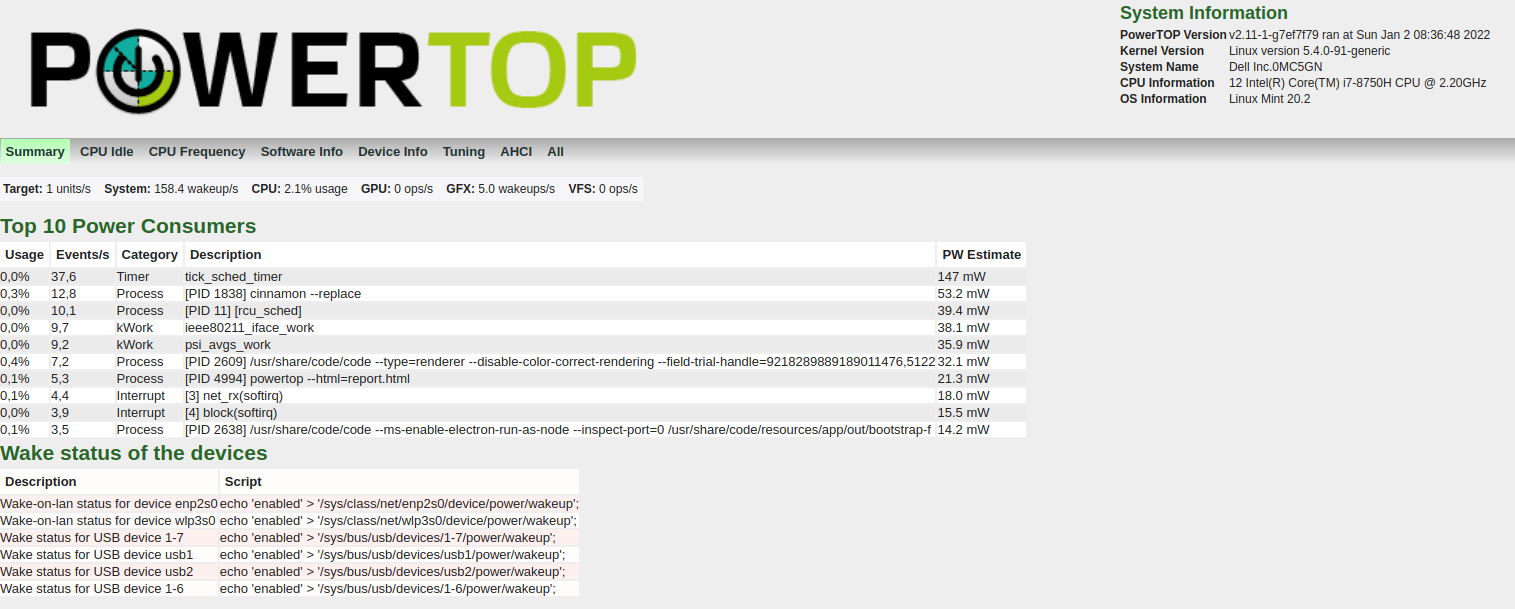
我们还可以调整设备以节省电源模式。在报告中,有一个标签调整。您会发现许多建议以增加电池寿命。
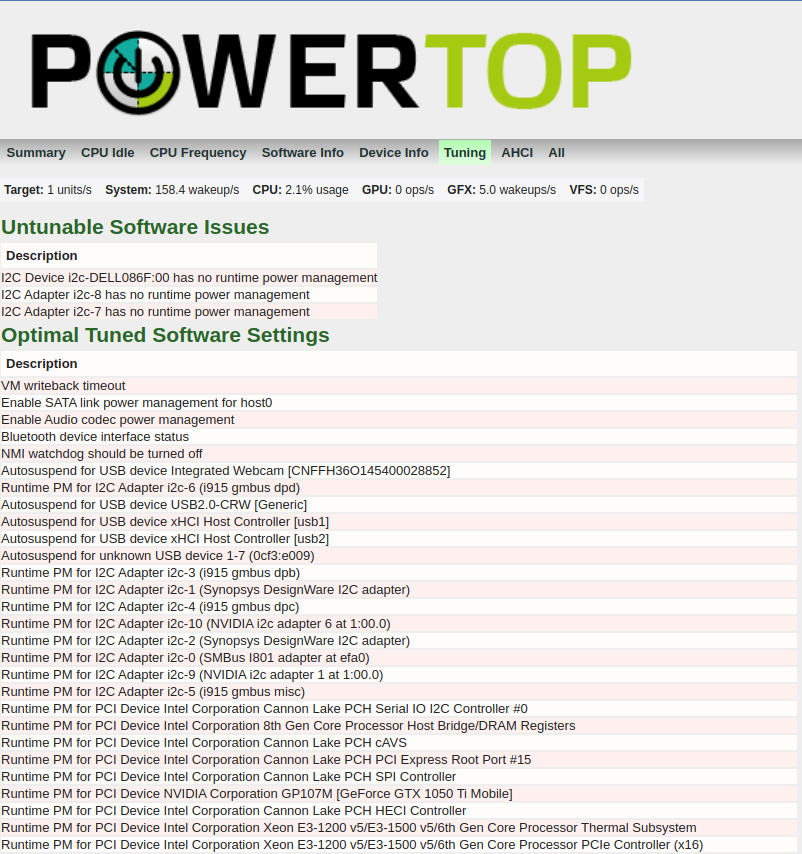
在下面的图像中,在截面调谐物中,我们可以看到所有设备具有可用于调整的电源模式。不良标签向我们展示了哪些设备在性能模式下运行。我们需要将其中的大多数设置为良好的标签,以获取节能模式。
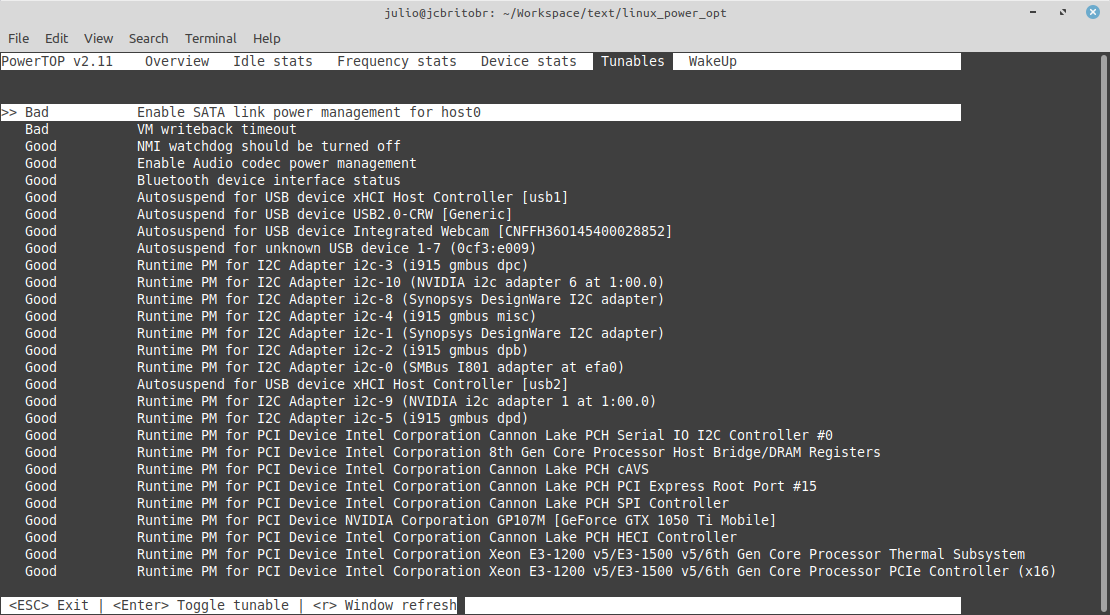
一些设备(例如USB控制器的慕斯控制器)不需要将功率模式放置,或者我们可以体验一些行为,例如鼠标停止工作一段时间。我们可以启用或禁用电源保存模式,而仅列出空格键。
我们可以启用运行命令行的所有建议的调谐:
sudo powertop --auto-tune
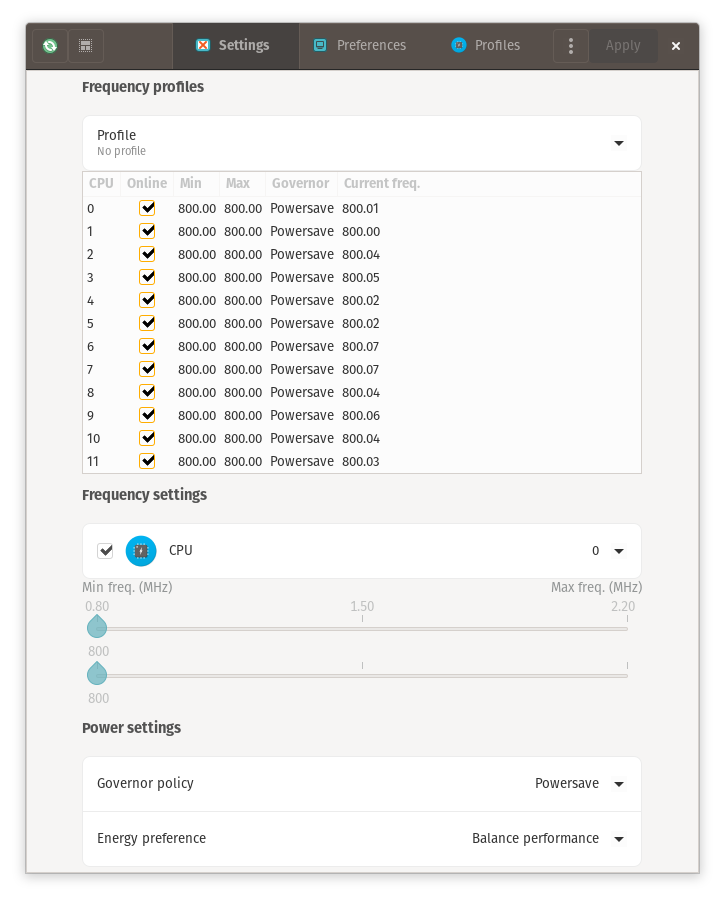
 $ grep . /sys/devices/system/cpu/cpu0/cpufreq/*
/sys/devices/system/cpu/cpu0/cpufreq/affected_cpus:0
/sys/devices/system/cpu/cpu0/cpufreq/base_frequency:2200000
/sys/devices/system/cpu/cpu0/cpufreq/cpuinfo_max_freq:2200000
/sys/devices/system/cpu/cpu0/cpufreq/cpuinfo_min_freq:800000
/sys/devices/system/cpu/cpu0/cpufreq/cpuinfo_transition_latency:0
/sys/devices/system/cpu/cpu0/cpufreq/energy_performance_available_preferences:default performance balance_performance balance_power power
/sys/devices/system/cpu/cpu0/cpufreq/energy_performance_preference:balance_performance
/sys/devices/system/cpu/cpu0/cpufreq/related_cpus:0
/sys/devices/system/cpu/cpu0/cpufreq/scaling_available_governors:performance powersave
/sys/devices/system/cpu/cpu0/cpufreq/scaling_cur_freq:800083
/sys/devices/system/cpu/cpu0/cpufreq/scaling_driver:intel_pstate
/sys/devices/system/cpu/cpu0/cpufreq/scaling_governor:powersave
/sys/devices/system/cpu/cpu0/cpufreq/scaling_max_freq:800000
/sys/devices/system/cpu/cpu0/cpufreq/scaling_min_freq:800000
/sys/devices/system/cpu/cpu0/cpufreq/scaling_setspeed:<unsupported>
 echo powersave | sudo tee /sys/devices/system/cpu/cpu*/cpufreq/scaling_governor

grep . /sys/devices/system/cpu/cpu*/cpufreq/scaling_governor
/sys/devices/system/cpu/cpu0/cpufreq/scaling_governor:powersave
/sys/devices/system/cpu/cpu10/cpufreq/scaling_governor:powersave
/sys/devices/system/cpu/cpu11/cpufreq/scaling_governor:powersave
/sys/devices/system/cpu/cpu1/cpufreq/scaling_governor:powersave
/sys/devices/system/cpu/cpu2/cpufreq/scaling_governor:powersave
/sys/devices/system/cpu/cpu3/cpufreq/scaling_governor:powersave
/sys/devices/system/cpu/cpu4/cpufreq/scaling_governor:powersave
/sys/devices/system/cpu/cpu5/cpufreq/scaling_governor:powersave
/sys/devices/system/cpu/cpu6/cpufreq/scaling_governor:powersave
/sys/devices/system/cpu/cpu7/cpufreq/scaling_governor:powersave
/sys/devices/system/cpu/cpu8/cpufreq/scaling_governor:powersave
/sys/devices/system/cpu/cpu9/cpufreq/scaling_governor:powersave
 echo 800000 | sudo tee /sys/devices/system/cpu/cpu*/cpufreq/scaling_max_freq
800000

/sys/devices/system/cpu/cpu0/cpufreq/scaling_max_freq:800000
/sys/devices/system/cpu/cpu10/cpufreq/scaling_max_freq:800000
/sys/devices/system/cpu/cpu11/cpufreq/scaling_max_freq:800000
/sys/devices/system/cpu/cpu1/cpufreq/scaling_max_freq:800000
/sys/devices/system/cpu/cpu2/cpufreq/scaling_max_freq:800000
/sys/devices/system/cpu/cpu3/cpufreq/scaling_max_freq:800000
/sys/devices/system/cpu/cpu4/cpufreq/scaling_max_freq:800000
/sys/devices/system/cpu/cpu5/cpufreq/scaling_max_freq:800000
/sys/devices/system/cpu/cpu6/cpufreq/scaling_max_freq:800000
/sys/devices/system/cpu/cpu7/cpufreq/scaling_max_freq:800000
/sys/devices/system/cpu/cpu8/cpufreq/scaling_max_freq:800000
/sys/devices/system/cpu/cpu9/cpufreq/scaling_max_freq:800000
 grep . /sys/devices/system/cpu/cpu*/cpufreq/scaling_cur_freq

/sys/devices/system/cpu/cpu0/cpufreq/scaling_cur_freq:800778
/sys/devices/system/cpu/cpu10/cpufreq/scaling_cur_freq:800047
/sys/devices/system/cpu/cpu11/cpufreq/scaling_cur_freq:800099
/sys/devices/system/cpu/cpu1/cpufreq/scaling_cur_freq:800109
/sys/devices/system/cpu/cpu2/cpufreq/scaling_cur_freq:800064
/sys/devices/system/cpu/cpu3/cpufreq/scaling_cur_freq:801266
/sys/devices/system/cpu/cpu4/cpufreq/scaling_cur_freq:800118
/sys/devices/system/cpu/cpu5/cpufreq/scaling_cur_freq:800160
/sys/devices/system/cpu/cpu6/cpufreq/scaling_cur_freq:799999
/sys/devices/system/cpu/cpu7/cpufreq/scaling_cur_freq:800112
/sys/devices/system/cpu/cpu8/cpufreq/scaling_cur_freq:800117
/sys/devices/system/cpu/cpu9/cpufreq/scaling_cur_freq:800004
sudo apt install lm-sensors
 $ sensors
coretemp-isa-0000
Adapter: ISA adapter
Package id 0:  +47.0°C  (high = +100.0°C, crit = +100.0°C)
Core 0:        +45.0°C  (high = +100.0°C, crit = +100.0°C)
Core 1:        +46.0°C  (high = +100.0°C, crit = +100.0°C)
Core 2:        +47.0°C  (high = +100.0°C, crit = +100.0°C)
Core 3:        +44.0°C  (high = +100.0°C, crit = +100.0°C)
Core 4:        +45.0°C  (high = +100.0°C, crit = +100.0°C)
Core 5:        +44.0°C  (high = +100.0°C, crit = +100.0°C)

BAT0-acpi-0
Adapter: ACPI interface
in0:          17.28 V
curr1:       1000.00 uA

pch_cannonlake-virtual-0
Adapter: Virtual device
temp1:        +44.0°C

acpitz-acpi-0
Adapter: ACPI interface
temp1:        +25.0°C  (crit = +107.0°C)
软件包ID 0是CPU温度平均值。
PSENERS是使用传感器工作的工具。它是带有图表的GUI:
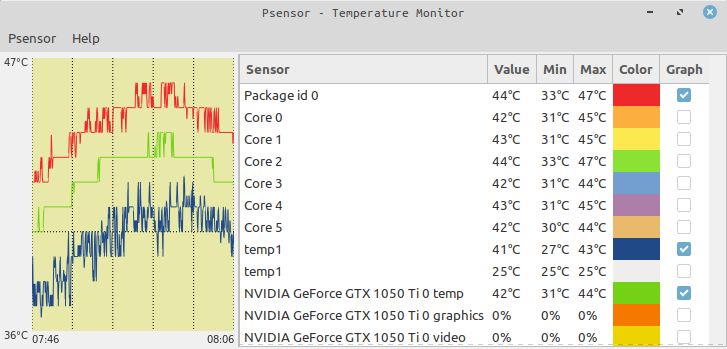
GPU/CPU的温度高于85C,导致硬件损坏,多年来,我一直在寻找一种减少GPU工作的方法,但由于缺乏文档而没有成功。我们的眼睛没有注意到框架过渡的速度高于24fps。直到60fps,我们可以感觉到Vídeo的质量平稳变化。超过60fps的质量总体上没有感知。对于NVIDIA用户,我们可以配置该卡以按需模式使用,并设置Xorg与Monitor(60Hz)同步。
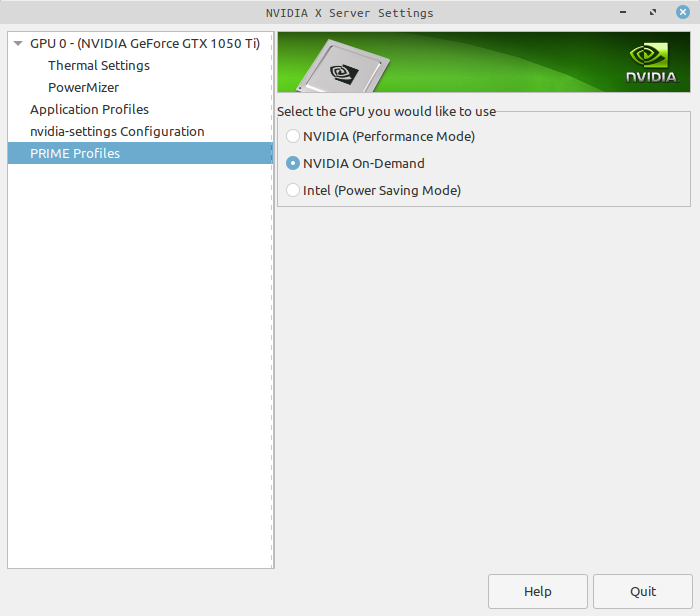
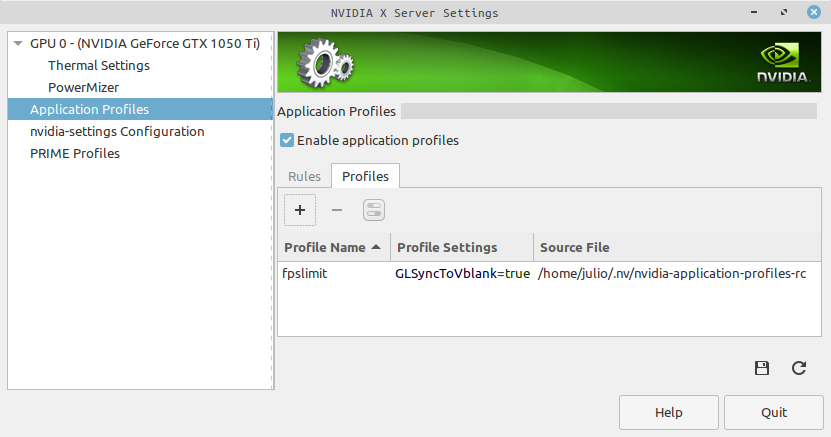
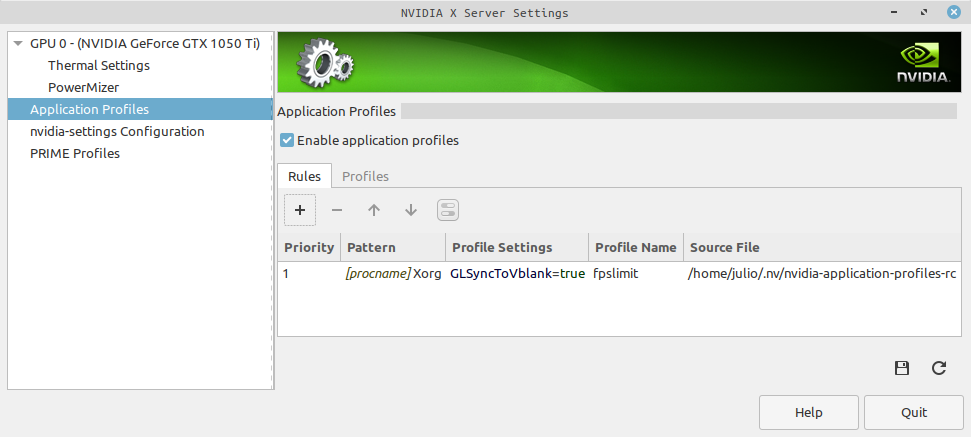
对于Ubuntu基本发行版,我们可以使用Mangohud PPA安装
 sudo add-apt-repository ppa:flexiondotorg/mangohud
sudo apt update
sudo apt install mangohud
我们可以使用命令行限制FPS
MANGOHUD_CONFIG=fps,fps_limit=30 mangohud --dlsym glxgears
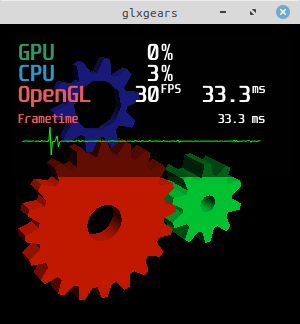
我们也可以在Steam上使用它。为此,只需将配置放在Steam Game Launcher上
__NV_PRIME_RENDER_OFFLOAD=1 __GLX_VENDOR_LIBRARY_NAME=nvidia mangohud --dlsym %command%
我是一个漫长的Linux/Unix系统用户,并且总是尝试找到一个配置,以优化可互补的系统的系统,并在Windows中使用类似的内容。很难找到用于电力使用和专有设备的文档。最后一个找到并能够撰写本教程的作品是Mangohud。使用所有这些配置,我们可以在MS Windows系统中具有非常接近或几乎相同的体验,CPU负载较低,并且可接受的GPU/CPU温度。





