linux_power_opt
1.0.0

Optimizing power consumption for Linux/Unix system is not an easy tasks. We had very few contents about this theme, and few people available to discuss that. This tutorial is intended for users of nvidia/ubuntu based laptops.
Powertop - Powertop is a monitoring tool designed by intel to list all devices thats have power operation modes and tweak them. We can install powertop with the command line bolow:
sudo apt install powertop
First step using powertop is to calibrate the readings on battery power with the command:
sudo powertop -c
It will take about 10 minutes to run the callibration. The system will turn the display on and off some times, and is not possible to do anything else during the process. Powertop can be used by itself to see what is using resources on your system. It needs to be left open for a little amount of time to gather statistics, and be accurate.
powertop
We can also generate reports with powertop
sudo powertop --html=report.html
It's usefull see what running processes or applications are taking more power. You can uninstall them or change some settings to reduce power usage.
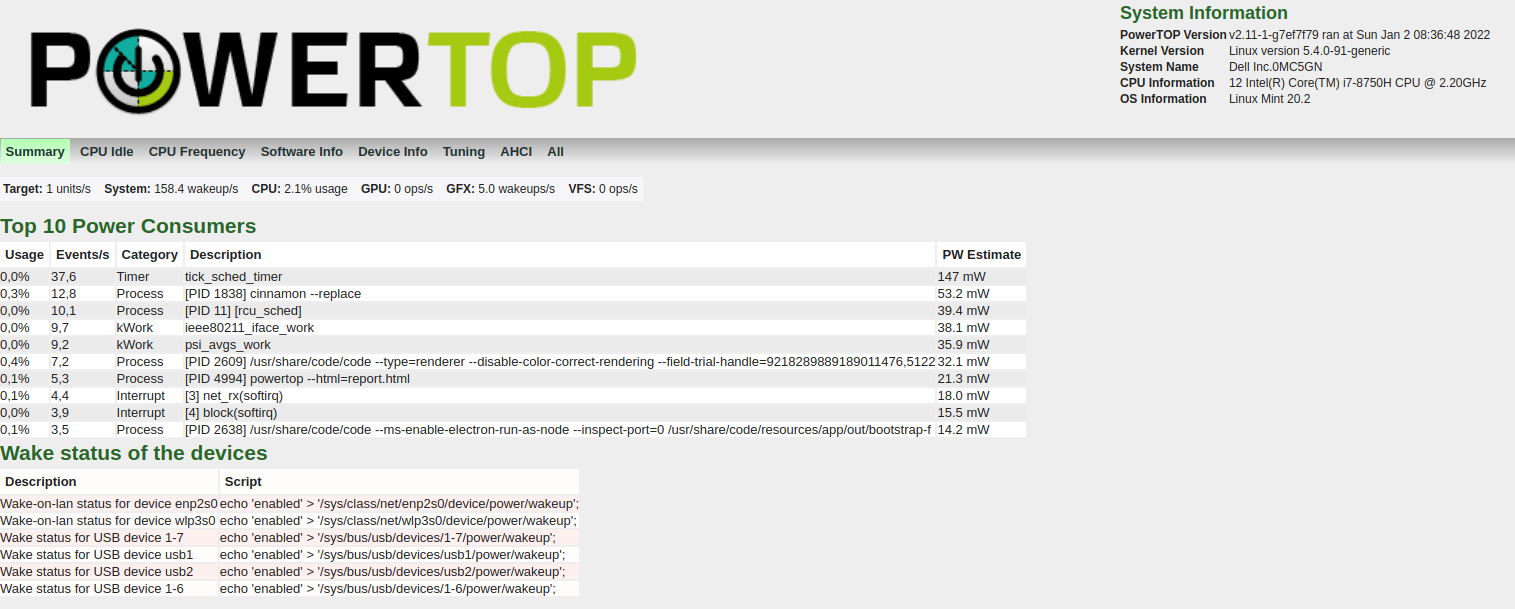
We can also tune the devices to save power mode. In report, there is a tab Tuning. You will find many suggestions to increase battery life.
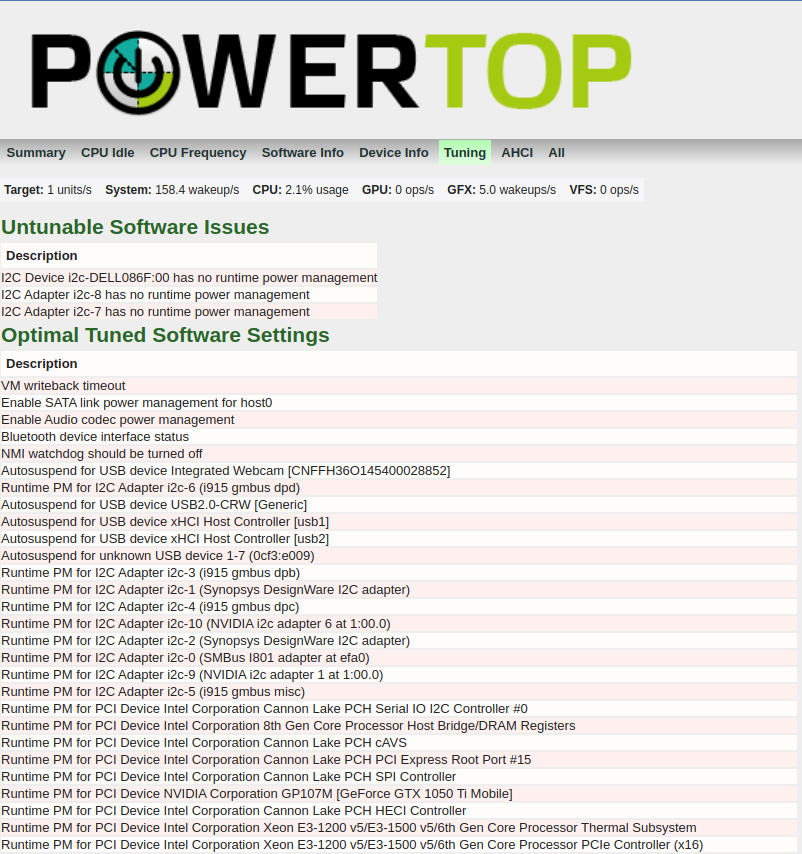
In image below, in section Tunables, we can see all devices thats have power modes available for tweak. The Bad label show us what devices are operating in performance mode. We need to setup most of them to Good label, to acquire power save mode.
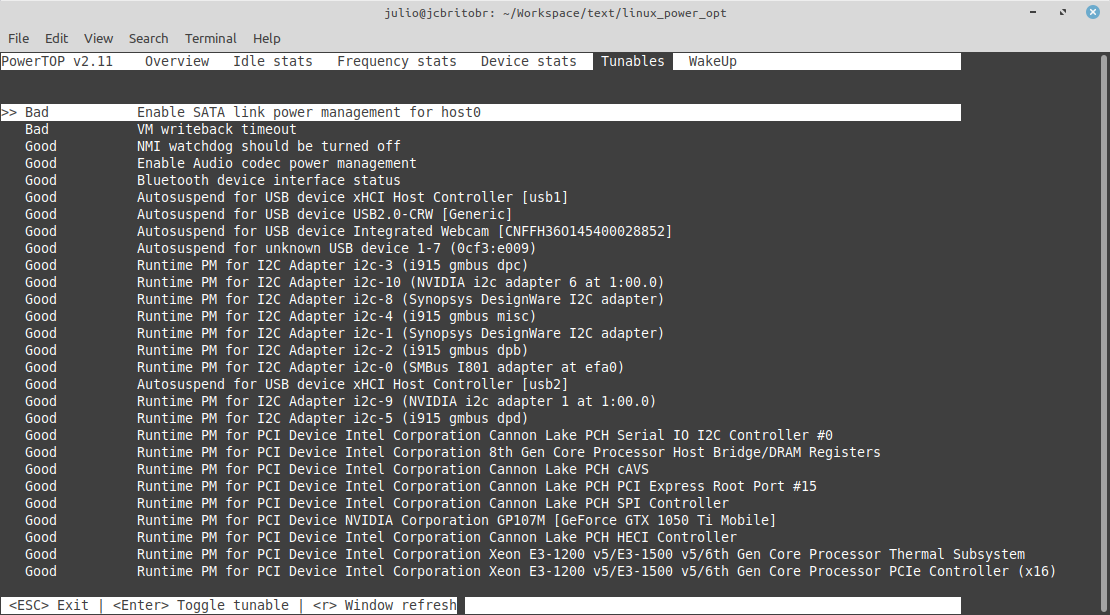
Some devices like usb controllers for mouses don't need to be put in save power mode, or we can experience some behaviors like mouse stoping to work for some time. We can enable or disable power save mode just hiting space key.
We can enable all suggested tunings running the command line:
sudo powertop --auto-tune
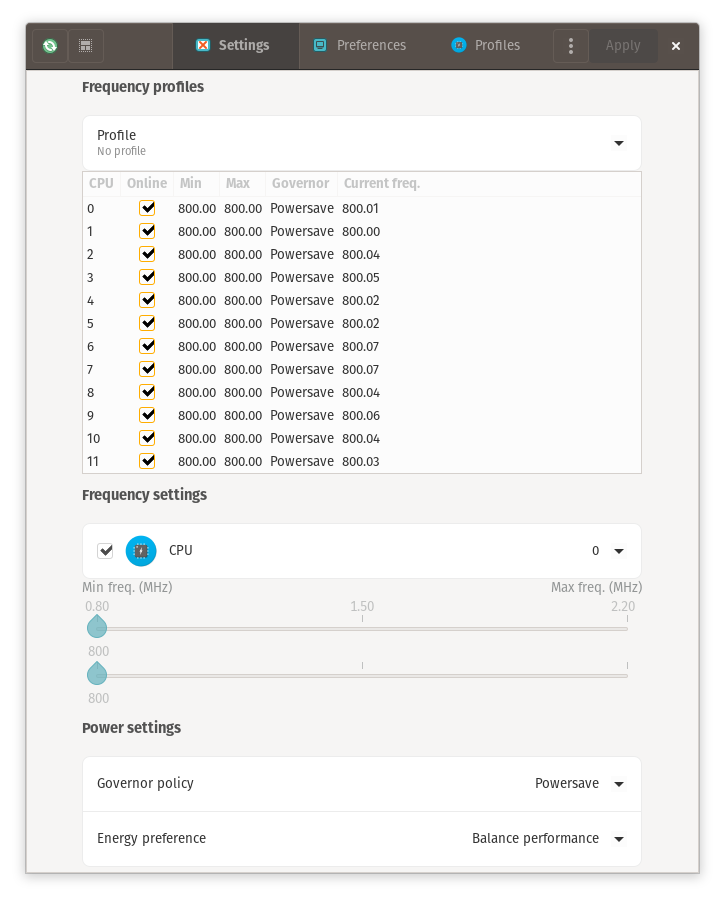
$ grep . /sys/devices/system/cpu/cpu0/cpufreq/*
/sys/devices/system/cpu/cpu0/cpufreq/affected_cpus:0
/sys/devices/system/cpu/cpu0/cpufreq/base_frequency:2200000
/sys/devices/system/cpu/cpu0/cpufreq/cpuinfo_max_freq:2200000
/sys/devices/system/cpu/cpu0/cpufreq/cpuinfo_min_freq:800000
/sys/devices/system/cpu/cpu0/cpufreq/cpuinfo_transition_latency:0
/sys/devices/system/cpu/cpu0/cpufreq/energy_performance_available_preferences:default performance balance_performance balance_power power
/sys/devices/system/cpu/cpu0/cpufreq/energy_performance_preference:balance_performance
/sys/devices/system/cpu/cpu0/cpufreq/related_cpus:0
/sys/devices/system/cpu/cpu0/cpufreq/scaling_available_governors:performance powersave
/sys/devices/system/cpu/cpu0/cpufreq/scaling_cur_freq:800083
/sys/devices/system/cpu/cpu0/cpufreq/scaling_driver:intel_pstate
/sys/devices/system/cpu/cpu0/cpufreq/scaling_governor:powersave
/sys/devices/system/cpu/cpu0/cpufreq/scaling_max_freq:800000
/sys/devices/system/cpu/cpu0/cpufreq/scaling_min_freq:800000
/sys/devices/system/cpu/cpu0/cpufreq/scaling_setspeed:<unsupported>
echo powersave | sudo tee /sys/devices/system/cpu/cpu*/cpufreq/scaling_governor

grep . /sys/devices/system/cpu/cpu*/cpufreq/scaling_governor
/sys/devices/system/cpu/cpu0/cpufreq/scaling_governor:powersave
/sys/devices/system/cpu/cpu10/cpufreq/scaling_governor:powersave
/sys/devices/system/cpu/cpu11/cpufreq/scaling_governor:powersave
/sys/devices/system/cpu/cpu1/cpufreq/scaling_governor:powersave
/sys/devices/system/cpu/cpu2/cpufreq/scaling_governor:powersave
/sys/devices/system/cpu/cpu3/cpufreq/scaling_governor:powersave
/sys/devices/system/cpu/cpu4/cpufreq/scaling_governor:powersave
/sys/devices/system/cpu/cpu5/cpufreq/scaling_governor:powersave
/sys/devices/system/cpu/cpu6/cpufreq/scaling_governor:powersave
/sys/devices/system/cpu/cpu7/cpufreq/scaling_governor:powersave
/sys/devices/system/cpu/cpu8/cpufreq/scaling_governor:powersave
/sys/devices/system/cpu/cpu9/cpufreq/scaling_governor:powersave
echo 800000 | sudo tee /sys/devices/system/cpu/cpu*/cpufreq/scaling_max_freq
800000

/sys/devices/system/cpu/cpu0/cpufreq/scaling_max_freq:800000
/sys/devices/system/cpu/cpu10/cpufreq/scaling_max_freq:800000
/sys/devices/system/cpu/cpu11/cpufreq/scaling_max_freq:800000
/sys/devices/system/cpu/cpu1/cpufreq/scaling_max_freq:800000
/sys/devices/system/cpu/cpu2/cpufreq/scaling_max_freq:800000
/sys/devices/system/cpu/cpu3/cpufreq/scaling_max_freq:800000
/sys/devices/system/cpu/cpu4/cpufreq/scaling_max_freq:800000
/sys/devices/system/cpu/cpu5/cpufreq/scaling_max_freq:800000
/sys/devices/system/cpu/cpu6/cpufreq/scaling_max_freq:800000
/sys/devices/system/cpu/cpu7/cpufreq/scaling_max_freq:800000
/sys/devices/system/cpu/cpu8/cpufreq/scaling_max_freq:800000
/sys/devices/system/cpu/cpu9/cpufreq/scaling_max_freq:800000
grep . /sys/devices/system/cpu/cpu*/cpufreq/scaling_cur_freq

/sys/devices/system/cpu/cpu0/cpufreq/scaling_cur_freq:800778
/sys/devices/system/cpu/cpu10/cpufreq/scaling_cur_freq:800047
/sys/devices/system/cpu/cpu11/cpufreq/scaling_cur_freq:800099
/sys/devices/system/cpu/cpu1/cpufreq/scaling_cur_freq:800109
/sys/devices/system/cpu/cpu2/cpufreq/scaling_cur_freq:800064
/sys/devices/system/cpu/cpu3/cpufreq/scaling_cur_freq:801266
/sys/devices/system/cpu/cpu4/cpufreq/scaling_cur_freq:800118
/sys/devices/system/cpu/cpu5/cpufreq/scaling_cur_freq:800160
/sys/devices/system/cpu/cpu6/cpufreq/scaling_cur_freq:799999
/sys/devices/system/cpu/cpu7/cpufreq/scaling_cur_freq:800112
/sys/devices/system/cpu/cpu8/cpufreq/scaling_cur_freq:800117
/sys/devices/system/cpu/cpu9/cpufreq/scaling_cur_freq:800004
sudo apt install lm-sensors
$ sensors
coretemp-isa-0000
Adapter: ISA adapter
Package id 0:  +47.0°C  (high = +100.0°C, crit = +100.0°C)
Core 0:        +45.0°C  (high = +100.0°C, crit = +100.0°C)
Core 1:        +46.0°C  (high = +100.0°C, crit = +100.0°C)
Core 2:        +47.0°C  (high = +100.0°C, crit = +100.0°C)
Core 3:        +44.0°C  (high = +100.0°C, crit = +100.0°C)
Core 4:        +45.0°C  (high = +100.0°C, crit = +100.0°C)
Core 5:        +44.0°C  (high = +100.0°C, crit = +100.0°C)

BAT0-acpi-0
Adapter: ACPI interface
in0:          17.28 V
curr1:       1000.00 uA

pch_cannonlake-virtual-0
Adapter: Virtual device
temp1:        +44.0°C

acpitz-acpi-0
Adapter: ACPI interface
temp1:        +25.0°C  (crit = +107.0°C)
Package Id 0 is the cores cpu temperature mean.
Psensors is a tool that works using sensors. Its a gui with charts:
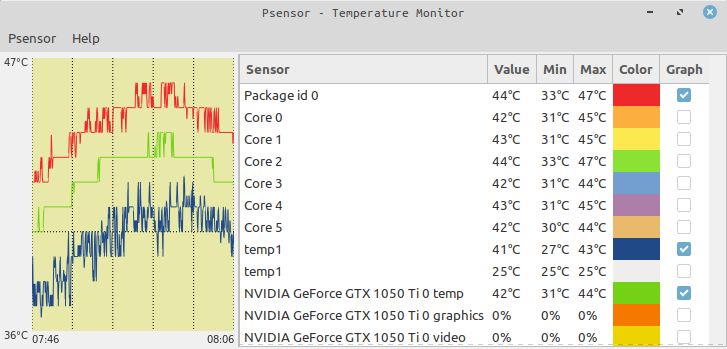
GPU/CPU temperatures higher than 85c leads to hardware damage, and for years I searched for a way to reduce gpu work, but without success because the lack of documentation. Our eyes don't notice frame transitions at a speed higher than 24fps. Until 60fps, we can perceive a smooth change of quality in vídeo. Above 60fps there are no perception in quality overall. For Nvidia users, we can config the card to use on demand mode, and setup Xorg to sync with monitor(60hz).
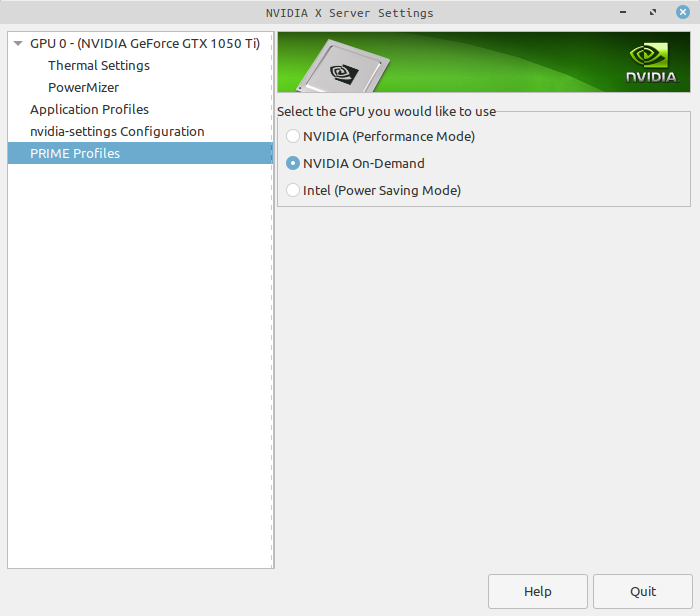
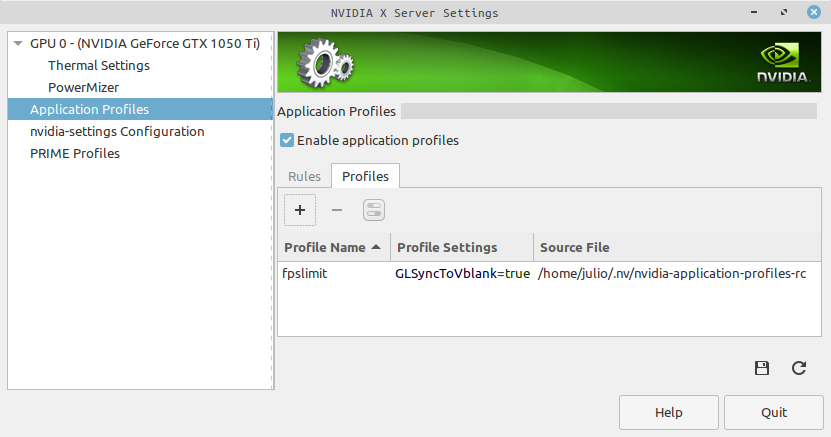
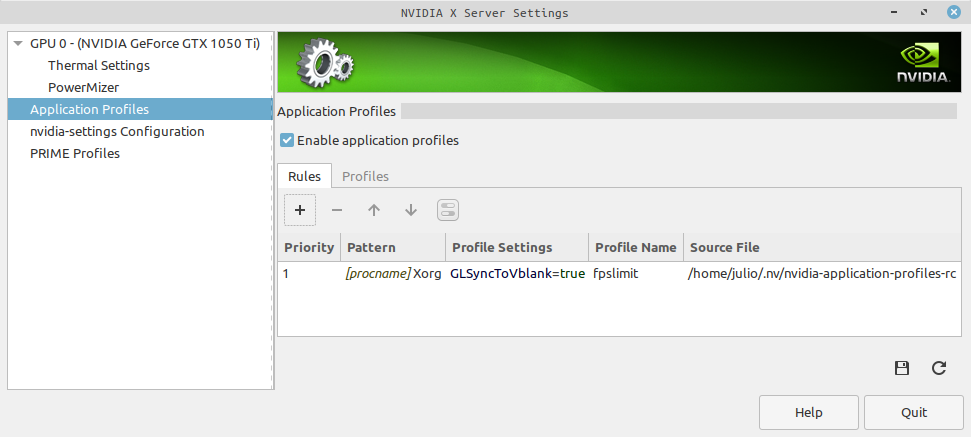
For ubuntu base distros, we can use MangoHud ppa for installation
sudo add-apt-repository ppa:flexiondotorg/mangohud
sudo apt update
sudo apt install mangohud
We can cap fps using the command line
MANGOHUD_CONFIG=fps,fps_limit=30 mangohud --dlsym glxgears
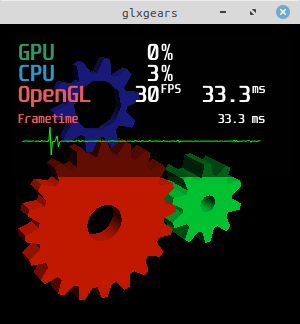
We may also use it on steam. For this, just put the configuration on steam game launcher
__NV_PRIME_RENDER_OFFLOAD=1 __GLX_VENDOR_LIBRARY_NAME=nvidia mangohud --dlsym %command%
I'm a long Linux/Unix system user, and always tryed to found a configurarion to optimize the system for a confortable use similar what we have in windows. Documentation for power usage and proprietary devices are hard to find. The last piece to found and be able to write this tutorial was mangohud. With all this configurarions we can have the very near or almost the same experience as we can in MS Windows systems, with low cpu load and acceptable gpu/cpu temperatures.





