s tui
v1.1.6


应力末端UI,S-TUI,以图形方式从终端监视CPU温度,频率,功率和利用。
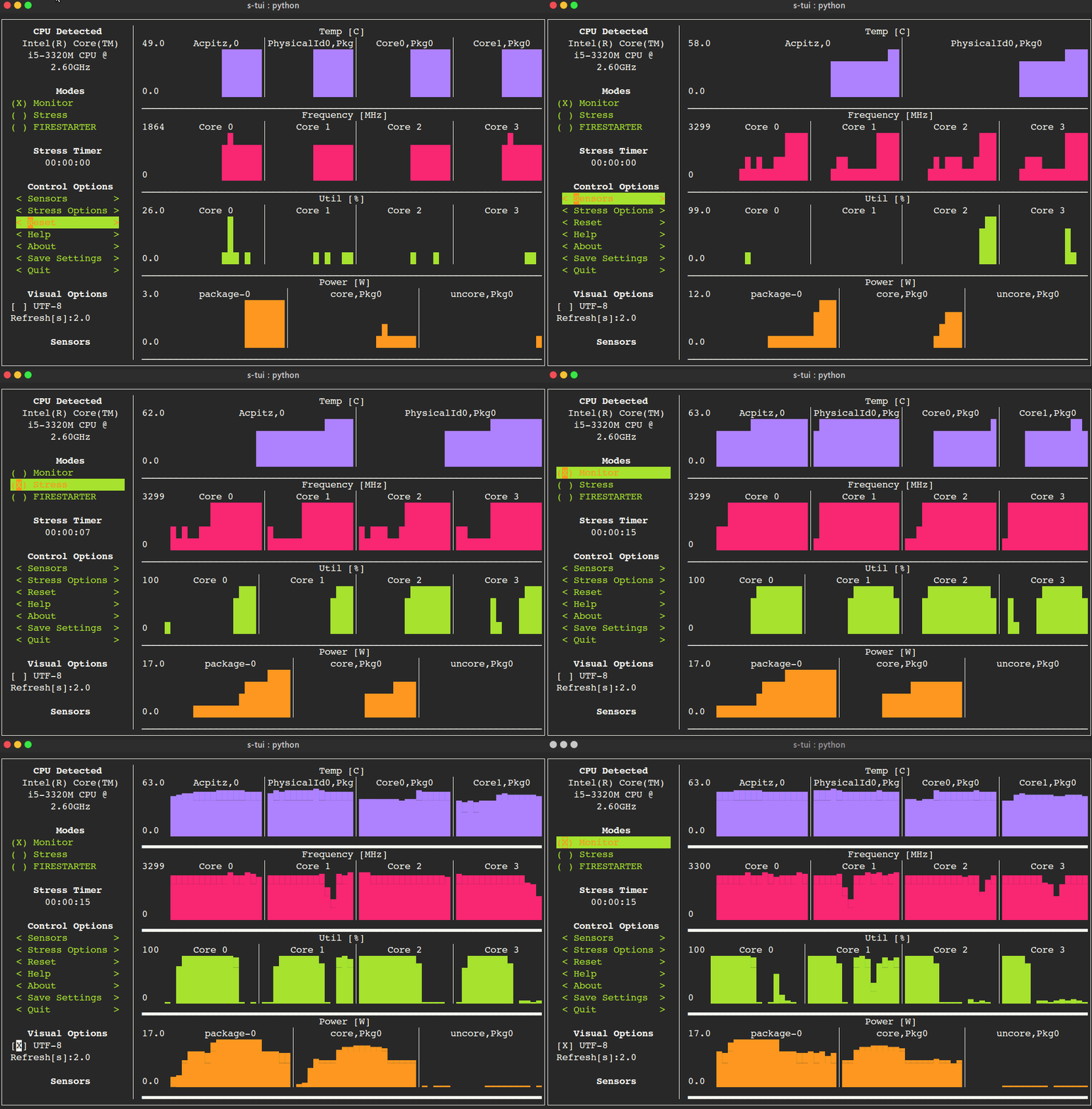
s-tui
PIP可提供最新的S-TUI版本。
安装以下安装:
pip install s-tui --user
(这通常在〜/.local/bin/dir中创建可执行文件。确保它在您的路径中)
作为root安装
sudo pip install s-tui
您可能需要先安装python-dev
使用PIPSI在Virtualenv中安装:
pipsi install s-tui
sudo apt install s-tui
PPA可用,但不是最新的
 sudo add-apt-repository ppa:amanusk/python-s-tui
sudo apt-get update
sudo apt-get install python3-s-tui
s-tui位于拱门存储库中:
sudo pacman -S s-tui
s-tui-git跟随大师分支,由@mauromombelli维护
安装它: yay -S s-tui-git
sudo zypper install s-tui
s-tui位于Fedora存储库中:
sudo dnf install s-tui
 TUI interface:

The side bar houses the controls for the displayed graphs.
At the bottom, all sensors reading are presented in text form.

* Use the arrow keys or 'hjkl' to navigate the side bar
* Toggle between stressed and regular operation using the radio buttons in 'Modes'.
* If you wish to alternate stress defaults, you can do it in <Stress options>
* Select graphs to display in the <Graphs> menu
* Select summaries to display in the <Summaries> menu
* Use the <Reset> button to reset graphs and statistics
* If your system supports it, you can use the UTF-8 button to get a smoother graph
* Save your current configuration with the <Save Settings> button
* Press 'q' or the <Quit> button to quit

* Run `s-tui --help` to get this message and additional cli options

optional arguments:
  -h, --help            show this help message and exit
  -d, --debug           Output debug log to _s-tui.log
  --debug-file DEBUG_FILE
                        Use a custom debug file. Default: _s-tui.log
  -dr, --debug_run      Run for 5 seconds and quit
  -c, --csv             Save stats to csv file
  --csv-file CSV_FILE   Use a custom CSV file. Default: s-tui_log_<TIME>.csv
  -t, --terminal        Display a single line of stats without tui
  -j, --json            Display a single line of stats in JSON format
  -nm, --no-mouse       Disable Mouse for TTY systems
  -v, --version         Display version
  -tt T_THRESH, --t_thresh T_THRESH
                        High Temperature threshold. Default: 80
S-TUI非常适合监视。如果您想强调系统,请安装压力。然后,压力选项将在S-TUI(可选)中出现
sudo apt-get install stress
S-TUI是一个独立的应用程序,可以运行开箱即用,并且不需要配置文件来驱动其核心功能。但是,当超过某个阈值时(例如CPU温度)确实需要创建配置目录等其他功能,例如运行脚本(例如CPU温度)。该目录将在~/.config/s-tui默认情况下制作。
选择<save设置>将把当前配置保存到~/.config/s-tui/s-tui.conf 。如果您想还原默认值,只需删除文件即可。
S-TUI使您能够在超过一定的阈值(例如CPU温度)时运行任意外壳脚本。您可以通过以下名称之一将Shell File添加到目录~/.config/s-tui/hooks.d来定义此自定义行为,具体取决于您有兴趣的阈值:
tempsource.sh :超过CPU温度阈值时触发如果S-TUI在挂钩目录中以其支持的源名称找到脚本,则只要源的当前值保持在阈值之上,它将每30秒运行该脚本。
请注意,目前仅支持CPU温度阈值钩。
从克隆存储库开始
 git clone https://github.com/amanusk/s-tui.git
cd s-tui
安装所需的依赖项为[root]或AS(本地用户)
 [sudo] pip install urwid (--user)
[sudo] pip install psutil (--user)
安装压力(可选)
sudo apt-get install stress
运行.py文件
python -m s_tui.s_tui
Firestarter是向您的系统强调极端的绝佳工具。如果愿意,可以将Firestarter subsodule集成到S-TUI中。
建造Firestarter:
 git submodule init
git submodule update
cd ./FIRESTARTER
./code-generator.py
make
完成这些步骤后,您可以:
python -m s_tui.s_tui从主要项目目录中运行S -TUIS-TUI使用psutil探测硬件信息。如果不支持您的硬件,则可能不会看到所有信息。
S-TUI将Urwid用作图形引擎。 URWID仅与类似Unix的系统一起使用
问:这与HTOP有何不同?
答:S-TUI不是像HTOP这样的流程监视器。目的是监视您的CPU统计信息,并可以选择在重负载下测试系统。 (考虑AIDA64压力测试,而不是任务经理)。
问:我使用的是没有X服务器的TTY,STUI崩溃了
答:默认情况下,S-TUI是处理鼠标输入。这导致某些系统崩溃。尝试运行s-tui --no-mouse
问:我没有看到侧边栏中的所有统计数据。
答:侧边栏是可滚动的,您可以向下DOWN或j滚动或用PG-DN或G滚动到底部。您可能还会考虑降低终端中使用的字体大小。:)
欢迎新问题和拉力请求:)
如果您注意到一个错误,请使用提供的模板将其报告为新问题。
要打开拉请请求,请参阅贡献以获取更多信息。
如果您喜欢这项工作,请在Github上出演。
BTC: 1PPhYgecwvAN7utN2EotgTfy2mmLqzF8m3
ETH: 0xc169699A825066f2F07E0b29C4082094b32A3F3e





