folderify
v4.0.1

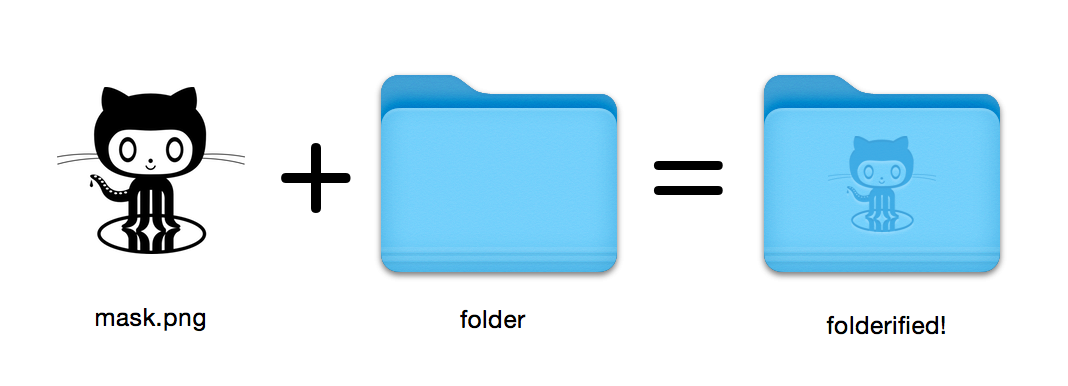
สร้างไอคอนโฟลเดอร์ MACOS ที่สมบูรณ์แบบพิกเซลในสไตล์ดั้งเดิม
16x16 ถึง 512x512@2x ใช้ folderify ? แจ้งให้เราทราบหรือแจ้งให้เราทราบและฉันชอบที่จะนำเสนอการใช้งานจริงบางอย่าง!
ติดตั้ง folderify โดยใช้ Homebrew:
brew install folderify แนะนำให้ติดตั้ง Homebrew และติดตั้ง folderify โฟลเดอร์เสร็จสมบูรณ์สำหรับเชลล์ของคุณโดยอัตโนมัติ
ดูด้านล่างสำหรับตัวเลือกการติดตั้งอื่น ๆ
ใช้หน้ากากเพื่อกำหนดไอคอนให้กับโฟลเดอร์:
folderify mask.png /path/to/folder สร้าง mask.icns และ mask.iconset ไฟล์:
folderify mask.png โดยค่าเริ่มต้น folderify ใช้โหมดแสง/มืดปัจจุบันของระบบ ใช้ --color-scheme เพื่อแทนที่สิ่งนี้:
folderify --color-scheme dark mask.pngบันทึก:
เพื่อผลลัพธ์ที่ดีที่สุด:
.png--no-trim และใช้หน้ากาก: สไตล์โฟลเดอร์จาก OS X / MacOS 10 ไม่ได้รับการสนับสนุนอีกต่อไปโดย folderify เป็นของ V3:
ในการสร้างสิ่งเหล่านี้โปรดใช้ folderify V2 ตัวอย่างเช่น:
pip3 install folderify
python3 -m folderify --macOS 10.5 path/to/icon.png หากคุณไม่มี Homebrew แต่คุณมี ImageMagick ( magick Binary) อยู่แล้วในระบบของคุณคุณสามารถใช้สิ่งต่อไปนี้:
cargo install folderifyหรือดาวน์โหลดรหัสโดยตรง:
git clone https://github.com/lgarron/folderify && cd folderify

# Run directly
cargo run -- --reveal examples/src/folder_outline.png .

# Install (assuming the `cargo` bin is in your path)
cargo install --path .
folderify --reveal examples/src/folder_outline.png .
โฟลเดอร์ที่เก็บควรมีไอคอนที่กำหนดเอง
 for file in examples/src/ * .png ; do cargo run -- $file ; done
open examples/src/
คุณควรเห็นโฟลเดอร์ .iconset ใหม่และไฟล์ .icns ที่สร้างขึ้นโดยอัตโนมัติจากมาสก์ .png
magick และ identify บน Commandline)iconutilfileiconsips , DeRez , Rez , SetFile (คุณต้องใช้เครื่องมือบรรทัดคำสั่ง XCODE สำหรับสิ่งเหล่านี้) Generate a native-style macOS folder icon from a mask file.
Usage: folderify [OPTIONS] [MASK] [TARGET]
Arguments:
[MASK]
Mask image file. For best results:
- Use a .png mask.
- Use a solid black design over a transparent background.
- Make sure the corner pixels of the mask image are transparent. They are used for empty margins.
- Make sure the non-transparent pixels span a height of 384px, using a 16px grid.
If the height is 384px and the width is a multiple of 128px, each 64x64 tile will exactly align with 1 pixel at the smallest folder size.
[TARGET]
Target file or folder. If a target is specified, the resulting icon will
be applied to the target file/folder. Else (unless --output-icns or
--output-iconset is specified), a .iconset folder and .icns file will be
created in the same folder as the mask (you can use "Get Info" in Finder
to copy the icon from the .icns file).
Options:
--output-icns <ICNS_FILE>
Write the `.icns` file to the given path.
(Will be written even if a target is also specified.)
--output-iconset <ICONSET_FOLDER>
Write the `.iconset` folder to the given path.
(Will be written even if a target is also specified.)
-r, --reveal
Reveal either the target, `.icns`, or `.iconset` (in that order of preference) in Finder
--macOS <MACOS_VERSION>
Version of the macOS folder icon, e.g. "14.2.1". Defaults to the version currently running
--color-scheme <COLOR_SCHEME>
Color scheme — auto matches the current system value
[default: auto]
[possible values: auto, light, dark]
--no-trim
Don't trim margins from the mask.
By default (i.e. without this flag), transparent margins are trimmed from all 4 sides.
--no-progress
Don't show progress bars
--badge <BADGE>
Add a badge to the icon. Currently only supports one badge at a time
[possible values: alias, locked]
-v, --verbose
Detailed output. Also sets `--no-progress`
--completions <SHELL>
Print completions for the given shell (instead of generating any icons).
These can be loaded/stored permanently (e.g. when using Homebrew), but they can also be sourced directly, e.g.:
folderify --completions fish | source # fish
source <(folderify --completions zsh) # zsh
[possible values: bash, elvish, fish, powershell, zsh]
-h, --help
Print help (see a summary with '-h')
-V, --version
Print version
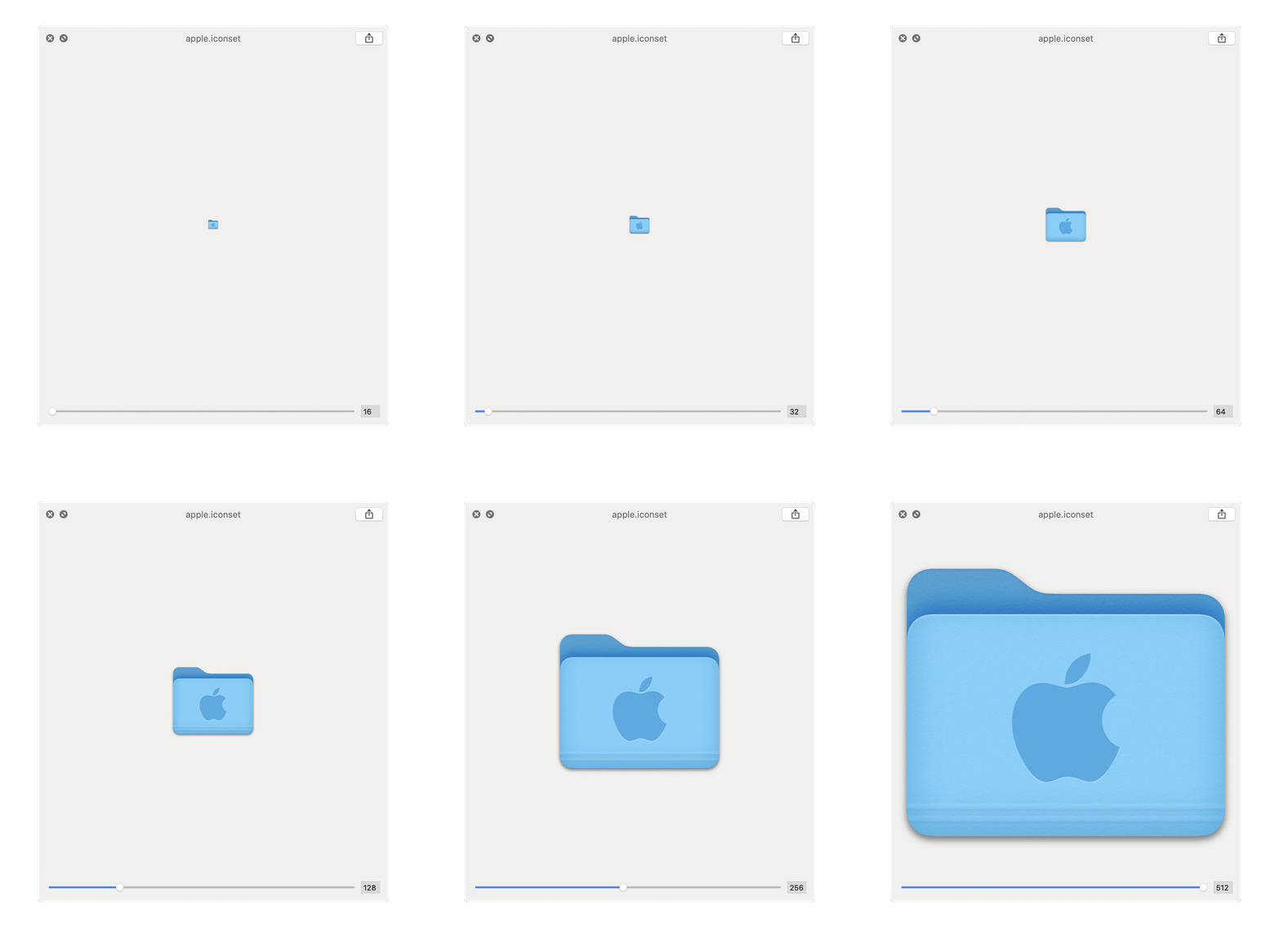
ตัวอย่างที่สร้างขึ้นจากโลโก้ Apple: