folderify
v4.0.1

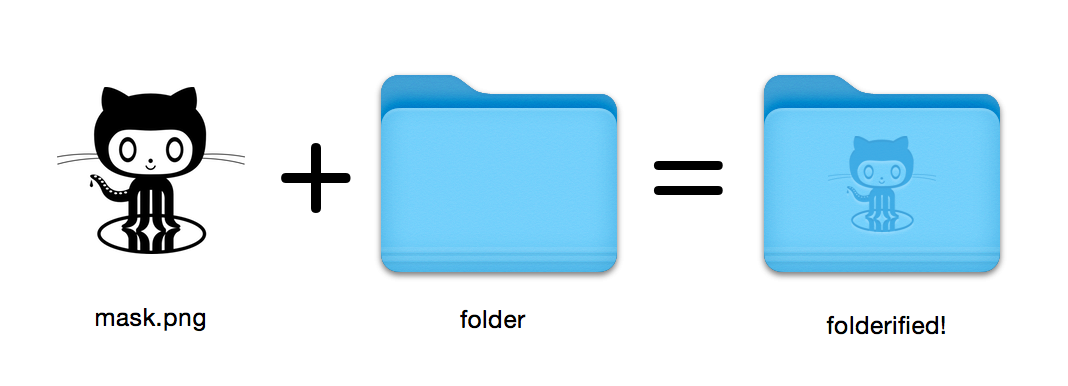
기본 스타일로 Pixel-Perfect MacOS 폴더 아이콘을 생성합니다.
16x16 에서 512x512@2x 의 모든 아이콘 크기를 자동으로 포함합니다. folderify 사용? 알려 주거나 알려 주시면 실제 용도로 사용하고 싶습니다!
홈브류를 사용하여 folderify 설치 :
brew install folderify Homebrew Install은 권장되며 쉘에 대한 folderify 인수 완료를 자동으로 설치합니다.
다른 설치 옵션은 아래를 참조하십시오.
마스크를 사용하여 아이콘을 폴더에 할당하십시오.
folderify mask.png /path/to/folder mask.icns 및 mask.iconset 파일 생성 :
folderify mask.png 기본적으로 folderify 시스템의 현재 명중/다크 모드를 사용합니다. --color-scheme 사용하여 이것을 무시하십시오.
folderify --color-scheme dark mask.png메모:
최상의 결과 :
.png 마스크를 사용하십시오.--no-trim 플래그를 전달하고 마스크를 사용하십시오. OS X / MACOS 10의 폴더 스타일은 더 이상 V3의 folderify 의해 지원되지 않습니다.
이를 생성하려면 folderify v2를 사용하십시오. 예를 들어:
pip3 install folderify
python3 -m folderify --macOS 10.5 path/to/icon.png 홈 브루가 없지만 이미 시스템에 Imagemagick ( magick Binary)이있는 경우 다음을 사용할 수 있습니다.
cargo install folderify또는 직접 코드를 다운로드하십시오.
git clone https://github.com/lgarron/folderify && cd folderify

# Run directly
cargo run -- --reveal examples/src/folder_outline.png .

# Install (assuming the `cargo` bin is in your path)
cargo install --path .
folderify --reveal examples/src/folder_outline.png .
리포지토리 폴더에는 이제 사용자 정의 아이콘이 있어야합니다.
 for file in examples/src/ * .png ; do cargo run -- $file ; done
open examples/src/
.png 마스크에서 자동으로 생성 된 새로운 .iconset 폴더 및 .icns 파일이 보입니다.
magick 실행하고 명령 선에서 identify 할 수 있어야 함).iconutilfileiconsips , DeRez , Rez , SetFile (이 중 일부에는 Xcode 명령 줄 도구가 필요합니다.) Generate a native-style macOS folder icon from a mask file.
Usage: folderify [OPTIONS] [MASK] [TARGET]
Arguments:
[MASK]
Mask image file. For best results:
- Use a .png mask.
- Use a solid black design over a transparent background.
- Make sure the corner pixels of the mask image are transparent. They are used for empty margins.
- Make sure the non-transparent pixels span a height of 384px, using a 16px grid.
If the height is 384px and the width is a multiple of 128px, each 64x64 tile will exactly align with 1 pixel at the smallest folder size.
[TARGET]
Target file or folder. If a target is specified, the resulting icon will
be applied to the target file/folder. Else (unless --output-icns or
--output-iconset is specified), a .iconset folder and .icns file will be
created in the same folder as the mask (you can use "Get Info" in Finder
to copy the icon from the .icns file).
Options:
--output-icns <ICNS_FILE>
Write the `.icns` file to the given path.
(Will be written even if a target is also specified.)
--output-iconset <ICONSET_FOLDER>
Write the `.iconset` folder to the given path.
(Will be written even if a target is also specified.)
-r, --reveal
Reveal either the target, `.icns`, or `.iconset` (in that order of preference) in Finder
--macOS <MACOS_VERSION>
Version of the macOS folder icon, e.g. "14.2.1". Defaults to the version currently running
--color-scheme <COLOR_SCHEME>
Color scheme — auto matches the current system value
[default: auto]
[possible values: auto, light, dark]
--no-trim
Don't trim margins from the mask.
By default (i.e. without this flag), transparent margins are trimmed from all 4 sides.
--no-progress
Don't show progress bars
--badge <BADGE>
Add a badge to the icon. Currently only supports one badge at a time
[possible values: alias, locked]
-v, --verbose
Detailed output. Also sets `--no-progress`
--completions <SHELL>
Print completions for the given shell (instead of generating any icons).
These can be loaded/stored permanently (e.g. when using Homebrew), but they can also be sourced directly, e.g.:
folderify --completions fish | source # fish
source <(folderify --completions zsh) # zsh
[possible values: bash, elvish, fish, powershell, zsh]
-h, --help
Print help (see a summary with '-h')
-V, --version
Print version
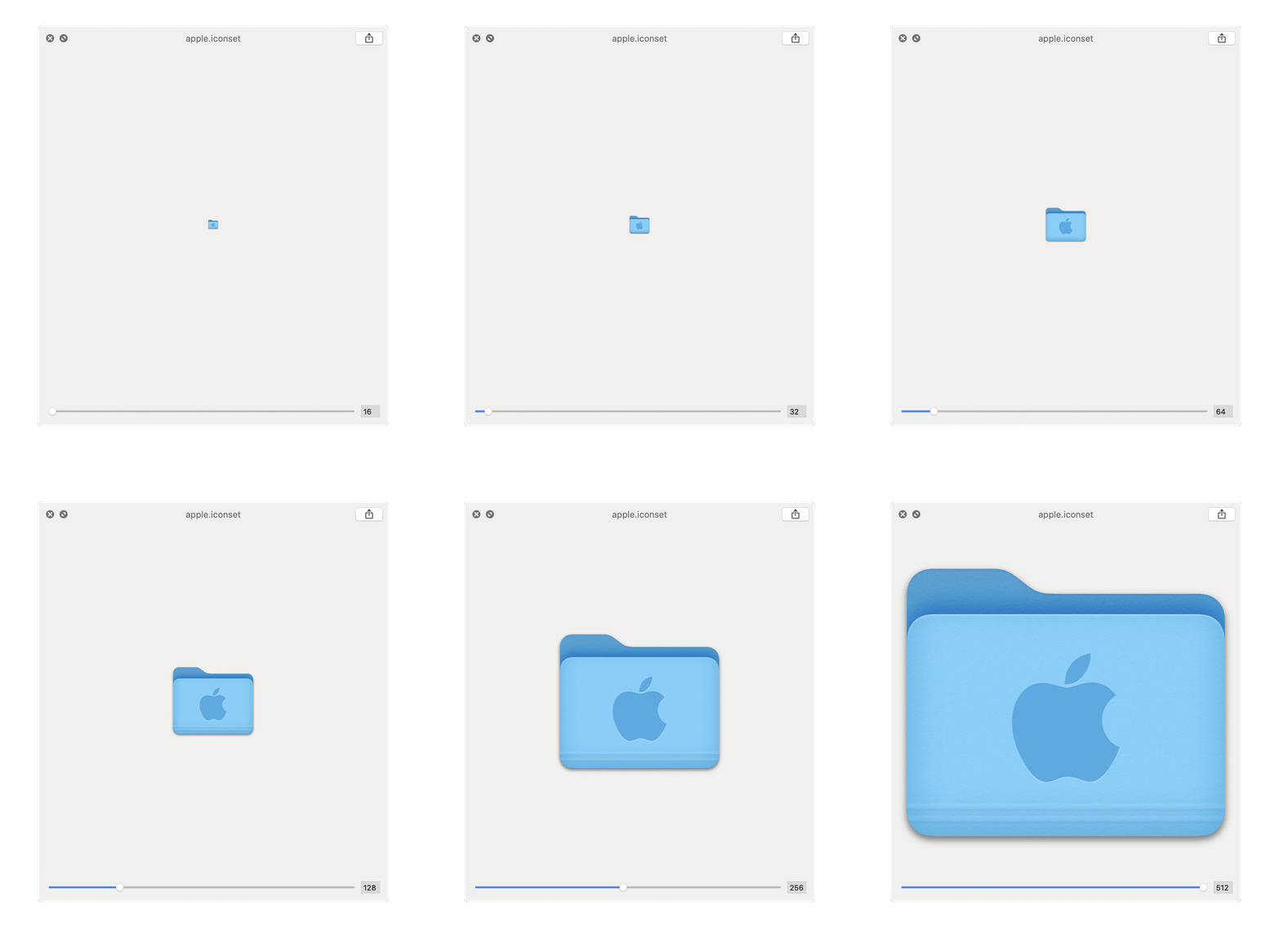
Apple 로고에서 생성 된 예 :