folderify
v4.0.1

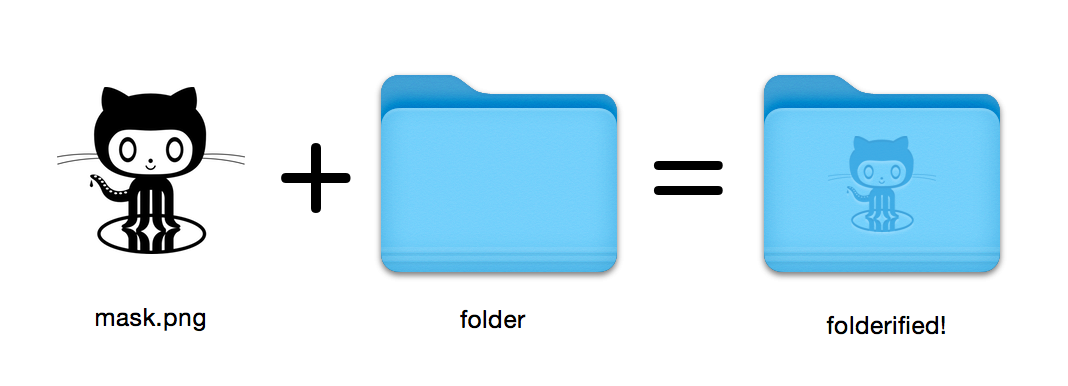
Generieren Sie Pixel-perfekte MacOS-Ordnersymbole im nativen Stil.
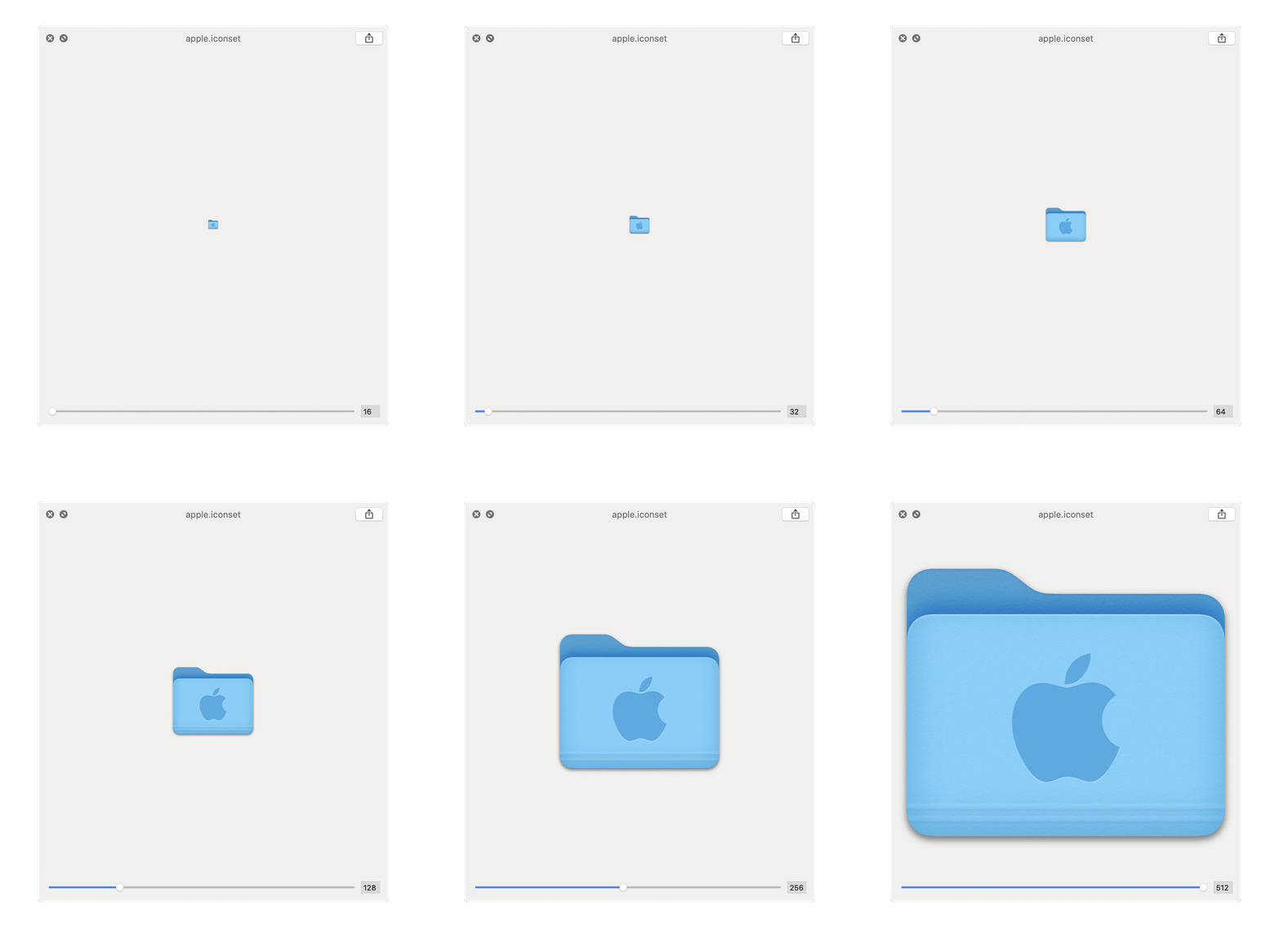
16x16 bis 512x512@2x . Verwenden von folderify ? Lassen Sie es mich wissen oder lassen Sie es mich wissen und ich würde gerne einige reale Verwendungszwecke bieten!
folderify mit Homebrew installieren:
brew install folderify Die Homebrew -Installation wird empfohlen und installiert automatisch folderify -Argumentumschlüsse für Ihre Shell.
Weitere Installationsoptionen finden Sie unten.
Verwenden Sie eine Maske, um einem Ordner ein Symbol zuzuweisen:
folderify mask.png /path/to/folder Generieren Sie mask.icns und mask.iconset -Dateien:
folderify mask.png Standardmäßig verwendet folderify den aktuellen Hell/Dark -Modus Ihres Systems. Verwenden Sie --color-scheme , um dies zu überschreiben:
folderify --color-scheme dark mask.pngNotiz:
Für beste Ergebnisse:
.png -Maske.--no-trim Flagge und verwenden Sie eine Maske: Ordnerstile von OS X / MacOS 10 werden nicht mehr durch folderify ab V3 unterstützt:
Um diese zu generieren, verwenden Sie bitte folderify v2. Zum Beispiel:
pip3 install folderify
python3 -m folderify --macOS 10.5 path/to/icon.png Wenn Sie kein Homebrew haben, aber bereits ImageMagick (The magick Binary) in Ihrem System haben, können Sie Folgendes verwenden:
cargo install folderifyOder laden Sie den Code direkt herunter:
git clone https://github.com/lgarron/folderify && cd folderify

# Run directly
cargo run -- --reveal examples/src/folder_outline.png .

# Install (assuming the `cargo` bin is in your path)
cargo install --path .
folderify --reveal examples/src/folder_outline.png .
Der Repository -Ordner sollte jetzt ein benutzerdefiniertes Symbol haben.
 for file in examples/src/ * .png ; do cargo run -- $file ; done
open examples/src/
Sie sollten eine Reihe neuer .iconset -Ordner und .icns -Dateien sehen, die automatisch aus den .png -Masken generiert wurden.
magick auszuführen und auf der Befehlszeile identify ).iconutilfileiconsips , DeRez , Rez , SetFile (Sie benötigen für einige davon Xcode -Befehlszeilen -Tools.) Generate a native-style macOS folder icon from a mask file.
Usage: folderify [OPTIONS] [MASK] [TARGET]
Arguments:
[MASK]
Mask image file. For best results:
- Use a .png mask.
- Use a solid black design over a transparent background.
- Make sure the corner pixels of the mask image are transparent. They are used for empty margins.
- Make sure the non-transparent pixels span a height of 384px, using a 16px grid.
If the height is 384px and the width is a multiple of 128px, each 64x64 tile will exactly align with 1 pixel at the smallest folder size.
[TARGET]
Target file or folder. If a target is specified, the resulting icon will
be applied to the target file/folder. Else (unless --output-icns or
--output-iconset is specified), a .iconset folder and .icns file will be
created in the same folder as the mask (you can use "Get Info" in Finder
to copy the icon from the .icns file).
Options:
--output-icns <ICNS_FILE>
Write the `.icns` file to the given path.
(Will be written even if a target is also specified.)
--output-iconset <ICONSET_FOLDER>
Write the `.iconset` folder to the given path.
(Will be written even if a target is also specified.)
-r, --reveal
Reveal either the target, `.icns`, or `.iconset` (in that order of preference) in Finder
--macOS <MACOS_VERSION>
Version of the macOS folder icon, e.g. "14.2.1". Defaults to the version currently running
--color-scheme <COLOR_SCHEME>
Color scheme — auto matches the current system value
[default: auto]
[possible values: auto, light, dark]
--no-trim
Don't trim margins from the mask.
By default (i.e. without this flag), transparent margins are trimmed from all 4 sides.
--no-progress
Don't show progress bars
--badge <BADGE>
Add a badge to the icon. Currently only supports one badge at a time
[possible values: alias, locked]
-v, --verbose
Detailed output. Also sets `--no-progress`
--completions <SHELL>
Print completions for the given shell (instead of generating any icons).
These can be loaded/stored permanently (e.g. when using Homebrew), but they can also be sourced directly, e.g.:
folderify --completions fish | source # fish
source <(folderify --completions zsh) # zsh
[possible values: bash, elvish, fish, powershell, zsh]
-h, --help
Print help (see a summary with '-h')
-V, --version
Print version
Beispiel aus dem Apple -Logo: