folderify
v4.0.1

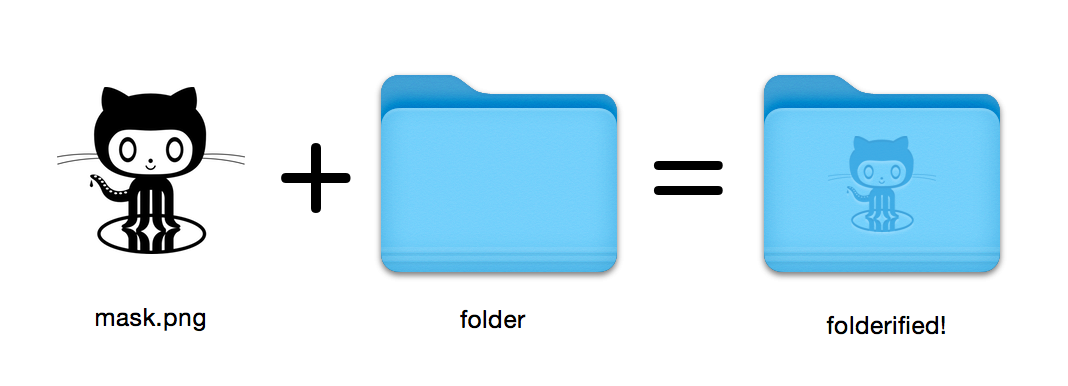
Gere ícones de pasta macos perfeitos de pixels no estilo nativo.
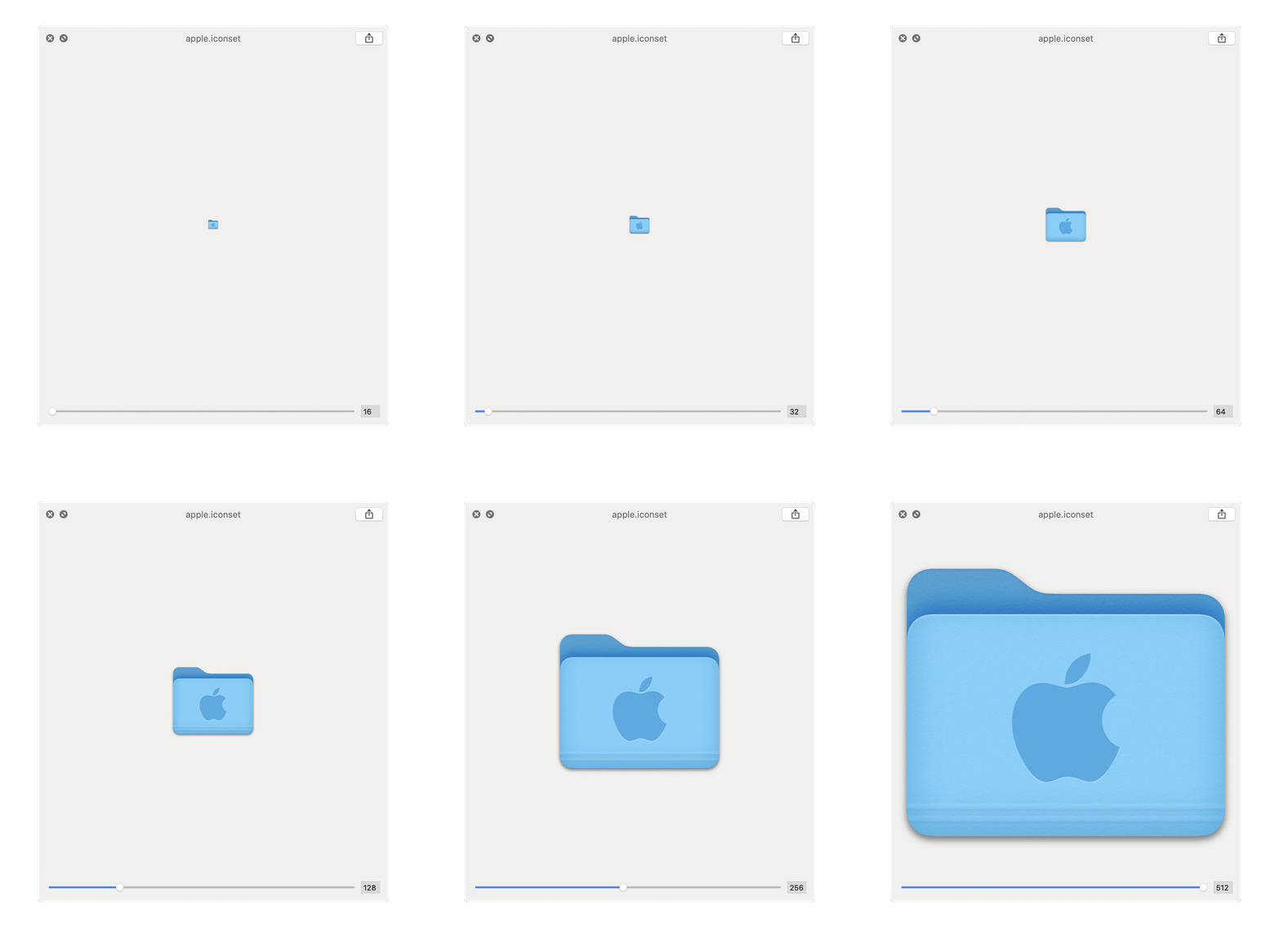
16x16 a 512x512@2x . Usando folderify ? Deixe-me saber ou me avisar e eu adoraria apresentar alguns usos do mundo real!
Instale folderify Usando Homebrew:
brew install folderify A instalação do homebrew é recomendada e instala automaticamente as conclusões do argumento folderify para o seu shell.
Veja abaixo para outras opções de instalação.
Use uma máscara para atribuir um ícone a uma pasta:
folderify mask.png /path/to/folder Gerar mask.icns e mask.iconset Arquivos:
folderify mask.png Por padrão, folderify usa o modo atual/escuro atual do seu sistema. Use --color-scheme para substituir isso:
folderify --color-scheme dark mask.pngObservação:
Para melhores resultados:
.png .--no-trim e use uma máscara: Os estilos de pasta do OS X / MacOS 10 não são mais suportados pela folderify a partir de V3:
Para gerá -los, use folderify V2. Por exemplo:
pip3 install folderify
python3 -m folderify --macOS 10.5 path/to/icon.png Se você não tem homebrew, mas já tem imagemagick (The magick Binary) em seu sistema, você pode usar o seguinte:
cargo install folderifyOu baixe o código diretamente:
git clone https://github.com/lgarron/folderify && cd folderify

# Run directly
cargo run -- --reveal examples/src/folder_outline.png .

# Install (assuming the `cargo` bin is in your path)
cargo install --path .
folderify --reveal examples/src/folder_outline.png .
A pasta repositório agora deve ter um ícone personalizado.
 for file in examples/src/ * .png ; do cargo run -- $file ; done
open examples/src/
Você deve ver um monte de novas pastas .iconset e arquivos .icns que foram gerados automaticamente a partir das máscaras .png .
magick e identify no comando linha).iconutilfileiconsips , DeRez , Rez , SetFile (você precisa de ferramentas de linha de comando Xcode para algumas delas.) Generate a native-style macOS folder icon from a mask file.
Usage: folderify [OPTIONS] [MASK] [TARGET]
Arguments:
[MASK]
Mask image file. For best results:
- Use a .png mask.
- Use a solid black design over a transparent background.
- Make sure the corner pixels of the mask image are transparent. They are used for empty margins.
- Make sure the non-transparent pixels span a height of 384px, using a 16px grid.
If the height is 384px and the width is a multiple of 128px, each 64x64 tile will exactly align with 1 pixel at the smallest folder size.
[TARGET]
Target file or folder. If a target is specified, the resulting icon will
be applied to the target file/folder. Else (unless --output-icns or
--output-iconset is specified), a .iconset folder and .icns file will be
created in the same folder as the mask (you can use "Get Info" in Finder
to copy the icon from the .icns file).
Options:
--output-icns <ICNS_FILE>
Write the `.icns` file to the given path.
(Will be written even if a target is also specified.)
--output-iconset <ICONSET_FOLDER>
Write the `.iconset` folder to the given path.
(Will be written even if a target is also specified.)
-r, --reveal
Reveal either the target, `.icns`, or `.iconset` (in that order of preference) in Finder
--macOS <MACOS_VERSION>
Version of the macOS folder icon, e.g. "14.2.1". Defaults to the version currently running
--color-scheme <COLOR_SCHEME>
Color scheme — auto matches the current system value
[default: auto]
[possible values: auto, light, dark]
--no-trim
Don't trim margins from the mask.
By default (i.e. without this flag), transparent margins are trimmed from all 4 sides.
--no-progress
Don't show progress bars
--badge <BADGE>
Add a badge to the icon. Currently only supports one badge at a time
[possible values: alias, locked]
-v, --verbose
Detailed output. Also sets `--no-progress`
--completions <SHELL>
Print completions for the given shell (instead of generating any icons).
These can be loaded/stored permanently (e.g. when using Homebrew), but they can also be sourced directly, e.g.:
folderify --completions fish | source # fish
source <(folderify --completions zsh) # zsh
[possible values: bash, elvish, fish, powershell, zsh]
-h, --help
Print help (see a summary with '-h')
-V, --version
Print version
Exemplo gerado a partir do logotipo da Apple: