folderify
v4.0.1

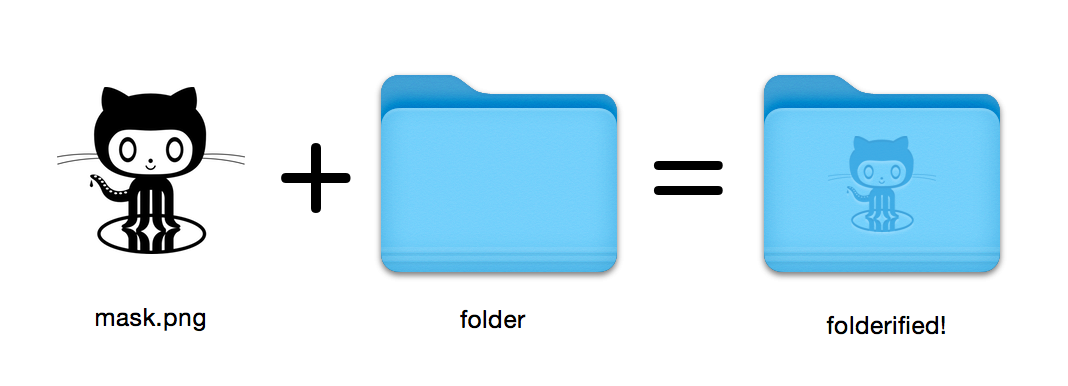
ネイティブスタイルでPixel-Fect MacOSフォルダーアイコンを生成します。
16x16 512x512@2xのすべてのアイコンサイズが自動的に含まれています。 folderifyを使用しますか?私に知らせたり、私に知らせてください、そして私はいくつかの現実世界の使用を取り上げたいです!
HomeBrewを使用してfolderifyをインストールします。
brew install folderify HomeBrewインストールが推奨され、シェルのfolderify引数の完了を自動的にインストールします。
他のインストールオプションについては、以下を参照してください。
マスクを使用して、フォルダーにアイコンを割り当てます。
folderify mask.png /path/to/folder mask.icnsとmask.iconsetファイルを生成します。
folderify mask.pngデフォルトでは、 folderifyシステムの現在のライト/ダークモードを使用します。使用する--color-schemeを使用してこれをオーバーライドします。
folderify --color-scheme dark mask.png注記:
最良の結果:
.pngマスクを使用します。--no-trimフラグを渡して、マスクを使用します。 OS X / MACOS 10のフォルダースタイルは、V3のようにfolderifyによってサポートされなくなりました。
これらを生成するには、 folderify v2を使用してください。例えば:
pip3 install folderify
python3 -m folderify --macOS 10.5 path/to/icon.pngHomebrewを持っていないが、システムにImageMagick( magickバイナリ)が既にある場合は、以下を使用できます。
cargo install folderifyまたは、コードを直接ダウンロードしてください。
git clone https://github.com/lgarron/folderify && cd folderify

# Run directly
cargo run -- --reveal examples/src/folder_outline.png .

# Install (assuming the `cargo` bin is in your path)
cargo install --path .
folderify --reveal examples/src/folder_outline.png .
リポジトリフォルダーには、カスタムアイコンが必要になります。
 for file in examples/src/ * .png ; do cargo run -- $file ; done
open examples/src/ .pngマスクから自動的に生成された新しい.iconsetフォルダーと.icnsファイルの束が表示されます。
magickを実行してコマンドラインでidentifyできるはずです)。iconutilfileiconsips 、 DeRez 、 Rez 、 SetFile (これらのいくつかにはXcodeコマンドラインツールが必要です。) Generate a native-style macOS folder icon from a mask file.
Usage: folderify [OPTIONS] [MASK] [TARGET]
Arguments:
[MASK]
Mask image file. For best results:
- Use a .png mask.
- Use a solid black design over a transparent background.
- Make sure the corner pixels of the mask image are transparent. They are used for empty margins.
- Make sure the non-transparent pixels span a height of 384px, using a 16px grid.
If the height is 384px and the width is a multiple of 128px, each 64x64 tile will exactly align with 1 pixel at the smallest folder size.
[TARGET]
Target file or folder. If a target is specified, the resulting icon will
be applied to the target file/folder. Else (unless --output-icns or
--output-iconset is specified), a .iconset folder and .icns file will be
created in the same folder as the mask (you can use "Get Info" in Finder
to copy the icon from the .icns file).
Options:
--output-icns <ICNS_FILE>
Write the `.icns` file to the given path.
(Will be written even if a target is also specified.)
--output-iconset <ICONSET_FOLDER>
Write the `.iconset` folder to the given path.
(Will be written even if a target is also specified.)
-r, --reveal
Reveal either the target, `.icns`, or `.iconset` (in that order of preference) in Finder
--macOS <MACOS_VERSION>
Version of the macOS folder icon, e.g. "14.2.1". Defaults to the version currently running
--color-scheme <COLOR_SCHEME>
Color scheme — auto matches the current system value
[default: auto]
[possible values: auto, light, dark]
--no-trim
Don't trim margins from the mask.
By default (i.e. without this flag), transparent margins are trimmed from all 4 sides.
--no-progress
Don't show progress bars
--badge <BADGE>
Add a badge to the icon. Currently only supports one badge at a time
[possible values: alias, locked]
-v, --verbose
Detailed output. Also sets `--no-progress`
--completions <SHELL>
Print completions for the given shell (instead of generating any icons).
These can be loaded/stored permanently (e.g. when using Homebrew), but they can also be sourced directly, e.g.:
folderify --completions fish | source # fish
source <(folderify --completions zsh) # zsh
[possible values: bash, elvish, fish, powershell, zsh]
-h, --help
Print help (see a summary with '-h')
-V, --version
Print version
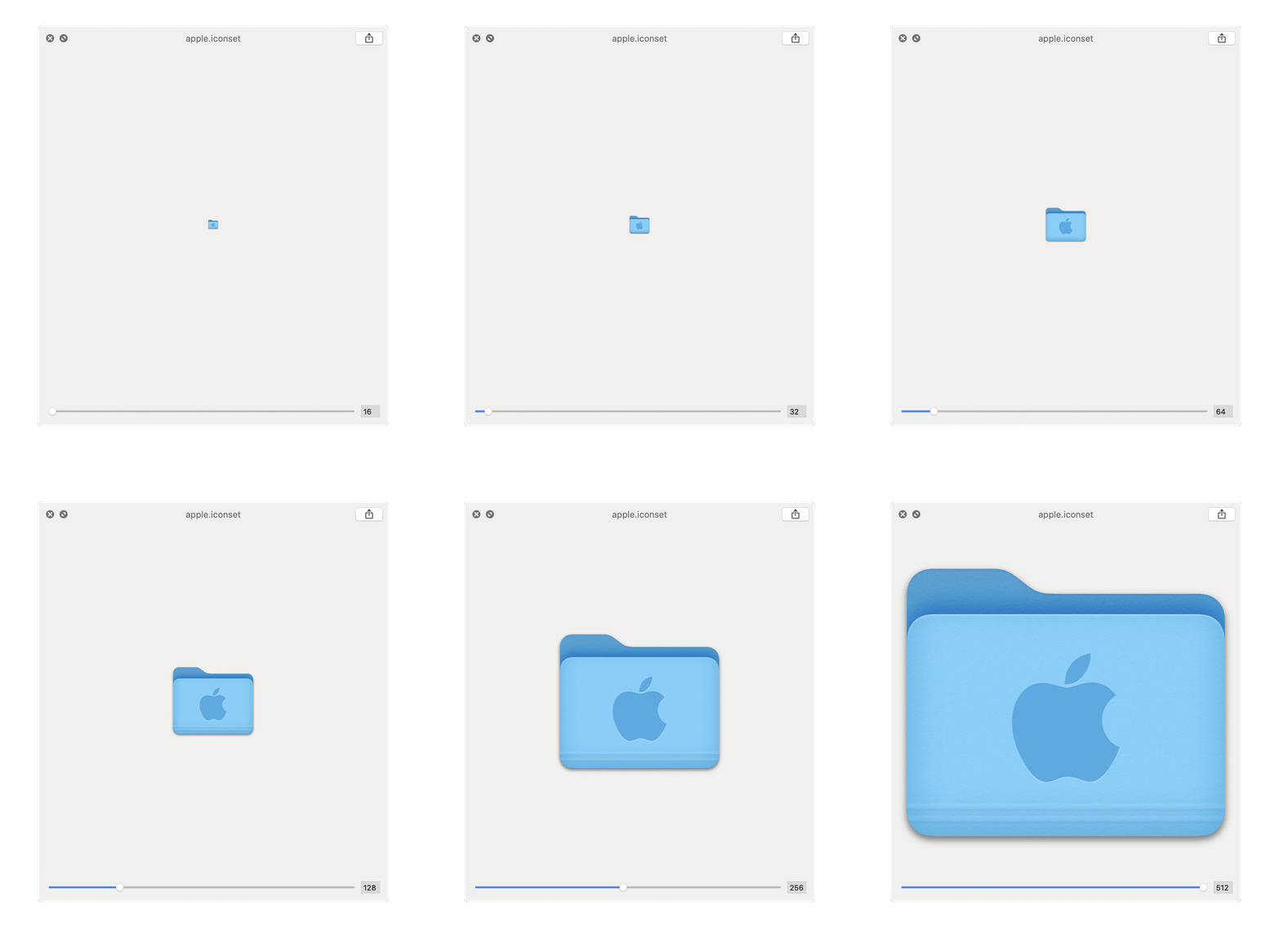
Appleロゴから生成された例: