folderify
v4.0.1

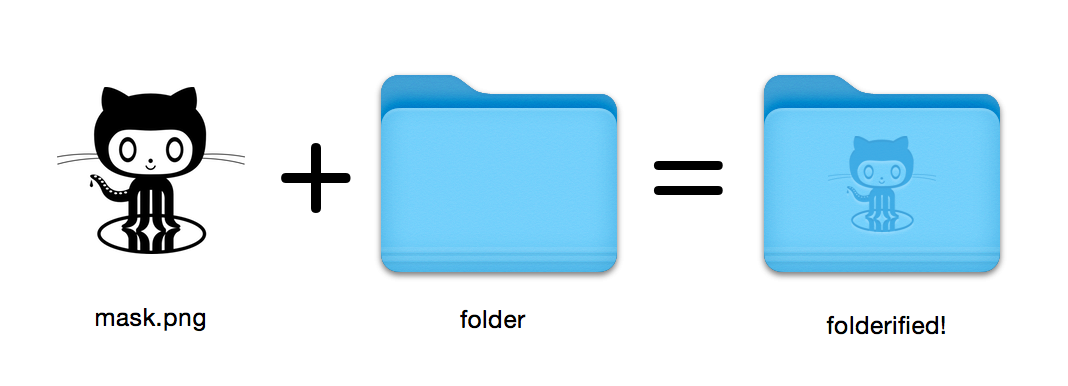
Создайте значки папок Pixel-идеальных MacOS в собственном стиле.
16x16 до 512x512@2x . Использование folderify ? Дайте мне знать или дайте мне знать, и я бы хотел использовать какое-то реальное использование!
Установите folderify с помощью Homebrew:
brew install folderify Рекомендуется HomeBrew Install, и автоматически устанавливает завершение folderify для вашей оболочки.
Смотрите ниже другие параметры установки.
Используйте маску, чтобы назначить значок в папку:
folderify mask.png /path/to/folder Генерировать файлы mask.icns и mask.iconset :
folderify mask.png По умолчанию folderify использует текущий режим света/темного света вашей системы. Используйте --color-scheme , чтобы переопределить это:
folderify --color-scheme dark mask.pngПримечание:
Для достижения наилучших результатов:
.png .--no-trim и используйте маску: Стили папок от OS X / MacOS 10 больше не поддерживаются folderify по состоянию на V3:
Чтобы сгенерировать их, используйте folderify v2. Например:
pip3 install folderify
python3 -m folderify --macOS 10.5 path/to/icon.png Если у вас нет домашнего пиво, но в вашей системе уже есть ImageMagick (The magick ), вы можете использовать следующее:
cargo install folderifyИли загрузите код напрямую:
git clone https://github.com/lgarron/folderify && cd folderify

# Run directly
cargo run -- --reveal examples/src/folder_outline.png .

# Install (assuming the `cargo` bin is in your path)
cargo install --path .
folderify --reveal examples/src/folder_outline.png .
Папка репозитория теперь должна иметь пользовательский значок.
 for file in examples/src/ * .png ; do cargo run -- $file ; done
open examples/src/
Вы должны увидеть кучу новых папок .iconset и файлов .icns , которые были автоматически сгенерированы из масок .png .
magick и identify в командной линии).iconutilfileiconsips , DeRez , Rez , SetFile (вам нужны инструменты командной строки XCODE для некоторых из них.) Generate a native-style macOS folder icon from a mask file.
Usage: folderify [OPTIONS] [MASK] [TARGET]
Arguments:
[MASK]
Mask image file. For best results:
- Use a .png mask.
- Use a solid black design over a transparent background.
- Make sure the corner pixels of the mask image are transparent. They are used for empty margins.
- Make sure the non-transparent pixels span a height of 384px, using a 16px grid.
If the height is 384px and the width is a multiple of 128px, each 64x64 tile will exactly align with 1 pixel at the smallest folder size.
[TARGET]
Target file or folder. If a target is specified, the resulting icon will
be applied to the target file/folder. Else (unless --output-icns or
--output-iconset is specified), a .iconset folder and .icns file will be
created in the same folder as the mask (you can use "Get Info" in Finder
to copy the icon from the .icns file).
Options:
--output-icns <ICNS_FILE>
Write the `.icns` file to the given path.
(Will be written even if a target is also specified.)
--output-iconset <ICONSET_FOLDER>
Write the `.iconset` folder to the given path.
(Will be written even if a target is also specified.)
-r, --reveal
Reveal either the target, `.icns`, or `.iconset` (in that order of preference) in Finder
--macOS <MACOS_VERSION>
Version of the macOS folder icon, e.g. "14.2.1". Defaults to the version currently running
--color-scheme <COLOR_SCHEME>
Color scheme — auto matches the current system value
[default: auto]
[possible values: auto, light, dark]
--no-trim
Don't trim margins from the mask.
By default (i.e. without this flag), transparent margins are trimmed from all 4 sides.
--no-progress
Don't show progress bars
--badge <BADGE>
Add a badge to the icon. Currently only supports one badge at a time
[possible values: alias, locked]
-v, --verbose
Detailed output. Also sets `--no-progress`
--completions <SHELL>
Print completions for the given shell (instead of generating any icons).
These can be loaded/stored permanently (e.g. when using Homebrew), but they can also be sourced directly, e.g.:
folderify --completions fish | source # fish
source <(folderify --completions zsh) # zsh
[possible values: bash, elvish, fish, powershell, zsh]
-h, --help
Print help (see a summary with '-h')
-V, --version
Print version
Пример, сгенерированный из логотипа Apple: