folderify
v4.0.1

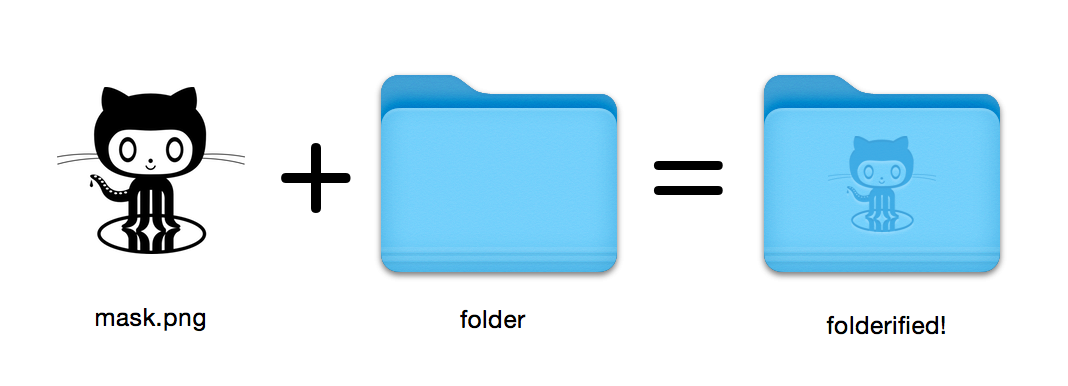
Générez des icônes de dossier macOS parfaites au pixel dans le style natif.
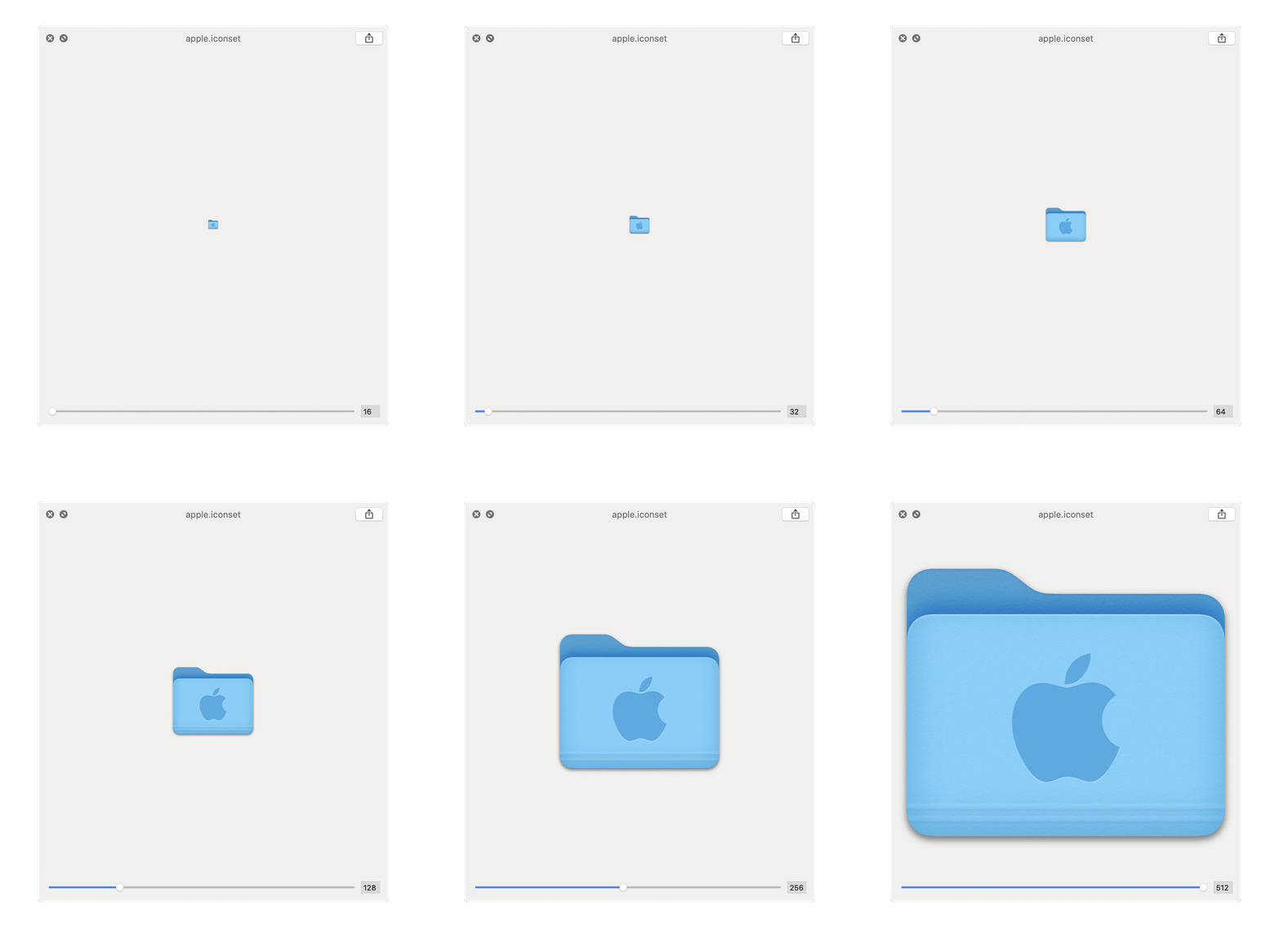
16x16 à 512x512@2x . Utilisation folderify ? Faites-moi savoir ou faites-le moi savoir et j'aimerais présenter des utilisations réelles!
Installez folderify à l'aide de Homebrew:
brew install folderify L'installation de Homebrew est recommandée et installe automatiquement les compléments d'arguments folderify pour votre shell.
Voir ci-dessous pour d'autres options d'installation.
Utilisez un masque pour attribuer une icône à un dossier:
folderify mask.png /path/to/folder Générer des fichiers mask.icns et mask.iconset :
folderify mask.png Par défaut, folderify utilise le mode Light / Dark actuel de votre système. Utiliser --color-scheme pour remplacer ceci:
folderify --color-scheme dark mask.pngNote:
Pour les meilleurs résultats:
.png .--no-trim et utilisez un masque: Les styles de dossiers de OS X / MacOS 10 ne sont plus pris en charge par folderify à partir de v3:
Pour les générer, veuillez utiliser folderify v2. Par exemple:
pip3 install folderify
python3 -m folderify --macOS 10.5 path/to/icon.png Si vous n'avez pas Homebrew mais que vous avez déjà ImageMagick (le binaire magick ) sur votre système, vous pouvez utiliser ce qui suit:
cargo install folderifyOu téléchargez directement le code:
git clone https://github.com/lgarron/folderify && cd folderify

# Run directly
cargo run -- --reveal examples/src/folder_outline.png .

# Install (assuming the `cargo` bin is in your path)
cargo install --path .
folderify --reveal examples/src/folder_outline.png .
Le dossier du référentiel doit désormais avoir une icône personnalisée.
 for file in examples/src/ * .png ; do cargo run -- $file ; done
open examples/src/
Vous devriez voir un tas .icns .iconset ont été générés automatiquement à partir des masques .png .
magick et identify sur la ligne de commande).iconutilfileiconsips , DeRez , Rez , SetFile (vous avez besoin d'outils de ligne de commande Xcode pour certains d'entre eux.) Generate a native-style macOS folder icon from a mask file.
Usage: folderify [OPTIONS] [MASK] [TARGET]
Arguments:
[MASK]
Mask image file. For best results:
- Use a .png mask.
- Use a solid black design over a transparent background.
- Make sure the corner pixels of the mask image are transparent. They are used for empty margins.
- Make sure the non-transparent pixels span a height of 384px, using a 16px grid.
If the height is 384px and the width is a multiple of 128px, each 64x64 tile will exactly align with 1 pixel at the smallest folder size.
[TARGET]
Target file or folder. If a target is specified, the resulting icon will
be applied to the target file/folder. Else (unless --output-icns or
--output-iconset is specified), a .iconset folder and .icns file will be
created in the same folder as the mask (you can use "Get Info" in Finder
to copy the icon from the .icns file).
Options:
--output-icns <ICNS_FILE>
Write the `.icns` file to the given path.
(Will be written even if a target is also specified.)
--output-iconset <ICONSET_FOLDER>
Write the `.iconset` folder to the given path.
(Will be written even if a target is also specified.)
-r, --reveal
Reveal either the target, `.icns`, or `.iconset` (in that order of preference) in Finder
--macOS <MACOS_VERSION>
Version of the macOS folder icon, e.g. "14.2.1". Defaults to the version currently running
--color-scheme <COLOR_SCHEME>
Color scheme — auto matches the current system value
[default: auto]
[possible values: auto, light, dark]
--no-trim
Don't trim margins from the mask.
By default (i.e. without this flag), transparent margins are trimmed from all 4 sides.
--no-progress
Don't show progress bars
--badge <BADGE>
Add a badge to the icon. Currently only supports one badge at a time
[possible values: alias, locked]
-v, --verbose
Detailed output. Also sets `--no-progress`
--completions <SHELL>
Print completions for the given shell (instead of generating any icons).
These can be loaded/stored permanently (e.g. when using Homebrew), but they can also be sourced directly, e.g.:
folderify --completions fish | source # fish
source <(folderify --completions zsh) # zsh
[possible values: bash, elvish, fish, powershell, zsh]
-h, --help
Print help (see a summary with '-h')
-V, --version
Print version
Exemple généré à partir du logo Apple: