folderify
v4.0.1

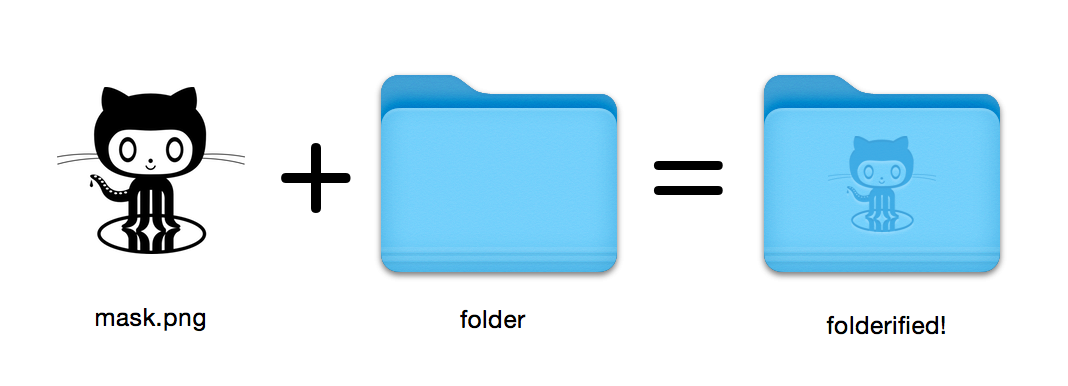
Hasilkan ikon folder macos pixel-perfect dalam gaya asli.
16x16 hingga 512x512@2x . Menggunakan folderify ? Beri tahu saya atau beri tahu saya dan saya ingin menampilkan beberapa kegunaan dunia nyata!
Instal folderify Menggunakan Homebrew:
brew install folderify Instalasi Homebrew disarankan, dan secara otomatis menginstal penyelesaian argumen folderify untuk shell Anda.
Lihat di bawah untuk opsi instalasi lainnya.
Gunakan topeng untuk menetapkan ikon ke folder:
folderify mask.png /path/to/folder Hasilkan file mask.icns dan mask.iconset :
folderify mask.png Secara default, folderify menggunakan mode cahaya/gelap sistem Anda saat ini. Gunakan --color-scheme untuk mengesampingkan ini:
folderify --color-scheme dark mask.pngCatatan:
Untuk hasil terbaik:
.png .--no-trim dan gunakan topeng: Gaya folder dari OS X / MacOS 10 tidak lagi didukung oleh folderify pada v3:
Untuk menghasilkan ini, silakan gunakan folderify v2. Misalnya:
pip3 install folderify
python3 -m folderify --macOS 10.5 path/to/icon.png Jika Anda tidak memiliki homebrew tetapi Anda sudah memiliki Imagemagick (biner magick ) di sistem Anda, Anda dapat menggunakan yang berikut:
cargo install folderifyAtau unduh kode secara langsung:
git clone https://github.com/lgarron/folderify && cd folderify

# Run directly
cargo run -- --reveal examples/src/folder_outline.png .

# Install (assuming the `cargo` bin is in your path)
cargo install --path .
folderify --reveal examples/src/folder_outline.png .
Folder repositori sekarang harus memiliki ikon khusus.
 for file in examples/src/ * .png ; do cargo run -- $file ; done
open examples/src/
Anda harus melihat banyak folder .iconset baru dan file .icns yang secara otomatis dihasilkan dari masker .png .
magick dan identify pada garis komando).iconutilfileiconsips , DeRez , Rez , SetFile (Anda memerlukan alat baris perintah XCODE untuk beberapa di antaranya.) Generate a native-style macOS folder icon from a mask file.
Usage: folderify [OPTIONS] [MASK] [TARGET]
Arguments:
[MASK]
Mask image file. For best results:
- Use a .png mask.
- Use a solid black design over a transparent background.
- Make sure the corner pixels of the mask image are transparent. They are used for empty margins.
- Make sure the non-transparent pixels span a height of 384px, using a 16px grid.
If the height is 384px and the width is a multiple of 128px, each 64x64 tile will exactly align with 1 pixel at the smallest folder size.
[TARGET]
Target file or folder. If a target is specified, the resulting icon will
be applied to the target file/folder. Else (unless --output-icns or
--output-iconset is specified), a .iconset folder and .icns file will be
created in the same folder as the mask (you can use "Get Info" in Finder
to copy the icon from the .icns file).
Options:
--output-icns <ICNS_FILE>
Write the `.icns` file to the given path.
(Will be written even if a target is also specified.)
--output-iconset <ICONSET_FOLDER>
Write the `.iconset` folder to the given path.
(Will be written even if a target is also specified.)
-r, --reveal
Reveal either the target, `.icns`, or `.iconset` (in that order of preference) in Finder
--macOS <MACOS_VERSION>
Version of the macOS folder icon, e.g. "14.2.1". Defaults to the version currently running
--color-scheme <COLOR_SCHEME>
Color scheme — auto matches the current system value
[default: auto]
[possible values: auto, light, dark]
--no-trim
Don't trim margins from the mask.
By default (i.e. without this flag), transparent margins are trimmed from all 4 sides.
--no-progress
Don't show progress bars
--badge <BADGE>
Add a badge to the icon. Currently only supports one badge at a time
[possible values: alias, locked]
-v, --verbose
Detailed output. Also sets `--no-progress`
--completions <SHELL>
Print completions for the given shell (instead of generating any icons).
These can be loaded/stored permanently (e.g. when using Homebrew), but they can also be sourced directly, e.g.:
folderify --completions fish | source # fish
source <(folderify --completions zsh) # zsh
[possible values: bash, elvish, fish, powershell, zsh]
-h, --help
Print help (see a summary with '-h')
-V, --version
Print version
Contoh yang dihasilkan dari logo Apple: