folderify
v4.0.1

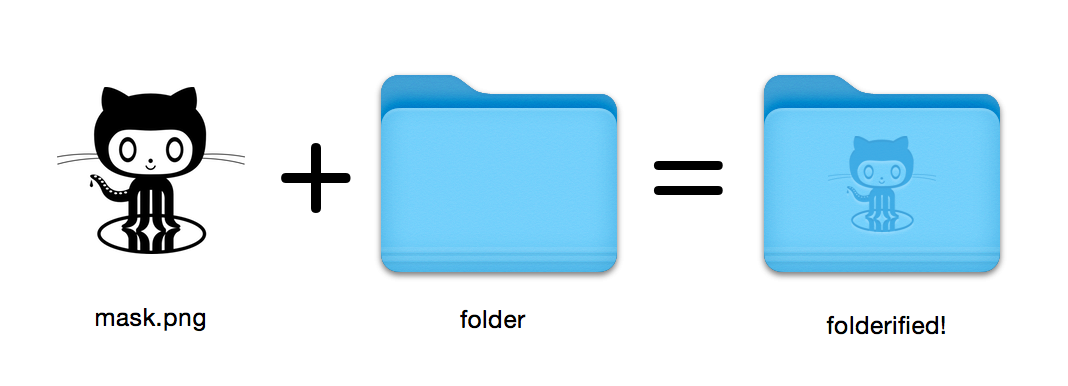
قم بإنشاء أيقونات مجلد MacOS مثالية للبكسل في النمط الأصلي.
16x16 إلى 512x512@2x . باستخدام folderify ؟ اسمحوا لي أن أعرف أو أخبرني وأحب أن أعرض بعض استخدامات العالم الحقيقي!
تثبيت folderify باستخدام homebrew:
brew install folderify يوصى بتثبيت Homebrew ، ويقوم تلقائيًا بتثبيت إكمال الوسيطة folderify لقذيفة.
انظر أدناه للحصول على خيارات التثبيت الأخرى.
استخدم قناعًا لتعيين أيقونة إلى مجلد:
folderify mask.png /path/to/folder إنشاء mask.icns و mask.iconset ملفات:
folderify mask.png بشكل افتراضي ، يستخدم folderify وضع الضوء/الظلام الحالي لنظامك. استخدم- --color-scheme لتجاوز هذا:
folderify --color-scheme dark mask.pngملحوظة:
للحصول على أفضل النتائج:
.png .--no-trim استخدم قناعًا: لم تعد أنماط المجلد من OS X / MacOS 10 مدعومة من قبل folderify اعتبارًا من V3:
لإنشاء هذه ، يرجى استخدام folderify V2. على سبيل المثال:
pip3 install folderify
python3 -m folderify --macOS 10.5 path/to/icon.png إذا لم يكن لديك البيرة ، ولكن لديك بالفعل ImageMagick (The magick Binary) على نظامك ، يمكنك استخدام ما يلي:
cargo install folderifyأو قم بتنزيل الرمز مباشرة:
git clone https://github.com/lgarron/folderify && cd folderify

# Run directly
cargo run -- --reveal examples/src/folder_outline.png .

# Install (assuming the `cargo` bin is in your path)
cargo install --path .
folderify --reveal examples/src/folder_outline.png .
يجب أن يكون لدى مجلد المستودع الآن أيقونة مخصصة.
 for file in examples/src/ * .png ; do cargo run -- $file ; done
open examples/src/
يجب أن ترى مجموعة من مجلدات .iconset الجديدة وملفات .icns التي تم إنشاؤها تلقائيًا من أقنعة .png .
magick identify على سطر الأوامر).iconutilfileiconsips ، DeRez ، Rez ، SetFile (تحتاج إلى أدوات سطر أوامر Xcode لبعض هذه.) Generate a native-style macOS folder icon from a mask file.
Usage: folderify [OPTIONS] [MASK] [TARGET]
Arguments:
[MASK]
Mask image file. For best results:
- Use a .png mask.
- Use a solid black design over a transparent background.
- Make sure the corner pixels of the mask image are transparent. They are used for empty margins.
- Make sure the non-transparent pixels span a height of 384px, using a 16px grid.
If the height is 384px and the width is a multiple of 128px, each 64x64 tile will exactly align with 1 pixel at the smallest folder size.
[TARGET]
Target file or folder. If a target is specified, the resulting icon will
be applied to the target file/folder. Else (unless --output-icns or
--output-iconset is specified), a .iconset folder and .icns file will be
created in the same folder as the mask (you can use "Get Info" in Finder
to copy the icon from the .icns file).
Options:
--output-icns <ICNS_FILE>
Write the `.icns` file to the given path.
(Will be written even if a target is also specified.)
--output-iconset <ICONSET_FOLDER>
Write the `.iconset` folder to the given path.
(Will be written even if a target is also specified.)
-r, --reveal
Reveal either the target, `.icns`, or `.iconset` (in that order of preference) in Finder
--macOS <MACOS_VERSION>
Version of the macOS folder icon, e.g. "14.2.1". Defaults to the version currently running
--color-scheme <COLOR_SCHEME>
Color scheme — auto matches the current system value
[default: auto]
[possible values: auto, light, dark]
--no-trim
Don't trim margins from the mask.
By default (i.e. without this flag), transparent margins are trimmed from all 4 sides.
--no-progress
Don't show progress bars
--badge <BADGE>
Add a badge to the icon. Currently only supports one badge at a time
[possible values: alias, locked]
-v, --verbose
Detailed output. Also sets `--no-progress`
--completions <SHELL>
Print completions for the given shell (instead of generating any icons).
These can be loaded/stored permanently (e.g. when using Homebrew), but they can also be sourced directly, e.g.:
folderify --completions fish | source # fish
source <(folderify --completions zsh) # zsh
[possible values: bash, elvish, fish, powershell, zsh]
-h, --help
Print help (see a summary with '-h')
-V, --version
Print version
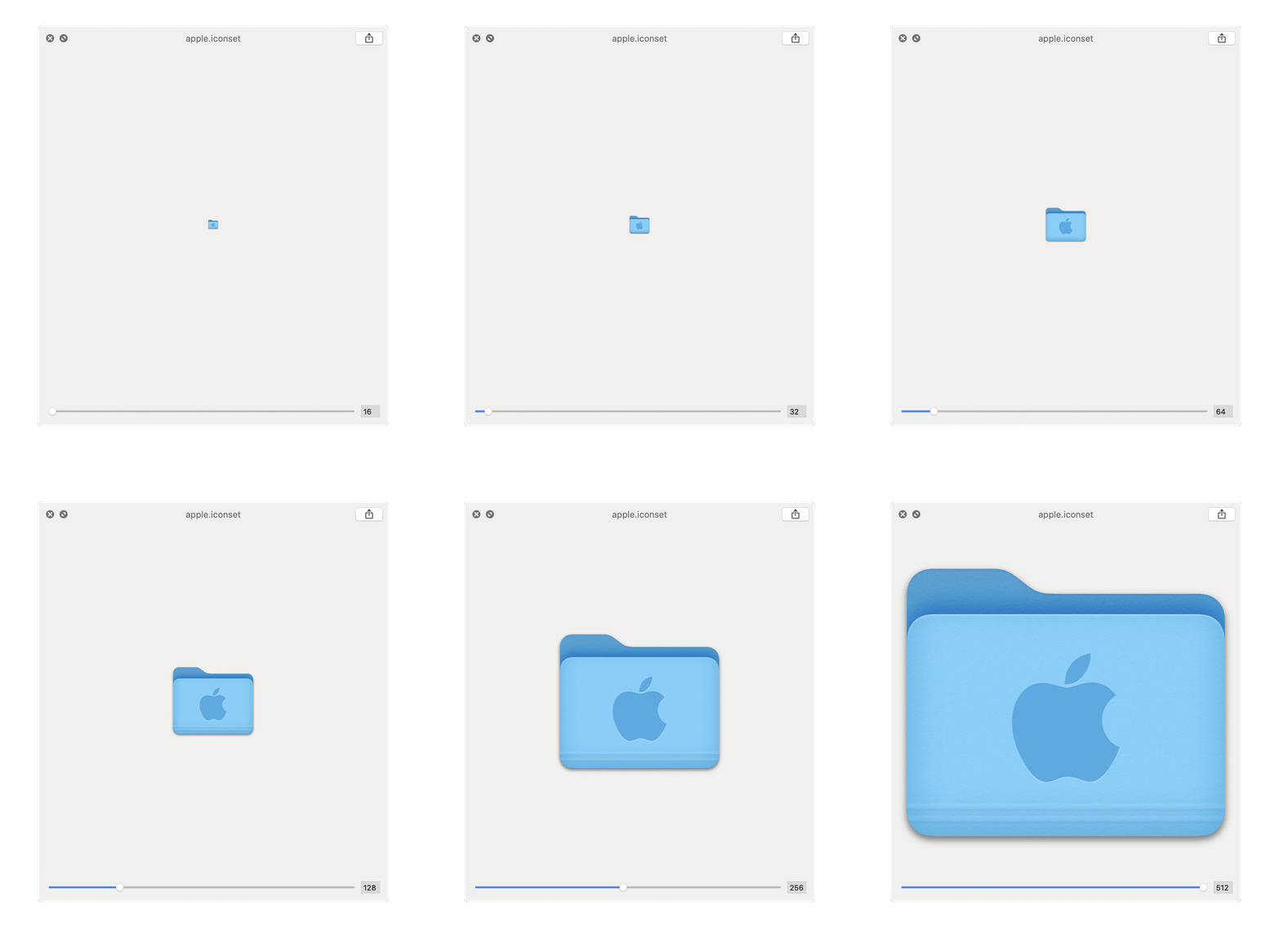
مثال تم إنشاؤه من شعار Apple: