FolderFileList
1.0.0

?Congratulations to 30,000 downloads achieved?
You can analyze the folders in question and check the list of folders and files. You can also output a list of the analyzed folders and files as text.
Download this software

This form allows you to select the folder you want to analyze and set the FolderFileList.
"Choose Folder (Ctrl+F)" button <br> The folder selection window appears. Select the folder you want to analyze.
"Run (Ctrl+R)" button <br> It will analyze the selected folder and start creating a list of folders and files.
"Settings (Ctrl+S)" button
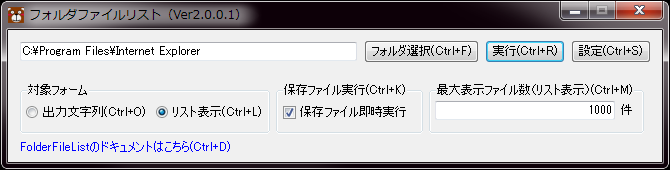
Click to display the settings area.
・Target form Output string (Ctrl+O)
Check the list of folders and files in the output string form
List view (Ctrl+L)
Check the list of folders and files in the list view form
・Execute save file (Ctrl+K)
Immediately Running a saved file After outputting and saving a text file, whether to run the file immediately?
・Maximum number of files displayed (list display) (Ctrl+M)
When using the list display form, the maximum number of files to be displayed per page
・Click here for the FolderFileList documentation (Ctrl+D)
You will be redirected to the FolderFileList document page.
Displays a list of tree-style folders and files in text.
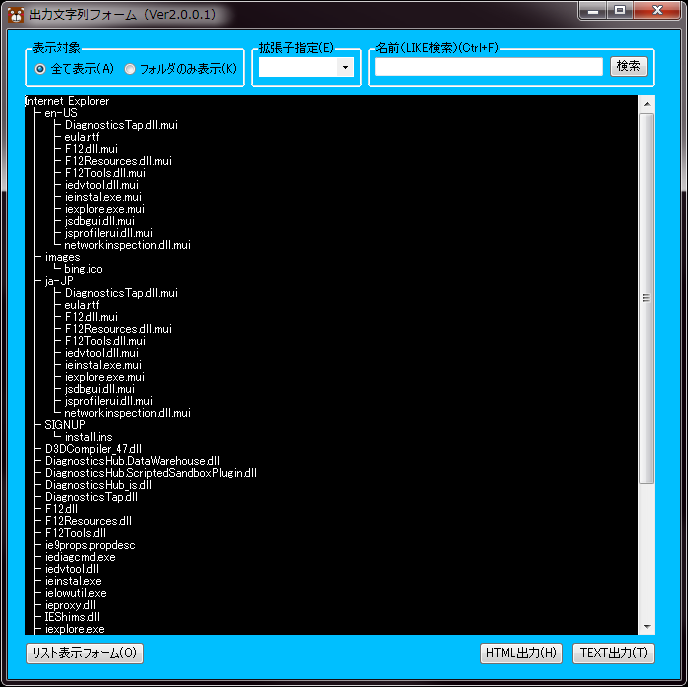
"Displayed to" radio button <br> You can specify the type of file to display.
・Show all (A)
Displays all folders and files.
・Display folders only (K)
Only folders are displayed.
*If you click this button, you cannot specify the extension (E) or name (LIKE search) (Ctrl+F).
"Specify Extension (E)" combo box <br> A list of extensions that exist in the target folder is displayed.
Narrows by file with the selected extension.
*Folder cannot be narrowed down.
"Name (LIKE Search) (Ctrl+F)"
Filter by file name using LIKE search.
*Folder cannot be narrowed down.
"List Display Form (O)" button <br> Close the output string form and display the list view form.
"HTML Output (H)" button <br> Outputs a list of tree-formatted folders and files as HTML files.
"TEXT Output (T)" button <br> A list of folders and files in tree format is output as a TEXT file.
Displays a list of folders and files in a list format.
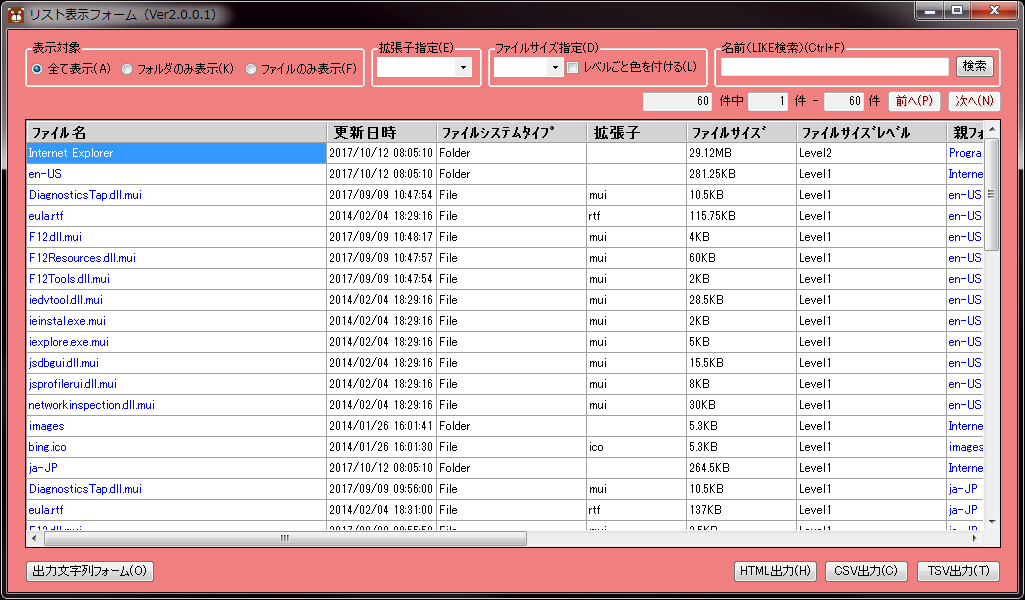
"Displayed to" radio button <br> You can specify the type of file to display.
・Show all (A)
Displays all folders and files.
・Display folders only (K)
Only folders are displayed.
*If you click this button, you cannot use the extension specification (E).
・Show files only (F)
Only files are displayed.
"Specify Extension (E)" combo box <br> A list of extensions that exist in the target folder is displayed.
Narrows only files with the selected extension.
"Specify File Size (D)" combo box <br> Narrow down folders and files by file size level.
"Color each level (L)" check box <br> Folders and files can be colored according to the file size level to make them easier to read.
*Regarding file size level
Level 0: 0B or more, smaller than 1KB
Level 1: 1KB or more, less than 1MB
Level 2: 1MB or more, less than 100MB
Level 3: 100MB or more, less than 1GB
Level 4: 1GB or more, less than 10GB
Level 5: 10GB or more
"Name (LIKE Search) (Ctrl+F)"
Filter by folder/file name by LIKE search.
"Previous (P)" and "Next (N)" buttons <br> It becomes available when the number of folders and files exceeds the maximum number of displayed files.
"Output String Form (O)" button <br> Close the list view form and display the output string form.
"HTML Output (H)" button <br> Outputs a list of folders and files in a list format as an HTML file.
"CSV Output (C)" button <br> Outputs a list of folders and files in list format as a CSV file.
"TSV Output (T)" button <br> Outputs a list of folders and files in list format as a TSV file.
"Run a File"
You can double-click or enter the file with the items displayed in blue (file name, parent folder, target folder, fullpass or below) If multiple selections are available, multiple executions can be performed.
*The file to be executed is executed according to the OS association.
"Sort Files"
You can sort the files in the list by clicking on the header or when the list has focus. Whenever you perform a sort of file, it switches between ascending and descending order.
"Column width adjustment"
When the list has focus, Shift + M automatically adjusts the column width of the list.
The column width is automatically adjusted to the width where all the largest items in the header are displayed.
If you check the file output in your Html file in your browser, you will see something like the following:
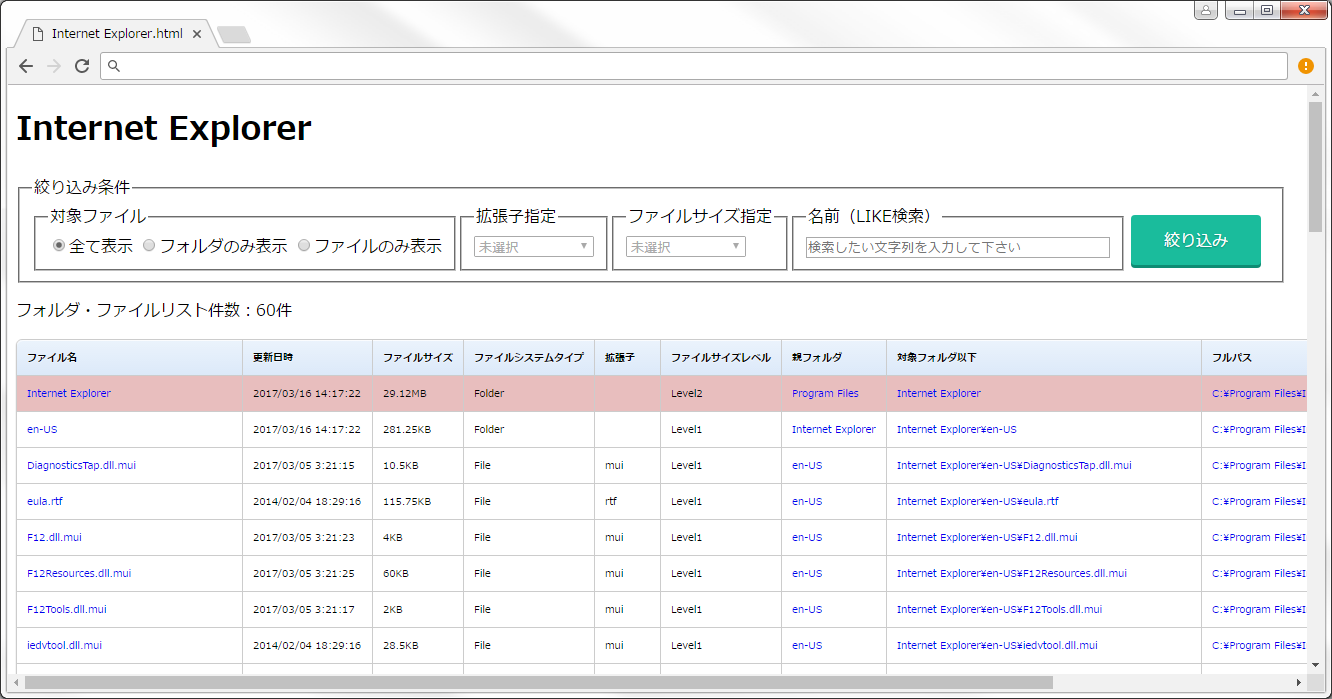
You can narrow down the file even if the output Html file is alone, just like a list display form.
There is a command to run FolderFiLeList from the command line.
Help: /?
Displays a list of commands
Form type: /Form=(Text | List)
Text: Display output string form
List: Display list display form *The default is "/Form=Text"
Output format: /Output=(ClipBoard | SaveDialog)
ClipBoard: Copy to Clipboard
SaveDialog: Save as dialog
Extension: /Extension=(txt | csv | tsv | html)
txt: Output in TXT format
csv: Output in CSV format
tsv: Output in TSV format
html: Output in HTML format
*The default extension varies depending on the form.
"/Extension=txt" (/Form=Text)
"/Extension=csv" (/Form=List)
Run: /Execute
Run the saved file immediately.
Maximum number of files displayed: /PageSize=number <br> Only numbers are valid and all others are ignored.
This is the setting for the maximum number of files to be displayed per page when using the list display form.
Invalid command line arguments If an invalid keyword is used, it will be ignored.
Incorrect values will be run with default settings.
By running "CreateCommandModeLinks.vbs", you can register the command mode processing of FolderFileList in the "Send" folder. The registered processes are as follows:
・Display the output string form ・Copy the output string to the clipboard ・Save and execute the output string (TXT)
・Save and execute output string (HTML)
・View list form ・Copy list to clipboard (CSV)
・Copy list to clipboard (TSV)
・Save and run list (CSV)
・Save and run list (TSV)
・Save and run the list (HTML)
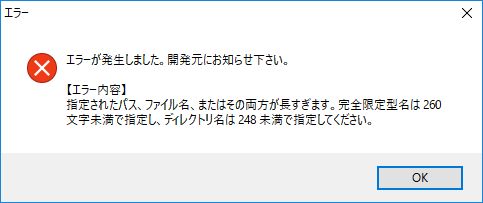
If a message box like the following appears while running, you will need to change the settings.
This error can occur if you have a long path.
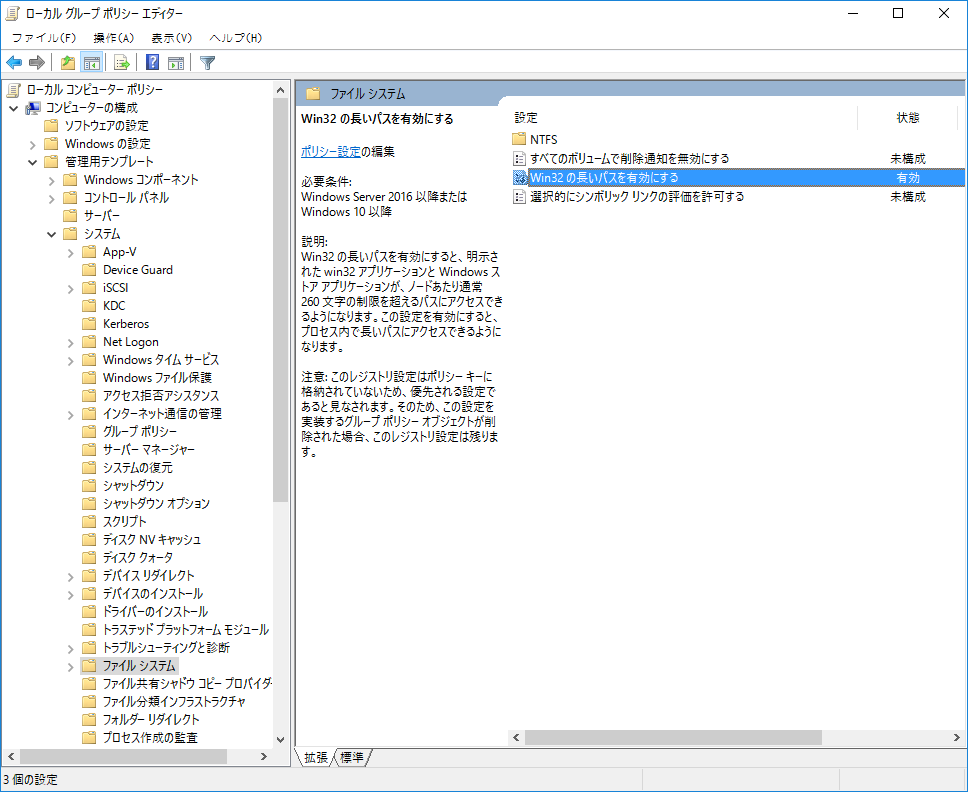
Please enable the following items in the Local Group Policy and restart your computer.
Local Computer Policy → Computer Configuration → Administrative Templates → System → File System → Enable long Win32 paths
・First release
・Fixed errors when specifying a drive ・Filtering function added to the output string form ・Change background color of list display form ・Fixed bug in sorting update date and time in list display form
・Changed the wording of help commands ・Fixed minor bugs in the output string form





