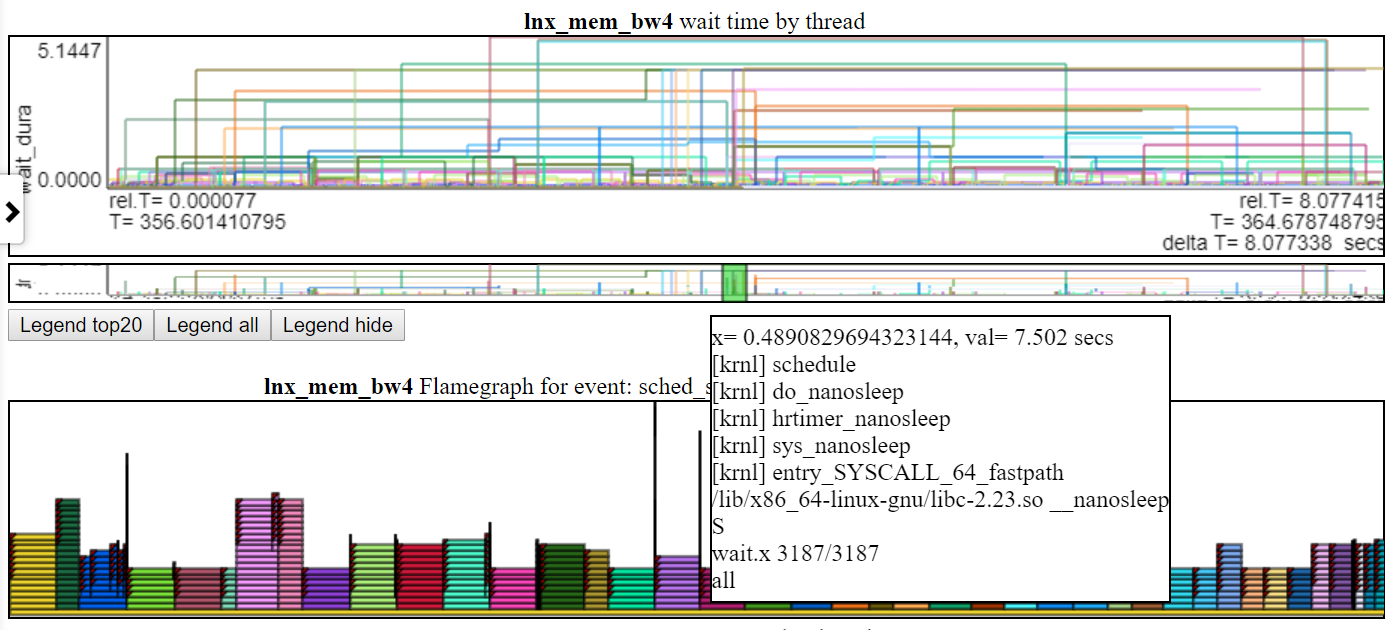
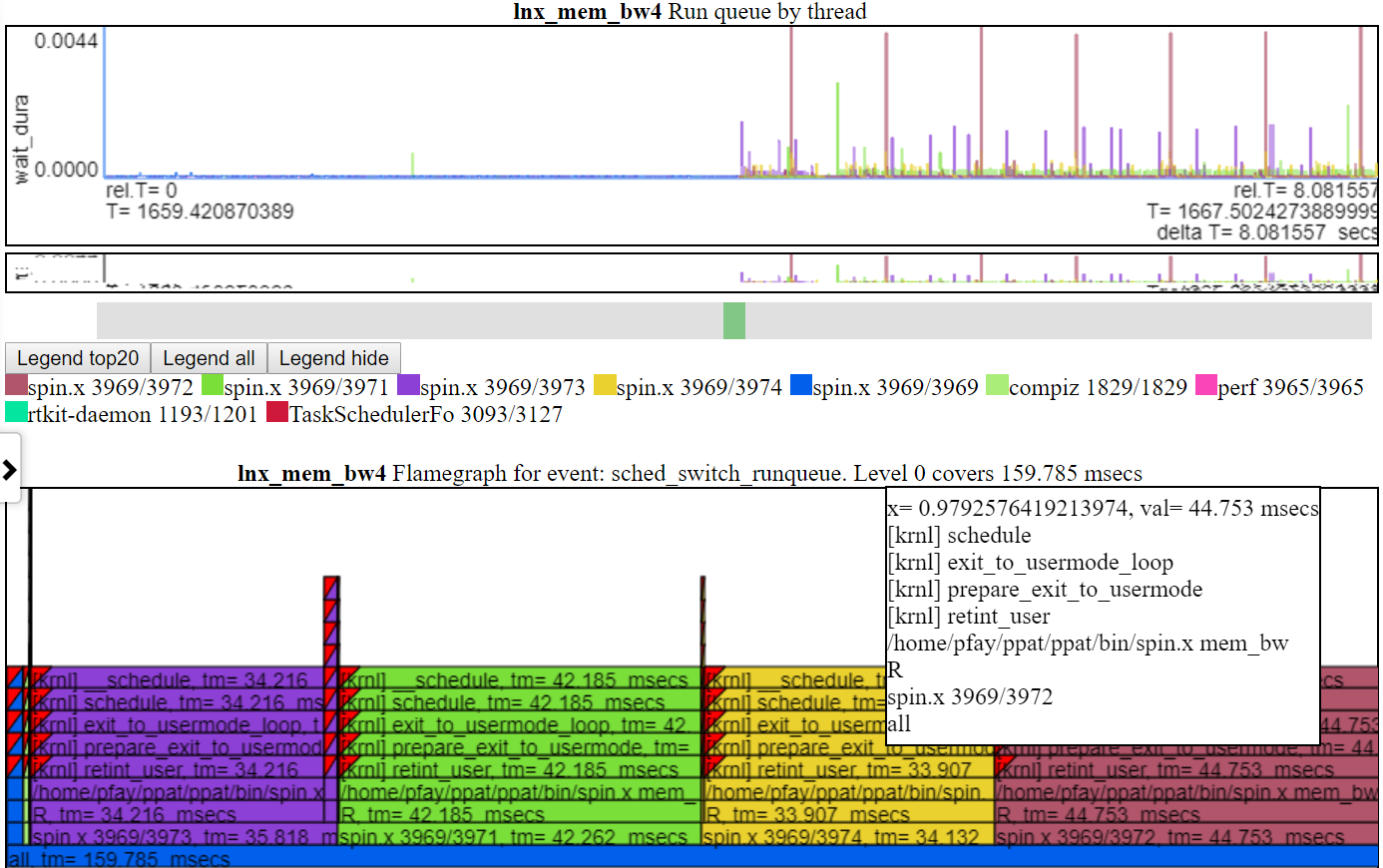
開放能力/性能分析工具(OPPAT)
目錄
- 介紹
- 支持數據類型
- 對立可視化
- oppat的數據收集
- PCM數據支持
- 建立Oppat
- 跑步
- 派生事件
- 使用Browswer GUI界面
- 限制
介紹
開放功率/性能分析工具(OPPAT)是跨架構功率和性能分析工具。
- Cross-OS:支持Windows ETW跟踪文件和Linux/Android Perf/Trace-CMD跟踪文件
- 跨架構:支持英特爾和手臂芯片硬件事件(使用PERF和/或PCM)
項目網頁是https://patinnc.github.io
源代碼回購是https://github.com/patinnc/oppat
我已經在CPU框圖功能中添加了一個操作系統(OS_VIEW)。這基於Brendan Gregg的頁面,例如http://www.brendangregg.com/linuxperf.html。這是一些用於運行Geekbench v2.4.2(32位代碼)的舊版本的示例數據,該手臂64bit Ubuntu Mate v18.04.2 Raspberry Pi 3 B+,4 ARM Cortex A53 CPU:
- OS_VIEW和ARM A53 CPU框圖運行GeekBench的更改的視頻:
- 有一些介紹性幻燈片可以嘗試解釋OS_VIEW和CPU_DIAGRAM佈局,然後1個幻燈片顯示了30個子測驗中的每一個的結果
- 電影中數據的excel文件:電影中的geekbench excel文件
- 電影中的數據的HTML ...請參閱4個核心ARM Cortext A53上的Geekbench v2.4.2,帶有OS_VIEW,CPU圖。
- 所有30個階段的儀表板PNG通過增加說明/秒排序...請參閱帶有CPU圖4核芯片儀表板的ARM Cortex A53 Raspberry Pi 3運行Geekbench。
這是一些用於運行我的旋轉基準測試的示例數據(內存/緩存帶寬測試,“旋轉” keep-cpu-busy Test測試)Raspberry Pi 3 B+(Cortex A53)CPU:
- OS_VIEW和ARM A53 CPU框圖運行旋轉的更改的視頻:
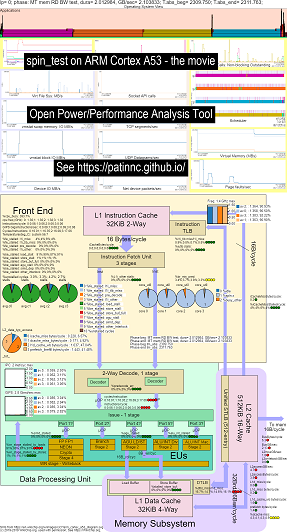
- 有一些介紹性幻燈片可以嘗試解釋OS_VIEW圖表和CPU_DIAGRAGRAM佈局,這是一個顯示每個子測試的時間(以秒為單位)顯示(因此您可以轉到t = x secs直接轉到該子測驗),然後為5個子測試中的每個幻燈片中的每個幻燈片進行一次幻燈片
- 電影中數據的excel文件:電影中的geekbench excel文件
- 電影中數據的HTML ...參見ARM Cortex A53 Raspberry Pi 3帶有CPU圖4核芯片運行旋轉基準測試。
- 所有5個階段的儀表板PNG通過增加指令/秒排序...請參閱帶有CPU圖4核芯片儀表板的ARM Cortex A53 Raspberry Pi 3運行自旋基準。
這是用於在Haswell CPU上運行Geekbench的一些示例數據:
- OS_VIEW和HASWELL CPU CPU框圖運行GeekBench的更改的視頻:
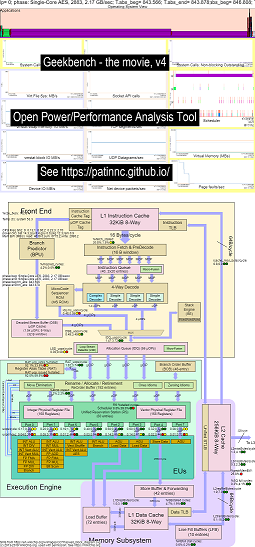
- 有一些介紹性幻燈片可以嘗試解釋OS_VIEW圖表和CPU_DIAGRAM佈局,這是一個幻燈片,顯示了每個子檢驗時(以秒為單位)顯示(因此您可以轉到t = x secs直接轉到該子測驗),然後為50個子測試中的每個幻燈片中的每個幻燈片進行一次幻燈片
- 電影中數據的excel文件:電影中的geekbench excel文件
- 電影中數據的HTML ...參見Intel Haswell,帶有CPU圖4-CPU芯片運行Geekbench。
- 所有50個階段的儀表板PNG通過增加UOPS退休/SEC排序...請參見Intel Haswell儀表板,帶有CPU圖4核芯片儀表板運行Geekbench。
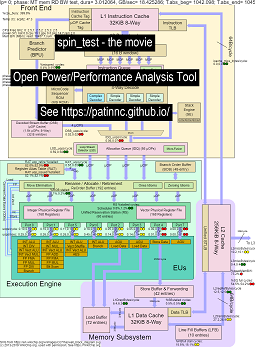
這是一些用於運行我的“自旋”基準測試的數據,並在Haswell CPU上進行4個子測試:
- 第一個子測驗是讀取內存帶寬測試。在測試期間,L2/L3/內存塊高度使用並停滯不前。大鼠UOPS/循環很低,因為大鼠大部分停滯不前。
- 第二個子測驗是L3讀帶寬測試。內存BW現在很低。在測試期間,L2和L3塊高度使用並停滯不前。大鼠UOPS/循環較高,因為大鼠停滯不前。
- 第三個子測驗是L2讀帶寬測試。 L3和內存BW現在很低。在測試期間,L2塊高度使用並停滯不前。大鼠UOPS/循環甚至更高,因為大鼠的失速較小。
- 第四個子測驗是一個旋轉(只是添加循環)測試。 L2,L3和內存BW接近零。大鼠UOPS/循環約為3.3 UOP/循環,即接近4個UOPS/循環最大。
- 通過分析運行“自旋”的Haswell CPU框圖更改的視頻。看
- 電影中數據的excel文件:旋轉電影中的excel文件
- 電影中數據的HTML ...參見帶有CPU圖4-CPU芯片的Intel Haswell運行自旋基準。
帶有CPU圖數據收集的Intel Haswell適用於4-CPU Intel芯片,Linux OS,HTML文件,並通過PERF Sampling和其他收集的數據,帶有50多hw事件。 cpu_diagram特徵:
- 從wikichip.org的框圖SVG開始(允許使用),
- 查看資源限制(例如最大BW,最大途徑上的最大字節/循環,最小周期/UOP等),
- 計算用於資源使用的指標
- 下面是內存讀取帶寬測試的表,該測試在表中顯示了資源使用信息(以及由於使用情況而導致CPU是否停滯的估計)。懸停在字段上時,HTML表(但沒有PNG)具有彈出信息。表顯示:
- 核心停滯在內存帶寬上,最大可能25.9 GB/s BW的55%。這是一個內存BW測試
- Superqueue(SQ)已滿(核心0和62.3%core1)(因此無法處理更多的L2請求)
- 線條加速器FB已滿(30%和51%),因此無法從L2移動到L1D
- 結果是後端停滯(88%和87%),沒有UOPS退休。
- UOPS似乎來自環路檢測器(因為LSD循環/UOP與大鼠UOPS/循環大致相同。
- Haswell CPU圖記憶BW表的屏幕截圖
- 以下是L3讀取帶寬測試的表。
- 現在,內存BW和L3遺失字節/週期大約為零。
- SQ較少停滯(因為我們不在等內存)。
- L2交易字節/週期高約2倍,約為最大64個字節/循環的67%。
- UOPS_RETIRID_STALLS/CYCEL已從MEM BW測試攤位下降到88%的66%。
- 現在,加速緩衝區攤位高2倍以上。 UOPS仍來自LSD。
- Haswell CPU圖L3 BW表的屏幕截圖
- 以下是L2讀帶寬測試的表。
- L2錯過字節/週期遠低於L3測試。
- 現在,UOPS_RETRIED%停滯不見的是L3測試的一半,為34%,FB攤位也約為17%。
- UOPS仍來自LSD。
- Haswell CPU圖L2 BW表的屏幕截圖
- 以下是一個自旋測試的表(沒有負載,只需添加一個循環)即可。
- 現在,幾乎有零內存子系統攤位。
- UOPS來自解碼流緩衝區(DSB)。
- 3.31循環/UOP時的大鼠retired_uops/循環接近可能的4.0 UOPS/循環。
- 老鼠retired_uops%失速在%8時非常低。
- Haswell CPU圖旋轉表的屏幕截圖
目前,我只有Haswell和ARM A53的CPU_DIAGRAMY電影(因為我沒有其他系統要測試),但是不難添加其他框圖。您仍然可以獲得所有圖表,但沒有獲得CPU_DIAGRAM。
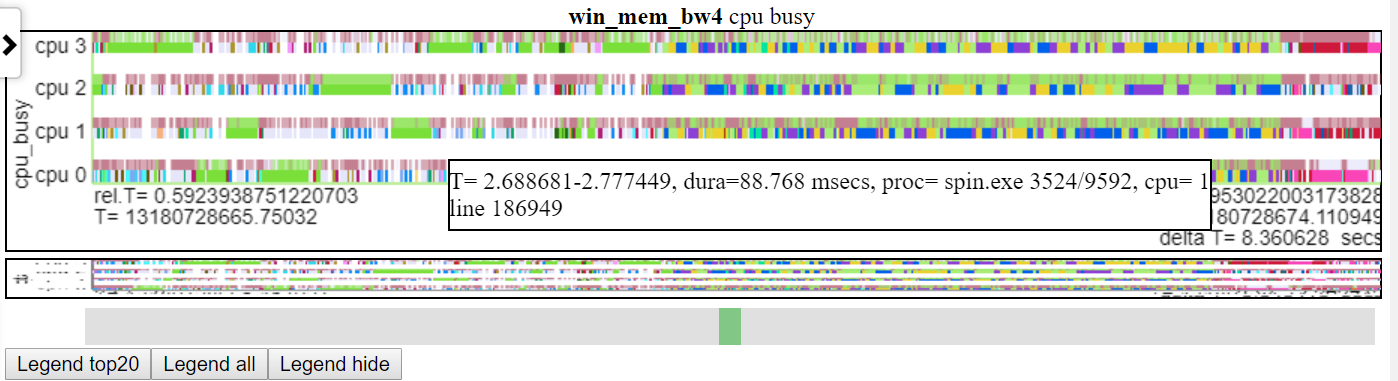
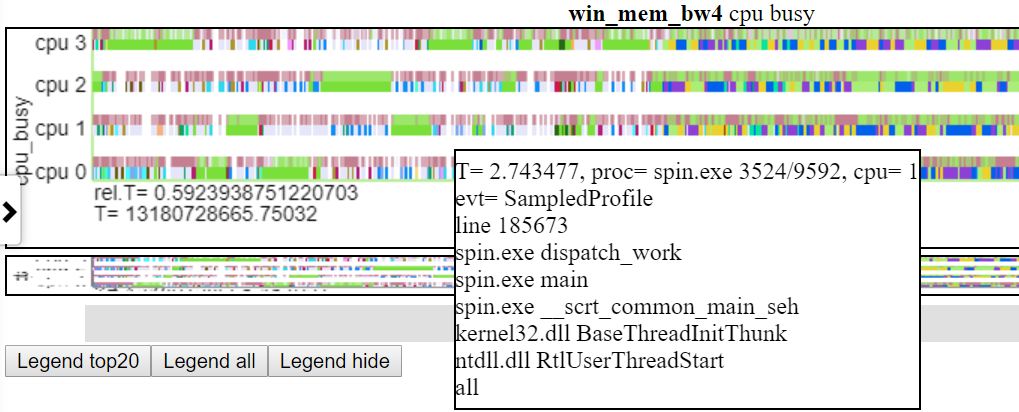
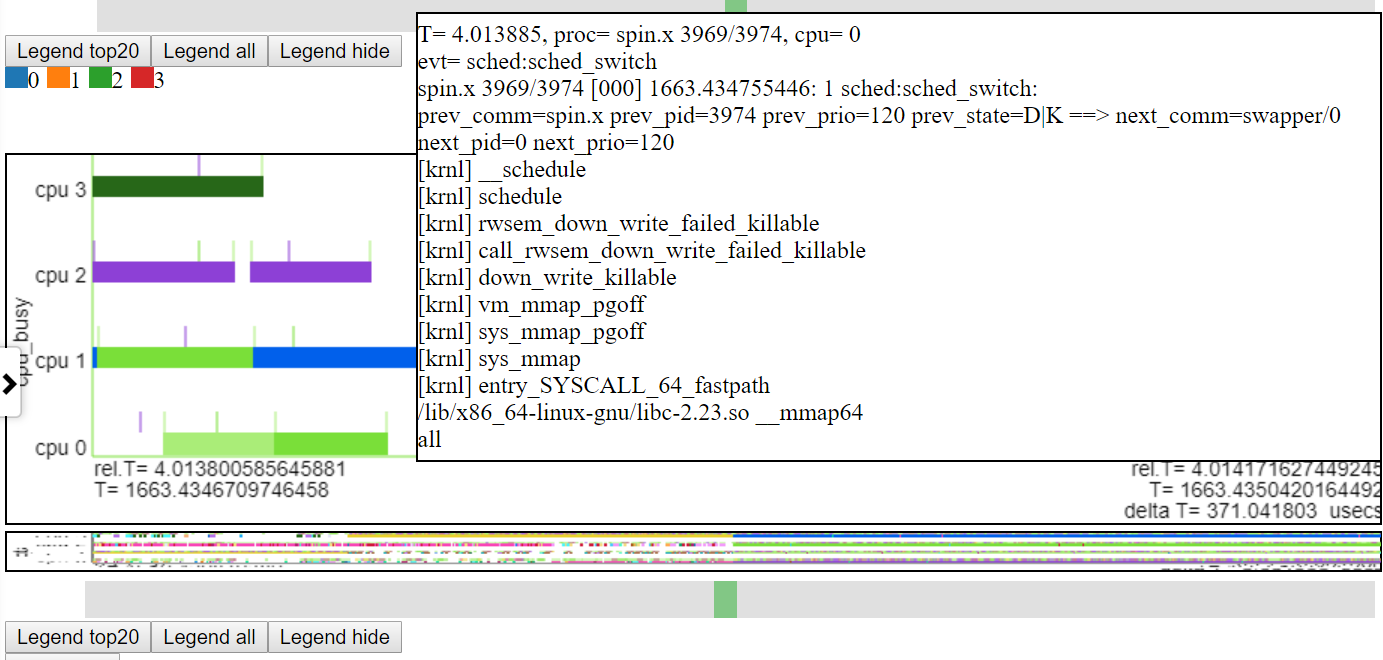
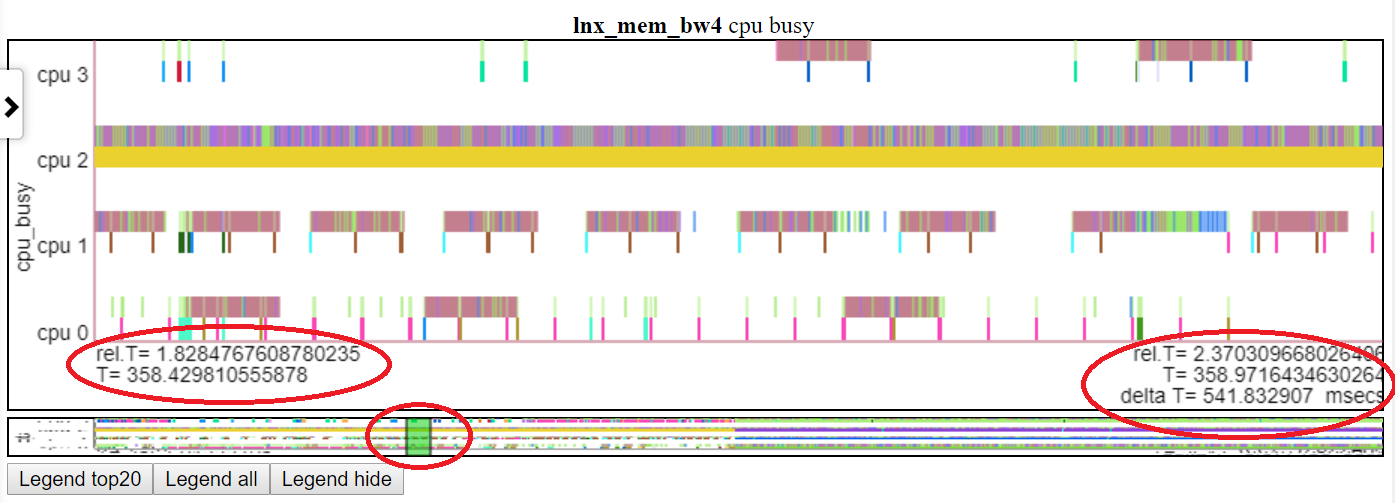
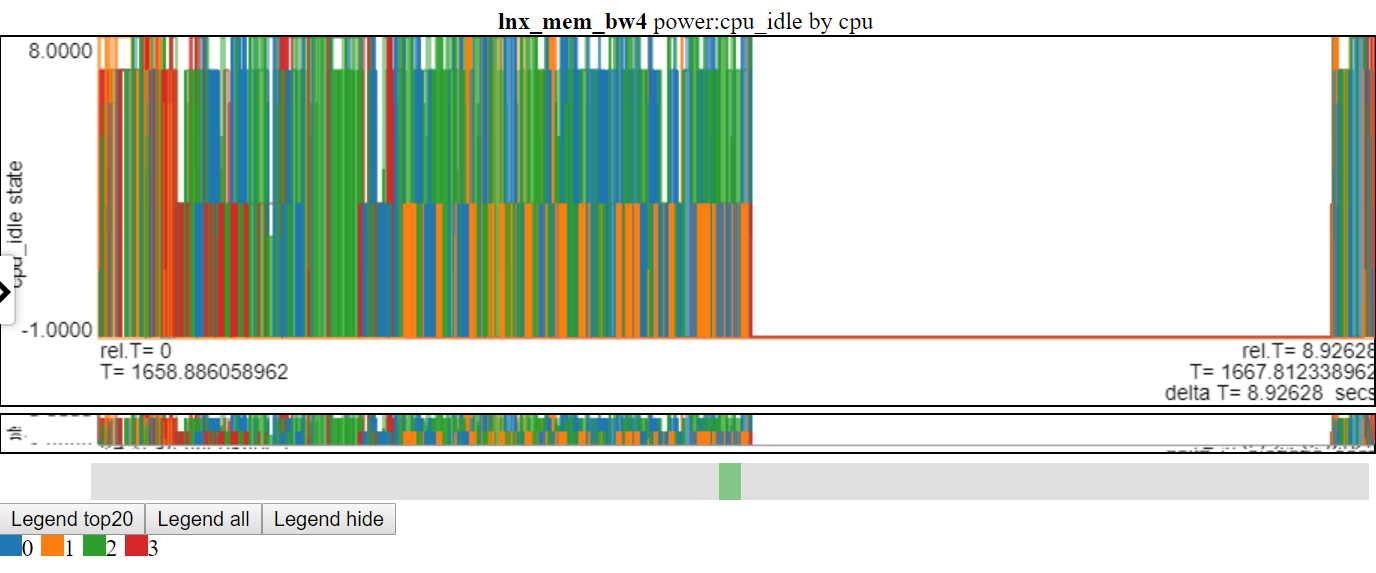
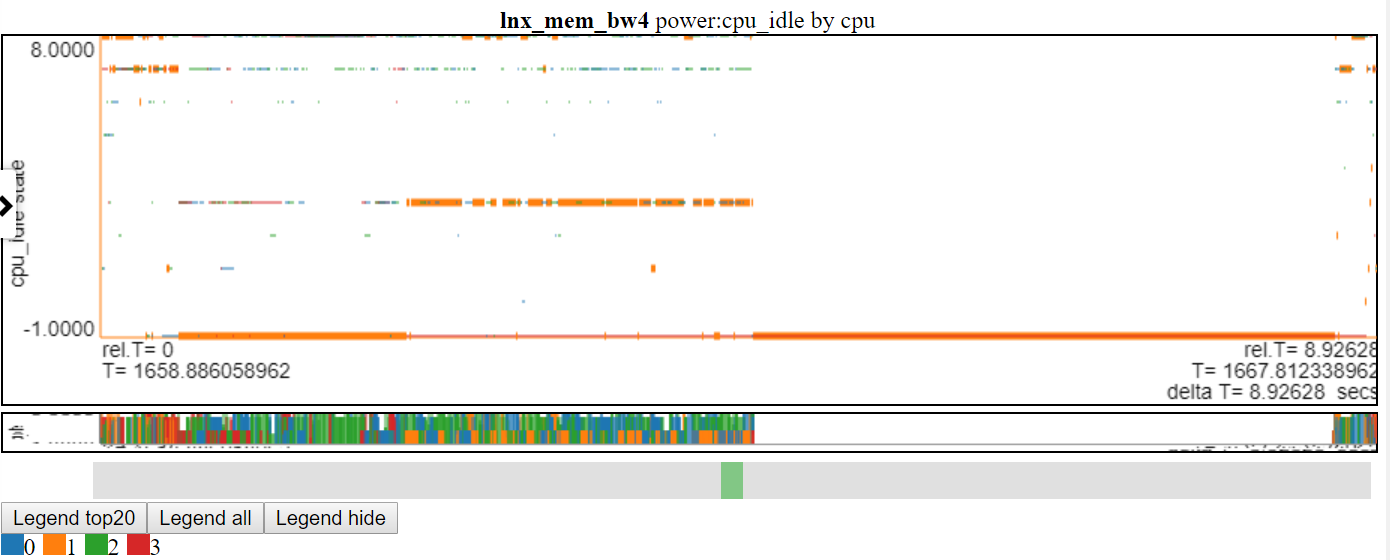
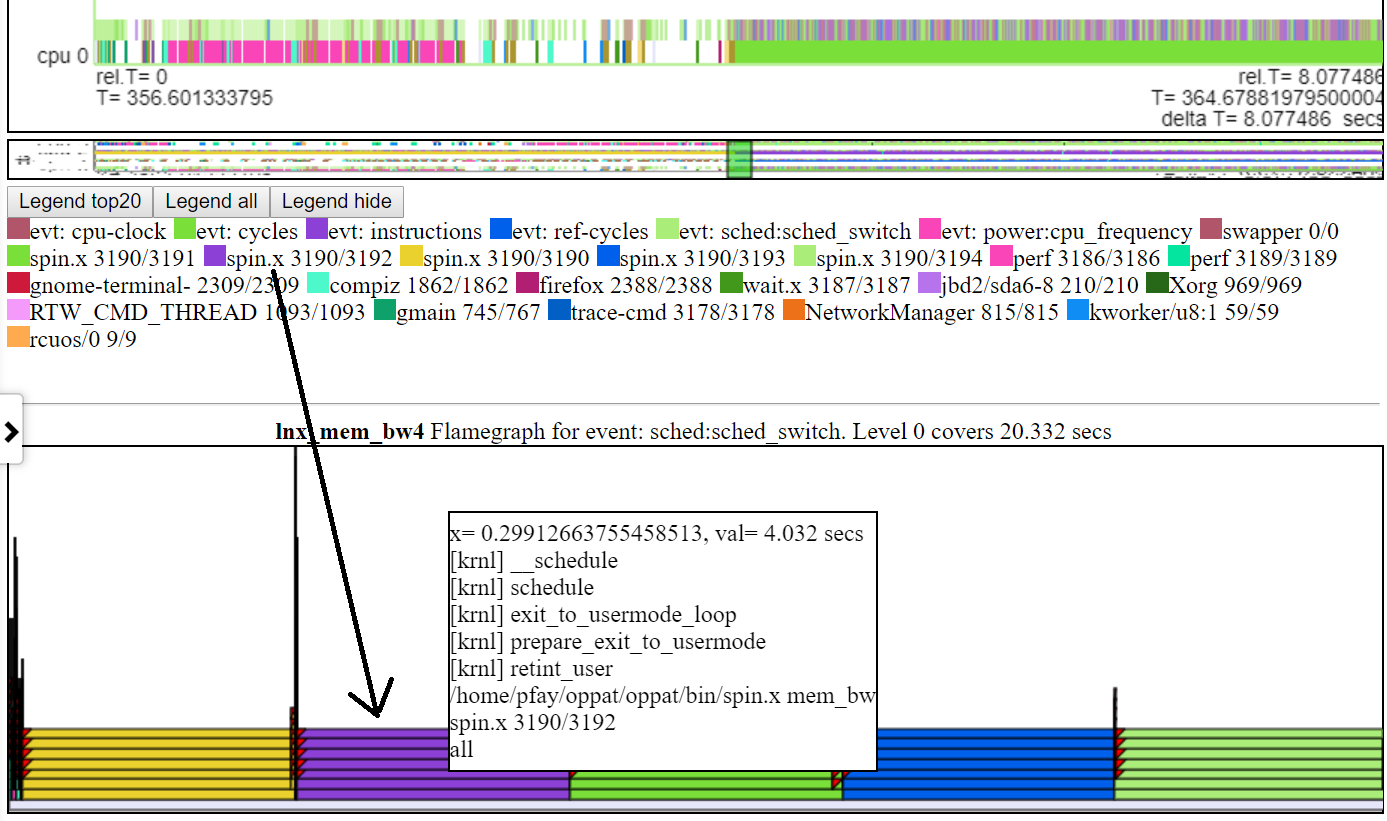
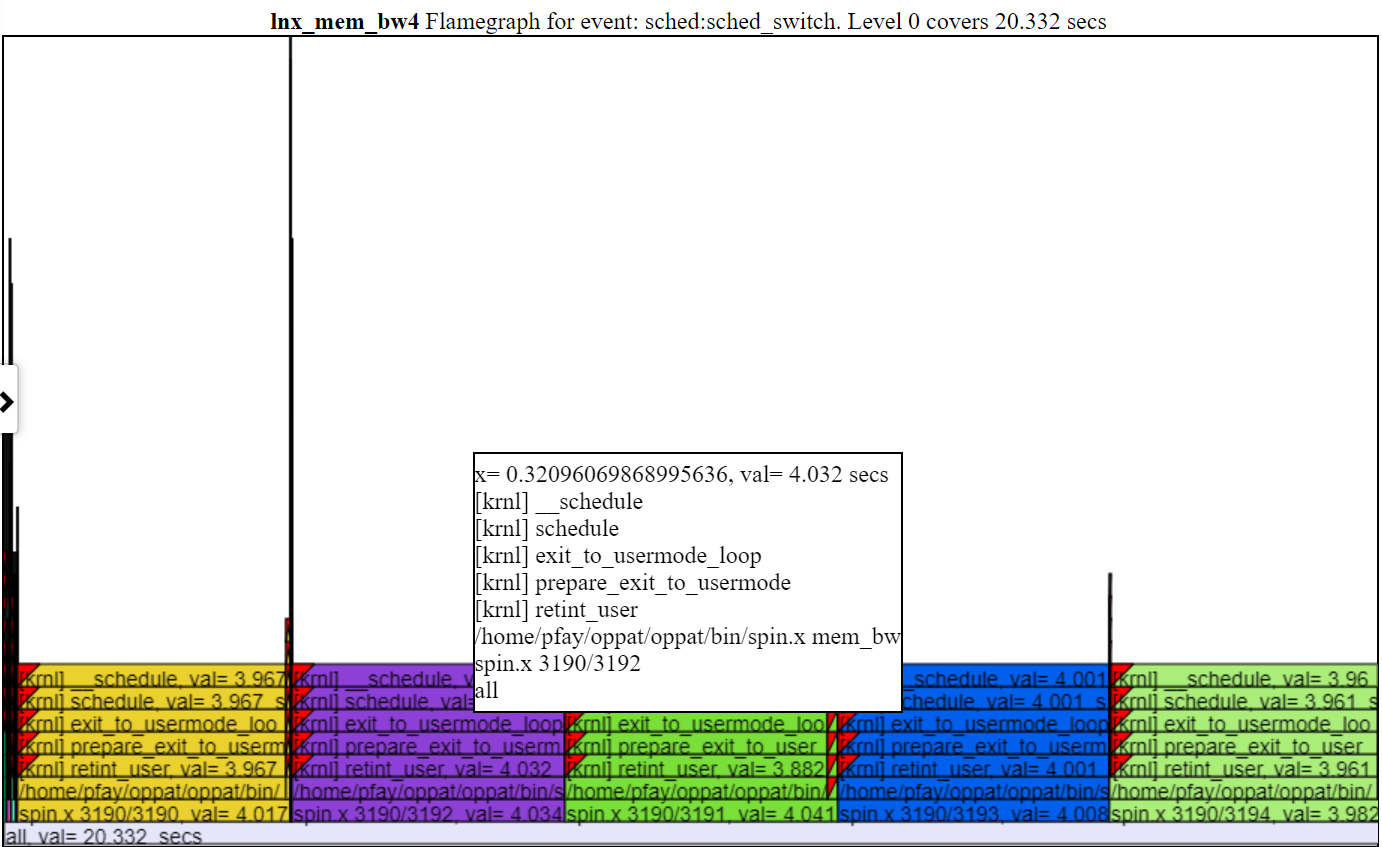
以下是相對圖之一。 “ CPU_BUSY”圖表顯示了每個CPU上正在運行的內容以及每個CPU上發生的事件。例如,綠色圓圈顯示一個在CPU 1上運行的spin.x線。紅色圓圈顯示了在CPU1上發生的一些事件。該圖表以Trace-CMD的kernelshark圖表進行建模。有關CPU_BUSY圖表的更多信息在圖表類別中。呼叫框顯示光標下事件的事件數據(包括Callstack(如果有))。不幸的是,Windows屏幕截圖不會捕獲光標。 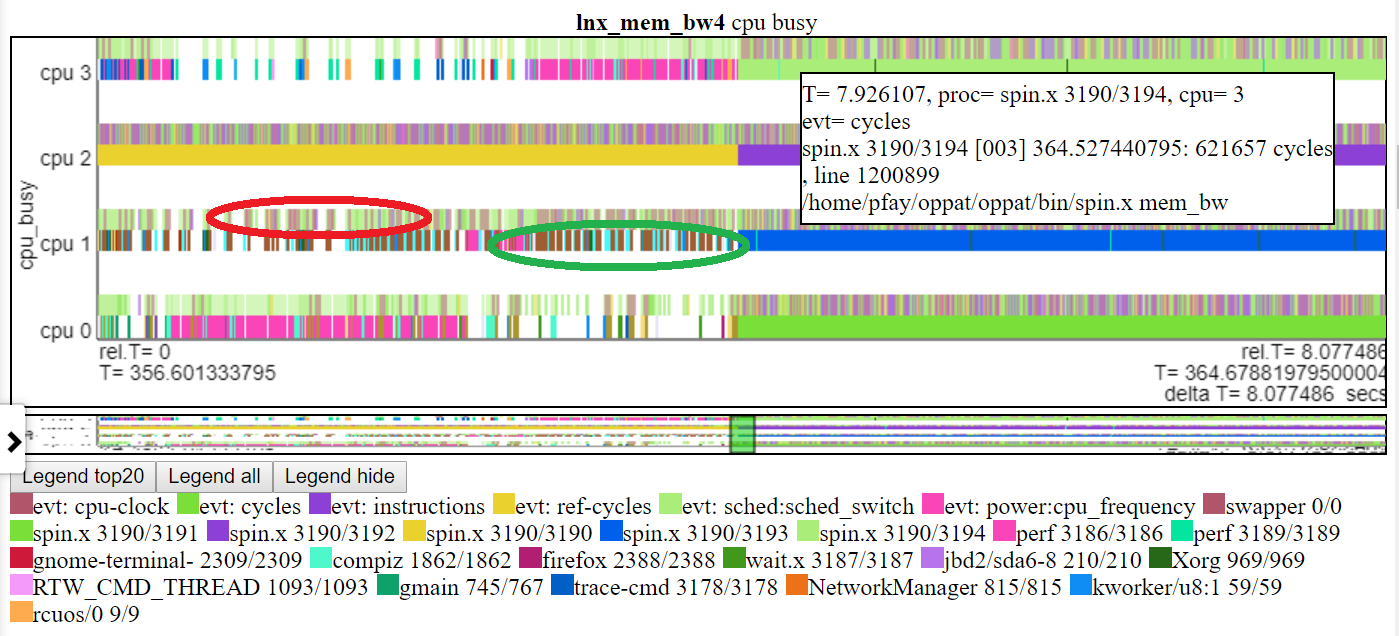
這是一些示例HTML文件。大多數文件的間隔較短,但有些是“完整” 8秒的運行。這些文件不會直接從存儲庫加載,但是它們將從項目網頁上加載:https://patinnc.github.io
- Intel Haswell帶有CPU圖4-CPU芯片,Linux OS,HTML文件,通過Perf Sampling或50+ HW事件或
- Intel 4-CPU芯片,Windows OS,HTML文件,通過Xperf採樣或1 HW事件或
- 完整〜8秒Intel 4-CPU芯片,Windows OS,帶PCM和XPERF採樣的HTML文件或
- Intel 4-CPU芯片,Linux OS,HTML文件,在2個多路復用組中具有10個HW事件。
- ARM(Broadcom A53)芯片,Raspberry PI3 Linux HTML文件,帶有14個HW事件(用於2個多路復用組的CPI,L2 MISSES,MEM BW等)。
- 11 MB,上臂的完整版(Broadcom A53)芯片,Raspberry PI3 Linux HTML文件,帶有14個HW事件(用於2個多路復用組的CPI,L2 MISSES,MEM BW等)。
上述某些文件是從〜8秒長期提取的〜2秒間隔。這是整個8秒的運行:
- 整個8秒Linux運行示例HTML壓縮文件在此處以獲取更完整的文件。該文件對圖表數據進行JavaScript Zlib解壓縮,因此您會看到消息要求您在解壓縮過程中等待(約20秒)。
支持的數據支持
- Linux Perf和/或Trace-CMD性能文件(二進製文件和文本文件),
- 完美統計輸出也接受了
- 英特爾PCM數據,
- 其他數據(使用LUA腳本導入),
- 因此,這應該與常規Linux或Android的數據一起使用
- 當前,對於PERF和TRACE-CMD數據,OPPAT需要二進制和後處理的文本文件,並且在“記錄”命令行和'perf Script/Trace-CMD報告'命令行上有一些限制。
- 可以使Oppat僅使用perf/trace-cmd文本輸出文件,但目前需要二進製文件和文本文件
- Windows ETW數據(由Xperf收集並傾倒到文本)或Intel PCM數據,
- 使用LUA腳本支持的任意權力或性能數據(因此您無需重新編譯C ++代碼即可導入其他數據(除非LUA性能成為問題)
- 在Linux或Windows上讀取數據文件,無論文件起源於何處(因此,在Linux上讀取Windows或ETW文本文件上的Perf/Trace-CMD文件)
對立可視化
這是一些完整的示例VisualZation HTML文件:Windows示例HTML文件或此Linux示例HTML文件。如果您在存儲庫中(不是Github.io項目網站),則必須下載文件,然後將其加載到瀏覽器中。這些是由OPPAT創建的獨立Web文件,例如,可以通過電子郵件發送給其他人,或(如下所示)發佈在Web服務器上。
OPPAT在鉻中的作用要比Firefox更好,這主要是因為使用TouchPad 2手指滾動的變焦在Chrome上效果更好。
Oppat具有3種可視化模式:
- 通常的圖表機制(Oppat後端在其中讀取數據文件並將數據發送到瀏覽器)
- 您還可以創建一個獨立的網頁,該網頁相當於“常規圖表機制”,但可以與其他用戶交換...獨立網頁具有所有內置的腳本和數據,因此可以通過電子郵件將其發送給某人,並且可以將其加載到瀏覽器中。請參閱上面引用的sample_html_files中的html文件,並且(有關lnx_mem_bw4的較長版本)請參見“壓縮文件sample_html_files/lnx_mem_bw4_flyl.html.html”
- 您可以' - 保存'數據json文件,然後 - 稍後加載文件。保存的JSON文件具有OPPAT需要發送到瀏覽器的數據。這避免了重新閱讀輸入perf/xperf文件,但不會拿起Charts.json中所做的任何更改。使用-web_file選項創建的完整HTML文件僅比 - 保存文件大一點。 - 保存/ - 負載模式需要構建Oppat。請參閱sample_data_json_files subdir中的示例“保存”文件。
VIZ一般信息
- 在瀏覽器(Linux或Windows上)中圖表所有數據
- 圖表在JSON文件中定義
- 瀏覽器接口有點像Windows WPA(左側的Navbar)。
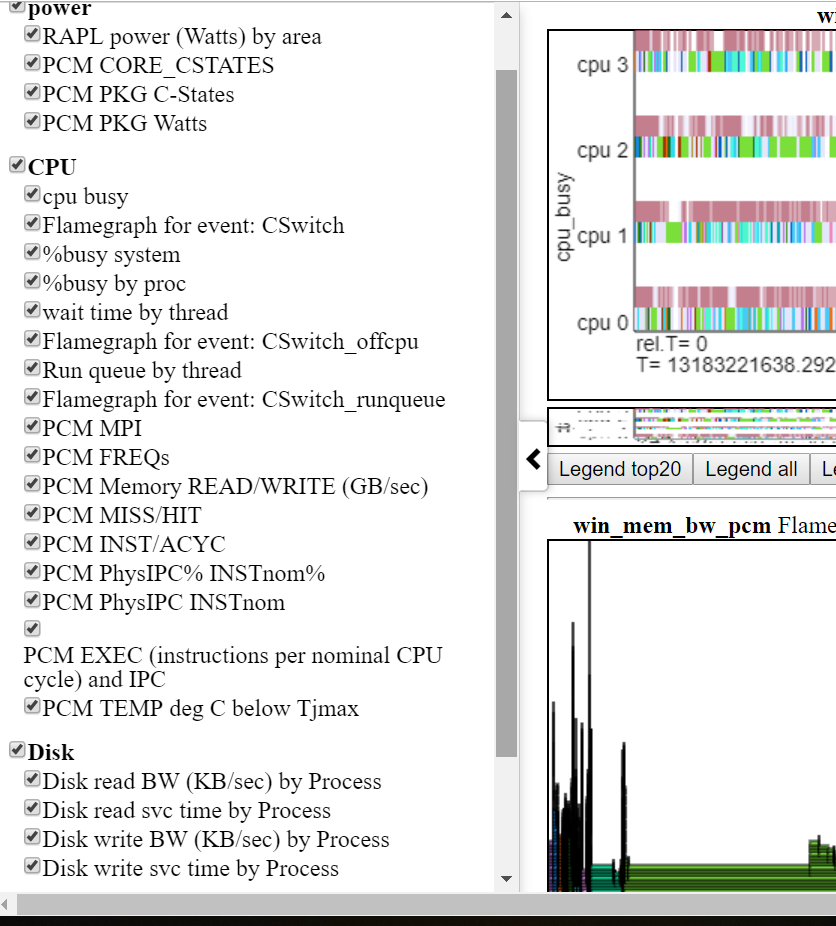
- 下面顯示了左Navbar(左側滑動菜單)。
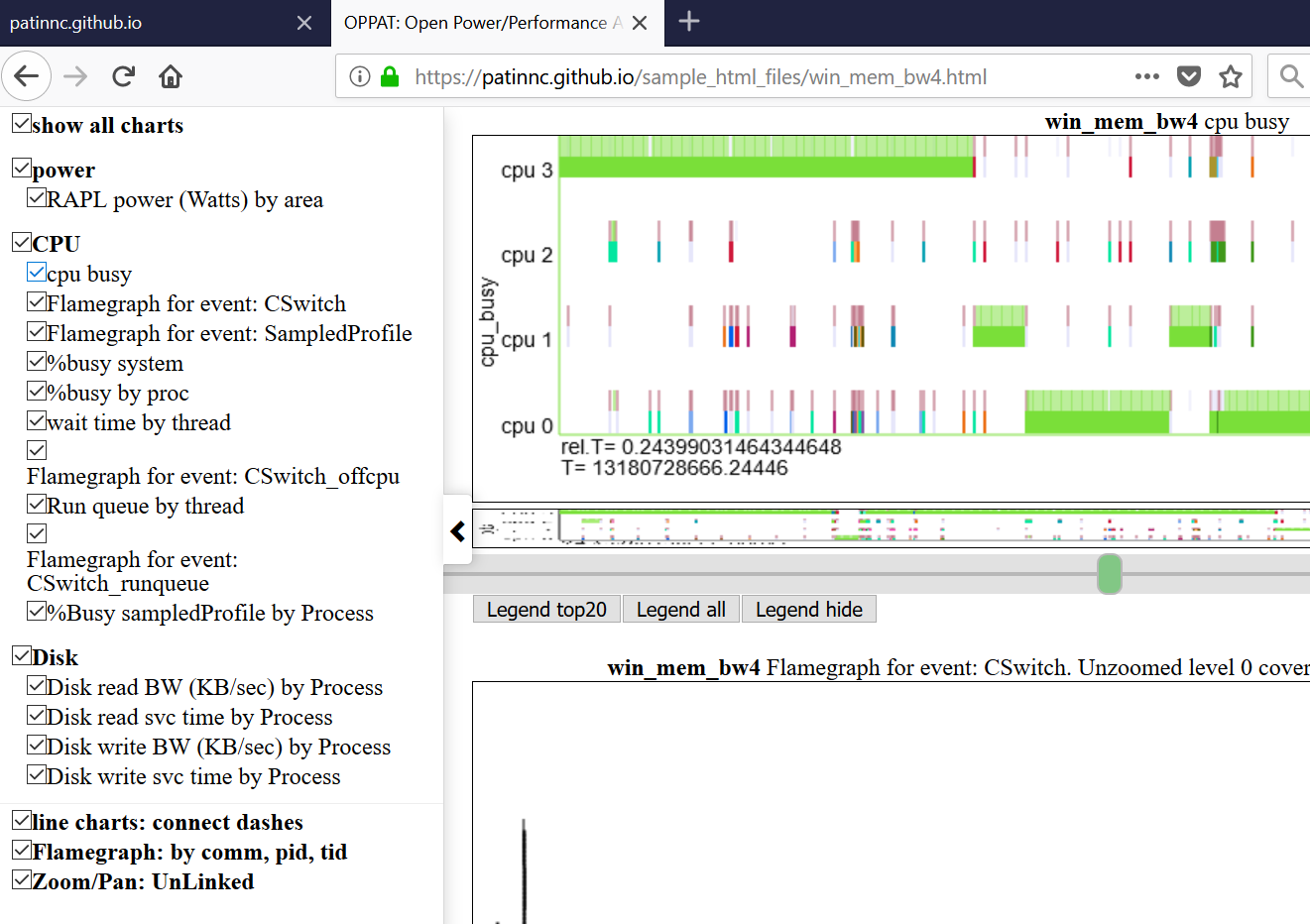
- 圖表按類別分組(GPU,CPU,Power等)
- 類別是在Input_files/Charts.json中定義和分配的
- 通過單擊Navbar中的圖表,可以全部隱藏或選擇性地顯示圖表。
- 懸停在左NAV菜單中的圖表標題上,將圖表到視圖
- 一組文件的數據可以在另一組旁邊繪製
- 因此,您可以說,比較Linux Perf Perform vs Windows ETW運行
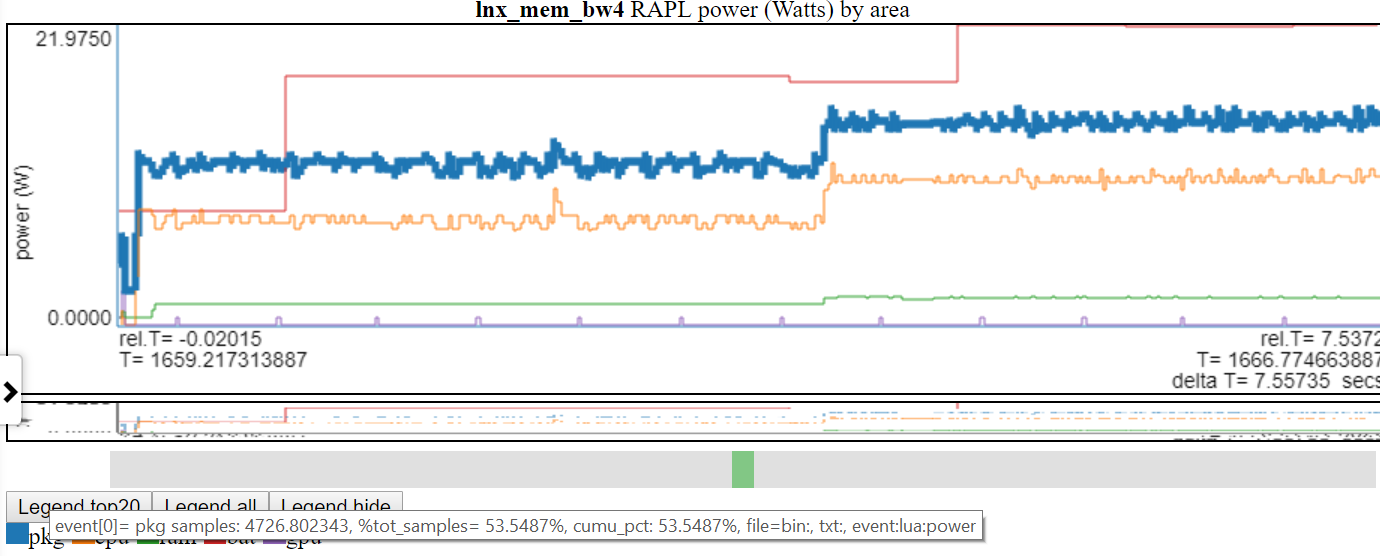
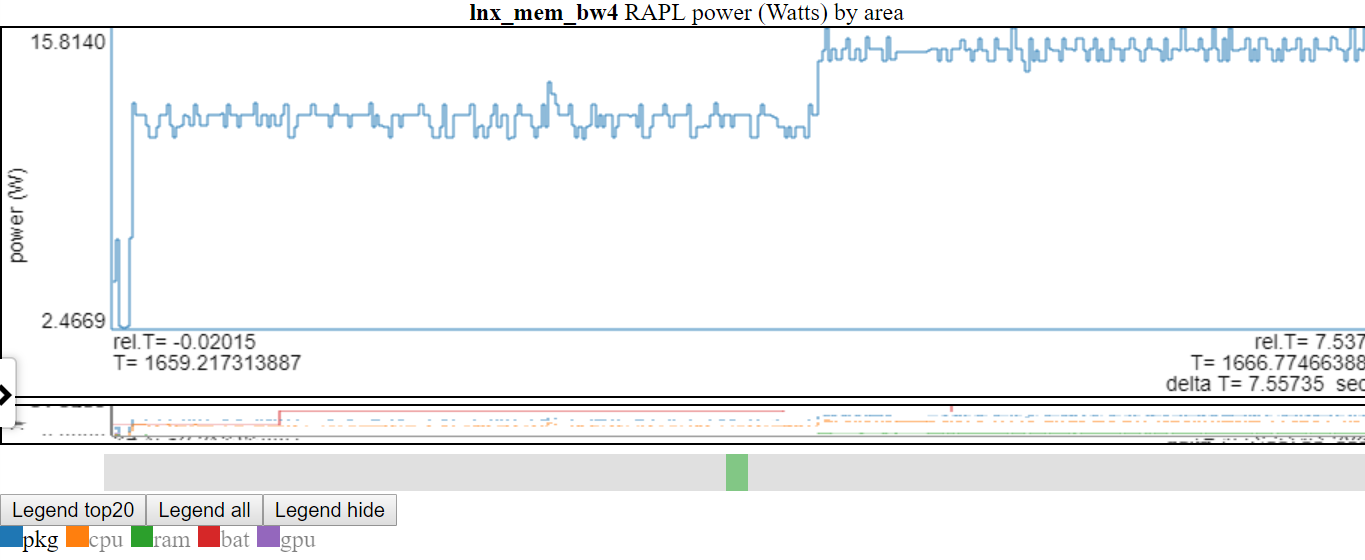
- 下圖顯示Linux vs Windows功率使用情況:
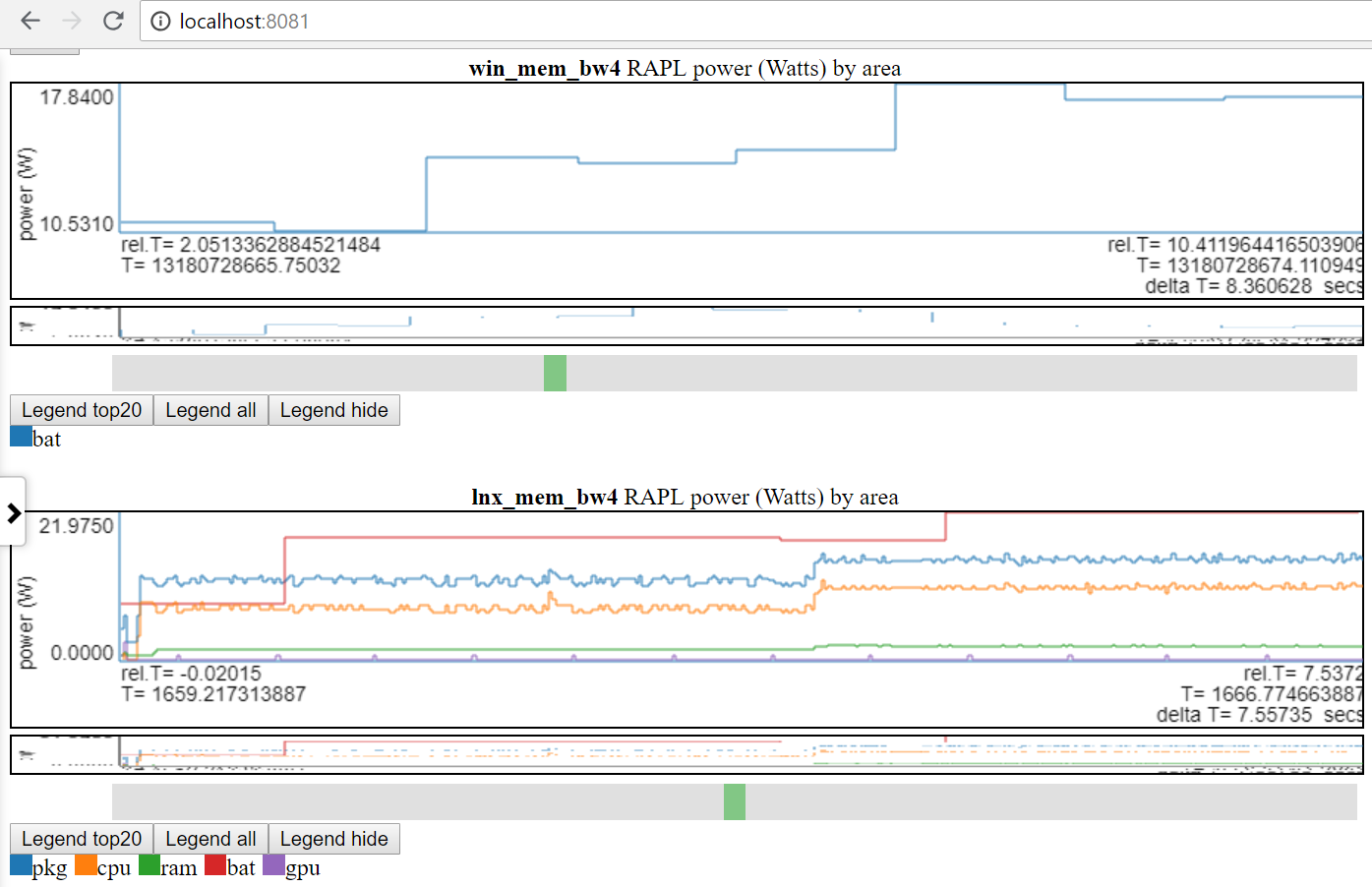
- 我只能在Linux和Windows上使用電池電源。
- 許多站點具有更好的功率數據(以MSEC(或更高)速率為單位的電壓/電流/電源)。將這些類型的電源數據(例如來自Kratos或Qualcomm MDPS)合併很容易,但是我無法訪問數據。
- 或在同一平台上比較2種不同的運行
- 文件組標籤(file_tag)前綴為標題以區分圖表
- 在數據dir的file_list.json文件和/或input_files/input_data_files.json中定義了“標籤”。
- input_files/input_data_files.json是所有Oppat Data Dirs的列表(但用戶必須維護它)。
- 繪製具有相同標題的圖表一個接一個地繪製
圖表功能:
圖表類型:
oppat的數據收集
收集性能和功率數據非常“情況”。一個人將要運行腳本,另一個人需要使用按鈕開始測量,然後啟動視頻,然後用按鈕按下按鈕結束集合。我有一個用於Windows的腳本和一個用於Linux的腳本,可以演示:
- 啟動數據收集,
- 運行工作量,
- 停止數據收集
- 後處理數據(從perf/xperf/trace-cmd二進制數據創建文本文件)
- 將所有數據文件放入輸出DIR中
- 在輸出dir中創建一個file_list.json文件(告訴Oppat oppat oppat oppat oppat oppat oppat oppation oppation Files的名稱和類型)
使用腳本收集數據的步驟:
- 構建spin.exe(spin.x)和wait.exe(wait.x)實用程序
- 來自Oppat Root Dir:
- 在Linux上:
./mk_spin.sh - 在Windows上:
.mk_spin.bat (來自Visual Studio CMD框) - 二進製文件將放在./bin subdir中
- 從運行提供的腳本開始:
- RUN_PERF_X86_HASWELL.SH-對於Haswell CPU_DIAGRAGRAGRAM數據集合
- 在Linux上,類型:
sudo bash ./scripts/run_perf.sh - 默認情況下,腳本將數據放入dir ../oppat_data/lnx/mem_bw7中
- run_perf.sh-您需要安裝Trace -CMD和Perf
- 在Linux上,類型:
sudo bash ./scripts/run_perf.sh - 默認腳本將數據放入dir ../oppat_data/lnx/mem_bw4中
- run_xperf.bat-您需要安裝xperf.exe。
- 在Windows上,從具有管理員特權的CMD框,類型:
.scriptsrun_xperf.sh - 默認情況下,腳本將數據放入dir .. oppat_data win mem_bw4
- 如果要更改默認值,請編輯運行腳本
- 除了數據文件外,運行腳本還在輸出dir中創建file_list.json文件。 OPPAT使用file_list.json文件來找出輸出dir中的文件名和文件類型。
- 運行腳本的“工作負載”是spin.x(或spin.exe),它在1 CPU上進行4秒鐘,然後在所有CPU上進行內存帶寬測試,然後再進行4秒。
- 另一個程序wait.x/wait.exe也在後台開始。 WAIT.CPP讀取我的筆記本電腦的電池信息。它可以在我的雙啟動Windows 10/Linux Ubuntu筆記本電腦上工作。 SYSFS文件在您的Linux上可能具有不同的名稱,並且在Android上幾乎肯定是不同的。
- 在Linux上,您可能只能使用與run_perf.sh中相同的語法生成prf_trace.data和prf_trace.txt文件,但我沒有嘗試過。
- 如果您要在筆記本電腦上運行並想要獲取電池電源,請在運行腳本之前記住斷開電源電纜。
PCM數據支持
- Oppat可以讀取並圖表PCM .CSV文件。
- 以下是創建圖表列表的快照。
- 不幸的是,您必須對PCM進行補丁,以創建一個具有絕對時間戳的文件,以便OPPAT進行處理。
- 這是因為PCM CSV文件沒有時間戳我可以用來與其他數據源相關。
- 我在這裡添加了補丁PCM補丁
建立Oppat
- 在Linux上,
make在Oppat root dir中- 如果一切正常,應該有一個bin/oppat.x文件
- 在Windows上,您需要:
- 安裝Windows版本的GNU Make。請參閱http://gnuwin32.sourceforge.net/packages/make.htm或,對於最少所需的二進製文件,請使用http://gnuwin32.sourceforge.net/downlinks/downlinks/make.php
- 將這個新的“ make”二進制放在路徑中
- 您需要當前的Visual Studio 2015或2017 C/C ++編譯器(我同時使用了VS 2015 Professional和VS 2017社區編譯器)
- 啟動Windows Visual Studio X64本機CMD提示框
- 在Oppat Root Dir中輸入
make - 如果一切正常
- 如果要更改源代碼
- 您需要安裝Perl
- 在linux上,在oppat root dir中do:
./mk_depends.sh 。這將創建一個依賴s_lnx.mk依賴項文件。 - on Windows, in the OPPAT root dir do:
.mk_depends.bat . This will create a depends_win.mk dependency file.
- If you are going to run the sample run_perf.sh or run_xperf.bat scripts, then you need to build the spin and wait utilities:
- On Linux:
./mk_spin.sh - On Windows:
.mk_spin.bat
Running OPPAT
- Run the data collection steps above
- now you have data files in a dir (if you ran the default run_* scripts:
- on Windows ..oppat_datawinmem_bw4
- on Linux ../oppat_data/lnx/mem_bw4
- You need to add the created files to the input_filesinput_data_files.json file:
- Starting OPPAT reads all the data files and starts the web server
- on Windows to generate the haswell cpu_diagram (assuming your data dir is ..oppat_datalnxmem_bw7)
binoppat.exe -r ..oppat_datalnxmem_bw7 --cpu_diagram webhaswell_block_diagram.svg > tmp.txt
- on Windows (assuming your data dir is ..oppat_datawinmem_bw4)
binoppat.exe -r ..oppat_datawinmem_bw4 > tmp.txt
- on Linux (assuming your data dir is ../oppat_data/lnx/mem_bw4)
bin/oppat.exe -r ../oppat_data/lnx/mem_bw4 > tmp.txt
bin/oppat.exe -r ../oppat_data/lnx/mem_bw4 --web_file tst2.html > tmp.txt
- Then you can load the file into the browser with the URL address:
file:///C:/some_path/oppat/tst2.html
Derived Events
'Derived events' are new events created from 1 or more events in a data file.
- Say you want to use the ETW Win32k InputDeviceRead events to track when the user is typing or moving the mouse.
- ETW has 2 events:
- Microsoft-Windows-Win32k/InputDeviceRead/win:Start
- Microsoft-Windows-Win32k/InputDeviceRead/win:Stop
- So with the 2 above events we know when the system started reading input and we know when it stopped reading input
- But OPPAT plots just 1 event per chart (usually... the cpu_busy chart is different)
- We need a new event that marks the end of the InputDeviceRead and the duration of the event
- The derived event needs:
- a new event name (in chart.json... see for example the InputDeviceRead event)
- a LUA file and routine in src_lua subdir
- 1 or more 'used events' from which the new event is derived
- the derived events have to be in the same file
- For the InputDeviceRead example, the 2 Win32k InputDeviceRead Start/Stop events above are used.
- The 'used events' are passed to the LUA file/routine (along with the column headers for the 'used events') as the events are encountered in the input trace file
- In the InputDeviceRead lua script:
- the script records the timestamp and process/pid/tid of a 'start' event
- when the script gets a matching 'Stop' event (matching on process/pid/tid), the script computes a duration for the new event and passes it back to OPPAT
- A 'trigger event' is defined in chart.json and if the current event is the 'trigger event' then (after calling the lua script) the new event is emitted with the new data field(s) from the lua script.
- An alternate to the 'trigger event' method is to have the lua script indicate whether or not it is time to write the new event. For instance, the scr_lua/prf_CPI.lua script writes a '1' to a variable named ' EMIT ' to indicate that the new CPI event should be written.
- The new event will have:
- the name (from the chart.json evt_name field)
- The data from the trigger event (except the event name and the new fields (appended)
- I have tested this on ETW data and for perf/trace-cmd data
Using the browser GUI Interface
TBD
Defining events and charts in charts.json
TBD
Rules for input_data_files.json
- The file 'input_files/input_data_files.json' can be used to maintain a big list of all the data directories you have created.
- You can then select the directory by just specifying the file_tag like:
- bin/oppat.x -u lnx_mem_bw4 > tmp.txt # assuming there is a file_tag 'lnx_mem_bw4' in the json file.
- The big json file requires you to copy the part of the data dir's file_list.json into input_data_files.json
- in the file_list.json file you will see lines like:
{ "cur_dir" : " %root_dir%/oppat_data/win/mem_bw4 " },
{ "cur_tag" : " win_mem_bw4 " },
{ "txt_file" : " etw_trace.txt " , "tag" : " %cur_tag% " , "type" : " ETW " },
{ "txt_file" : " etw_energy2.txt " , "wait_file" : " wait.txt " , "tag" : " %cur_tag% " , "type" : " LUA " }- don't copy the lines like below from the file_list.json file:
- paste the copied lines into input_data_files.json. Pay attention to where you paste the lines. If you are pasting the lines at the top of input_data_files.json (after the
{"root_dir":"/data/ppat/"}, then you need add a ',' after the last pasted line or else JSON will complain. - for Windows data files add an entry like below to the input_filesinput_data_files.json file:
- yes, use forward slashes:
{ "root_dir" : " /data/ppat/ " },
{ "cur_dir" : " %root_dir%/oppat_data/win/mem_bw4 " },
{ "cur_tag" : " win_mem_bw4 " },
{ "txt_file" : " etw_trace.txt " , "tag" : " %cur_tag% " , "type" : " ETW " },
{ "txt_file" : " etw_energy2.txt " , "wait_file" : " wait.txt " , "tag" : " %cur_tag% " , "type" : " LUA " }- for Linux data files add an entry like below to the input_filesinput_data_files.json file:
{ "root_dir" : " /data/ppat/ " },
{ "cur_dir" : " %root_dir%/oppat_data/lnx/mem_bw4 " },
{ "cur_tag" : " lnx_mem_bw4 " },
{ "bin_file" : " prf_energy.txt " , "txt_file" : " prf_energy2.txt " , "wait_file" : " wait.txt " , "tag" : " %cur_tag% " , "type" : " LUA " },
{ "bin_file" : " prf_trace.data " , "txt_file" : " prf_trace.txt " , "tag" : " %cur_tag% " , "type" : " PERF " },
{ "bin_file" : " tc_trace.dat " , "txt_file" : " tc_trace.txt " , "tag" : " %cur_tag% " , "type" : " TRACE_CMD " },- Unfortunately you have to pay attention to proper JSON syntax (such as trailing ','s)
- Here is an explanation of the fields:
- The 'root_dir' field only needs to entered once in the json file.
- It can be overridden on the oppat cmd line line with the
-r root_dir_path option - If you use the
-r root_dir_path option it is as if you had set "root_dir":"root_dir_path" in the json file - the 'root_dir' field has to be on a line by itself.
- The cur_dir field applies to all the files after the cur_dir line (until the next cur_dir line)
- the '%root_dir% string in the cur_dir field is replaced with the current value of 'root_dir'.
- the 'cur_dir' field has to be on a line by itself.
- the 'cur_tag' field is a text string used to group the files together. The cur_tag field will be used to replace the 'tag' field on each subsequent line.
- the 'cur_tag' field has to be on a line by itself.
- For now there are four types of data files indicated by the 'type' field:
- type:PERF These are Linux perf files. OPPAT currently requires both the binary data file (the bin_file field) created by the
perf record cmd and the perf script text file (the txt_file field). - type:TRACE_CMD These are Linux trace-cmd files. OPPAT currently requires both the binary dat file (the bin_file field) created by the
trace-cmd record cmd and the trace-cmd report text file (the txt_file field). - type:ETW These are Windows ETW xperf data files. OPPAT currently requires only the text file (I can't read the binary file). The txt_file is created with
xperf ... -a dumper command. - type:LUA These files are all text files which will be read by the src_lua/test_01.lua script and converted to OPPAT data.
- the 'prf_energy.txt' file is
perf stat output with Intel RAPL energy data and memory bandwidth data. - the 'prf_energy2.txt' file is created by the wait utility and contains battery usage data in the 'perf stat' format.
- the 'wait.txt' file is created by the wait utility and shows the timestamp when the wait utility began
- Unfortunately 'perf stat' doesn't report a high resolution timestamp for the 'perf stat' start time
限制
- The data is not reduced on the back-end so every event is sent to the browser... this can be a ton of data and overwhelm the browsers memory
- I probably should have some data reduction logic but I wanted to get feedback first
- You can clip the files to a time range:
oppat.exe -b abs_beg_time -e abs_beg_time to reduce the amout of data- This is a sort of crude mechanism right now. I just check the timestamp of the sample and discard it if the timestamp is outside the interval. If the sample has a duration it might actually have data for the selected interval...
- There are many cases where you want to see each event as opposed to averages of events.
- On my laptop (with 4 CPUs), running for 10 seconds of data collection runs fine.
- Servers with lots of CPUs or running for a long time will probably blow up OPPAT currently.
- The stacked chart can cause lots of data to be sent due to how it each event on one line is now stacked on every other line.
- Limited mechanism for a chart that needs more than 1 event on a chart...
- say for computing CPI (cycles per instruction).
- Or where you have one event that marks the 'start' of some action and another event that marks the 'end' of the action
- There is a 'derived events' logic that lets you create a new event from 1 or more other events
- See the derived event section
- The user has to supply or install the data collection software:
- on Windows xperf
- See https://docs.microsoft.com/en-us/windows-hardware/get-started/adk-install
- You don't need to install the whole ADK... the 'select the parts you want to install' will let you select just the performance tools
- on Linux perf and/or trace-cmd
sudo apt-get install linux-tools-common linux-tools-generic linux-tools- ` uname -r `
- For trace-cmd, see https://github.com/rostedt/trace-cmd
- You can do (AFAIK) everything in 'perf' as you can in 'trace-cmd' but I have found trace-cmd has little overhead... perhaps because trace-cmd only supports tracepoints whereas perf supports tracepoints, sampling, callstacks and more.
- Currently for perf and trace-cmd data, you have to give OPPAT both the binary data file and the post-processed text file.
- Having some of the data come from the binary file speeds things up and is more reliable.
- But I don't want to the symbol handling and I can't really do the post-processing of the binary data. Near as I can tell you have to be part of the kernel to do the post processing.
- OPPAT requires certain clocks and a certain syntax of 'convert to text' for perf and trace-cmd data.
- OPPAT requires clock_monotonic so that different file timestamps can be correlated.
- When converting the binary data to text (trace-cmd report or 'perf script') OPPAT needs the timestamp to be in nanoseconds.
- see scriptsrun_xperf.bat and scriptsrun_perf.sh for the required syntax
- given that there might be so many files to read (for example, run_perf.sh generates 7 input files), it is kind of a pain to add these files to the json file input_filesinput_data_files.json.
- the run_xperf.bat and run_perf.sh generate a file_list.json in the output directory.
- perf has so, so many options... I'm sure it is easy to generate some data which will break OPPAT
- The most obvious way to break OPPAT is to generate too much data (causing browser to run out of memory). I'll probably handle this case better later but for this release (v0.1.0), I just try to not generate too much data.
- For perf I've tested:
- sampling hardware events (like cycles, instructions, ref-cycles) and callstacks for same
- software events (cpu-clock) and callstacks for same
- tracepoints (sched_switch and a bunch of others) with/without callstacks
- Zooming Using touchpad scroll on Firefox seems to not work as well it works on Chrome

 。
。 。
。
 。
。 。
。