cast_control
v0.16.1

✔️查看Cast Control Desktop Beta?
cast_control是一个守护程序,可让您从Linux桌面上控制播放设备上的媒体播放。
在此服务运行时,它会收集有关媒体和应用程序在您的铸造设备上播放的数据,并将其显示在计算机上。
cast_control通过D-BUS和MPRIS媒体播放器控件控制Chromecast和铸造设备。
MPRIS是Linux桌面上的标准媒体播放器界面。
默认情况下,在等离子桌面上启用了MPRIS集成,并且与GNOME的音量控制小部件一起,也有用于Gnome的小部件。 playerctl提供了一个通过MPRI来控制媒体播放器的CLI。
如果要将MPRIS支持集成到您的媒体播放器中,请查看▶️ mpris_server 。
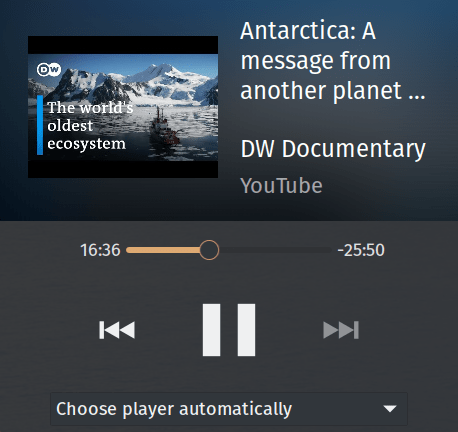
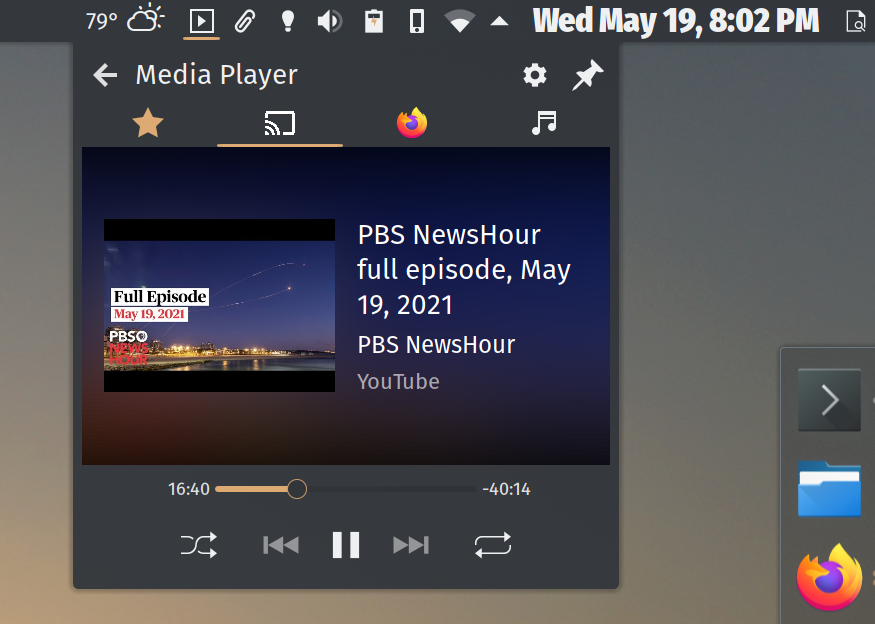
通过等离子体桌面的媒体播放器窗口小部件来控制染色体:
pyproject.toml中的project.dependencieshatchling在像Ubuntu这样的Debian衍生的发行版中,请与apt安装python3-gi 。
在Arch上,您需要安装python-gobject和gobject-introspection ,或直接从AUR安装cast_control 。
在MacOS上,通过brew安装pygobject3 。
如果供应商的软件包存储库中没有安装候选,请使用pip安装PyGObject>=3.34.0 。
$ python3 -m pip install cast_control您将获得cast_control可执行文件添加到$PATH中。
查看Github上的版本页面以获取稳定版本。
如果您想使用开发分支,请克隆存储库。
拥有源副本后,运行python3 -m pip install -r requirements.txt ,然后是python3 setup.py install 。
您将获得cast_control可执行文件添加到$PATH中。
如果您在拱门上,则可以直接从AUR安装cast_control 。谢谢,@yochananmarqos!
$ yay -S cast_control稳定的版本上传到PYPI。您可以这样升级cast_control安装:
$ python3 -m pip --upgrade cast_control请参阅GitHub上的版本页面。
您需要确保计算机可以与铸造设备建立网络连接。它还有助于事先了解设备的名称。
通过PYPI,GITHUB或AUR安装软件包会将cast_control添加到您的pip可执行期路径:
$ which cast_control
~ /.local/bin/cast_control如果将pip可执行文件路径添加到外壳的$PATH中,则可以这样启动cast_control :
$ cast_control --help或者,使用短名称启动器castctl :
$ castctl --help您还可以通过其Python模块启动cast_control 。如果您的$PATH不指向您的pip可执行文件,这将很有用。
$ python3 -m cast_control --help要启用cast_control的bash完成,请在您的~/.bashrc中添加以下内容:
eval " $( _CAST_CONTROL_COMPLETE=bash_source cast_control ) "对于zsh和fish ,请在此处查看文档。
$ cast_control --help
Usage: cast_control [OPTIONS] COMMAND [ARGS]...

  Control casting devices via Linux media controls and desktops.

  This daemon connects your casting device directly to the D-Bus media player
  interface.

  See https://github.com/alexdelorenzo/cast_control for more information.

Options:
  -L, --license  Show license and copyright information.
  -V, --version  Show version information.
  --help         Show this message and exit.

Commands:
  connect  Connect to the device and run the service in the foreground.
service Connect, disconnect or reconnect the background service to or...connect命令$ cast_control connect --help
Usage: cast_control connect [OPTIONS]
Connect to the device and run the service in the foreground.
Options:
-n, --name TEXT Connect to a device via its name, otherwise control
the first device found.
-h, --host TEXT Connect to a device via its hostname or IP address,
otherwise control the first device found.
-u, --uuid TEXT Connect to a device via its UUID, otherwise control
the first device found.
-w, --wait FLOAT Seconds to wait between trying to make initial
successful connections to a device.
-r, --retry-wait FLOAT Seconds to wait between reconnection attempts if a
successful connection is interrupted. [default:
5.0]
-i, --icon Use a lighter icon instead of the dark icon. The
lighter icon goes well with dark themes. [default:
False]
-l, --log-level TEXT Set the debugging log level. [default: WARN]
--help Show this message and exit.service命令$ cast_control service --help
Usage: cast_control service [OPTIONS] COMMAND [ARGS]...
Connect, disconnect or reconnect the background service to or from your
device.
Options:
--help Show this message and exit.
Commands:
connect Connect the background service to the device.
disconnect Disconnect the background service from the device.
reconnect Reconnect the background service to the device.
log Show the service log.service connect命令$ cast_control service connect --help
Usage: cast_control service connect [OPTIONS]
Connect the background service to the device.
Options:
-n, --name TEXT Connect to a device via its name, otherwise control
the first device found.
-h, --host TEXT Connect to a device via its hostname or IP address,
otherwise control the first device found.
-u, --uuid TEXT Connect to a device via its UUID, otherwise control
the first device found.
-w, --wait FLOAT Seconds to wait between trying to make initial
successful connections to a device.
-r, --retry-wait FLOAT Seconds to wait between reconnection attempts if a
successful connection is interrupted. [default:
5.0]
-i, --icon Use a lighter icon instead of the dark icon. The
lighter icon goes well with dark themes. [default:
False]
-l, --log-level TEXT Set the debugging log level. [default: WARN]
--help Show this message and exit.连接到名为“我的设备”的设备:
$ cast_control connect --name " My Device "连接到名为“我的设备”的设备,并在后台运行cast_control :
$ cast_control service connect --name " My Device "启动cast_control之后,您可以使用任何MPRIS客户端与它进行交互。 MPRIS支持直接基于等离子桌面和GNOME 3,您可以在命令行上使用playerctl 。
您可以使用-w/--wait标志在秒内指定等待时间,然后如果最初找不到一个,则尝试再次尝试再次找到cast_control设备。
例如,如果您想在设备扫描之间等待60秒,则可以运行以下内容:
$ export SECONDS=60
$ cast_control connect --wait $SECONDS
# or
$ cast_control service connect --wait $SECONDS如果您想从登录处启动cast_control ,并且您的设备不在,或者您在其他网络上,这将很有用。
如果背景服务正在运行,则可以强迫它重新连接和重新启动,或完全断开连接。
$ cast_control service reconnect
# or
$ cast_control service disconnect使用playerctl获取设备的D-Bus名称。
$ playerctl --list-all
My_Device
使用D-Bus名称向其发出命令。
$ export URL= " http://ccmixter.org/content/gmz/gmz_-_Parametaphoriquement.mp3 "
$ playerctl --player My_Device open " $URL "
这将在您的设备上播放一首歌。
您可以按照施放通用URI的方式投放YouTube视频。
$ export VIDEO= " https://www.youtube.com/watch?v=I4nkgJdVZFA "
$ playerctl --player My_Device open " $VIDEO "您可以使用-l/--log-level标志,使用connect或service connect命令设置日志级别:
$ cast_control connect --log-level debug这是cast_control支持的日志级别列表。
您可以使用service log命令查看背景服务的日志文件:
$ cast_control service log是否想支持这个项目和其他类似的开源项目?
请参阅LICENSE 。如果您想使用其他许可证使用此项目,请与您联系。





