cast_control
v0.16.1

CASTコントロールデスクトップベータをチェックしてください。
cast_controlは、Linuxデスクトップのキャストデバイスでのメディア再生を制御できるデーモンユーティリティです。
このサービスが実行されている間、キャスティングデバイスで再生されるメディアとアプリに関するデータを収集し、コンピューターに表示します。
cast_controlは、D-BUSおよびMPRISメディアプレーヤーコントロールを介してクロムキャストと鋳造デバイスをコントロールします。
MPRISは、Linuxデスクトップの標準メディアプレーヤーインターフェイスです。
MPRIS統合は、プラズマデスクトップでデフォルトで有効になり、GNOMEのボリュームコントロールウィジェットとともに、GNOME用のウィジェットもあります。 playerctl 、MPRIを介してメディアプレーヤーを制御するためのCLIを提供します。
メディアプレーヤーにMPRISサポートを統合したい場合は▶️ mpris_serverをご覧ください。
Plasma Desktopのメディアプレーヤーウィジェットを介してChromecastを制御する:
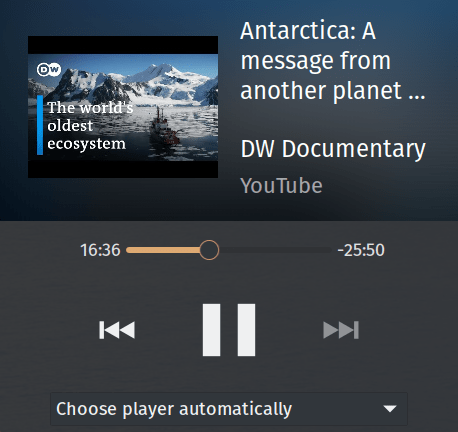
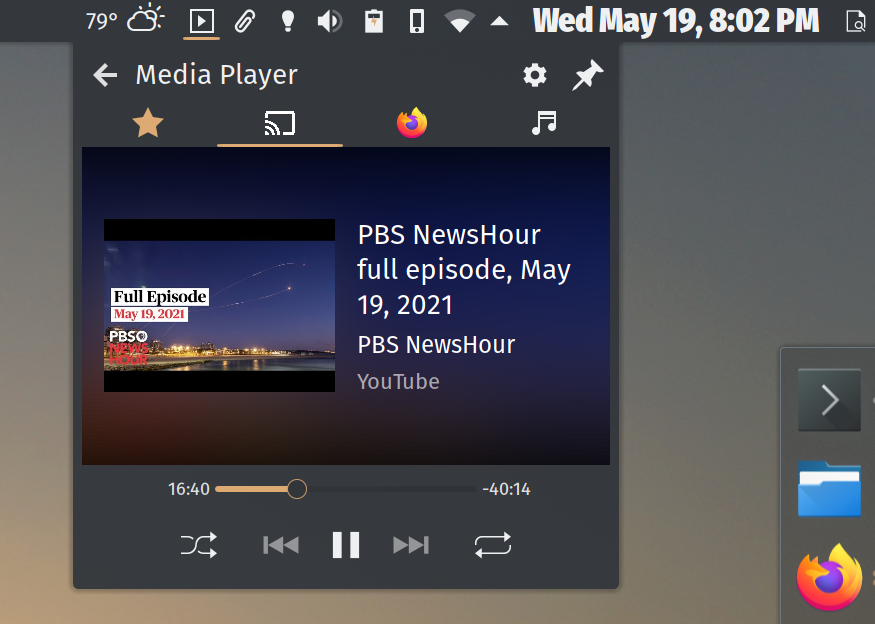
pyproject.tomlのproject.dependenciesを参照してくださいhatchlingUbuntuのようなDebian由来の分布について、 aptでpython3-giインストールします。
Archでは、 python-gobjectとgobject-introspectionをインストールするか、AURからcast_control直接インストールすることをお勧めします。
macOSでは、 brew経由でpygobject3をインストールします。
ベンダーのパッケージリポジトリに利用可能なインストール候補がない場合はPyGObject>=3.34.0をインストールするためにpipを使用してください。
$ python3 -m pip install cast_control $PATHに追加されたcast_control実行可能ファイルを取得します。
安定したリリースについては、GitHubのリリースページをご覧ください。
開発ブランチを使用する場合は、リポジトリをクローンします。
ソースコピーを取得したら、 python3 -m pip install -r requirements.txtを実行し、その後python3 setup.py installを実行します。
$PATHに追加されたcast_control実行可能ファイルを取得します。
アーチにいる場合は、AURからcast_controlを直接インストールできます。ありがとう、@yochananmarqos!
$ yay -S cast_control安定したリリースはPypiにアップロードされます。 cast_controlインストールを次のようにアップグレードできます。
$ python3 -m pip --upgrade cast_controlGitHubの[リリース]ページを参照してください。
コンピューターがキャスティングデバイスとのネットワーク接続を確認できるようにする必要があります。また、事前にデバイスの名前を知るのにも役立ちます。
Pypi、Github、またはAUR経由でパッケージをインストールすると、 pip実行可能ファイルズパスにcast_controlが追加されます。
$ which cast_control
~ /.local/bin/cast_controlシェルの$PATHにpip実行可能ファイルパスが追加されている場合は、 cast_control起動できます。
$ cast_control --helpまたは、短い名前ランチャーcastctl使用してください。
$ castctl --help Pythonモジュールを介してcast_controlを起動することもできます。これは$PATH pip実行可能ファイルを指していない場合に役立ちます。
$ python3 -m cast_control --helpcast_controlのbash完了を有効にするには、 ~/.bashrcに以下を追加します。
eval " $( _CAST_CONTROL_COMPLETE=bash_source cast_control ) " zshとfish殻については、こちらのドキュメントをご覧ください。
$ cast_control --help
Usage: cast_control [OPTIONS] COMMAND [ARGS]...

  Control casting devices via Linux media controls and desktops.

  This daemon connects your casting device directly to the D-Bus media player
  interface.

  See https://github.com/alexdelorenzo/cast_control for more information.

Options:
  -L, --license  Show license and copyright information.
  -V, --version  Show version information.
  --help         Show this message and exit.

Commands:
  connect  Connect to the device and run the service in the foreground.
service Connect, disconnect or reconnect the background service to or...connect $ cast_control connect --help
Usage: cast_control connect [OPTIONS]
Connect to the device and run the service in the foreground.
Options:
-n, --name TEXT Connect to a device via its name, otherwise control
the first device found.
-h, --host TEXT Connect to a device via its hostname or IP address,
otherwise control the first device found.
-u, --uuid TEXT Connect to a device via its UUID, otherwise control
the first device found.
-w, --wait FLOAT Seconds to wait between trying to make initial
successful connections to a device.
-r, --retry-wait FLOAT Seconds to wait between reconnection attempts if a
successful connection is interrupted. [default:
5.0]
-i, --icon Use a lighter icon instead of the dark icon. The
lighter icon goes well with dark themes. [default:
False]
-l, --log-level TEXT Set the debugging log level. [default: WARN]
--help Show this message and exit.serviceコマンド$ cast_control service --help
Usage: cast_control service [OPTIONS] COMMAND [ARGS]...
Connect, disconnect or reconnect the background service to or from your
device.
Options:
--help Show this message and exit.
Commands:
connect Connect the background service to the device.
disconnect Disconnect the background service from the device.
reconnect Reconnect the background service to the device.
log Show the service log.service connectコマンド$ cast_control service connect --help
Usage: cast_control service connect [OPTIONS]
Connect the background service to the device.
Options:
-n, --name TEXT Connect to a device via its name, otherwise control
the first device found.
-h, --host TEXT Connect to a device via its hostname or IP address,
otherwise control the first device found.
-u, --uuid TEXT Connect to a device via its UUID, otherwise control
the first device found.
-w, --wait FLOAT Seconds to wait between trying to make initial
successful connections to a device.
-r, --retry-wait FLOAT Seconds to wait between reconnection attempts if a
successful connection is interrupted. [default:
5.0]
-i, --icon Use a lighter icon instead of the dark icon. The
lighter icon goes well with dark themes. [default:
False]
-l, --log-level TEXT Set the debugging log level. [default: WARN]
--help Show this message and exit.「マイデバイス」という名前のデバイスに接続します:
$ cast_control connect --name " My Device " 「マイデバイス」という名前のデバイスに接続し、バックグラウンドでcast_control実行します。
$ cast_control service connect --name " My Device " cast_controlを起動した後、任意のMPRISクライアントを使用して対話できます。 MPRISサポートは、Plasma DesktopおよびGnome 3に直接組み込まれており、Command-lineでplayerctlを使用できます。
-w/--waitフラグを使用して、 cast_controlが再びキャスティングデバイスを見つけようとする前に、数秒で待機期間を指定できます。
たとえば、デバイスのスキャンの合間に60秒待ちたい場合は、以下を実行できます。
$ export SECONDS=60
$ cast_control connect --wait $SECONDS
# or
$ cast_control service connect --wait $SECONDSこれは、ログイン時にcast_controlを起動したい場合に役立ち、デバイスがオンになっていない可能性があるか、別のネットワークにいる可能性があります。
バックグラウンドサービスが実行されている場合は、強制的に再接続および再起動を強制するか、完全に切断することができます。
$ cast_control service reconnect
# or
$ cast_control service disconnectplayerctlを使用してデバイスのD-Bus名を取得します。
$ playerctl --list-all
My_Device
D-Bus名を使用してコマンドを発行します。
$ export URL= " http://ccmixter.org/content/gmz/gmz_-_Parametaphoriquement.mp3 "
$ playerctl --player My_Device open " $URL "
これはあなたのデバイスで曲を再生します。
一般的なURIをキャストできるのと同じ方法でYouTubeビデオをキャストできます。
$ export VIDEO= " https://www.youtube.com/watch?v=I4nkgJdVZFA "
$ playerctl --player My_Device open " $VIDEO "connectまたはservice connectコマンドを使用して-l/--log-levelフラグを使用してログレベルを設定できます。
$ cast_control connect --log-level debug cast_controlがサポートするログレベルのリストを次に示します。
service logコマンドを使用して、バックグラウンドサービスのログファイルを表示できます。
$ cast_control service logこのプロジェクトやそのような他のオープンソースプロジェクトをサポートしたいですか?
LICENSEを参照してください。このプロジェクトを別のライセンスで使用したい場合は、ご連絡ください。





