cast_control
v0.16.1

cast 캐스트 컨트롤 데스크탑 베타를 확인 하시겠습니까?
cast_control 은 Linux 데스크탑의 캐스팅 장치에서 미디어 재생을 제어 할 수있는 데몬 유틸리티입니다.
이 서비스가 실행되는 동안 캐스팅 장치에서 재생되는 미디어 및 앱에 대한 데이터를 수집하고 컴퓨터에 표시합니다.
cast_control D-BUS 및 MPRIS 미디어 플레이어 컨트롤을 통한 크롬 캐스트 및 주조 장치를 제어합니다.
MPRIS는 Linux 데스크탑의 표준 미디어 플레이어 인터페이스입니다.
MPRIS 통합은 플라즈마 데스크탑에서 기본적으로 활성화되며, 그놈의 볼륨 제어 위젯과 함께 그놈 용 위젯도 있습니다. playerctl MPRI를 통해 미디어 플레이어를 제어하기위한 CLI를 제공합니다.
MPRIS 지원을 미디어 플레이어에 통합하려면 ▶️ mpris_server 확인하십시오.
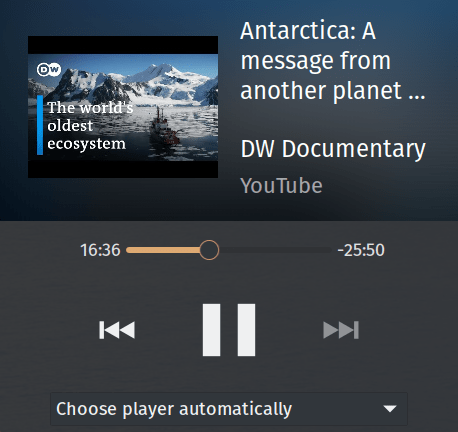
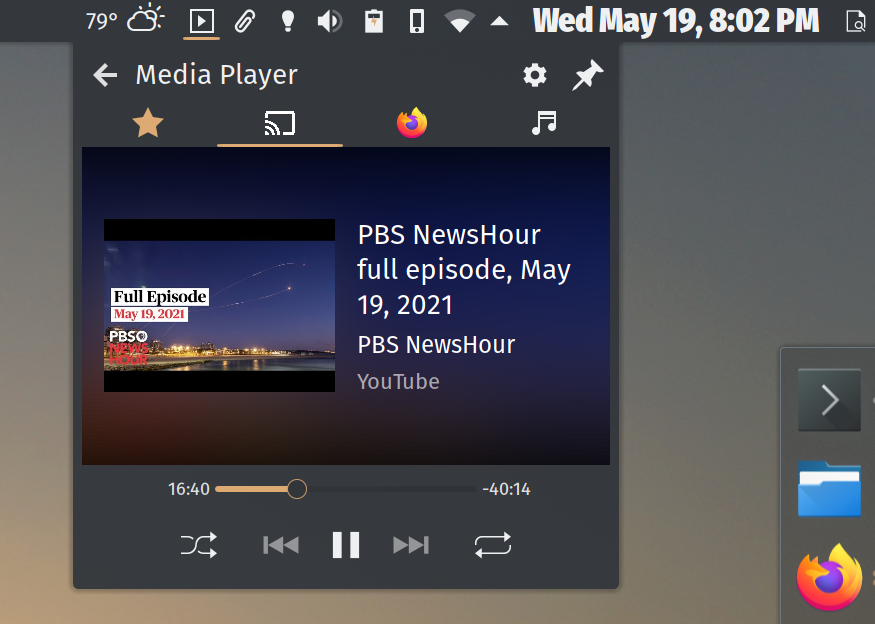
Plasma Desktop의 미디어 플레이어 위젯을 통한 Chromecast 제어 :
pyproject.toml 의 project.dependencies 참조하십시오hatchling Ubuntu와 같은 데비안 유래 분포에서 apt 와 함께 python3-gi 설치하십시오.
아치에서는 python-gobject 및 gobject-introspection 설치하거나 AUR에서 직접 cast_control 설치하려고합니다.
MacOS에서 brew 통해 pygobject3 설치하십시오.
pip 사용하여 공급 업체의 패키지 저장소에 설치 후보가없는 경우 PyGObject>=3.34.0 설치하십시오.
$ python3 -m pip install cast_control 귀하의 $PATH 에 cast_control 실행 파일이 추가됩니다.
안정적인 릴리스는 Github의 릴리스 페이지를 확인하십시오.
개발 지점을 사용하려면 저장소를 복제하십시오.
소스 사본이 있으면 python3 -m pip install -r requirements.txt 실행 한 다음 python3 setup.py install 실행하십시오.
귀하의 $PATH 에 cast_control 실행 파일이 추가됩니다.
아치에있는 경우 AUR에서 직접 cast_control 설치할 수 있습니다. 감사합니다, @yochananmarqos!
$ yay -S cast_control 안정적인 릴리스는 PYPI에 업로드됩니다. cast_control 설치와 같은 업그레이드 할 수 있습니다.
$ python3 -m pip --upgrade cast_controlGithub의 릴리스 페이지를 참조하십시오.
컴퓨터가 캐스팅 장치와 네트워크를 연결할 수 있는지 확인해야합니다. 또한 장치 이름을 미리 알리는 데 도움이됩니다.
PYPI, GitHub 또는 AUR을 통해 패키지를 설치하면 pip 실행 파일 경로에 cast_control 추가됩니다.
$ which cast_control
~ /.local/bin/cast_control
pip 실행 파일 경로가 쉘의 $PATH 에 추가 된 경우 cast_control 실행할 수 있습니다.
$ cast_control --help 또는 짧은 이름 런처 castctl 사용하여 :
$ castctl --help 파이썬 모듈을 통해 cast_control 시작할 수도 있습니다. $PATH pip 실행 파일을 가리키지 않으면 유용 할 수 있습니다.
$ python3 -m cast_control --help cast_control 의 bash 완료를 활성화하려면 다음을 ~/.bashrc 에 추가하십시오.
eval " $( _CAST_CONTROL_COMPLETE=bash_source cast_control ) " zsh 및 fish 껍질의 경우 여기에서 문서를 확인하십시오.
$ cast_control --help
Usage: cast_control [OPTIONS] COMMAND [ARGS]...

  Control casting devices via Linux media controls and desktops.

  This daemon connects your casting device directly to the D-Bus media player
  interface.

  See https://github.com/alexdelorenzo/cast_control for more information.

Options:
  -L, --license  Show license and copyright information.
  -V, --version  Show version information.
  --help         Show this message and exit.

Commands:
  connect  Connect to the device and run the service in the foreground.
service Connect, disconnect or reconnect the background service to or...connect $ cast_control connect --help
Usage: cast_control connect [OPTIONS]
Connect to the device and run the service in the foreground.
Options:
-n, --name TEXT Connect to a device via its name, otherwise control
the first device found.
-h, --host TEXT Connect to a device via its hostname or IP address,
otherwise control the first device found.
-u, --uuid TEXT Connect to a device via its UUID, otherwise control
the first device found.
-w, --wait FLOAT Seconds to wait between trying to make initial
successful connections to a device.
-r, --retry-wait FLOAT Seconds to wait between reconnection attempts if a
successful connection is interrupted. [default:
5.0]
-i, --icon Use a lighter icon instead of the dark icon. The
lighter icon goes well with dark themes. [default:
False]
-l, --log-level TEXT Set the debugging log level. [default: WARN]
--help Show this message and exit.service 명령 $ cast_control service --help
Usage: cast_control service [OPTIONS] COMMAND [ARGS]...
Connect, disconnect or reconnect the background service to or from your
device.
Options:
--help Show this message and exit.
Commands:
connect Connect the background service to the device.
disconnect Disconnect the background service from the device.
reconnect Reconnect the background service to the device.
log Show the service log.service connect 명령 $ cast_control service connect --help
Usage: cast_control service connect [OPTIONS]
Connect the background service to the device.
Options:
-n, --name TEXT Connect to a device via its name, otherwise control
the first device found.
-h, --host TEXT Connect to a device via its hostname or IP address,
otherwise control the first device found.
-u, --uuid TEXT Connect to a device via its UUID, otherwise control
the first device found.
-w, --wait FLOAT Seconds to wait between trying to make initial
successful connections to a device.
-r, --retry-wait FLOAT Seconds to wait between reconnection attempts if a
successful connection is interrupted. [default:
5.0]
-i, --icon Use a lighter icon instead of the dark icon. The
lighter icon goes well with dark themes. [default:
False]
-l, --log-level TEXT Set the debugging log level. [default: WARN]
--help Show this message and exit."내 장치"라는 장치에 연결하십시오.
$ cast_control connect --name " My Device " "내 장치"라는 장치에 연결하고 백그라운드에서 cast_control 실행하십시오.
$ cast_control service connect --name " My Device " cast_control 시작한 후 MPRIS 클라이언트를 사용하여 상호 작용할 수 있습니다. MPRIS 지원은 플라즈마 데스크탑 및 Gnome 3에 직접 구축되며 명령 줄에서 playerctl 사용할 수 있습니다.
-w/--wait 플래그를 사용하여 cast_control 처음 발견되지 않으면 캐스팅 장치를 다시 찾기 전에 대기 기간을 몇 초 만에 지정할 수 있습니다.
예를 들어, 장치 스캔 사이에 60 초를 기다리려면 다음을 실행할 수 있습니다.
$ export SECONDS=60
$ cast_control connect --wait $SECONDS
# or
$ cast_control service connect --wait $SECONDS
로그인시 cast_control 시작하려는 경우 유용하며 장치가 켜져 있지 않거나 다른 네트워크에있을 가능성이 있습니다.
백그라운드 서비스가 실행중인 경우 강제로 다시 연결 및 재시작하거나 완전히 분리 할 수 있습니다.
$ cast_control service reconnect
# or
$ cast_control service disconnect playerctl 사용하여 장치의 D- 버스 이름을 받으십시오.
$ playerctl --list-all
My_Device
d-bus 이름을 사용하여 명령을 발행하십시오.
$ export URL= " http://ccmixter.org/content/gmz/gmz_-_Parametaphoriquement.mp3 "
$ playerctl --player My_Device open " $URL "
이것은 장치에서 노래를 재생합니다.
일반적인 URI를 캐스팅 할 수있는 것과 같은 방식으로 YouTube 비디오를 캐스팅 할 수 있습니다.
$ export VIDEO= " https://www.youtube.com/watch?v=I4nkgJdVZFA "
$ playerctl --player My_Device open " $VIDEO " connect 또는 service connect 명령으로 -l/--log-level 플래그를 사용하여 로그 레벨을 설정할 수 있습니다.
$ cast_control connect --log-level debug 다음은 cast_control 에서 지원하는 로그 레벨 목록입니다.
service log 명령으로 백그라운드 서비스의 로그 파일을 볼 수 있습니다.
$ cast_control service log이 프로젝트 및 기타 오픈 소스 프로젝트를 지원하고 싶습니까?
LICENSE 참조하십시오. 다른 라이센스 로이 프로젝트를 사용하려면 연락하십시오.





