cast_control
v0.16.1

✔ تحقق من مجموعة سطح المكتب Cast Control؟
cast_control هي أداة دخرية تتيح لك التحكم في تشغيل الوسائط على أجهزة الإلقاء من سطح المكتب Linux.
أثناء تشغيل هذه الخدمة ، تقوم بجمع بيانات حول الوسائط والتطبيقات التي يتم تشغيلها على أجهزة الصب الخاصة بك وتعرضها على جهاز الكمبيوتر الخاص بك.
يتحكم cast_control في Chromecasts وأجهزة الصب عبر عناصر التحكم في مشغل MPRIS و MPRIS.
MPRIS هي واجهة لاعب الوسائط القياسي على أجهزة سطح المكتب Linux.
يتم تمكين تكامل MPRIS افتراضيًا في سطح مكتب البلازما ، بالإضافة إلى عنصر واجهة مستخدم للتحكم في مستوى الصوت في GNOME ، هناك عنصر واجهة مستخدم لـ GNOME أيضًا. يوفر playerctl CLI للسيطرة على لاعبي الوسائط من خلال MPRIs.
تحقق من ▶️ mpris_server إذا كنت ترغب في دمج دعم MPRIs في مشغل الوسائط الخاص بك.
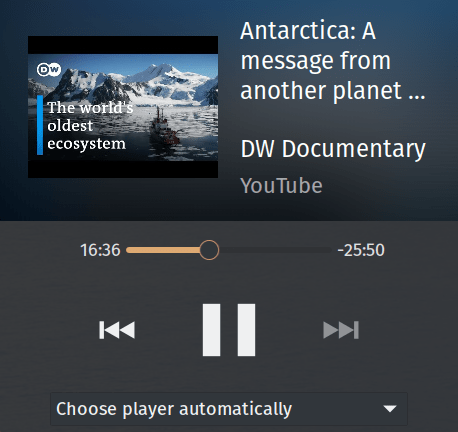
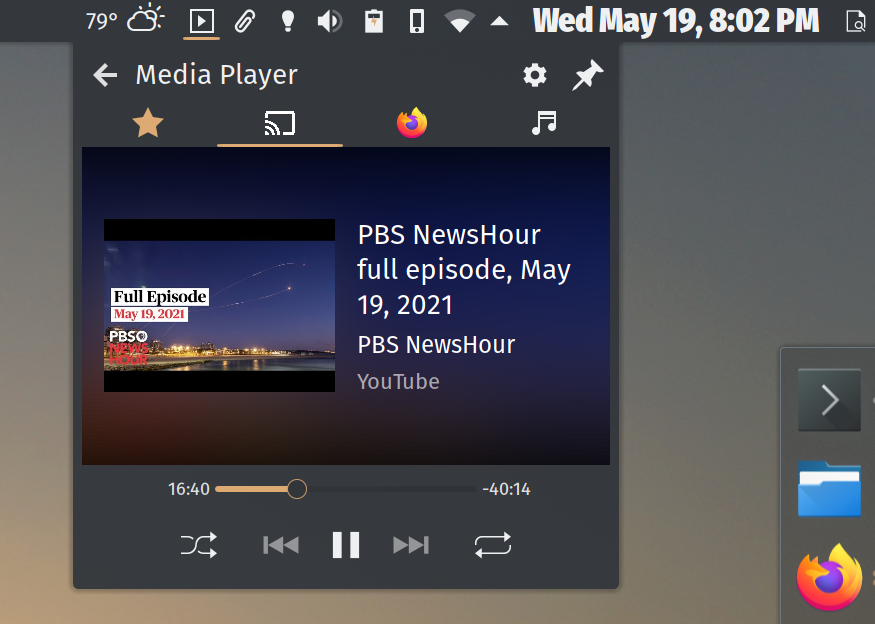
التحكم في جهاز Chromecast عبر عنصر واجهة مستخدم لاعب الوسائط في سطح مكتب البلازما:
project.dependencies في pyproject.tomlhatchling على توزيعات مشتقة من Debian مثل Ubuntu ، قم بتثبيت python3-gi مع apt .
على ARCH ، ستحتاج إلى تثبيت python-gobject و gobject-introspection ، أو تثبيت cast_control مباشرة من AUR.
على MacOS ، قم بتثبيت pygobject3 عبر brew .
استخدم pip لتثبيت PyGObject>=3.34.0 إذا لم يكن هناك مرشحين للتثبيت متاحين في مستودعات حزمة البائع الخاصة بك.
$ python3 -m pip install cast_control ستحصل على cast_control قابلة للتنفيذ إلى $PATH الخاص بك.
تحقق من صفحة الإصدارات على Github لإصدارات مستقرة.
إذا كنت ترغب في استخدام فرع التطوير ، استنساخ المستودع.
بمجرد أن يكون لديك نسخة مصدر ، قم بتشغيل python3 -m pip install -r requirements.txt ، تليها python3 setup.py install .
ستحصل على cast_control قابلة للتنفيذ إلى $PATH الخاص بك.
إذا كنت في ARCH ، فيمكنك تثبيت cast_control مباشرة من AUR. شكرا ، yochananmarqos!
$ yay -S cast_control يتم تحميل الإصدارات المستقرة إلى PYPI. يمكنك ترقية تثبيت cast_control مثل ذلك:
$ python3 -m pip --upgrade cast_controlانظر صفحة الإصدارات على جيثب.
ستحتاج إلى التأكد من أن جهاز الكمبيوتر الخاص بك يمكنه إجراء اتصالات الشبكة مع أجهزة الصب الخاصة بك. كما أنه يساعد على معرفة أسماء الأجهزة مقدمًا.
سيؤدي تثبيت الحزمة عبر pypi أو github أو AUR إلى إضافة cast_control إلى مسار pip Executables:
$ which cast_control
~ /.local/bin/cast_control
إذا تمت إضافة مسار pip Executables الخاص بك إلى $PATH الخاص بك ، فيمكنك تشغيل cast_control مثل ذلك:
$ cast_control --help أو ، باستخدام قاذفة الاسم القصير castctl :
$ castctl --help يمكنك أيضًا إطلاق cast_control عبر وحدة بيثون. يمكن أن يكون هذا مفيدًا إذا لم يشير $PATH الخاص بك إلى تنفيذية pip .
$ python3 -m cast_control --help لتمكين إكمال Bash لـ cast_control ، أضف ما يلي إلى ~/.bashrc :
eval " $( _CAST_CONTROL_COMPLETE=bash_source cast_control ) " بالنسبة لقذائف zsh fish ، تحقق من الوثائق هنا.
$ cast_control --help
Usage: cast_control [OPTIONS] COMMAND [ARGS]...

  Control casting devices via Linux media controls and desktops.

  This daemon connects your casting device directly to the D-Bus media player
  interface.

  See https://github.com/alexdelorenzo/cast_control for more information.

Options:
  -L, --license  Show license and copyright information.
  -V, --version  Show version information.
  --help         Show this message and exit.

Commands:
  connect  Connect to the device and run the service in the foreground.
  service  Connect, disconnect or reconnect the background service to or...
connect Command $ cast_control connect --help
Usage: cast_control connect [OPTIONS]
Connect to the device and run the service in the foreground.
Options:
-n, --name TEXT Connect to a device via its name, otherwise control
the first device found.
-h, --host TEXT Connect to a device via its hostname or IP address,
otherwise control the first device found.
-u, --uuid TEXT Connect to a device via its UUID, otherwise control
the first device found.
-w, --wait FLOAT Seconds to wait between trying to make initial
successful connections to a device.
-r, --retry-wait FLOAT Seconds to wait between reconnection attempts if a
successful connection is interrupted. [default:
5.0]
-i, --icon Use a lighter icon instead of the dark icon. The
lighter icon goes well with dark themes. [default:
False]
-l, --log-level TEXT Set the debugging log level. [default: WARN]
--help Show this message and exit.service $ cast_control service --help
Usage: cast_control service [OPTIONS] COMMAND [ARGS]...
Connect, disconnect or reconnect the background service to or from your
device.
Options:
--help Show this message and exit.
Commands:
connect Connect the background service to the device.
disconnect Disconnect the background service from the device.
reconnect Reconnect the background service to the device.
log Show the service log.service connect $ cast_control service connect --help
Usage: cast_control service connect [OPTIONS]
Connect the background service to the device.
Options:
-n, --name TEXT Connect to a device via its name, otherwise control
the first device found.
-h, --host TEXT Connect to a device via its hostname or IP address,
otherwise control the first device found.
-u, --uuid TEXT Connect to a device via its UUID, otherwise control
the first device found.
-w, --wait FLOAT Seconds to wait between trying to make initial
successful connections to a device.
-r, --retry-wait FLOAT Seconds to wait between reconnection attempts if a
successful connection is interrupted. [default:
5.0]
-i, --icon Use a lighter icon instead of the dark icon. The
lighter icon goes well with dark themes. [default:
False]
-l, --log-level TEXT Set the debugging log level. [default: WARN]
--help Show this message and exit.قم بالاتصال بجهاز يسمى "جهازي":
$ cast_control connect --name " My Device " قم بالاتصال بجهاز يسمى "جهاز My Accution" وقم بتشغيل cast_control في الخلفية:
$ cast_control service connect --name " My Device " بعد إطلاق cast_control ، يمكنك استخدام أي عميل MPRIS للتفاعل معه. تم بناء دعم MPRIS مباشرة إلى سطح مكتب البلازما وجنوم 3 ، ويمكنك استخدام playerctl على سطر الأوامر.
يمكنك استخدام علامة -w/--wait لتحديد فترة الانتظار في ثوانٍ قبل أن يحاول cast_control العثور على جهاز صب مرة أخرى إذا لم يتم العثور على أحدهم في البداية.
على سبيل المثال ، إذا كنت تريد الانتظار 60 ثانية بين عمليات المسح للأجهزة ، فيمكنك تشغيل ما يلي:
$ export SECONDS=60
$ cast_control connect --wait $SECONDS
# or
$ cast_control service connect --wait $SECONDS
هذا مفيد إذا كنت ترغب في بدء تشغيل cast_control في تسجيل الدخول ، وهناك فرصة لعدم وجود جهازك ، أو كنت على شبكة مختلفة.
إذا كانت خدمة الخلفية تعمل ، فيمكنك إجبارها على إعادة الاتصال وإعادة تشغيلها أو فصلها تمامًا.
$ cast_control service reconnect
# or
$ cast_control service disconnect احصل على اسم D-Bus لجهازك باستخدام playerctl .
$ playerctl --list-all
My_Device
استخدم اسم D-Bus لإصدار الأوامر إليه.
$ export URL= " http://ccmixter.org/content/gmz/gmz_-_Parametaphoriquement.mp3 "
$ playerctl --player My_Device open " $URL "
سيؤدي هذا إلى تشغيل أغنية على جهازك.
يمكنك إلقاء مقاطع فيديو YouTube بنفس الطريقة التي يمكنك بها إلقاء URI عامة.
$ export VIDEO= " https://www.youtube.com/watch?v=I4nkgJdVZFA "
$ playerctl --player My_Device open " $VIDEO " يمكنك تعيين مستوى السجل باستخدام علامة -l/--log-level بأوامر connect أو service connect :
$ cast_control connect --log-level debug فيما يلي قائمة بمستويات السجل التي تدعمها cast_control .
يمكنك عرض ملف سجل خدمة الخلفية باستخدام أمر service log :
$ cast_control service logهل تريد دعم هذا المشروع وغيرها من المشاريع المفتوحة المصدر مثله؟
انظر LICENSE . إذا كنت ترغب في استخدام هذا المشروع برخصة مختلفة ، فيرجى الاتصال.





