cast_control
v0.16.1

✔ตรวจสอบการควบคุมเดสก์ท็อปเบต้า?
cast_control เป็นยูทิลิตี้ daemon ที่ช่วยให้คุณสามารถควบคุมการเล่นสื่อบนอุปกรณ์หล่อจากเดสก์ท็อป Linux
ในขณะที่บริการนี้ทำงาน แต่จะรวบรวมข้อมูลเกี่ยวกับสื่อและแอพที่เล่นบนอุปกรณ์หล่อของคุณและแสดงบนคอมพิวเตอร์ของคุณ
cast_control ควบคุม Chromecasts และอุปกรณ์หล่อผ่านการควบคุมเครื่องเล่นสื่อ D-BUS และ MPRIS
MPRIS เป็นอินเทอร์เฟซเครื่องเล่นสื่อมาตรฐานบนเดสก์ท็อป Linux
การรวม MPRIS ถูกเปิดใช้งานโดยค่าเริ่มต้นในพลาสมาเดสก์ท็อปและพร้อมกับวิดเจ็ตควบคุมระดับเสียงของ Gnome มีวิดเจ็ตสำหรับ GNOME เช่นกัน playerctl จัดเตรียม CLI สำหรับการควบคุมเครื่องเล่นสื่อผ่าน MPRIS
ตรวจสอบ ▶️ mpris_server หากคุณต้องการรวมการสนับสนุน MPRIs เข้ากับเครื่องเล่นสื่อของคุณ
การควบคุม Chromecast ผ่านวิดเจ็ตสื่อของเดสก์ท็อปพลาสม่า:
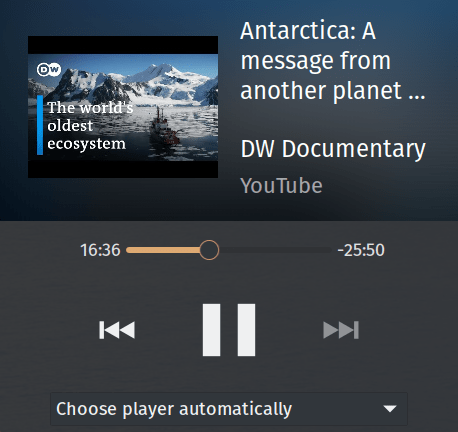
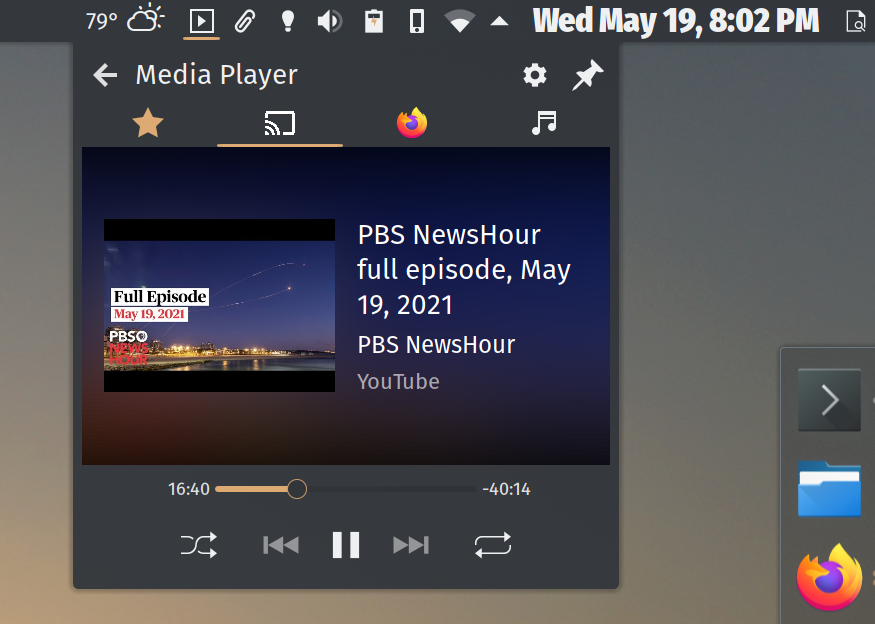
project.dependencies ใน pyproject.tomlhatchling ในการแจกแจงที่ได้จาก Debian เช่น Ubuntu ติดตั้ง python3-gi ด้วย apt
บน Arch คุณจะต้องติดตั้ง python-gobject และ gobject-introspection หรือติดตั้ง cast_control โดยตรงจาก AUR
บน macOS ให้ติดตั้ง pygobject3 ผ่าน brew
ใช้ pip เพื่อติดตั้ง PyGObject>=3.34.0 หากไม่มีผู้สมัครติดตั้งในที่เก็บแพ็คเกจของผู้ขายของคุณ
$ python3 -m pip install cast_control คุณจะได้รับการดำเนินการ cast_control ที่เพิ่มเข้ามาใน $PATH ของคุณ
ตรวจสอบหน้าเผยแพร่บน GitHub สำหรับการเปิดตัวที่เสถียร
หากคุณต้องการใช้สาขาการพัฒนาให้โคลนพื้นที่เก็บข้อมูล
เมื่อคุณมีสำเนาต้นฉบับให้เรียกใช้ python3 -m pip install -r requirements.txt ตามด้วย python3 setup.py install
คุณจะได้รับการดำเนินการ cast_control ที่เพิ่มเข้ามาใน $PATH ของคุณ
หากคุณอยู่บนซุ้มประตูคุณสามารถติดตั้ง cast_control ได้โดยตรงจาก AUR ขอบคุณ @yochananmarqos!
$ yay -S cast_control การเปิดตัวที่เสถียรจะถูกอัปโหลดไปยัง PYPI คุณสามารถอัพเกรดการติดตั้ง cast_control ของคุณได้เช่น:
$ python3 -m pip --upgrade cast_controlดูหน้าเผยแพร่บน GitHub
คุณจะต้องตรวจสอบให้แน่ใจว่าคอมพิวเตอร์ของคุณสามารถเชื่อมต่อเครือข่ายด้วยอุปกรณ์หล่อของคุณ นอกจากนี้ยังช่วยให้ทราบชื่อของอุปกรณ์ล่วงหน้า
การติดตั้งแพ็คเกจผ่าน PYPI, GitHub หรือ AUR จะเพิ่ม cast_control ลงใน pip Executables Path ของคุณ:
$ which cast_control
~ /.local/bin/cast_control
หากคุณเพิ่มเส้นทาง pip Executables ของคุณไปยัง $PATH ของเชลล์คุณสามารถเรียกใช้ cast_control ได้เช่น:
$ cast_control --help หรือใช้ชื่อสั้น ๆ castctl :
$ castctl --help คุณยังสามารถเปิด cast_control ผ่านโมดูล Python สิ่งนี้จะมีประโยชน์หาก $PATH ของคุณไม่ได้ชี้ไปที่ pip Executables ของคุณ
$ python3 -m cast_control --help หากต้องการเปิดใช้งาน Bash Poltion สำหรับ cast_control ให้เพิ่มสิ่งต่อไปนี้ใน ~/.bashrc ของคุณ:
eval " $( _CAST_CONTROL_COMPLETE=bash_source cast_control ) " สำหรับเปลือก zsh และ fish ให้ตรวจสอบเอกสารที่นี่
$ cast_control --help
Usage: cast_control [OPTIONS] COMMAND [ARGS]...

  Control casting devices via Linux media controls and desktops.

  This daemon connects your casting device directly to the D-Bus media player
  interface.

  See https://github.com/alexdelorenzo/cast_control for more information.

Options:
  -L, --license  Show license and copyright information.
  -V, --version  Show version information.
  --help         Show this message and exit.

Commands:
  connect  Connect to the device and run the service in the foreground.
service Connect, disconnect or reconnect the background service to or...connect $ cast_control connect --help
Usage: cast_control connect [OPTIONS]
Connect to the device and run the service in the foreground.
Options:
-n, --name TEXT Connect to a device via its name, otherwise control
the first device found.
-h, --host TEXT Connect to a device via its hostname or IP address,
otherwise control the first device found.
-u, --uuid TEXT Connect to a device via its UUID, otherwise control
the first device found.
-w, --wait FLOAT Seconds to wait between trying to make initial
successful connections to a device.
-r, --retry-wait FLOAT Seconds to wait between reconnection attempts if a
successful connection is interrupted. [default:
5.0]
-i, --icon Use a lighter icon instead of the dark icon. The
lighter icon goes well with dark themes. [default:
False]
-l, --log-level TEXT Set the debugging log level. [default: WARN]
--help Show this message and exit.service $ cast_control service --help
Usage: cast_control service [OPTIONS] COMMAND [ARGS]...
Connect, disconnect or reconnect the background service to or from your
device.
Options:
--help Show this message and exit.
Commands:
connect Connect the background service to the device.
disconnect Disconnect the background service from the device.
reconnect Reconnect the background service to the device.
log Show the service log.service connect $ cast_control service connect --help
Usage: cast_control service connect [OPTIONS]
Connect the background service to the device.
Options:
-n, --name TEXT Connect to a device via its name, otherwise control
the first device found.
-h, --host TEXT Connect to a device via its hostname or IP address,
otherwise control the first device found.
-u, --uuid TEXT Connect to a device via its UUID, otherwise control
the first device found.
-w, --wait FLOAT Seconds to wait between trying to make initial
successful connections to a device.
-r, --retry-wait FLOAT Seconds to wait between reconnection attempts if a
successful connection is interrupted. [default:
5.0]
-i, --icon Use a lighter icon instead of the dark icon. The
lighter icon goes well with dark themes. [default:
False]
-l, --log-level TEXT Set the debugging log level. [default: WARN]
--help Show this message and exit.เชื่อมต่อกับอุปกรณ์ที่ชื่อ "อุปกรณ์ของฉัน":
$ cast_control connect --name " My Device " เชื่อมต่อกับอุปกรณ์ที่ชื่อ "อุปกรณ์ของฉัน" และเรียกใช้ cast_control ในพื้นหลัง:
$ cast_control service connect --name " My Device " หลังจากเปิด cast_control คุณสามารถใช้ไคลเอนต์ MPRIS ใด ๆ เพื่อโต้ตอบกับมัน การสนับสนุน MPRIS สร้างขึ้นโดยตรงกับเดสก์ท็อปพลาสมาและ GNOME 3 และคุณสามารถใช้ playerctl บนบรรทัดคำสั่ง
คุณสามารถใช้ธง -w/--wait เพื่อระบุระยะเวลาการรอคอยในไม่กี่วินาทีก่อนที่ cast_control จะพยายามค้นหาอุปกรณ์หล่ออีกครั้งหากไม่พบใครในตอนแรก
ตัวอย่างเช่นหากคุณต้องการรอ 60 วินาทีระหว่างการสแกนสำหรับอุปกรณ์คุณสามารถเรียกใช้สิ่งต่อไปนี้:
$ export SECONDS=60
$ cast_control connect --wait $SECONDS
# or
$ cast_control service connect --wait $SECONDS
สิ่งนี้มีประโยชน์หากคุณต้องการเริ่ม cast_control เมื่อเข้าสู่ระบบและมีโอกาสที่อุปกรณ์ของคุณจะไม่เปิดหรืออยู่ในเครือข่ายอื่น
หากบริการพื้นหลังกำลังทำงานอยู่คุณสามารถบังคับให้เชื่อมต่อและรีสตาร์ทใหม่หรือตัดการเชื่อมต่อทั้งหมด
$ cast_control service reconnect
# or
$ cast_control service disconnect รับชื่อ D-BUS สำหรับอุปกรณ์ของคุณโดยใช้ playerctl
$ playerctl --list-all
My_Device
ใช้ชื่อ D-BUS เพื่อออกคำสั่ง
$ export URL= " http://ccmixter.org/content/gmz/gmz_-_Parametaphoriquement.mp3 "
$ playerctl --player My_Device open " $URL "
สิ่งนี้จะเล่นเพลงบนอุปกรณ์ของคุณ
คุณสามารถใช้วิดีโอ YouTube ในลักษณะเดียวกับที่คุณสามารถใช้งาน URI ทั่วไปได้
$ export VIDEO= " https://www.youtube.com/watch?v=I4nkgJdVZFA "
$ playerctl --player My_Device open " $VIDEO " คุณสามารถตั้งค่าระดับบันทึกโดยใช้ค่าสถานะ -l/--log-level ด้วยคำสั่ง connect หรือ service connect :
$ cast_control connect --log-level debug นี่คือรายการระดับบันทึกที่รองรับโดย cast_control
คุณสามารถดูไฟล์บันทึกของบริการพื้นหลังด้วยคำสั่ง service log :
$ cast_control service logต้องการสนับสนุนโครงการนี้และโครงการโอเพนซอร์ซอื่น ๆ เช่นนี้หรือไม่?
ดู LICENSE หากคุณต้องการใช้โครงการนี้ด้วยใบอนุญาตอื่นโปรดติดต่อ





