mqtt panel
1.0.0

Panel de aplicaciones web autohostadas para MQTT
Este proyecto proporciona un servicio auto hostible que se conecta a un corredor MQTT y sirve un panel de aplicaciones web progresivas que es totalmente configurable a través de YAML. Su objetivo es ser un panel simple que brinde interactividad del usuario con temas MQTT. Adecuado para implementaciones de microservicios independientes o MQTT, y se pueden implementar junto con las soluciones de automatización del hogar. No ofrece capacidades de nivel superior, como automatizaciones, integraciones o programación.
Correr
docker run -it --rm -p 8080:8080 sourcesimian/mqtt-panel:latest
y navegar a http: // localhost: 8080 que aparecerá como:
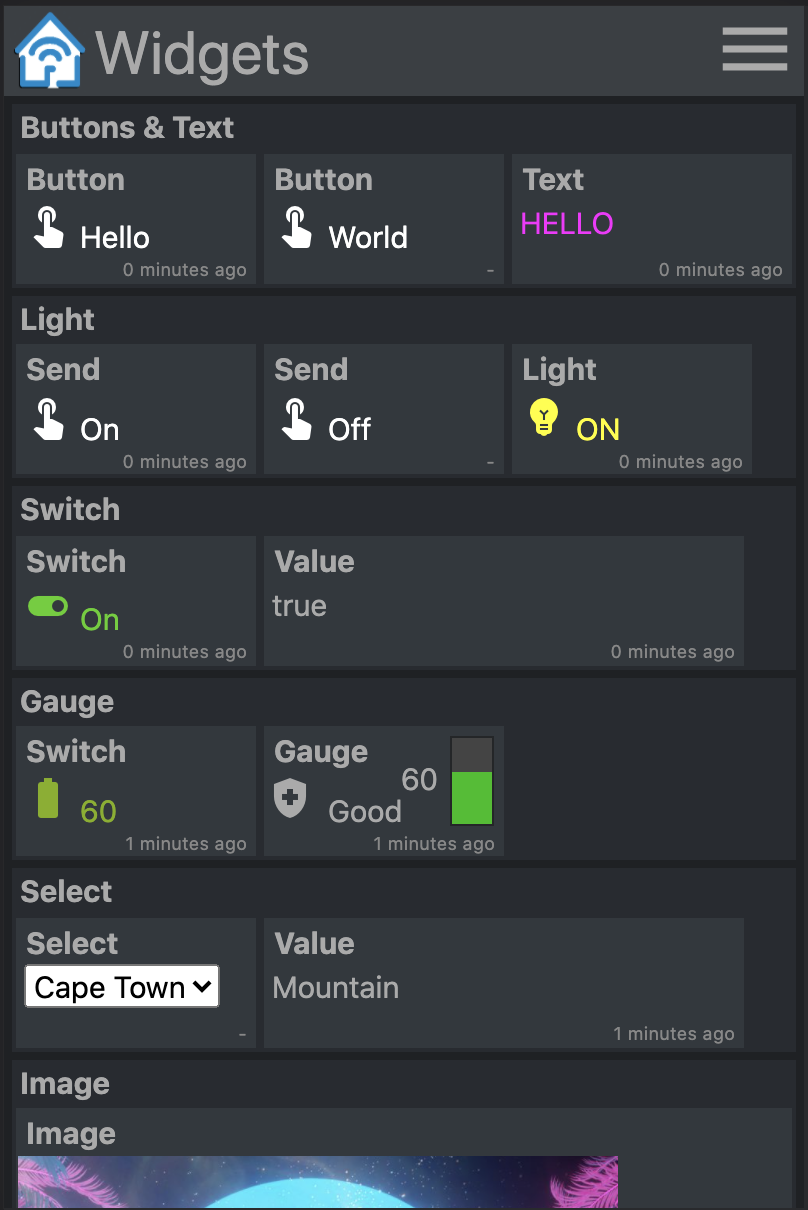
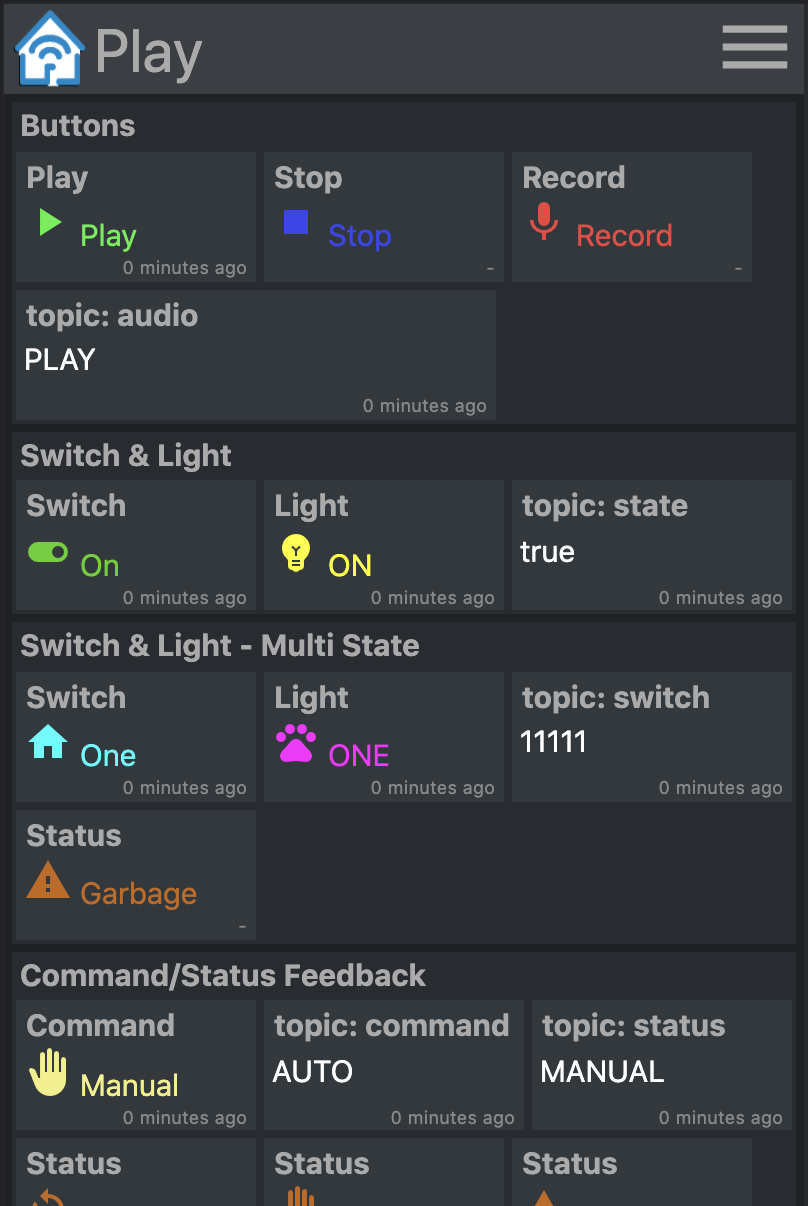
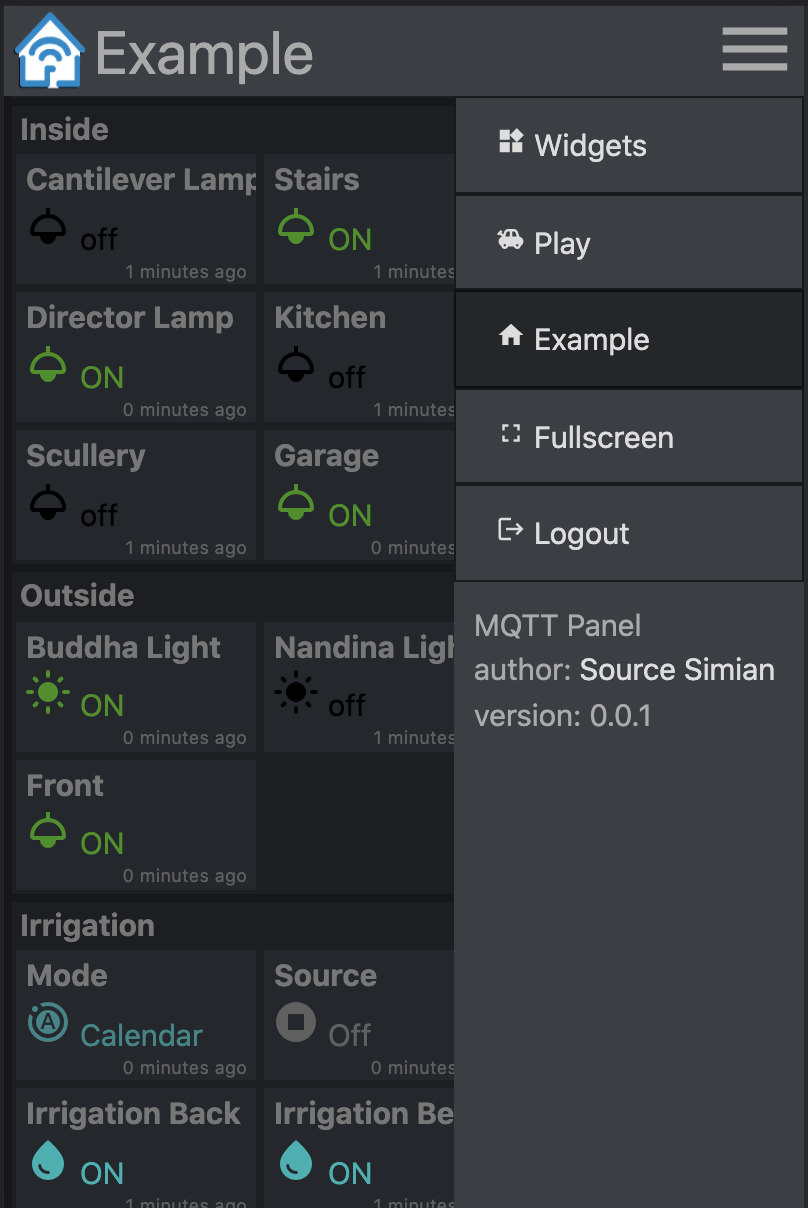
Las imágenes de contenedor prebuilt están disponibles en Docker Hub.
Correr
 mkdir -p $HOME/.cache/mqtt-panel

docker run -n mqtt-panel -d -it --rm -p 8080:8080
    --volume my-config.yaml:/config.yaml:ro
    --volume $HOME/.cache/mqtt-panel:/data/cache:rw
    sourcesimian/mqtt-panel:latest
Configure su implementación para suficiente la configuración de Docker anterior. Además, puede agregar un punto final de Livity AT /api/health en el puerto HTTP configurado. Para realizar la terminación del punto final SSL, puede agregar un controlador de ingreso como Traefik que viene de serie con K3.
Una implementación típica puede incluir:
      volumes:
      - name: config
        configMap:
          name: mqtt-panel-config
      - name: data
        hostPath:
          path: /mnt/mqtt-panel/data
          type: DirectoryOrCreate
      containers:
      - name: mqtt-panel
        image: sourcesimian/mqtt-panel:latest
        ports:
        - containerPort: 8080
        volumeMounts:
        - name: config
          mountPath: /config.yaml
          subPath: config.yaml
        - name: data
          mountPath: /data
        livenessProbe:
          initialDelaySeconds: 30
          periodSeconds: 30
          httpGet:
            path: /api/health
            port: 8080
Kubernetes permite que el archivo de configuración se suministre de varias maneras. Uso de un comandos config, los siguientes comandos son una forma conveniente de suministrar y actualizar directamente desde su YAML:
 kubectl -n "$NAMESPACE" delete configmap mqtt-panel-config &>/dev/null || true
kubectl -n "$NAMESPACE" create configmap mqtt-panel-config
        --from-file=config.yaml=./config-my.yaml
kubectl -n "$NAMESPACE" rollout restart deploy mqtt-panel
Una instalación de MQTT-Panel necesitará un corredor MQTT para conectarse. Hay muchas posibilidades disponibles. En la demostración EMQ X, se utiliza un corredor gratuito de código abierto, nube-nativo de nube. Puede suscribirse a sourcesimian/mqtt-panel/demo/# con su visor MQTT favorito. Eclipse Mosquitto es una excelente opción autohospedada con muchas formas de instalación, incluidos los contenedores preconstruidos en Docker Hub.
Para complementar su infraestructura MQTT, puede considerar los siguientes otros microservicios:
| Servicio | Descripción |
|---|---|
| mqtt-gpio | Conecta temas MQTT a pines GPIO. |
| mqtt | Publica valores para los temas de MQTT basados en eventos en un calendario de Icical. |
| mqtt-kube | Mapas los valores del objeto Kubernetes hacia y desde los temas en MQTT. |
| Cañado | Una herramienta de programación visual basada en el flujo para el cableado de dispositivos juntos, con integración MQTT incorporada y muchos otros disponibles. Se puede usar fácilmente para agregar comportamientos de nivel superior. |
mqtt-panel consume un solo archivo YAML. Para comenzar, puede copiar config-basic.yaml
Las siguientes son convenciones que se utilizan en la configuración YAML:
| Artículo | Descripción |
|---|---|
<string> | Cualquier cadena de caracteres, preferiblemente "citada" para evitar que YAML se interprete de una manera diferente. |
<icon> | Estos son material-icons de la biblioteca de Google Fonts. |
<color> | Es cualquier color de estilo HTML, por ejemplo, red , "#F04040" , rgb(240, 64, 64) , etc. Use "citas" para garantizar que el # no se interprete como un comentario. |
<topic> | Un tema MQTT, por ejemplo, fizz/buzz/status . Las suscripciones también pueden aceptar los comodines * y # . Use "citas" para garantizar que el # no se interprete como un comentario. |
<identifier> | Una cadena de caracteres alfa-numéricos, y _ |
 mqtt:
  host: <host>                  # optional: MQTT broker host, default: 127.0.0.1
  port: <port>                  # optional: MQTT broker port, default 1883
  client-id: mqtt-panel         # MQTT client identifier, often brokers require this to be unique
  topic-prefix: <topic prefix>  # optional: Scopes the MQTT topic prefix
  auth:                         # optional: Defines the authentication used to connect to the MQTT broker
    type: <type>                # Auth type: none|basic|mtls, default: none
    ... (<type> specific options)
    type: basic
    username: <string>          # MQTT broker username
    password: <string>          # MQTT broker password
    type: mtls
    cafile: <file>              # CA file used to verify the server
    certfile: <file>            # Certificate presented by this client
    keyfile: <file>             # Private key presented by this client
    keyfile_password: <string>  # optional: Password used to decrypt the `keyfile`
    protocols:
      - <string>                # optional: list of ALPN protocols to add to the SSL connection
 http:
  bind: <bind>                  # optional: Interface on which web server will listen, default 0.0.0.0
  port: <port>                  # Port on which web server will listen, default 8080
  max-connections: <integer>    # optional: Limit the number of concurrent connections, default 100
  logging-level: <level>        # optional: Select logging level of HTTP requests, default: INFO
 auth:                           # User Auth
  users:                        # optional: User/password auth
  - username: <string>
    password: <string>
 cache:                          # Configure cache
  root: <path>                  # optional root path, default ./cache
 logging:                        # Logging settings
  level: INFO                   # optional: Logging level, default DEBUG
mqtt-panel se divide en paneles, un panel se muestra a la vez, cada panel es una colección de grupos.
 panels:
  - title: <string>             # Panel title text
    icon: <icon>                # Icon shown on the menu bar
    groups:                     # list of group identifiers
      - <identifier>            # e.g. "group_one"
  ... (repeat)
Un grupo es una colección en caja de widgets. Se pueden reutilizar en múltiples paneles.
 groups:
  - title: <string>             # Title text
    name: <identifier>          # Identifier, e.g. "group_one"
    widgets:                    # List of widgets in ths group
    ... (widgets)
  ... (repeat)
Un widget es un elemento funcional, que se utiliza para publicar y/o suscribirse a temas de MQTT, y mostrar y/o ingresar alguna carga útil.
Todos los widgets tienen los siguientes atributos comunes.:
    - title: <string>           # Title text
      type: <type>              # Widget type
      qos: [0 | 1 | 2]          # optional: MQTT QoS to use, default: 1
      retain: [False | True]    # optional: Publish with MQTT retain flag, default: False
      cache: [False | True]     # optional: Cache last seen payloads, default: False
      ref: <widget reference>   # optional: Identifier string for widget reuse.
retain es una bandera establecida al publicar una carga útil en MQTT. Si establece el mensaje persistirá en el corredor, los clientes volverán a recordar esa carga útil al volver a conectarse. Esto no siempre da el comportamiento deseado.
Observará que al inicio algunos widgets muestran "desconocido" hasta que se reciba una carga útil del tema MQTT suscrito. Para mejorar la experiencia del usuario de MQTT-Panel cache: True preservará la última carga útil de un widget. Esto permite al servidor mostrar inmediatamente el último estado conocido después de un reinicio, incluso con un tema MQTT usando retain: False .
Para reutilizar un widget, agregue el atributo ref y luego agregue el widget a otros grupos como:
- ref: <widget reference> # Identifier of widget to reuse
Simplemente muestre la carga útil del tema MQTT suscrito.
    - title: <string>       # Title text
      type: text            # Widget type
      subscribe: <topic>    # MQTT topic to listen on
      color: <color>        # optional: Color of the text
Ejemplo:
    - title: My Text
      type: text
      subscribe: text/content
      color: "#123456"
Muestre algún texto, un icono y color cuando las cargas útiles definidas se reciben del tema suscrito.
    - title: <string>       # Title text
      type: light           # Widget type
      subscribe: <topic>    # MQTT topic to listen on
      values:
      - payload: <string>     # Payload to match for this value
        text: <string>        # optional: Text shown
        icon: <icon>          # optional: Icon shown
        color: <color>        # optional: Color of icon and text
      ... (repeat)
Ejemplo:
    - title: My Light
      type: light
      subscribe: light/state
      values:
      - payload: "false"
        text: OFF
        color: black
        icon: light
      - payload: "true"
        text: ON
        color: yellow
        icon: light
Publique un valor constante a un tema MQTT.
    - title: <string>       # Title text
      type: button          # Widget type
      text: <string>        # optional: Text to show on widget
      publish: <topic>      # MQTT topic to write to
      payload: <string>     # MQTT payload to publish
Ejemplo:
    - title: My Button
      type: button
      text: Push Me
      publish: button/command
      payload: PRESSED
Publique la próxima carga útil en la lista de valores a un tema. Actualice la pantalla con texto, icono y color cuando la carga útil regrese en el tema suscrito.
    - title: <string>       # Title text
      type: switch          # Widget type
      publish: <topic>      # MQTT topic to write to
      subscribe: <topic>    # MQTT topic to listen on
      values:
      - payload: <string>     # Payload to match for this value
        text: <string>        # optional: Text shown
        icon: <icon>          # optional: Icon shown
        color: <color>        # optional: Color of icon and text
      ... (repeat)
Ejemplo:
    - title: My Switch
      type: switch
      publish: widget/switch/command
      subscribe: widget/switch/state
      values:
      - text: "Off"
        payload: "false"
      - text: "On"
        payload: "true"
Muestre el valor recibido y un medidor de barra vertical donde el texto, el icono y el color cambiarán según el valor de la carga útil suscrita.
    - title: <string>       # Title text
      type: gauge           # Widget type
      subscribe: <topic>    # MQTT topic to listen on
      text: <string>        # optional: The default text when not given with range
      color: <color>        # optional: The default color when not given with range
      icon: <icon>          # optional: The default icon when not given with range
      ranges:
      - range: [<int>, <int>] # Value for start and end of range
        text: <string>        # optional: Text shown when value in range
        color: <color>        # optional: Color shown when value in range
        icon: <icon>          # optional: Icon shown when value in range
      ... (repeat)
                            # max and min value will be determined from starts and ends
Ejemplo:
    - title: Sound
      type: gauge
      subscribe: example/volume
      ranges:
      - range: [0, 10]
        text: "Quiet"
        icon: volume_off
        color: "#00c000"
      - range: [10, 30]
        text: "Gentle"
        icon: volume_mute
        color: "#02b002"
      - range: [30, 70]
        text: "Medium"
        icon: volume_down
        color: "#82b002"
      - range: [70, 90]
        text: "Noisy"
        icon: volume_up
        color: "#b08a02"
      - range: [90, 100]
        text: "Loud"
        icon: volume_up
        color: "#b03c02"
Muestre el valor recibido y un medidor de barra vertical donde el texto, el icono y el color cambiarán según el valor de la carga útil suscrita. Además, cuando se aproveche, muestre un control deslizante que se puede usar para ingresar y publicar un valor entre el valor MAX y MIN.
    - title: <string>       # Title text
      type: slider          # Widget type
      live: [False | True]  # optional: Realtime publishing. Default: False
      ... (same as gauge)
Configuración live: True El valor actual del control deslizante se publicará a medida que cambie. El comportamiento predeterminado es publicar solo el valor final seleccionado cuando se libera el control deslizante.
Muestre algún texto, un icono y color cuando las cargas útiles definidas se reciben del tema suscrito. Cuando se aprovecha, muestra una lista de los otros valores que se pueden publicar.
    - title: <string>       # Title text
      type: select          # Widget type
      publish: <topic>      # MQTT topic to write to
      subscribe: <topic>    # optional: MQTT topic to listen on
      values:
      - payload: <string>     # Payload to send and match
        text: <string>        # optional: Text shown
        icon: <icon>          # optional: Icon shown
        color: <color>        # optional: Color of icon and text
      ... (repeat)
Ejemplo:
    - title: My Select
      type: select
      publish: widget/select/command
      subscribe: widget/select/state
      values:
      - text: "Venice"
        payload: "Gondola"
        icon: rowing
        color: cyan
      - text: "Cape Town"
        payload: "Mountain"
        icon: landscape
        color: green
Mostrar contenido en un <iframe> . El atributo src puede estar vinculado a un tema MQTT.
    - title: <string>       # Title text
      type: iframe          # Widget type
      subscribe: <topic>    # optional: MQTT topic to listen on, bound to iframe 'src'
      refresh: <seconds>    # optional: Interval at which to refresh the iframe
      attr:                 # Attributes to be set on the iframe
        src: <url>            # optional: Can be set as a default vaule for 'src'
        ...                   # additional attributes
Ejemplo:
    - title: Iframe
      type: iframe
      subscribe: iframe/src
      attr:
        src: https://www.youtube.com/embed/dQw4w9WgXcQ
        width: 480px
        height: 315px
        title: YouTube video player
        allow: accelerometer; autoplay; clipboard-write; encrypted-media; gyroscope; picture-in-picture
        allowfullscreen:
¡Sí, seguro! Y por favor. Construí MQTT-Panel porque no pude encontrar una solución "No estoy listo para comprometerme con la HA completamente soplada" que era auto alojada y configurable del lado del servidor. No sé mucho sobre HTML, CSS y TypeScript contemporáneos, por lo que con gusto aceptaré los consejos de aquellos que saben más. Quiero que sea un proyecto rápido y fácil de poner en funcionamiento, y ayuda a abrir MQTT a cualquier persona. Changelog.md
Antes de presionar un PR, considere agregar pruebas unitarias y asegúrese de que make check y make test sean limpios.
Configurar el virtualenv:
 python3 -m venv virtualenv
. ./virtualenv/bin/activate
python3 ./setup.py develop
Ejecute el servidor:
mqtt-panel ./config-demo.yaml
En el espíritu de los piratas informáticos del Modelo de Tech Model Railroad Club del Instituto de Tecnología de Massachusetts, quienes nos dieron a todos con los que jugar. La licencia es MIT.







