mqtt panel
1.0.0

MQTT的自託管Web應用程序面板
該項目提供了一個自託管服務,該服務連接到MQTT代理,並提供一個漸進式網絡應用程序面板,該面板可通過YAML完全配置。它的目的是成為一個簡單的面板,可以使用戶與MQTT主題進行交互。適用於獨立或MQTT微服務部署,可以與家庭自動化解決方案一起部署。它不提供更高級別的功能,例如自動化,集成或計劃。
跑步
docker run -it --rm -p 8080:8080 sourcesimian/mqtt-panel:latest
並瀏覽到http:// localhost:8080,將顯示為:
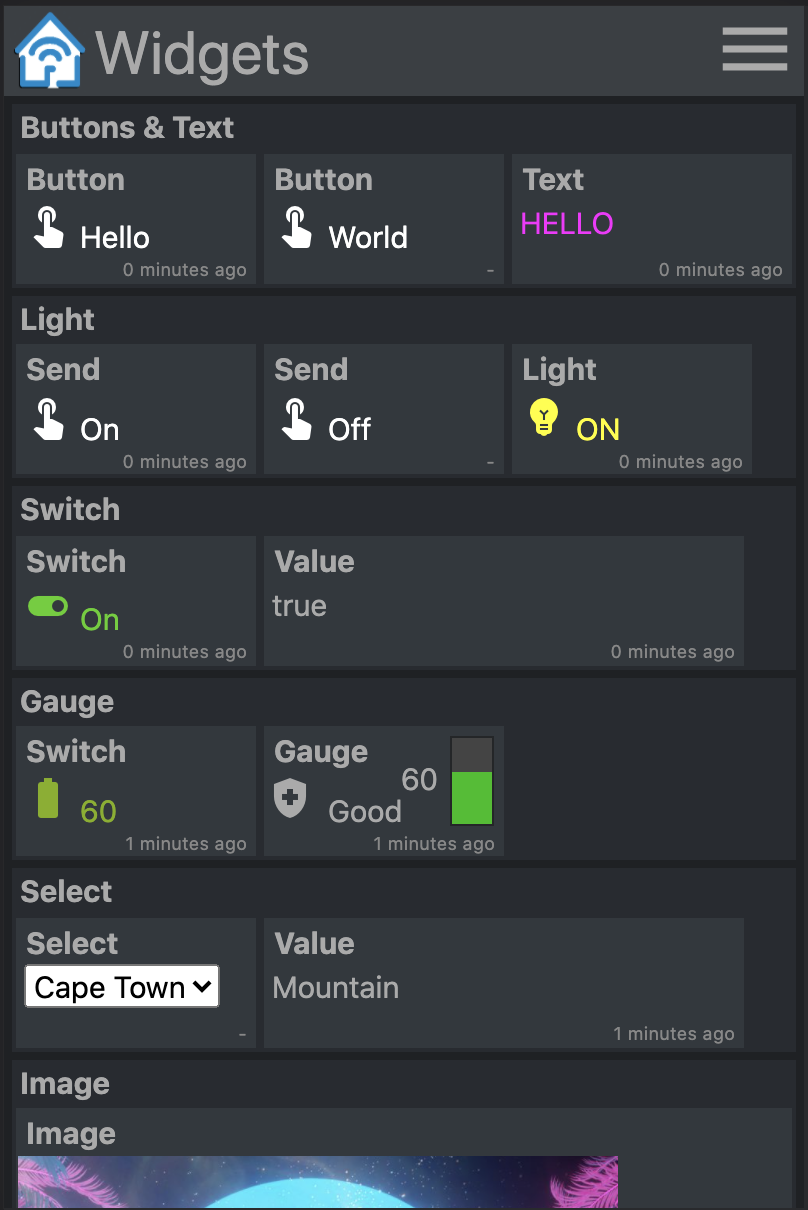
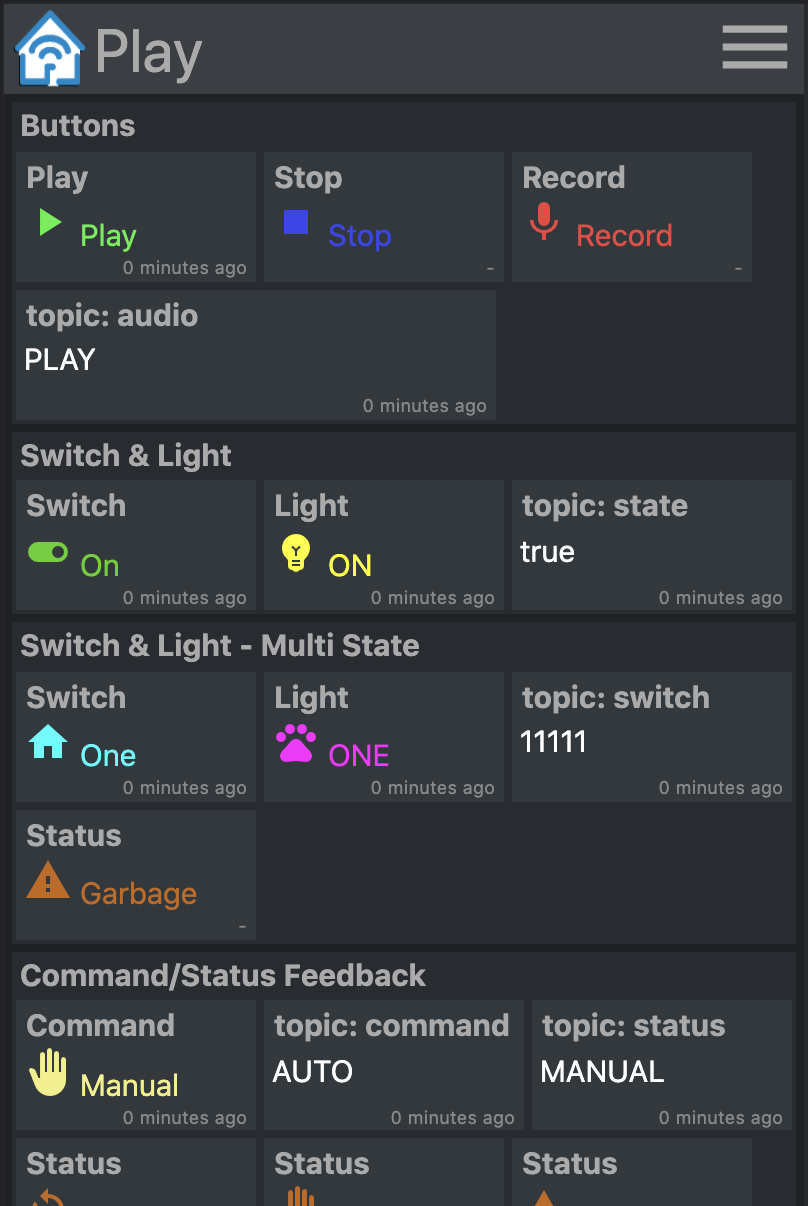
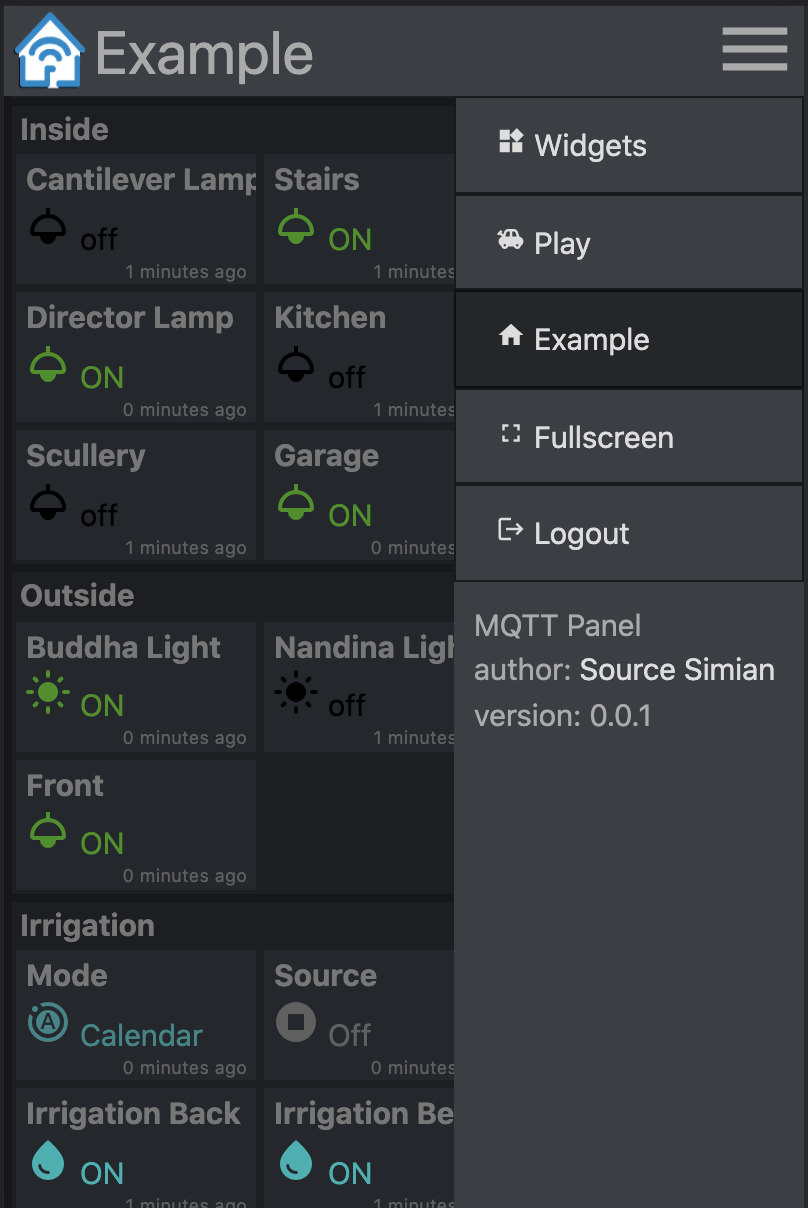
預先構建的容器圖像可在Docker Hub上找到。
跑步
 mkdir -p $HOME/.cache/mqtt-panel

docker run -n mqtt-panel -d -it --rm -p 8080:8080
    --volume my-config.yaml:/config.yaml:ro
    --volume $HOME/.cache/mqtt-panel:/data/cache:rw
    sourcesimian/mqtt-panel:latest
配置您的部署以足夠上面的Docker配置。此外,您可以在配置的HTTP端口上添加/api/health LIVES端點。要執行SSL端點終止,您可以添加一個Ingress控制器,例如Traefik,它標準使用K3。
典型的部署可能包括:
      volumes:
      - name: config
        configMap:
          name: mqtt-panel-config
      - name: data
        hostPath:
          path: /mnt/mqtt-panel/data
          type: DirectoryOrCreate
      containers:
      - name: mqtt-panel
        image: sourcesimian/mqtt-panel:latest
        ports:
        - containerPort: 8080
        volumeMounts:
        - name: config
          mountPath: /config.yaml
          subPath: config.yaml
        - name: data
          mountPath: /data
        livenessProbe:
          initialDelaySeconds: 30
          periodSeconds: 30
          httpGet:
            path: /api/health
            port: 8080
Kubernetes允許以各種方式提供配置文件。使用configmap以下命令是一種直接從yaml提供和更新的方法:
 kubectl -n "$NAMESPACE" delete configmap mqtt-panel-config &>/dev/null || true
kubectl -n "$NAMESPACE" create configmap mqtt-panel-config
        --from-file=config.yaml=./config-my.yaml
kubectl -n "$NAMESPACE" rollout restart deploy mqtt-panel
MQTT-Panel的安裝將需要一個MQTT代理才能連接。有很多可能性可用。在演示EMQ X中,使用了免費的開源,雲原生經紀人。您可以使用您喜歡的MQTT查看器訂閱sourcesimian/mqtt-panel/demo/# 。 Eclipse Mosquitto是一個很好的自託管選擇,具有許多安裝方式,包括Docker Hub上的預建裝容器。
為了補充您的MQTT基礎架構,您可以考慮以下其他微服務:
| 服務 | 描述 |
|---|---|
| mqtt-gpio | 將MQTT主題連接到GPIO引腳。 |
| mqtt-ical | 根據iCal日曆中的事件將值發佈到MQTT主題。 |
| mqtt-kube | 映射kubernetes對象值to in y of MQTT上的主題。 |
| 點頭 | 一個基於流動的視覺編程工具,用於將設備接線,並具有內置的MQTT集成以及許多其他可用的設備。可以輕鬆地用於添加更高級別的行為。 |
mqtt-panel消耗一個YAML文件。首先,您可以復制config-basic.yaml
以下是YAML配置中使用的約定:
| 物品 | 描述 |
|---|---|
<string> | 任何字符串,最好是“引用”,以避免YAML以不同的方式解釋。 |
<icon> | 這些是Google字體庫中的material-icons 。 |
<color> | 是任何HTML樣式的顏色,例如red , "#F04040" , rgb(240, 64, 64)等。使用“引號”來確保#不被解釋為評論。 |
<topic> | MQTT主題,例如fizz/buzz/status 。訂閱也可以接受*和#通配符。使用“引號”來確保#不會被解釋為評論。 |
<identifier> | 一串alpha-numeric字符, _ |
 mqtt:
  host: <host>                  # optional: MQTT broker host, default: 127.0.0.1
  port: <port>                  # optional: MQTT broker port, default 1883
  client-id: mqtt-panel         # MQTT client identifier, often brokers require this to be unique
  topic-prefix: <topic prefix>  # optional: Scopes the MQTT topic prefix
  auth:                         # optional: Defines the authentication used to connect to the MQTT broker
    type: <type>                # Auth type: none|basic|mtls, default: none
    ... (<type> specific options)
    type: basic
    username: <string>          # MQTT broker username
    password: <string>          # MQTT broker password
    type: mtls
    cafile: <file>              # CA file used to verify the server
    certfile: <file>            # Certificate presented by this client
    keyfile: <file>             # Private key presented by this client
    keyfile_password: <string>  # optional: Password used to decrypt the `keyfile`
    protocols:
      - <string>                # optional: list of ALPN protocols to add to the SSL connection
 http:
  bind: <bind>                  # optional: Interface on which web server will listen, default 0.0.0.0
  port: <port>                  # Port on which web server will listen, default 8080
  max-connections: <integer>    # optional: Limit the number of concurrent connections, default 100
  logging-level: <level>        # optional: Select logging level of HTTP requests, default: INFO
 auth:                           # User Auth
  users:                        # optional: User/password auth
  - username: <string>
    password: <string>
 cache:                          # Configure cache
  root: <path>                  # optional root path, default ./cache
 logging:                        # Logging settings
  level: INFO                   # optional: Logging level, default DEBUG
mqtt-panel分為面板,一次顯示一個面板,每個面板都是組的集合。
 panels:
  - title: <string>             # Panel title text
    icon: <icon>                # Icon shown on the menu bar
    groups:                     # list of group identifiers
      - <identifier>            # e.g. "group_one"
  ... (repeat)
一個小組是小部件的盒裝集合。它們可以在多個面板上重複使用。
 groups:
  - title: <string>             # Title text
    name: <identifier>          # Identifier, e.g. "group_one"
    widgets:                    # List of widgets in ths group
    ... (widgets)
  ... (repeat)
小部件是功能元素,用於發布和/或訂閱MQTT主題,並顯示和/或輸入一些有效負載。
所有小部件都有以下常見屬性。
    - title: <string>           # Title text
      type: <type>              # Widget type
      qos: [0 | 1 | 2]          # optional: MQTT QoS to use, default: 1
      retain: [False | True]    # optional: Publish with MQTT retain flag, default: False
      cache: [False | True]     # optional: Cache last seen payloads, default: False
      ref: <widget reference>   # optional: Identifier string for widget reuse.
retain是將有效載荷發佈到MQTT時設置的標誌。如果設置消息將持續在經紀人中,則客戶將在重新連接時重新接收有效載荷。這並不總是給出所需的行為。
您會注意到,在啟動時,一些小部件顯示“未知”,直到收到訂閱的MQTT主題的有效載荷為止。為了改善MQTT-Panel cache: True將為小部件保留最後的有效載荷。這使服務器能夠在重新啟動後立即顯示最後一個已知的狀態,即使使用MQTT主題使用retain: False 。
要重複使用小部件,添加了ref屬性,然後將小部件添加到其他組中,為:
- ref: <widget reference> # Identifier of widget to reuse
只需顯示訂閱的MQTT主題的有效載荷即可。
    - title: <string>       # Title text
      type: text            # Widget type
      subscribe: <topic>    # MQTT topic to listen on
      color: <color>        # optional: Color of the text
例子:
    - title: My Text
      type: text
      subscribe: text/content
      color: "#123456"
從訂閱的主題中收到定義的有效載荷時,顯示一些文本,圖標和顏色。
    - title: <string>       # Title text
      type: light           # Widget type
      subscribe: <topic>    # MQTT topic to listen on
      values:
      - payload: <string>     # Payload to match for this value
        text: <string>        # optional: Text shown
        icon: <icon>          # optional: Icon shown
        color: <color>        # optional: Color of icon and text
      ... (repeat)
例子:
    - title: My Light
      type: light
      subscribe: light/state
      values:
      - payload: "false"
        text: OFF
        color: black
        icon: light
      - payload: "true"
        text: ON
        color: yellow
        icon: light
向MQTT主題發布恆定值。
    - title: <string>       # Title text
      type: button          # Widget type
      text: <string>        # optional: Text to show on widget
      publish: <topic>      # MQTT topic to write to
      payload: <string>     # MQTT payload to publish
例子:
    - title: My Button
      type: button
      text: Push Me
      publish: button/command
      payload: PRESSED
將下一個有效載荷在值列表中發佈到主題。在訂閱主題上的有效載荷返回時,用文本,圖標和顏色更新顯示屏。
    - title: <string>       # Title text
      type: switch          # Widget type
      publish: <topic>      # MQTT topic to write to
      subscribe: <topic>    # MQTT topic to listen on
      values:
      - payload: <string>     # Payload to match for this value
        text: <string>        # optional: Text shown
        icon: <icon>          # optional: Icon shown
        color: <color>        # optional: Color of icon and text
      ... (repeat)
例子:
    - title: My Switch
      type: switch
      publish: widget/switch/command
      subscribe: widget/switch/state
      values:
      - text: "Off"
        payload: "false"
      - text: "On"
        payload: "true"
顯示收到的值和垂直鋼筋量表,其中文本,圖標和顏色將根據訂閱有效載荷的值更改。
    - title: <string>       # Title text
      type: gauge           # Widget type
      subscribe: <topic>    # MQTT topic to listen on
      text: <string>        # optional: The default text when not given with range
      color: <color>        # optional: The default color when not given with range
      icon: <icon>          # optional: The default icon when not given with range
      ranges:
      - range: [<int>, <int>] # Value for start and end of range
        text: <string>        # optional: Text shown when value in range
        color: <color>        # optional: Color shown when value in range
        icon: <icon>          # optional: Icon shown when value in range
      ... (repeat)
                            # max and min value will be determined from starts and ends
例子:
    - title: Sound
      type: gauge
      subscribe: example/volume
      ranges:
      - range: [0, 10]
        text: "Quiet"
        icon: volume_off
        color: "#00c000"
      - range: [10, 30]
        text: "Gentle"
        icon: volume_mute
        color: "#02b002"
      - range: [30, 70]
        text: "Medium"
        icon: volume_down
        color: "#82b002"
      - range: [70, 90]
        text: "Noisy"
        icon: volume_up
        color: "#b08a02"
      - range: [90, 100]
        text: "Loud"
        icon: volume_up
        color: "#b03c02"
顯示收到的值和垂直鋼筋量表,其中文本,圖標和顏色將根據訂閱有效載荷的值更改。另外,當挖掘時,顯示一個可以用來輸入和發布最大值和最小值之間的值的滑塊。
    - title: <string>       # Title text
      type: slider          # Widget type
      live: [False | True]  # optional: Realtime publishing. Default: False
      ... (same as gauge)
設置live: True隨著它的變化,將發布滑塊的當前值。默認行為是僅在釋放滑塊時僅發布最終選定值。
從訂閱的主題中收到定義的有效載荷時,顯示一些文本,圖標和顏色。輕按時,顯示可以發布的其他值的列表。
    - title: <string>       # Title text
      type: select          # Widget type
      publish: <topic>      # MQTT topic to write to
      subscribe: <topic>    # optional: MQTT topic to listen on
      values:
      - payload: <string>     # Payload to send and match
        text: <string>        # optional: Text shown
        icon: <icon>          # optional: Icon shown
        color: <color>        # optional: Color of icon and text
      ... (repeat)
例子:
    - title: My Select
      type: select
      publish: widget/select/command
      subscribe: widget/select/state
      values:
      - text: "Venice"
        payload: "Gondola"
        icon: rowing
        color: cyan
      - text: "Cape Town"
        payload: "Mountain"
        icon: landscape
        color: green
在<iframe>中顯示內容。 src屬性可以綁定到MQTT主題。
    - title: <string>       # Title text
      type: iframe          # Widget type
      subscribe: <topic>    # optional: MQTT topic to listen on, bound to iframe 'src'
      refresh: <seconds>    # optional: Interval at which to refresh the iframe
      attr:                 # Attributes to be set on the iframe
        src: <url>            # optional: Can be set as a default vaule for 'src'
        ...                   # additional attributes
例子:
    - title: Iframe
      type: iframe
      subscribe: iframe/src
      attr:
        src: https://www.youtube.com/embed/dQw4w9WgXcQ
        width: 480px
        height: 315px
        title: YouTube video player
        allow: accelerometer; autoplay; clipboard-write; encrypted-media; gyroscope; picture-in-picture
        allowfullscreen:
是的!請。我構建了MQTT-Panel,因為我找不到“我還沒有準備好提交完全吹Ha的HA”解決方案,該解決方案是自託管的,並且服務器端可配置。我對當代HTML,CSS和打字稿了解不多,因此我很樂意接受那些了解更多人的建議。我希望它是一個快速易於啟動和運行的項目,並有助於向任何人打開MQTT。 ChangElog.md
在推動PR之前,請考慮添加單位測試,並確保make check和make test清潔。
設置Virtualenv:
 python3 -m venv virtualenv
. ./virtualenv/bin/activate
python3 ./setup.py develop
運行服務器:
mqtt-panel ./config-demo.yaml
本著馬薩諸塞州理工學院的科技模型鐵路俱樂部的黑客精神,他給了我們所有人都可以玩。許可證是麻省理工學院。







