mqtt panel
1.0.0

لوحة تطبيق الويب المستضافة ذاتيا لـ MQTT
يوفر هذا المشروع خدمة قابلة للاستضافة ذاتيًا تتصل بوسيط MQTT ويقدم لوحة تطبيق ويب تقدمية قابلة للتكوين بالكامل عبر YAML. يهدف إلى أن تكون لوحة بسيطة تمنح تفاعل المستخدم مع موضوعات MQTT. مناسبة للنشر المستقلة أو MQTT Microservice ، ويمكن نشرها إلى جانب حلول الأتمتة المنزلية. لا يوفر إمكانيات أعلى مستوى مثل الأتمتة أو التكامل أو الجدولة.
يجري
docker run -it --rm -p 8080:8080 sourcesimian/mqtt-panel:latest
وتصفح إلى http: // localhost: 8080 والتي ستظهر على أنها:
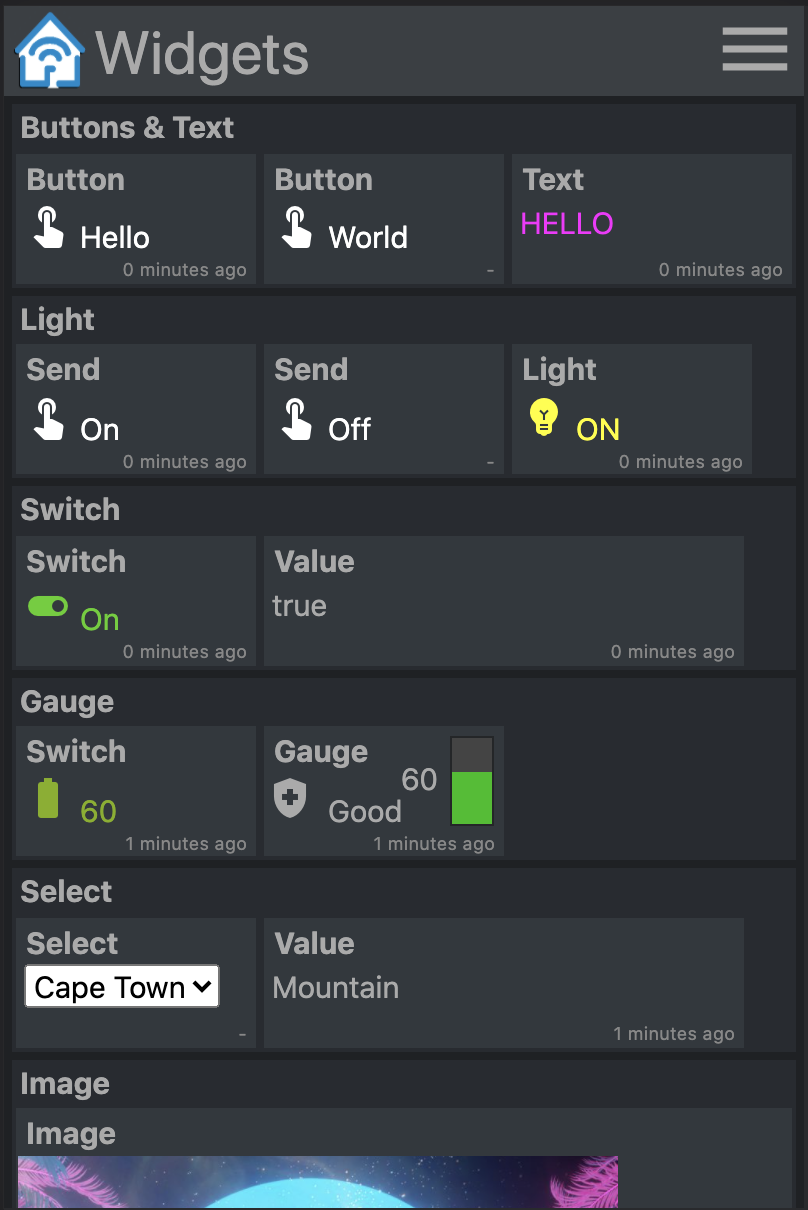
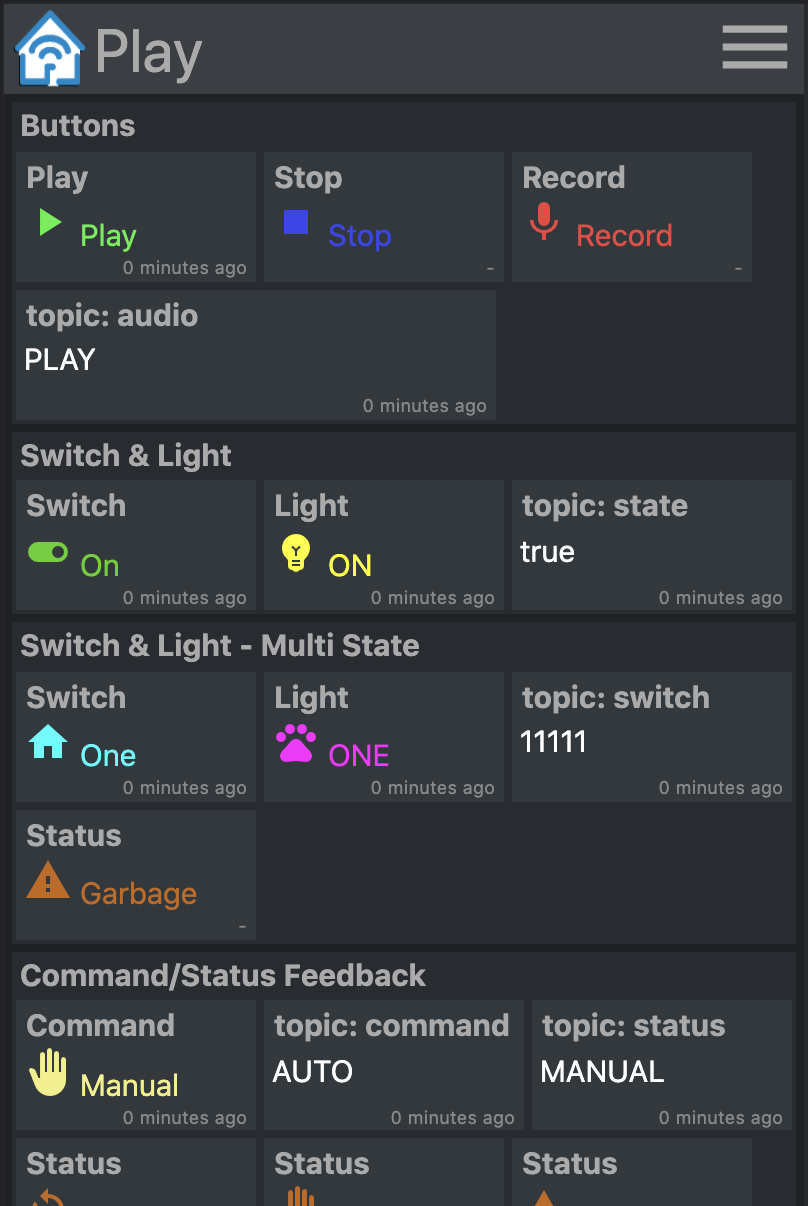
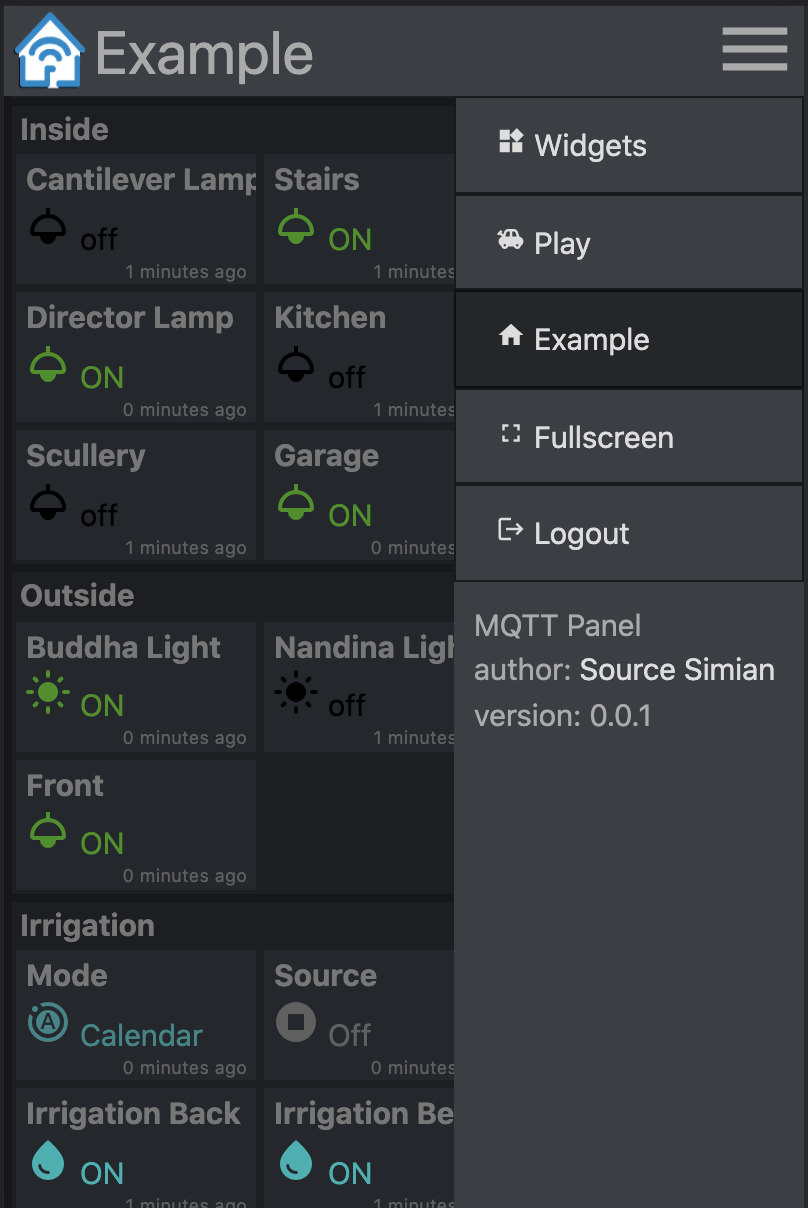
تتوفر صور الحاوية المسبقة على Docker Hub.
يجري
 mkdir -p $HOME/.cache/mqtt-panel

docker run -n mqtt-panel -d -it --rm -p 8080:8080
    --volume my-config.yaml:/config.yaml:ro
    --volume $HOME/.cache/mqtt-panel:/data/cache:rw
    sourcesimian/mqtt-panel:latest
تكوين النشر الخاص بك لتكوين Docker أعلاه. بالإضافة إلى ذلك ، يمكنك إضافة نقطة نهاية litive على /api/health على منفذ HTTP المكون. لأداء إنهاء نقطة نهاية SSL ، يمكنك إضافة وحدة تحكم Ingress مثل Traefik والتي تأتي قياسية مع K3s.
قد يشمل النشر النموذجي:
      volumes:
      - name: config
        configMap:
          name: mqtt-panel-config
      - name: data
        hostPath:
          path: /mnt/mqtt-panel/data
          type: DirectoryOrCreate
      containers:
      - name: mqtt-panel
        image: sourcesimian/mqtt-panel:latest
        ports:
        - containerPort: 8080
        volumeMounts:
        - name: config
          mountPath: /config.yaml
          subPath: config.yaml
        - name: data
          mountPath: /data
        livenessProbe:
          initialDelaySeconds: 30
          periodSeconds: 30
          httpGet:
            path: /api/health
            port: 8080
يسمح Kubernetes بتزويد ملف التكوين بطرق مختلفة. باستخدام configmap ، تعد الأوامر التالية طريقة مقاومة للتوريد والتحديث مباشرة من YAML:
 kubectl -n "$NAMESPACE" delete configmap mqtt-panel-config &>/dev/null || true
kubectl -n "$NAMESPACE" create configmap mqtt-panel-config
        --from-file=config.yaml=./config-my.yaml
kubectl -n "$NAMESPACE" rollout restart deploy mqtt-panel
سيحتاج تثبيت MQTT-Panel إلى وسيط MQTT للاتصال به. هناك العديد من الاحتمالات المتاحة. في العرض التجريبي EMQ X ، يتم استخدام وسيط مجاني مفتوح المصدر السحابي. يمكنك الاشتراك في sourcesimian/mqtt-panel/demo/# مع مشاهد MQTT المفضل لديك. يعد Eclipse Mosquitto خيارًا رائعًا مستضيفًا ذاتيًا مع العديد من طرق التثبيت بما في ذلك الحاويات التي تم إنشاؤها مسبقًا على Docker Hub.
لتكمل البنية التحتية MQTT الخاصة بك ، يمكنك النظر في الخدمات الدقيقة الأخرى التالية:
| خدمة | وصف |
|---|---|
| MQTT-GPIO | يربط موضوعات MQTT بدبابيس GPIO. |
| mqtt-ical | ينشر القيم إلى مواضيع MQTT بناءً على الأحداث في التقويم ICAL. |
| mqtt-kube | خرائط قيم كائن Kubernetes من وإلى مواضيع في MQTT. |
| صدر | أداة البرمجة المرئية القائمة على التدفق لتنفيذ الأجهزة معًا ، مع تكامل MQTT المضمّن والعديد من الآخرين المتاحة. يمكن استخدامها بسهولة لإضافة سلوكيات مستوى أعلى. |
يستهلك mqtt-panel ملف YAML واحد. للبدء ، يمكنك نسخ config-basic.yaml
فيما يلي اتفاقيات تستخدم في تكوين YAML:
| غرض | وصف |
|---|---|
<string> | أي سلسلة من الأحرف ، ويفضل "مقتبس" لتجنب yaml من التفسير بطريقة مختلفة. |
<icon> | هذه هي material-icons من مكتبة Google Fonts. |
<color> | هو أي لون على نمط HTML ، على سبيل المثال red ، "#F04040" ، rgb(240, 64, 64) ، إلخ. استخدم "اقتباسات" للتأكد من عدم تفسير # كتعليق. |
<topic> | موضوع MQTT ، على سبيل المثال fizz/buzz/status . يمكن أن تقبل الاشتراكات أيضًا أحرف * و # Wildcards. استخدم "اقتباسات" للتأكد من عدم تفسير # كتعليق. |
<identifier> | سلسلة من الأحرف ألفا رقمية ، و _ |
 mqtt:
  host: <host>                  # optional: MQTT broker host, default: 127.0.0.1
  port: <port>                  # optional: MQTT broker port, default 1883
  client-id: mqtt-panel         # MQTT client identifier, often brokers require this to be unique
  topic-prefix: <topic prefix>  # optional: Scopes the MQTT topic prefix
  auth:                         # optional: Defines the authentication used to connect to the MQTT broker
    type: <type>                # Auth type: none|basic|mtls, default: none
    ... (<type> specific options)
    type: basic
    username: <string>          # MQTT broker username
    password: <string>          # MQTT broker password
    type: mtls
    cafile: <file>              # CA file used to verify the server
    certfile: <file>            # Certificate presented by this client
    keyfile: <file>             # Private key presented by this client
    keyfile_password: <string>  # optional: Password used to decrypt the `keyfile`
    protocols:
      - <string>                # optional: list of ALPN protocols to add to the SSL connection
 http:
  bind: <bind>                  # optional: Interface on which web server will listen, default 0.0.0.0
  port: <port>                  # Port on which web server will listen, default 8080
  max-connections: <integer>    # optional: Limit the number of concurrent connections, default 100
  logging-level: <level>        # optional: Select logging level of HTTP requests, default: INFO
 auth:                           # User Auth
  users:                        # optional: User/password auth
  - username: <string>
    password: <string>
 cache:                          # Configure cache
  root: <path>                  # optional root path, default ./cache
 logging:                        # Logging settings
  level: INFO                   # optional: Logging level, default DEBUG
تنقسم mqtt-panel إلى لوحات ، يتم عرض لوحة واحدة في وقت واحد ، كل لوحة عبارة عن مجموعة من المجموعات.
 panels:
  - title: <string>             # Panel title text
    icon: <icon>                # Icon shown on the menu bar
    groups:                     # list of group identifiers
      - <identifier>            # e.g. "group_one"
  ... (repeat)
المجموعة عبارة عن مجموعة من الأدوات الحية. يمكن إعادة استخدامها على لوحات متعددة.
 groups:
  - title: <string>             # Title text
    name: <identifier>          # Identifier, e.g. "group_one"
    widgets:                    # List of widgets in ths group
    ... (widgets)
  ... (repeat)
عنصر واجهة المستخدم هو عنصر وظيفي يستخدم لنشر و/أو الاشتراك في موضوعات MQTT ، وعرض و/أو إدخال بعض الحمولة.
جميع الحاجيات لديها السمات الشائعة التالية:
    - title: <string>           # Title text
      type: <type>              # Widget type
      qos: [0 | 1 | 2]          # optional: MQTT QoS to use, default: 1
      retain: [False | True]    # optional: Publish with MQTT retain flag, default: False
      cache: [False | True]     # optional: Cache last seen payloads, default: False
      ref: <widget reference>   # optional: Identifier string for widget reuse.
retain هو علامة يتم تعيينها عند نشر حمولة على MQTT. إذا كانت الرسالة ستستمر في الوسيط ، فسيقوم العملاء بإعادة استقبال هذه الحمولة النافعة عند إعادة الاتصال. هذا لا يعطي دائمًا السلوك المطلوب.
ستلاحظ أنه عند بدء التشغيل ، تظهر بعض الأدوات المصغرة "غير معروفة" حتى يتم استلام حمولة MQTT المشترك. لتحسين تجربة المستخدم من cache: True على آخر حمولة شاهدت لعنصر واجهة مستخدم. يمكّن ذلك الخادم من إظهار آخر حالة معروفة على الفور بعد إعادة التشغيل ، حتى مع موضوع MQTT باستخدام retain: False .
لإعادة استخدام عنصر واجهة مستخدم أضف سمة ref ، ثم إضافة عنصر واجهة المستخدم إلى مجموعات أخرى على النحو التالي:
- ref: <widget reference> # Identifier of widget to reuse
ما عليك سوى عرض الحمولة النافعة لموضوع MQTT المشترك.
    - title: <string>       # Title text
      type: text            # Widget type
      subscribe: <topic>    # MQTT topic to listen on
      color: <color>        # optional: Color of the text
مثال:
    - title: My Text
      type: text
      subscribe: text/content
      color: "#123456"
عرض بعض النص ، رمزًا ولونًا عند استلام الحمولات المحددة من الموضوع المشترك.
    - title: <string>       # Title text
      type: light           # Widget type
      subscribe: <topic>    # MQTT topic to listen on
      values:
      - payload: <string>     # Payload to match for this value
        text: <string>        # optional: Text shown
        icon: <icon>          # optional: Icon shown
        color: <color>        # optional: Color of icon and text
      ... (repeat)
مثال:
    - title: My Light
      type: light
      subscribe: light/state
      values:
      - payload: "false"
        text: OFF
        color: black
        icon: light
      - payload: "true"
        text: ON
        color: yellow
        icon: light
نشر قيمة ثابتة لموضوع MQTT.
    - title: <string>       # Title text
      type: button          # Widget type
      text: <string>        # optional: Text to show on widget
      publish: <topic>      # MQTT topic to write to
      payload: <string>     # MQTT payload to publish
مثال:
    - title: My Button
      type: button
      text: Push Me
      publish: button/command
      payload: PRESSED
نشر الحمولة التالية في قائمة القيم إلى موضوع ما. قم بتحديث الشاشة بالنص والرمز واللون عند إرجاع الحمولة النافعة على الموضوع المشترك.
    - title: <string>       # Title text
      type: switch          # Widget type
      publish: <topic>      # MQTT topic to write to
      subscribe: <topic>    # MQTT topic to listen on
      values:
      - payload: <string>     # Payload to match for this value
        text: <string>        # optional: Text shown
        icon: <icon>          # optional: Icon shown
        color: <color>        # optional: Color of icon and text
      ... (repeat)
مثال:
    - title: My Switch
      type: switch
      publish: widget/switch/command
      subscribe: widget/switch/state
      values:
      - text: "Off"
        payload: "false"
      - text: "On"
        payload: "true"
أظهر القيمة المستلمة ومقياس الشريط الرأسي حيث سيتغير النص والرمز واللون بناءً على قيمة الحمولة المشتركة.
    - title: <string>       # Title text
      type: gauge           # Widget type
      subscribe: <topic>    # MQTT topic to listen on
      text: <string>        # optional: The default text when not given with range
      color: <color>        # optional: The default color when not given with range
      icon: <icon>          # optional: The default icon when not given with range
      ranges:
      - range: [<int>, <int>] # Value for start and end of range
        text: <string>        # optional: Text shown when value in range
        color: <color>        # optional: Color shown when value in range
        icon: <icon>          # optional: Icon shown when value in range
      ... (repeat)
                            # max and min value will be determined from starts and ends
مثال:
    - title: Sound
      type: gauge
      subscribe: example/volume
      ranges:
      - range: [0, 10]
        text: "Quiet"
        icon: volume_off
        color: "#00c000"
      - range: [10, 30]
        text: "Gentle"
        icon: volume_mute
        color: "#02b002"
      - range: [30, 70]
        text: "Medium"
        icon: volume_down
        color: "#82b002"
      - range: [70, 90]
        text: "Noisy"
        icon: volume_up
        color: "#b08a02"
      - range: [90, 100]
        text: "Loud"
        icon: volume_up
        color: "#b03c02"
أظهر القيمة المستلمة ومقياس الشريط الرأسي حيث سيتغير النص والرمز واللون بناءً على قيمة الحمولة المشتركة. بالإضافة إلى ذلك عند الاستغلال ، أظهر شريط التمرير الذي يمكن استخدامه لإدخال ونشر قيمة بين القيمة الأقصى والدني.
    - title: <string>       # Title text
      type: slider          # Widget type
      live: [False | True]  # optional: Realtime publishing. Default: False
      ... (same as gauge)
الإعداد live: True سيتم نشر القيمة الحالية للمزج أثناء التغيير. السلوك الافتراضي هو نشر القيمة المحددة النهائية فقط عند إصدار شريط التمرير.
عرض بعض النص ، رمزًا ولونًا عند استلام الحمولات المحددة من الموضوع المشترك. عند الاستغلال ، يعرض قائمة بالقيم الأخرى التي يمكن نشرها.
    - title: <string>       # Title text
      type: select          # Widget type
      publish: <topic>      # MQTT topic to write to
      subscribe: <topic>    # optional: MQTT topic to listen on
      values:
      - payload: <string>     # Payload to send and match
        text: <string>        # optional: Text shown
        icon: <icon>          # optional: Icon shown
        color: <color>        # optional: Color of icon and text
      ... (repeat)
مثال:
    - title: My Select
      type: select
      publish: widget/select/command
      subscribe: widget/select/state
      values:
      - text: "Venice"
        payload: "Gondola"
        icon: rowing
        color: cyan
      - text: "Cape Town"
        payload: "Mountain"
        icon: landscape
        color: green
عرض المحتوى في <iframe> . يمكن أن تكون سمة src مرتبطة بموضوع MQTT.
    - title: <string>       # Title text
      type: iframe          # Widget type
      subscribe: <topic>    # optional: MQTT topic to listen on, bound to iframe 'src'
      refresh: <seconds>    # optional: Interval at which to refresh the iframe
      attr:                 # Attributes to be set on the iframe
        src: <url>            # optional: Can be set as a default vaule for 'src'
        ...                   # additional attributes
مثال:
    - title: Iframe
      type: iframe
      subscribe: iframe/src
      attr:
        src: https://www.youtube.com/embed/dQw4w9WgXcQ
        width: 480px
        height: 315px
        title: YouTube video player
        allow: accelerometer; autoplay; clipboard-write; encrypted-media; gyroscope; picture-in-picture
        allowfullscreen:
نعم بالتأكيد! ورجع. لقد قمت ببناء MQTT-Panel لأنني لم أتمكن من العثور على حل "لست مستعدًا للالتزام بحل HA الكامل بعد" الذي تم استضافته ذاتيًا وقابل للتكوين. لا أعرف الكثير عن HTML المعاصرة و CSS و TypeScript ، لذا سأقبل بكل سرور النصيحة من أولئك الذين يعرفون المزيد. أريد أن يكون مشروعًا سريعًا وسهلًا للتشغيل ، ويساعد على فتح MQTT لأي شخص. Changelog.MD
قبل دفع العلاقات العامة ، يرجى النظر في إضافة اختبارات الوحدة والتأكد من أن make check make test نظيفًا.
قم بإعداد VirtualEnv:
 python3 -m venv virtualenv
. ./virtualenv/bin/activate
python3 ./setup.py develop
قم بتشغيل الخادم:
mqtt-panel ./config-demo.yaml
بروح من قراصنة نادي السكك الحديدية النموذجية من معهد ماساتشوستس للتكنولوجيا ، الذين أعطونا جميعًا للعب معهم. الترخيص هو معهد ماساتشوستس للتكنولوجيا.







