vscode translator voice
0.5.0

This is a vscode extension for multi-language text translation and TTS (text-to-speech) using Azure Cognitive Services.
Very Important - In order to use this extension you must have a Azure Cognitive Services account with Translator Text and Speech Service resources. If you don't have it already, get one here

You must have an Azure Cognitive Services account with a Translator Text and a Speech Services resources.
If you don't have an account, please create:
Command Palette of VS Code with Ctrl + P or Cmd + P(Mac)ext install yokawasa.vscode-translator-voiceor find at Marketplace
Please see Extension Settings
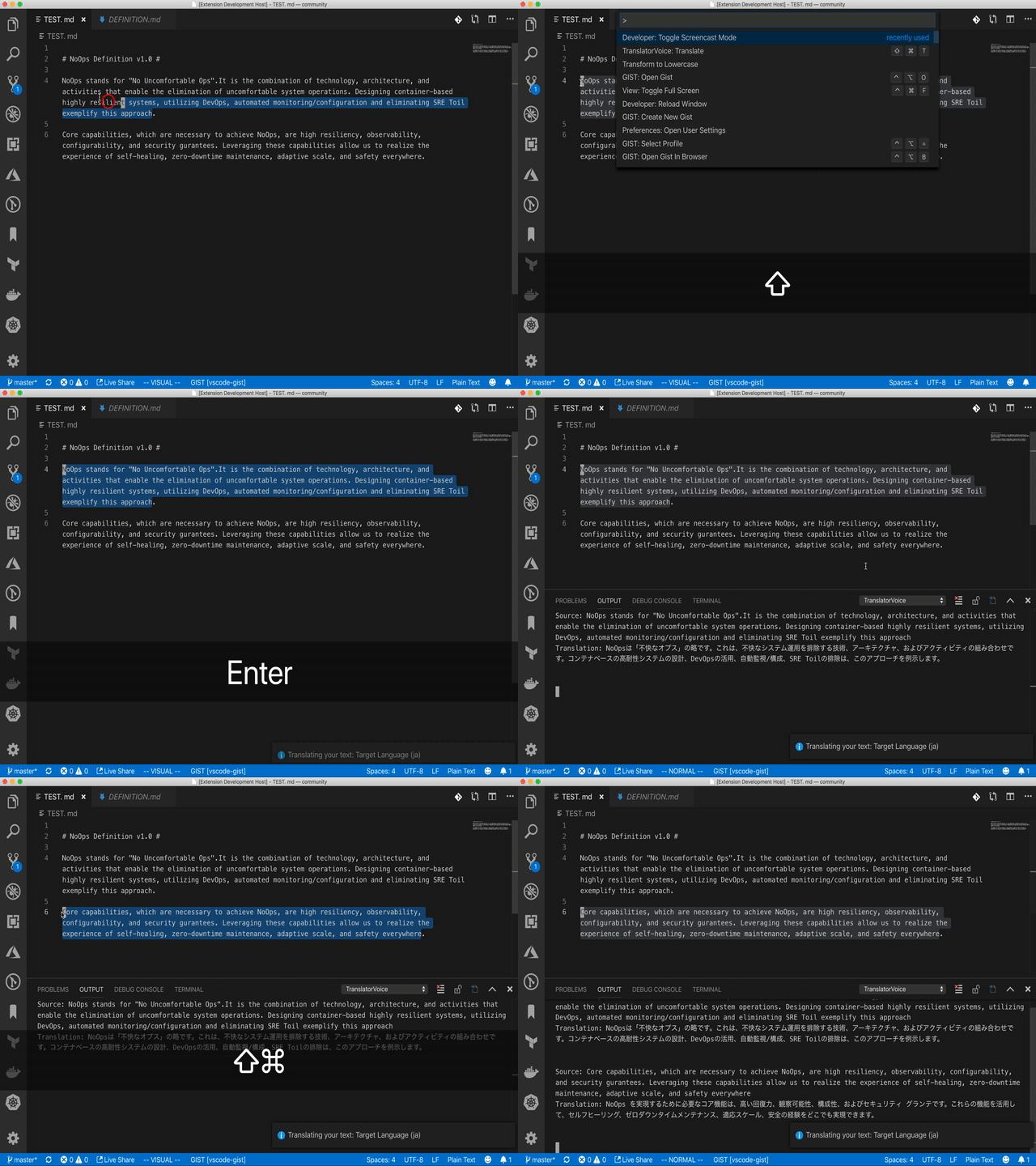
You need to select target text in your editor to translate. Without it, you can not execute the command.
Execute TranslatorVoice: Translate command from command palette like this:
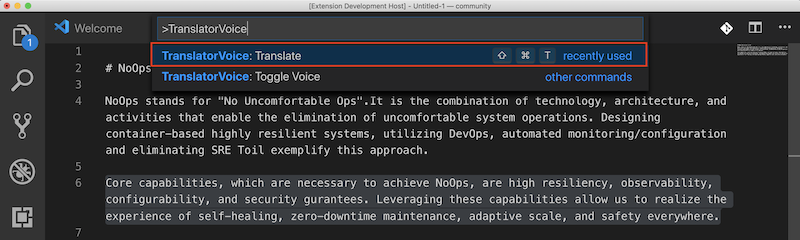
You can exectue the command with a shortcut key:CTL + Shift + T (Mac:Cmd + Shift + T) as well.
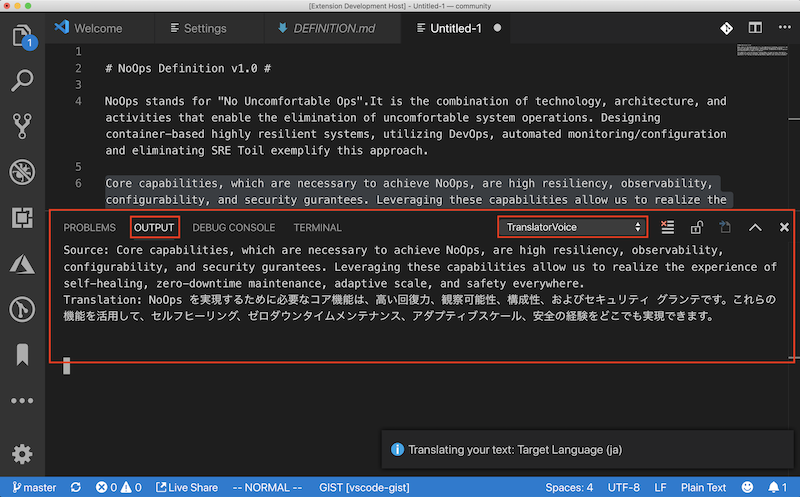
Then, translated text will be added to Output window like this:
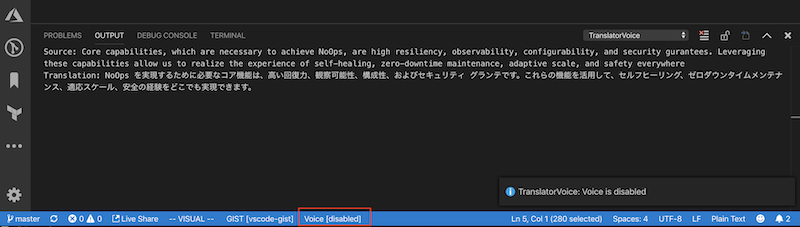
You can disable/enable Voice feature by (1) executing TranslatorVoice: Toggle Voice command from command palette, or (2) toggling statusBarItem named Voice [enabled/disabled] like this:
Configure the extension settings through the contributes.configuration extension point.
The extension contributes the following settings:
translatorvoice.subKeyTranslator: Subscription Key for Cognitive Translator APItranslatorvoice.subKeySpeech: Subscription Key for Cognitive Speech APItranslatorvoice.regionSpeechApi : Region for Cognitive Speech API (ex, japaneast, eastus, ...). Please refer to this page for the detail of available region for the APItranslatorvoice.targetLanguage: Target Language Code (en, fr, de, ja, zh-Hans,...). Please refer to this page for the detail of supported language code.translatorvoice.defaultVoiceEnabled: Whether to enabled voice capability by default: true|falsetranslatorvoice.voiceGender: Default Gender for speaker (male|female)First, open Settings editor from the following VS Code menu command or use the keyboard shortcut CTL + , (Mac: Cmd + ,).
Then, choose Translator Voice Configuration in Extensions group in User settings, and finally update the settings options above.
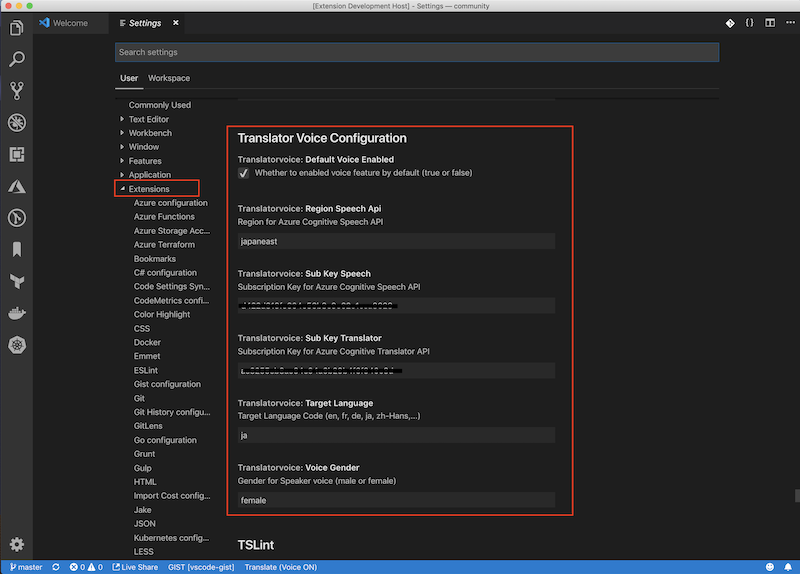
Please see also this page for the detail of settings.
| Command | Shortcut | Description |
|---|---|---|
TranslatorVoice: Translate |
CTL + Shift + T(Mac: Cmd + Shift + T) |
Translate selected text in your editor. In addition, read the translated text with voice only if the voice feature is enabled. |
TranslatorVoice: Toggle Voice |
NONE | Disable/Enable Voice feature. |
See Change Log
Bug reports and pull requests are welcome on GitHub at https://github.com/yokawasa/vscode-translator-voice







