winesapOS
4.2.0 - The Ventoy Update

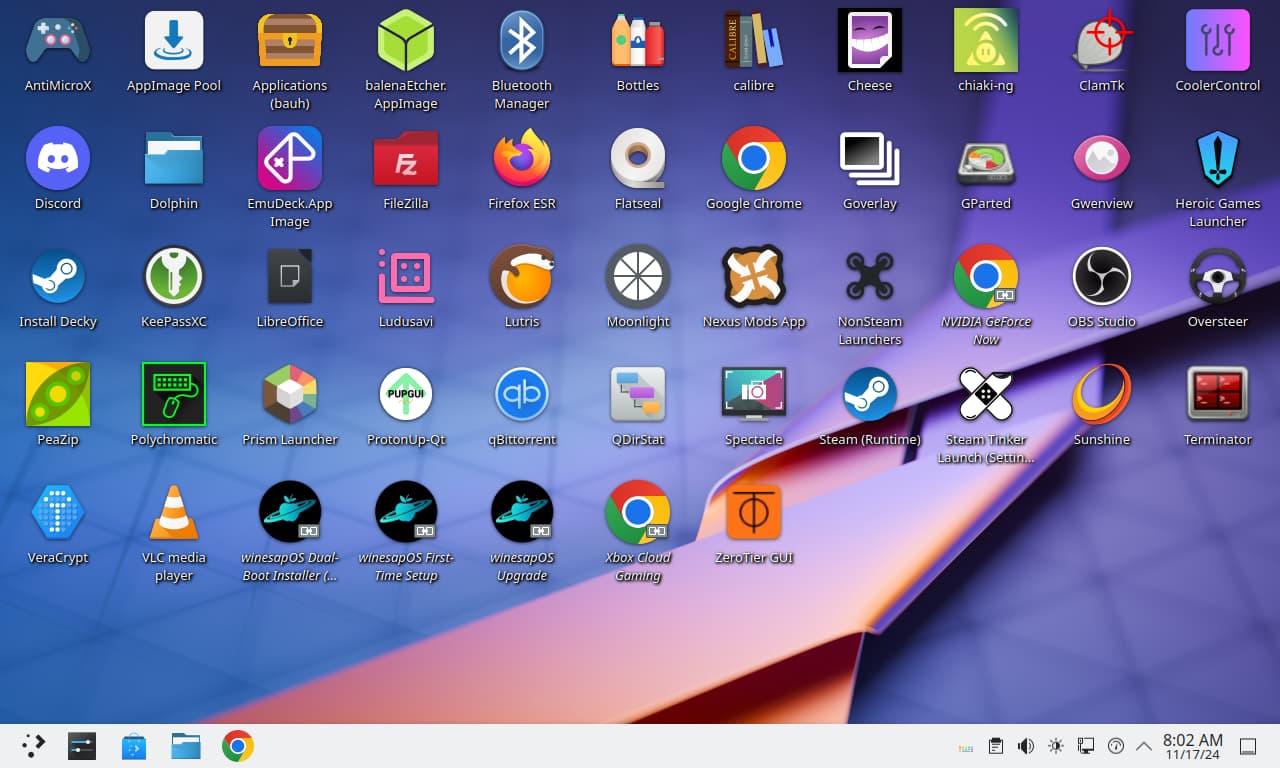
Winesapos使设置Linux并在内部或便携式外部驱动器上玩游戏变得容易。
为什么要使用Winesapos?
发布图像可以在此处下载。
项目目标:
想帮助我们的工作吗?考虑帮助解决开放功能和错误GitHub问题。我们的贡献。MD指南提供了您作为Winesapos贡献者入门所需的所有信息。
目录
这些就是MACOS在游戏方面比Linux较差的原因。
noatime和nodiratime以不编写文件和目录的访问时间。/tmp/ , /var/log/和/var/tmp/ )的临时目录被安装为仅ram的文件系统。/home/目录的每月快照。pacman软件包管理器时,Snap-Pac都会拍摄快照。支持所有英特尔Mac。如今,Linux在开箱即用的大多数Mac上都可以使用。驱动程序已预安装,用于丢失本机Linux支持的较新硬件。
要在内部驱动器上安装,必须将Winesapos安装为MacOS并旁边的双启动。它将无法作为Intel Mac上唯一安装的操作系统。
| 硬件 | 支持 | 第三方驾驶员 |
|---|---|---|
| 键盘 | 是的 | Linux-T2补丁 |
| 触摸板 | 是的 | Linux-T2补丁 |
| NVME | 是的 | Linux-T2补丁 |
| 声音 | 是的 | Linux-T2补丁和Apple-t2-audio-config |
| 粉丝 | 是的 | mbpfan |
| 蓝牙 | 是的 | Linux-T2补丁和Apple-BCM-Firmware |
| 无线上网 | 是的 | BroadCom-WL和Apple-BCM-Firmware |
| 指纹扫描仪 | 不 | |
| 触摸栏 | 是的 | Linux-T2补丁 |
有关蓝牙和Wi-Fi支持的注释,如果它不在框外工作:
| 硬件 | 支持 | 第三方驾驶员 |
|---|---|---|
| 键盘 | 是的 | Asusctl |
| 触摸板 | 是的 | |
| NVME | 是的 | |
| 声音 | 是的 | Linux-Firmware-asus |
| 粉丝 | 是的 | Asusctl |
| 蓝牙 | 是的 | |
| 无线上网 | 是的 | |
| 指纹扫描仪 | 不 |
我们为原始的华硕ROG盟友和较新的华硕Rog Ally X提供了支持。
| 硬件 | 支持 | 第三方驾驶员 |
|---|---|---|
| 控制器 | 是的 | Linux-Nobara补丁 |
| NVME | 是的 | |
| 声音 | 是的 | Linux-Nobara补丁 |
| 粉丝 | 是的 | |
| 蓝牙 | 是的 | |
| 无线上网 | 是的 | |
| 指纹扫描仪 | 不 |
| 硬件 | 支持 | 第三方驾驶员 |
|---|---|---|
| 控制器 | 是的 | Ayaneo-platform-dkms-git和Ayaled升级 |
| NVME | 是的 | |
| 声音 | 是的 | AW87559-CIRMWARE |
| 粉丝 | 是的 | |
| 蓝牙 | 是的 | |
| 无线上网 | 是的 | |
| 指纹扫描仪 | 不 |
所有框架计算机都得到充分支持。
| 硬件 | 支持 | 笔记 |
|---|---|---|
| 键盘 | 是的 | |
| 触摸板 | 是的 | 当键盘被内置时,Quirk添加到禁用 |
| NVME | 是的 | 为深度睡眠支持启用了节能模式 |
| 声音 | 是的 | 框架-DSP用于提高音频质量 |
| 粉丝 | 是的 | |
| 蓝牙 | 是的 | |
| 无线上网 | 是的 | 自动设置区域以启用Wi-Fi> = 5 |
| 指纹扫描仪 | 是的 | |
| LED矩阵 | 是的 | 用于管理LED矩阵的输入模块控制 |
对于框架笔记本电脑16,需要在BIOS中启用对Linux的音频支持。
| 硬件 | 支持 | 第三方驾驶员 |
|---|---|---|
| 控制器 | 是的 | |
| NVME | 是的 | |
| 声音 | 是的 | |
| 粉丝 | 是的 | |
| 蓝牙 | 是的 | Linux-Nobara补丁 |
| 无线上网 | 是的 | |
| 指纹扫描仪 | 不 |
| 硬件 | 支持 | 第三方驾驶员 |
|---|---|---|
| 键盘 | 是的 | Linux-surface途径 |
| 触摸板 | 是的 | |
| NVME | 是的 | |
| 声音 | 是的 | Linux-Surface补丁 |
| 粉丝 | 是的 | Linux-Surface补丁 |
| 蓝牙 | 是的 | Linux-Surface补丁 |
| 无线上网 | 是的 | Linux-Surface补丁 |
| 指纹扫描仪 | 不 | |
| 触摸屏 | 是的 | IPTSD,Libwacom-Surface和Linux-Surface补丁 |
| 硬件 | 支持 | 第三方驾驶员 |
|---|---|---|
| 控制器 | 是的 | |
| NVME | 是的 | |
| 声音 | 是的 | |
| 粉丝 | 是的 | |
| 蓝牙 | 是的 | |
| 无线上网 | 是的 | |
| 指纹扫描仪 | 不 |
蒸汽甲板LCD和OLED型号均得到完全支持。
| 硬件 | 支持 | 第三方驾驶员 |
|---|---|---|
| 控制器 | 是的 | |
| 触摸板 | 是的 | |
| NVME | 是的 | |
| 声音 | 是的 | Linux-Nobara补丁和Linux-Firmware-Walve |
| 粉丝 | 是的 | |
| 蓝牙 | 是的 | Linux-Nobara补丁和Linux-Firmware-Walve |
| 无线上网 | 是的 | Linux-Nobara补丁和Linux-Firmware-Walve |
| 触摸屏 | 是的 |
我们正在与这些操作系统项目一起积极合作,以帮助向大众提供更广泛的Linux游戏支持:
从Winesapos 3.1.0开始,我们现在为自己的存储库提供了一些预先构建的AUR包装。该存储库在Arch Linux和Manjaro上工作。默认情况下,它在Winesapos上启用。取决于您的分布,以下是如何启用它:
 sudo sed -i s'/[core]/[winesapos]nServer = https://winesapos.lukeshort.cloud/repo/$repo/$archnn[core]/'g /etc/pacman.conf
sudo pacman -S -y -y
通过导入该密钥,然后在本地签名以信任它来启用GPG密钥。
 sudo pacman-key --recv-keys 1805E886BECCCEA99EDF55F081CA29E4A4B01239
sudo pacman-key --init
sudo pacman-key --lsign-key 1805E886BECCCEA99EDF55F081CA29E4A4B01239
| 特征 | Steamos 3 | Winesapos 4 |
|---|---|---|
| Steamos存储库 | 是的 | 不 |
| Arch Linux软件包 | 老的 | 新的 |
| 引导兼容性 | UEFI | UEFI和Legacy Bios |
| 图形驱动程序 | AMD | AMD,Intel,Nvidia,Parallels,VirtualBox和VMware |
| 音频服务器 | 管道 | 管道 |
| 仅读取文件系统 | 是的 | 不 |
| 加密文件系统 | 不 | 是(安全图像) |
| 文件系统备份类型 | A/B分区 | BTRFS快照 |
| 可能的文件系统备份数量 | 1 | 无限 |
| 包装经理(CLI) | Flatpak和Nix | Pacman,Paru/yay/Aur,Flatpak,Homebrew,Nix和Snap |
| 首选软件包管理器(CLI) | Flatpak | Flatpak |
| 包装经理(GUI) | 发现(Flatpak) | Discover(Flatpak),Bauh(Pacman,paru/yay/aur,flatpak和snap)和appimagepool(appimage) |
| 更新类型 | 基于图像 | 软件包管理器 |
| 安装软件包的数量 | 小的 | 小(最小图像)或大(性能和安全图像) |
| 游戏发射器 | 蒸汽 | Steam,英雄游戏发射器,Lutris,Nvidia Geforce Now,Open GamePad UI,Prism Launcher和Xbox Cloud Gaming |
| Linux内核 | 海王星(6.5) | Linux LTS(6.6)和Linux Nobara(最新) |
| 其他Apple Intel Mac驱动程序 | 不 | 是的 |
| 额外的华硕笔记本电脑司机 | 不 | 是的 |
| 其他华硕ROG盟友手持式驱动程序 | 不 | 是的 |
| 其他Ayaneo手持式司机 | 不 | 是的 |
| 其他框架计算机驱动程序 | 不 | 是的 |
| 联想的其他军团驾驶员 | 不 | 是的 |
| 其他Microsoft表面笔记本电脑驱动程序 | 不 | 是的 |
| 额外的Onexplayer手持式驱动程序 | 不 | 是的 |
| 桌面环境 | KDE等离子体5 | KDE等离子体6 |
| 桌面主题 | 汽 | 微风 |
| AMD FSR | 全球的 | 全球的 |
| Gamescope | 全球的 | 全球的 |
| 葡萄酒 | 质子 | 质子和GE-Proton |
| 游戏控制器支持 | 大的 | 大的 |
| EXFAT跨平台存储 | 不 | 是的(性能和安全图像的16个吉布) |
Winesapos 3是第一个基于Steamos 3的Linux发行版。从历史上看,这是Steamos 3的第一个叉子:
| 发行版 | 首次预览 | 首次公开发行 |
|---|---|---|
| Winesapos | 2022-03-06 | 2022-03-10 |
| PS4的Steamos | 2022-03-09 | 2022-03-25 |
| Holoiso | 2022-04-21 | 2022-05-01 |
最低限度:
受到推崇的:
有关外部存储的重要说明!
Winesapos的创建目标之一就是要便携。但是,大多数闪存驱动器和SD/TF卡太慢,无法运行操作系统并提供良好的体验。为了获得最佳体验,请使用这些推荐的闪存驱动器之一,外部USB-C> = 3.1 SSD或USB-C> = 3.2对接站或包括M.2 NVME驱动器插槽的docking Station或Hub。
Winesapos提供了3种不同的图像类型,以满足用户的各种需求:
| 特征 | 最小 | 表现 | 安全的 |
|---|---|---|---|
| CPU缓解 | 不 | 不 | 是的 |
| 加密 | 不 | 不 | 是的(luks) |
| 防火墙 | 不 | 不 | 是(防火墙) |
root密码需要重置 | 不 | 不 | 是的 |
| 16 GIB EXFAT跨平台存储 | 不 | 是的 | 是的 |
| 预构建的发布图像 | 是的 | 是的 | 不 |
最小的根文件系统存档( winesapos-${WINESAPOS_VERSION}-minimal-rootfs.tar.zst )是从最小图像中提取的文件。它可用于容器或在Docker或Podman容器,双启动或WSL 2方案中安装Winesapos。
如果使用安全映像,则默认LUKS加密密钥是password ,应该在第一个引导后更改。不要在第一个引导之前执行此操作,因为默认密码用于解锁分区,以便将其调整大小以填充整个存储设备。更改第五个分区的Luks加密密钥。
$ sudo cryptsetup luksChangeKey /dev/<DEVICE>5
winesap和root的用户帐户密码与用户名相同。 root用户设置为立即到期。首次登录后,将提示您输入新密码。这是如何更改它:
winesap的默认密码。winesap的默认密码。 root用户帐户已锁定,直到更改密码为止。建议立即更改此操作以允许恢复工作。
$ sudo passwd root
winesapos-<VERSION>-<TYPE>.img.zip Archive。在PC或Mac上。
dd CLI实用程序可用于闪烁图像。Linux上的Gnome盒子。
$ qemu-img resize winesapos*.img +24G
使用MacOS上的Parallels Desktop(仅Intel)。
 qemu-img convert -f raw -O vdi winesapos-<VERSION>-<TYPE>.img winesapos-<VERSION>-<TYPE>.vdi
prl_convert winesapos-<VERSION>-<TYPE>.vdi --allow-no-os --stand-alone-disk --dst=winesapos-<VERSION>-<TYPE>.hdd
使用Linux上的虚拟机管理器。
$ qemu-img resize winesapos*.img +24G
/var/lib/libvirt/images/ 。使用VirtualBox。
VBoxManage convertfromraw --format VDI winesapos-<VERSION>-<TYPE>.img winesapos-<VERSION>-<TYPE>.vdi
qemu-img convert -f raw -O vdi winesapos-<VERSION>-<TYPE>.img winesapos-<VERSION>-<TYPE>.vdi
使用MacOS上的VMware Fusion(仅Intel)。
VBoxManage convertfromraw --format VMDK winesapos-<VERSION>-<TYPE>.img winesapos-<VERSION>-<TYPE>.vmdk
qemu-img convert -f raw -O vmdk winesapos-<VERSION>-<TYPE>.img winesapos-<VERSION>-<TYPE>.vmdk
使用Linux或Windows上的VMware工作站。
默认帐户具有镜像用户名的密码集:
| 用户名 | 密码 |
|---|---|
| Winesap | Winesap |
| 根 | 根 |
首次登录后,“ Winesapos首次设置”向导将推出。它将有助于设置图形驱动程序,语言环境,时区等。强烈建议在第一个靴子上完成此操作。然后在使用Winesapos之前重新启动以提供最佳体验。
如果使用首次设置的建议默认值,并在重新启动后,请按登录屏幕上的Enter/return/return键(虚拟键盘上的底部右键),以进行无密码登录。
高级用户可能需要创建一个自定义构建,而不是使用已经制作的释放构建。这只需要1个吉布的自由空间才能下载实时Arch Linux环境。它还允许使用环境变量以与默认发布构建不同的方式配置构建。
将最新的Arch Linux ISO下载并设置到具有至少1 GB存储的闪存驱动器上。
1a。即使我们没有为其提供发布图像,我们也支持使用Manjaro建造酒店。下载Manjaro的血浆,肉桂或Gnome桌面版。
引导到闪存驱动器。
更新已知的软件包缓存并安装git。
 pacman -S -y
pacman -S git
克隆稳定的分支,然后转到“脚本”目录。
 git clone --branch stable https://github.com/winesapos/winesapos.git
cd ./winesapos/scripts/
配置环境变量以自定义构建。至少,允许构建在裸机上工作,并定义要安装的/dev/<DEVICE>阻止设备。请小心,因为这将删除该设备上的所有现有数据!
 export WINESAPOS_BUILD_IN_VM_ONLY=false
lsblk
export WINESAPOS_DEVICE=<DEVICE>
默认情况下,将构建性能图像。或者,源源变量以配置构建,以使最小或安全的图像改为制造。
. ./env/winesapos-env-minimal.sh
. ./env/winesapos-env-secure.sh
运行构建。
sudo -E bash ./winesapos-install.sh
检查任何测试故障(该命令不应输出)。
grep -P 'FAIL$' /winesapos/etc/winesapos/winesapos-install.log
有关构建过程的更多详细信息,我们建议阅读整个贡献。md指南。
配置要下载的Winesapos版本和要使用的容器引擎。
 export WINESAPOS_VERSION="4.1.0"
#export WINESAPOS_CONTAINER_ENGINE="docker"
export WINESAPOS_CONTAINER_ENGINE="podman"
下载,解压缩,然后导入根文件系统。大多数容器发动机仅支持GZIP压缩(不是ZSTANDARD)。
 curl -LO https://winesapos.lukeshort.cloud/repo/iso/winesapos-${WINESAPOS_VERSION}/winesapos-${WINESAPOS_VERSION}-minimal-rootfs.tar.zst
zstd --decompress winesapos-${WINESAPOS_VERSION}-minimal-rootfs.tar.zst
${WINESAPOS_CONTAINER_ENGINE} import winesapos-${WINESAPOS_VERSION}-minimal-rootfs.tar winesapos:${WINESAPOS_VERSION}
验证是否导入容器图像。
 ${WINESAPOS_CONTAINER_ENGINE} images | grep winesapos
# Example output: winesapos                        4.1.0     23b9bb5f1c26   26 seconds ago   8.79GB
从Winesapos 4.1.0开始时,使用WSL 2在Windows> = 10上作为虚拟机施用。
安装WSL 2。
下载winesapos-wsl.ps1脚本。
打开PowerShell并导航到下载的位置。
允许并运行PowerShell脚本。
PS C:UsersuserDownloads> powershell -ExecutionPolicy Bypass -File .winesapos-wsl.ps1
验证出现新的“ Winesapos”虚拟机。
PS C:UsersuserDownloads> wsl --list
输入虚拟机。
PS C:UsersuserDownloads> wsl --distribution winesapOS
验证它是Winesapos。
cat /usr/lib/os-release-winesapos
| 用户名 | 密码 |
|---|---|
| 根 | 根 |
| Winesap | Winesap |
在安全图像上,LUKS加密密钥是password 。 Luks和root帐户的密码应立即更改。
 $ sudo cryptsetup luksChangeKey /dev/<DEVICE>5
$ sudo passwd root
通过按下并释放电源按钮,将Mac引导到外部驱动器中。然后按下OPTION键(或Windows键盘上的ALT键)以访问MAC Bootloader。选择“ EFI启动”设备。
重要的是使用Apple T2安全芯片的任何Mac,这些Mac都是在2018年和之后制造的所有Mac,都需要从外部存储中启动:
COMMAND和r键进入恢复模式。shutdown /s /f /t 0 ,通过握住“ shift”键来完全关闭窗口。从Winesapos 4.2.0开始,Ventoy得到了支持。它仅适用于UEFI启动(不是传统BIOS启动)。 Winesapos调整根文件系统脚本当前与Ventoy不起作用,因此这对于恢复和故障排除目的最有用。
winesapos.vtoy 。如果还使用Linux或Windows,建议遵循“入门指南”将Winesapos安装到自己的内部驱动器上。然后使用主板BIOS更改启动设备。对于MacOS,将其安装到内部驱动器的唯一方法是通过双启动。
但是,可以将Winesapos安装到与Linux或Windows相同的驱动器上。这就是本指南将更详细地介绍的内容。
只有uefi才能用于葡萄酒馆的双启动安装。对于Legacy Bios启动,创建并闪烁普通的便携式发行映像,例如最小或性能。这些都支持传统BIOS靴子和UEFI。
首先安装(如有必要)MACOS或Windows。然后继续将witeesapos安装到同一驱动器上。
仅支持英特尔Mac。
command和r键,直到出现Apple徽标。然后放开这两个钥匙。csrutil disable以禁用SIP。refind-bin-<VERSION>.zip 。./refind-install 。半自动步骤:
关注Winesapos入门指南,将最小图像放到外部驱动器上。
启动到外部驱动器上的winesapos。
使用GPARTED来分区免费存储空间。标签以零“ 0”(不是字母“ O”)的后缀。
运行“ Winesapos Dual-Boot Installer(Beta)”桌面快捷方式。
关闭计算机,拔下Winesapos外部驱动器,然后打开计算机。
允许再次启动原始操作系统。
command 。一旦启动到MacOS,请运行./refind-mkdefault (需要安装Xcode)。 # Enable os-prober. It is disabled by default.
sudo crudini --ini-options=nospace --set /etc/default/grub "" GRUB_DISABLE_OS_PROBER false
sudo grub-mkconfig -o /boot/grub/grub.cfg
手动步骤:
关注Winesapos入门指南,将最小图像放到外部驱动器上。
下载最新的winesapos-${WINESAPOS_VERSION}-minimal-rootfs.tar.zst版本。
wos-drive 。启动到外部驱动器上的winesapos。
使用GPARTED来分区免费存储空间。标签以零“ 0”(不是字母“ O”)的后缀。
使用Winesapos Optimizaitons和功能安装新分区。
 # View hints about each partition.
$ lsblk
$ sudo mount -t btrfs -o subvol=/,compress-force=zstd:1,discard,noatime,nodiratime -L winesapos-root0 /mnt
$ sudo btrfs subvolume create /mnt/.snapshots
$ sudo btrfs subvolume create /mnt/home
$ sudo mount -t btrfs -o subvol=/home,compress-force=zstd:1,discard,noatime,nodiratime -L winesapos-root0 /mnt/home
$ sudo btrfs subvolume create /mnt/home/.snapshots
$ sudo btrfs subvolume create /mnt/swap
$ sudo mount -t btrfs -o subvol=/swap,compress-force=zstd:1,discard,noatime,nodiratime -L winesapos-root0 /mnt/swap
$ sudo mkdir /mnt/boot
$ sudo mount --label winesapos-boot0 /mnt/boot
$ sudo mkdir /mnt/boot/efi
# Mount the FAT32 EFI partition.
# On macOS, use the newly created EFI partition.
# On Windows, use the existing EFI partition. This is usually the first partition and 100 MiB in size.
$ sudo mount /dev/<DEVICE>1 /mnt/boot/efi
提取Winesapos根文件系统存档。
$ sudo tar --extract --keep-old-files --verbose --file /run/media/winesap/wos-drive/winesapos-${WINESAPOS_VERSION}-minimal-rootfs.tar.zst --directory /mnt/
Configure the bootloader.
 $ grep -v -P "winesapos|WOS" /mnt/etc/fstab | sudo tee /mnt/etc/fstab
$ genfstab -L /mnt | sudo tee -a /mnt/etc/fstab
$ sudo mount --rbind /dev /mnt/dev
$ sudo mount --rbind /sys /mnt/sys
$ sudo mount -t proc /proc /mnt/proc
$ sudo chroot /mnt grub-install --target=x86_64-efi --efi-directory=/boot/efi --bootloader-id=winesapOS
$ sudo chroot /mnt grub-mkconfig -o /boot/grub/grub.cfg
$ sudo chroot /mnt mkinitcpio -P
$ sudo sync
Turn off the computer, unplug the winesapOS external drive, and then turn on the computer.
Allow booting the original operating system again.
command while booting up. Once booted into macOS, run ./refind-mkdefault (requires Xcode to be installed). # Enable os-prober. It is disabled by default.
$ sudo crudini --ini-options=nospace --set /etc/default/grub "" GRUB_DISABLE_OS_PROBER false
$ sudo grub-mkconfig -o /boot/grub/grub.cfg
After logging in for the first time as the winesap user, the first-time setup for winesapOS will appear. Users have the option to manually select their choices or go with the recommended defaults below.
| 设置 | Recomended Default |
|---|---|
| Broadcom proprietary Wi-Fi driver | 自动的 |
| Rotate screen | 不 |
| Older version of winesapOS | Stop and prompt user |
| Pacman mirror region | Automatic (GeoIP) |
| Graphics driver | 台面 |
| Swap method | zram |
| 时区 | Automatic (GeoIP) |
| Recommended producitvity apps | 是的 |
| Recommended gaming apps | 是的 |
| Passwordless login* | Yes (minimal and performance) and No (secure) |
| Hide GRUB boot menu | 是的 |
| Upgrade firmware | 是的 |
| Change user password | 是的 |
| Change root password | 是的 |
| Locale | 问 |
*Press the enter/return key (the bottom-right key on the virtual keyboard) on the login screen for passwordless login.
Upgrades are supported and recommended between all minor releases of winesapOS. For example, it is supported to go from 3.0.0 to 3.2.1.
Where it makes sense, features are backported from newer versions of winesapOS. Bug and security fixes are also included to fix problems either with winesapOS itself or with upstream changes in Arch Linux. Even if a user never upgrades winesapOS, users will continue to get regular system upgrades from Arch Linux.
Before upgrading, please read the full UPGRADE.md notes. This showcases what updates will happen automatically and what updates may need to be manually applied.
Development builds do not support upgrades. Here are the releases that we do support upgrades on:
| 发布 | Upgrades Supported |
|---|---|
| 稳定的 | 是的 |
| Release Candidate (RC) | 是的 |
| beta | 不 |
| 阿尔法 | 不 |
Here is how to upgrade winesapOS. Do NOT use "Applications (bauh)" for upgrades, only for package installations.
GUI = Launch the "winesapOS Upgrade" desktop shortcut.
CLI = Launch the winesapOS upgrade script from the stable branch.
curl https://raw.githubusercontent.com/winesapOS/winesapOS/stable/scripts/winesapos-upgrade.sh | sudo -E bash
Terminator . echo stick > /tmp/winesapos_user_name.txt
export WINESAPOS_UPGRADE_FILES=false
export WINESAPOS_UPGRADE_VERSION_CHECK=false
curl https://raw.githubusercontent.com/winesapOS/winesapOS/stable/scripts/winesapos-upgrade.sh | sudo -E bash
curl https://raw.githubusercontent.com/winesapOS/winesapOS/stable/scripts/winesapos-upgrade.sh | sudo -E bash
If desired, it is possible to remove winesapOS specific files and configuration and switch back to upstream Arch Linux using an uninstall script. It will not remove anything that is related to improved hardware compatibility.
curl https://raw.githubusercontent.com/winesapOS/winesapOS/stable/scripts/winesapos-uninstall.sh | sudo -E bash
It is possible to get an experience similar to winesapOS but on a different Linux distribution by installing applications that winesapOS provides.
What this conversion script does:
What it does NOT do:
Run this script to convert to winesapOS:
curl https://raw.githubusercontent.com/winesapOS/winesapOS/stable/scripts/winesapos-convert.sh | bash
Plug additional hardware into a USB hub. Connect the USB hub to the computer before booting.
Do NOT move the USB hub after plugging it in and booting up Linux. It can easily disconnect leading to a corrupt file system.
Consider buying an SSD instead of a flash drive for a longer life-span, more storage, and faster speeds.
Delete old Btrfs backups when the drive is running low on storage space.
 $ sudo snapper list
$ sudo snapper delete <SNAPSHOT_NUMBER>
Enable Proton for all Windows games. This will allow them to run in Linux. For more information about Proton, read this starter guide. Check the compatibility rating for games on Steam by using ProtonDB.
Settings > Steam Play > Enable Steam Play for Support Titles > Use this tool instead of game-specific selections from Steam > Compatibility tool: > (select the latest "Proton" version available) > OK
On the SDDM login screen for the "winesap" user, the "Session" drop-down menu in the top-left can be used to change the session from "Plasma (Wayland)" to "Steam Big Picture (Wayland)". This provides the same experience as having a Steam Deck in "Game Mode" by launching Steam with Gamescope Session.
Switch from Game Mode to Desktop Mode:
Known issues:
Alternatively, Steam can be launched from KDE Plasma using the "Steam (Runtime)" desktop shortcut. Then it can be changed to be in the new Big Picture Mode.
There is also a session for Open Gamepad UI as an open source alternative front-end. Select the "OpenGamepadUI (Wayland)" session on the SDDM login screen. It has plugins for Steam, Lutris, and more.
When Mac hardware is detected, all sound is muted on boot because, on newer Macs, the experimental sound driver is extremely loud. This means that any volume changes will be reset on the next boot. Disable and stop the user (not system) mute service to allow the sound volume to be saved:
systemctl --user disable --now winesapos-mute.service
Snapper creates 6 monthly snapshots of the /home directory. snap-pac creates a snapshot of the root / directory before and after using pacman . Both the root and home configurations are set to only use a maximum of 50 GiB each.
During boot, GRUB will have a "winesapOS snapshots" section that will allow booting from a root directory snapshot. This will not appear on first boot because no backups have been taken yet. After a backup has been taken, the GRUB configuration file needs to be regenerated to scan for the new backups.
Manually rebuild the GRUB configuration file to load the latest snapshots:
$ sudo grub-mkconfig -o /boot/grub/grub.cfg
View the available backups:
 $ sudo snapper -c root list
$ sudo snapper -c home list
Manually create a new backup:
$ sudo snapper -c <CONFIG> create
Manually delete a backup:
$ sudo snapper -c <CONFIG> delete <BACKUP_NUMBER>
A VPN is required for LAN gaming online. Use the free and open source ZeroTier VPN service for this.
主持人
Clients
Start the ZeroTier VPN service.
$ sudo systemctl enable --now zerotier-one
Connect to the ZeroTier network.
$ sudo zerotier-cli join <NETWORK_ID>
Challenge: the release image fails to be extracted from the zip file.
解决方案:
Verify the integrity of the downloaded zip files.
Linux:
sha512sum --check winesapos-<VERSION>-<TYPE>.sha512sum.txt
Windows (open Command Prompt as Administrator):
C:Windowssystem32>CertUtil.exe -hashfile C:Users<USER>Downloadswinesapos-<VERSION>-<TYPE>.sha512sum.txt SHA512
Not enough free space. Ensure you have 13 GiB (minimal image) or 31 GiB (performance image) of free space before downloading the zip files.
If using PeaZip, it sometimes fails to extract to the current directory. Try extracting to a different directory.
There are many different reasons why winesapOS may not be booting.
Challenge: the root file system does not resize itself to use all available space on the storage device.
解决方案:
Re-enable the resize service, reboot, and then view the service log. Open up a GitHub Issue with the full log output.
 sudo systemctl enable winesapos-resize-root-file-system
sudo reboot
sudo journalctl --unit winesapos-resize-root-file-system
If using an external USB drive, it is possible to get errors about a Read-only file system . This is a hardware issue and indicates that the USB drive has been disconnected even if only for a fraction of a second. Short-term, reboot winesapOS to fix these errors. Long-term, try using a different USB port and/or drive and make sure that the drive does not move while in use. For the best experience, we recommend using an internal drive.
Challenge: If Wi-Fi or Bluetooth is not working and Windows is installed, it could be from fast startup being enabled and/or Windows hibernating.
解决方案:
Challenge: the amount of reported free space seems too small or large.
解决方案:
Btrfs is used as the root file system on winesapOS. The most reliable way to view the amount of storage in-use on Btrfs is with this command.
sudo btrfs filesystem df /
Snapper is used to take Btrfs snapshots (1) every time Pacman installs, upgrades, or removes a package and (2) every month. Refer to the Btrfs Backups section for more information on how to manage those snapshots.
If the first-time setup fails or needs debugging, the last log file can be found and copied to the desktop by running these two commands:
 $ sudo cp "/etc/winesapos/$(sudo ls -1 /etc/winesapos/ | grep setup | tail -n 1)" /home/winesap/Desktop/
$ sudo chown winesap:winesap "/home/winesap/Desktop/$(ls -1 ~/Desktop/ | grep setup_)"
Challenge: winesapOS uses labels for file system mounts which confuses the system if more than one label is found.
解决方案:
Change the file system label of at least the root file system on one of the winesapOS drives. It is recommended to change all of the labels on that same drive. This can cause an unbootable system. Manually review the contents of /etc/fstab to ensure it is correct.
 # Labels can be changed on mounted file systems.
lsblk -o name,label
export DEVICE=vda
sudo -E exfatlabel /dev/${DEVICE}2 wos-drive0
sudo -E fatlabel /dev/${DEVICE}3 WOS-EFI0
sudo sed -i s'/LABEL=WOS-EFI/LABEL=WOS-EFI0/'g /etc/fstab
sudo -E e2label /dev/${DEVICE}4 winesapos-boot0
sudo sed -i s'/LABEL=winesapos-boot/LABEL=winesapos-boot0/'g /etc/fstab
sudo btrfs filesystem label / winesapos-root0
sudo btrfs filesystem show /
sudo sed -i s'/LABEL=winesapos-root/LABEL=winesapos-root0/'g /etc/fstab
lsblk -o name,label
 # GRUB needs to be updated with the new /etc/fstab information.
sudo chroot <MOUNTED_ROOT_AND_BOOT_DIRECTORY> grub-mkconfig -o /boot/grub/grub.cfg
挑战:
解决方案:
At the GRUB boot menu select "winesapOS snapshots" and then the desired backup to load. The filesystem will be read-only by default. It can be set to enable writes with this command:
$ sudo btrfs property set -ts /.snapshots/<BTRFS_SNAPSHOT_ID> ro false
For more advanced recovery using overlayfs on-top of a read-only filesystem, refer to this grub-btrfs GitHub issue.
Reinstalling winesapOS on-top of an existing winesapOS installation of the same exact version and image type can cause issues. This is because the partitions are perfectly aligned which leads to overlapping data. Even wiping the partition table is not enough. For the best results, it is recommended to completely wipe at least the first 25 GiB of the storage device. WARNING: This will delete any existing data on that storage device.
dd if=/dev/zero of=/dev/<DEVICE> bs=1M count=25000
When using a portable device such as a laptop or gaming handheld, the operating system goes into a battery saver mode by default. This can be disabled to get maximum performance.
sudo systemctl disable --now auto-cpufreq
wine - sap - o - s .Here are community contributors who have helped the winesapOS project.
Founder:
代码:
金融的:
These are anonymous surveys done with Linux gaming community members. Most, but not all, are winesapOS users.
Favorite (non-Valve) handheld PC brand:
6 votes.
There were no comments about what the "Other" brand is so that is unknown.
https://twitter.com/LukeShortCloud/status/1649078025634598912
Favorite desktop environments:
25 votes.
"Other" included specific mentions from the community about Cinnamon (for its similarity to Windows) and Sway (for its tiling features).
https://twitter.com/LukeShortCloud/status/1659279345926516737
| Release Version/Tag | 项目名称 | 操作系统 | Desktop Environment | Release Images |
|---|---|---|---|---|
| 4.2.0 | winesapOS | Arch Linux | KDE等离子体 | Performance, Minimal, and Minimal Root File System |
| 4.1.0 | winesapOS | Arch Linux | KDE等离子体 | Performance, Secure, Minimal, and Minimal Root File System |
| 4.0.0 | winesapOS | Arch Linux | KDE等离子体 | Performance, Secure, and Minimal |
| 3.2.0 | winesapOS | SteamOS 3 | KDE等离子体 | Performance, Secure, and Minimal |
| 3.0.0 | winesapOS | SteamOS 3 | KDE等离子体 | Performance and Secure |
| 2.2.0 | Mac Linux Gaming Stick | Manjaro | 肉桂 | Performance and Secure |
| 2.0.0 | Mac Linux Gaming Stick | Manjaro | 肉桂 | 表现 |
| 1.0.0 | Mac Linux Gaming Stick | Ubuntu 20.04 | 肉桂 | 没有任何 |
GPLv3





