winesapOS
4.2.0 - The Ventoy Update

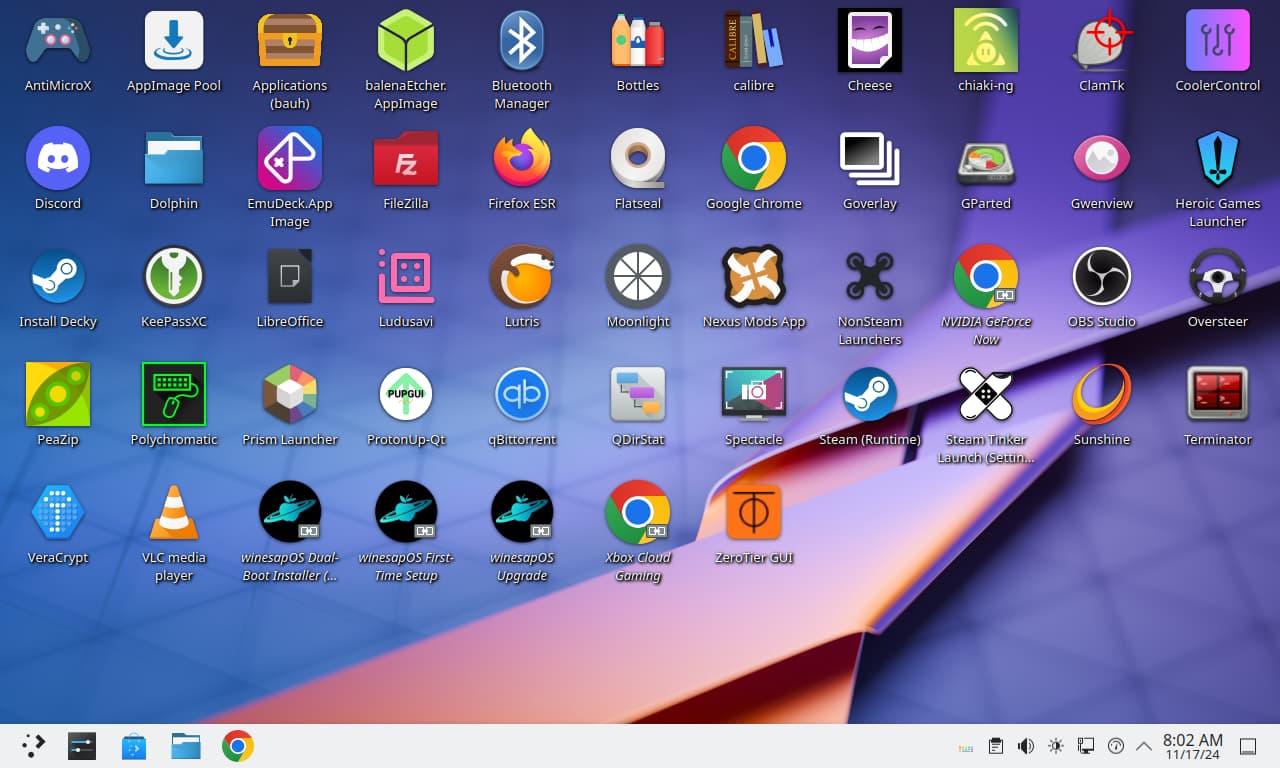
Winesapos memudahkan untuk mengatur Linux dan memainkan game dari drive eksternal internal atau portabel.
Mengapa Menggunakan Winesapos?
Rilis gambar dapat diunduh di sini.
Tujuan Proyek:
Ingin membantu mendukung pekerjaan kami? Pertimbangkan untuk membantu dengan masalah fitur terbuka dan bug github. Panduan Kontribusi.MD kami menyediakan semua informasi yang Anda butuhkan untuk memulai sebagai kontributor Winesapos.
DAFTAR ISI
Ini adalah alasan mengapa macOS lebih rendah dibandingkan dengan Linux dalam hal bermain game.
noatime dan nodiratime untuk tidak menulis waktu akses untuk file dan direktori./tmp/ , /var/log/ , dan /var/tmp/ ) dipasang sebagai sistem file hanya RAM./home/ direktori.pacman Package Manager digunakan.Semua Mac Intel didukung. Linux bekerja pada sebagian besar Mac di luar kotak hari ini. Driver telah dipasang sebelumnya untuk perangkat keras yang lebih baru di mana dukungan Linux asli tidak ada.
Untuk instalasi ke drive internal, Winesapos harus diinstal sebagai dual-boot bersama macOS. Ini tidak akan berfungsi sebagai satu -satunya sistem operasi yang diinstal pada Mac Intel.
| Perangkat keras | Didukung | Pengemudi pihak ketiga |
|---|---|---|
| Keyboard | Ya | Linux-T2 Patch |
| Touchpad | Ya | Linux-T2 Patch |
| Nvme | Ya | Linux-T2 Patch |
| Suara | Ya | Linux-T2 Patch dan Apple-T2-Audio-Config |
| Penggemar | Ya | MBPFAN |
| Bluetooth | Ya | Linux-T2 Patch dan Apple-BCM-Firmware |
| Wi-Fi | Ya | Broadcom-WL dan Apple-BCM-Firmware |
| Pemindai sidik jari | TIDAK | |
| Bar sentuh | Ya | Linux-T2 Patch |
Catatan tentang Bluetooth dan Wi-Fi Support Jika tidak berfungsi di luar kotak:
| Perangkat keras | Didukung | Pengemudi pihak ketiga |
|---|---|---|
| Keyboard | Ya | asusctl |
| Touchpad | Ya | |
| Nvme | Ya | |
| Suara | Ya | Linux-Firmware-Asus |
| Penggemar | Ya | asusctl |
| Bluetooth | Ya | |
| Wi-Fi | Ya | |
| Pemindai sidik jari | TIDAK |
Kami memberikan dukungan untuk Asus Rog Ally asli dan Asus Rog Ally X. yang lebih baru.
| Perangkat keras | Didukung | Pengemudi pihak ketiga |
|---|---|---|
| Pengontrol | Ya | Linux-Nobara Patches |
| Nvme | Ya | |
| Suara | Ya | Linux-Nobara Patches |
| Penggemar | Ya | |
| Bluetooth | Ya | |
| Wi-Fi | Ya | |
| Pemindai sidik jari | TIDAK |
| Perangkat keras | Didukung | Pengemudi pihak ketiga |
|---|---|---|
| Pengontrol | Ya | Ayaneo-Platform-DKMS-Git dan Ayaled-dibandingkan |
| Nvme | Ya | |
| Suara | Ya | AW87559-Firmware |
| Penggemar | Ya | |
| Bluetooth | Ya | |
| Wi-Fi | Ya | |
| Pemindai sidik jari | TIDAK |
Semua komputer kerangka didukung sepenuhnya.
| Perangkat keras | Didukung | Catatan |
|---|---|---|
| Keyboard | Ya | |
| Touchpad | Ya | Quirk ditambahkan untuk menonaktifkan saat keyboard sedang digunakan |
| Nvme | Ya | Mode penghematan daya diaktifkan untuk dukungan tidur nyenyak |
| Suara | Ya | Framework-DSP digunakan untuk kualitas audio yang lebih baik |
| Penggemar | Ya | |
| Bluetooth | Ya | |
| Wi-Fi | Ya | Wilayah secara otomatis diatur untuk mengaktifkan Wi-Fi> = 5 |
| Pemindai sidik jari | Ya | |
| Matriks LED | Ya | InputModule-Control Digunakan untuk Mengelola Matriks LED |
Untuk Laptop Framework 16, dukungan audio untuk Linux perlu diaktifkan di BIOS.
| Perangkat keras | Didukung | Pengemudi pihak ketiga |
|---|---|---|
| Pengontrol | Ya | |
| Nvme | Ya | |
| Suara | Ya | |
| Penggemar | Ya | |
| Bluetooth | Ya | Linux-Nobara Patches |
| Wi-Fi | Ya | |
| Pemindai sidik jari | TIDAK |
| Perangkat keras | Didukung | Pengemudi pihak ketiga |
|---|---|---|
| Keyboard | Ya | jalur linux-permukaan |
| Touchpad | Ya | |
| Nvme | Ya | |
| Suara | Ya | Linux-Surface Patches |
| Penggemar | Ya | Linux-Surface Patches |
| Bluetooth | Ya | Linux-Surface Patches |
| Wi-Fi | Ya | Linux-Surface Patches |
| Pemindai sidik jari | TIDAK | |
| Layar sentuh | Ya | IPTSD, Libwacom-Surface, dan Linux-Surface Patches |
| Perangkat keras | Didukung | Pengemudi pihak ketiga |
|---|---|---|
| Pengontrol | Ya | |
| Nvme | Ya | |
| Suara | Ya | |
| Penggemar | Ya | |
| Bluetooth | Ya | |
| Wi-Fi | Ya | |
| Pemindai sidik jari | TIDAK |
Kedua model Steam Deck LCD dan OLED didukung sepenuhnya.
| Perangkat keras | Didukung | Pengemudi pihak ketiga |
|---|---|---|
| Pengontrol | Ya | |
| Touchpad | Ya | |
| Nvme | Ya | |
| Suara | Ya | Linux-Nobara Patch dan Linux-Firmware-Valve |
| Penggemar | Ya | |
| Bluetooth | Ya | Linux-Nobara Patch dan Linux-Firmware-Valve |
| Wi-Fi | Ya | Linux-Nobara Patch dan Linux-Firmware-Valve |
| Layar sentuh | Ya |
Kami secara aktif bekerja bersama proyek sistem operasi ini untuk membantu memberikan dukungan game Linux yang lebih luas kepada massa:
Pada Winesapos 3.1.0, kami sekarang menyediakan repositori kami sendiri dengan beberapa paket AUR yang sudah dibangun. Repositori ini bekerja di Arch Linux dan Manjaro. Diaktifkan di Winesapos secara default. Bergantung pada distribusi apa yang Anda hadapi, inilah cara diaktifkan:
 sudo sed -i s'/[core]/[winesapos]nServer = https://winesapos.lukeshort.cloud/repo/$repo/$archnn[core]/'g /etc/pacman.conf
sudo pacman -S -y -y
Aktifkan kunci GPG untuk digunakan dengan mengimpornya dan kemudian secara lokal menandatangani kunci untuk mempercayainya.
 sudo pacman-key --recv-keys 1805E886BECCCEA99EDF55F081CA29E4A4B01239
sudo pacman-key --init
sudo pacman-key --lsign-key 1805E886BECCCEA99EDF55F081CA29E4A4B01239
| Fitur | Steamos 3 | Winesapos 4 |
|---|---|---|
| Repositori Steamos | Ya | TIDAK |
| Paket Linux Arch | Tua | Baru |
| Kompatibilitas boot | Uefi | Uefi dan bios warisan |
| Driver grafis | AMD | AMD, Intel, NVIDIA, Paralel, VirtualBox, dan VMware |
| Server audio | Pipewire | Pipewire |
| Sistem file baca saja | Ya | TIDAK |
| Sistem file terenkripsi | TIDAK | Ya (gambar aman) |
| Jenis Cadangan Sistem File | Partisi A/B. | Snapshot BTRFS |
| Jumlah kemungkinan cadangan sistem file | 1 | Tak terbatas |
| Manajer Paket (CLI) | Flatpak dan Nix | Pacman, Paru/Yay/Aur, Flatpak, Homebrew, Nix, dan Snap |
| Preferred Package Manager (CLI) | flatpak | flatpak |
| Manajer Paket (GUI) | Temukan (Flatpak) | Temukan (Flatpak), Bauh (Pacman, Paru/Yay/Aur, Flatpak, dan Snap), dan AppimagePool (AppImage) |
| Jenis pembaruan | Berbasis gambar | Manajer Paket |
| Jumlah paket yang diinstal | Kecil | Kecil (gambar minimal) atau besar (gambar kinerja dan aman) |
| Peluncur Game | Uap | Steam, peluncur game heroik, Lutris, Nvidia GeForce sekarang, Open Gamepad UI, Prism Launcher, dan Xbox Cloud Gaming |
| Kernel Linux | Neptunus (6.5) | Linux LTS (6.6) dan Linux Nobara (Terbaru) |
| Driver Apple Intel Mac tambahan | TIDAK | Ya |
| Pengemudi Laptop Asus Tambahan | TIDAK | Ya |
| Tambahan driver genggam Asus Rog Ally | TIDAK | Ya |
| Pengemudi genggam tambahan Ayaneo | TIDAK | Ya |
| Driver Komputer Kerangka Kerja Tambahan | TIDAK | Ya |
| Tambahan Lenovo Legion Go Genggam | TIDAK | Ya |
| Driver Laptop Permukaan Microsoft Tambahan | TIDAK | Ya |
| Pengemudi genggam tambahan | TIDAK | Ya |
| Lingkungan desktop | KDE Plasma 5 | KDE Plasma 6 |
| Tema desktop | Menguap | Angin semilir |
| AMD FSR | Global | Global |
| Gamescope | Global | Global |
| Anggur | Proton | Proton dan Ge-Proton |
| Dukungan Pengontrol Game | Besar | Besar |
| Penyimpanan Cross-Platform Exfat | TIDAK | Ya (16 gib pada kinerja dan gambar aman) |
Winesapos 3 adalah distribusi Linux pertama yang didasarkan pada Steamos 3. Secara historis, berikut adalah garpu pertama Steamos 3:
| Distro | Pratinjau Pertama | Rilis publik pertama |
|---|---|---|
| Winesapos | 2022-03-06 | 2022-03-10 |
| Steamos untuk PS4 | 2022-03-09 | 2022-03-25 |
| Holoiso | 2022-04-21 | 2022-05-01 |
Minimum:
Direkomendasikan:
Catatan penting tentang penyimpanan eksternal!
Salah satu tujuan pendiri Winesapos adalah agar portabel. Namun, sebagian besar flash drive dan kartu SD/TF terlalu lambat untuk menjalankan sistem operasi dan memberikan pengalaman yang baik. Untuk pengalaman terbaik, gunakan salah satu flash drive yang disarankan ini, USB-C eksternal> = 3.1 SSD, atau USB-C> = 3.2 Stasiun Docking atau Hub yang mencakup slot drive M.2 NVME.
Winesapos menyediakan 3 jenis gambar yang berbeda untuk memenuhi beragam kebutuhan pengguna kami:
| Fitur | Minimal | Pertunjukan | Aman |
|---|---|---|---|
| Mitigasi CPU | TIDAK | TIDAK | Ya |
| Enkripsi | TIDAK | TIDAK | Ya (luks) |
| Firewall | TIDAK | TIDAK | Ya (firewalld) |
Kata sandi root membutuhkan reset | TIDAK | TIDAK | Ya |
| 16 GIB Exfat Cross-Platform Storage | TIDAK | Ya | Ya |
| Gambar rilis pra-dibangun | Ya | Ya | TIDAK |
Arsip sistem file root minimal ( winesapos-${WINESAPOS_VERSION}-minimal-rootfs.tar.zst ) adalah file yang diekstraksi dari gambar minimal. Ini dapat digunakan untuk wadah atau memasang Winesapos dalam wadah Docker atau Podman, skenario ganda-boot, atau WSL 2.
Jika menggunakan gambar yang aman, kunci enkripsi LUKS default adalah password yang harus diubah setelah boot pertama. Jangan lakukan ini sebelum boot pertama karena kata sandi default digunakan untuk membuka kunci partisi untuk diubah ukurannya untuk mengisi seluruh perangkat penyimpanan. Ubah kunci enkripsi Luks untuk partisi kelima.
$ sudo cryptsetup luksChangeKey /dev/<DEVICE>5
Kata sandi akun pengguna untuk winesap dan root sama dengan nama pengguna. Pengguna root diatur ke kedaluwarsa segera. Setelah login pertama, Anda akan diminta untuk memasukkan kata sandi baru. Inilah cara mengubahnya:
winesap .winesap lagi. Akun pengguna root terkunci sampai kata sandi diubah. Dianjurkan untuk mengubah ini segera untuk memungkinkan pemulihan berfungsi.
$ sudo passwd root
winesapos-<VERSION>-<TYPE>.img.zip Archive.di PC atau Mac.
dd CLI dapat digunakan untuk mem -flash gambar.dengan kotak gnome di Linux.
$ qemu-img resize winesapos*.img +24G
dengan desktop paralel pada macOS (hanya intel).
 qemu-img convert -f raw -O vdi winesapos-<VERSION>-<TYPE>.img winesapos-<VERSION>-<TYPE>.vdi
prl_convert winesapos-<VERSION>-<TYPE>.vdi --allow-no-os --stand-alone-disk --dst=winesapos-<VERSION>-<TYPE>.hdd
dengan manajer mesin virtual di Linux.
$ qemu-img resize winesapos*.img +24G
/var/lib/libvirt/images/ .dengan VirtualBox.
VBoxManage convertfromraw --format VDI winesapos-<VERSION>-<TYPE>.img winesapos-<VERSION>-<TYPE>.vdi
qemu-img convert -f raw -O vdi winesapos-<VERSION>-<TYPE>.img winesapos-<VERSION>-<TYPE>.vdi
dengan fusi VMware pada macOS (hanya Intel).
VBoxManage convertfromraw --format VMDK winesapos-<VERSION>-<TYPE>.img winesapos-<VERSION>-<TYPE>.vmdk
qemu-img convert -f raw -O vmdk winesapos-<VERSION>-<TYPE>.img winesapos-<VERSION>-<TYPE>.vmdk
dengan vmware workstation di Linux atau Windows.
Akun default memiliki set kata sandi yang mencerminkan nama pengguna:
| Nama belakang | Kata sandi |
|---|---|
| Winesap | Winesap |
| akar | akar |
Setelah login pertama, Wizard "Winesapos First Setup" akan diluncurkan. Ini akan membantu mengatur driver grafis, lokal, zona waktu, dan banyak lagi. Sangat disarankan untuk menyelesaikan ini pada boot pertama. Kemudian reboot sebelum menggunakan Winesapos untuk memberikan pengalaman terbaik.
Jika menggunakan default yang disarankan dari pengaturan pertama kali dan setelah reboot, tekan tombol Enter/Return (tombol kanan bawah pada keyboard virtual) pada layar login untuk login tanpa kata sandi.
Alih -alih menggunakan rilis build yang sudah dibuat, pengguna tingkat lanjut mungkin ingin membuat build khusus. Ini hanya membutuhkan 1 gib ruang kosong untuk mengunduh lingkungan Live Arch Linux. Ini juga memungkinkan penggunaan variabel lingkungan untuk mengonfigurasi build secara berbeda dari rilis default.
Unduh dan setup Arch Linux ISO terbaru ke flash drive yang memiliki setidaknya 1 GB penyimpanan.
1a. Kami juga mendukung pembangunan Winesapos dengan Manjaro meskipun kami tidak memberikan gambar rilis untuk itu. Unduh edisi Manjaro plasma, kayu manis, atau gnome desktop.
Boot ke flash drive.
Perbarui cache paket yang diketahui dan instal git.
 pacman -S -y
pacman -S git
Kloning cabang yang stabil dan buka direktori "skrip".
 git clone --branch stable https://github.com/winesapos/winesapos.git
cd ./winesapos/scripts/
Konfigurasikan variabel lingkungan untuk menyesuaikan build. Paling tidak, izinkan build untuk bekerja pada logam telanjang dan tentukan apa /dev/<DEVICE> blok perangkat untuk diinstal. Hati -hati karena ini akan menghapus semua data yang ada di perangkat itu!
 export WINESAPOS_BUILD_IN_VM_ONLY=false
lsblk
export WINESAPOS_DEVICE=<DEVICE>
Secara default, gambar kinerja akan dibangun. Atau, sumber variabel lingkungan untuk mengonfigurasi build untuk membuat gambar minimal atau aman sebagai gantinya.
. ./env/winesapos-env-minimal.sh
. ./env/winesapos-env-secure.sh
Jalankan build.
sudo -E bash ./winesapos-install.sh
Periksa kegagalan tes apa pun (seharusnya tidak ada output dari perintah ini).
grep -P 'FAIL$' /winesapos/etc/winesapos/winesapos-install.log
Untuk informasi lebih rinci tentang proses pembangunan, kami sarankan membaca seluruh panduan Contributing.md.
Konfigurasikan versi Winesapos untuk diunduh dan mesin kontainer untuk digunakan.
 export WINESAPOS_VERSION="4.1.0"
#export WINESAPOS_CONTAINER_ENGINE="docker"
export WINESAPOS_CONTAINER_ENGINE="podman"
Unduh, dekompres, lalu impor sistem file root. Sebagian besar mesin wadah hanya mendukung kompresi GZIP (bukan zstandard).
 curl -LO https://winesapos.lukeshort.cloud/repo/iso/winesapos-${WINESAPOS_VERSION}/winesapos-${WINESAPOS_VERSION}-minimal-rootfs.tar.zst
zstd --decompress winesapos-${WINESAPOS_VERSION}-minimal-rootfs.tar.zst
${WINESAPOS_CONTAINER_ENGINE} import winesapos-${WINESAPOS_VERSION}-minimal-rootfs.tar winesapos:${WINESAPOS_VERSION}
Pastikan gambar wadah diimpor.
 ${WINESAPOS_CONTAINER_ENGINE} images | grep winesapos
# Example output: winesapos                        4.1.0     23b9bb5f1c26   26 seconds ago   8.79GB
Pada Winesapos 4.1.0, didukung untuk dijalankan sebagai mesin virtual di windows> = 10 menggunakan WSL 2.
Instal WSL 2.
Unduh skrip Winesapos-wsl.ps1.
Buka PowerShell dan navigasikan ke lokasi yang diunduh.
Izinkan dan jalankan skrip PowerShell.
PS C:UsersuserDownloads> powershell -ExecutionPolicy Bypass -File .winesapos-wsl.ps1
Verifikasi bahwa mesin virtual "Winesapos" baru muncul.
PS C:UsersuserDownloads> wsl --list
Masukkan mesin virtual.
PS C:UsersuserDownloads> wsl --distribution winesapOS
Verifikasi bahwa itu adalah Winesapos.
cat /usr/lib/os-release-winesapos
| Nama belakang | Kata sandi |
|---|---|
| akar | akar |
| Winesap | Winesap |
Pada gambar yang aman, kunci enkripsi Luks adalah password . Kata sandi untuk Luks dan akun root harus segera diubah.
 $ sudo cryptsetup luksChangeKey /dev/<DEVICE>5
$ sudo passwd root
Boot Mac ke drive eksternal dengan menekan dan melepaskan tombol daya. Kemudian tahan tombol OPTION (atau tombol ALT pada keyboard Windows) untuk mengakses Mac Bootloader. Pilih perangkat "EFI Boot".
Penting Setiap Mac dengan chip keamanan Apple T2, yang merupakan Mac yang dibuat di dan setelah 2018, perlu memungkinkan boot dari penyimpanan eksternal:
COMMAND dan r untuk memasuki mode pemulihan.shutdown /s /f /t 0 .Pada Winesapos 4.2.0, Ventoy didukung. Ini hanya berfungsi dengan boot UEFI (bukan boot bios warisan). Winesapos mengubah ukuran skrip sistem file root saat ini tidak berfungsi dengan Ventoy sehingga ini paling berguna untuk tujuan pemulihan dan pemecahan masalah.
winesapos.vtoy .Disarankan untuk mengikuti panduan memulai untuk menginstal Winesapos ke drive internalnya sendiri jika juga menggunakan Linux atau Windows. Kemudian gunakan Motherboard BIOS untuk mengubah perangkat boot. Untuk MacOS, satu-satunya cara untuk menginstalnya ke drive internal adalah melalui dual-boot.
Namun, dimungkinkan untuk menginstal Winesapos ke drive yang sama dengan Linux atau Windows. Itulah yang akan dibahas panduan ini secara lebih rinci.
Hanya UEFI yang didukung untuk instalasi Winesapos dual-boot. Untuk boot BIOS Legacy, buat dan mem -flash gambar rilis portabel normal seperti minimal atau kinerja. Mereka semua mendukung Boot Bios Legacy dan UEFI.
Instal (jika perlu) macOS atau windows terlebih dahulu. Kemudian lanjutkan dengan menginstal Winesapos ke drive yang sama.
Hanya Mac Intel yang didukung.
command dan tombol r sampai logo Apple muncul. Lalu lepaskan dua kunci itu.csrutil disable untuk menonaktifkan SIP.refind-bin-<VERSION>.zip ../refind-install .Langkah-langkah semi-otomatis:
Ikuti panduan Winesapos Memulai untuk mendapatkan gambar minimal ke drive eksternal.
Boot ke Winesapos yang ada di drive eksternal.
Gunakan gparted untuk mempartisi ruang penyimpanan gratis. Label itu sufiks dengan angka nol "0" (bukan huruf "o").
Jalankan pintasan desktop "Winesapos Dual-Boot Installer (Beta)".
Matikan komputer, cabut drive eksternal Winesapos, lalu nyalakan komputer.
Izinkan booting sistem operasi asli lagi.
command saat booting. Setelah di-boot ke macOS, jalankan ./refind-mkdefault (mengharuskan Xcode untuk diinstal). # Enable os-prober. It is disabled by default.
sudo crudini --ini-options=nospace --set /etc/default/grub "" GRUB_DISABLE_OS_PROBER false
sudo grub-mkconfig -o /boot/grub/grub.cfg
Langkah Manual:
Ikuti panduan Winesapos Memulai untuk mendapatkan gambar minimal ke drive eksternal.
Unduh winesapos-${WINESAPOS_VERSION}-minimal-rootfs.tar.zst rilis.
wos-drive .Boot ke Winesapos yang ada di drive eksternal.
Gunakan gparted untuk mempartisi ruang penyimpanan gratis. Label itu sufiks dengan angka nol "0" (bukan huruf "o").
Mount the new partitions with winesapOS optimizaitons and features.
 # View hints about each partition.
$ lsblk
$ sudo mount -t btrfs -o subvol=/,compress-force=zstd:1,discard,noatime,nodiratime -L winesapos-root0 /mnt
$ sudo btrfs subvolume create /mnt/.snapshots
$ sudo btrfs subvolume create /mnt/home
$ sudo mount -t btrfs -o subvol=/home,compress-force=zstd:1,discard,noatime,nodiratime -L winesapos-root0 /mnt/home
$ sudo btrfs subvolume create /mnt/home/.snapshots
$ sudo btrfs subvolume create /mnt/swap
$ sudo mount -t btrfs -o subvol=/swap,compress-force=zstd:1,discard,noatime,nodiratime -L winesapos-root0 /mnt/swap
$ sudo mkdir /mnt/boot
$ sudo mount --label winesapos-boot0 /mnt/boot
$ sudo mkdir /mnt/boot/efi
# Mount the FAT32 EFI partition.
# On macOS, use the newly created EFI partition.
# On Windows, use the existing EFI partition. This is usually the first partition and 100 MiB in size.
$ sudo mount /dev/<DEVICE>1 /mnt/boot/efi
Extract the winesapOS root file system archive.
$ sudo tar --extract --keep-old-files --verbose --file /run/media/winesap/wos-drive/winesapos-${WINESAPOS_VERSION}-minimal-rootfs.tar.zst --directory /mnt/
Configure the bootloader.
 $ grep -v -P "winesapos|WOS" /mnt/etc/fstab | sudo tee /mnt/etc/fstab
$ genfstab -L /mnt | sudo tee -a /mnt/etc/fstab
$ sudo mount --rbind /dev /mnt/dev
$ sudo mount --rbind /sys /mnt/sys
$ sudo mount -t proc /proc /mnt/proc
$ sudo chroot /mnt grub-install --target=x86_64-efi --efi-directory=/boot/efi --bootloader-id=winesapOS
$ sudo chroot /mnt grub-mkconfig -o /boot/grub/grub.cfg
$ sudo chroot /mnt mkinitcpio -P
$ sudo sync
Turn off the computer, unplug the winesapOS external drive, and then turn on the computer.
Allow booting the original operating system again.
command while booting up. Once booted into macOS, run ./refind-mkdefault (requires Xcode to be installed). # Enable os-prober. It is disabled by default.
$ sudo crudini --ini-options=nospace --set /etc/default/grub "" GRUB_DISABLE_OS_PROBER false
$ sudo grub-mkconfig -o /boot/grub/grub.cfg
After logging in for the first time as the winesap user, the first-time setup for winesapOS will appear. Users have the option to manually select their choices or go with the recommended defaults below.
| Setup | Recomended Default |
|---|---|
| Broadcom proprietary Wi-Fi driver | Otomatis |
| Rotate screen | TIDAK |
| Older version of winesapOS | Stop and prompt user |
| Pacman mirror region | Automatic (GeoIP) |
| Graphics driver | Mesa |
| Swap method | zram |
| Time zone | Automatic (GeoIP) |
| Recommended producitvity apps | Ya |
| Recommended gaming apps | Ya |
| Passwordless login* | Yes (minimal and performance) and No (secure) |
| Hide GRUB boot menu | Ya |
| Upgrade firmware | Ya |
| Change user password | Ya |
| Change root password | Ya |
| Locale | Bertanya |
*Press the enter/return key (the bottom-right key on the virtual keyboard) on the login screen for passwordless login.
Upgrades are supported and recommended between all minor releases of winesapOS. For example, it is supported to go from 3.0.0 to 3.2.1.
Where it makes sense, features are backported from newer versions of winesapOS. Bug and security fixes are also included to fix problems either with winesapOS itself or with upstream changes in Arch Linux. Even if a user never upgrades winesapOS, users will continue to get regular system upgrades from Arch Linux.
Before upgrading, please read the full UPGRADE.md notes. This showcases what updates will happen automatically and what updates may need to be manually applied.
Development builds do not support upgrades. Here are the releases that we do support upgrades on:
| Melepaskan | Upgrades Supported |
|---|---|
| Stabil | Ya |
| Release Candidate (RC) | Ya |
| Beta | TIDAK |
| Alfa | TIDAK |
Here is how to upgrade winesapOS. Do NOT use "Applications (bauh)" for upgrades, only for package installations.
GUI = Launch the "winesapOS Upgrade" desktop shortcut.
CLI = Launch the winesapOS upgrade script from the stable branch.
curl https://raw.githubusercontent.com/winesapOS/winesapOS/stable/scripts/winesapos-upgrade.sh | sudo -E bash
Terminator . echo stick > /tmp/winesapos_user_name.txt
export WINESAPOS_UPGRADE_FILES=false
export WINESAPOS_UPGRADE_VERSION_CHECK=false
curl https://raw.githubusercontent.com/winesapOS/winesapOS/stable/scripts/winesapos-upgrade.sh | sudo -E bash
curl https://raw.githubusercontent.com/winesapOS/winesapOS/stable/scripts/winesapos-upgrade.sh | sudo -E bash
If desired, it is possible to remove winesapOS specific files and configuration and switch back to upstream Arch Linux using an uninstall script. It will not remove anything that is related to improved hardware compatibility.
curl https://raw.githubusercontent.com/winesapOS/winesapOS/stable/scripts/winesapos-uninstall.sh | sudo -E bash
It is possible to get an experience similar to winesapOS but on a different Linux distribution by installing applications that winesapOS provides.
What this conversion script does:
What it does NOT do:
Run this script to convert to winesapOS:
curl https://raw.githubusercontent.com/winesapOS/winesapOS/stable/scripts/winesapos-convert.sh | bash
Plug additional hardware into a USB hub. Connect the USB hub to the computer before booting.
Do NOT move the USB hub after plugging it in and booting up Linux. It can easily disconnect leading to a corrupt file system.
Consider buying an SSD instead of a flash drive for a longer life-span, more storage, and faster speeds.
Delete old Btrfs backups when the drive is running low on storage space.
 $ sudo snapper list
$ sudo snapper delete <SNAPSHOT_NUMBER>
Enable Proton for all Windows games. This will allow them to run in Linux. For more information about Proton, read this starter guide. Check the compatibility rating for games on Steam by using ProtonDB.
Settings > Steam Play > Enable Steam Play for Support Titles > Use this tool instead of game-specific selections from Steam > Compatibility tool: > (select the latest "Proton" version available) > OK
On the SDDM login screen for the "winesap" user, the "Session" drop-down menu in the top-left can be used to change the session from "Plasma (Wayland)" to "Steam Big Picture (Wayland)". This provides the same experience as having a Steam Deck in "Game Mode" by launching Steam with Gamescope Session.
Switch from Game Mode to Desktop Mode:
Known issues:
Alternatively, Steam can be launched from KDE Plasma using the "Steam (Runtime)" desktop shortcut. Then it can be changed to be in the new Big Picture Mode.
There is also a session for Open Gamepad UI as an open source alternative front-end. Select the "OpenGamepadUI (Wayland)" session on the SDDM login screen. It has plugins for Steam, Lutris, and more.
When Mac hardware is detected, all sound is muted on boot because, on newer Macs, the experimental sound driver is extremely loud. This means that any volume changes will be reset on the next boot. Disable and stop the user (not system) mute service to allow the sound volume to be saved:
systemctl --user disable --now winesapos-mute.service
Snapper creates 6 monthly snapshots of the /home directory. snap-pac creates a snapshot of the root / directory before and after using pacman . Both the root and home configurations are set to only use a maximum of 50 GiB each.
During boot, GRUB will have a "winesapOS snapshots" section that will allow booting from a root directory snapshot. This will not appear on first boot because no backups have been taken yet. After a backup has been taken, the GRUB configuration file needs to be regenerated to scan for the new backups.
Manually rebuild the GRUB configuration file to load the latest snapshots:
$ sudo grub-mkconfig -o /boot/grub/grub.cfg
View the available backups:
 $ sudo snapper -c root list
$ sudo snapper -c home list
Manually create a new backup:
$ sudo snapper -c <CONFIG> create
Manually delete a backup:
$ sudo snapper -c <CONFIG> delete <BACKUP_NUMBER>
A VPN is required for LAN gaming online. Use the free and open source ZeroTier VPN service for this.
Tuan rumah
Klien
Start the ZeroTier VPN service.
$ sudo systemctl enable --now zerotier-one
Connect to the ZeroTier network.
$ sudo zerotier-cli join <NETWORK_ID>
Challenge: the release image fails to be extracted from the zip file.
Solutions:
Verify the integrity of the downloaded zip files.
Linux:
sha512sum --check winesapos-<VERSION>-<TYPE>.sha512sum.txt
Windows (open Command Prompt as Administrator):
C:Windowssystem32>CertUtil.exe -hashfile C:Users<USER>Downloadswinesapos-<VERSION>-<TYPE>.sha512sum.txt SHA512
Not enough free space. Ensure you have 13 GiB (minimal image) or 31 GiB (performance image) of free space before downloading the zip files.
If using PeaZip, it sometimes fails to extract to the current directory. Try extracting to a different directory.
There are many different reasons why winesapOS may not be booting.
Challenge: the root file system does not resize itself to use all available space on the storage device.
Larutan:
Re-enable the resize service, reboot, and then view the service log. Open up a GitHub Issue with the full log output.
 sudo systemctl enable winesapos-resize-root-file-system
sudo reboot
sudo journalctl --unit winesapos-resize-root-file-system
If using an external USB drive, it is possible to get errors about a Read-only file system . This is a hardware issue and indicates that the USB drive has been disconnected even if only for a fraction of a second. Short-term, reboot winesapOS to fix these errors. Long-term, try using a different USB port and/or drive and make sure that the drive does not move while in use. For the best experience, we recommend using an internal drive.
Challenge: If Wi-Fi or Bluetooth is not working and Windows is installed, it could be from fast startup being enabled and/or Windows hibernating.
Solutions:
Challenge: the amount of reported free space seems too small or large.
Solutions:
Btrfs is used as the root file system on winesapOS. The most reliable way to view the amount of storage in-use on Btrfs is with this command.
sudo btrfs filesystem df /
Snapper is used to take Btrfs snapshots (1) every time Pacman installs, upgrades, or removes a package and (2) every month. Refer to the Btrfs Backups section for more information on how to manage those snapshots.
If the first-time setup fails or needs debugging, the last log file can be found and copied to the desktop by running these two commands:
 $ sudo cp "/etc/winesapos/$(sudo ls -1 /etc/winesapos/ | grep setup | tail -n 1)" /home/winesap/Desktop/
$ sudo chown winesap:winesap "/home/winesap/Desktop/$(ls -1 ~/Desktop/ | grep setup_)"
Challenge: winesapOS uses labels for file system mounts which confuses the system if more than one label is found.
Larutan:
Change the file system label of at least the root file system on one of the winesapOS drives. It is recommended to change all of the labels on that same drive. This can cause an unbootable system. Manually review the contents of /etc/fstab to ensure it is correct.
 # Labels can be changed on mounted file systems.
lsblk -o name,label
export DEVICE=vda
sudo -E exfatlabel /dev/${DEVICE}2 wos-drive0
sudo -E fatlabel /dev/${DEVICE}3 WOS-EFI0
sudo sed -i s'/LABEL=WOS-EFI/LABEL=WOS-EFI0/'g /etc/fstab
sudo -E e2label /dev/${DEVICE}4 winesapos-boot0
sudo sed -i s'/LABEL=winesapos-boot/LABEL=winesapos-boot0/'g /etc/fstab
sudo btrfs filesystem label / winesapos-root0
sudo btrfs filesystem show /
sudo sed -i s'/LABEL=winesapos-root/LABEL=winesapos-root0/'g /etc/fstab
lsblk -o name,label
 # GRUB needs to be updated with the new /etc/fstab information.
sudo chroot <MOUNTED_ROOT_AND_BOOT_DIRECTORY> grub-mkconfig -o /boot/grub/grub.cfg
Challenges:
Larutan:
At the GRUB boot menu select "winesapOS snapshots" and then the desired backup to load. The filesystem will be read-only by default. It can be set to enable writes with this command:
$ sudo btrfs property set -ts /.snapshots/<BTRFS_SNAPSHOT_ID> ro false
For more advanced recovery using overlayfs on-top of a read-only filesystem, refer to this grub-btrfs GitHub issue.
Reinstalling winesapOS on-top of an existing winesapOS installation of the same exact version and image type can cause issues. This is because the partitions are perfectly aligned which leads to overlapping data. Even wiping the partition table is not enough. For the best results, it is recommended to completely wipe at least the first 25 GiB of the storage device. WARNING: This will delete any existing data on that storage device.
dd if=/dev/zero of=/dev/<DEVICE> bs=1M count=25000
When using a portable device such as a laptop or gaming handheld, the operating system goes into a battery saver mode by default. This can be disabled to get maximum performance.
sudo systemctl disable --now auto-cpufreq
wine - sap - o - s .Here are community contributors who have helped the winesapOS project.
Pendiri:
Kode:
Finansial:
These are anonymous surveys done with Linux gaming community members. Most, but not all, are winesapOS users.
Favorite (non-Valve) handheld PC brand:
6 votes.
There were no comments about what the "Other" brand is so that is unknown.
https://twitter.com/LukeShortCloud/status/1649078025634598912
Favorite desktop environments:
25 votes.
"Other" included specific mentions from the community about Cinnamon (for its similarity to Windows) and Sway (for its tiling features).
https://twitter.com/LukeShortCloud/status/1659279345926516737
| Release Version/Tag | Project Name | Sistem Operasi | Desktop Environment | Release Images |
|---|---|---|---|---|
| 4.2.0 | winesapOS | Arch Linux | KDE Plasma | Performance, Minimal, and Minimal Root File System |
| 4.1.0 | winesapOS | Arch Linux | KDE Plasma | Performance, Secure, Minimal, and Minimal Root File System |
| 4.0.0 | winesapOS | Arch Linux | KDE Plasma | Performance, Secure, and Minimal |
| 3.2.0 | winesapOS | SteamOS 3 | KDE Plasma | Performance, Secure, and Minimal |
| 3.0.0 | winesapOS | SteamOS 3 | KDE Plasma | Performance and Secure |
| 2.2.0 | Mac Linux Gaming Stick | Manjaro | Kayu manis | Performance and Secure |
| 2.0.0 | Mac Linux Gaming Stick | Manjaro | Kayu manis | Pertunjukan |
| 1.0.0 | Mac Linux Gaming Stick | Ubuntu 20.04 | Kayu manis | Tidak ada |
Gplv3





