winesapOS
4.2.0 - The Ventoy Update

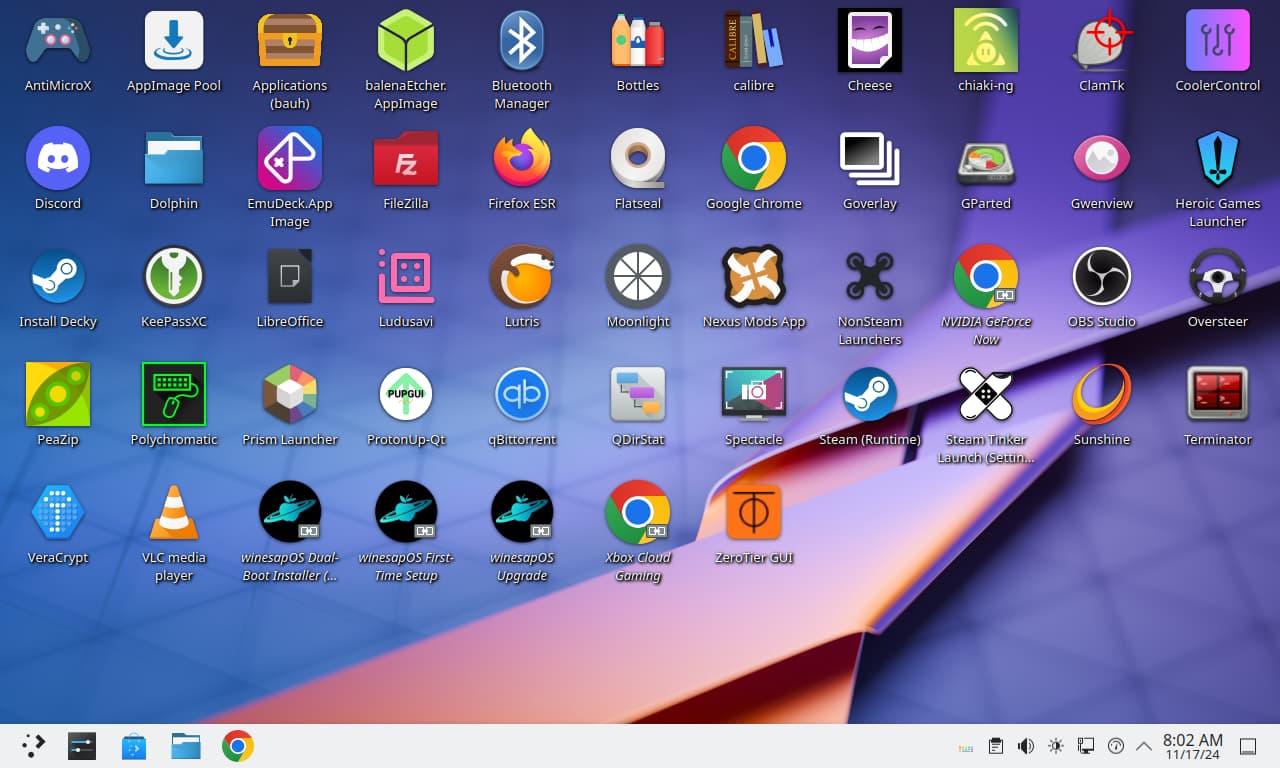
winesapOS makes it easy to setup Linux and play games off an internal or portable external drive.
Why use winesapOS?
Release images can be downloaded here.
Project goals:
Want to help support our work? Consider helping out with open feature and bug GitHub issues. Our CONTRIBUTING.md guide provides all of the information you need to get started as a winesapOS contributor.
TABLE OF CONTENTS
These are reasons why macOS is inferior compared to Linux when it comes to gaming.
noatime and nodiratime to not write the access times for files and directories./tmp/, /var/log/, and /var/tmp/) are mounted as RAM-only file systems./home/ directory.pacman package manager is used.All Intel Macs are supported. Linux works on most Macs out-of-the-box these days. Drivers are pre-installed for newer hardware where native Linux support is missing.
For installation onto an internal drive, winesapOS must be installed as a dual-boot alongside macOS. It will not work as the only installed operating system on an Intel Mac.
| Hardware | Supported | Third-Party Driver(s) |
|---|---|---|
| Keyboard | Yes | linux-t2 patches |
| Touchpad | Yes | linux-t2 patches |
| NVMe | Yes | linux-t2 patches |
| Sound | Yes | linux-t2 patches and apple-t2-audio-config |
| Fans | Yes | mbpfan |
| Bluetooth | Yes | linux-t2 patches and apple-bcm-firmware |
| Wi-Fi | Yes | broadcom-wl and apple-bcm-firmware |
| Fingerprint scanner | No | |
| Touch Bar | Yes | linux-t2 patches |
Notes about Bluetooth and Wi-Fi support if it is not working out-of-the-box:
| Hardware | Supported | Third-Party Driver(s) |
|---|---|---|
| Keyboard | Yes | asusctl |
| Touchpad | Yes | |
| NVMe | Yes | |
| Sound | Yes | linux-firmware-asus |
| Fans | Yes | asusctl |
| Bluetooth | Yes | |
| Wi-Fi | Yes | |
| Fingerprint scanner | No |
We provide support for both the original ASUS ROG Ally and the newer ASUS ROG Ally X.
| Hardware | Supported | Third-Party Driver(s) |
|---|---|---|
| Controller | Yes | linux-nobara patches |
| NVMe | Yes | |
| Sound | Yes | linux-nobara patches |
| Fans | Yes | |
| Bluetooth | Yes | |
| Wi-Fi | Yes | |
| Fingerprint scanner | No |
| Hardware | Supported | Third-Party Driver(s) |
|---|---|---|
| Controller | Yes | ayaneo-platform-dkms-git and ayaled-updated |
| NVMe | Yes | |
| Sound | Yes | aw87559-firmware |
| Fans | Yes | |
| Bluetooth | Yes | |
| Wi-Fi | Yes | |
| Fingerprint scanner | No |
All Framework computers are fully supported.
| Hardware | Supported | Notes |
|---|---|---|
| Keyboard | Yes | |
| Touchpad | Yes | Quirk added to disable when the keyboard is in-use |
| NVMe | Yes | Power saving mode enabled for deep sleep support |
| Sound | Yes | framework-dsp used for improved audio quality |
| Fans | Yes | |
| Bluetooth | Yes | |
| Wi-Fi | Yes | Region is automatically set to enable Wi-Fi >= 5 |
| Fingerprint scanner | Yes | |
| LED matrix | Yes | inputmodule-control used for managing LED matrixes |
For the Framework Laptop 16, audio support for Linux needs to be enabled in the BIOS.
| Hardware | Supported | Third-Party Driver(s) |
|---|---|---|
| Controller | Yes | |
| NVMe | Yes | |
| Sound | Yes | |
| Fans | Yes | |
| Bluetooth | Yes | linux-nobara patches |
| Wi-Fi | Yes | |
| Fingerprint scanner | No |
| Hardware | Supported | Third-Party Driver(s) |
|---|---|---|
| Keyboard | Yes | linux-surface pathces |
| Touchpad | Yes | |
| NVMe | Yes | |
| Sound | Yes | linux-surface patches |
| Fans | Yes | linux-surface patches |
| Bluetooth | Yes | linux-surface patches |
| Wi-Fi | Yes | linux-surface patches |
| Fingerprint scanner | No | |
| Touchscreen | Yes | IPTSD, libwacom-surface, and linux-surface patches |
| Hardware | Supported | Third-Party Driver(s) |
|---|---|---|
| Controller | Yes | |
| NVMe | Yes | |
| Sound | Yes | |
| Fans | Yes | |
| Bluetooth | Yes | |
| Wi-Fi | Yes | |
| Fingerprint scanner | No |
Both the Steam Deck LCD and OLED models are fully supported.
| Hardware | Supported | Third-Party Driver(s) |
|---|---|---|
| Controller | Yes | |
| Touchpad | Yes | |
| NVMe | Yes | |
| Sound | Yes | linux-nobara patches and linux-firmware-valve |
| Fans | Yes | |
| Bluetooth | Yes | linux-nobara patches and linux-firmware-valve |
| Wi-Fi | Yes | linux-nobara patches and linux-firmware-valve |
| Touchscreen | Yes |
We are actively working alongside these operating system projects to help provide wider Linux gaming support to the masses:
As of winesapOS 3.1.0, we now provide our own repository with some AUR packages pre-built. This repository works on Arch Linux and Manjaro. It is enabled on winesapOS by default. Depending on what distribution you are on, here is how it can be enabled:
sudo sed -i s'/[core]/[winesapos]nServer = https://winesapos.lukeshort.cloud/repo/$repo/$archnn[core]/'g /etc/pacman.conf
sudo pacman -S -y -y
Enable the GPG key to be used by importing it and then locally signing the key to trust it.
sudo pacman-key --recv-keys 1805E886BECCCEA99EDF55F081CA29E4A4B01239
sudo pacman-key --init
sudo pacman-key --lsign-key 1805E886BECCCEA99EDF55F081CA29E4A4B01239
| Features | SteamOS 3 | winesapOS 4 |
|---|---|---|
| SteamOS repositories | Yes | No |
| Arch Linux packages | Old | New |
| Boot compatibility | UEFI | UEFI and legacy BIOS |
| Graphics drivers | AMD | AMD, Intel, NVIDIA, Parallels, VirtualBox, and VMware |
| Audio server | PipeWire | PipeWire |
| Read-only file system | Yes | No |
| Encrypted file system | No | Yes (secure image) |
| File system backup type | A/B partitions | Btrfs snapshots |
| Number of possible file system backups | 1 | Unlimited |
| Package managers (CLI) | flatpak and nix | pacman, paru/yay/AUR, flatpak, homebrew, nix, and snap |
| Preferred package manager (CLI) | flatpak | flatpak |
| Package managers (GUI) | Discover (flatpak) | Discover (flatpak), bauh (pacman, paru/yay/AUR, flatpak, and snap), and AppImagePool (AppImage) |
| Update type | Image-based | Package manager |
| Number of installed packages | Small | Small (minimal image) or Large (performance and secure images) |
| Game launchers | Steam | Steam, Heroic Games Launcher, Lutris, NVIDIA GeForce Now, Open Gamepad UI, Prism Launcher, and Xbox Cloud Gaming |
| Linux kernels | Neptune (6.5) | Linux LTS (6.6) and Linux Nobara (Latest) |
| Additional Apple Intel Mac drivers | No | Yes |
| Additional ASUS laptop drivers | No | Yes |
| Additional ASUS ROG Ally handheld drivers | No | Yes |
| Additional AYANEO handheld drivers | No | Yes |
| Additional Framework Computer drivers | No | Yes |
| Additional Lenovo Legion Go handheld drivers | No | Yes |
| Additional Microsoft Surface laptop drivers | No | Yes |
| Additional OneXPlayer handheld drivers | No | Yes |
| Desktop environment | KDE Plasma 5 | KDE Plasma 6 |
| Desktop theme | Vapor | Breeze |
| AMD FSR | Global | Global |
| Gamescope | Global | Global |
| Wine | Proton | Proton and GE-Proton |
| Game controller support | Large | Large |
| exFAT cross-platform storage | No | Yes (16 GiB on the performance and secure images) |
winesapOS 3 was the first Linux distribution to be based on SteamOS 3. Historically, here are the first forks of SteamOS 3:
| Distro | First Preview | First Public Release |
|---|---|---|
| winesapOS | 2022-03-06 | 2022-03-10 |
| SteamOS for PS4 | 2022-03-09 | 2022-03-25 |
| HoloISO | 2022-04-21 | 2022-05-01 |
Minimum:
Recommended:
Important note about external storage!
One of the founding goals of winesapOS was for it to be portable. However, most flash drives and SD/TF cards are too slow to run an operating system on and provide a good experience. For the best experience, use one of these recommended flash drives, an external USB-C >= 3.1 SSD, or a USB-C >= 3.2 docking station or hub that includes a M.2 NVMe drive slot.
winesapOS provides 3 different image types to meet the diverse needs of our users:
| Feature | Minimal | Performance | Secure |
|---|---|---|---|
| CPU Mitigations | No | No | Yes |
| Encryption | No | No | Yes (LUKS) |
| Firewall | No | No | Yes (Firewalld) |
root Password Requires Reset |
No | No | Yes |
| 16 GiB exFAT Cross-Platform Storage | No | Yes | Yes |
| Pre-built release image | Yes | Yes | No |
The minimal root file system archive (winesapos-${WINESAPOS_VERSION}-minimal-rootfs.tar.zst) is the extracted files from the minimal image. It can be used for containers or installing winesapOS in a Docker or Podman container, dual-boot, or WSL 2 scenario.
If using the secure image, the default LUKS encryption key is password which should be changed after the first boot. Do not do this before the first boot as the default password is used to unlock the partition for it be resized to fill up the entire storage device. Change the LUKS encryption key for the fifth partition.
$ sudo cryptsetup luksChangeKey /dev/<DEVICE>5
The user account password for winesap and root are the same as the username. The root user are set to expire immediately. Upon first login, you will be prompted to enter a new password. Here is how to change it:
winesap.winesap again.The root user account is locked until the password is changed. It is recommended to change this immediately to allow for recovery to work.
$ sudo passwd root
winesapos-<VERSION>-<TYPE>.img.zip archive.on a PC or Mac.
dd CLI utility can be used to flash the image.with GNOME Boxes on Linux.
$ qemu-img resize winesapos*.img +24G
with Parallels Desktop on macOS (Intel only).
qemu-img convert -f raw -O vdi winesapos-<VERSION>-<TYPE>.img winesapos-<VERSION>-<TYPE>.vdi
prl_convert winesapos-<VERSION>-<TYPE>.vdi --allow-no-os --stand-alone-disk --dst=winesapos-<VERSION>-<TYPE>.hdd
with Virtual Machine Manager on Linux.
$ qemu-img resize winesapos*.img +24G
/var/lib/libvirt/images/.with VirtualBox.
VBoxManage convertfromraw --format VDI winesapos-<VERSION>-<TYPE>.img winesapos-<VERSION>-<TYPE>.vdi
qemu-img convert -f raw -O vdi winesapos-<VERSION>-<TYPE>.img winesapos-<VERSION>-<TYPE>.vdi
with VMware Fusion on macOS (Intel only).
VBoxManage convertfromraw --format VMDK winesapos-<VERSION>-<TYPE>.img winesapos-<VERSION>-<TYPE>.vmdk
qemu-img convert -f raw -O vmdk winesapos-<VERSION>-<TYPE>.img winesapos-<VERSION>-<TYPE>.vmdk
with VMware Workstation on Linux or Windows.
Default accounts have a password set that mirror the username:
| Username | Password |
|---|---|
| winesap | winesap |
| root | root |
Upon first login, the "winesapOS First-Time Setup" wizard will launch. It will help set up graphics drivers, the locale, time zone, and more. It is highly recommended to complete this on the first boot. Then reboot before using winesapOS to provide the best experience.
If using the recommended defaults of the first-time setup and after rebooting, press the enter/return key (the bottom-right key on the virtual keyboard) on the login screen for passwordless login.
Instead of using a release build which is already made, advanced users may want to create a custom build. This only requires 1 GiB of free space to download the live Arch Linux environment. It also allows using environment variables to configure the build differently than the default release builds.
Download and setup the latest Arch Linux ISO onto a flash drive that has at least 1 GB of storage.
1a. We also support building winesapOS with Manjaro even though we do not provide release images for it. Download either the Plasma, Cinnamon, or GNOME desktop edition of Manjaro.
Boot into the flash drive.
Update the known packages cache and install git.
pacman -S -y
pacman -S git
Clone the stable branch and go to the "scripts" directory.
git clone --branch stable https://github.com/winesapos/winesapos.git
cd ./winesapos/scripts/
Configure environment variables to customize the build. At the very least, allow the build to work on bare-metal and define what /dev/<DEVICE> block device to install to. BE CAREFUL AS THIS WILL DELETE ALL EXISTING DATA ON THAT DEVICE!
export WINESAPOS_BUILD_IN_VM_ONLY=false
lsblk
export WINESAPOS_DEVICE=<DEVICE>
By default, the performance image will be built. Alternatively, source the environment variables to configure the build to make the minimal or secure image instead.
. ./env/winesapos-env-minimal.sh
. ./env/winesapos-env-secure.sh
Run the build.
sudo -E bash ./winesapos-install.sh
Check for any test failures (there should be no output from this command).
grep -P 'FAIL$' /winesapos/etc/winesapos/winesapos-install.log
For more detailed information on the build process, we recommend reading the entire CONTRIBUTING.md guide.
Configure the winesapOS version to download and the container engine to use.
export WINESAPOS_VERSION="4.1.0"
#export WINESAPOS_CONTAINER_ENGINE="docker"
export WINESAPOS_CONTAINER_ENGINE="podman"
Download, decompress, and then import the root file system. Most container engines only support Gzip compression (not Zstandard).
curl -LO https://winesapos.lukeshort.cloud/repo/iso/winesapos-${WINESAPOS_VERSION}/winesapos-${WINESAPOS_VERSION}-minimal-rootfs.tar.zst
zstd --decompress winesapos-${WINESAPOS_VERSION}-minimal-rootfs.tar.zst
${WINESAPOS_CONTAINER_ENGINE} import winesapos-${WINESAPOS_VERSION}-minimal-rootfs.tar winesapos:${WINESAPOS_VERSION}
Verify that the container image was imported.
${WINESAPOS_CONTAINER_ENGINE} images | grep winesapos
# Example output: winesapos                        4.1.0     23b9bb5f1c26   26 seconds ago   8.79GB
As of winesapOS 4.1.0, it is supported to be ran as a virtual machine on Windows >= 10 using WSL 2.
Install WSL 2.
Download the winesapos-wsl.ps1 script.
Open PowerShell and navigate to the downloaded location.
Allow and run the PowerShell script.
PS C:UsersuserDownloads> powershell -ExecutionPolicy Bypass -File .winesapos-wsl.ps1
Verify that a new "winesapOS" virtual machine appears.
PS C:UsersuserDownloads> wsl --list
Enter the virtual machine.
PS C:UsersuserDownloads> wsl --distribution winesapOS
Verify that it is winesapOS.
cat /usr/lib/os-release-winesapos
| Username | Password |
|---|---|
| root | root |
| winesap | winesap |
On the secure image, the LUKS encryption key is password. The password for LUKS and the root account should be changed immediately.
$ sudo cryptsetup luksChangeKey /dev/<DEVICE>5
$ sudo passwd root
Boot the Mac into an external drive by pressing and releasing the power button. Then hold down the OPTION key (or the ALT key on a Windows keyboard) to access the Mac bootloader. Select the "EFI Boot" device.
IMPORTANT Any Mac with an Apple T2 Security Chip, which are all Macs made in and after 2018, needs to allow booting from external storage:
COMMAND and r keys to enter recovery mode.shutdown /s /f /t 0.As of winesapOS 4.2.0, Ventoy is supported. It only works with UEFI boot (not legacy BIOS boot). The winesapOS resize root file system script currently does not work with Ventoy so this is most useful for recovery and troubleshooting purposes.
winesapos.vtoy.It is recommended to follow the getting started guide to install winesapOS onto its own internal drive if also using Linux or Windows. Then use the motherboard BIOS to change the boot device. For macOS, the only way to install it to the internal drive is via dual-boot.
However, it is possible to install winesapOS onto the same drive as Linux or Windows. That is what this guide will cover in more detail.
Only UEFI is supported for dual-boot installations of winesapOS. For legacy BIOS boot, create and flash a normal portable release image such as the minimal or performance. Those all support both legacy BIOS boot and UEFI.
Install (if necessary) macOS or Windows first. Then proceed with installing winesapOS onto the same drive.
Only Intel Macs are supported.
command and r keys until the Apple logo appears. Then let go of those two keys.csrutil disable to disable SIP.refind-bin-<VERSION>.zip../refind-install.Semi-automated steps:
Follow the winesapOS getting started guide to get the minimal image onto an external drive.
Boot into winesapOS that is on the external drive.
Use GParted to partition the free storage space. The labels are suffixed with the number zero "0" (not the letter "O").
Run the "winesapOS Dual-Boot Installer (Beta)" desktop shortcut.
Turn off the computer, unplug the winesapOS external drive, and then turn on the computer.
Allow booting the original operating system again.
command while booting up. Once booted into macOS, run ./refind-mkdefault (requires Xcode to be installed).# Enable os-prober. It is disabled by default.
sudo crudini --ini-options=nospace --set /etc/default/grub "" GRUB_DISABLE_OS_PROBER false
sudo grub-mkconfig -o /boot/grub/grub.cfg
Manual steps:
Follow the winesapOS getting started guide to get the minimal image onto an external drive.
Download the latest winesapos-${WINESAPOS_VERSION}-minimal-rootfs.tar.zst release.
wos-drive.Boot into winesapOS that is on the external drive.
Use GParted to partition the free storage space. The labels are suffixed with the number zero "0" (not the letter "O").
Mount the new partitions with winesapOS optimizaitons and features.
# View hints about each partition.
$ lsblk
$ sudo mount -t btrfs -o subvol=/,compress-force=zstd:1,discard,noatime,nodiratime -L winesapos-root0 /mnt
$ sudo btrfs subvolume create /mnt/.snapshots
$ sudo btrfs subvolume create /mnt/home
$ sudo mount -t btrfs -o subvol=/home,compress-force=zstd:1,discard,noatime,nodiratime -L winesapos-root0 /mnt/home
$ sudo btrfs subvolume create /mnt/home/.snapshots
$ sudo btrfs subvolume create /mnt/swap
$ sudo mount -t btrfs -o subvol=/swap,compress-force=zstd:1,discard,noatime,nodiratime -L winesapos-root0 /mnt/swap
$ sudo mkdir /mnt/boot
$ sudo mount --label winesapos-boot0 /mnt/boot
$ sudo mkdir /mnt/boot/efi
# Mount the FAT32 EFI partition.
# On macOS, use the newly created EFI partition.
# On Windows, use the existing EFI partition. This is usually the first partition and 100 MiB in size.
$ sudo mount /dev/<DEVICE>1 /mnt/boot/efi
Extract the winesapOS root file system archive.
$ sudo tar --extract --keep-old-files --verbose --file /run/media/winesap/wos-drive/winesapos-${WINESAPOS_VERSION}-minimal-rootfs.tar.zst --directory /mnt/
Configure the bootloader.
$ grep -v -P "winesapos|WOS" /mnt/etc/fstab | sudo tee /mnt/etc/fstab
$ genfstab -L /mnt | sudo tee -a /mnt/etc/fstab
$ sudo mount --rbind /dev /mnt/dev
$ sudo mount --rbind /sys /mnt/sys
$ sudo mount -t proc /proc /mnt/proc
$ sudo chroot /mnt grub-install --target=x86_64-efi --efi-directory=/boot/efi --bootloader-id=winesapOS
$ sudo chroot /mnt grub-mkconfig -o /boot/grub/grub.cfg
$ sudo chroot /mnt mkinitcpio -P
$ sudo sync
Turn off the computer, unplug the winesapOS external drive, and then turn on the computer.
Allow booting the original operating system again.
command while booting up. Once booted into macOS, run ./refind-mkdefault (requires Xcode to be installed).# Enable os-prober. It is disabled by default.
$ sudo crudini --ini-options=nospace --set /etc/default/grub "" GRUB_DISABLE_OS_PROBER false
$ sudo grub-mkconfig -o /boot/grub/grub.cfg
After logging in for the first time as the winesap user, the first-time setup for winesapOS will appear. Users have the option to manually select their choices or go with the recommended defaults below.
| Setup | Recomended Default |
|---|---|
| Broadcom proprietary Wi-Fi driver | Automatic |
| Rotate screen | No |
| Older version of winesapOS | Stop and prompt user |
| Pacman mirror region | Automatic (GeoIP) |
| Graphics driver | Mesa |
| Swap method | zram |
| Time zone | Automatic (GeoIP) |
| Recommended producitvity apps | Yes |
| Recommended gaming apps | Yes |
| Passwordless login* | Yes (minimal and performance) and No (secure) |
| Hide GRUB boot menu | Yes |
| Upgrade firmware | Yes |
| Change user password | Yes |
| Change root password | Yes |
| Locale | Ask |
*Press the enter/return key (the bottom-right key on the virtual keyboard) on the login screen for passwordless login.
Upgrades are supported and recommended between all minor releases of winesapOS. For example, it is supported to go from 3.0.0 to 3.2.1.
Where it makes sense, features are backported from newer versions of winesapOS. Bug and security fixes are also included to fix problems either with winesapOS itself or with upstream changes in Arch Linux. Even if a user never upgrades winesapOS, users will continue to get regular system upgrades from Arch Linux.
Before upgrading, please read the full UPGRADE.md notes. This showcases what updates will happen automatically and what updates may need to be manually applied.
Development builds do not support upgrades. Here are the releases that we do support upgrades on:
| Release | Upgrades Supported |
|---|---|
| Stable | Yes |
| Release Candidate (RC) | Yes |
| Beta | No |
| Alpha | No |
Here is how to upgrade winesapOS. Do NOT use "Applications (bauh)" for upgrades, only for package installations.
GUI = Launch the "winesapOS Upgrade" desktop shortcut.
CLI = Launch the winesapOS upgrade script from the stable branch.
curl https://raw.githubusercontent.com/winesapOS/winesapOS/stable/scripts/winesapos-upgrade.sh | sudo -E bash
Terminator.echo stick > /tmp/winesapos_user_name.txt
export WINESAPOS_UPGRADE_FILES=false
export WINESAPOS_UPGRADE_VERSION_CHECK=false
curl https://raw.githubusercontent.com/winesapOS/winesapOS/stable/scripts/winesapos-upgrade.sh | sudo -E bash
curl https://raw.githubusercontent.com/winesapOS/winesapOS/stable/scripts/winesapos-upgrade.sh | sudo -E bash
If desired, it is possible to remove winesapOS specific files and configuration and switch back to upstream Arch Linux using an uninstall script. It will not remove anything that is related to improved hardware compatibility.
curl https://raw.githubusercontent.com/winesapOS/winesapOS/stable/scripts/winesapos-uninstall.sh | sudo -E bash
It is possible to get an experience similar to winesapOS but on a different Linux distribution by installing applications that winesapOS provides.
What this conversion script does:
What it does NOT do:
Run this script to convert to winesapOS:
curl https://raw.githubusercontent.com/winesapOS/winesapOS/stable/scripts/winesapos-convert.sh | bash
Plug additional hardware into a USB hub. Connect the USB hub to the computer before booting.
Do NOT move the USB hub after plugging it in and booting up Linux. It can easily disconnect leading to a corrupt file system.
Consider buying an SSD instead of a flash drive for a longer life-span, more storage, and faster speeds.
Delete old Btrfs backups when the drive is running low on storage space.
$ sudo snapper list
$ sudo snapper delete <SNAPSHOT_NUMBER>
Enable Proton for all Windows games. This will allow them to run in Linux. For more information about Proton, read this starter guide. Check the compatibility rating for games on Steam by using ProtonDB.
Settings > Steam Play > Enable Steam Play for Support Titles > Use this tool instead of game-specific selections from Steam > Compatibility tool: > (select the latest "Proton" version available) > OK
On the SDDM login screen for the "winesap" user, the "Session" drop-down menu in the top-left can be used to change the session from "Plasma (Wayland)" to "Steam Big Picture (Wayland)". This provides the same experience as having a Steam Deck in "Game Mode" by launching Steam with Gamescope Session.
Switch from Game Mode to Desktop Mode:
Known issues:
Alternatively, Steam can be launched from KDE Plasma using the "Steam (Runtime)" desktop shortcut. Then it can be changed to be in the new Big Picture Mode.
There is also a session for Open Gamepad UI as an open source alternative front-end. Select the "OpenGamepadUI (Wayland)" session on the SDDM login screen. It has plugins for Steam, Lutris, and more.
When Mac hardware is detected, all sound is muted on boot because, on newer Macs, the experimental sound driver is extremely loud. This means that any volume changes will be reset on the next boot. Disable and stop the user (not system) mute service to allow the sound volume to be saved:
systemctl --user disable --now winesapos-mute.service
Snapper creates 6 monthly snapshots of the /home directory. snap-pac creates a snapshot of the root / directory before and after using pacman. Both the root and home configurations are set to only use a maximum of 50 GiB each.
During boot, GRUB will have a "winesapOS snapshots" section that will allow booting from a root directory snapshot. This will not appear on first boot because no backups have been taken yet. After a backup has been taken, the GRUB configuration file needs to be regenerated to scan for the new backups.
Manually rebuild the GRUB configuration file to load the latest snapshots:
$ sudo grub-mkconfig -o /boot/grub/grub.cfg
View the available backups:
$ sudo snapper -c root list
$ sudo snapper -c home list
Manually create a new backup:
$ sudo snapper -c <CONFIG> create
Manually delete a backup:
$ sudo snapper -c <CONFIG> delete <BACKUP_NUMBER>
A VPN is required for LAN gaming online. Use the free and open source ZeroTier VPN service for this.
Host
Clients
Start the ZeroTier VPN service.
$ sudo systemctl enable --now zerotier-one
Connect to the ZeroTier network.
$ sudo zerotier-cli join <NETWORK_ID>
Challenge: the release image fails to be extracted from the zip file.
Solutions:
Verify the integrity of the downloaded zip files.
Linux:
sha512sum --check winesapos-<VERSION>-<TYPE>.sha512sum.txt
Windows (open Command Prompt as Administrator):
C:Windowssystem32>CertUtil.exe -hashfile C:Users<USER>Downloadswinesapos-<VERSION>-<TYPE>.sha512sum.txt SHA512
Not enough free space. Ensure you have 13 GiB (minimal image) or 31 GiB (performance image) of free space before downloading the zip files.
If using PeaZip, it sometimes fails to extract to the current directory. Try extracting to a different directory.
There are many different reasons why winesapOS may not be booting.
Challenge: the root file system does not resize itself to use all available space on the storage device.
Solution:
Re-enable the resize service, reboot, and then view the service log. Open up a GitHub Issue with the full log output.
sudo systemctl enable winesapos-resize-root-file-system
sudo reboot
sudo journalctl --unit winesapos-resize-root-file-system
If using an external USB drive, it is possible to get errors about a Read-only file system. This is a hardware issue and indicates that the USB drive has been disconnected even if only for a fraction of a second. Short-term, reboot winesapOS to fix these errors. Long-term, try using a different USB port and/or drive and make sure that the drive does not move while in use. For the best experience, we recommend using an internal drive.
Challenge: If Wi-Fi or Bluetooth is not working and Windows is installed, it could be from fast startup being enabled and/or Windows hibernating.
Solutions:
Challenge: the amount of reported free space seems too small or large.
Solutions:
Btrfs is used as the root file system on winesapOS. The most reliable way to view the amount of storage in-use on Btrfs is with this command.
sudo btrfs filesystem df /
Snapper is used to take Btrfs snapshots (1) every time Pacman installs, upgrades, or removes a package and (2) every month. Refer to the Btrfs Backups section for more information on how to manage those snapshots.
If the first-time setup fails or needs debugging, the last log file can be found and copied to the desktop by running these two commands:
$ sudo cp "/etc/winesapos/$(sudo ls -1 /etc/winesapos/ | grep setup | tail -n 1)" /home/winesap/Desktop/
$ sudo chown winesap:winesap "/home/winesap/Desktop/$(ls -1 ~/Desktop/ | grep setup_)"
Challenge: winesapOS uses labels for file system mounts which confuses the system if more than one label is found.
Solution:
Change the file system label of at least the root file system on one of the winesapOS drives. It is recommended to change all of the labels on that same drive. This can cause an unbootable system. Manually review the contents of /etc/fstab to ensure it is correct.
# Labels can be changed on mounted file systems.
lsblk -o name,label
export DEVICE=vda
sudo -E exfatlabel /dev/${DEVICE}2 wos-drive0
sudo -E fatlabel /dev/${DEVICE}3 WOS-EFI0
sudo sed -i s'/LABEL=WOS-EFI/LABEL=WOS-EFI0/'g /etc/fstab
sudo -E e2label /dev/${DEVICE}4 winesapos-boot0
sudo sed -i s'/LABEL=winesapos-boot/LABEL=winesapos-boot0/'g /etc/fstab
sudo btrfs filesystem label / winesapos-root0
sudo btrfs filesystem show /
sudo sed -i s'/LABEL=winesapos-root/LABEL=winesapos-root0/'g /etc/fstab
lsblk -o name,label
# GRUB needs to be updated with the new /etc/fstab information.
sudo chroot <MOUNTED_ROOT_AND_BOOT_DIRECTORY> grub-mkconfig -o /boot/grub/grub.cfg
Challenges:
Solution:
At the GRUB boot menu select "winesapOS snapshots" and then the desired backup to load. The filesystem will be read-only by default. It can be set to enable writes with this command:
$ sudo btrfs property set -ts /.snapshots/<BTRFS_SNAPSHOT_ID> ro false
For more advanced recovery using overlayfs on-top of a read-only filesystem, refer to this grub-btrfs GitHub issue.
Reinstalling winesapOS on-top of an existing winesapOS installation of the same exact version and image type can cause issues. This is because the partitions are perfectly aligned which leads to overlapping data. Even wiping the partition table is not enough. For the best results, it is recommended to completely wipe at least the first 25 GiB of the storage device. WARNING: This will delete any existing data on that storage device.
dd if=/dev/zero of=/dev/<DEVICE> bs=1M count=25000
When using a portable device such as a laptop or gaming handheld, the operating system goes into a battery saver mode by default. This can be disabled to get maximum performance.
sudo systemctl disable --now auto-cpufreq
wine-sap-o-s.Here are community contributors who have helped the winesapOS project.
Founder:
Code:
Financial:
These are anonymous surveys done with Linux gaming community members. Most, but not all, are winesapOS users.
Favorite (non-Valve) handheld PC brand:
6 votes.
There were no comments about what the "Other" brand is so that is unknown.
https://twitter.com/LukeShortCloud/status/1649078025634598912
Favorite desktop environments:
25 votes.
"Other" included specific mentions from the community about Cinnamon (for its similarity to Windows) and Sway (for its tiling features).
https://twitter.com/LukeShortCloud/status/1659279345926516737
| Release Version/Tag | Project Name | Operating System | Desktop Environment | Release Images |
|---|---|---|---|---|
| 4.2.0 | winesapOS | Arch Linux | KDE Plasma | Performance, Minimal, and Minimal Root File System |
| 4.1.0 | winesapOS | Arch Linux | KDE Plasma | Performance, Secure, Minimal, and Minimal Root File System |
| 4.0.0 | winesapOS | Arch Linux | KDE Plasma | Performance, Secure, and Minimal |
| 3.2.0 | winesapOS | SteamOS 3 | KDE Plasma | Performance, Secure, and Minimal |
| 3.0.0 | winesapOS | SteamOS 3 | KDE Plasma | Performance and Secure |
| 2.2.0 | Mac Linux Gaming Stick | Manjaro | Cinnamon | Performance and Secure |
| 2.0.0 | Mac Linux Gaming Stick | Manjaro | Cinnamon | Performance |
| 1.0.0 | Mac Linux Gaming Stick | Ubuntu 20.04 | Cinnamon | None |
GPLv3





