winesapOS
4.2.0 - The Ventoy Update

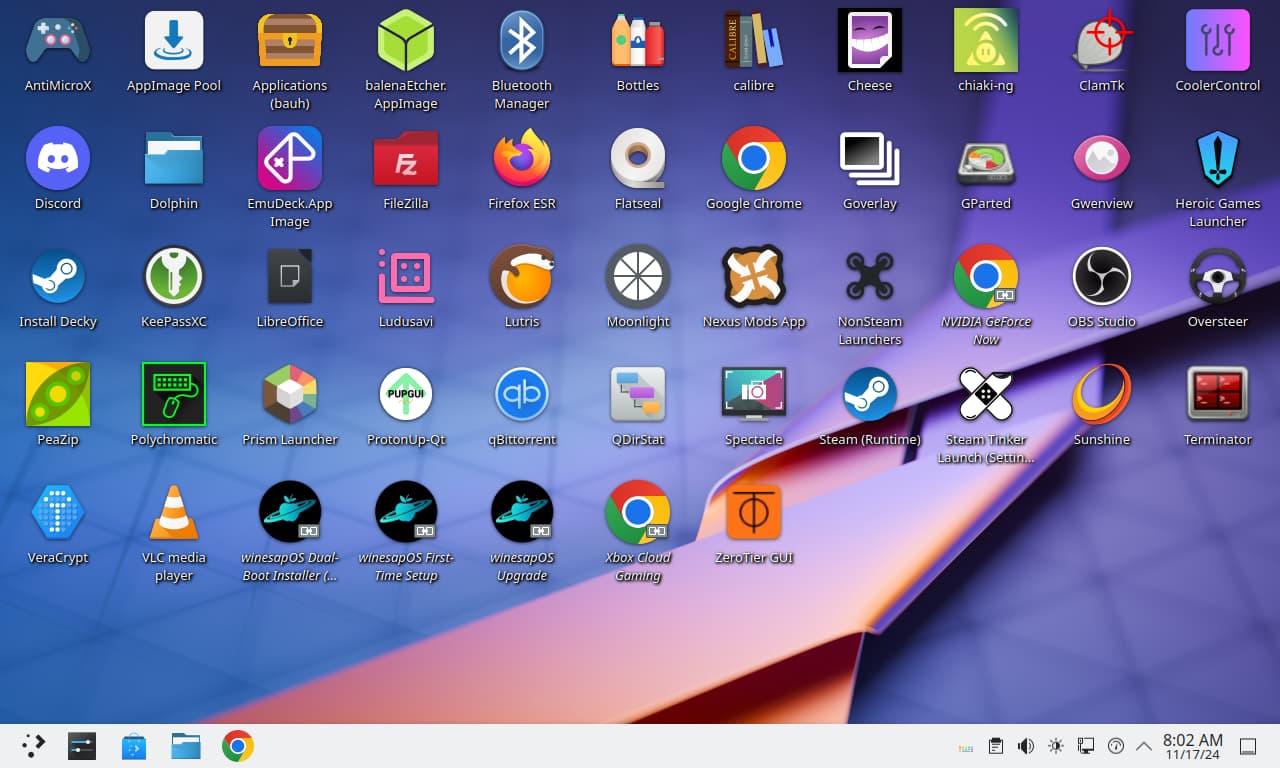
Winesaposを使用すると、Linuxを簡単にセットアップし、内部またはポータブルの外部ドライブでゲームをプレイできます。
なぜワインサポスを使用するのですか?
ここからリリース画像をダウンロードできます。
プロジェクトの目標:
私たちの仕事を支援したいですか?オープン機能とバグGithubの問題で支援することを検討してください。私たちのContributing.MDガイドは、Winesaposの寄稿者として始めるために必要なすべての情報を提供します。
目次
これらは、ゲームに関しては、macosがLinuxに比べて劣っている理由です。
noatimeとnodiratimeが取り付けられています。/tmp/ 、 /var/log/ 、および/var/tmp/ )を備えた一時的なディレクトリは、RAMのみのファイルシステムとして取り付けられています。/home/ディレクトリの毎月6つのスナップショットを採用します。pacmanパッケージマネージャーを使用するたびにSNAPSHOTを取得します。すべてのIntel Macがサポートされています。 Linuxは最近、ほとんどのMacですぐに使用できます。ドライバーは、ネイティブLinuxサポートが欠落している新しいハードウェア用にプリインストールされます。
内部ドライブにインストールするには、WinesaposをMacOSと一緒にデュアルブートとしてインストールする必要があります。 Intel Macに唯一のインストールされたオペレーティングシステムとして機能しません。
| ハードウェア | サポート | サードパーティのドライバー |
|---|---|---|
| キーボード | はい | Linux-T2パッチ |
| タッチパッド | はい | Linux-T2パッチ |
| nvme | はい | Linux-T2パッチ |
| 音 | はい | Linux-T2パッチとApple-T2-Audio-Config |
| ファン | はい | mbpfan |
| ブルートゥース | はい | Linux-T2パッチとApple-BCM-Firmware |
| Wi-Fi | はい | Broadcom-WLおよびApple-BCM-Firmware |
| 指紋スキャナー | いいえ | |
| タッチバー | はい | Linux-T2パッチ |
BluetoothおよびWi-Fiサポートについてのメモがすぐに機能していない場合は:
| ハードウェア | サポート | サードパーティのドライバー |
|---|---|---|
| キーボード | はい | asusctl |
| タッチパッド | はい | |
| nvme | はい | |
| 音 | はい | Linux-Firmware-ASUS |
| ファン | はい | asusctl |
| ブルートゥース | はい | |
| Wi-Fi | はい | |
| 指紋スキャナー | いいえ |
元のAsus Rog Allyと新しいAsus Rog Ally Xの両方をサポートしています。
| ハードウェア | サポート | サードパーティのドライバー |
|---|---|---|
| コントローラ | はい | Linux-nobaraパッチ |
| nvme | はい | |
| 音 | はい | Linux-nobaraパッチ |
| ファン | はい | |
| ブルートゥース | はい | |
| Wi-Fi | はい | |
| 指紋スキャナー | いいえ |
| ハードウェア | サポート | サードパーティのドライバー |
|---|---|---|
| コントローラ | はい | ayaneo-platform-dkms-gitおよびAyaled-updated |
| nvme | はい | |
| 音 | はい | aw87559-firmware |
| ファン | はい | |
| ブルートゥース | はい | |
| Wi-Fi | はい | |
| 指紋スキャナー | いいえ |
すべてのフレームワークコンピューターは完全にサポートされています。
| ハードウェア | サポート | メモ |
|---|---|---|
| キーボード | はい | |
| タッチパッド | はい | キーボードが使用されているときに無効にするためにQuirkが追加されました |
| nvme | はい | 深い睡眠サポートのために有効になっています |
| 音 | はい | オーディオ品質の改善に使用されるFramework-DSP |
| ファン | はい | |
| ブルートゥース | はい | |
| Wi-Fi | はい | 領域は、Wi-Fi> = 5を有効にするように自動的に設定されます |
| 指紋スキャナー | はい | |
| LEDマトリックス | はい | LEDマトリックスの管理に使用されるInputModule-Control |
フレームワークラップトップ16の場合、BIOSでLinuxのオーディオサポートを有効にする必要があります。
| ハードウェア | サポート | サードパーティのドライバー |
|---|---|---|
| コントローラ | はい | |
| nvme | はい | |
| 音 | はい | |
| ファン | はい | |
| ブルートゥース | はい | Linux-nobaraパッチ |
| Wi-Fi | はい | |
| 指紋スキャナー | いいえ |
| ハードウェア | サポート | サードパーティのドライバー |
|---|---|---|
| キーボード | はい | Linux-surface Pathces |
| タッチパッド | はい | |
| nvme | はい | |
| 音 | はい | Linux表面パッチ |
| ファン | はい | Linux表面パッチ |
| ブルートゥース | はい | Linux表面パッチ |
| Wi-Fi | はい | Linux表面パッチ |
| 指紋スキャナー | いいえ | |
| タッチスクリーン | はい | IPTSD、Libwacom-Surface、およびLinux表面パッチ |
| ハードウェア | サポート | サードパーティのドライバー |
|---|---|---|
| コントローラ | はい | |
| nvme | はい | |
| 音 | はい | |
| ファン | はい | |
| ブルートゥース | はい | |
| Wi-Fi | はい | |
| 指紋スキャナー | いいえ |
Steam Deck LCDとOLEDモデルの両方が完全にサポートされています。
| ハードウェア | サポート | サードパーティのドライバー |
|---|---|---|
| コントローラ | はい | |
| タッチパッド | はい | |
| nvme | はい | |
| 音 | はい | Linux-nobaraパッチとLinux-firmware-valve |
| ファン | はい | |
| ブルートゥース | はい | Linux-nobaraパッチとLinux-firmware-valve |
| Wi-Fi | はい | Linux-nobaraパッチとLinux-firmware-valve |
| タッチスクリーン | はい |
私たちは、これらのオペレーティングシステムプロジェクトと積極的に協力して、大衆により広いLinuxゲームサポートを提供するのを支援しています。
Winesapos 3.1.0の時点では、事前に構築されたいくつかのAURパッケージを使用して、独自のリポジトリを提供しています。このリポジトリは、Arch LinuxとManjaroで動作します。デフォルトでWinesaposで有効になっています。どの分布を使用しているかに応じて、それを有効にする方法は次のとおりです。
 sudo sed -i s'/[core]/[winesapos]nServer = https://winesapos.lukeshort.cloud/repo/$repo/$archnn[core]/'g /etc/pacman.conf
sudo pacman -S -y -y
GPGキーをインポートして使用して、キーをローカルに署名して信頼することで使用できるようにします。
 sudo pacman-key --recv-keys 1805E886BECCCEA99EDF55F081CA29E4A4B01239
sudo pacman-key --init
sudo pacman-key --lsign-key 1805E886BECCCEA99EDF55F081CA29E4A4B01239
| 特徴 | STEAMOS 3 | ワインサポス4 |
|---|---|---|
| STEAMOSリポジトリ | はい | いいえ |
| Arch Linuxパッケージ | 古い | 新しい |
| 起動互換性 | uefi | UEFIおよびレガシーBIOS |
| グラフィックドライバー | AMD | AMD、Intel、Nvidia、Parallels、VirtualBox、およびVMware |
| オーディオサーバー | Pipewire | Pipewire |
| 読み取り専用ファイルシステム | はい | いいえ |
| 暗号化されたファイルシステム | いいえ | はい(安全な画像) |
| ファイルシステムバックアップタイプ | A/Bパーティション | BTRFSスナップショット |
| 可能なファイルシステムのバックアップの数 | 1 | 無制限 |
| パッケージマネージャー(CLI) | フラットパックとニックス | Pacman、Paru/yay/aur、flatpak、homebrew、nix、およびsnap |
| 優先パッケージマネージャー(CLI) | フラットパック | フラットパック |
| パッケージマネージャー(GUI) | 発見(フラットパック) | Discover(Flatpak)、Bauh(Pacman、Paru/Yay/Aur、Flatpak、およびSnap)、およびAppimagePool(Appimage) |
| 更新タイプ | 画像ベース | パッケージマネージャー |
| インストールされているパッケージの数 | 小さい | 小さい(最小画像)または大規模(パフォーマンスと安全な画像) |
| ゲームランチャー | スチーム | Steam、Heroic Games Launcher、Lutris、Nvidia Geforce Now、Open GamePad UI、Prism Launcher、Xbox Cloud Gaming |
| Linuxカーネル | ネプチューン(6.5) | Linux LTS(6.6)およびLinux Nobara(最新) |
| 追加のApple Intel Macドライバー | いいえ | はい |
| 追加のASUSラップトップドライバー | いいえ | はい |
| 追加のASUS ROG Allyハンドヘルドドライバー | いいえ | はい |
| 追加のAyaneoハンドヘルドドライバー | いいえ | はい |
| 追加のフレームワークコンピュータードライバー | いいえ | はい |
| 追加のLenovo Legion Go Handheldドライバー | いいえ | はい |
| 追加のMicrosoft Surfaceラップトップドライバー | いいえ | はい |
| 追加のOneXPlayerハンドヘルドドライバー | いいえ | はい |
| デスクトップ環境 | KDEプラズマ5 | KDEプラズマ6 |
| デスクトップテーマ | 蒸気 | 風 |
| AMD FSR | グローバル | グローバル |
| Gamescope | グローバル | グローバル |
| ワイン | プロトン | 陽子とge-proton |
| ゲームコントローラーのサポート | 大きい | 大きい |
| exfatクロスプラットフォームストレージ | いいえ | はい(パフォーマンスと安全な画像に関する16ギブ) |
Winesapos 3は、Stemos 3に基づいた最初のLinux分布でした。歴史的に、Steamos 3の最初のフォークは次のとおりです。
| ディストリビューション | 最初のプレビュー | 最初の公開リリース |
|---|---|---|
| ワインサポス | 2022-03-06 | 2022-03-10 |
| PS4の蒸気 | 2022-03-09 | 2022-03-25 |
| ホロイソ | 2022-04-21 | 2022-05-01 |
最小:
推奨:
外部ストレージに関する重要なメモ!
Winesaposの設立目標の1つは、それがポータブルであることでした。ただし、ほとんどのフラッシュドライブとSD/TFカードは、オペレーティングシステムを実行するには遅すぎて、良い体験を提供できません。最良の体験のために、これらの推奨フラッシュドライブのいずれか、外部USB-C> = 3.1 SSD、またはM.2 NVMEドライブスロットを含むUSB-C> = 3.2ドッキングステーションまたはハブを使用します。
Winesaposは、ユーザーの多様なニーズを満たすために3つの異なる画像タイプを提供します。
| 特徴 | 最小限 | パフォーマンス | 安全な |
|---|---|---|---|
| CPU緩和 | いいえ | いいえ | はい |
| 暗号化 | いいえ | いいえ | はい(luks) |
| ファイアウォール | いいえ | いいえ | はい(firewalld) |
rootパスワードにはリセットが必要です | いいえ | いいえ | はい |
| 16 GIB EXFATクロスプラットフォームストレージ | いいえ | はい | はい |
| 事前に構築されたリリース画像 | はい | はい | いいえ |
最小ルートファイルシステムアーカイブ( winesapos-${WINESAPOS_VERSION}-minimal-rootfs.tar.zst )は、最小画像から抽出されたファイルです。コンテナや、DockerまたはPodmanコンテナ、デュアルブート、またはWSL 2シナリオにWinesaposを設置するために使用できます。
セキュアイメージを使用する場合、デフォルトのLuks暗号化キーはpasswordであり、最初のブート後に変更する必要があります。デフォルトのパスワードを使用してパーティションのロックを解除するために、最初のブーツの前にこれを実行しないでください。ストレージデバイス全体を埋めるためにサイズ変更されます。 5番目のパーティションのLuks暗号化キーを変更します。
$ sudo cryptsetup luksChangeKey /dev/<DEVICE>5
winesapおよびrootのユーザーアカウントパスワードは、ユーザー名と同じです。 rootユーザーはすぐに期限切れに設定されています。最初にログインすると、新しいパスワードを入力するように求められます。これがそれを変更する方法です:
winesapのデフォルトパスワードを入力します。winesapのデフォルトパスワードをもう一度入力します。 rootユーザーアカウントは、パスワードが変更されるまでロックされます。回復が機能するように、すぐにこれを変更することをお勧めします。
$ sudo passwd root
winesapos-<VERSION>-<TYPE>.img.zipアーカイブを抽出します。PCまたはMacで。
dd CLIユーティリティを使用して画像をフラッシュできます。Linux上のgnomeボックス付き。
$ qemu-img resize winesapos*.img +24G
MacOSのParallels Desktop(Intelのみ)。
 qemu-img convert -f raw -O vdi winesapos-<VERSION>-<TYPE>.img winesapos-<VERSION>-<TYPE>.vdi
prl_convert winesapos-<VERSION>-<TYPE>.vdi --allow-no-os --stand-alone-disk --dst=winesapos-<VERSION>-<TYPE>.hdd
Linuxの仮想マシンマネージャーと。
$ qemu-img resize winesapos*.img +24G
/var/lib/libvirt/images/に移動します。VirtualBoxで。
VBoxManage convertfromraw --format VDI winesapos-<VERSION>-<TYPE>.img winesapos-<VERSION>-<TYPE>.vdi
qemu-img convert -f raw -O vdi winesapos-<VERSION>-<TYPE>.img winesapos-<VERSION>-<TYPE>.vdi
MacOSのVMware Fusion(Intelのみ)。
VBoxManage convertfromraw --format VMDK winesapos-<VERSION>-<TYPE>.img winesapos-<VERSION>-<TYPE>.vmdk
qemu-img convert -f raw -O vmdk winesapos-<VERSION>-<TYPE>.img winesapos-<VERSION>-<TYPE>.vmdk
LinuxまたはWindowsにVMwareワークステーションがあります。
デフォルトのアカウントには、ユーザー名をミラーリングするパスワードセットがあります。
| ユーザー名 | パスワード |
|---|---|
| Winesap | Winesap |
| 根 | 根 |
最初にログインすると、「Winesapos初回セットアップ」ウィザードが起動します。グラフィックドライバー、ロケール、タイムゾーンなどのセットアップに役立ちます。最初のブーツでこれを完了することを強くお勧めします。次に、Winesaposを使用して最高の体験を提供する前に再起動します。
初めてのセットアップの推奨デフォルトを使用して再起動した後、パスワードレスログインのログイン画面でEnter/Returnキー(仮想キーボードのボトム右キー)を押します。
すでに作成されているリリースビルドを使用する代わりに、上級ユーザーはカスタムビルドを作成することをお勧めします。これには、ライブArch Linux環境をダウンロードするには、1ギブの空きスペースのみが必要です。また、環境変数を使用して、デフォルトのリリースビルドとは異なる方法でビルドを構成することもできます。
少なくとも1 GBのストレージを備えたフラッシュドライブに最新のArch Linux ISOをダウンロードしてセットアップします。
1a。また、リリース画像を提供していない場合でも、ManjaroでWinesaposを構築することもサポートしています。 Manjaroのプラズマ、シナモン、またはGNOMEデスクトップ版のいずれかをダウンロードします。
フラッシュドライブを起動します。
既知のパッケージキャッシュを更新し、gitをインストールします。
 pacman -S -y
pacman -S git
安定した分岐をクローンして、「スクリプト」ディレクトリに移動します。
 git clone --branch stable https://github.com/winesapos/winesapos.git
cd ./winesapos/scripts/
環境変数を構成して、ビルドをカスタマイズします。少なくとも、ビルドが裸の金属で動作し、インストールするwhat /dev/<DEVICE>ブロックを定義できるようにします。これにより、そのデバイス上のすべての既存のデータが削除されるため、注意してください!
 export WINESAPOS_BUILD_IN_VM_ONLY=false
lsblk
export WINESAPOS_DEVICE=<DEVICE>
デフォルトでは、パフォーマンスイメージが構築されます。または、環境変数を調達して、ビルドを構成して、代わりに最小または安全な画像を作成します。
. ./env/winesapos-env-minimal.sh
. ./env/winesapos-env-secure.sh
ビルドを実行します。
sudo -E bash ./winesapos-install.sh
テストの障害を確認します(このコマンドから出力がないはずです)。
grep -P 'FAIL$' /winesapos/etc/winesapos/winesapos-install.log
ビルドプロセスの詳細については、Contributing.mdガイド全体を読むことをお勧めします。
ダウンロードするWinesAposバージョンと使用するコンテナエンジンを構成します。
 export WINESAPOS_VERSION="4.1.0"
#export WINESAPOS_CONTAINER_ENGINE="docker"
export WINESAPOS_CONTAINER_ENGINE="podman"
ルートファイルシステムをダウンロード、減圧、およびインポートします。ほとんどのコンテナエンジンは、GZIP圧縮のみをサポートしています(Zstandardではありません)。
 curl -LO https://winesapos.lukeshort.cloud/repo/iso/winesapos-${WINESAPOS_VERSION}/winesapos-${WINESAPOS_VERSION}-minimal-rootfs.tar.zst
zstd --decompress winesapos-${WINESAPOS_VERSION}-minimal-rootfs.tar.zst
${WINESAPOS_CONTAINER_ENGINE} import winesapos-${WINESAPOS_VERSION}-minimal-rootfs.tar winesapos:${WINESAPOS_VERSION}
コンテナ画像がインポートされたことを確認します。
 ${WINESAPOS_CONTAINER_ENGINE} images | grep winesapos
# Example output: winesapos                        4.1.0     23b9bb5f1c26   26 seconds ago   8.79GB
Winesapos 4.1.0の時点で、WSL 2を使用してWindows> = 10で仮想マシンとして実行されることがサポートされています。
WSL 2をインストールします。
winesapos-wsl.ps1スクリプトをダウンロードします。
PowerShellを開き、ダウンロードした場所に移動します。
PowerShellスクリプトを許可して実行します。
PS C:UsersuserDownloads> powershell -ExecutionPolicy Bypass -File .winesapos-wsl.ps1
新しい「Winesapos」仮想マシンが表示されることを確認します。
PS C:UsersuserDownloads> wsl --list
仮想マシンを入力します。
PS C:UsersuserDownloads> wsl --distribution winesapOS
Winesaposであることを確認してください。
cat /usr/lib/os-release-winesapos
| ユーザー名 | パスワード |
|---|---|
| 根 | 根 |
| Winesap | Winesap |
安全な画像では、Luks暗号化キーはpasswordです。 Luksとrootアカウントのパスワードはすぐに変更する必要があります。
 $ sudo cryptsetup luksChangeKey /dev/<DEVICE>5
$ sudo passwd root
電源ボタンを押してリリースして、Macを外部ドライブに起動します。次に、 OPTIONキー(またはWindowsキーボードのALTキー)を押して、Mac Bootloaderにアクセスします。 「EFIブート」デバイスを選択します。
重要なApple T2セキュリティチップを備えたMACは、すべて2018年以降に作成されたすべてのMacであるため、外部ストレージからの起動を許可する必要があります。
COMMANDとrキーの両方をすぐに保持して、回復モードに入ります。shutdown /s /f /t 0を実行して、「シフト」キーを保持してウィンドウを完全にシャットダウンします。Winesapos 4.2.0の時点で、ベントイがサポートされています。 UEFIブートでのみ動作します(レガシーBIOSブートではありません)。 Winesaposのサイズ変更ルートファイルシステムスクリプトは現在Ventoyで動作しないため、これは回復とトラブルシューティングの目的に最も役立ちます。
winesapos.vtoyに変更します。LinuxやWindowsを使用する場合は、Getting Start Guideに従ってWinesaposを独自の内部ドライブにインストールすることをお勧めします。次に、マザーボードBIOSを使用してブートデバイスを変更します。 MacOSの場合、内部ドライブにインストールする唯一の方法は、デュアルブートを介してです。
ただし、LinuxやWindowsと同じドライブにWinesaposをインストールすることができます。それがこのガイドがより詳細にカバーするものです。
Winesaposのデュアルブートインストールでは、UEFIのみがサポートされています。 Legacy BIOS Bootの場合、最小限やパフォーマンスなどの通常のポータブルリリース画像を作成してフラッシュします。これらはすべて、レガシーBIOSブートとUEFIの両方をサポートしています。
最初に(必要に応じて)macosまたはWindowsをインストールします。次に、同じドライブにWinesaposをインストールすることを続行します。
Intel Macのみがサポートされています。
commandとrキーを保持します。次に、これらの2つのキーを手放します。csrutil disableコマンドを実行して、SIPを無効にします。refind-bin-<VERSION>.zipをダウンロードして抽出します。./refind-install Refind-Installを実行します。半自動ステップ:
Winesaposをフォローして、ガイドを開始して、最小限の画像を外部ドライブに移動します。
外部ドライブにあるワインサポスに起動します。
GPARTEDを使用して、無料のストレージスペースを分割します。ラベルには、数ゼロ「0」(文字「O」ではありません)で接尾辞が付いています。
「Winesaposデュアルブートインストーラー(ベータ)」デスクトップショートカットを実行します。
コンピューターをオフにし、Winesaposの外部ドライブを抜き、コンピューターをオンにします。
元のオペレーティングシステムを再度起動します。
commandを保持します。 MacOSに起動したら、Run ./refind-mkdefaultをインストールする必要があります)。 # Enable os-prober. It is disabled by default.
sudo crudini --ini-options=nospace --set /etc/default/grub "" GRUB_DISABLE_OS_PROBER false
sudo grub-mkconfig -o /boot/grub/grub.cfg
マニュアルステップ:
Winesaposをフォローして、ガイドを開始して、最小限の画像を外部ドライブに移動します。
最新のwinesapos-${WINESAPOS_VERSION}-minimal-rootfs.tar.zstリリースをダウンロードします。
wos-driveにコピーします。外部ドライブにあるワインサポスに起動します。
GPARTEDを使用して、無料のストレージスペースを分割します。ラベルには、数ゼロ「0」(文字「O」ではありません)で接尾辞が付いています。
Winesapos optimizaitonsと機能を備えた新しいパーティションをマウントします。
 # View hints about each partition.
$ lsblk
$ sudo mount -t btrfs -o subvol=/,compress-force=zstd:1,discard,noatime,nodiratime -L winesapos-root0 /mnt
$ sudo btrfs subvolume create /mnt/.snapshots
$ sudo btrfs subvolume create /mnt/home
$ sudo mount -t btrfs -o subvol=/home,compress-force=zstd:1,discard,noatime,nodiratime -L winesapos-root0 /mnt/home
$ sudo btrfs subvolume create /mnt/home/.snapshots
$ sudo btrfs subvolume create /mnt/swap
$ sudo mount -t btrfs -o subvol=/swap,compress-force=zstd:1,discard,noatime,nodiratime -L winesapos-root0 /mnt/swap
$ sudo mkdir /mnt/boot
$ sudo mount --label winesapos-boot0 /mnt/boot
$ sudo mkdir /mnt/boot/efi
# Mount the FAT32 EFI partition.
# On macOS, use the newly created EFI partition.
# On Windows, use the existing EFI partition. This is usually the first partition and 100 MiB in size.
$ sudo mount /dev/<DEVICE>1 /mnt/boot/efi
Extract the winesapOS root file system archive.
$ sudo tar --extract --keep-old-files --verbose --file /run/media/winesap/wos-drive/winesapos-${WINESAPOS_VERSION}-minimal-rootfs.tar.zst --directory /mnt/
Configure the bootloader.
 $ grep -v -P "winesapos|WOS" /mnt/etc/fstab | sudo tee /mnt/etc/fstab
$ genfstab -L /mnt | sudo tee -a /mnt/etc/fstab
$ sudo mount --rbind /dev /mnt/dev
$ sudo mount --rbind /sys /mnt/sys
$ sudo mount -t proc /proc /mnt/proc
$ sudo chroot /mnt grub-install --target=x86_64-efi --efi-directory=/boot/efi --bootloader-id=winesapOS
$ sudo chroot /mnt grub-mkconfig -o /boot/grub/grub.cfg
$ sudo chroot /mnt mkinitcpio -P
$ sudo sync
Turn off the computer, unplug the winesapOS external drive, and then turn on the computer.
Allow booting the original operating system again.
command while booting up. Once booted into macOS, run ./refind-mkdefault (requires Xcode to be installed). # Enable os-prober. It is disabled by default.
$ sudo crudini --ini-options=nospace --set /etc/default/grub "" GRUB_DISABLE_OS_PROBER false
$ sudo grub-mkconfig -o /boot/grub/grub.cfg
After logging in for the first time as the winesap user, the first-time setup for winesapOS will appear. Users have the option to manually select their choices or go with the recommended defaults below.
| 設定 | Recomended Default |
|---|---|
| Broadcom proprietary Wi-Fi driver | 自動 |
| Rotate screen | いいえ |
| Older version of winesapOS | Stop and prompt user |
| Pacman mirror region | Automatic (GeoIP) |
| Graphics driver | Mesa |
| Swap method | zram |
| タイムゾーン | Automatic (GeoIP) |
| Recommended producitvity apps | はい |
| Recommended gaming apps | はい |
| Passwordless login* | Yes (minimal and performance) and No (secure) |
| Hide GRUB boot menu | はい |
| Upgrade firmware | はい |
| Change user password | はい |
| Change root password | はい |
| Locale | 聞く |
*Press the enter/return key (the bottom-right key on the virtual keyboard) on the login screen for passwordless login.
Upgrades are supported and recommended between all minor releases of winesapOS. For example, it is supported to go from 3.0.0 to 3.2.1.
Where it makes sense, features are backported from newer versions of winesapOS. Bug and security fixes are also included to fix problems either with winesapOS itself or with upstream changes in Arch Linux. Even if a user never upgrades winesapOS, users will continue to get regular system upgrades from Arch Linux.
Before upgrading, please read the full UPGRADE.md notes. This showcases what updates will happen automatically and what updates may need to be manually applied.
Development builds do not support upgrades. Here are the releases that we do support upgrades on:
| リリース | Upgrades Supported |
|---|---|
| 安定した | はい |
| Release Candidate (RC) | はい |
| ベータ | いいえ |
| アルファ | いいえ |
Here is how to upgrade winesapOS. Do NOT use "Applications (bauh)" for upgrades, only for package installations.
GUI = Launch the "winesapOS Upgrade" desktop shortcut.
CLI = Launch the winesapOS upgrade script from the stable branch.
curl https://raw.githubusercontent.com/winesapOS/winesapOS/stable/scripts/winesapos-upgrade.sh | sudo -E bash
Terminator . echo stick > /tmp/winesapos_user_name.txt
export WINESAPOS_UPGRADE_FILES=false
export WINESAPOS_UPGRADE_VERSION_CHECK=false
curl https://raw.githubusercontent.com/winesapOS/winesapOS/stable/scripts/winesapos-upgrade.sh | sudo -E bash
curl https://raw.githubusercontent.com/winesapOS/winesapOS/stable/scripts/winesapos-upgrade.sh | sudo -E bash
If desired, it is possible to remove winesapOS specific files and configuration and switch back to upstream Arch Linux using an uninstall script. It will not remove anything that is related to improved hardware compatibility.
curl https://raw.githubusercontent.com/winesapOS/winesapOS/stable/scripts/winesapos-uninstall.sh | sudo -E bash
It is possible to get an experience similar to winesapOS but on a different Linux distribution by installing applications that winesapOS provides.
What this conversion script does:
What it does NOT do:
Run this script to convert to winesapOS:
curl https://raw.githubusercontent.com/winesapOS/winesapOS/stable/scripts/winesapos-convert.sh | bash
Plug additional hardware into a USB hub. Connect the USB hub to the computer before booting.
Do NOT move the USB hub after plugging it in and booting up Linux. It can easily disconnect leading to a corrupt file system.
Consider buying an SSD instead of a flash drive for a longer life-span, more storage, and faster speeds.
Delete old Btrfs backups when the drive is running low on storage space.
 $ sudo snapper list
$ sudo snapper delete <SNAPSHOT_NUMBER>
Enable Proton for all Windows games. This will allow them to run in Linux. For more information about Proton, read this starter guide. Check the compatibility rating for games on Steam by using ProtonDB.
Settings > Steam Play > Enable Steam Play for Support Titles > Use this tool instead of game-specific selections from Steam > Compatibility tool: > (select the latest "Proton" version available) > OK
On the SDDM login screen for the "winesap" user, the "Session" drop-down menu in the top-left can be used to change the session from "Plasma (Wayland)" to "Steam Big Picture (Wayland)". This provides the same experience as having a Steam Deck in "Game Mode" by launching Steam with Gamescope Session.
Switch from Game Mode to Desktop Mode:
既知の問題:
Alternatively, Steam can be launched from KDE Plasma using the "Steam (Runtime)" desktop shortcut. Then it can be changed to be in the new Big Picture Mode.
There is also a session for Open Gamepad UI as an open source alternative front-end. Select the "OpenGamepadUI (Wayland)" session on the SDDM login screen. It has plugins for Steam, Lutris, and more.
When Mac hardware is detected, all sound is muted on boot because, on newer Macs, the experimental sound driver is extremely loud. This means that any volume changes will be reset on the next boot. Disable and stop the user (not system) mute service to allow the sound volume to be saved:
systemctl --user disable --now winesapos-mute.service
Snapper creates 6 monthly snapshots of the /home directory. snap-pac creates a snapshot of the root / directory before and after using pacman . Both the root and home configurations are set to only use a maximum of 50 GiB each.
During boot, GRUB will have a "winesapOS snapshots" section that will allow booting from a root directory snapshot. This will not appear on first boot because no backups have been taken yet. After a backup has been taken, the GRUB configuration file needs to be regenerated to scan for the new backups.
Manually rebuild the GRUB configuration file to load the latest snapshots:
$ sudo grub-mkconfig -o /boot/grub/grub.cfg
View the available backups:
 $ sudo snapper -c root list
$ sudo snapper -c home list
Manually create a new backup:
$ sudo snapper -c <CONFIG> create
Manually delete a backup:
$ sudo snapper -c <CONFIG> delete <BACKUP_NUMBER>
A VPN is required for LAN gaming online. Use the free and open source ZeroTier VPN service for this.
ホスト
Clients
Start the ZeroTier VPN service.
$ sudo systemctl enable --now zerotier-one
Connect to the ZeroTier network.
$ sudo zerotier-cli join <NETWORK_ID>
Challenge: the release image fails to be extracted from the zip file.
ソリューション:
Verify the integrity of the downloaded zip files.
Linux:
sha512sum --check winesapos-<VERSION>-<TYPE>.sha512sum.txt
Windows (open Command Prompt as Administrator):
C:Windowssystem32>CertUtil.exe -hashfile C:Users<USER>Downloadswinesapos-<VERSION>-<TYPE>.sha512sum.txt SHA512
Not enough free space. Ensure you have 13 GiB (minimal image) or 31 GiB (performance image) of free space before downloading the zip files.
If using PeaZip, it sometimes fails to extract to the current directory. Try extracting to a different directory.
There are many different reasons why winesapOS may not be booting.
Challenge: the root file system does not resize itself to use all available space on the storage device.
解決:
Re-enable the resize service, reboot, and then view the service log. Open up a GitHub Issue with the full log output.
 sudo systemctl enable winesapos-resize-root-file-system
sudo reboot
sudo journalctl --unit winesapos-resize-root-file-system
If using an external USB drive, it is possible to get errors about a Read-only file system . This is a hardware issue and indicates that the USB drive has been disconnected even if only for a fraction of a second. Short-term, reboot winesapOS to fix these errors. Long-term, try using a different USB port and/or drive and make sure that the drive does not move while in use. For the best experience, we recommend using an internal drive.
Challenge: If Wi-Fi or Bluetooth is not working and Windows is installed, it could be from fast startup being enabled and/or Windows hibernating.
ソリューション:
Challenge: the amount of reported free space seems too small or large.
ソリューション:
Btrfs is used as the root file system on winesapOS. The most reliable way to view the amount of storage in-use on Btrfs is with this command.
sudo btrfs filesystem df /
Snapper is used to take Btrfs snapshots (1) every time Pacman installs, upgrades, or removes a package and (2) every month. Refer to the Btrfs Backups section for more information on how to manage those snapshots.
If the first-time setup fails or needs debugging, the last log file can be found and copied to the desktop by running these two commands:
 $ sudo cp "/etc/winesapos/$(sudo ls -1 /etc/winesapos/ | grep setup | tail -n 1)" /home/winesap/Desktop/
$ sudo chown winesap:winesap "/home/winesap/Desktop/$(ls -1 ~/Desktop/ | grep setup_)"
Challenge: winesapOS uses labels for file system mounts which confuses the system if more than one label is found.
解決:
Change the file system label of at least the root file system on one of the winesapOS drives. It is recommended to change all of the labels on that same drive. This can cause an unbootable system. Manually review the contents of /etc/fstab to ensure it is correct.
 # Labels can be changed on mounted file systems.
lsblk -o name,label
export DEVICE=vda
sudo -E exfatlabel /dev/${DEVICE}2 wos-drive0
sudo -E fatlabel /dev/${DEVICE}3 WOS-EFI0
sudo sed -i s'/LABEL=WOS-EFI/LABEL=WOS-EFI0/'g /etc/fstab
sudo -E e2label /dev/${DEVICE}4 winesapos-boot0
sudo sed -i s'/LABEL=winesapos-boot/LABEL=winesapos-boot0/'g /etc/fstab
sudo btrfs filesystem label / winesapos-root0
sudo btrfs filesystem show /
sudo sed -i s'/LABEL=winesapos-root/LABEL=winesapos-root0/'g /etc/fstab
lsblk -o name,label
 # GRUB needs to be updated with the new /etc/fstab information.
sudo chroot <MOUNTED_ROOT_AND_BOOT_DIRECTORY> grub-mkconfig -o /boot/grub/grub.cfg
課題:
解決:
At the GRUB boot menu select "winesapOS snapshots" and then the desired backup to load. The filesystem will be read-only by default. It can be set to enable writes with this command:
$ sudo btrfs property set -ts /.snapshots/<BTRFS_SNAPSHOT_ID> ro false
For more advanced recovery using overlayfs on-top of a read-only filesystem, refer to this grub-btrfs GitHub issue.
Reinstalling winesapOS on-top of an existing winesapOS installation of the same exact version and image type can cause issues. This is because the partitions are perfectly aligned which leads to overlapping data. Even wiping the partition table is not enough. For the best results, it is recommended to completely wipe at least the first 25 GiB of the storage device. WARNING: This will delete any existing data on that storage device.
dd if=/dev/zero of=/dev/<DEVICE> bs=1M count=25000
When using a portable device such as a laptop or gaming handheld, the operating system goes into a battery saver mode by default. This can be disabled to get maximum performance.
sudo systemctl disable --now auto-cpufreq
wine - sap - o - s .Here are community contributors who have helped the winesapOS project.
Founder:
コード:
金融:
These are anonymous surveys done with Linux gaming community members. Most, but not all, are winesapOS users.
Favorite (non-Valve) handheld PC brand:
6 votes.
There were no comments about what the "Other" brand is so that is unknown.
https://twitter.com/LukeShortCloud/status/1649078025634598912
Favorite desktop environments:
25 votes.
"Other" included specific mentions from the community about Cinnamon (for its similarity to Windows) and Sway (for its tiling features).
https://twitter.com/LukeShortCloud/status/1659279345926516737
| Release Version/Tag | Project Name | オペレーティング·システム | デスクトップ環境 | Release Images |
|---|---|---|---|---|
| 4.2.0 | winesapOS | Arch Linux | KDE Plasma | Performance, Minimal, and Minimal Root File System |
| 4.1.0 | winesapOS | Arch Linux | KDE Plasma | Performance, Secure, Minimal, and Minimal Root File System |
| 4.0.0 | winesapOS | Arch Linux | KDE Plasma | Performance, Secure, and Minimal |
| 3.2.0 | winesapOS | SteamOS 3 | KDE Plasma | Performance, Secure, and Minimal |
| 3.0.0 | winesapOS | SteamOS 3 | KDE Plasma | Performance and Secure |
| 2.2.0 | Mac Linux Gaming Stick | Manjaro | シナモン | Performance and Secure |
| 2.0.0 | Mac Linux Gaming Stick | Manjaro | シナモン | パフォーマンス |
| 1.0.0 | Mac Linux Gaming Stick | Ubuntu 20.04 | シナモン | なし |
GPLv3





