winesapOS
4.2.0 - The Ventoy Update

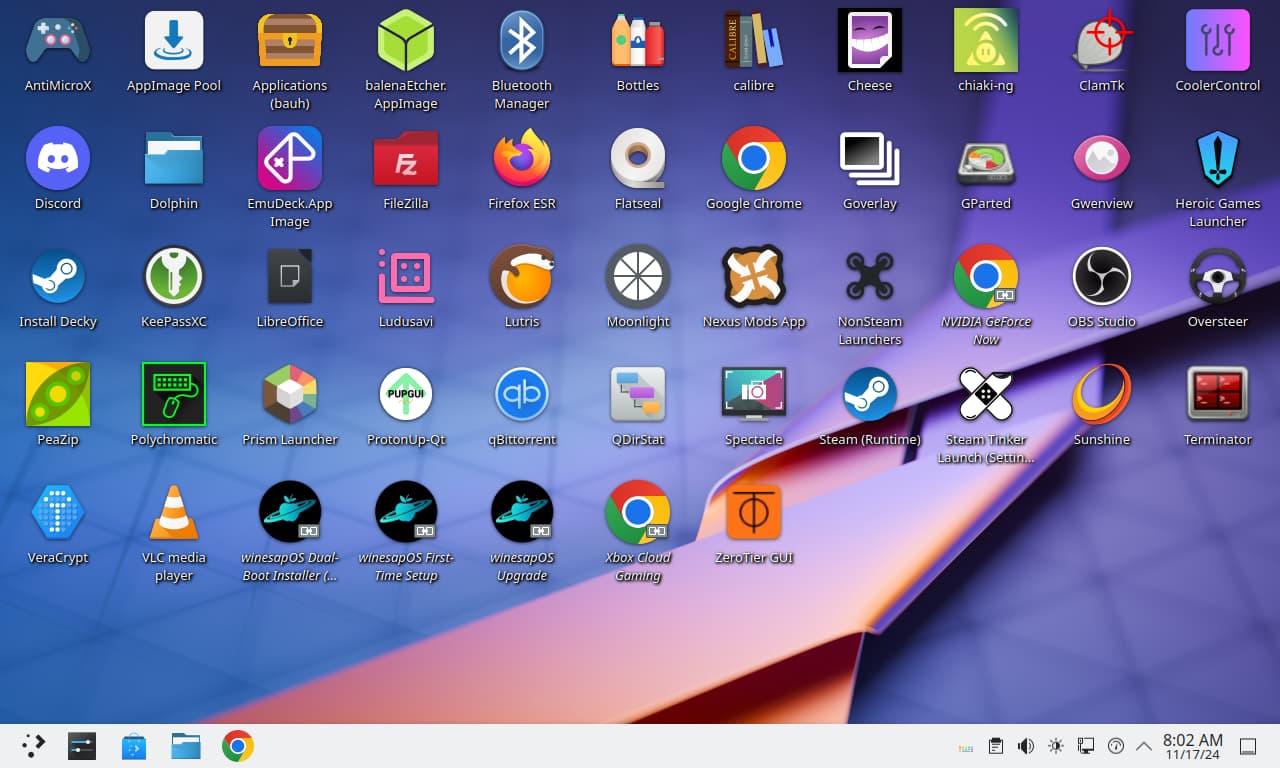
Winesapos erleichtert das Einrichten von Linux und Spielen von einem internen oder tragbaren externen Laufwerk.
Warum Winesapos verwenden?
Veröffentlichungsbilder können hier heruntergeladen werden.
Projektziele:
Möchten Sie unsere Arbeit unterstützen? Erwägen Sie, mit offenen Feature- und Bug -Github -Problemen zu helfen. Unsere beitragen.md Guide enthält alle Informationen, die Sie als Winesapos -Mitwirkender benötigen.
INHALTSVERZEICHNIS
Dies sind Gründe, warum MacOS im Vergleich zu Linux bei Spielen minderwertig ist.
noatime und nodiratime montiert, um die Zugriffszeiten für Dateien und Verzeichnisse nicht zu schreiben./tmp/ , /var/log/ und /var/tmp/ ) werden als RAM-Nur-RAM-Dateisysteme montiert./home/ Verzeichnisses.pacman Paketmanager verwendet wird.Alle Intel -Macs werden unterstützt. Linux arbeitet heutzutage auf den meisten Macs. Die Treiber sind für neuere Hardware vorinstalliert, bei der native Linux-Unterstützung fehlt.
Für die Installation auf einem internen Laufwerk müssen Winesapos neben MacOS als Dual-Boot installiert werden. Es funktioniert nicht als einziges installiertes Betriebssystem auf einem Intel -Mac.
| Hardware | Unterstützt | Drittanbieter Treiber (en) |
|---|---|---|
| Tastatur | Ja | Linux-T2-Patches |
| Touchpad | Ja | Linux-T2-Patches |
| Nvme | Ja | Linux-T2-Patches |
| Klang | Ja | Linux-T2-Patches und Apple-T2-Audio-Config |
| Fans | Ja | mbpfan |
| Bluetooth | Ja | Linux-T2-Patches und Apple-BCM-Firmware |
| W-lan | Ja | Broadcom-WL und Apple-BCM-Firmware |
| Fingerabdruckscanner | NEIN | |
| Berührungsleiste | Ja | Linux-T2-Patches |
Hinweise zum Support Bluetooth und Wi-Fi, wenn es nicht außerhalb des Box funktioniert:
| Hardware | Unterstützt | Drittanbieter Treiber (en) |
|---|---|---|
| Tastatur | Ja | Asusctl |
| Touchpad | Ja | |
| Nvme | Ja | |
| Klang | Ja | Linux-Firmware-asus |
| Fans | Ja | Asusctl |
| Bluetooth | Ja | |
| W-lan | Ja | |
| Fingerabdruckscanner | NEIN |
Wir unterstützen sowohl den ursprünglichen ASUS ROG Ally als auch den neueren Asus Rog Ally X.
| Hardware | Unterstützt | Drittanbieter Treiber (en) |
|---|---|---|
| Regler | Ja | Linux-Nobara-Patches |
| Nvme | Ja | |
| Klang | Ja | Linux-Nobara-Patches |
| Fans | Ja | |
| Bluetooth | Ja | |
| W-lan | Ja | |
| Fingerabdruckscanner | NEIN |
| Hardware | Unterstützt | Drittanbieter Treiber (en) |
|---|---|---|
| Regler | Ja | Ayaneo-Plattform-DKMS-GIT und Ayaled Updated |
| Nvme | Ja | |
| Klang | Ja | AW87559-Firmware |
| Fans | Ja | |
| Bluetooth | Ja | |
| W-lan | Ja | |
| Fingerabdruckscanner | NEIN |
Alle Framework -Computer werden vollständig unterstützt.
| Hardware | Unterstützt | Notizen |
|---|---|---|
| Tastatur | Ja | |
| Touchpad | Ja | Quirk zu Deaktivierung hinzugefügt, wenn die Tastatur im Gebrauch ist |
| Nvme | Ja | Der Stromsparmodus für die tiefe Schlafunterstützung ermöglicht |
| Klang | Ja | Framework-DSP verwendet für eine verbesserte Audioqualität |
| Fans | Ja | |
| Bluetooth | Ja | |
| W-lan | Ja | Region wird automatisch so eingestellt, dass Wi-Fi> = 5 aktiviert wird |
| Fingerabdruckscanner | Ja | |
| LED -Matrix | Ja | InputModule-Control zur Verwaltung von LED-Matrixen verwendet |
Für den Framework Laptop 16 muss die Audiounterstützung für Linux im BIOS aktiviert werden.
| Hardware | Unterstützt | Drittanbieter Treiber (en) |
|---|---|---|
| Regler | Ja | |
| Nvme | Ja | |
| Klang | Ja | |
| Fans | Ja | |
| Bluetooth | Ja | Linux-Nobara-Patches |
| W-lan | Ja | |
| Fingerabdruckscanner | NEIN |
| Hardware | Unterstützt | Drittanbieter Treiber (en) |
|---|---|---|
| Tastatur | Ja | Linux-Oberflächenpfade |
| Touchpad | Ja | |
| Nvme | Ja | |
| Klang | Ja | Linux-Oberfläche Patches |
| Fans | Ja | Linux-Oberfläche Patches |
| Bluetooth | Ja | Linux-Oberfläche Patches |
| W-lan | Ja | Linux-Oberfläche Patches |
| Fingerabdruckscanner | NEIN | |
| Touch-Screen | Ja | IPTSD-, Libwacom-Oberflächen- und Linux-Oberflächen-Patches |
| Hardware | Unterstützt | Drittanbieter Treiber (en) |
|---|---|---|
| Regler | Ja | |
| Nvme | Ja | |
| Klang | Ja | |
| Fans | Ja | |
| Bluetooth | Ja | |
| W-lan | Ja | |
| Fingerabdruckscanner | NEIN |
Sowohl das Steam Deck LCD- als auch die OLED -Modelle werden vollständig unterstützt.
| Hardware | Unterstützt | Drittanbieter Treiber (en) |
|---|---|---|
| Regler | Ja | |
| Touchpad | Ja | |
| Nvme | Ja | |
| Klang | Ja | Linux-Nobara-Patches und Linux-Firmware-Valve |
| Fans | Ja | |
| Bluetooth | Ja | Linux-Nobara-Patches und Linux-Firmware-Valve |
| W-lan | Ja | Linux-Nobara-Patches und Linux-Firmware-Valve |
| Touch-Screen | Ja |
Wir arbeiten aktiv mit diesen Betriebssystemprojekten zusammen, um den Massen ein breiteres Linux -Gaming -Unterstützung zu bieten:
Ab Winesapos 3.1.0 stellen wir jetzt unser eigenes Repository mit einigen vorgefertigten AUR-Paketen zur Verfügung. Dieses Repository funktioniert auf Arch Linux und Manjaro. Es ist standardmäßig auf Winesapos aktiviert. Abhängig von der Verteilung, auf der Sie sich befinden, kann dies aktiviert werden:
 sudo sed -i s'/[core]/[winesapos]nServer = https://winesapos.lukeshort.cloud/repo/$repo/$archnn[core]/'g /etc/pacman.conf
sudo pacman -S -y -y
Aktivieren Sie den GPG -Schlüssel, indem Sie ihn importieren und dann den Schlüssel lokal unterzeichnen, um ihm zu vertrauen.
 sudo pacman-key --recv-keys 1805E886BECCCEA99EDF55F081CA29E4A4B01239
sudo pacman-key --init
sudo pacman-key --lsign-key 1805E886BECCCEA99EDF55F081CA29E4A4B01239
| Merkmale | Steamos 3 | Winesapos 4 |
|---|---|---|
| Steamos -Repositories | Ja | NEIN |
| Arch Linux -Pakete | Alt | Neu |
| Startkompatibilität | Uefi | UEFI und Legacy BIOS |
| Grafiktreiber | AMD | AMD, Intel, Nvidia, Parallelen, Virtualbox und VMware |
| Audioserver | Pipewire | Pipewire |
| Schreibgeschütztes Dateisystem | Ja | NEIN |
| Verschlüsseltes Dateisystem | NEIN | Ja (sicheres Bild) |
| Sicherungstyp des Dateisystems | A/B -Partitionen | BTRFS -Schnappschüsse |
| Anzahl der möglichen Sicherungssysteme für Dateisysteme | 1 | Unbegrenzt |
| Paketmanager (CLI) | Flatpak und Nix | Pacman, Paru/Yay/Aur, Flatpak, Homebrew, Nix und Snap |
| Bevorzugter Paketmanager (CLI) | Flatpak | Flatpak |
| Paketmanager (GUI) | Entdecken (flatpak) | Discover (Flatpak), Bauh (Pacman, Paru/Yay/Aur, Flatpak und Snap) und Appimagepool (Appimage) |
| Aktualisieren Sie den Typ | Bildbasiert | Paketmanager |
| Anzahl der installierten Pakete | Klein | Kleines (minimales Bild) oder groß (Leistung und sichere Bilder) |
| Spielwerfer | Dampf | Steam, Heldenspielwerfer, Lutris, Nvidia Geforce jetzt, Open Gamepad UI, Prism Launcher und Xbox Cloud Gaming |
| Linux -Kerne | Neptun (6,5) | Linux LTS (6.6) und Linux Nobara (neueste) |
| Zusätzliche Apple Intel Mac -Treiber | NEIN | Ja |
| Zusätzliche Asus -Laptop -Treiber | NEIN | Ja |
| Zusätzliche ASUS ROG Ally Handheld -Treiber | NEIN | Ja |
| Zusätzliche Ayaneo Handheld -Treiber | NEIN | Ja |
| Zusätzliche Rahmen -Computertreiber | NEIN | Ja |
| Zusätzliche Lenovo -Legion gehen Handheld -Treiber | NEIN | Ja |
| Zusätzliche Microsoft Surface -Laptop -Treiber | NEIN | Ja |
| Zusätzliche OnexPlayer -Handheld -Treiber | NEIN | Ja |
| Desktop -Umgebung | KDE Plasma 5 | KDE Plasma 6 |
| Desktop -Thema | Dampf | Brise |
| AMD FSR | Global | Global |
| GameScope | Global | Global |
| Wein | Proton | Proton und Ge-Proton |
| Support für Spielcontroller | Groß | Groß |
| patrop-Plattformspeicher | NEIN | Ja (16 Gib über die Leistung und sichere Bilder) |
Winesapos 3 war die erste Linux -Verteilung, die auf Steamos basiert. Historisch gesehen sind hier die ersten Gabeln von Steamos 3:
| Distribution | Erste Vorschau | Erste Veröffentlichung |
|---|---|---|
| Winesapos | 2022-03-06 | 2022-03-10 |
| Steamos für PS4 | 2022-03-09 | 2022-03-25 |
| Holoiso | 2022-04-21 | 2022-05-01 |
Minimum:
Empfohlen:
Wichtiger Hinweis zum externen Speicher!
Eines der Gründungsziele von Winesapos war, dass es tragbar war. Die meisten Flash -Laufwerke und SD/TF -Karten sind jedoch zu langsam, um ein Betriebssystem einzuschalten und eine gute Erfahrung zu bieten. Verwenden Sie für die beste Erfahrung eines dieser empfohlenen Flash-Laufwerke, eine externe USB-C> = 3.1 SSD oder eine USB-C> = 3.2 Dockingstation oder Hub, die einen M.2 NVME-Antriebsschlitz enthält.
Winesapos bietet 3 verschiedene Bildtypen, um die unterschiedlichen Bedürfnisse unserer Benutzer zu erfüllen:
| Besonderheit | Minimal | Leistung | Sicher |
|---|---|---|---|
| CPU -Minderungen | NEIN | NEIN | Ja |
| Verschlüsselung | NEIN | NEIN | Ja (Luks) |
| Firewall | NEIN | NEIN | Ja (Firewall) |
root Passwort erfordert zurückgesetzt | NEIN | NEIN | Ja |
| 16 Gib exfat plattformübergreifende Speicherung | NEIN | Ja | Ja |
| Vorgefertigter Release-Bild | Ja | Ja | NEIN |
Das Archiv von Minimal Root-Dateisystemen ( winesapos-${WINESAPOS_VERSION}-minimal-rootfs.tar.zst ) ist die extrahierten Dateien aus dem Minimalbild. Es kann für Container oder die Installation von Winesapos in einem Docker- oder Podman-Container-, Dual-Boot- oder WSL-2-Szenario verwendet werden.
Wenn Sie das sichere Bild verwenden, ist der Standard -LUKS -Verschlüsselungsschlüssel password , das nach dem ersten Start geändert werden sollte. Tun Sie dies nicht vor dem ersten Start, da das Standardkennwort verwendet wird, um die Partition zu entsperren, damit die Größe der Größe geändert wird, um das gesamte Speichergerät zu füllen. Ändern Sie den Luks -Verschlüsselungsschlüssel für die fünfte Partition.
$ sudo cryptsetup luksChangeKey /dev/<DEVICE>5
Das Benutzerkonto -Passwort für winesap und root entspricht dem Benutzernamen. Der root -Benutzer wird so sofort abgelaufen. Beim ersten Anmeldung werden Sie aufgefordert, ein neues Passwort einzugeben. Hier erfahren Sie, wie Sie es ändern können:
winesap ein.winesap erneut ein. Das root -Benutzerkonto ist gesperrt, bis das Kennwort geändert wird. Es wird empfohlen, dies sofort zu ändern, um die Erholung zu ermöglichen.
$ sudo passwd root
winesapos-<VERSION>-<TYPE>.img.zip Archiv.auf einem PC oder Mac.
dd -CLI -Dienstprogramm zum Blinken des Bildes verwendet werden.mit Gnom -Boxen auf Linux.
$ qemu-img resize winesapos*.img +24G
mit Parallelen Desktop auf macOS (nur Intel).
 qemu-img convert -f raw -O vdi winesapos-<VERSION>-<TYPE>.img winesapos-<VERSION>-<TYPE>.vdi
prl_convert winesapos-<VERSION>-<TYPE>.vdi --allow-no-os --stand-alone-disk --dst=winesapos-<VERSION>-<TYPE>.hdd
mit Virtual Machine Manager unter Linux.
$ qemu-img resize winesapos*.img +24G
/var/lib/libvirt/images/ .mit virtualBox.
VBoxManage convertfromraw --format VDI winesapos-<VERSION>-<TYPE>.img winesapos-<VERSION>-<TYPE>.vdi
qemu-img convert -f raw -O vdi winesapos-<VERSION>-<TYPE>.img winesapos-<VERSION>-<TYPE>.vdi
mit VMware -Fusion auf macOS (nur Intel).
VBoxManage convertfromraw --format VMDK winesapos-<VERSION>-<TYPE>.img winesapos-<VERSION>-<TYPE>.vmdk
qemu-img convert -f raw -O vmdk winesapos-<VERSION>-<TYPE>.img winesapos-<VERSION>-<TYPE>.vmdk
mit VMware Workstation unter Linux oder Windows.
Standardkonten haben ein Passwort, das den Benutzernamen widerspiegelt:
| Benutzername | Passwort |
|---|---|
| Weine | Weine |
| Wurzel | Wurzel |
Beim ersten Anmeldung wird der Assistent "Winesapos Erstmals" starten. Es wird dazu beitragen, Grafiktreiber, das Gebietsschema, die Zeitzone und vieles mehr einzurichten. Es wird dringend empfohlen, dies im ersten Start zu vervollständigen. Starten Sie dann neu, bevor Sie Winesapos verwenden, um die beste Erfahrung zu bieten.
Wenn Sie die empfohlenen Standardeinstellungen des Erstanpassungs-Setups und nach dem Neustart und nach dem Neustart auf die Eingabetaste/Rückgabe-Taste (die unten rechte Taste auf der virtuellen Tastatur) auf dem Anmeldebildschirm für passwortlosem Anmeldung drücken.
Anstatt einen Release -Build zu verwenden, der bereits hergestellt wurde, möchten erweiterte Benutzer möglicherweise einen benutzerdefinierten Build erstellen. Dies erfordert nur 1 Gib Free Space, um die Live -Arch -Linux -Umgebung herunterzuladen. Es ermöglicht auch die Verwendung von Umgebungsvariablen, den Build anders zu konfigurieren als die Standard -Release -Builds.
Laden Sie den neuesten Arch Linux -ISO auf ein Flash -Laufwerk mit mindestens 1 GB Speicherplatz herunter und setzen Sie sie ein und setzen Sie sie ein und setzen Sie sie ein und setzen Sie sie ein und setzen Sie sie ein und setzen Sie sie ein und richten).
1a. Wir unterstützen auch den Bau von Winesapos mit Manjaro, obwohl wir keine Release -Bilder dafür bereitstellen. Laden Sie entweder die Plasma-, Zimt- oder Gnome -Desktop -Ausgabe von Manjaro herunter.
Starten Sie in das Flash -Laufwerk.
Aktualisieren Sie den bekannten Paket -Cache und installieren Sie Git.
 pacman -S -y
pacman -S git
Klonen Sie den stabilen Zweig und gehen Sie in das Verzeichnis "Skripte".
 git clone --branch stable https://github.com/winesapos/winesapos.git
cd ./winesapos/scripts/
Konfigurieren Sie Umgebungsvariablen, um den Build anzupassen. Lassen Sie den Build zumindest auf nacktem Metal arbeiten und definieren Sie, worauf /dev/<DEVICE> Gerätsblockgeräts das Blockgerät installiert werden soll. Seien Sie vorsichtig, da dies alle vorhandenen Daten auf diesem Gerät löscht!
 export WINESAPOS_BUILD_IN_VM_ONLY=false
lsblk
export WINESAPOS_DEVICE=<DEVICE>
Standardmäßig wird das Performance -Image erstellt. Quellen Sie alternativ die Umgebungsvariablen, um den Build zu konfigurieren, um stattdessen das minimale oder sichere Bild zu erstellen.
. ./env/winesapos-env-minimal.sh
. ./env/winesapos-env-secure.sh
Führen Sie den Build aus.
sudo -E bash ./winesapos-install.sh
Überprüfen Sie nach Testfehlern (es sollte keine Ausgabe von diesem Befehl ausgeben).
grep -P 'FAIL$' /winesapos/etc/winesapos/winesapos-install.log
Für detailliertere Informationen zum Erstellungsprozess empfehlen wir, den gesamten Leitfaden für den Beitrag zu lesen.
Konfigurieren Sie die Winesapos -Version zum Herunterladen und die zu verwendende Container -Engine.
 export WINESAPOS_VERSION="4.1.0"
#export WINESAPOS_CONTAINER_ENGINE="docker"
export WINESAPOS_CONTAINER_ENGINE="podman"
Laden Sie das Stammdateisystem herunter, dekomprimieren und importieren Sie sie dann. Die meisten Containermotoren unterstützen nur die GZIP -Komprimierung (nicht die Zichten).
 curl -LO https://winesapos.lukeshort.cloud/repo/iso/winesapos-${WINESAPOS_VERSION}/winesapos-${WINESAPOS_VERSION}-minimal-rootfs.tar.zst
zstd --decompress winesapos-${WINESAPOS_VERSION}-minimal-rootfs.tar.zst
${WINESAPOS_CONTAINER_ENGINE} import winesapos-${WINESAPOS_VERSION}-minimal-rootfs.tar winesapos:${WINESAPOS_VERSION}
Stellen Sie sicher, dass das Containerbild importiert wurde.
 ${WINESAPOS_CONTAINER_ENGINE} images | grep winesapos
# Example output: winesapos                        4.1.0     23b9bb5f1c26   26 seconds ago   8.79GB
Ab Winesapos 4.1.0 wird es unter Verwendung von WSL 2 als virtuelle Maschine unter Windows> = 10 unterstützt.
Installieren Sie WSL 2.
Laden Sie das Skript winesapos-wsl.ps1 herunter.
Öffnen Sie PowerShell und navigieren Sie zum heruntergeladenen Ort.
Das PowerShell -Skript erlauben und ausführen.
PS C:UsersuserDownloads> powershell -ExecutionPolicy Bypass -File .winesapos-wsl.ps1
Stellen Sie sicher, dass eine neue "Winesapos" virtuelle Maschine erscheint.
PS C:UsersuserDownloads> wsl --list
Geben Sie die virtuelle Maschine ein.
PS C:UsersuserDownloads> wsl --distribution winesapOS
Stellen Sie sicher, dass es Winesapos sind.
cat /usr/lib/os-release-winesapos
| Benutzername | Passwort |
|---|---|
| Wurzel | Wurzel |
| Weine | Weine |
Auf dem sicheren Bild ist der Luks -Verschlüsselungsschlüssel password . Das Passwort für Luks und das root -Konto sollte sofort geändert werden.
 $ sudo cryptsetup luksChangeKey /dev/<DEVICE>5
$ sudo passwd root
Starten Sie den Mac in ein externes Laufwerk, indem Sie den Netzschalter drücken und freigeben. Halten Sie dann die OPTION (oder die ALT -Taste auf einer Windows -Tastatur) gedrückt, um auf den Mac -Bootloader zuzugreifen. Wählen Sie das Gerät "EFI -Start" aus.
Wichtig, dass jeder Mac mit einem Apple T2 Security -Chip, bei dem es sich um alle Macs handelt, die in und nach 2018 hergestellt wurden, müssen vom externen Speicher des externen Speichers booten:
COMMAND als auch r -Schlüssel, um den Wiederherstellungsmodus einzugeben.shutdown /s /f /t 0 halten.Ab Winesapos 4.2.0 wird Ventoy unterstützt. Es funktioniert nur mit UEFI -Boot (nicht mit Legacy BIOS -Boot). Das Skript des WinesAPOS -Größenrahmens für das Root -Dateisystem funktioniert derzeit nicht mit Ventoy, daher ist dies für die Wiederherstellung und Fehlerbehebung am nützlichsten.
winesapos.vtoy um.Es wird empfohlen, die Anleitung zum Ersten Anschluss zu folgen, um Winesapos auf einem eigenen internen Laufwerk zu installieren, wenn auch Linux oder Windows verwendet wird. Verwenden Sie dann das Motherboard -BIOS, um das Startgerät zu ändern. Für macOS ist die einzige Möglichkeit, es am internen Laufwerk zu installieren, über Dual-Boot.
Es ist jedoch möglich, Winesapos auf demselben Laufwerk wie Linux oder Windows zu installieren. Das wird dieser Leitfaden ausführlicher behandeln.
Nur UEFI wird für Dual-Boot-Installationen von Winesapos unterstützt. Erstellen und flashen Sie für Legacy BIOS -BIOS ein normales tragbares Release -Bild wie die minimale oder Leistung. Diese alle unterstützen sowohl Legacy BIOS -Boot als auch UEFI.
Installieren Sie zuerst (falls erforderlich) macOS oder Windows. Fahren Sie dann mit der Installation von Winesapos auf demselben Laufwerk fort.
Es werden nur Intel -Macs unterstützt.
command und r -Tasten, bis das Apple -Logo erscheint. Dann lassen Sie diese beiden Schlüssel los.csrutil disable um SIP zu deaktivieren.refind-bin-<VERSION>.zip ../refind-install .Halbautomatische Schritte:
Folgen Sie dem Wineapos -Erste -Anleitung, um das minimale Bild auf ein externes Laufwerk zu bringen.
Starten Sie in Winesapos, die sich auf dem externen Laufwerk befinden.
Verwenden Sie GParted, um den freien Speicherplatz zu verteilnen. Die Etiketten sind mit der Nummer Null "0" (nicht mit dem Buchstaben "O") satt.
Führen Sie die Desktop-Verknüpfung "Winesapos Dual-Boot Installer (Beta)" aus.
Schalten Sie den Computer aus, ziehen Sie das externe Laufwerk des Winesapos aus und schalten Sie dann den Computer ein.
Lassen Sie das ursprüngliche Betriebssystem wieder booten.
command halten, während Sie stoßen. Sobald Sie in macOS gebootet sind, laufen ./refind-mkdefault . # Enable os-prober. It is disabled by default.
sudo crudini --ini-options=nospace --set /etc/default/grub "" GRUB_DISABLE_OS_PROBER false
sudo grub-mkconfig -o /boot/grub/grub.cfg
Manuelle Schritte:
Folgen Sie dem Wineapos -Erste -Anleitung, um das minimale Bild auf ein externes Laufwerk zu bringen.
Laden Sie die neuesten winesapos-${WINESAPOS_VERSION}-minimal-rootfs.tar.zst Release.
wos-drive .Starten Sie in Winesapos, die sich auf dem externen Laufwerk befinden.
Verwenden Sie GParted, um den freien Speicherplatz zu verteilnen. Die Etiketten sind mit der Nummer Null "0" (nicht mit dem Buchstaben "O") satt.
Mount the new partitions with winesapOS optimizaitons and features.
 # View hints about each partition.
$ lsblk
$ sudo mount -t btrfs -o subvol=/,compress-force=zstd:1,discard,noatime,nodiratime -L winesapos-root0 /mnt
$ sudo btrfs subvolume create /mnt/.snapshots
$ sudo btrfs subvolume create /mnt/home
$ sudo mount -t btrfs -o subvol=/home,compress-force=zstd:1,discard,noatime,nodiratime -L winesapos-root0 /mnt/home
$ sudo btrfs subvolume create /mnt/home/.snapshots
$ sudo btrfs subvolume create /mnt/swap
$ sudo mount -t btrfs -o subvol=/swap,compress-force=zstd:1,discard,noatime,nodiratime -L winesapos-root0 /mnt/swap
$ sudo mkdir /mnt/boot
$ sudo mount --label winesapos-boot0 /mnt/boot
$ sudo mkdir /mnt/boot/efi
# Mount the FAT32 EFI partition.
# On macOS, use the newly created EFI partition.
# On Windows, use the existing EFI partition. This is usually the first partition and 100 MiB in size.
$ sudo mount /dev/<DEVICE>1 /mnt/boot/efi
Extract the winesapOS root file system archive.
$ sudo tar --extract --keep-old-files --verbose --file /run/media/winesap/wos-drive/winesapos-${WINESAPOS_VERSION}-minimal-rootfs.tar.zst --directory /mnt/
Configure the bootloader.
 $ grep -v -P "winesapos|WOS" /mnt/etc/fstab | sudo tee /mnt/etc/fstab
$ genfstab -L /mnt | sudo tee -a /mnt/etc/fstab
$ sudo mount --rbind /dev /mnt/dev
$ sudo mount --rbind /sys /mnt/sys
$ sudo mount -t proc /proc /mnt/proc
$ sudo chroot /mnt grub-install --target=x86_64-efi --efi-directory=/boot/efi --bootloader-id=winesapOS
$ sudo chroot /mnt grub-mkconfig -o /boot/grub/grub.cfg
$ sudo chroot /mnt mkinitcpio -P
$ sudo sync
Turn off the computer, unplug the winesapOS external drive, and then turn on the computer.
Allow booting the original operating system again.
command while booting up. Once booted into macOS, run ./refind-mkdefault (requires Xcode to be installed). # Enable os-prober. It is disabled by default.
$ sudo crudini --ini-options=nospace --set /etc/default/grub "" GRUB_DISABLE_OS_PROBER false
$ sudo grub-mkconfig -o /boot/grub/grub.cfg
After logging in for the first time as the winesap user, the first-time setup for winesapOS will appear. Users have the option to manually select their choices or go with the recommended defaults below.
| Aufstellen | Recomended Default |
|---|---|
| Broadcom proprietary Wi-Fi driver | Automatisch |
| Rotate screen | NEIN |
| Older version of winesapOS | Stop and prompt user |
| Pacman mirror region | Automatic (GeoIP) |
| Graphics driver | Mesa |
| Swap method | zram |
| Zeitzone | Automatic (GeoIP) |
| Recommended producitvity apps | Ja |
| Recommended gaming apps | Ja |
| Passwordless login* | Yes (minimal and performance) and No (secure) |
| Hide GRUB boot menu | Ja |
| Upgrade firmware | Ja |
| Change user password | Ja |
| Change root password | Ja |
| Gebietsschema | Fragen |
*Press the enter/return key (the bottom-right key on the virtual keyboard) on the login screen for passwordless login.
Upgrades are supported and recommended between all minor releases of winesapOS. For example, it is supported to go from 3.0.0 to 3.2.1.
Where it makes sense, features are backported from newer versions of winesapOS. Bug and security fixes are also included to fix problems either with winesapOS itself or with upstream changes in Arch Linux. Even if a user never upgrades winesapOS, users will continue to get regular system upgrades from Arch Linux.
Before upgrading, please read the full UPGRADE.md notes. This showcases what updates will happen automatically and what updates may need to be manually applied.
Development builds do not support upgrades. Here are the releases that we do support upgrades on:
| Freigeben | Upgrades Supported |
|---|---|
| Stabil | Ja |
| Release Candidate (RC) | Ja |
| Beta | NEIN |
| Alpha | NEIN |
Here is how to upgrade winesapOS. Do NOT use "Applications (bauh)" for upgrades, only for package installations.
GUI = Launch the "winesapOS Upgrade" desktop shortcut.
CLI = Launch the winesapOS upgrade script from the stable branch.
curl https://raw.githubusercontent.com/winesapOS/winesapOS/stable/scripts/winesapos-upgrade.sh | sudo -E bash
Terminator . echo stick > /tmp/winesapos_user_name.txt
export WINESAPOS_UPGRADE_FILES=false
export WINESAPOS_UPGRADE_VERSION_CHECK=false
curl https://raw.githubusercontent.com/winesapOS/winesapOS/stable/scripts/winesapos-upgrade.sh | sudo -E bash
curl https://raw.githubusercontent.com/winesapOS/winesapOS/stable/scripts/winesapos-upgrade.sh | sudo -E bash
If desired, it is possible to remove winesapOS specific files and configuration and switch back to upstream Arch Linux using an uninstall script. It will not remove anything that is related to improved hardware compatibility.
curl https://raw.githubusercontent.com/winesapOS/winesapOS/stable/scripts/winesapos-uninstall.sh | sudo -E bash
It is possible to get an experience similar to winesapOS but on a different Linux distribution by installing applications that winesapOS provides.
What this conversion script does:
What it does NOT do:
Run this script to convert to winesapOS:
curl https://raw.githubusercontent.com/winesapOS/winesapOS/stable/scripts/winesapos-convert.sh | bash
Plug additional hardware into a USB hub. Connect the USB hub to the computer before booting.
Do NOT move the USB hub after plugging it in and booting up Linux. It can easily disconnect leading to a corrupt file system.
Consider buying an SSD instead of a flash drive for a longer life-span, more storage, and faster speeds.
Delete old Btrfs backups when the drive is running low on storage space.
 $ sudo snapper list
$ sudo snapper delete <SNAPSHOT_NUMBER>
Enable Proton for all Windows games. This will allow them to run in Linux. For more information about Proton, read this starter guide. Check the compatibility rating for games on Steam by using ProtonDB.
Settings > Steam Play > Enable Steam Play for Support Titles > Use this tool instead of game-specific selections from Steam > Compatibility tool: > (select the latest "Proton" version available) > OK
On the SDDM login screen for the "winesap" user, the "Session" drop-down menu in the top-left can be used to change the session from "Plasma (Wayland)" to "Steam Big Picture (Wayland)". This provides the same experience as having a Steam Deck in "Game Mode" by launching Steam with Gamescope Session.
Switch from Game Mode to Desktop Mode:
Bekannte Probleme:
Alternatively, Steam can be launched from KDE Plasma using the "Steam (Runtime)" desktop shortcut. Then it can be changed to be in the new Big Picture Mode.
There is also a session for Open Gamepad UI as an open source alternative front-end. Select the "OpenGamepadUI (Wayland)" session on the SDDM login screen. It has plugins for Steam, Lutris, and more.
When Mac hardware is detected, all sound is muted on boot because, on newer Macs, the experimental sound driver is extremely loud. This means that any volume changes will be reset on the next boot. Disable and stop the user (not system) mute service to allow the sound volume to be saved:
systemctl --user disable --now winesapos-mute.service
Snapper creates 6 monthly snapshots of the /home directory. snap-pac creates a snapshot of the root / directory before and after using pacman . Both the root and home configurations are set to only use a maximum of 50 GiB each.
During boot, GRUB will have a "winesapOS snapshots" section that will allow booting from a root directory snapshot. This will not appear on first boot because no backups have been taken yet. After a backup has been taken, the GRUB configuration file needs to be regenerated to scan for the new backups.
Manually rebuild the GRUB configuration file to load the latest snapshots:
$ sudo grub-mkconfig -o /boot/grub/grub.cfg
View the available backups:
 $ sudo snapper -c root list
$ sudo snapper -c home list
Manually create a new backup:
$ sudo snapper -c <CONFIG> create
Manually delete a backup:
$ sudo snapper -c <CONFIG> delete <BACKUP_NUMBER>
A VPN is required for LAN gaming online. Use the free and open source ZeroTier VPN service for this.
Gastgeber
Kunden
Start the ZeroTier VPN service.
$ sudo systemctl enable --now zerotier-one
Connect to the ZeroTier network.
$ sudo zerotier-cli join <NETWORK_ID>
Challenge: the release image fails to be extracted from the zip file.
Lösungen:
Verify the integrity of the downloaded zip files.
Linux:
sha512sum --check winesapos-<VERSION>-<TYPE>.sha512sum.txt
Windows (open Command Prompt as Administrator):
C:Windowssystem32>CertUtil.exe -hashfile C:Users<USER>Downloadswinesapos-<VERSION>-<TYPE>.sha512sum.txt SHA512
Not enough free space. Ensure you have 13 GiB (minimal image) or 31 GiB (performance image) of free space before downloading the zip files.
If using PeaZip, it sometimes fails to extract to the current directory. Try extracting to a different directory.
There are many different reasons why winesapOS may not be booting.
Challenge: the root file system does not resize itself to use all available space on the storage device.
Lösung:
Re-enable the resize service, reboot, and then view the service log. Open up a GitHub Issue with the full log output.
 sudo systemctl enable winesapos-resize-root-file-system
sudo reboot
sudo journalctl --unit winesapos-resize-root-file-system
If using an external USB drive, it is possible to get errors about a Read-only file system . This is a hardware issue and indicates that the USB drive has been disconnected even if only for a fraction of a second. Short-term, reboot winesapOS to fix these errors. Long-term, try using a different USB port and/or drive and make sure that the drive does not move while in use. For the best experience, we recommend using an internal drive.
Challenge: If Wi-Fi or Bluetooth is not working and Windows is installed, it could be from fast startup being enabled and/or Windows hibernating.
Lösungen:
Challenge: the amount of reported free space seems too small or large.
Lösungen:
Btrfs is used as the root file system on winesapOS. The most reliable way to view the amount of storage in-use on Btrfs is with this command.
sudo btrfs filesystem df /
Snapper is used to take Btrfs snapshots (1) every time Pacman installs, upgrades, or removes a package and (2) every month. Refer to the Btrfs Backups section for more information on how to manage those snapshots.
If the first-time setup fails or needs debugging, the last log file can be found and copied to the desktop by running these two commands:
 $ sudo cp "/etc/winesapos/$(sudo ls -1 /etc/winesapos/ | grep setup | tail -n 1)" /home/winesap/Desktop/
$ sudo chown winesap:winesap "/home/winesap/Desktop/$(ls -1 ~/Desktop/ | grep setup_)"
Challenge: winesapOS uses labels for file system mounts which confuses the system if more than one label is found.
Lösung:
Change the file system label of at least the root file system on one of the winesapOS drives. It is recommended to change all of the labels on that same drive. This can cause an unbootable system. Manually review the contents of /etc/fstab to ensure it is correct.
 # Labels can be changed on mounted file systems.
lsblk -o name,label
export DEVICE=vda
sudo -E exfatlabel /dev/${DEVICE}2 wos-drive0
sudo -E fatlabel /dev/${DEVICE}3 WOS-EFI0
sudo sed -i s'/LABEL=WOS-EFI/LABEL=WOS-EFI0/'g /etc/fstab
sudo -E e2label /dev/${DEVICE}4 winesapos-boot0
sudo sed -i s'/LABEL=winesapos-boot/LABEL=winesapos-boot0/'g /etc/fstab
sudo btrfs filesystem label / winesapos-root0
sudo btrfs filesystem show /
sudo sed -i s'/LABEL=winesapos-root/LABEL=winesapos-root0/'g /etc/fstab
lsblk -o name,label
 # GRUB needs to be updated with the new /etc/fstab information.
sudo chroot <MOUNTED_ROOT_AND_BOOT_DIRECTORY> grub-mkconfig -o /boot/grub/grub.cfg
Challenges:
Lösung:
At the GRUB boot menu select "winesapOS snapshots" and then the desired backup to load. The filesystem will be read-only by default. It can be set to enable writes with this command:
$ sudo btrfs property set -ts /.snapshots/<BTRFS_SNAPSHOT_ID> ro false
For more advanced recovery using overlayfs on-top of a read-only filesystem, refer to this grub-btrfs GitHub issue.
Reinstalling winesapOS on-top of an existing winesapOS installation of the same exact version and image type can cause issues. This is because the partitions are perfectly aligned which leads to overlapping data. Even wiping the partition table is not enough. For the best results, it is recommended to completely wipe at least the first 25 GiB of the storage device. WARNING: This will delete any existing data on that storage device.
dd if=/dev/zero of=/dev/<DEVICE> bs=1M count=25000
When using a portable device such as a laptop or gaming handheld, the operating system goes into a battery saver mode by default. This can be disabled to get maximum performance.
sudo systemctl disable --now auto-cpufreq
wine - sap - o - s .Here are community contributors who have helped the winesapOS project.
Gründer:
Code:
Financial:
These are anonymous surveys done with Linux gaming community members. Most, but not all, are winesapOS users.
Favorite (non-Valve) handheld PC brand:
6 votes.
There were no comments about what the "Other" brand is so that is unknown.
https://twitter.com/LukeShortCloud/status/1649078025634598912
Favorite desktop environments:
25 votes.
"Other" included specific mentions from the community about Cinnamon (for its similarity to Windows) and Sway (for its tiling features).
https://twitter.com/LukeShortCloud/status/1659279345926516737
| Release Version/Tag | Project Name | Betriebssystem | Desktop Environment | Release Images |
|---|---|---|---|---|
| 4.2.0 | winesapOS | Arch Linux | KDE Plasma | Performance, Minimal, and Minimal Root File System |
| 4.1.0 | winesapOS | Arch Linux | KDE Plasma | Performance, Secure, Minimal, and Minimal Root File System |
| 4.0.0 | winesapOS | Arch Linux | KDE Plasma | Performance, Secure, and Minimal |
| 3.2.0 | winesapOS | SteamOS 3 | KDE Plasma | Performance, Secure, and Minimal |
| 3.0.0 | winesapOS | SteamOS 3 | KDE Plasma | Performance and Secure |
| 2.2.0 | Mac Linux Gaming Stick | Manjaro | Zimt | Performance and Secure |
| 2.0.0 | Mac Linux Gaming Stick | Manjaro | Zimt | Leistung |
| 1.0.0 | Mac Linux Gaming Stick | Ubuntu 20.04 | Zimt | Keiner |
GPLV3





