dream factory
1.0.0

多线程GUI经理,用于大规模创建AI生成的艺术,并支持多个GPU。
这是针对想要创建大量AI艺术品的用户。如果您正在寻找一份存储库,该回购可以花费数小时调整单个图像直到完美的选择,请选择更好(更新2022-12-06:Dream Factory现在使用自动1111的回购在后端,以便您获得在两个世界中最好的!)。如果您有数百个迅速的想法,并且想要轻松快速(嗯,就像您的GPU所能管理的一样快!),看到它们以数百种不同的变化和/或样式呈现,那么这是给您的。
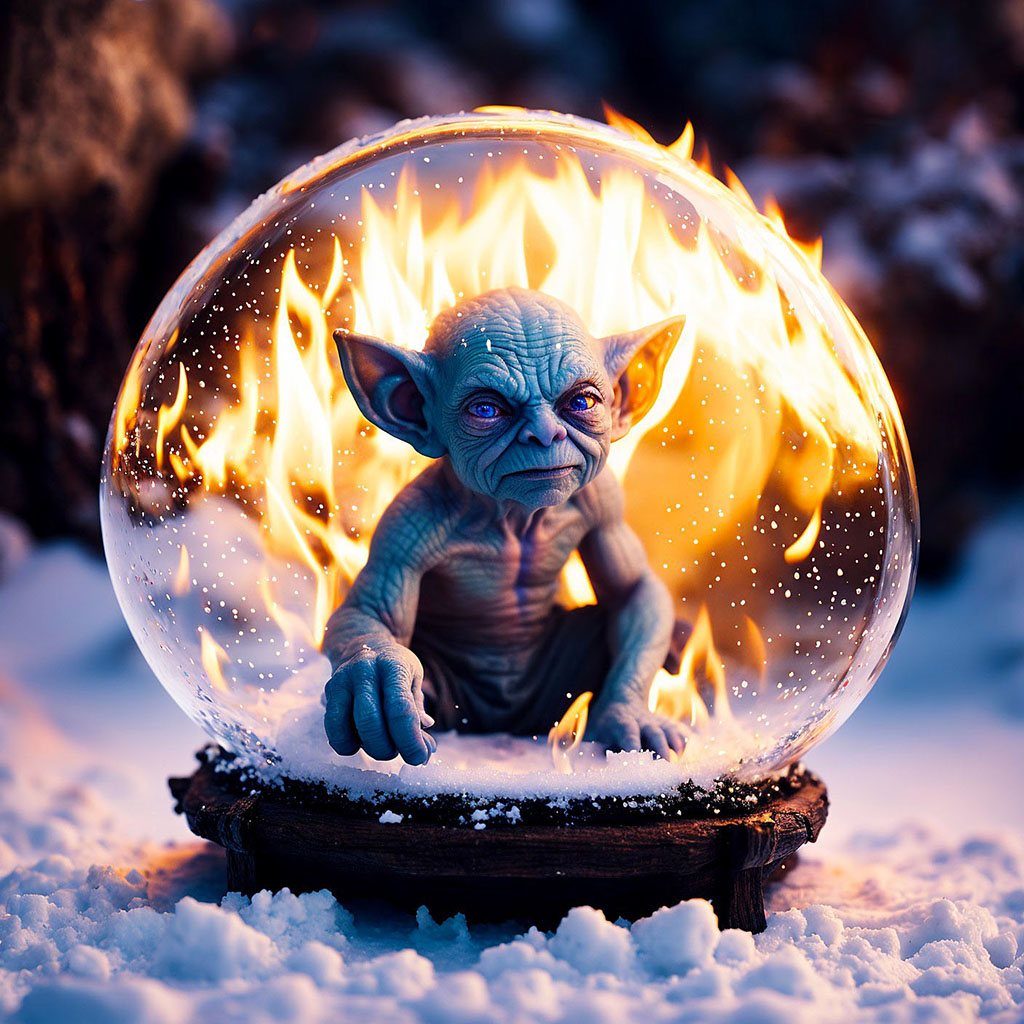
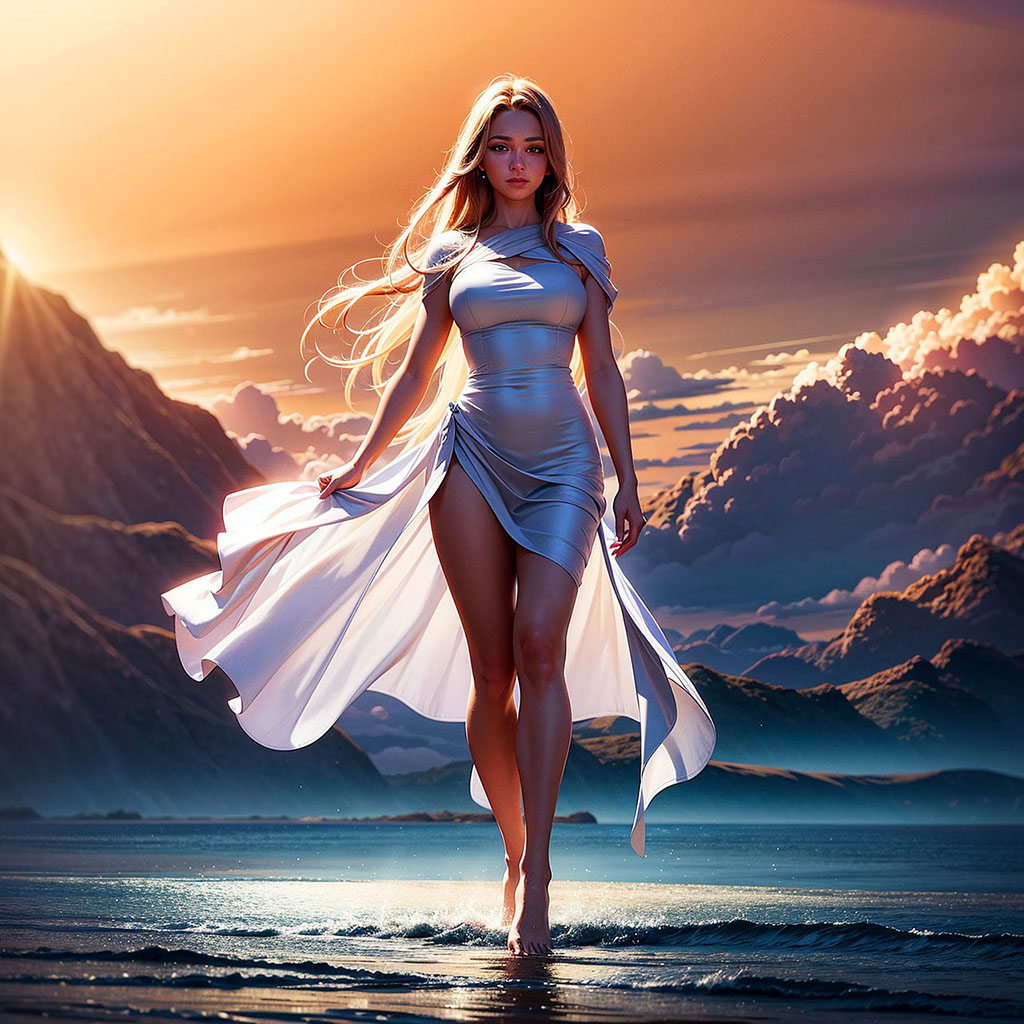
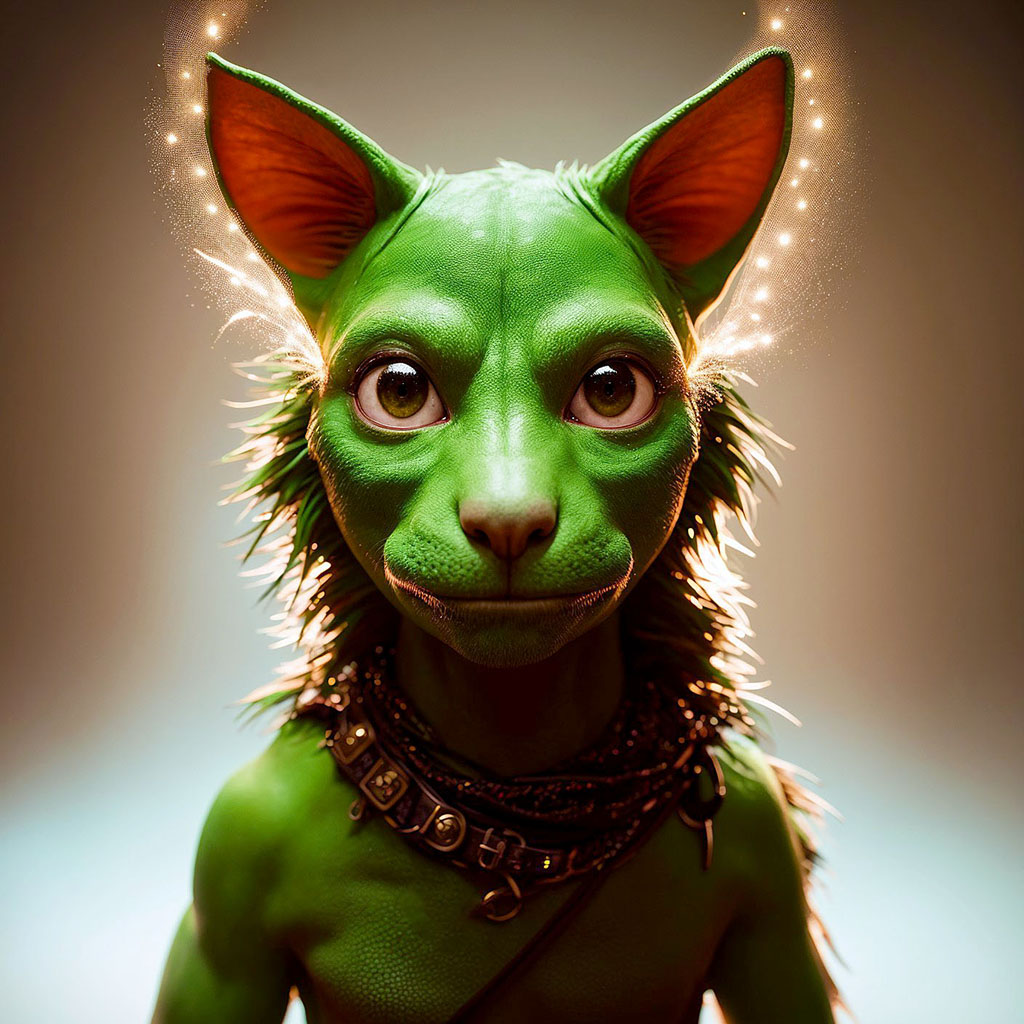
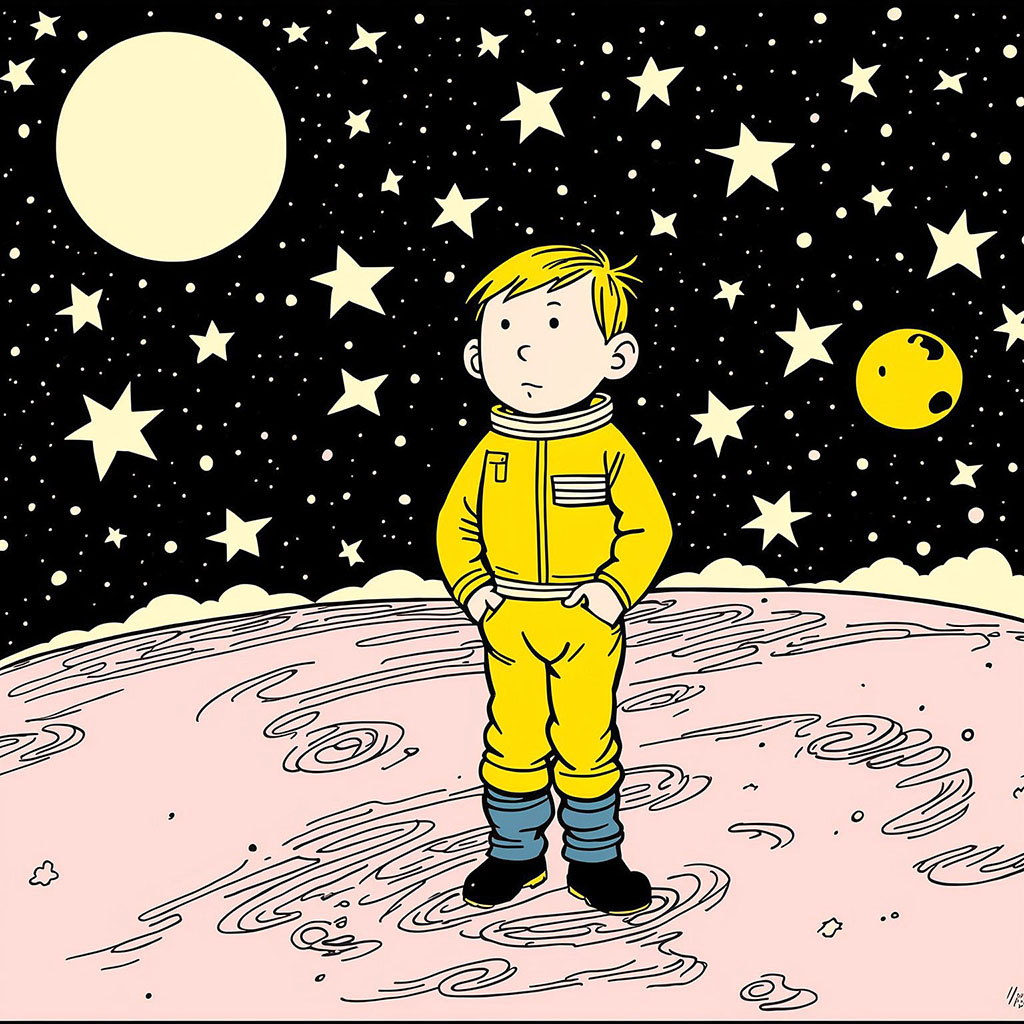
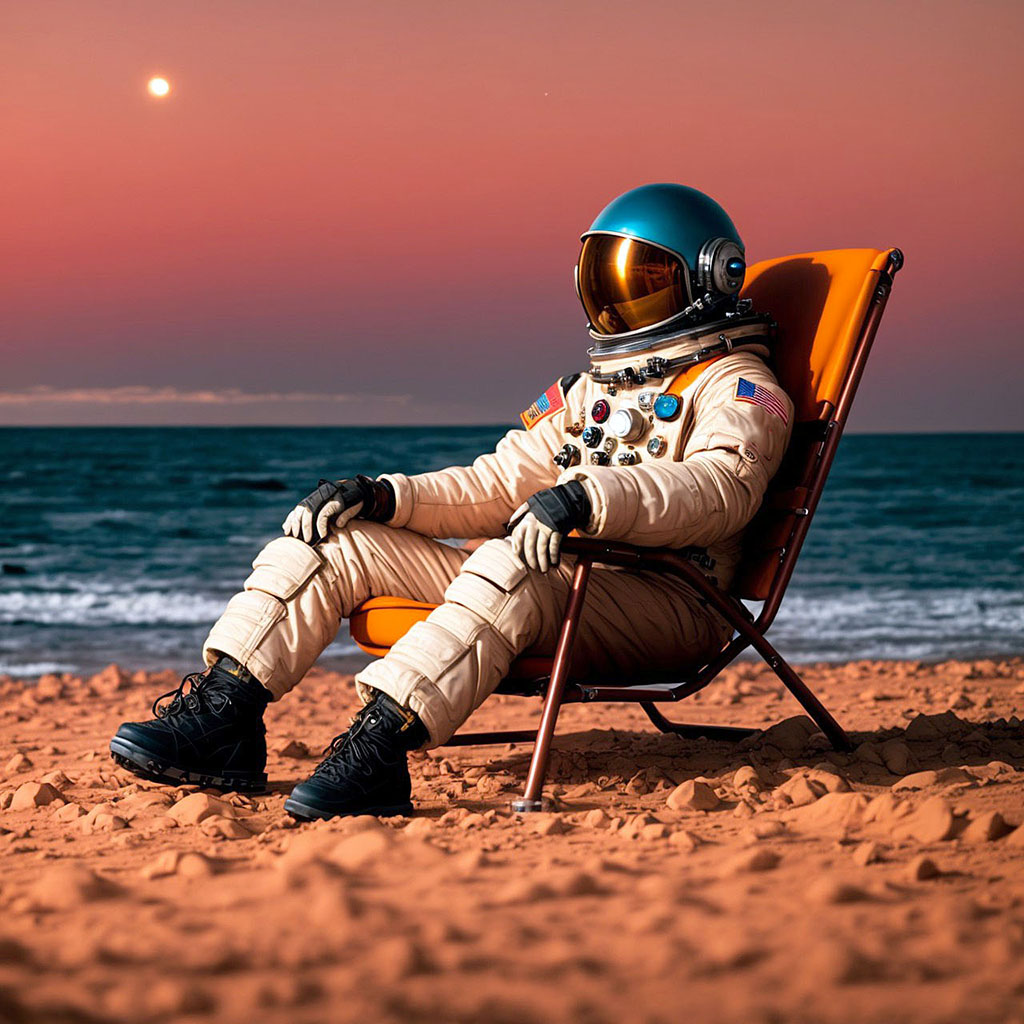
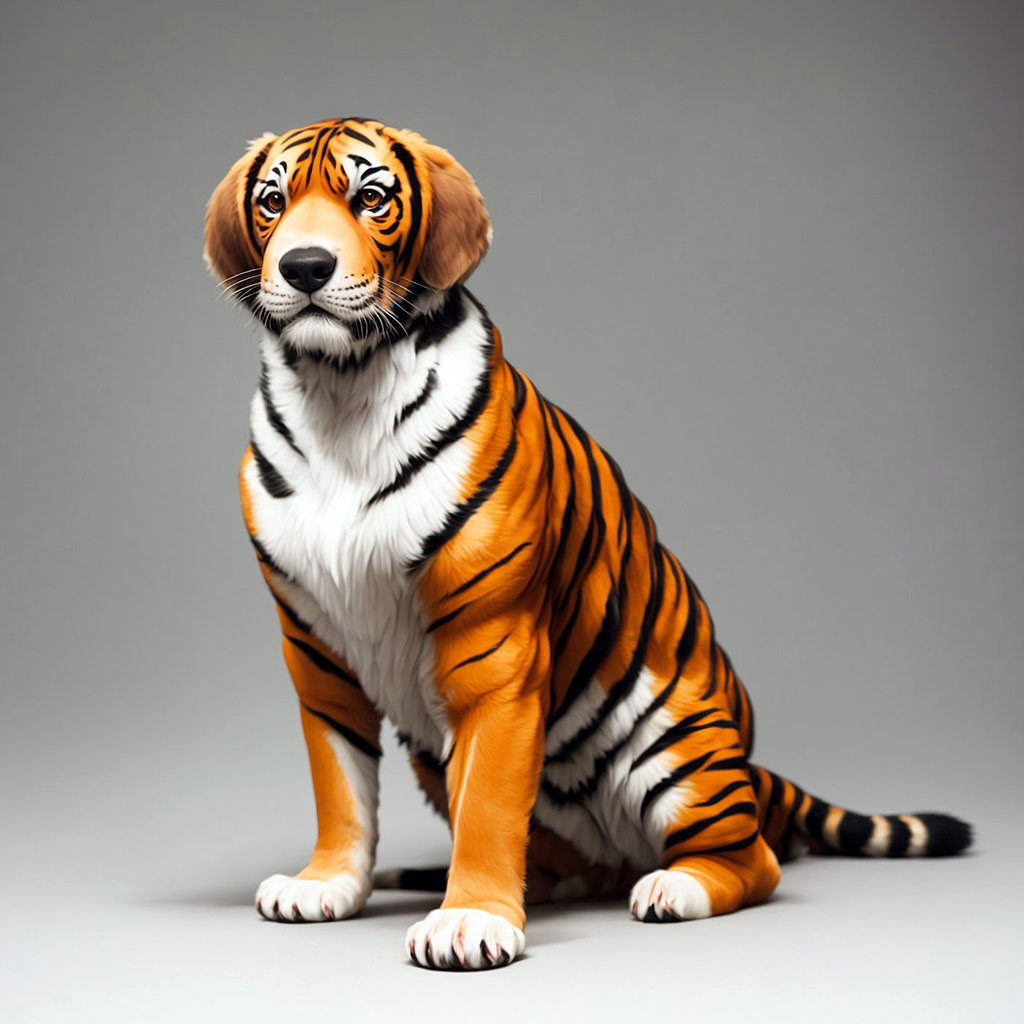
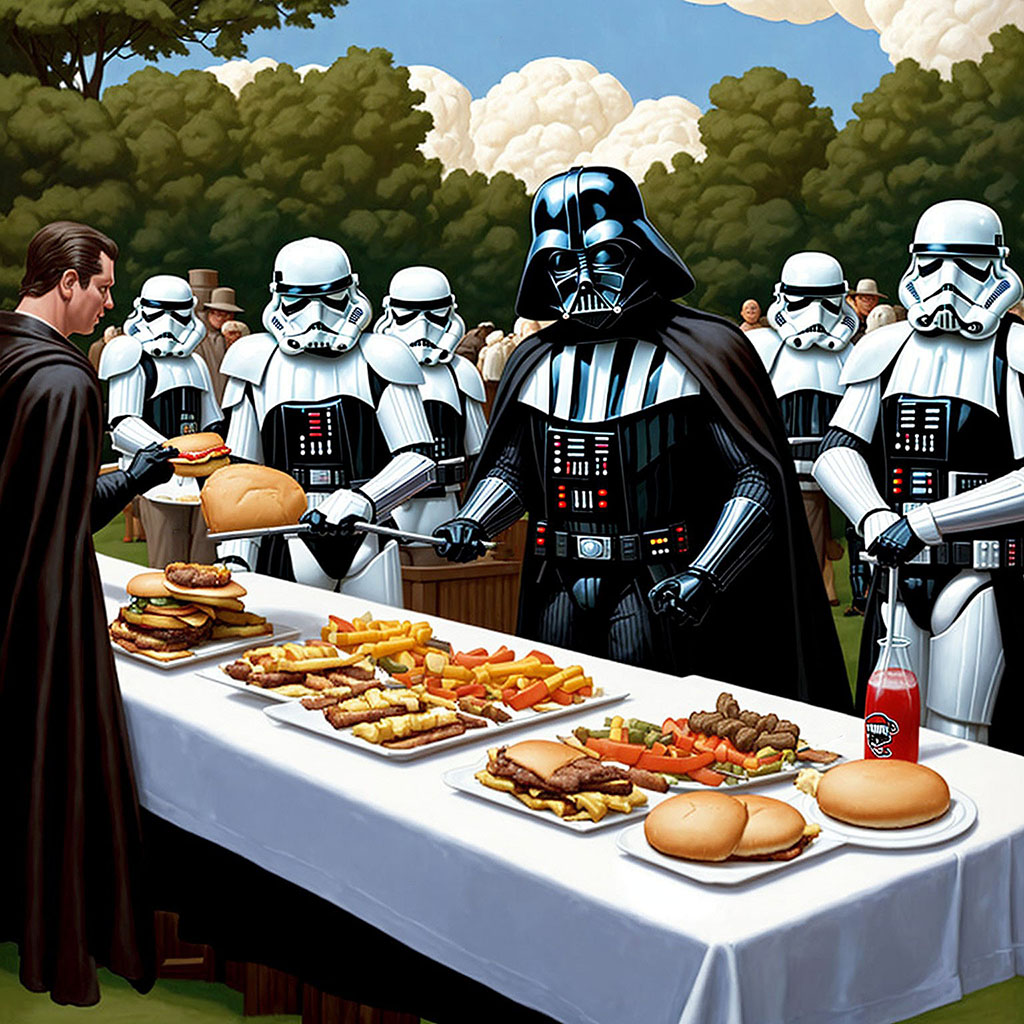
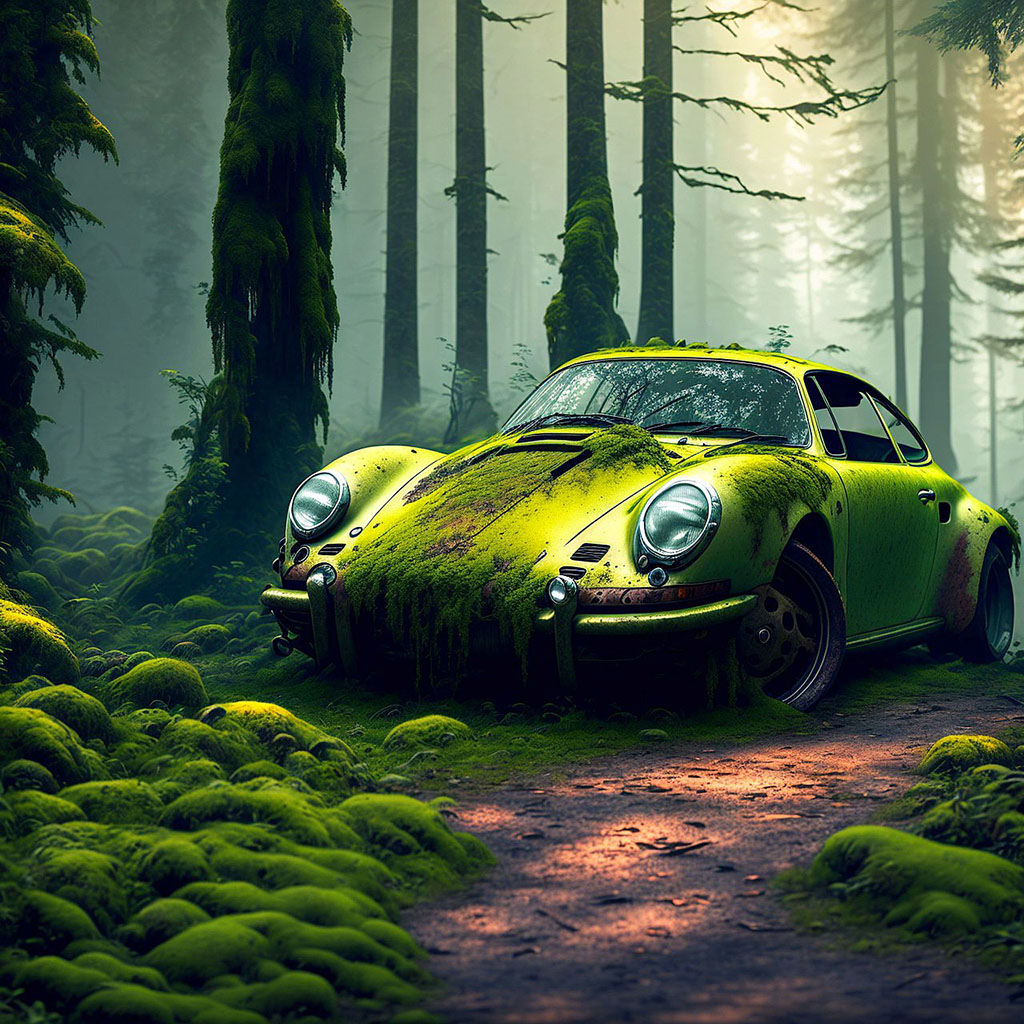
为了说明,几个月来,我几乎24/7跑了三个GPU跑步工厂,他们每天都在搅动成千上万张图像!我可以通过Dream Factory Web UI远程检查图像,并对我的跑步作业进行修改。一些样本(除了将分辨率减少到1024x1024以外,所有样本都直接出现在梦境工厂中):
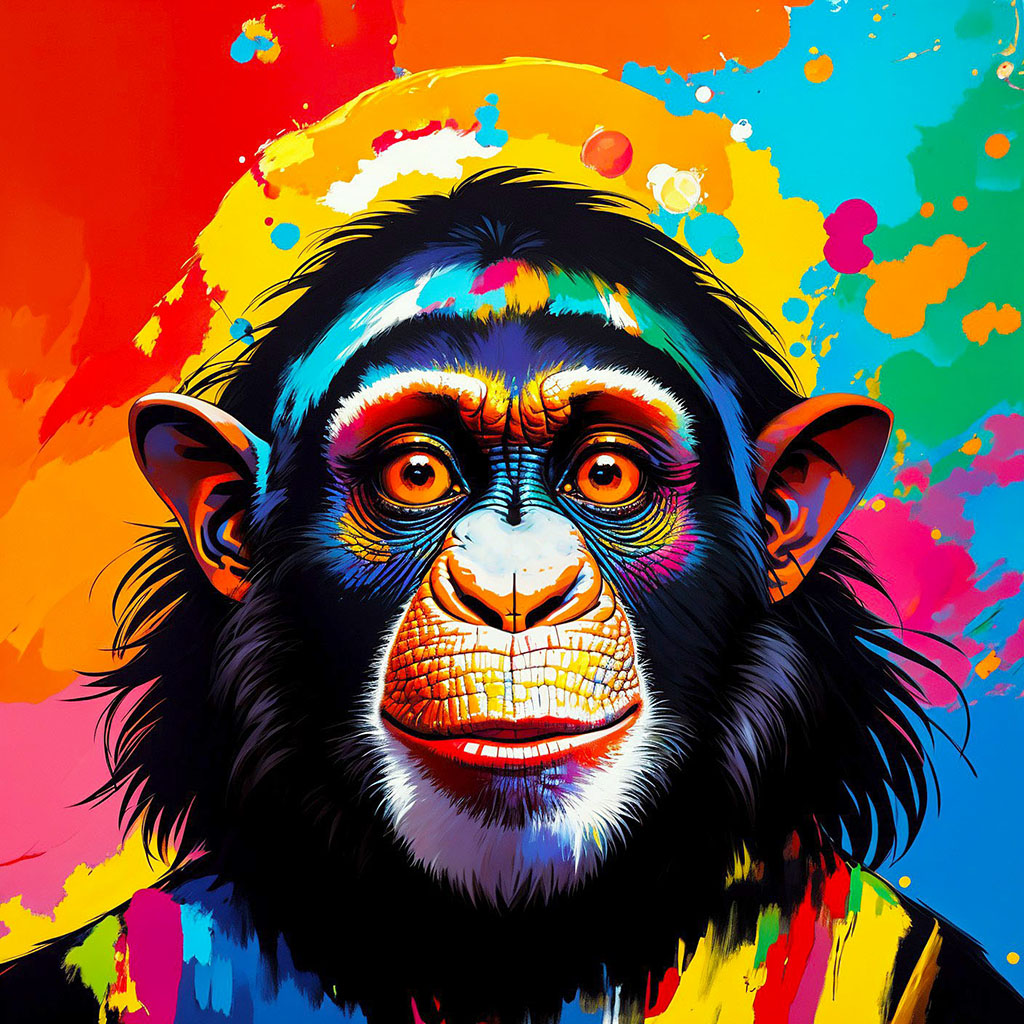 | 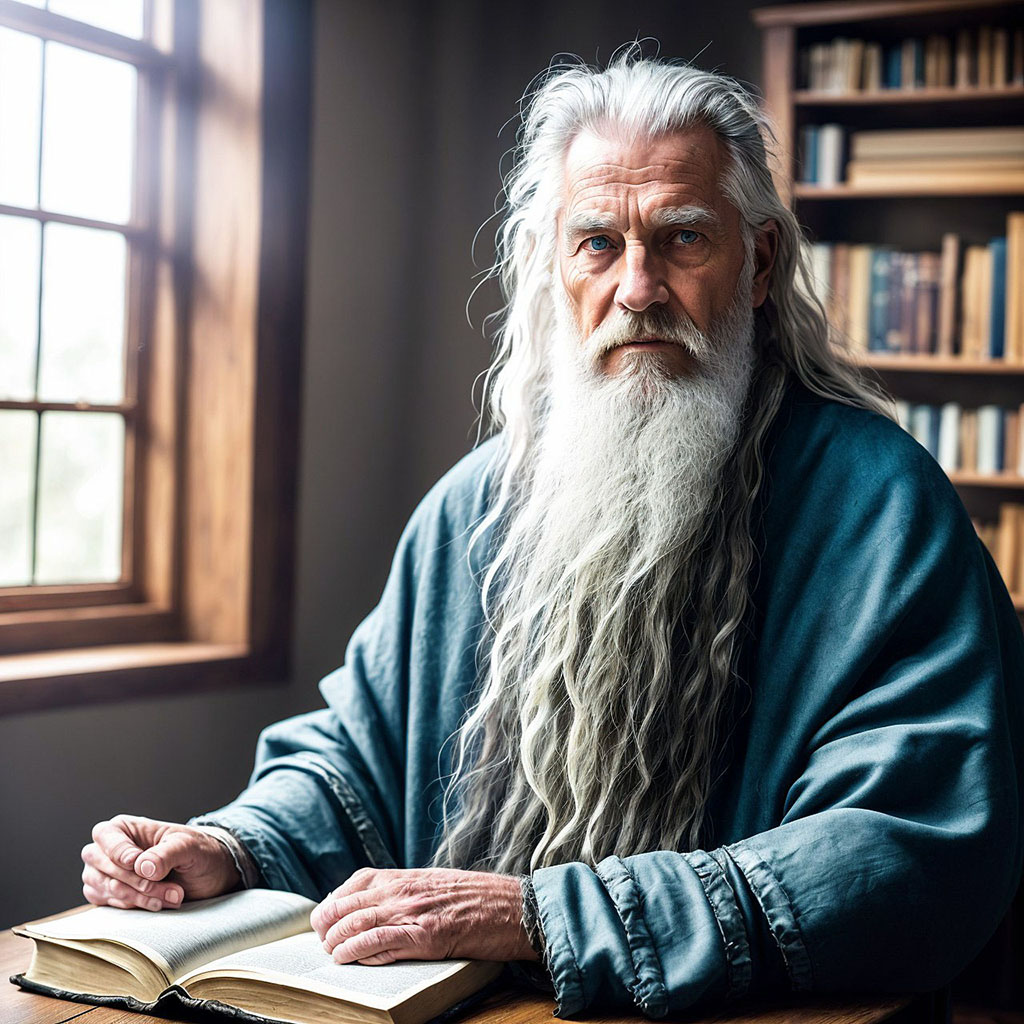 | 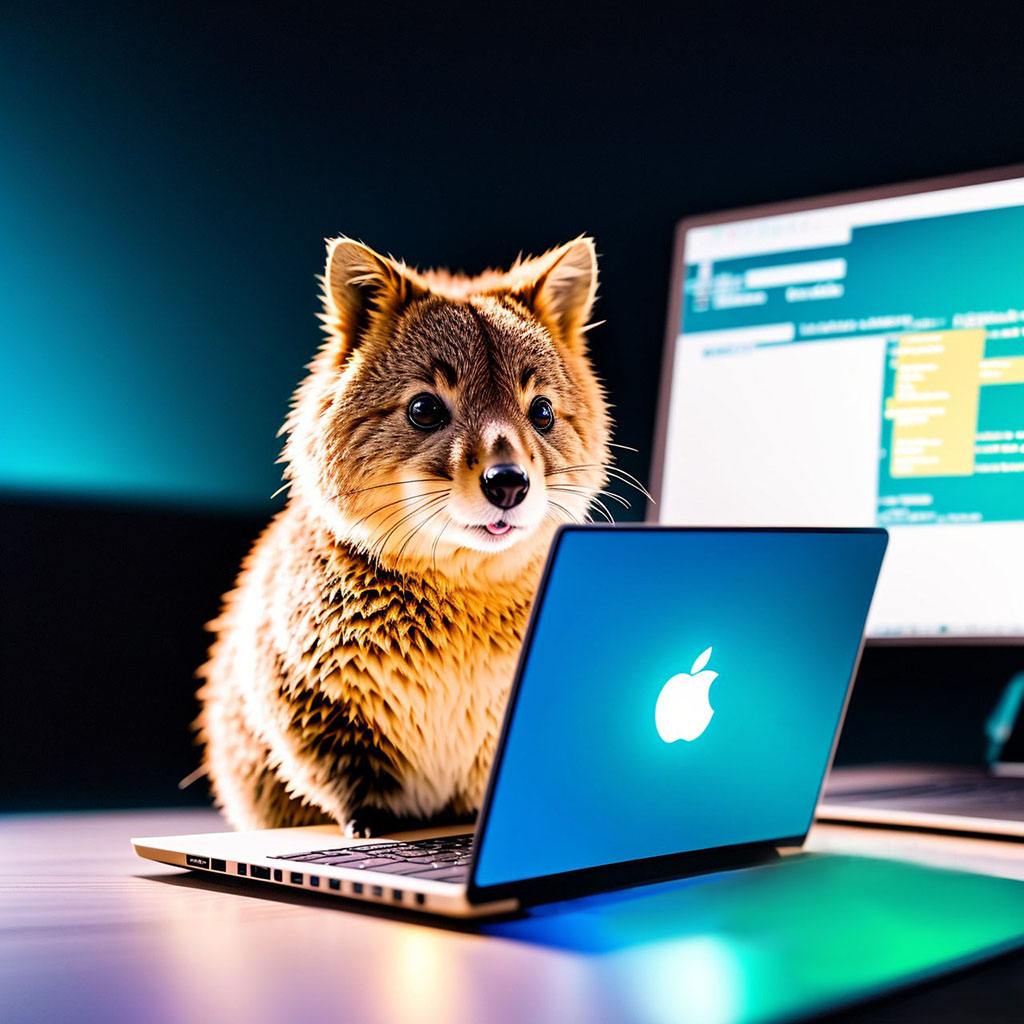 | 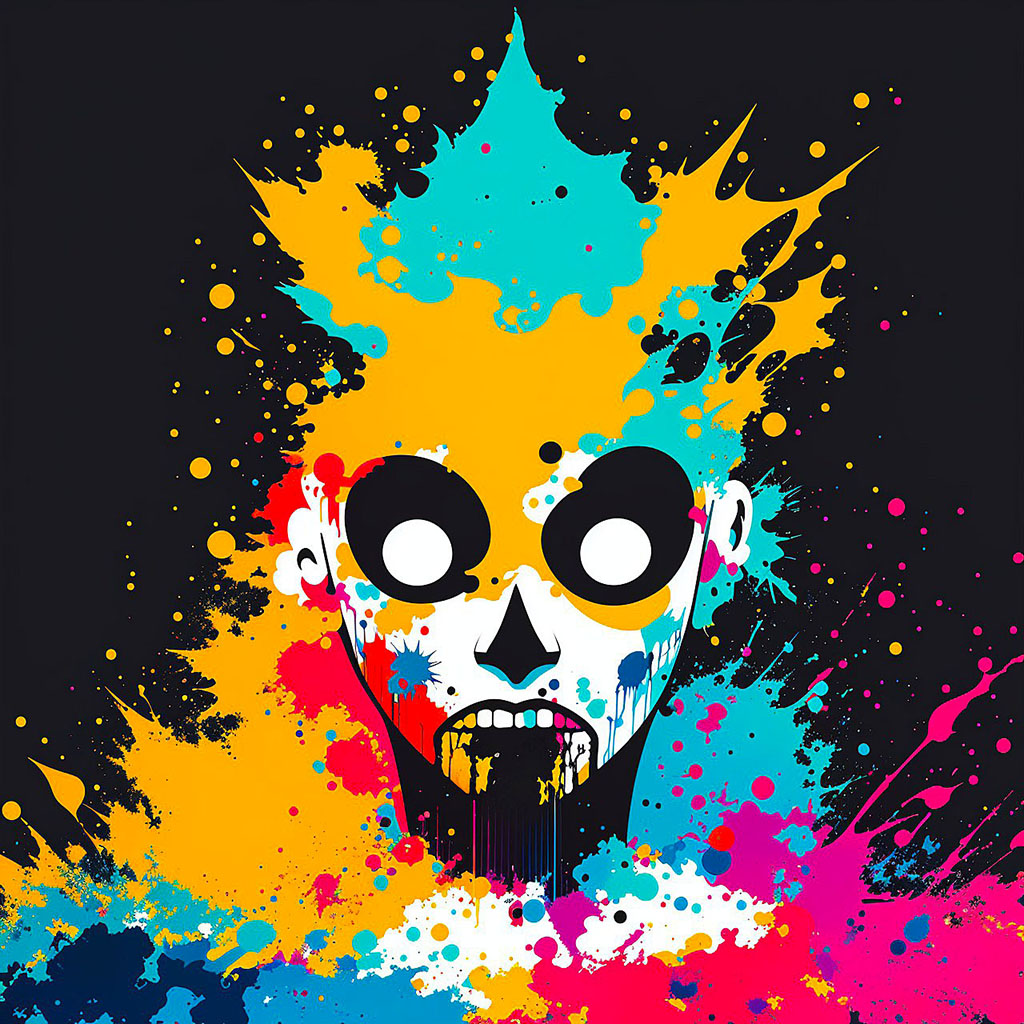 |
 |  |  |  |
 |  |  |  |
一些UI屏幕截图:
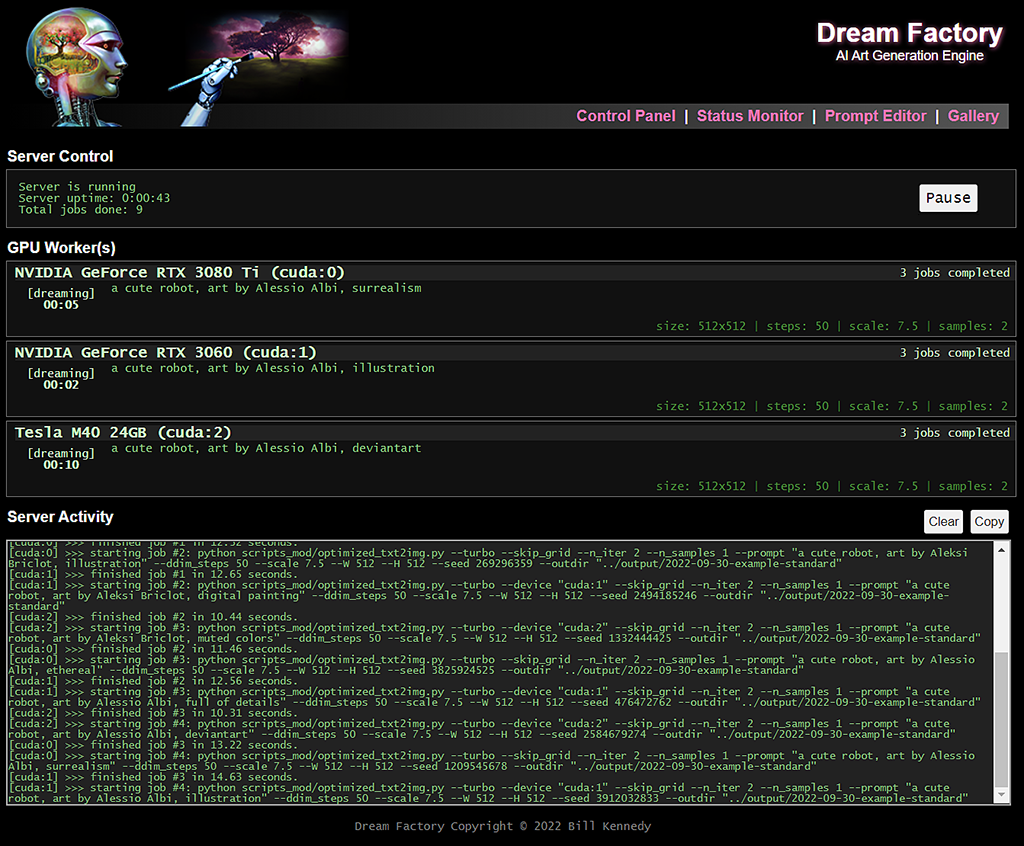 | 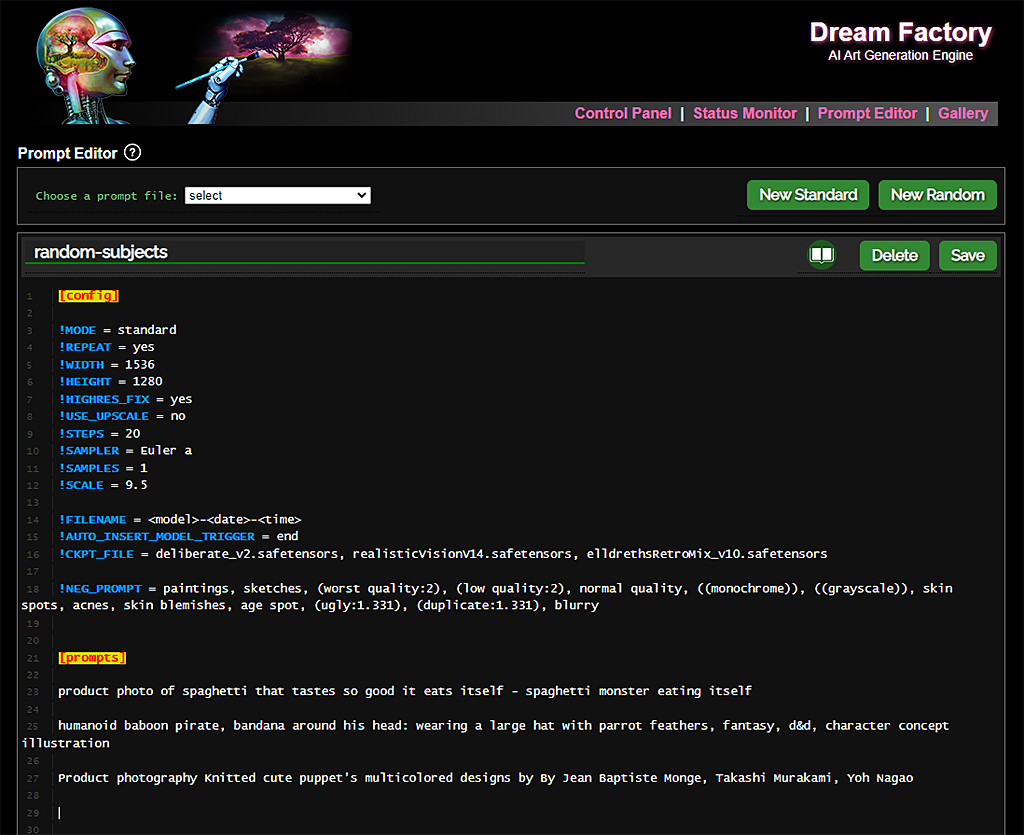 | 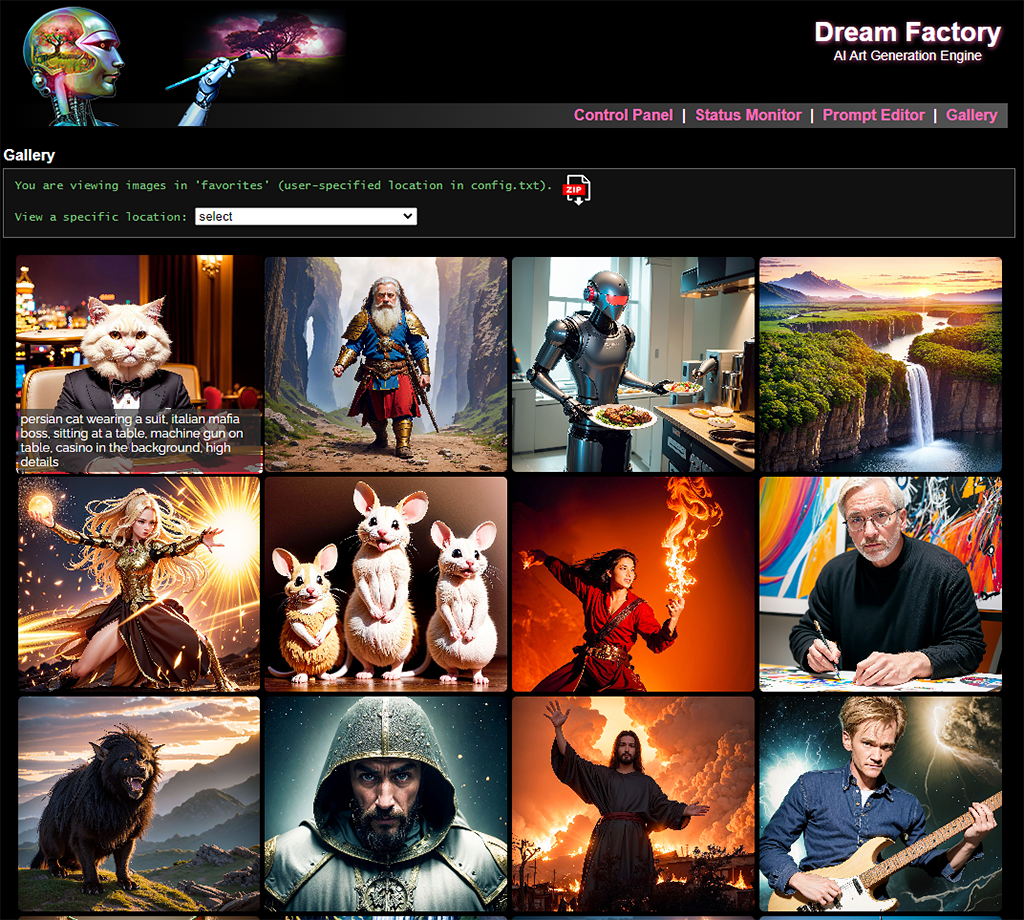 | 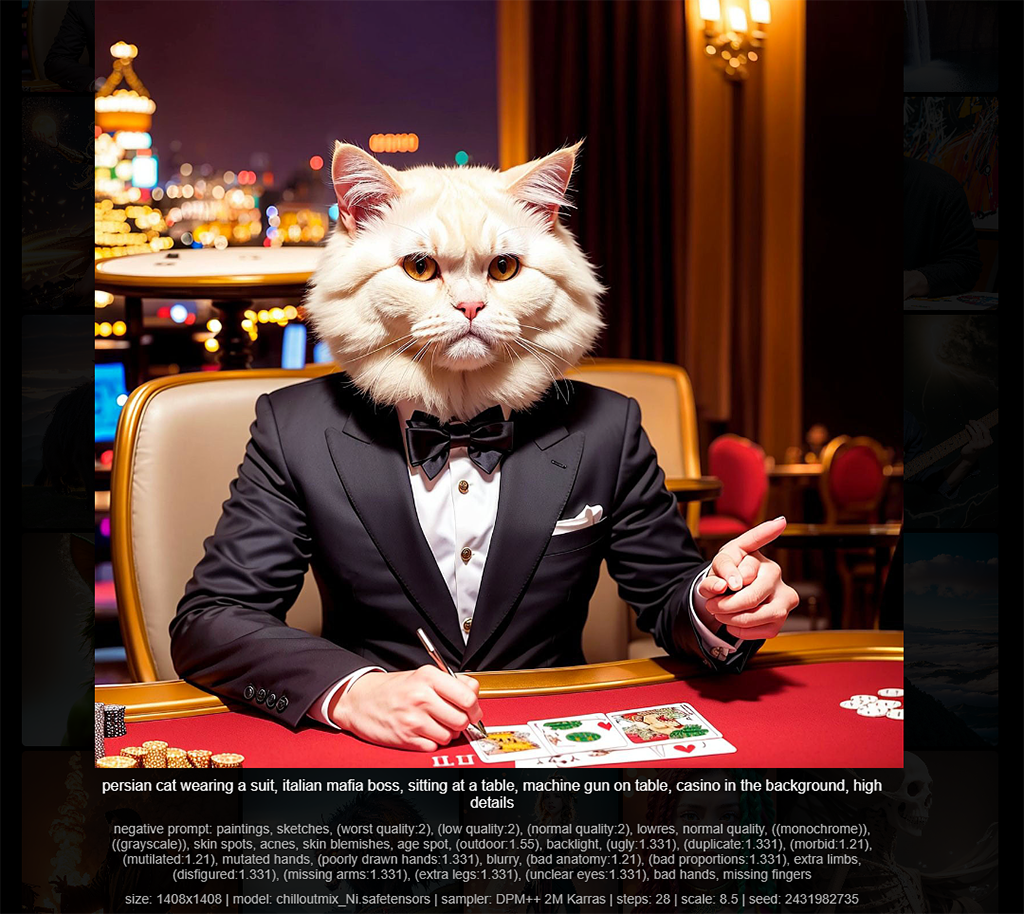 |
您将至少需要一个Nvidia GPU,最好使用相当数量的VRAM。 3GB的VRAM应该足以产生512x512图像,但是更多的GPU内存将使您可以创建较大的图像(和/或更快地创建它们)。
您还需要一个工作的自动1111稳定的扩散WebUI。
这些说明在几个Windows 10台式机上进行了测试,其中包括8-12GB VRAM的各种现代NVIDIA GPU,以及带有旧NVIDIA TESLA M40 GPU(24GB VRAM)的Ubuntu Server 20.04.3系统。
[1]安装anaconda,打开根终端并创建一个新的环境(并激活它):
 conda create --name dream-factory python=3.10
conda activate dream-factory
[2]安装一对所需的Python软件包:
conda install -c anaconda git urllib3
[3]克隆此存储库,然后切换到其目录:
 git clone https://github.com/rbbrdckybk/dream-factory
cd dream-factory
[4]运行随附的设置脚本以自动完成安装的其余部分:
python setup.py
[5]编辑您的config.txt文件,以指定自动1111 SD安装的完整路径:
你完成了!在尝试测试Dream Factory之前,请确保您的自动1111安装正常工作。此外,请确保将Auto1111的“设置”选项卡中的所有内容配置为您的喜好,因为Dream Factory将自动继承您在此处设置的任何选项。
一旦您验证了可以使用Auto1111安装生成单个图像,您就可以执行测试,以确保Dream Factory通过运行此操作(再次,从主要的Dream-Factory文件夹中)来工作:
python dream-factory.py --prompt_file prompts/example-standard.prompts
这应该使用一个简单的示例提示文件启动Web界面,并预先加载您的GPU应该开始自动处理。在第一次运行中,将自动下载几个大文件(总计约2GB),因此可能需要几分钟才能开始发生。
最终,您应该看到输出文件夹中出现的图像(或者可以单击Web UI中的“画廊”链接并在此处观看它们)。如果您获得图像,则所有内容都可以正常工作,您可以继续前往下一节。
如果您想创建一个简单的选择来启动Dream Factory,而不是每次打开Anaconda和/或打开命令行窗口,则可以按照以下步骤进行操作:
[1]打开Windows Explorer并浏览到此位置,其中[用户名]是您的Windows用户名:
C:Users[username]anaconda3Scripts
制作您在那里找到的activate.bat文件的副本,并将其命名为activate-dream-factory.bat 。
[2]编辑您刚创建的activate-dream-factory.bat文件,并将这些行添加到文件末尾:
 @CALL echo Starting Dream Factory...
@CALL conda.bat activate dream-factory
@CALL cd "[full path to your Dream Factory folder]"
@CALL python dream-factory.py
@CALL pause
用您在(例如:c: users [您的Windows用户名] dream-factory)安装的Dream Factory的路径中替换[通往梦想工厂文件夹的完整路径]。
保存文件并关闭。
[3]在桌面上(或任何地方)上将此文件的快捷方式放置在此文件上。单击它应该启动梦想工厂。
说明假定您已经完成了设置并验证了安装是否正常工作。
使用以下方式开始梦想工厂
python dream-factory.py
Web UI应自动打开,如果不访问http:// localhost:8080(假设您没有通过浏览器更改config.txt中的端口)。您的GPU(S)将自动开始初始化(每个GPU都需要在独立模式下启动Auto1111的时间)。
在顶部NAV中浏览“控制面板”,并通过下拉列表选择两个示例提示文件之一。您的GPU(S)应在完成初始化后立即开始处理任何一个。您可以浏览回到“状态监视器”,应该看到您的GPU正在从所选提示文件中分配工作。如果您浏览到顶级导航中的“画廊”,您会看到图像完成后出现。
提示文件是Dream Factory的核心,并定义了您希望GPU做的工作。它们可以像您想要的那样简单或复杂。
在创建新提示文件之前,让我们看看Dream Factory包含的两个示例提示文件。首先在顶部NAV中单击“提示编辑器”,然后在“选择提示文件:”下拉列表中选择“示例标准”。
您应该将提示文件加载到编辑器中。提示文件在顶部具有可选的[config]部分,并带有定义稳定扩散设置的指令,至少一个[提示]部分包含提示(或将提示与其他[提示]部分组合的提示部分)。
示例文件包含的注释应该使每个[Config]指令的作用以及[提示]部分将如何结合起来。有关任何不清楚的指令的帮助,请参见下面的命令参考。
您可以使用集成的编辑器(在顶部NAV中单击“提示编辑器”,然后单击“新标准”或“新随机”以启动新文件)。提示文件将使用包含通用指令的骨架自动创建,以及您的config.txt中包含的默认设置。
创建后,可以通过单击编辑器顶部的名称,输入新名称,然后单击“重命名”来重命名提示文件。
如果您愿意,还可以使用您选择的文本编辑器在外部创建提示文件(使用.Prompt Extension命名并将其放在提示文件夹中)。如果您碰巧使用Notepad ++,则Dream-Factory/Primate/Notepad_plugin文件夹中有一个插件,它将为.prompt文件添加上下文敏感的突出显示。
这些指令仅在标准和随机提示文件的[配置]部分中有效:
这些指令在标准提示文件和随机提示文件的[配置]部分以及标准提示文件的任何[提示]部分(!mode =标准)中均有效:
这些指令仅在标准提示文件的[config]部分(!mode =标准)中有效:
这些指令仅在随机提示文件的[config]部分中有效(!mode =随机):
最后,这些特殊指令仅在过程提示文件中有效(!mode = Process):
命令帮助和用法示例:
将提示文件模式设置为标准(默认)或随机。标准提示文件通过遍历所有可能的[提示]部分组合来工作,随机提示文件只需从[提示]部分随机选择提示。请参阅提示/示例-Standard.prompts和Primpts/example-random.prompts,以详细了解每个模式的工作方式。
!MODE = standard
请注意,存在!模式的第三个选项( !mode = process ),该选项使高级用户可以使用Dream Factory在现有图像上设置批处理处理任务(例如:批量上尺度上尺度,元数据标记,重命名等)。您可以在此处查看一个示例过程.prompts文件。
设置连接[提示]部分时将使用的定界符(默认是一个空间)。例如,如果您有两个[提示]部分,并且第一个部分的最高条目是“肖像”,第二部分是“猫”,那么当两个部分组合在一起时,您将结束使用“猫的肖像”如果!
!DELIM = " "
将输出图像宽度设置为像素(默认为512)。请注意,这必须是64的倍数!
!WIDTH = 512
设置以像素为单位的输出图像高度(默认为512)。请注意,这必须是64的倍数!
!HEIGHT = 512
启用或禁用Auto1111 HighRes修复程序。有效的选项是是或否(默认值)。当在分辨率上生成图像高于512x512时,应启用这一点。
!HIGHRES_FIX = no
截至2023-09-22,您的Dream Factory Config.txt文件中有一个HIRES_FIX_MODE选项,可让您指定简单(默认)或高级。如果设置HIRES_FIX_MODE = advanced ,则可以启用指定初始图像生成大小的功能,以及确定最终大小的缩放系数(请参阅下面的!HighRes_scale_factor )。
在默认的简单模式下,您只需设置!宽度和!高度。将文件置于所需的最终输出图像大小和中间步骤,并自动处理中间步骤。
DeNoising步骤的数量(默认值= 20)。更多步骤通常会以处理时间为代价将图像质量提高到一个点。
!STEPS = 20
您还可以指定一个范围(例如步骤= 30-55),并且在执行提示时将选择范围内的随机值。
要使用的采样器(默认为DPM ++ 2M)。这必须匹配您的自动1111 SD WebUI中的可用选项。您可以按CTRL+H或单击编辑器右上角的帮助图标以查看可用采样器的参考列表(单击采样器将其复制到剪贴板上,以便您可以轻松地将其粘贴到编辑器中)。
!SAMPLER = DPM++ 2M
使用的调度程序(默认为自动)。这必须与自动1111 WebUI(统一,Karras,指数,多指数,SGM统一)的值匹配。
!SCHEDULER = Karras
设置为一无所有或自动返回默认值。
指导量表,或您希望稳定的扩散遵循文本提示。默认值为7.5,总体而言,有用的值在5-30之间。
!SCALE = 7.5
您还可以指定一个范围(例如!比例= 5.5-9),并且在执行提示时将选择范围内的随机值。
在转到下一个提示之前,要制作多少个提示的图像(默认值= 1)。与以下batch_size选项不同,在增加此时,GPU内存没有额外的成本。增加此过程时的处理时间会增加衬里(例如:!样品= 10的时间为!样品= 1的长度)。
!SAMPLES = 1
您希望每个GPU并行生成多少图像(默认值= 1)。 Batch_size的每次增加都需要更多的GPU VRAM,并且设置此值太高将导致GPU无法记忆和崩溃。但是,只要您知道自己有足够的VRAM,就可以通过将其增加到1来实现中等速度的收益。这是一个高级设置,不包含在新的提示文件模板中,但是您可以手动将其添加到提示文件中。
!BATCH_SIZE = 1
将图像设置为用于剥落过程的起点,而不是默认随机噪声。这可以是相对的(对于梦境工厂基本目录)或绝对路径,并且将其设置为一无所有,将清除任何以前设置的输入图像。
 !INPUT_IMAGE = C:imagesdog.png                         # specifies the full path to an input image
!INPUT_IMAGE = cat.jpg                                   # specifies an input image 'cat.jpg' in the DF home directory
!INPUT_IMAGE =                                           # specifies no input image should be used
请注意,您也可以将图像目录传递给此指令:
!INPUT_IMAGE = C:images
如果传递了目录,则文件夹中的每个图像都将应用于以下提示。
设置输入图像影响的强度。有效值为0-1(默认值= 0.75)。接近0的值将导致输出图像与输入图像非常相似,并且接近1的值将导致相似之处较小的图像。通常,0.2-0.8之间的值是最有用的。请注意,当!HighRes_fix =是的,以指示最终图像应如何映射低分辨率初始化图像。
!STRENGTH = 0.75
您还可以指定一个范围(例如强度= 0.55-0.75),并且在执行提示时将选择范围内的随机值。
设置要使用的模型。任何自定义型号都应安装到Auto1111安装的适当型号目录中。您可以按CTRL+H或单击编辑器右上角的帮助图标以查看可用型号的参考列表(单击模型以将其复制到剪贴板上,以便您可以轻松地将其粘贴到编辑器中)。将其设置为一无所有,将默认回到您在config.txt文件中设置的任何模型(如果您尚未设置默认值,将其设置为“无能为力”!)。
您还在此处设置了逗号分隔模型的列表。在标准模式下,Dream Factory将使用第一个模型,然后是第二个提示,依此类推。在随机模式下,Dream Factory将每50个提示切换一次模型(可以在您的config.txt文件中更改此间隔)。
您也可以在此处使用保留的单词“全部”,而Dream Factory将自动旋转所有可用的模型。
请注意,您只能在[config]部分中指定多个模型;其他任何地方都不支持模型旋转!
 !CKPT_FILE = analog-style.ckpt                           # sets a new model to use
!CKPT_FILE = sd-v1-5-vae.ckpt, analog-style.ckpt         # sets 2 models to rotate between
!CKPT_FILE = all                                         # will rotate between all of your models
!CKPT_FILE =                                             # sets the default model specified in your config.txt
注意:这使用通过集成引用可用的有效服务器值上的子字符串匹配,例如,如果'sd_1.5 dreamshaper_4bakedvae.safetensors [7f16bbbcd80]'是参考报告,那么设置!它。
设置VAE使用。将其设置为无需将其恢复为自动VAE使用情况(或您的自动1111配置设置指定的任何内容)。
 !VAE = vae-ft-mse-840000-ema-pruned.ckpt
!VAE =
注意:在此处,子字符串匹配是有效的。设置!
指定一个负面提示,用于随后的所有提示(请记住,您可以将大多数指令直接放入标准提示文件的[提示]部分中!)。如果您有倾向于使用的“ catch all”负提示,则可以在config.txt文件中指定它,并将其填充为您创建的新提示文件上的默认值。将其设置为一无所知,将清除负面提示。
!NEG_PROMPT = watermark, blurry, out of focus
与自定义模型一起使用,该模型需要在模型triggers.txt文件中设置的“触发单词”(请参见下面的自定义模型)。这使您可以控制自动插入的触发词的位置。有效的选项是启动(默认), end , first_comma ,关键字:[替换的关键字]和off :'start'将把触发词放在提示的前面,'end'将将其放在末尾,'first_comma'将其放置在第一个逗号之后(如果提示符中没有逗号,则在结尾处),'关键字:'将用模型触发单词替换提示中指定的关键字/短语,并且“ OFF”将完全禁用自动插入。
!AUTO_INSERT_MODEL_TRIGGER = start
请注意,这还将控制自动触发器的行为,假设已经设置了有效的HighRes_ckpt_file,则使用关联的触发单词设置了有效的HighRes_ckpt_file。
指定要在图像创建中使用的种子价值。该值通常是随机选择的 - 使用具有相同种子值的相同设置应产生完全相同的输出图像。将其设置为一无所有,将表明应使用随机种子值(默认值)。这是一个高级设置,不包含在新提示文件模板中,但是您可以手动将其添加到提示文件中。
!SEED = 42
每个输出图像是否应自动升级。升级可能需要大量时间,因此通常您只想在选定的图像子集上进行此操作。有效的选项是是或否(默认值)。
!USE_UPSCALE = no
设置要使用的升级模型。
!UPSCALE_MODEL = esrgan
请注意,这将对使用Auto1111安装的任何高档器进行串联匹配。在这种情况下,应选择ESRGAN_4X *(也是默认值)。
在!mode = process .prompts文件,您可以另外指定!upscale_model = sd or !
SD是一种特殊的选择,它使用稳定扩散的IMG2IMG引擎来高档图像。这将比其他方法需要更长的时间,并且需要大量的GPU VRAM才能达到较大的图像大小(以输出2048x2048图像需要〜12GB的VRAM),但可能会产生更高质量的结果,并具有添加细节的能力。使用!upscale_sd_strength = xxx(默认为0.3),用!upscale_model = sd来控制deno的强度。
此选项的工作原理与Auto1111中的HighRes修复程序的工作非常相似。它使您可以拍摄图像并使用稳定的扩散来创建较大的版本,从而根据所使用的降解强度稍微更改图像(在大多数情况下,0.3默认值应保持非常接近原始的值)。
 !UPSCALE_MODEL = sd
!UPSCALE_SD_STRENGTH = 0.3
要使用!
Ultimate是一个特殊的选择,需要在自动1111安装中添加最终的SD高档扩展名。
安装后,您可以使用以下指令控制扩展名的设置(在下面的示例中,我们将其将强度设置为0.28,使用Esrgan_4x用作我们的上放大器,并以2.5倍的倍数将原始图像更高。
 !UPSCALE_MODEL = ultimate
!UPSCALE_SD_STRENGTH = 0.28
!UPSCALE_ULT_MODEL = esrgan
!UPSCALE_AMOUNT = 2.5
有关更多信息,请参见“梦想出厂 /提示目录”中的示例process.prompts文件的底部。
要使用!upscale_model = ultimate,您必须首先将最终的SD高档扩展安装到auto1111。
高档的因素。设置!upscale_amount = 2将是图像的宽度和高度(导致分辨率四倍)。除非use_upscale = yes,否则没有效果。
!UPSCALE_AMOUNT = 2
代码形式的可见性在输出映像上脸部增强。有效值在0-1之间。将其设置为0完全禁用CodeFormer增强功能。除非use_upscale = yes,否则没有效果。
!UPSCALE_CODEFORMER_AMOUNT = 0.50
GFPGAN在输出图像上的可见性。有效值在0-1之间。将其设置为0完全禁用GFPGAN增强功能。除非use_upscale = yes,否则没有效果。
!UPSCALE_GFPGAN_AMOUNT = 0.50
提高尺寸时,还要保留原始(非上限)图像?有效选项是是或否(默认值)。如果设置为“是”,则将原件存储在主输出文件夹中的An /Originals子目录中。除非use_upscale = yes,否则没有效果。
!UPSCALE_KEEP_ORG = no
允许您指定自定义输出文件名。您可以使用以下变量;创建图像时,它们将被填写:
<ad-model><ad-strength><cn-img><cn-model><date><date-year><date-month><date-day><height><hr-model><input-img><lora><model><neg-prompt><prompt><sampler><scheduler><scale><seed><steps><strength><styles><time><width>在过程模式文件中,可用以下内容:
<upscale-model><upscale-sd-strength>文件扩展名(.jpg)将自动添加。
!FILENAME = <date-year><date-month><date-day>-<model>-<width>x<height>-<prompt>
上面的示例可能会产生20230209-DELIBERATE_V11-768X1280-A-PHOTO-A-CUTE-CATE.JPG的输出文件名。
请注意, <input-img>和<cn-img> (ControlNet输入映像)将仅是基本文件名(无子目录或文件扩展名)。
自定义文件名将以200个字符的形式截断(不包括文件扩展名和任何必要的数字填充,以使文件唯一)。
设置剪辑跳过值。默认值为1,大多数模型都可以在此设置的设置最佳。但是,有些模型可能会给其他值提供最佳结果。
!CLIP_SKIP = 2
您可以将其设置为一无所有(!clip_skip =)清除它。
启用或禁用无缝瓷砖模式。启用后,输出图像将适用于无见接缝/边缘的平铺。
!SEAMLESS_TILING = on
设置为禁用(默认值)。
设置一个输入映像,以与ControlNet一起使用。
!CONTROLNET_INPUT_IMAGE = posesexamplesopenpose-standing_arms_in_front.png
上面的示例将使用openpose-steration_arms_in_front.png作为ControlNET输入图像。请注意,如果您没有安装ControlNet扩展名,并且/或您也没有通过!ControlNet_model指令指定ControlNet模型,则不会产生效果。
您可以通过发出另一项指令将其设置为“一无所有”(!controlNet_input_image =)来清除以前设置的输入图像。
请注意,您也可以将图像目录传递给此指令:
!CONTROLNET_INPUT_IMAGE = posesexamples
如果传递了目录,则文件夹中的每个图像都将应用于以下提示。
设置用于使用的控制网络模型。
!CONTROLNET_MODEL = openpose
您可以在集成编辑器中按Control-H(或按适当的按钮)打开显示可用控制网络模型的参考。请注意,如果您没有安装ControlNet扩展名,则设置ControlNet模型将无效,并且/或也未通过!CONTROLNET_INPUT_IMAGE DICERISIVE指定ControlNet输入图像。
请注意,如果您希望Dream Factory从您的!controlNET_INPUT_IMAGE FILENAME(S)中提取模型,则可以选择为!controlNet_model(或自动,[默认] )指定自动。您必须以以下格式命名您的图像才能起作用: [ControlNet model to use]-[rest of filename].ext 。例如,一个名为openpose-stance_arms_in_front.png的映像将指示当!controlNet_model = auto时,应使用openpose模型。
!CONTROLNET_MODEL = auto, depth
在此示例指令中,Dream Factory将尝试提取从文件名中使用的模型,如果您的文件名不包含有效的模型,则将后备为“深度”作为默认模型。指定默认值是可选的,但是如果无法从文件名中识别模型并且不存在默认值,则将禁用ControlNet。
注意:这使用通过集成引用可用的有效服务器值上的子字符串匹配,例如,如果“ Control_Canne-Fp16”是参考报告的内容,则设置!controlnet_model = Canny会找到它。
设置ControlNet预处理器要使用。这用于从正常图像中“提取”构成信息,因此可以与相应的控制网模型一起使用。如果您使用的是预生成的姿势(例如“ Dream Factory Poses”文件夹中包含的示例),则不需要设置此设置(或者可以将其设置为“无”的默认值)。
!CONTROLNET_PRE = openpose
您可以在集成编辑器中按Control-H(或按下适当的按钮)打开显示您可用的控制网络预处理器的参考。请注意,如果您没有安装ControlNet扩展名,则设置ControlNet预处理器将无效,并且/或您也没有通过!controlNET_INPUT_IMAGE指令指定ControlNet输入图像。
在CN扩展v1.1.09 v1.1.09时,GuessMode不再支持替换!
使用ControlNET时,请使用此操作来启用(是)或禁用(否,默认)猜测模式(或“非损失模式”)。
!CONTROLNET_GUESSMODE = yes
您可以在此处阅读有关猜测模式的信息。
使用它来告诉ControlNet比ControlNet或反之亦然,或采用平衡的方法。选项是“平衡”(默认),“提示”(以更多提示)或“控制网”(更喜欢ControlNet)。
!CONTROLNET_CONTROLMODE = balanced
您可以在此处阅读有关控制模式的信息。
使用ControlNET时,请使用它启用(是)或禁用(否,默认)Pixel Perfect模式。启用此功能时,将使用您指定的图像高度和宽度(带有!宽度和!高度)来生成ControlNet的预处理图像。
!CONTROLNET_PIXELPERFECT = yes
使用ControlNET时,请使用此操作来启用(是)或禁用(否,默认的)低VRAM模式。
!CONTROLNET_LOWVRAM = yes
如果您拥有较少VRAM的GPU,这可能会有所帮助。
使用它来设置控制网的重量(默认值= 1.0;设置为0-2)。
!CONTROLNET_WEIGHT = 1.0
允许您让DREAM Factory自动根据输入图像或ControlNet输入图像的大小自动规模输出图像。有效选项为match_input_image_size , match_controlnet_image_size , match_input_image_aspect_ratio , match_controlnet_image_aspect_ratio , resize_longest_dimension:[size]或off (default)。
 # output image will be set to the same size as your input image, regardless of any !WIDTH & !HEIGHT directives
!AUTO_SIZE = match_input_image_size

# output image will use the larger of your !WIDTH & !HEIGHT directives as the longer output dimension
# the shorter output dimension will be calculated so that the output image has the same aspect ratio as the ControlNet input image
!AUTO_SIZE = match_controlnet_image_aspect_ratio

# the output image will be re-sized so that the longer of your !WIDTH/!HEIGHT settings becomes the size specified here
# the shorter dimension will be calculated to maintain the same aspect ratio as the original !WIDTH/!HEIGHT settings
# useful if you have an existing prompt file full of size directives and want to quickly change the size on all of them
!AUTO_SIZE = resize_longest_dimension: 1280
请注意,所有重新汇编都将导致图像尺寸被64分组(两个维度都将被四舍五入至最近的划分为64个数字)。
例如,使用!auto_size = match_controlnet_image_aspect_ratio ,如果将!宽度和!高度设置为1408,并传递1920x1080 ControlNet Input Imput Imput Image(16:9宽高比),则结果输出图像将为1408x768。较大的尺寸已设置为较大的宽度和!高度设置,并且已经计算出较小的尺寸,其尺寸尽可能接近16:9的纵横比,较小的尺寸均匀地划分为64。
在嵌入式IPTC元数据中设置图像的标题。通常,只有计划将图像导出到其他使用IPTC标准进行编目等的应用程序中,等等。
IPTC_TITLE = Super awesome AI kitten image!
像往常一样将其设置为一无所有。
在嵌入式IPTC元数据中设置图像的描述。通常,只有计划将图像导出到其他使用IPTC标准进行编目等的应用程序中,等等。
IPTC_DESCRIPTION = This is an excellent AI image of a cute kitten.
像往常一样将其设置为一无所有。
在嵌入的IPTC元数据中设置图像的关键字。通常,只有计划将图像导出到其他使用IPTC标准进行编目等其他应用程序中。关键字应该是逗号分隔的列表。
IPTC_KEYWORDS = ai, kitten, cute
像往常一样将其设置为一无所有。
在嵌入的IPTC元数据中设置图像的版权语句。通常,只有计划将图像导出到其他使用IPTC标准进行编目等的应用程序中,等等。
IPTC_COPYRIGHT = Copyright © 2023 Super Awesome Image Studio
像往常一样将其设置为一无所有。
告诉Dream Factory在及时文件中完成所有可能的组合后,是否继续制作图像。选项是是(默认)或否。如果设置为“否”,Dream Factory完成了所有提示后将闲置。
!REPEAT = yes
允许您在当前文件完成处理时指定另一个提示文件以加载。不包括路径; Dream Factory将在您的config.txt文件中指定的提示位置中自动查找提示文件。请注意,这将在随机提示文件或标准提示文件中没有效果!重复=是,因为这些文件将永远运行。
!NEXT_PROMPT_FILE = example-random
如果您省略,则将自动附加文件扩展名。
使用随机模式提示文件时,将设置最小!如果!min_scale和!max_scale设置为不同的值,则Dream Factory将在每个提示符之间选择它们之间的随机值。
!MIN_SCALE = 6.0
弃用 - 考虑使用!scale = xx -xx.x格式。
When using random mode prompt files, sets the maximum !SCALE value to use. If !MIN_SCALE and !MAX_SCALE are set to different values, Dream Factory will choose a random value between them for each prompt.
!MIN_SCALE = 18.5
Deprecated - consider using !SCALE = xx - xx.x format instead.
When using random mode prompt files, sets the minimum !STRENGTH value to use. If !MIN_STRENGTH and !MAX_STRENGTH are set to different values, Dream Factory will choose a random value between them for each prompt.
!MIN_STRENGTH = 0.45
Deprecated - consider using !STRENGTH = 0.xx - 0.xx format instead.
When using random mode prompt files, sets the maximum !STRENGTH value to use. If !MIN_STRENGTH and !MAX_STRENGTH are set to different values, Dream Factory will choose a random value between them for each prompt.
!MAX_STRENGTH = 0.80
Deprecated - consider using !STRENGTH = 0.xx - 0.xx format instead.
When using random mode prompt files, sets a directory that random input images should be pulled from. If this is set, Dream Factory will choose a random input image to use for each prompt.
 !RANDOM_INPUT_IMAGE_DIR = C:images                      # specifies the full path to a directory containing input images
!RANDOM_INPUT_IMAGE_DIR = images                         # specifies a relative path to a directory containing input images
!RANDOM_INPUT_IMAGE_DIR =                                # specifies no input images should be used
Special directive valid only in !MODE = process .prompts files, and only when used with !UPSCALE_MODEL = sd . This directive allows you to specify a different model to use (eg instead of the model used to create the original image) when performing an SD upscale.
!OVERRIDE_CKPT_FILE = juggernaut
Note: substring matches are valid here. In the example, "juggernaut" would match with the first valid model file that contains the string "juggernaut".
Special directive valid only in !MODE = process .prompts files, and only when used with !UPSCALE_MODEL = sd . This directive allows you to specify a different VAE to use (eg instead of the VAE used to create the original image) when performing an SD upscale.
!OVERRIDE_VAE = vae-ft-mse-840000-ema-pruned
Note: substring matches are valid here. In the example, "vae-ft-mse-840000-ema-pruned" would match with the first valid VAE file that contains the string "vae-ft-mse-840000-ema-pruned".
Special directive valid only in !MODE = process .prompts files, and only has any effect when used with !UPSCALE_MODEL = sd . This directive allows you to override the value set for MAX_OUTPUT_SIZE in your config.txt file (see config-default.txt for detailed explanation).
!OVERRIDE_MAX_OUTPUT_SIZE = 2,000,000
Special directive valid only in !MODE = process .prompts files, and only has any effect when used with !UPSCALE_MODEL = sd . This directive allows you to specify a different sampler to use (eg instead of the sampler used to create the original image) when performing an SD upscale.
!OVERRIDE_SAMPLER = DPM++ 2M Karras
Special directive valid only in !MODE = process .prompts files, and only has any effect when used with !UPSCALE_MODEL = sd . This directive allows you to specify a different number of steps (eg instead of the step value used to create the original image) when performing an SD upscale.
!OVERRIDE_STEPS = 40
Note that you're overriding the number of steps used to create the original image, not setting the number of steps to use for the actual upscaling (which is determined by a combination of the step value and the !UPSCALE_SD_STRENGTH). So for example, if the original image was created with 120 steps, and you set !OVERRIDE_STEPS = 40 in a !PROCESS_MODE SD upscale job that uses !UPSCALE_SD_STRENGTH = 0.30 , then the final output image will have ~13 steps (40 * 0.3) instead of 40 steps (120 * 0.3).
Allows you to set the denoising strength when using either of the special !MODE = process upscaling methods ( !UPSCALE_MODEL = ultimate or !UPSCALE_MODEL = sd ).
!UPSCALE_SD_STRENGTH = 0.28
Allows you to set the upscale model to use when controlling the Ultimate SD Upscale extension via !UPSCALE_MODEL = ultimate in a !MODE = process .prompts file.
!UPSCALE_ULT_MODEL = remacri
Note that substring matches are allowed. In this example, the first valid Auto1111 upscaler that contains the string 'remacri' (case insensitive) will be used.
Allows for use of Automatic1111 styles in your Dream Factory prompts. Use a comma-separated list for multiple styles. You may also set !STYLES to random x to have Dream Factory choose x styles randomly each time a prompt is executed ( !STYLES = random implies a single random style). Set !STYLES to nothing to clear it.
 !STYLES = pop art
!STYLES = pop art, victorian, neopunk
!STYLES = random
!STYLES = random 4
!STYLES =
Note: Substrings are ok (eg: !STYLES = pop will match with a "pop art" style if it exists in your Auto1111 style catalog).
Allows you to specify a scaling factor to apply to your initial images in order to determine the final output size. For example, if your !WIDTH and !HEIGHT are both set to 1024, and you set !HIGHRES_SCALE_FACTOR = 1.5 , then the final output image size will be 1536x1536. This has no effect unless !HIGHRES_FIX = yes is also set in your .prompts file, and you've set HIRES_FIX_MODE = advanced in your Dream Factory config.txt file.
!HIGHRES_SCALE_FACTOR = 1.25
Set to nothing to clear it (the default of 2.0 will be used if you set HIGHRES_FIX = yes in advanced mode without specifying your own HIGHRES_SCALE_FACTOR).
Allows you to specify an upscaler to use for during the highres fix portion of image generation. This has no effect unless !HIGHRES_FIX = yes is also set in your .prompts file.
!HIGHRES_UPSCALER = ESRGAN_4x
Set to nothing to clear it ( Latent will be used as a default if you don't set anything here and use HIGHRES_FIX = yes ).
Allows you to specify a different model to use during the highres fix portion of image generation. Note that you can mix and match SDXL and SD 1.5 models here (eg do your initial generation with SDXL and then use a SD 1.5 model for the highres fix)! This has no effect unless !HIGHRES_FIX = yes is also set in your .prompts file.
!HIGHRES_CKPT_FILE = epicrealism
You may also use a comma-separated list of models. If you also use multiple models for your main model (!CKPT_FILE), then all possible combinations will be generated.
!HIGHRES_CKPT_FILE = epicrealism, deliberate, dreamshaper
Substring matches on model filenames are ok (hashes will work, too). Set to nothing to clear it ( Latent will be used as a default if you don't set anything here and use HIGHRES_FIX = yes ).
Not currently working; Auto1111 doesn't have an API setting for this yet! Allows you to specify a different VAE to use during the highres fix portion of image generation. This has no effect unless !HIGHRES_FIX = yes is also set in your .prompts file.
!HIGHRES_VAE = vae-ft-mse-840000-ema-pruned
Substring matches on VAE filenames are ok. Set to nothing to clear it.
Allows you to specify a different sampler to use during the highres fix portion of image generation. This has no effect unless !HIGHRES_FIX = yes is also set in your .prompts file.
!HIGHRES_SAMPLER = Euler a
Set to nothing to clear it (if you don't set anything here and use HIGHRES_FIX = yes , then the sampler that was used during the initial generation will be used).
Allows you to specify a different scheduler to use during the highres fix portion of image generation. This has no effect unless !HIGHRES_FIX = yes is also set in your .prompts file.
!HIGHRES_SCHEDULER = Karras
Set to nothing or Automatic to clear it (if you don't set anything here and use HIGHRES_FIX = yes , then the sampler that was used during the initial generation will be used).
Allows you to specify a different number of steps during the highres fix portion of image generation. This has no effect unless !HIGHRES_FIX = yes is also set in your .prompts file.
!HIGHRES_STEPS = 20
Set to nothing to clear it (if you don't set anything here and use HIGHRES_FIX = yes , then the step count that was used during the initial generation will be used).
Allows you to specify a different prompt during the highres fix portion of image generation. This has no effect unless !HIGHRES_FIX = yes is also set in your .prompts file.
!HIGHRES_PROMPT = highly detailed
You may also set this to <remove loras> , which will use the main prompt with all LoRA/hypernet references removed. This is useful if you're using a SDXL main model & LoRA(s) and want to use a SD 1.5 model for your high-res fix (in which case the SDXL LoRAs wouldn't be compatible with the SD 1.5 model),例如。
!HIGHRES_PROMPT = <remove loras>
Finally, you can use the special token within !HIGHRES_PROMPT to reference the original/main prompt. Useful if you want to add to the original prompt in some way.
!HIGHRES_PROMPT = <prompt>, highly detailed, 8k
Set to nothing to clear it (if you don't set anything here and use HIGHRES_FIX = yes , then the prompt that was used during the initial generation will be used).
Allows you to specify a different negative prompt during the highres fix portion of image generation. This has no effect unless !HIGHRES_FIX = yes is also set in your .prompts file.
!HIGHRES_NEG_PROMPT = ugly
You may also use the special token <neg_prompt> within !HIGHRES_NEG_PROMPT to reference the original/main negative prompt. Useful if you want to add to the original negative prompt in some way.
!HIGHRES_NEG_PROMPT = <neg_prompt>, illustration, drawing
Set to nothing to clear it (if you don't set anything here and use HIGHRES_FIX = yes , then the negative prompt that was used during the initial generation will be used).
Allows you to specify a refiner model to use.
!REFINER_CKPT_FILE = sd_xl_base_1.0_refiner
Substring matches on model filenames are ok (hashes will work, too). Set to nothing to clear it.
Allows you to specify when the refiner model should be switched to during image generation (0 - 1). For example, setting 0.50 here will perform the switch exactly halfway into generation.
!REFINER_SWITCH = 0.75
Set to nothing to clear it (if you don't set anything here but use !REFINER_CKPT_FILE , then 0.8 will be used as a default).
Allows you to control the ADetailer extension via Dream Factory directives. Note that you must have installed the ADetailer extension to use these!
 !ADETAILER_USE = yes
!ADETAILER_MODEL = face_yolov8n.pt
The above commands are the minimum required to activate ADetailer. Note that there is currently no way to verify that the value provided to !ADETAILER_MODEL is valid via API calls, so if you supply an invalid model here, you'll see errors (you can see a list of your available models via your Auto1111 UI )
Set !ADETAILER_USE to no to deactivate ADetailer.
In addition, the following optional directives allow for additional control:
 # set these to use a specific checkpoint and/or vae during the ADetailer step
# substring matches are ok here
!ADETAILER_CKPT_FILE = deliberate
!ADETAILER_VAE = vae-ft-mse-840000-ema-pruned

# set these to use a specific prompt/negative prompt during the ADetailer step
# these will target only the area that ADetailer inpaints (e.g. faces, hands, etc)
!ADETAILER_PROMPT = detailed studio portrait of a middle-aged man
!ADETAILER_NEG_PROMPT = hands, cartoon, cgi, render, illustration, painting, drawing

# set these to override default ADetailer values
!ADETAILER_STRENGTH = 0.75
!ADETAILER_SCALE = 7.5
!ADETAILER_SAMPLER = Euler
!ADETAILER_CLIP_SKIP = 1
Note that you may use these ADetailer directives in either normal (!MODE = standard) or process (!MODE = process) .prompts files. The most efficient workflow is to probably generate initial images without ADetailer enabled, and then set up a process .prompts file to batch process a folder of selected images (eg to fix faces/hands/etc).
You can click 'Gallery' in the top nav from any page to see the images that Dream Factory has produced for you. By default, you'll be looking at the most recently-created 200 images (the max number of images to display can be changed in your config.txt file via the GALLERY_MAX_IMAGES setting). You can also select a specific output folder to browse via the dropdown near the top of the page.
When selecting a specific folder to browse, a zip icon will appear next to the folder name. Clicking this will download the entire folder of images as a .zip file.
Clicking any image will open an expanded view of that image, and also display the selected image's associated metadata. While viewing an image, there are several additional commands available - these are represented by icons located over the image. Mousing over each icon will bring up a help bubble explaining the how each works, along with the command's associated hotkey (eg: left and right arrow keys to browse images, 'del' to delete an image, etc.).
When deleting images via the hotkey (the 'del' key), note that the confirmation dialog is disabled to allow you to quickly delete large numbers of images (clicking the delete icon above the image will prompt you to confirm the deletion via an additional popup )。 If you accidentally delete images that you meant to keep, you can recover them in your [dream factory]/server/temp folder before you shut Dream Factory down (this folder is cleaned out on every shutdown!).
While Dream Factory is not really intended to be used on mobile devices, you can swipe left and right when viewing images in the gallery to quickly browse. Swiping down while viewing an image will bring up the delete confirmation dialog. Swipe interactions have only been tested on Chrome for Android and aren't guaranteed to work properly on other mobile platforms.
Some usage scenarios for more advanced users can be found here.
Wildcard files are simple text files placed into your dream-factory/prompts/wildcards directory. You can reference these wildcards by using __[wildcard filename]__ (that's 2 underscores, followed by the wildcard filename without the .txt extension, followed by 2 more underscores) from within any of your prompt file [prompts] sections. When Dream Factory builds the final prompt, it'll replace the wildcard reference with a random line from the file.
You can press ctrl+h or click the help button when editing prompt files with the integrated editor to see a list of your available wildcards (click one to copy it to the clipboard for easy inclusion in your prompt files!).
An example colors.txt file is included. Specifying __colors__ in any of your prompts will pull in a random color.
Nested wildcards (references to wildcards within a wildcard file) are permitted (as of 2023-02-16).
Any custom models that you've placed in your Auto1111 models directory are available to use within Dream Factory via the !CKPT_FILE directive. For models that require a trigger word (for example, the Mo-Di model requires you to place the phrase 'modern disney style' somewhere in your prompt), you can have Dream Factory automatically insert these for you.
After each Dream Factory startup (after the first GPU is fully initialized), a model-triggers.txt file will be created/updated in your Dream Factory root folder. Each of your available models should show up in this file, followed by a comma. To associate a trigger phrase/token with a model, simply place it after the comma for that model's entry. For example, the following entry would associate 'modern disney style' with the model named 'moDi-v1-pruned.ckpt':
moDi-v1-pruned.ckpt [ccf3615f], modern disney style
You can control the placement of the auto-inserted trigger word with !AUTO_INSERT_MODEL_TRIGGER.
Note that if you have Civitai integration enabled, entries in your model-triggers.txt file will take precedence over trigger words scraped from Civitai.
If you've installed any textual inversion embeddings into your Auto1111 SD webui, you can reference them via the integrated prompt editor's built-in help.
Just press ctrl+h or click the help button when editing prompt files with the integrated editor to see a list of your available embeddings (click one to copy it to the clipboard for easy inclusion in your prompt files!).
(2023-03-13 Note: this should be considered WIP - the editor reference pages are pretty rough and there may be some bugs!)
If you've installed the Auto1111 ControlNet extension and have at least one of ControlNet pre-trained models installed, then ControlNet functionality should automatically be enabled within Dream Factory.
You can reference current ControlNet prompt file directives here.
Note that at minimum, you'll need to set both !CONTROLNET_INPUT_IMAGE and !CONTROLNET_MODEL in your prompt file to activate ControlNet.
If you have a library of ControlNet poses, you may place them into the poses directory located off your main Dream Factory folder. Pose image files may be organized into their own folders (no more than one level deep).
Optional: you may additionally create a previews sub-directory in each of these folders. Within the previews sub-folder, you may place a rendered image that corresponds to each pose file - these previews must be named the same as the pose file (though you may have different image formats; currently .jpg or .png will work). These previews will appear alongside the pose image files in the Dream Factory integrated prompt editor reference.
Check out the posesexamples Dream Factory folder for a couple examples of pose image files, and their corresponding preview files. You should be able to view these within the Dream Factory prompt file editor reference area (press control-H while editing any prompt file to open).
You can update Dream Factory to the latest version by typing:
python setup.py --update
Fixes for common issues may be found here.
Due to Automatic's lack of a clear license for his Automatic1111 repo, I've elected to not package Dream Factory with it's own version of the Automatic1111 SD webui. If Automatic makes significant changes to Automatic1111 in the future, it's possible that Dream Factory may stop working. I'll try to keep this updated with the hash to the latest known-working version of Automatic1111 in case issues arise.
You can grab a known-compatible version of Automatic1111's SD webui by going to your Auto1111 installation directory and typing this at the command-line:
git checkout 82a973c04367123ae98bd9abdf80d9eda9b910e2
If you get an error that the hash reference is not a tree, run git pull and try again.
If/when you want to go back to the latest version, you can just run git checkout master .
(updated 2024-07-27, previous supported hash: bef51aed032c0aaa5cfd80445bc4cf0d85b408b5)





