dream factory
1.0.0

다중 GPU를 지원하는 AI 생성 아트의 대량 제작을위한 다중 스레드 GUI 관리자.
이것은 최소한의 실습 시간으로 많은 AI 아트 워크를 만들려는 사용자를 대상으로합니다. 완벽해질 때까지 단일 이미지를 조정하는 데 몇 시간을 할 수있는 레포를 찾고 있다면 더 나은 옵션이 있습니다 (업데이트 2022-12-06 : Dream Factory는 이제 백엔드에서 Automatic1111의 Repo를 사용하므로 두 세계의 최고!). 수백 가지의 신속한 아이디어가 있고 쉽게 쉽고 빠르게 원하는 경우 (GPU가 관리 할 수있는만큼 빨리!) 수백 가지의 다양한 변형 및/또는 스타일로 렌더링 된 경우, 이것은 당신을위한 것입니다.
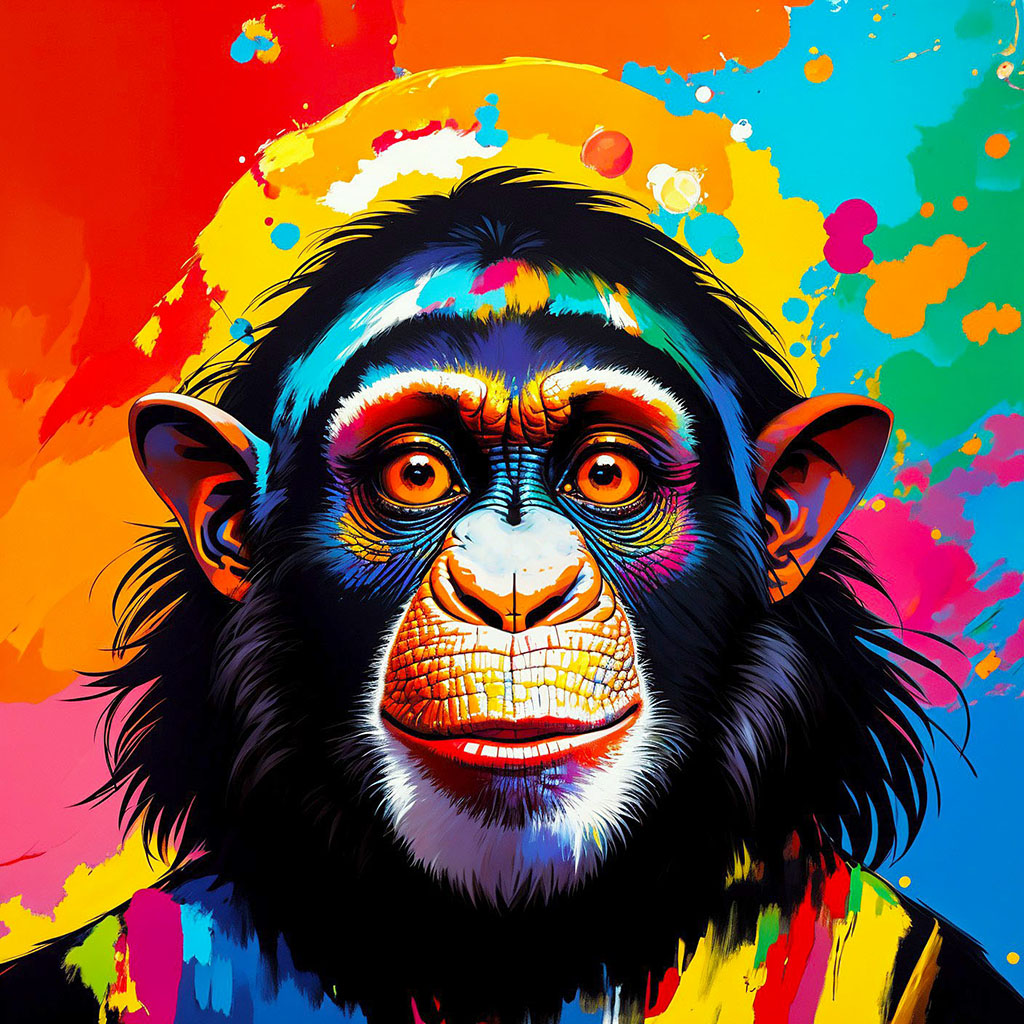
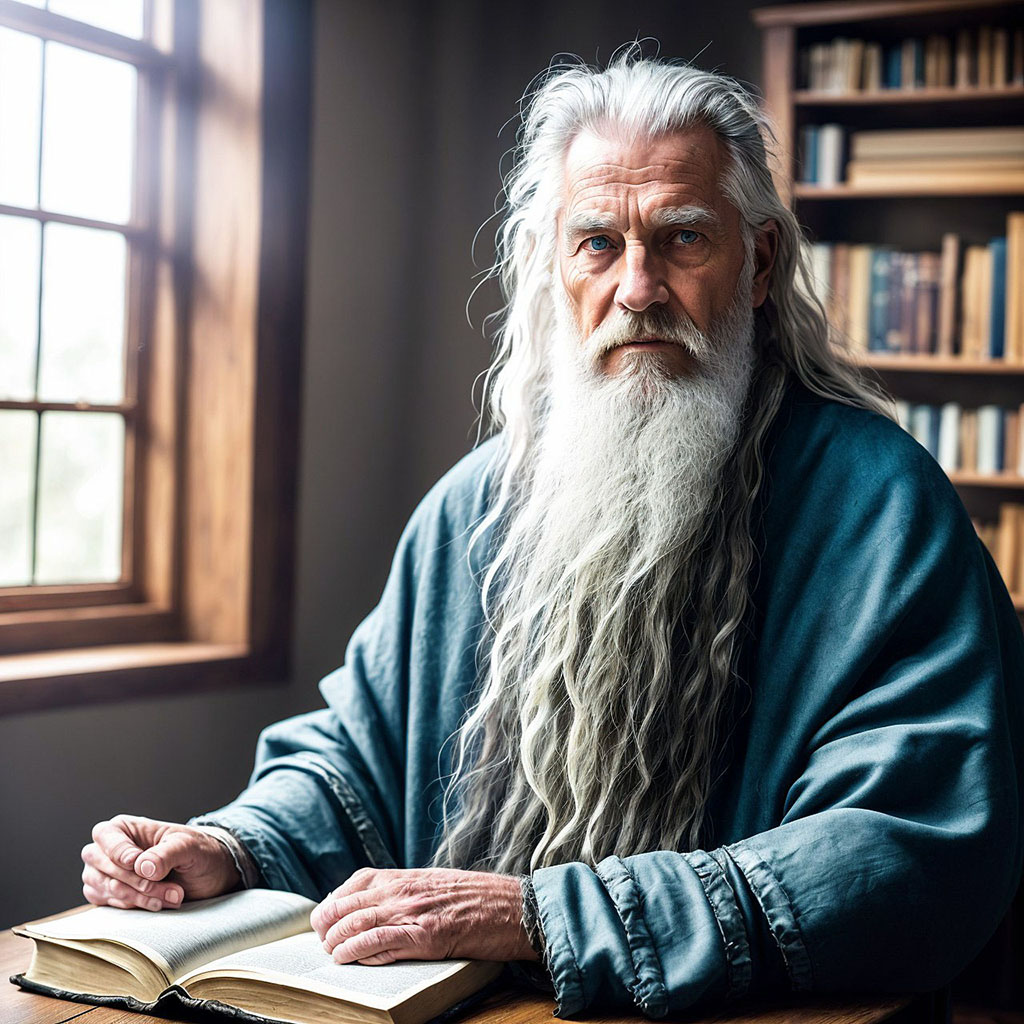
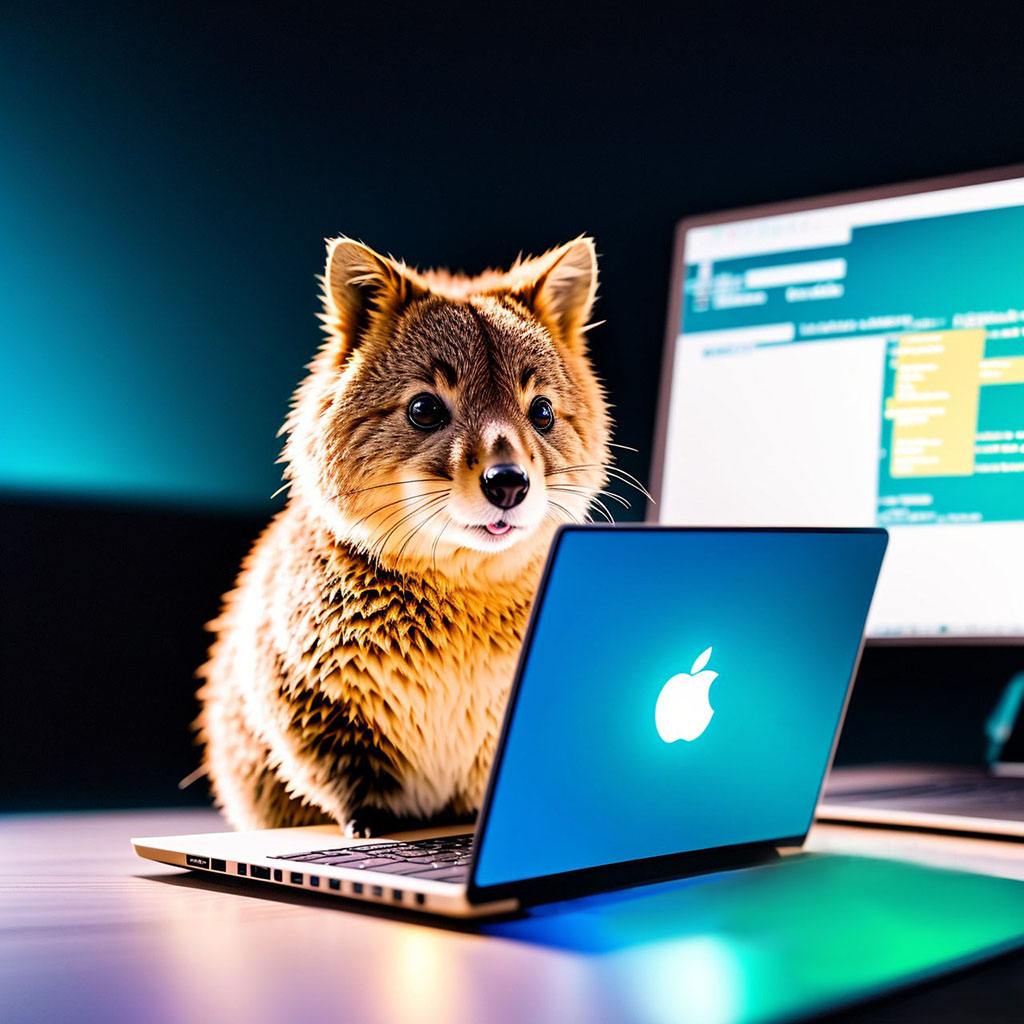
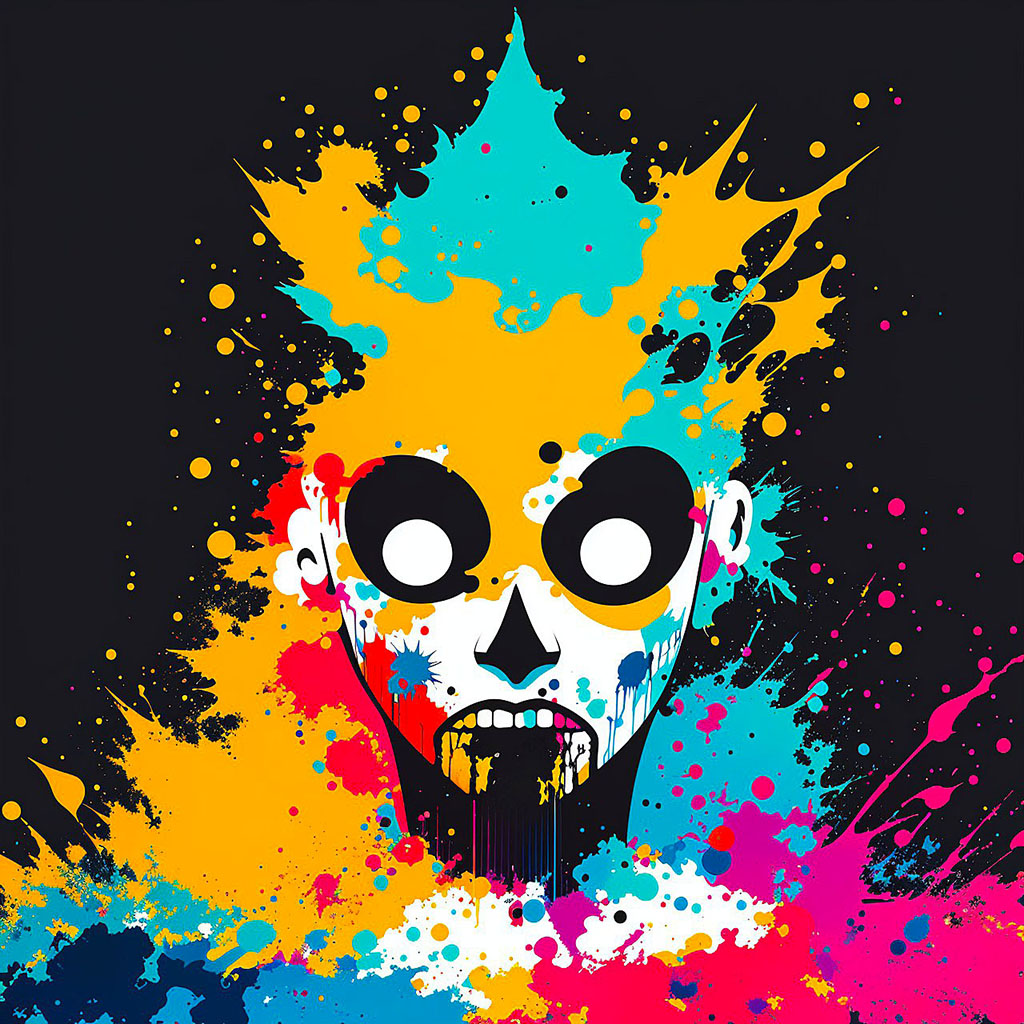
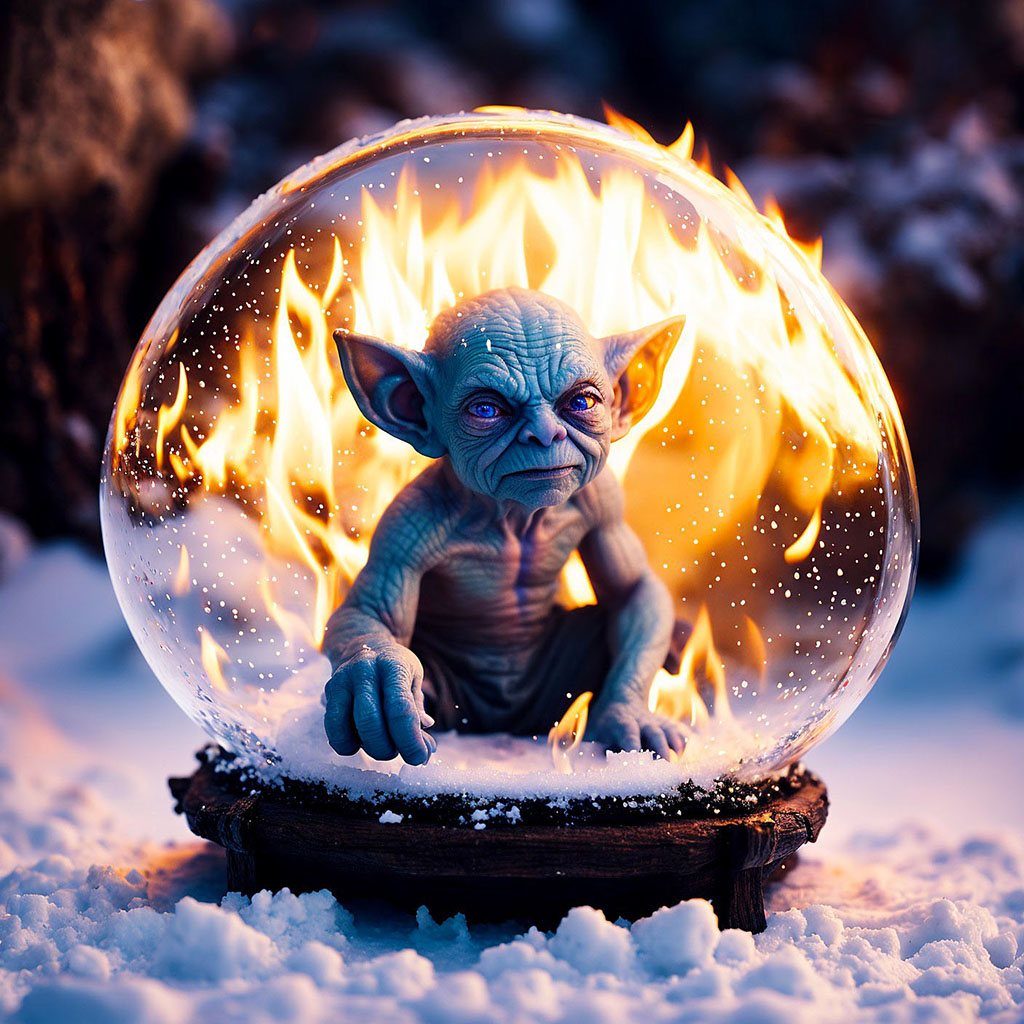
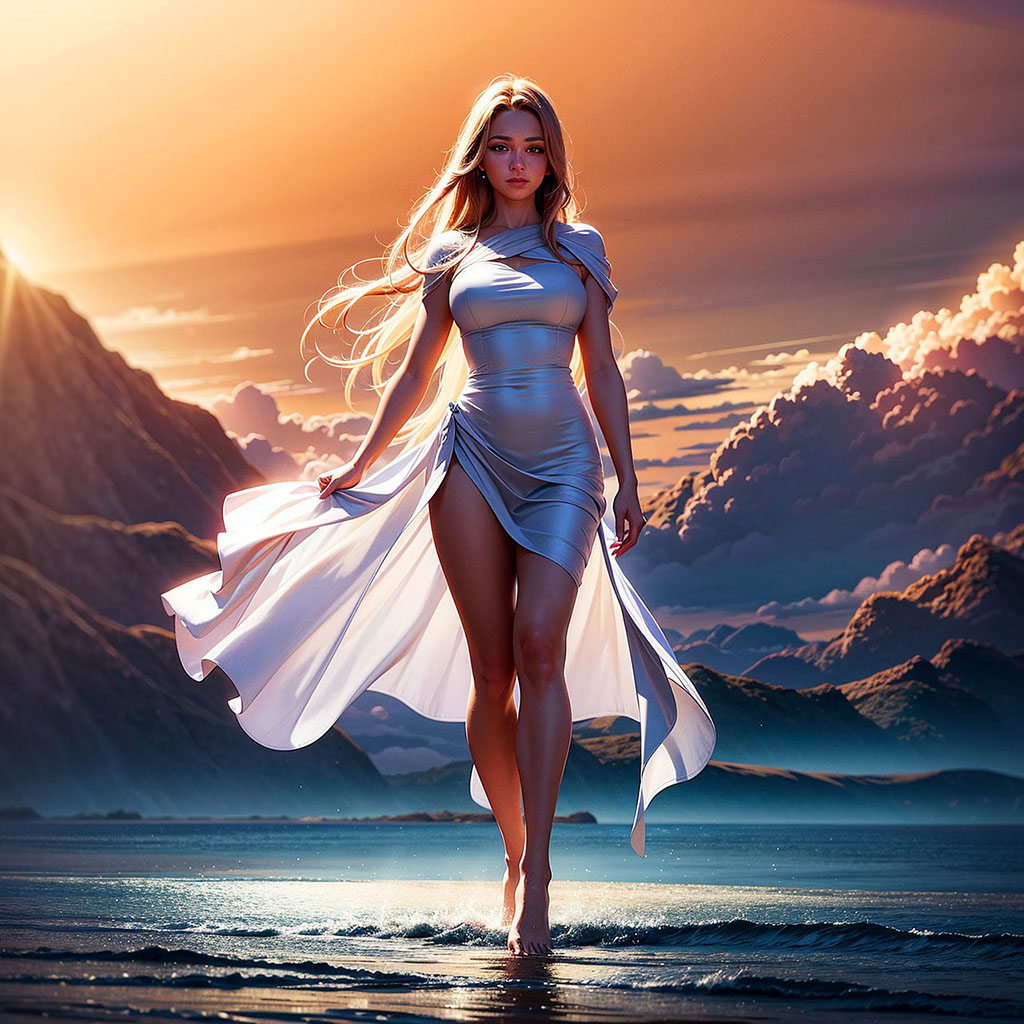
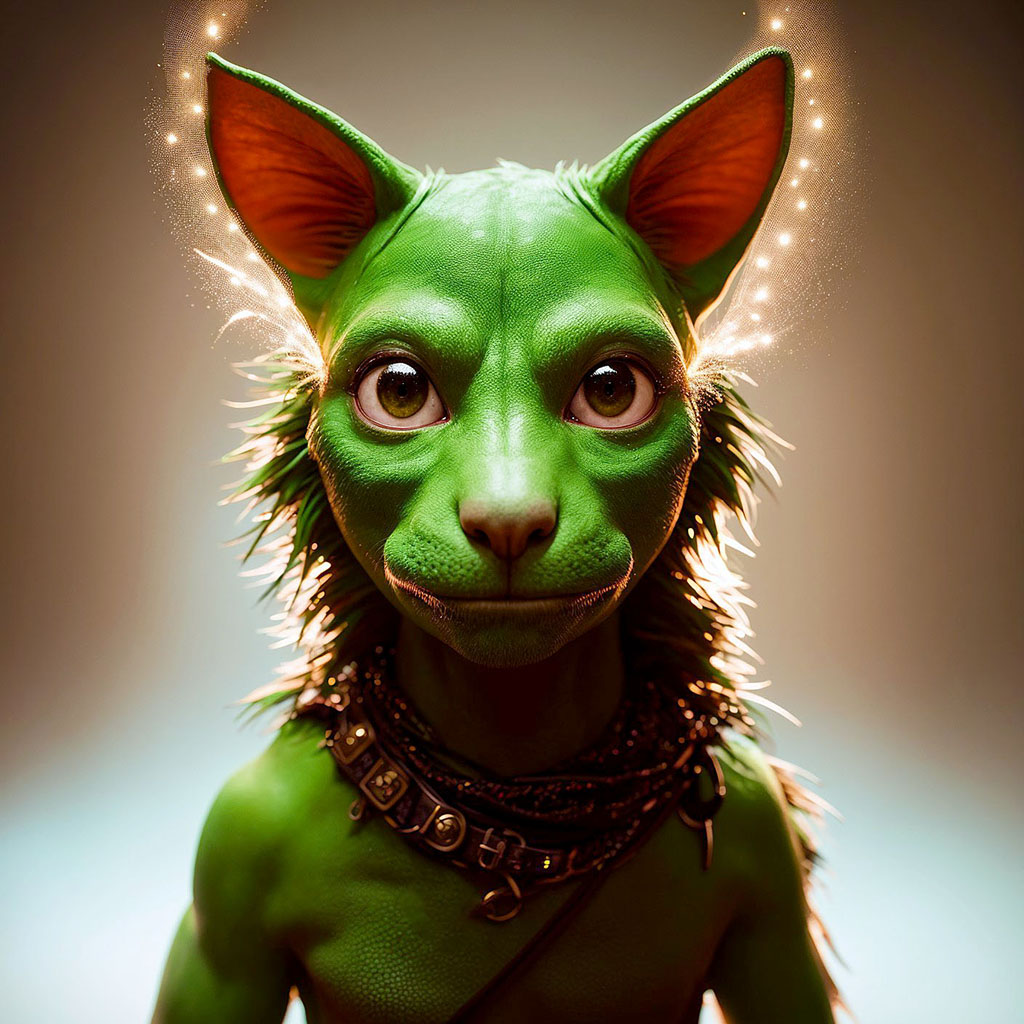
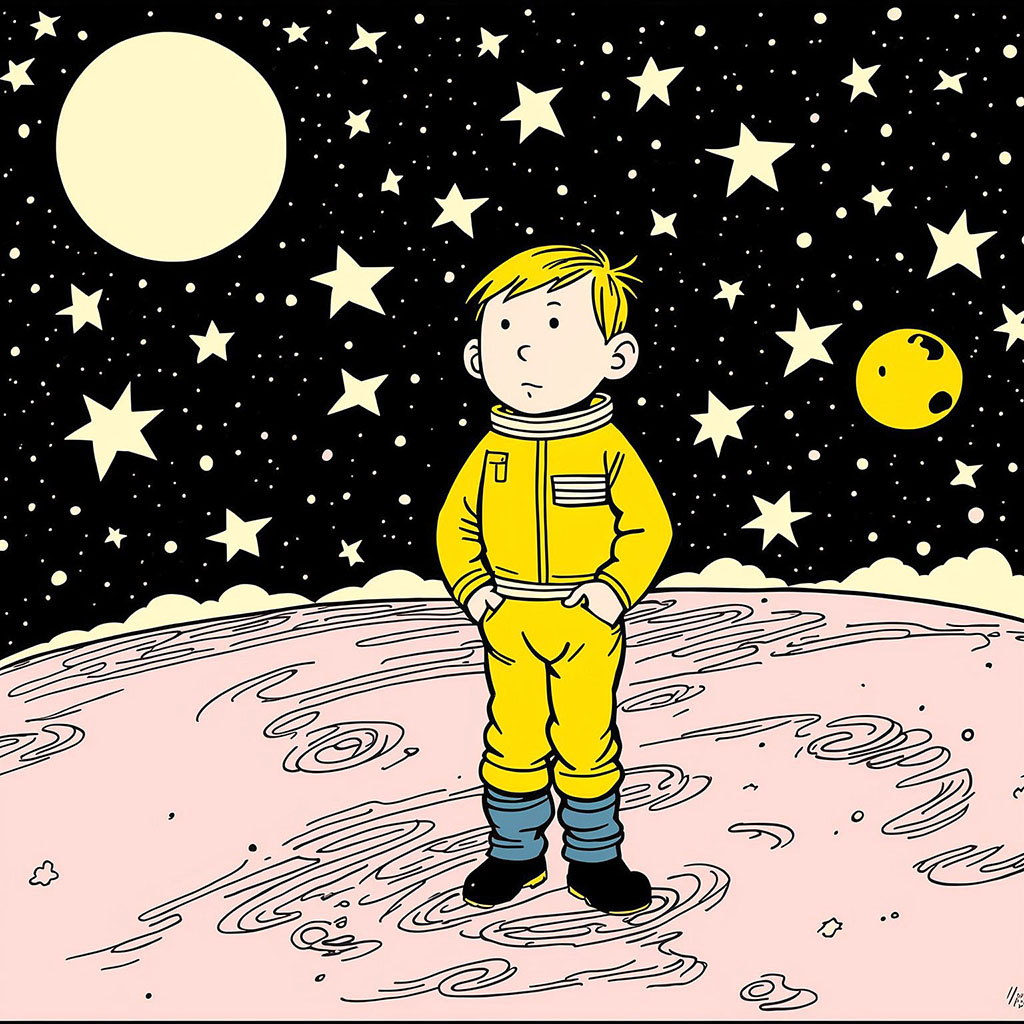
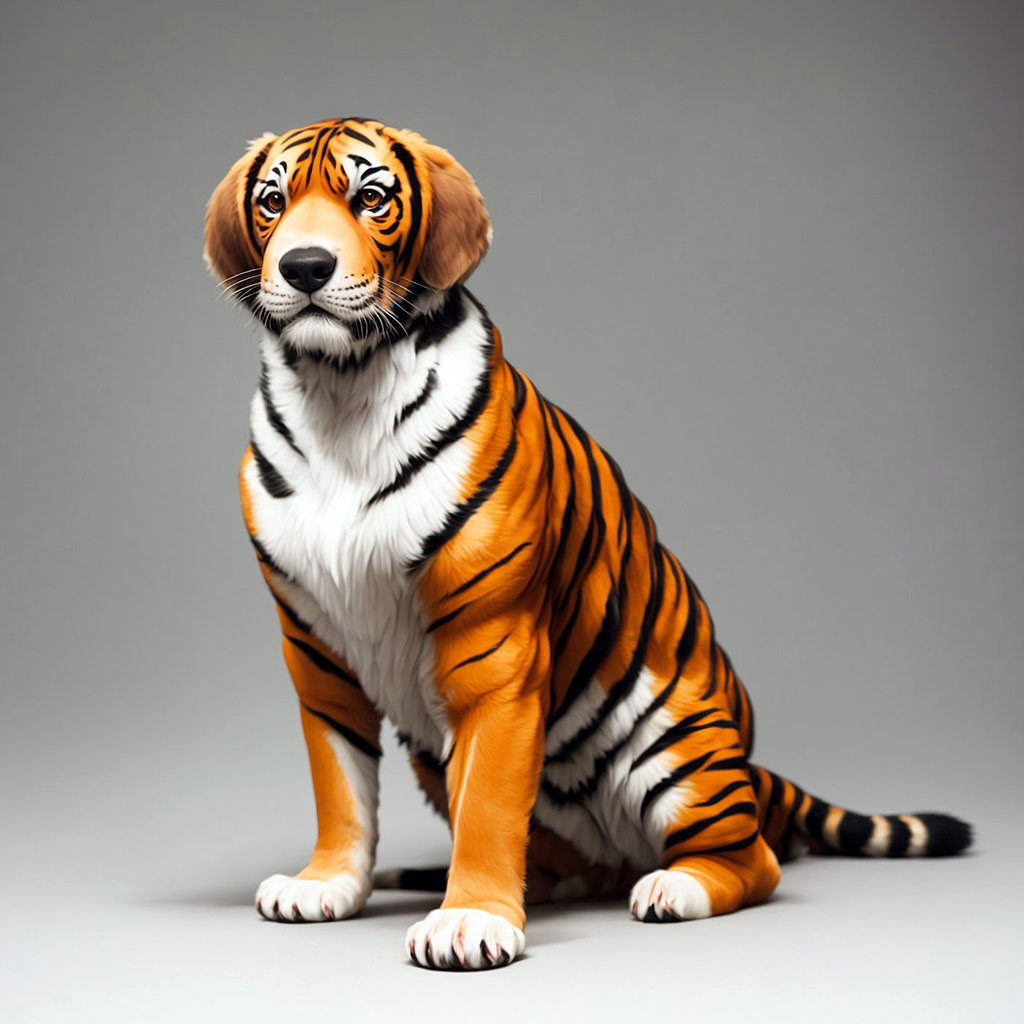
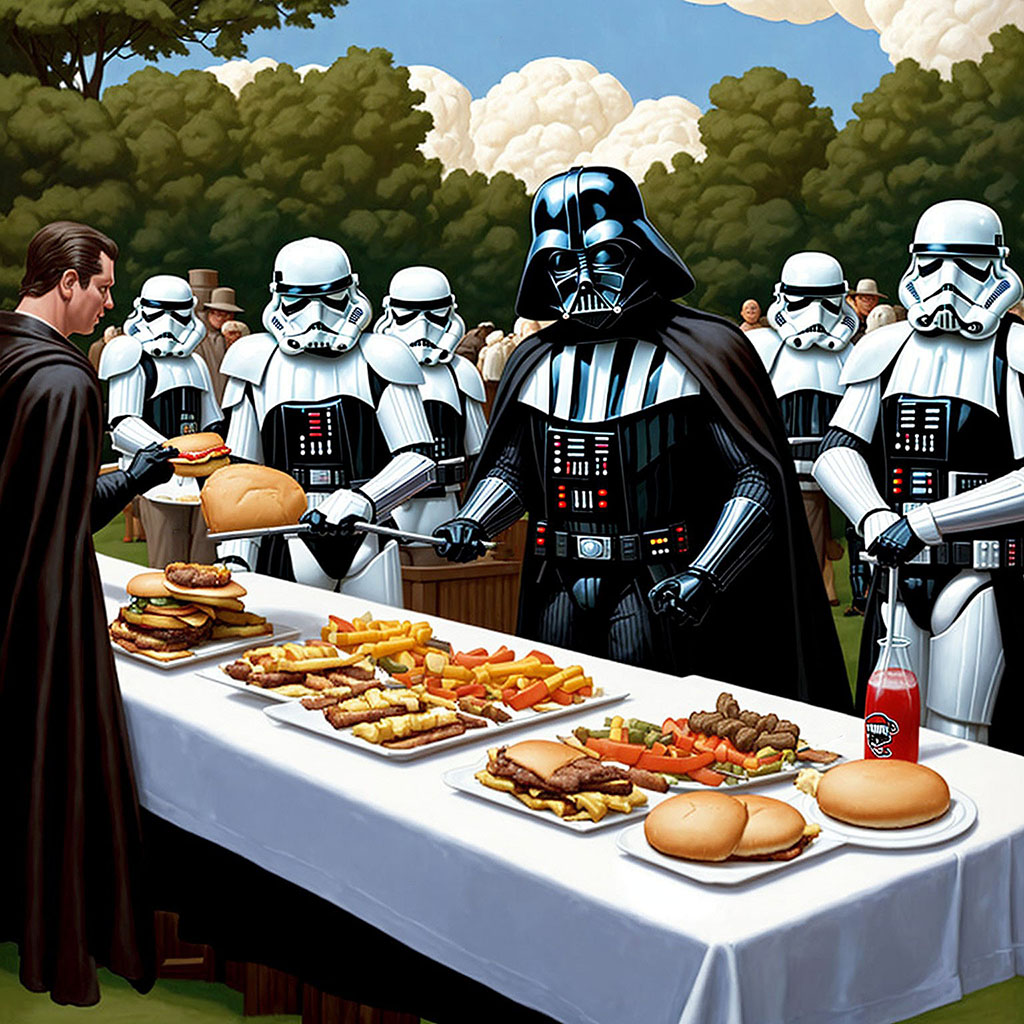
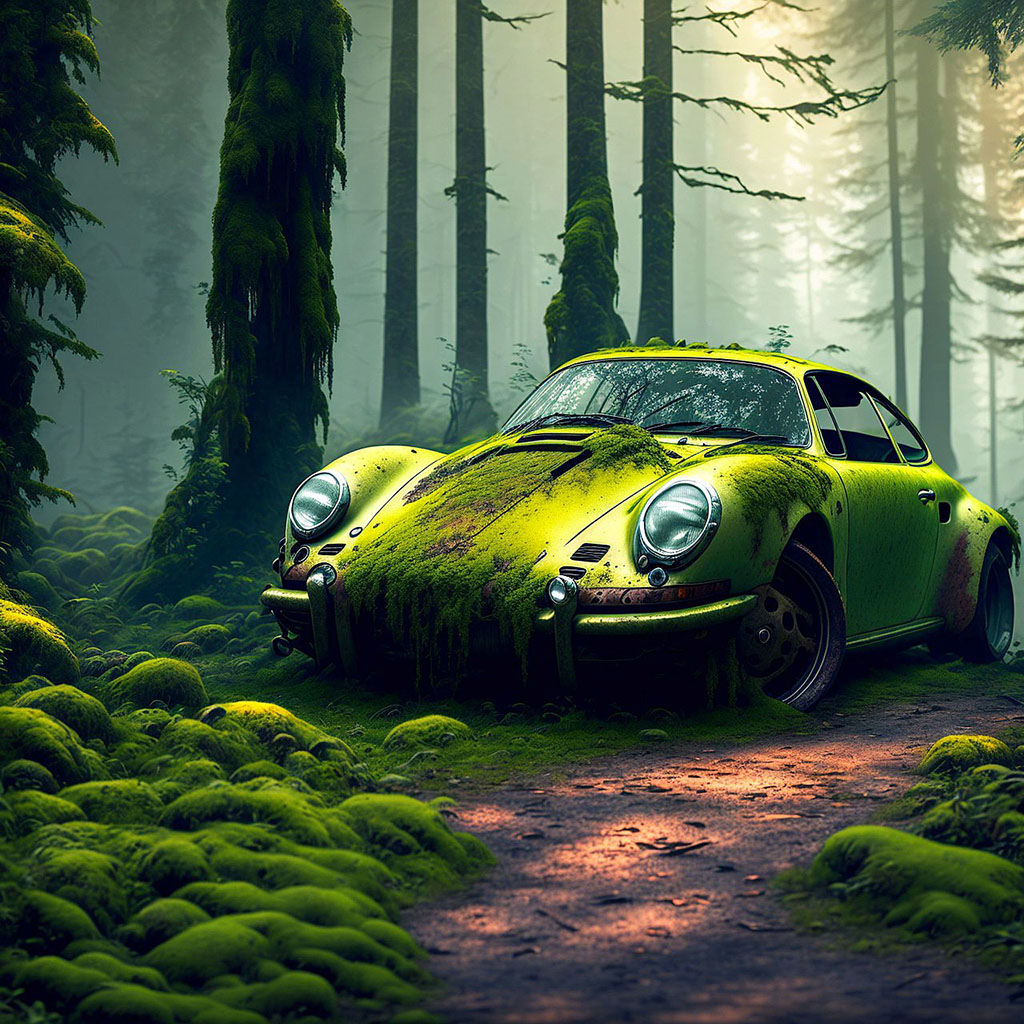
예를 들어, 나는 몇 달 동안 거의 24/7 무인 드림 공장을 실행하는 3 개의 GPU가있었습니다. 그들은 매일 수천 개의 이미지를 휘젓습니다! Dream Factory Web UI를 통해 내 이미지를 확인하고 편의상 편의상 원격으로 실행되는 작업을 수정할 수 있습니다. 일부 샘플 (모두 1024x1024 로의 해상도를 줄이는 것 외에는 꿈의 공장에서 직선) :
 |  |  |  |
 |  |  |  |
 |  |  |  |
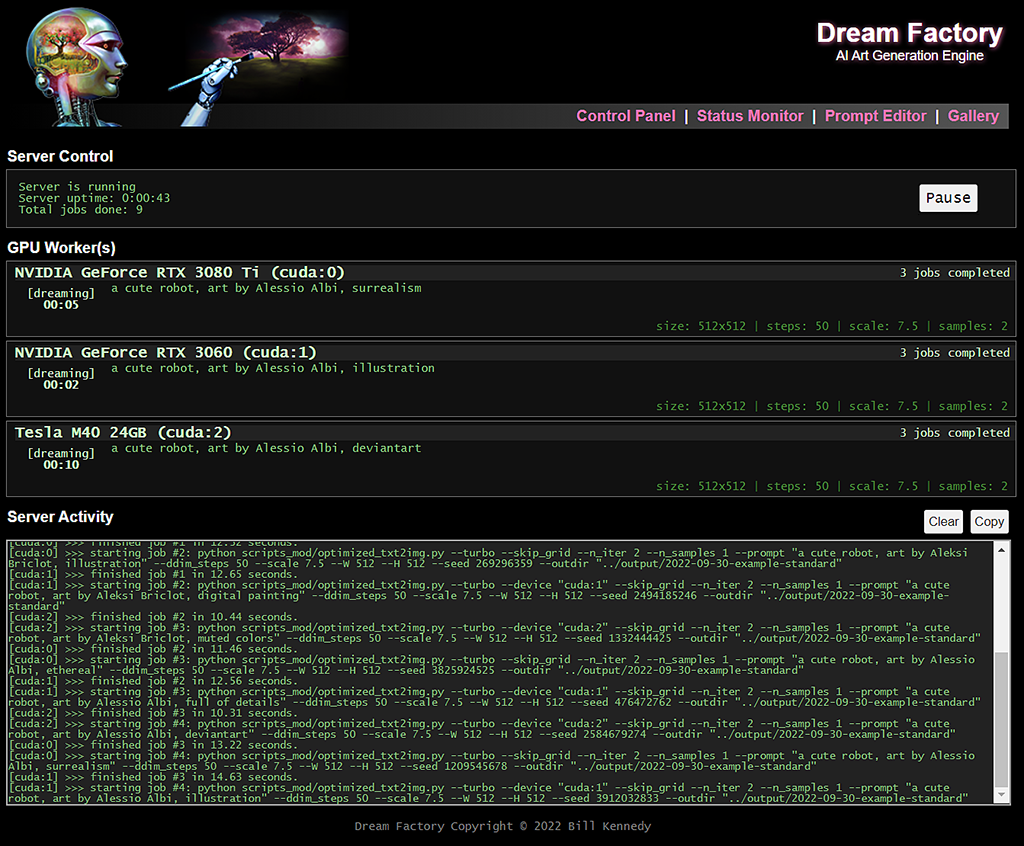
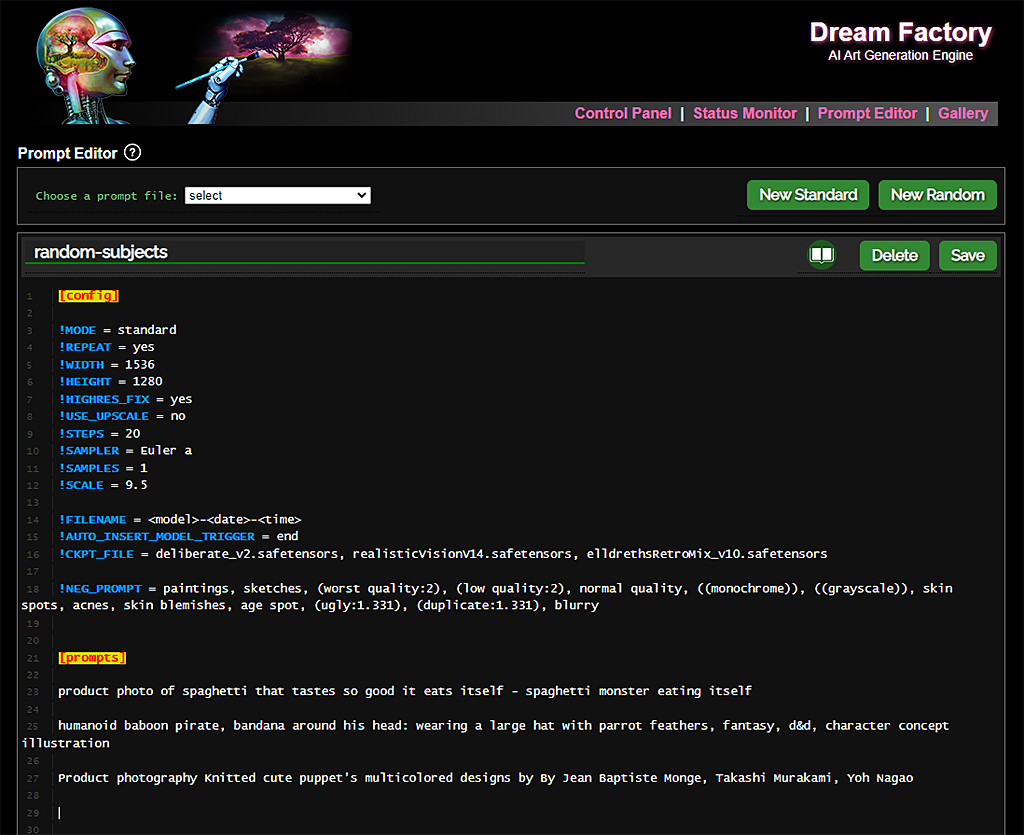
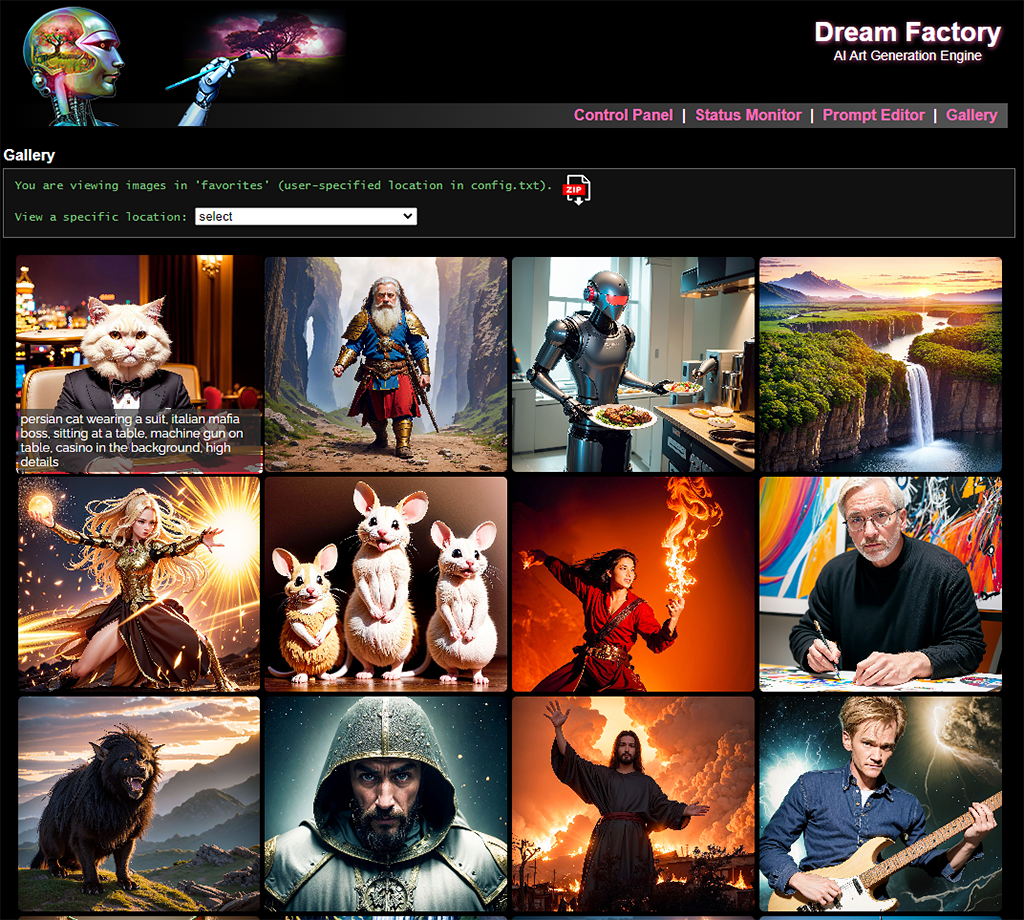
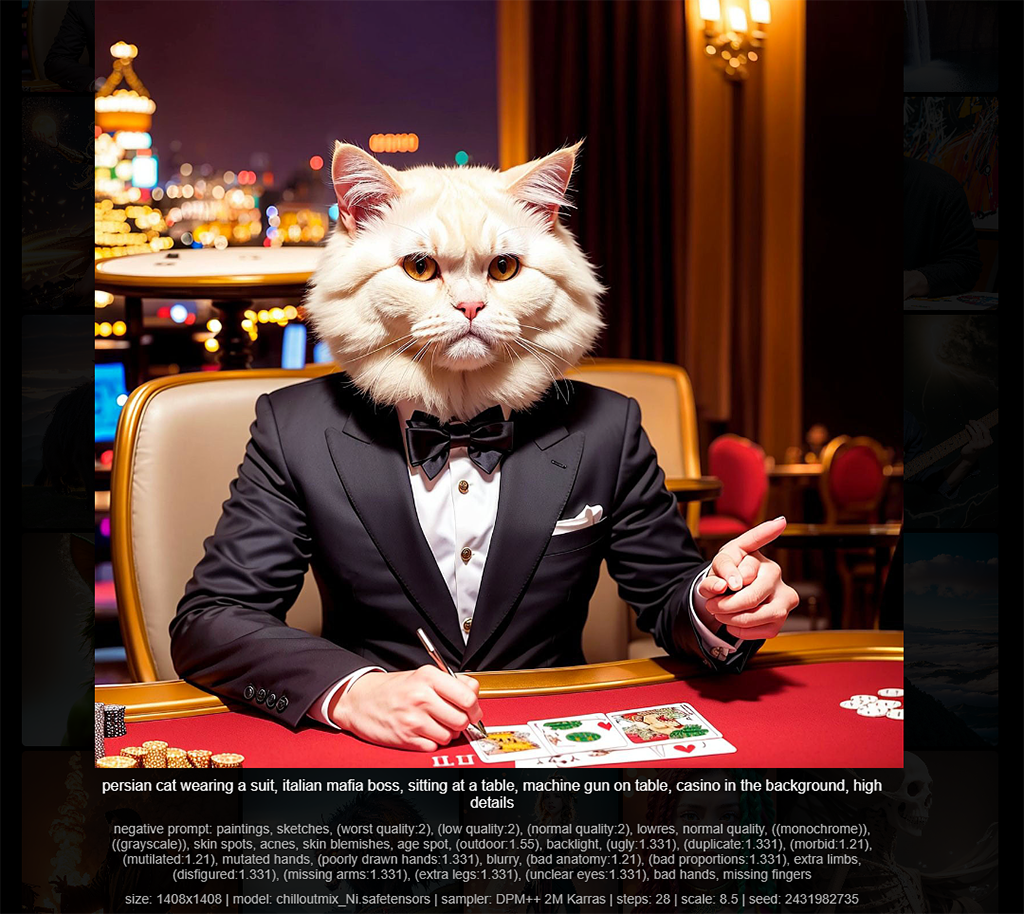
일부 UI 스크린 샷 :
 |  |  |  |
적절한 양의 VRAM을 사용하는 적어도 하나의 NVIDIA GPU가 필요합니다. 3GB의 VRAM은 512x512 이미지를 생성하기에 충분하지만 더 많은 GPU 메모리를 사용하면 더 큰 이미지를 만들거나 더 빨리 만들 수 있습니다.
또한 작동하는 Automatic1111 안정적인 확산 WebUI가 필요합니다.
이 지침은 8-12GB VRAM 범위의 다양한 현대 NVIDIA GPU가있는 여러 Windows 10 데스크톱과 오래된 NVIDIA TESLA M40 GPU (24GB VRAM)가있는 Ubuntu 서버 20.04.3 시스템에서 테스트되었습니다.
[1] 아나콘다를 설치하고 루트 터미널을 열고 새로운 환경을 만들고 활성화하십시오.
 conda create --name dream-factory python=3.10
conda activate dream-factory
[2] 필요한 파이썬 패키지를 설치하십시오.
conda install -c anaconda git urllib3
[3] 이 저장소를 복제하고 디렉토리로 전환하십시오.
 git clone https://github.com/rbbrdckybk/dream-factory
cd dream-factory
[4] 포함 된 설정 스크립트를 실행하여 나머지 설치를 자동으로 완료하십시오.
python setup.py
[5] config.txt 파일을 편집하여 Automatic1111 SD 설치의 전체 경로를 지정하십시오.
당신은 끝났습니다! Dream Factory를 테스트하기 전에 Automatic1111 설치가 올바르게 작동하는지 확인하십시오. 또한 Dream Factory가 설정 한 옵션을 자동으로 상속 받으므로 Auto1111의 "설정"탭의 모든 것이 원하는대로 구성되어 있는지 확인하십시오.
Auto1111 설치로 개별 이미지를 생성 할 수 있는지 확인한 후에는 테스트를 수행하여 Dream Factory 가이 작업을 실행하여 (주요 Dream-Factory 폴더에서) 작동하는지 확인할 수 있습니다.
python dream-factory.py --prompt_file prompts/example-standard.prompts
이렇게하면 GPU가 자동으로 작업을 시작 해야하는 간단한 예제 프롬프트 파일로 웹 인터페이스가 시작됩니다. 첫 번째 실행에서는 여러 대형 파일 (~ 2GB 총)이 자동으로 다운로드되므로 일이 시작되기 몇 분이 걸릴 수 있습니다.
결국 output 폴더에 이미지가 나타나야합니다 (또는 웹 UI 내의 "갤러리"링크를 클릭하여 여기에서 볼 수 있습니다). 이미지를 얻는 경우 모든 것이 제대로 작동하며 다음 섹션으로 넘어갈 수 있습니다.
Anaconda를 시작하거나 매번 명령 줄 창을 열지 않고 Dream Factory를 시작할 수있는 쉬운 옵션을 만들고 싶다면 다음과 같은 단계를 수행 할 수 있습니다.
[1] Windows Explorer를 열고이 위치로 찾아보십시오. [사용자 이름]은 Windows 사용자 이름입니다.
C:Users[username]anaconda3Scripts
거기에서 찾은 activate.bat 파일의 사본을 만들고 activate-dream-factory.bat 의 이름을 지정하십시오.
[2] 방금 생성 한 activate-dream-factory.bat 파일을 편집하고 파일 끝에이 줄을 추가하십시오.
 @CALL echo Starting Dream Factory...
@CALL conda.bat activate dream-factory
@CALL cd "[full path to your Dream Factory folder]"
@CALL python dream-factory.py
@CALL pause
[Dream Factory Folder의 전체 경로]를 Dream Factory를 설치 한 경로 (예 : C : Users [Windows 사용자 이름] Dream-Factory)로 교체하십시오.
파일을 저장하고 닫으십시오.
[3] 이 파일에 바로 가기를 데스크탑 (또는 어디에나) 배치하십시오. 클릭하면 Dream Factory를 시작해야합니다.
지침은 설정을 완료하고 설치가 제대로 작동하는지 확인했습니다.
다음과 같이 Dream Factory를 시작하십시오.
python dream-factory.py
http : // localhost : 8080으로 이동하지 않으면 웹 UI가 자동으로 열려야합니다 (브라우저를 통해 config.txt에서 포트를 변경하지 않았다고 가정). GPU (S)는 자동으로 초기화를 시작합니다 (각 GPU는 독립형 모드에서 Auto1111을 시작하는 데 걸리는 한 시간이 걸립니다).
상단 NAV에서 '제어판'으로 찾아보고 드롭 다운을 통해 두 예제 프롬프트 파일 중 하나를 선택하십시오. GPU는 초기화가 끝나 자마자 선택한 작업을 시작해야합니다. '상태 모니터'로 다시 찾아 볼 수 있으며 선택한 프롬프트 파일에서 GPU가 할당되어 있는지 확인해야합니다. 상단 NAV에서 '갤러리'로 탐색하면 이미지가 완성 된 상태에서 나타나는 이미지가 나타납니다.
프롬프트 파일은 Dream Factory의 핵심이며 GPU가 원하는 작업을 정의합니다. 그들은 당신이 원하는만큼 단순하거나 복잡 할 수 있습니다.
새 프롬프트 파일을 만들기 전에 Dream Factory에 포함 된 두 가지 예제 프롬프트 파일을 살펴 보겠습니다. 상단 NAV에서 '프롬프트 편집기'를 클릭하여 시작한 다음 '프롬프트 파일 선택'드롭 다운에서 '예제 표준'을 선택하십시오.
프롬프트 파일이 편집기에로드되어야합니다. 프롬프트 파일에는 안정적인 확산 설정을 정의하는 지시문과 프롬프트 (또는 다른 [프롬프트] 섹션과 결합 할 프롬프트 섹션)가 포함 된 최소한 하나의 [프롬프트] 섹션이있는 옵션에 옵션 [구성] 섹션이 있습니다.
예제 파일에는 각 [config] 지시문이하는 일과 [프롬프트] 섹션이 어떻게 결합되는지를 상당히 명확하게 해야하는 주석이 포함되어 있습니다. 명확하지 않은 지침에 대한 도움은 아래 명령 참조를 참조하십시오.
Integrated Editor를 사용하여 프롬프트 파일을 만들 수 있습니다 (상단 NAV에서 '프롬프트 편집기'를 클릭 한 다음 '새 표준'또는 '새 랜덤'을 클릭하여 새 파일을 시작하십시오). 프롬프트 파일은 공통 지시문과 config.txt에 포함 된 기본 설정이 포함 된 골격으로 자동으로 작성됩니다.
생성 후 편집기 상단의 이름을 클릭하고 새 이름을 입력 한 다음 '이름 바꾸기'를 클릭하여 프롬프트 파일의 이름을 바꿀 수 있습니다.
원하는 경우 선택한 텍스트 편집기를 사용하여 외부로 프롬프트 파일을 만들 수도 있습니다 (.prompt 확장자 이름으로 이름을 지정하여 Prompts 폴더에 배치하십시오). Notepad ++를 사용하는 경우 Dream-Factory/Prompts/Notepad_plugin 폴더에 플러그인이 있습니다.
이 지침은 표준 및 임의의 프롬프트 파일의 [config] 섹션에만 유효합니다.
이 지시문은 표준 및 임의의 프롬프트 파일의 [구성] 섹션 과 표준 프롬프트 파일의 모든 [프롬프트] 섹션 (! 모드 = 표준)에서 유효합니다.
이 지침은 표준 프롬프트 파일의 [구성] 섹션 (! mode = standard)에서만 유효합니다.
이 지침은 임의의 프롬프트 파일의 [구성] 섹션 (! mode = random)의 [config] 섹션에서만 유효합니다.
마지막으로,이 특수 지시문은 프로세스 프롬프트 파일 (! mode = process)에서만 유효합니다.
명령 도움말 및 사용 예제 :
프롬프트 파일 모드를 표준 (기본값) 또는 랜덤 으로 설정합니다. 표준 프롬프트 파일은 가능한 모든 [프롬프트] 섹션 조합을 반복하여 작동하며, 임의의 프롬프트 파일은 [프롬프트] 섹션에서 무작위로 프롬프트를 선택합니다. 각 모드의 작동 방식에 대한 자세한 연습은 Prompts/example-standard.prompts and Prompts/example-Random.prompts를 참조하십시오.
!MODE = standard
고급 사용자가 Dream Factory를 사용하여 기존 이미지 (예 : 배치 업 스케일링, 메타 데이터 태그, 이름 변경 등)에서 배치 처리 작업을 설정할 수있는! 모드의 세 번째 옵션 ( ! 모드 = 프로세스 )이 존재합니다. 여기에서 예제 프로세스 .prompts 파일을 볼 수 있습니다.
[Prompts] 섹션을 결합 할 때 사용될 구분기를 설정합니다 (기본값은 공간입니다). 예를 들어, 두 개의 [프롬프트] 섹션이 있고 첫 번째의 상단 항목이 "초상화"이고 두 번째의 상단 항목은 "고양이"라면 두 섹션이 결합되면 끝납니다. "고양이의 초상화"와 함께! if! delim = "".
!DELIM = " "
출력 이미지 너비를 픽셀로 설정합니다 (기본값은 512). 이것은 64의 배수 여야합니다!
!WIDTH = 512
출력 이미지 높이를 픽셀로 설정합니다 (기본값은 512). 이것은 64의 배수 여야합니다!
!HEIGHT = 512
Auto1111 Highres Fix를 활성화 또는 비활성화합니다. 유효한 옵션은 예 또는 아니오 (기본값)입니다. 해상도에서 이미지를 512x512보다 높은 결과로 생성 할 때 활성화되어야합니다.
!HIGHRES_FIX = no
2023-09-22 년 현재 Dream Factory Config.txt 파일에 HIRES_FIX_MODE 옵션이있어서 간단한 (기본값) 또는 고급을 지정할 수 있습니다. HIRES_FIX_MODE = advanced 설정하면 최종 이미지 생성 크기를 지정할 수 있으며 최종 크기를 결정하는 스케일링 계수 (아래 ! HighRes_Scale_factor 참조)를 사용할 수 있습니다.
기본 단순 모드에서는 간단히! 너비와!
비난 단계 수 (기본 = 20). 더 많은 단계는 일반적으로 처리 시간에 따라 이미지 품질을 한 지점으로 향상시킵니다.
!STEPS = 20
또한 범위 (예 : 단계 = 30-55)를 지정할 수 있으며 프롬프트가 실행될 때 범위 내의 임의 값이 선택됩니다.
사용할 샘플러 (기본값은 dpm ++ 2m). 이것은 Auto1111 SD WebUI에서 사용 가능한 옵션과 정확히 일치해야합니다. CTRL+H를 누르거나 편집기 오른쪽 상단에있는 도움 아이콘을 클릭하여 사용 가능한 샘플러의 참조 목록을 볼 수 있습니다 (샘플러를 클릭하여 클립 보드에 복사하여 편집기에 쉽게 붙여 넣을 수 있습니다).
!SAMPLER = DPM++ 2M
사용할 스케줄러 (기본값은 자동입니다). 이는 Auto1111 WebUI (균일 한, Karras, 지수, 다기능, SGM 균일)의 값과 일치해야합니다.
!SCHEDULER = Karras
기본값으로 돌아 가기 위해 아무것도 또는 자동으로 설정하십시오.
안내 척도, 또는 텍스트 프롬프트를 따라 가기 위해 안정적인 확산을 원하는 정도. 기본값은 7.5이며 일반적으로 유용한 값은 5-30 사이입니다.
!SCALE = 7.5
또한 범위 (예 :! scale = 5.5-9)를 지정할 수 있으며 프롬프트가 실행될 때 범위 내의 임의 값이 선택됩니다.
다음 프롬프트로 이동하기 전에 각 프롬프트를 생성 할 이미지 수는 수 (기본 = 1). 아래 Batch_size 옵션과 달리,이를 증가시킬 때 GPU 메모리 측면에서 추가 비용이 없습니다. 이를 증가시킬 때 처리 시간이 라이너가 증가 할 것입니다 (예 :! 샘플 = 10은 샘플 = 1까지 10 배가 걸립니다.
!SAMPLES = 1
각 GPU가 병렬로 생성하기를 원하는 이미지 수 (기본 = 1). Batch_size의 각 증가는 더 많은 GPU VRAM이 필요 하며이 값을 너무 높게 설정하면 GPU가 메모리와 충돌이 부족하게됩니다. 그러나 VRAM이 충분하다는 것을 알고 있다면 1 이상으로 증가시켜 중간 정도의 속도 이득을 얻을 수 있습니다. 이것은 고급 설정이며 새 프롬프트 파일 템플릿에는 포함되지 않지만 프롬프트 파일에 수동으로 추가 할 수 있습니다. .
!BATCH_SIZE = 1
기본 랜덤 노이즈가 아닌 데노이징 프로세스의 출발점으로 사용하도록 이미지를 설정합니다. 이것은 상대 (Dream Factory Base Directory) 또는 절대 경로 일 수 있으며,이를 설정하면 이전에 설정된 입력 이미지를 지우지 않습니다.
 !INPUT_IMAGE = C:imagesdog.png                         # specifies the full path to an input image
!INPUT_IMAGE = cat.jpg                                   # specifies an input image 'cat.jpg' in the DF home directory
!INPUT_IMAGE =                                           # specifies no input image should be used
이 지침에 이미지 디렉토리를 전달할 수도 있습니다.
!INPUT_IMAGE = C:images
디렉토리가 전달되면 폴더의 모든 이미지가 다음 프롬프트에 적용됩니다.
입력 이미지 영향의 강도를 설정합니다. 유효한 값은 0-1입니다 (기본 = 0.75). 0에 가까운 값은 입력 이미지와 매우 유사한 출력 이미지를 초래하고 1에 가까운 값이 덜 유사한 이미지를 초래합니다. 일반적으로 0.2-0.8 사이의 값이 가장 유용합니다. 최종 이미지가 저해상도 초기화 이미지를 얼마나 밀접하게 반영 해야하는지를 나타 내기 위해! highres_fix = yes시기에도 사용됩니다.
!STRENGTH = 0.75
또한 범위 (예 :! 강도 = 0.55-0.75)를 지정할 수 있으며 프롬프트가 실행될 때 범위 내의 임의 값이 선택됩니다.
사용하도록 모델을 설정합니다. 모든 사용자 정의 모델은 Auto1111 설치의 적절한 모델 디렉토리에 설치해야합니다. CTRL+H를 누르거나 편집기의 오른쪽 상단에있는 도움 아이콘을 클릭하여 사용 가능한 모델의 참조 목록을 볼 수 있습니다 (모델을 클릭하여 클립 보드에 복사하여 편집기에 쉽게 붙여 넣을 수 있도록 클립 보드에 복사하십시오). 이것을 설정하지 않도록 설정하면 config.txt 파일에서 설정 한 모든 모델로 기본값을 다시받을 수 있습니다 (기본값을 설정하지 않은 경우 아무것도 할 수 없습니다!).
많은 사람들이 여기에 쉼표로 구분 된 모델 목록을 설정했습니다. 표준 모드에서 Dream Factory는 모든 프롬프트를 첫 번째 모델로, 두 번째 모델로 렌더링합니다. 랜덤 모드에서 Dream Factory는 50 개의 프롬프트마다 모델을 전환합니다 (이 간격은 config.txt 파일에서 변경 될 수 있음).
여기에서 예약 된 단어 "All"을 사용할 수도 있으며 Dream Factory는 사용 가능한 모든 모델을 자동으로 회전시킵니다.
[config] 섹션에서 하나 이상의 모델 만 지정할 수 있습니다. 모델 회전은 다른 곳에서는 지원되지 않습니다!
 !CKPT_FILE = analog-style.ckpt                           # sets a new model to use
!CKPT_FILE = sd-v1-5-vae.ckpt, analog-style.ckpt         # sets 2 models to rotate between
!CKPT_FILE = all                                         # will rotate between all of your models
!CKPT_FILE =                                             # sets the default model specified in your config.txt
참고 : 이것은 통합 참조를 통해 사용 가능한 유효한 서버 값에 대한 하위 문자열 일치를 사용하므로 예를 들어 'SD_1.5 DREAMSHAPER_4BAYKVAE.SAFETENSORS [7F16BBCD80]'인 경우 참조 보고서가 설정됩니다 ! 그것.
VAE를 사용하도록 설정합니다. 자동 VAE 사용량 (또는 Auto1111 구성 설정이 지정된 내용)으로 되돌릴 수 있도록 이것을 아무것도 설정하지 마십시오.
 !VAE = vae-ft-mse-840000-ema-pruned.ckpt
!VAE =
참고 : 기판 일치는 여기에서 유효합니다. 설정 ! VAE = VAE-FT-MSE-840000에는 VAE-FT-MSE-840000-EMA-PRUNED.CKPT가 있습니다.
이를 따르는 모든 프롬프트에 사용될 부정적인 프롬프트를 지정합니다 (표준 프롬프트 파일의 [프롬프트] 섹션에 대부분의 지시문을 직접 배치 할 수 있습니다!). 사용하는 'Catch-All'음수 프롬프트가있는 경우 Config.txt 파일에 지정할 수 있으며 작성된 새 프롬프트 파일의 기본값으로 채워집니다. 이것을 아무것도 설정하지 않으면 부정적인 프롬프트가 제거됩니다.
!NEG_PROMPT = watermark, blurry, out of focus
Model-Triggers.txt 파일에 설정된 '트리거 워드'가 필요한 사용자 정의 모델과 함께 사용합니다 (아래 사용자 정의 모델 참조). 이를 통해 자동으로 인출 된 트리거 단어의 배치를 제어 할 수 있습니다. 유효한 옵션은 시작 (기본값), End , First_Comma , 키워드 : [교체 할 키워드] 및 OFF : 'START'는 트리거 단어를 프롬프트 앞면에 놓으면 'END'는 끝에 배치됩니다. 'First_Comma'. 첫 번째 쉼표 이후에 (또는 프롬프트에 쉼표가없는 경우 끝에), '키워드 :'모델 트리거 단어가있는 프롬프트에서 지정된 키워드/문구를 대체하고 'Off'가 비활성화됩니다. 전적으로 자동 삽입.
!AUTO_INSERT_MODEL_TRIGGER = start
이것은 또한 유효한 HighRes_ckpt_file이 연관된 트리거 단어로 설정되었다고 가정 할 때 HighRes_prompt에 자동 트리거 삽입의 동작을 제어합니다.
이미지 생성에 사용할 시드 값을 지정합니다. 이 값은 일반적으로 무작위로 선택됩니다. 동일한 시드 값을 가진 동일한 설정을 사용하면 정확히 동일한 출력 이미지를 생성해야합니다. 이것을 아무것도 설정하지 않으면 임의의 종자 값을 사용해야한다는 것을 나타냅니다 (기본값). 이것은 고급 설정이며 새 프롬프트 파일 템플릿에는 포함되지 않지만 프롬프트 파일에 수동으로 추가 할 수 있습니다.
!SEED = 42
모든 출력 이미지가 자동으로 업 스케일링되어야하는지 여부. 업 스케일링에는 상당한 시간이 걸릴 수 있으므로 일반적으로 선택한 이미지의 하위 집합에서만이 작업을 수행하려고합니다. 유효한 옵션은 예 또는 아니오 (기본값)입니다.
!USE_UPSCALE = no
사용하도록 업 스케일링 모델을 설정합니다.
!UPSCALE_MODEL = esrgan
이것은 Auto1111과 함께 설치 한 모든 업 스칼러에서 하위 문자열 일치를 수행합니다. 이 경우 ESRGAN_4X *를 선택해야합니다 (기본값이기도합니다).
in ! mode = process .prompts 파일을 추가로 지정할 수 있습니다 ! UpScale_Model = SD 또는 ! UpScale_Model = Ultimate를 추가 로 지정할 수 있습니다.
SD 는 안정적인 확산의 IMG2IMG 엔진을 사용하여 이미지를 업 스케일하는 특수 옵션입니다. 이는 다른 방법보다 훨씬 오래 걸리며 큰 이미지 크기에 도달하려면 많은 GPU VRAM이 필요하지만 (2048x2048 이미지를 출력하려면 ~ 12GB의 VRAM이 필요). upscale_sd_strength = xxx (기본값은 0.3)를 사용하여! upscale_model = sd를 사용하여 데노이징 강도를 제어합니다.
이 옵션은 Auto1111의 Highres 수정 방식과 매우 유사하게 작동합니다. 이미지를 찍고 안정적인 확산을 사용하여 더 큰 버전을 만들 수 있으며, 사용 된 데노이징 강도에 따라 이미지를 약간 변경할 수 있습니다 (0.3 기본값은 대부분의 경우 원본에 매우 가깝게 유지되어야합니다).
 !UPSCALE_MODEL = sd
!UPSCALE_SD_STRENGTH = 0.3
UpScale_Model = SD를 사용하려면 먼저 Dream Factory Config.txt 파일에 Max_output_size를 추가해야합니다 (설명은 config-default.txt 참조).
Ultimate는 Automatic1111 설치에 Ultimate SD 고급 확장을 추가 해야하는 특별한 옵션입니다.
일단 설치되면 다음 지침으로 확장 설정을 제어 할 수 있습니다 (아래 예에서는 데노이징 강도를 0.28로 설정하고 ESRGAN_4X를 업 스칼러로 사용하고 원본 이미지를 2.5 배의 계수로 고급).
 !UPSCALE_MODEL = ultimate
!UPSCALE_SD_STRENGTH = 0.28
!UPSCALE_ULT_MODEL = esrgan
!UPSCALE_AMOUNT = 2.5
자세한 내용은 Dream Factory /Prompts 디렉토리의 example-process.prompts 파일의 하단을 참조하십시오.
UpScale_model = Ultimate를 사용하려면 먼저 Ultimate SD Upscale 확장을 Auto1111에 설치해야합니다.
고급 요인. 설정! UPSCALE_AMOUNT = 2는 이미지의 너비와 높이를 두 배로 늘립니다 (해상도 4 배가 생성). use_upscale = yes가 아니라면 효과가 없습니다.
!UPSCALE_AMOUNT = 2
출력 이미지에서 Codeformer 얼굴 향상의 가시성. 유효한 값은 0-1 사이입니다. 이것을 0으로 설정하면 Codeformer 향상이 완전히 비활성화됩니다. use_upscale = yes가 아니라면 효과가 없습니다.
!UPSCALE_CODEFORMER_AMOUNT = 0.50
출력 이미지에서 GFPGAN면 향상의 가시성. 유효한 값은 0-1 사이입니다. 이것을 0으로 설정하면 GFPGAN 향상이 완전히 비활성화됩니다. use_upscale = yes가 아니라면 효과가 없습니다.
!UPSCALE_GFPGAN_AMOUNT = 0.50
업 스케일링 할 때 원본 (업 스케일링되지 않은) 이미지도 유지합니까? 유효한 옵션은 예 또는 아니오 (기본값)입니다. 예로 설정하면 원본은 기본 출력 폴더에서 /Originals 하위 디렉토리에 저장됩니다. use_upscale = yes가 아니라면 효과가 없습니다.
!UPSCALE_KEEP_ORG = no
사용자 정의 출력 파일 이름을 지정할 수 있습니다. 다음 변수를 사용할 수 있습니다. 이미지가 만들어지면 채워집니다.
<ad-model><ad-strength><cn-img><cn-model><date><date-year><date-month><date-day><height><hr-model><input-img><lora><model><neg-prompt><prompt><sampler><scheduler><scale><seed><steps><strength><styles><time><width>프로세스 모드 파일에서 다음을 사용할 수 있습니다.
<upscale-model><upscale-sd-strength>파일 확장자 (.jpg)가 자동으로 추가됩니다.
!FILENAME = <date-year><date-month><date-day>-<model>-<width>x<height>-<prompt>
위의 예는 예를 들어 20230209-deliberate_v11-768x1280-a-photo-of-a-cut-cat.jpg 의 출력 파일 이름을 생성 할 수 있습니다.
<input-img> 및 <cn-img> (Controlnet Input Image)은 기본 파일 이름 만 (하위 디렉터 또는 파일 확장자 없음)입니다.
사용자 정의 파일 이름은 200 자로 잘립니다 (파일 확장 및 파일을 고유하게하기 위해 필요한 숫자 패딩은 포함되지 않음).
클립 스킵 값을 설정합니다. 기본값은 1이고 대부분의 모델은 설정과 가장 잘 작동합니다. 그러나 일부 모델은 다른 값으로 최적의 결과를 제공 할 수 있습니다.
!CLIP_SKIP = 2
이것을 지우기 위해 이것을 아무것도 설정하지 않을 수 있습니다 (! clip_skip =).
원활한 타일링 모드를 활성화하거나 비활성화합니다. 활성화되면 출력 이미지는 눈에 띄는 이음새/가장자리없이 타일링에 적합합니다.
!SEAMLESS_TILING = on
비활성화하기 위해 OFF 로 설정합니다 (기본값).
ControlNet과 함께 사용할 입력 이미지를 설정합니다.
!CONTROLNET_INPUT_IMAGE = posesexamplesopenpose-standing_arms_in_front.png
위의 예제는 OpenPose-Standing_arms_in_front.png를 ControlNet 입력 이미지로 사용합니다. Controlnet Extension이 설치되어 있지 않은 경우에는 영향을 미치지 않으며/또는 ControlNet_Model 지시문을 통해 ControlNet 모델을 지정하지 않습니다.
다른 지침을 발행하여 이전에 입력 한 이미지를 지우기 위해 이전에 입력 한 이미지를 지우실 수 있습니다 (! controlnet_input_image =).
이 지침에 이미지 디렉토리를 전달할 수도 있습니다.
!CONTROLNET_INPUT_IMAGE = posesexamples
디렉토리가 전달되면 폴더의 모든 이미지가 다음 프롬프트에 적용됩니다.
컨트롤넷 모델을 사용할 수 있습니다.
!CONTROLNET_MODEL = openpose
통합 편집기 내에서 Control-H (또는 해당 버튼)를 누르면 사용 가능한 ControlNet 모델을 표시하는 참조를 열 수 있습니다. ControlNet Extension이 설치되지 않은 경우 ControlNet 모델을 설정하면 영향을 미치지 않거나! ControlNet_Input_Image 지시문을 통해 ControlNet 입력 이미지를 지정하지 않습니다.
Dream Factory가 당신의! controlnet_input_image filename에서 모델을 추출하도록하려면 controlnet_model (또는 auto, [default] )에 대한 자동을 선택적으로 지정할 수 있습니다. 이 작업이 작동 [ControlNet model to use]-[rest of filename].ext 다음 형식으로 이미지를 지정해야합니다. 예를 들어, OpenPose-standing_Arms_IN_FRONT.png 라는 이미지는 OpenPose 모델을 사용해야한다는 것을 나타냅니다! ControlNet_Model = Auto.
!CONTROLNET_MODEL = auto, depth
이 예제에서 Dream Factory는 파일 이름에서 사용할 모델을 추출하고 파일 이름에 유효한 모델이 포함되어 있지 않은 경우 기본 모델로 '깊이'로 떨어지려고 시도합니다. 기본값을 지정하는 것은 선택 사항이지만 파일 이름에서 모델을 식별 할 수없고 기본값이없는 경우 Controlnet이 비활성화됩니다.
참고 : 이것은 통합 참조를 통해 사용 가능한 유효한 서버 값에 대한 하위 문자열 일치를 사용하므로 예를 들어 'Control_Canny-FP16'이 참조 보고서 인 경우 ! ControlNet_Model = Canny가 찾을 수 있습니다.
Controlnet Preprocessor를 사용하도록 설정합니다. 이것은 일반적인 이미지에서 정보를 "추출"하여 해당 Controlnet 모델과 함께 사용할 수 있도록 사용됩니다. 사전 생성 된 포즈 (예 : Dream Factory Poses 폴더에 포함 된 예제)를 사용하는 경우이 포즈를 설정할 필요가 없습니다 (또는 'None'의 기본값으로 설정할 수 있음).
!CONTROLNET_PRE = openpose
통합 편집기 내에서 Control-H (또는 해당 버튼)를 누르면 사용 가능한 Controlnet Preprocessors를 표시하는 참조를 열 수 있습니다. Controlnet Preprocessor를 설정하면 Controlnet Extension이 설치되어 있지 않거나/또는 Controlnet_Input_Image Directive를 통해 ControlNet 입력 이미지를 지정하지 않으면 영향을 미치지 않습니다.
CN Extension v1.1.09 기준으로 추측 모드가 더 이상 지원되지 않습니다. 교체는 아래를 참조하십시오!
이를 사용하여 ControlNet을 사용할 때 (예)를 활성화하거나 비활성화 (기본값) 추측 모드 (또는 "비 프롬프트 모드")를 사용하십시오.
!CONTROLNET_GUESSMODE = yes
여기에서 추측 모드에 대해 읽을 수 있습니다.
이것을 사용하여 Controlnet에게 Controlnet보다 프롬프트를 선호하거나 그 반대로 또는 균형 잡힌 접근 방식을 사용하도록 지시하십시오. 옵션은 ' 밸런스 '(기본값), ' 프롬프트 '(프롬프트를 더 선호하기 위해) 또는 ' Controlnet '(Controlnet을 더 선호하기 위해)입니다.
!CONTROLNET_CONTROLMODE = balanced
여기에서 제어 모드에 대해 읽을 수 있습니다.
이를 사용하여 ControlNet을 사용할 때 (예) 또는 비활성화 (기본값) 픽셀 완벽 모드를 사용하십시오. 이를 활성화 할 때 지정한 이미지 높이와 너비 (너비 및! 높이)를 사용하여 Controlnet의 전처리 이미지를 생성합니다.
!CONTROLNET_PIXELPERFECT = yes
이를 사용하여 ControlNet을 사용할 때 (예) 또는 비활성화 (기본값) 낮은 VRAM 모드를 사용하십시오.
!CONTROLNET_LOWVRAM = yes
VRAM이 적은 GPU가있는 경우 도움이 될 수 있습니다.
이것을 사용하여 Controlnet의 무게를 설정하십시오 (기본 = 1.0; 0-2 사이에서 설정).
!CONTROLNET_WEIGHT = 1.0
입력 이미지 또는 Controlnet 입력 이미지의 크기에 따라 Dream Factory를 자동으로 출력 이미지를 자동으로 크기로 크기로 만들 수 있습니다. 유효한 옵션은 match_input_image_size , match_controlnet_image_size , match_input_image_aspect_ratio , match_controlnet_image_aspect_ratio , resize_longest_dimension : [size] 또는 Off (default)입니다.
 # output image will be set to the same size as your input image, regardless of any !WIDTH & !HEIGHT directives
!AUTO_SIZE = match_input_image_size

# output image will use the larger of your !WIDTH & !HEIGHT directives as the longer output dimension
# the shorter output dimension will be calculated so that the output image has the same aspect ratio as the ControlNet input image
!AUTO_SIZE = match_controlnet_image_aspect_ratio

# the output image will be re-sized so that the longer of your !WIDTH/!HEIGHT settings becomes the size specified here
# the shorter dimension will be calculated to maintain the same aspect ratio as the original !WIDTH/!HEIGHT settings
# useful if you have an existing prompt file full of size directives and want to quickly change the size on all of them
!AUTO_SIZE = resize_longest_dimension: 1280
모든 방지는 64로 나눌 수있는 이미지 치수를 초래할 것입니다 (두 차원 모두 가장 가까운 나누기 64 숫자로 반올림됩니다).
예를 들어, ! auto_size = mays_controlnet_image_aspect_ratio를 사용하면! 너비와 높이를 모두 설정하고 1920x1080 Controlnet 입력 이미지 (16 : 9 종횡비)를 통과하면 결과 이미지는 1408x768입니다. 더 큰 치수는! 너비 &! 높이 설정의 더 큰 것으로 설정되었으며, 더 작은 치수는 가능한 한 16 : 9 종횡비에 가깝게 계산되었으며, 더 작은 치수는 64에 의해 균등하게 나뉩니다.
내장 된 IPTC 메타 데이터에서 이미지 제목을 설정합니다. 일반적으로 카탈로그에 IPTC 표준을 사용하는 다른 응용 프로그램으로 이미지를 내보낼 계획 인 경우에만 유용합니다.
IPTC_TITLE = Super awesome AI kitten image!
평소와 같이 이것을 지우기 위해 이것을 아무것도 설정하지 마십시오.
내장 된 IPTC 메타 데이터에서 이미지의 설명을 설정합니다. 일반적으로 카탈로그에 IPTC 표준을 사용하는 다른 응용 프로그램으로 이미지를 내보낼 계획 인 경우에만 유용합니다.
IPTC_DESCRIPTION = This is an excellent AI image of a cute kitten.
평소와 같이 이것을 지우기 위해 이것을 아무것도 설정하지 마십시오.
이미지의 키워드를 임베디드 IPTC 메타 데이터로 설정합니다. 일반적으로 카탈로그를 위해 IPTC 표준을 사용하는 다른 응용 프로그램으로 이미지를 내보낼 경우에만 유용합니다. 키워드는 쉼표로 구분 된 목록이어야합니다.
IPTC_KEYWORDS = ai, kitten, cute
평소와 같이 이것을 지우기 위해 이것을 아무것도 설정하지 마십시오.
임베디드 IPTC 메타 데이터에서 이미지의 저작권 문을 설정합니다. 일반적으로 카탈로그에 IPTC 표준을 사용하는 다른 응용 프로그램으로 이미지를 내보낼 계획 인 경우에만 유용합니다.
IPTC_COPYRIGHT = Copyright © 2023 Super Awesome Image Studio
평소와 같이 이것을 지우기 위해 이것을 아무것도 설정하지 마십시오.
프롬프트 파일의 가능한 모든 조합을 완료 한 후 이미지를 계속 생산하는지 여부를 드림 공장에 알려줍니다. 옵션은 예 (기본값) 또는 아니오입니다 . 아니오로 설정되면 Dream Factory는 모든 프롬프트를 완료 한 후 유휴 상태입니다.
!REPEAT = yes
현재 파일이 처리가 완료 될 때로드 할 다른 프롬프트 파일을 지정할 수 있습니다. 경로를 포함하지 마십시오. Dream Factory는 config.txt 파일에 지정된 프롬프트 위치에서 프롬프트 파일을 자동으로 찾습니다. 이 파일은 영원히 실행되므로 임의의 프롬프트 파일 또는 표준 프롬프트 파일에 영향을 미치지 않습니다 .
!NEXT_PROMPT_FILE = example-random
.prompts 파일 확장자는 생략하면 자동으로 추가됩니다.
랜덤 모드 프롬프트 파일을 사용하면 사용할 최소! 스케일 값을 설정합니다. Min_Scale과! max_scale이 다른 값으로 설정된 경우 Dream Factory는 각 프롬프트에 대해 임의 값을 선택합니다.
!MIN_SCALE = 6.0
Deprecated - consider using !SCALE = xx - xx.x format instead.
When using random mode prompt files, sets the maximum !SCALE value to use. If !MIN_SCALE and !MAX_SCALE are set to different values, Dream Factory will choose a random value between them for each prompt.
!MIN_SCALE = 18.5
Deprecated - consider using !SCALE = xx - xx.x format instead.
When using random mode prompt files, sets the minimum !STRENGTH value to use. If !MIN_STRENGTH and !MAX_STRENGTH are set to different values, Dream Factory will choose a random value between them for each prompt.
!MIN_STRENGTH = 0.45
Deprecated - consider using !STRENGTH = 0.xx - 0.xx format instead.
When using random mode prompt files, sets the maximum !STRENGTH value to use. If !MIN_STRENGTH and !MAX_STRENGTH are set to different values, Dream Factory will choose a random value between them for each prompt.
!MAX_STRENGTH = 0.80
Deprecated - consider using !STRENGTH = 0.xx - 0.xx format instead.
When using random mode prompt files, sets a directory that random input images should be pulled from. If this is set, Dream Factory will choose a random input image to use for each prompt.
 !RANDOM_INPUT_IMAGE_DIR = C:images                      # specifies the full path to a directory containing input images
!RANDOM_INPUT_IMAGE_DIR = images                         # specifies a relative path to a directory containing input images
!RANDOM_INPUT_IMAGE_DIR =                                # specifies no input images should be used
Special directive valid only in !MODE = process .prompts files, and only when used with !UPSCALE_MODEL = sd . This directive allows you to specify a different model to use (eg instead of the model used to create the original image) when performing an SD upscale.
!OVERRIDE_CKPT_FILE = juggernaut
Note: substring matches are valid here. In the example, "juggernaut" would match with the first valid model file that contains the string "juggernaut".
Special directive valid only in !MODE = process .prompts files, and only when used with !UPSCALE_MODEL = sd . This directive allows you to specify a different VAE to use (eg instead of the VAE used to create the original image) when performing an SD upscale.
!OVERRIDE_VAE = vae-ft-mse-840000-ema-pruned
Note: substring matches are valid here. In the example, "vae-ft-mse-840000-ema-pruned" would match with the first valid VAE file that contains the string "vae-ft-mse-840000-ema-pruned".
Special directive valid only in !MODE = process .prompts files, and only has any effect when used with !UPSCALE_MODEL = sd . This directive allows you to override the value set for MAX_OUTPUT_SIZE in your config.txt file (see config-default.txt for detailed explanation).
!OVERRIDE_MAX_OUTPUT_SIZE = 2,000,000
Special directive valid only in !MODE = process .prompts files, and only has any effect when used with !UPSCALE_MODEL = sd . This directive allows you to specify a different sampler to use (eg instead of the sampler used to create the original image) when performing an SD upscale.
!OVERRIDE_SAMPLER = DPM++ 2M Karras
Special directive valid only in !MODE = process .prompts files, and only has any effect when used with !UPSCALE_MODEL = sd . This directive allows you to specify a different number of steps (eg instead of the step value used to create the original image) when performing an SD upscale.
!OVERRIDE_STEPS = 40
Note that you're overriding the number of steps used to create the original image, not setting the number of steps to use for the actual upscaling (which is determined by a combination of the step value and the !UPSCALE_SD_STRENGTH). So for example, if the original image was created with 120 steps, and you set !OVERRIDE_STEPS = 40 in a !PROCESS_MODE SD upscale job that uses !UPSCALE_SD_STRENGTH = 0.30 , then the final output image will have ~13 steps (40 * 0.3) instead of 40 steps (120 * 0.3).
Allows you to set the denoising strength when using either of the special !MODE = process upscaling methods ( !UPSCALE_MODEL = ultimate or !UPSCALE_MODEL = sd ).
!UPSCALE_SD_STRENGTH = 0.28
Allows you to set the upscale model to use when controlling the Ultimate SD Upscale extension via !UPSCALE_MODEL = ultimate in a !MODE = process .prompts file.
!UPSCALE_ULT_MODEL = remacri
Note that substring matches are allowed. In this example, the first valid Auto1111 upscaler that contains the string 'remacri' (case insensitive) will be used.
Allows for use of Automatic1111 styles in your Dream Factory prompts. Use a comma-separated list for multiple styles. You may also set !STYLES to random x to have Dream Factory choose x styles randomly each time a prompt is executed ( !STYLES = random implies a single random style). Set !STYLES to nothing to clear it.
 !STYLES = pop art
!STYLES = pop art, victorian, neopunk
!STYLES = random
!STYLES = random 4
!STYLES =
Note: Substrings are ok (eg: !STYLES = pop will match with a "pop art" style if it exists in your Auto1111 style catalog).
Allows you to specify a scaling factor to apply to your initial images in order to determine the final output size. For example, if your !WIDTH and !HEIGHT are both set to 1024, and you set !HIGHRES_SCALE_FACTOR = 1.5 , then the final output image size will be 1536x1536. This has no effect unless !HIGHRES_FIX = yes is also set in your .prompts file, and you've set HIRES_FIX_MODE = advanced in your Dream Factory config.txt file.
!HIGHRES_SCALE_FACTOR = 1.25
Set to nothing to clear it (the default of 2.0 will be used if you set HIGHRES_FIX = yes in advanced mode without specifying your own HIGHRES_SCALE_FACTOR).
Allows you to specify an upscaler to use for during the highres fix portion of image generation. This has no effect unless !HIGHRES_FIX = yes is also set in your .prompts file.
!HIGHRES_UPSCALER = ESRGAN_4x
Set to nothing to clear it ( Latent will be used as a default if you don't set anything here and use HIGHRES_FIX = yes ).
Allows you to specify a different model to use during the highres fix portion of image generation. Note that you can mix and match SDXL and SD 1.5 models here (eg do your initial generation with SDXL and then use a SD 1.5 model for the highres fix)! This has no effect unless !HIGHRES_FIX = yes is also set in your .prompts file.
!HIGHRES_CKPT_FILE = epicrealism
You may also use a comma-separated list of models. If you also use multiple models for your main model (!CKPT_FILE), then all possible combinations will be generated.
!HIGHRES_CKPT_FILE = epicrealism, deliberate, dreamshaper
Substring matches on model filenames are ok (hashes will work, too). Set to nothing to clear it ( Latent will be used as a default if you don't set anything here and use HIGHRES_FIX = yes ).
Not currently working; Auto1111 doesn't have an API setting for this yet! Allows you to specify a different VAE to use during the highres fix portion of image generation. This has no effect unless !HIGHRES_FIX = yes is also set in your .prompts file.
!HIGHRES_VAE = vae-ft-mse-840000-ema-pruned
Substring matches on VAE filenames are ok. Set to nothing to clear it.
Allows you to specify a different sampler to use during the highres fix portion of image generation. This has no effect unless !HIGHRES_FIX = yes is also set in your .prompts file.
!HIGHRES_SAMPLER = Euler a
Set to nothing to clear it (if you don't set anything here and use HIGHRES_FIX = yes , then the sampler that was used during the initial generation will be used).
Allows you to specify a different scheduler to use during the highres fix portion of image generation. This has no effect unless !HIGHRES_FIX = yes is also set in your .prompts file.
!HIGHRES_SCHEDULER = Karras
Set to nothing or Automatic to clear it (if you don't set anything here and use HIGHRES_FIX = yes , then the sampler that was used during the initial generation will be used).
Allows you to specify a different number of steps during the highres fix portion of image generation. This has no effect unless !HIGHRES_FIX = yes is also set in your .prompts file.
!HIGHRES_STEPS = 20
Set to nothing to clear it (if you don't set anything here and use HIGHRES_FIX = yes , then the step count that was used during the initial generation will be used).
Allows you to specify a different prompt during the highres fix portion of image generation. This has no effect unless !HIGHRES_FIX = yes is also set in your .prompts file.
!HIGHRES_PROMPT = highly detailed
You may also set this to <remove loras> , which will use the main prompt with all LoRA/hypernet references removed. This is useful if you're using a SDXL main model & LoRA(s) and want to use a SD 1.5 model for your high-res fix (in which case the SDXL LoRAs wouldn't be compatible with the SD 1.5 model), 예를 들어.
!HIGHRES_PROMPT = <remove loras>
Finally, you can use the special token within !HIGHRES_PROMPT to reference the original/main prompt. Useful if you want to add to the original prompt in some way.
!HIGHRES_PROMPT = <prompt>, highly detailed, 8k
Set to nothing to clear it (if you don't set anything here and use HIGHRES_FIX = yes , then the prompt that was used during the initial generation will be used).
Allows you to specify a different negative prompt during the highres fix portion of image generation. This has no effect unless !HIGHRES_FIX = yes is also set in your .prompts file.
!HIGHRES_NEG_PROMPT = ugly
You may also use the special token <neg_prompt> within !HIGHRES_NEG_PROMPT to reference the original/main negative prompt. Useful if you want to add to the original negative prompt in some way.
!HIGHRES_NEG_PROMPT = <neg_prompt>, illustration, drawing
Set to nothing to clear it (if you don't set anything here and use HIGHRES_FIX = yes , then the negative prompt that was used during the initial generation will be used).
Allows you to specify a refiner model to use.
!REFINER_CKPT_FILE = sd_xl_base_1.0_refiner
Substring matches on model filenames are ok (hashes will work, too). Set to nothing to clear it.
Allows you to specify when the refiner model should be switched to during image generation (0 - 1). For example, setting 0.50 here will perform the switch exactly halfway into generation.
!REFINER_SWITCH = 0.75
Set to nothing to clear it (if you don't set anything here but use !REFINER_CKPT_FILE , then 0.8 will be used as a default).
Allows you to control the ADetailer extension via Dream Factory directives. Note that you must have installed the ADetailer extension to use these!
 !ADETAILER_USE = yes
!ADETAILER_MODEL = face_yolov8n.pt
The above commands are the minimum required to activate ADetailer. Note that there is currently no way to verify that the value provided to !ADETAILER_MODEL is valid via API calls, so if you supply an invalid model here, you'll see errors (you can see a list of your available models via your Auto1111 UI)!
Set !ADETAILER_USE to no to deactivate ADetailer.
In addition, the following optional directives allow for additional control:
 # set these to use a specific checkpoint and/or vae during the ADetailer step
# substring matches are ok here
!ADETAILER_CKPT_FILE = deliberate
!ADETAILER_VAE = vae-ft-mse-840000-ema-pruned

# set these to use a specific prompt/negative prompt during the ADetailer step
# these will target only the area that ADetailer inpaints (e.g. faces, hands, etc)
!ADETAILER_PROMPT = detailed studio portrait of a middle-aged man
!ADETAILER_NEG_PROMPT = hands, cartoon, cgi, render, illustration, painting, drawing

# set these to override default ADetailer values
!ADETAILER_STRENGTH = 0.75
!ADETAILER_SCALE = 7.5
!ADETAILER_SAMPLER = Euler
!ADETAILER_CLIP_SKIP = 1
Note that you may use these ADetailer directives in either normal (!MODE = standard) or process (!MODE = process) .prompts files. The most efficient workflow is to probably generate initial images without ADetailer enabled, and then set up a process .prompts file to batch process a folder of selected images (eg to fix faces/hands/etc).
You can click 'Gallery' in the top nav from any page to see the images that Dream Factory has produced for you. By default, you'll be looking at the most recently-created 200 images (the max number of images to display can be changed in your config.txt file via the GALLERY_MAX_IMAGES setting). You can also select a specific output folder to browse via the dropdown near the top of the page.
When selecting a specific folder to browse, a zip icon will appear next to the folder name. Clicking this will download the entire folder of images as a .zip file.
Clicking any image will open an expanded view of that image, and also display the selected image's associated metadata. While viewing an image, there are several additional commands available - these are represented by icons located over the image. Mousing over each icon will bring up a help bubble explaining the how each works, along with the command's associated hotkey (eg: left and right arrow keys to browse images, 'del' to delete an image, etc.).
When deleting images via the hotkey (the 'del' key), note that the confirmation dialog is disabled to allow you to quickly delete large numbers of images (clicking the delete icon above the image will prompt you to confirm the deletion via an additional popup ). If you accidentally delete images that you meant to keep, you can recover them in your [dream factory]/server/temp folder before you shut Dream Factory down (this folder is cleaned out on every shutdown!).
While Dream Factory is not really intended to be used on mobile devices, you can swipe left and right when viewing images in the gallery to quickly browse. Swiping down while viewing an image will bring up the delete confirmation dialog. Swipe interactions have only been tested on Chrome for Android and aren't guaranteed to work properly on other mobile platforms.
Some usage scenarios for more advanced users can be found here.
Wildcard files are simple text files placed into your dream-factory/prompts/wildcards directory. You can reference these wildcards by using __[wildcard filename]__ (that's 2 underscores, followed by the wildcard filename without the .txt extension, followed by 2 more underscores) from within any of your prompt file [prompts] sections. When Dream Factory builds the final prompt, it'll replace the wildcard reference with a random line from the file.
You can press ctrl+h or click the help button when editing prompt files with the integrated editor to see a list of your available wildcards (click one to copy it to the clipboard for easy inclusion in your prompt files!).
An example colors.txt file is included. Specifying __colors__ in any of your prompts will pull in a random color.
Nested wildcards (references to wildcards within a wildcard file) are permitted (as of 2023-02-16).
Any custom models that you've placed in your Auto1111 models directory are available to use within Dream Factory via the !CKPT_FILE directive. For models that require a trigger word (for example, the Mo-Di model requires you to place the phrase 'modern disney style' somewhere in your prompt), you can have Dream Factory automatically insert these for you.
After each Dream Factory startup (after the first GPU is fully initialized), a model-triggers.txt file will be created/updated in your Dream Factory root folder. Each of your available models should show up in this file, followed by a comma. To associate a trigger phrase/token with a model, simply place it after the comma for that model's entry. For example, the following entry would associate 'modern disney style' with the model named 'moDi-v1-pruned.ckpt':
moDi-v1-pruned.ckpt [ccf3615f], modern disney style
You can control the placement of the auto-inserted trigger word with !AUTO_INSERT_MODEL_TRIGGER.
Note that if you have Civitai integration enabled, entries in your model-triggers.txt file will take precedence over trigger words scraped from Civitai.
If you've installed any textual inversion embeddings into your Auto1111 SD webui, you can reference them via the integrated prompt editor's built-in help.
Just press ctrl+h or click the help button when editing prompt files with the integrated editor to see a list of your available embeddings (click one to copy it to the clipboard for easy inclusion in your prompt files!).
(2023-03-13 Note: this should be considered WIP - the editor reference pages are pretty rough and there may be some bugs!)
If you've installed the Auto1111 ControlNet extension and have at least one of ControlNet pre-trained models installed, then ControlNet functionality should automatically be enabled within Dream Factory.
You can reference current ControlNet prompt file directives here.
Note that at minimum, you'll need to set both !CONTROLNET_INPUT_IMAGE and !CONTROLNET_MODEL in your prompt file to activate ControlNet.
If you have a library of ControlNet poses, you may place them into the poses directory located off your main Dream Factory folder. Pose image files may be organized into their own folders (no more than one level deep).
Optional: you may additionally create a previews sub-directory in each of these folders. Within the previews sub-folder, you may place a rendered image that corresponds to each pose file - these previews must be named the same as the pose file (though you may have different image formats; currently .jpg or .png will work). These previews will appear alongside the pose image files in the Dream Factory integrated prompt editor reference.
Check out the posesexamples Dream Factory folder for a couple examples of pose image files, and their corresponding preview files. You should be able to view these within the Dream Factory prompt file editor reference area (press control-H while editing any prompt file to open).
You can update Dream Factory to the latest version by typing:
python setup.py --update
Fixes for common issues may be found here.
Due to Automatic's lack of a clear license for his Automatic1111 repo, I've elected to not package Dream Factory with it's own version of the Automatic1111 SD webui. If Automatic makes significant changes to Automatic1111 in the future, it's possible that Dream Factory may stop working. I'll try to keep this updated with the hash to the latest known-working version of Automatic1111 in case issues arise.
You can grab a known-compatible version of Automatic1111's SD webui by going to your Auto1111 installation directory and typing this at the command-line:
git checkout 82a973c04367123ae98bd9abdf80d9eda9b910e2
If you get an error that the hash reference is not a tree, run git pull and try again.
If/when you want to go back to the latest version, you can just run git checkout master .
(updated 2024-07-27, previous supported hash: bef51aed032c0aaa5cfd80445bc4cf0d85b408b5)





