dream factory
1.0.0

複数のGPUをサポートしたAI生成アートの大量作成のためのマルチスレッドGUIマネージャー。
これは、最小限の実践時間で多くのAIアートワークを作成したいユーザーを対象としています。完璧になるまで1つの画像を微調整することができるリポジトリを探している場合、より良いオプションがあります(更新2022-12-06:Dream FactoryはバックエンドでAutomatic1111のリポジトリを使用するので、両方の世界のベスト!)。何百もの迅速なアイデアがあり、簡単かつ迅速に(GPUが管理できるのと同じくらい迅速です!)、それらが何百もの異なるバリエーションやスタイルでレンダリングされていることを確認したい場合は、これはあなたのためです。
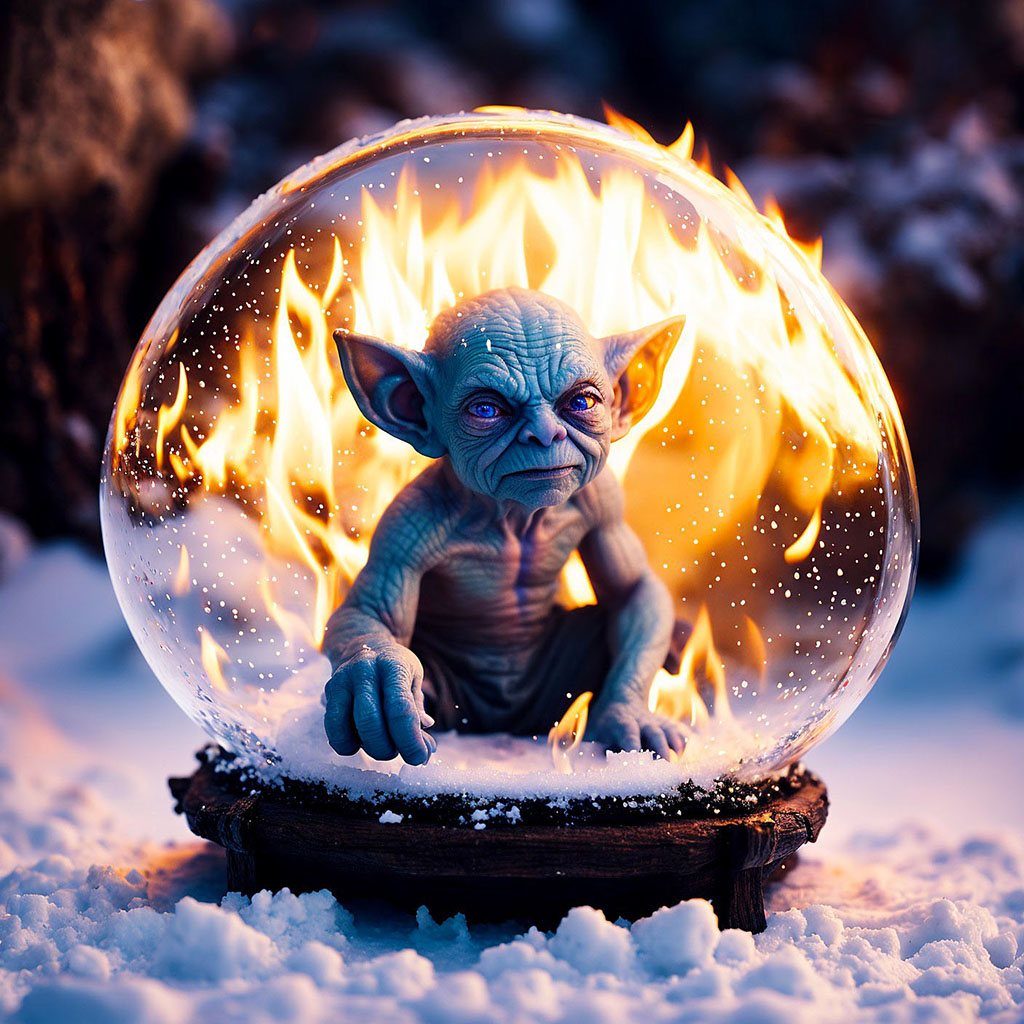
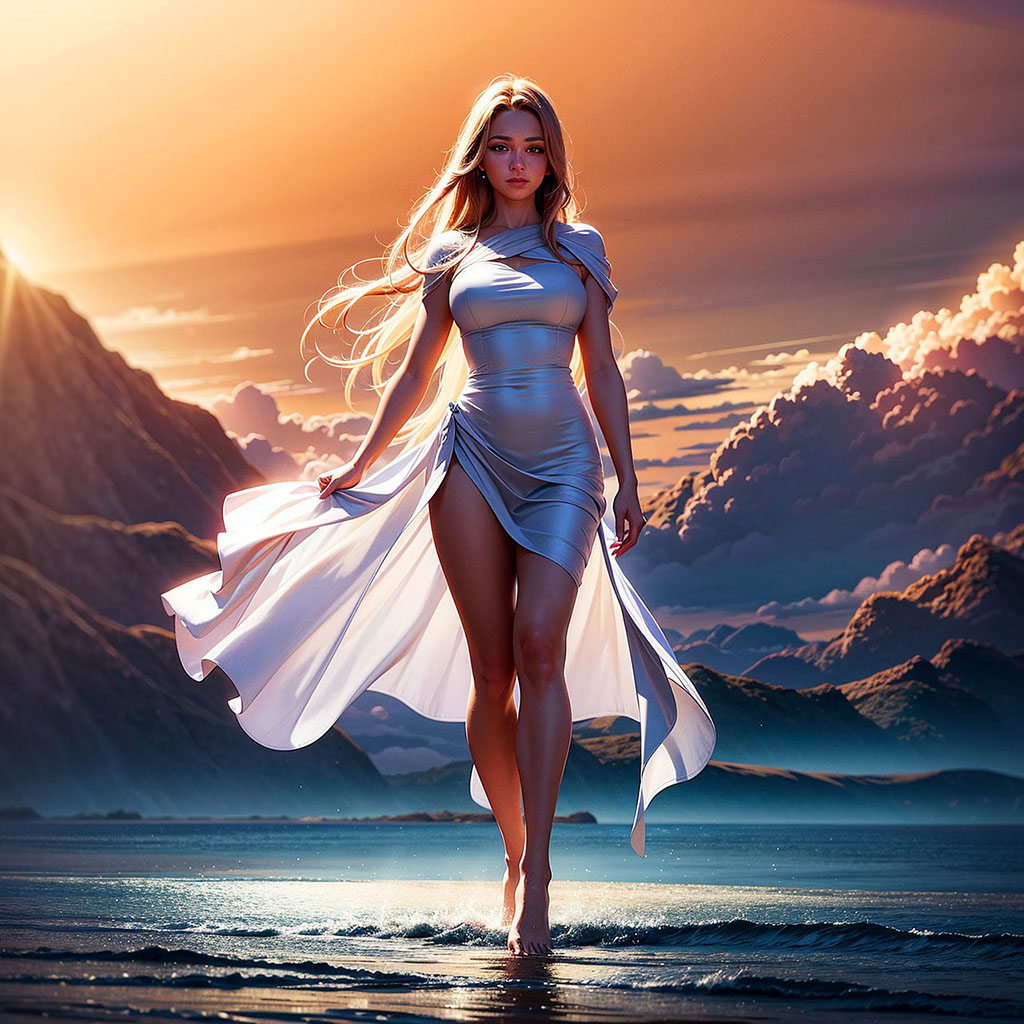
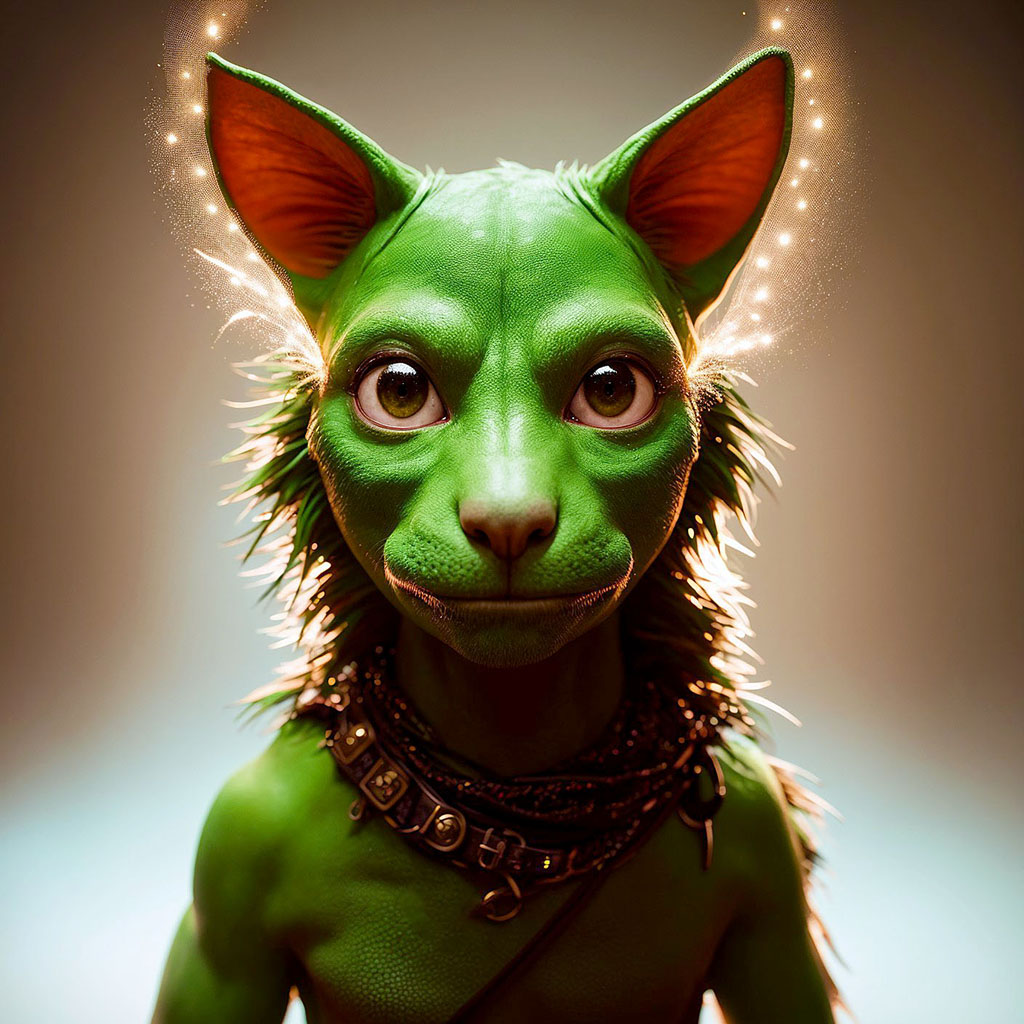
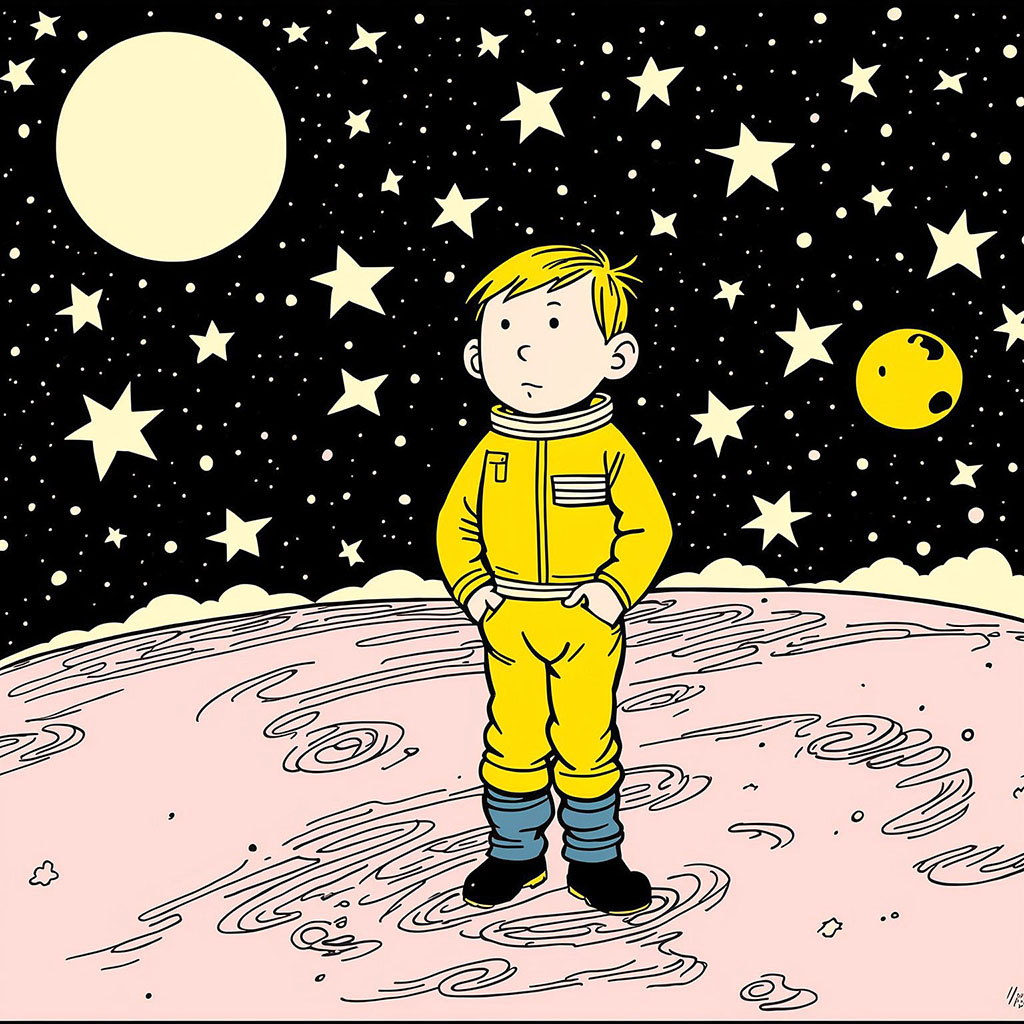
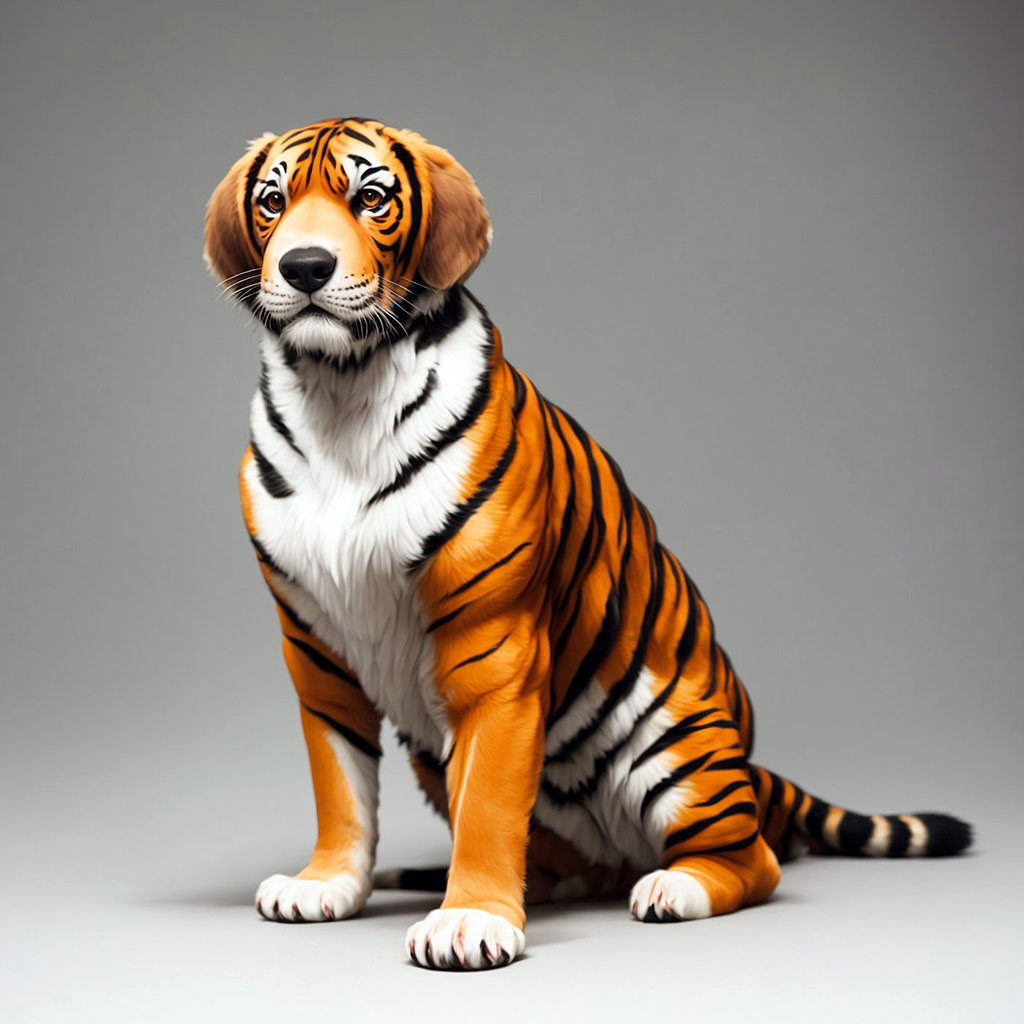
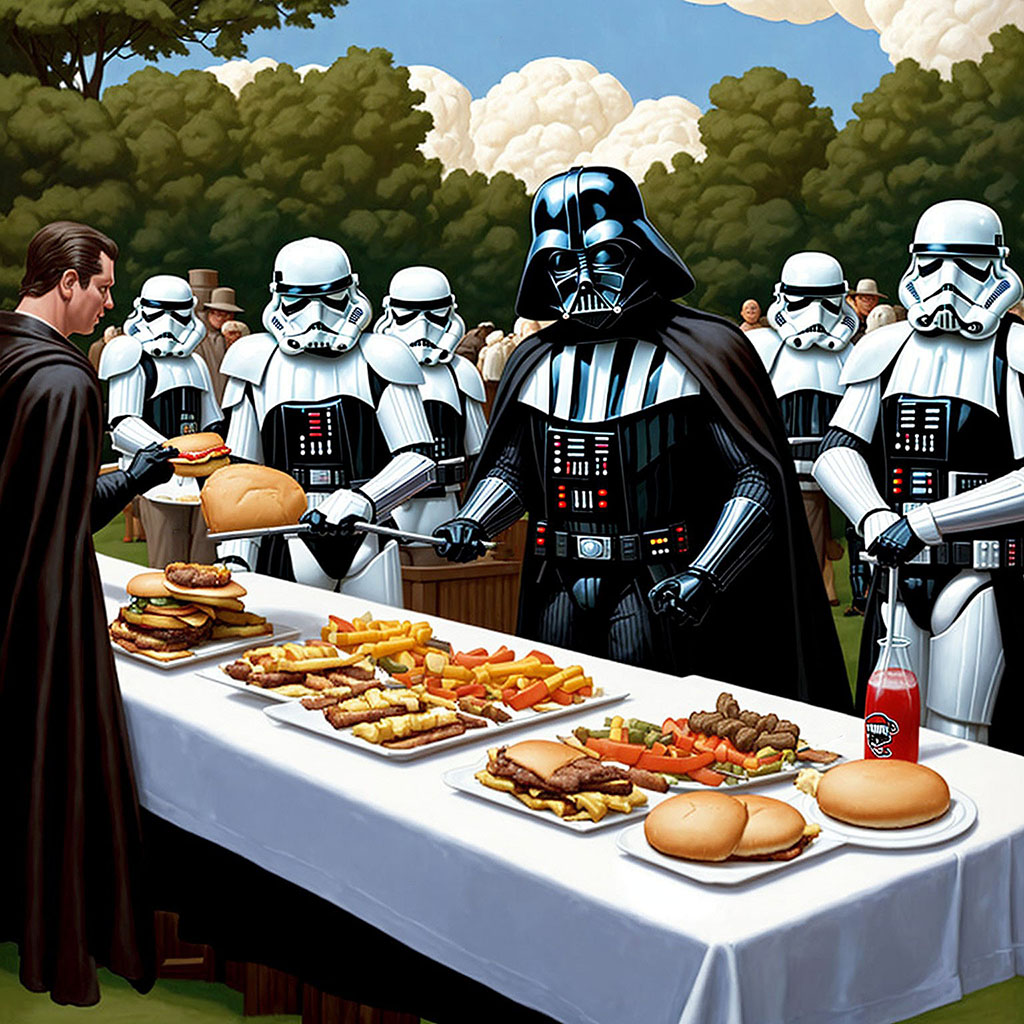
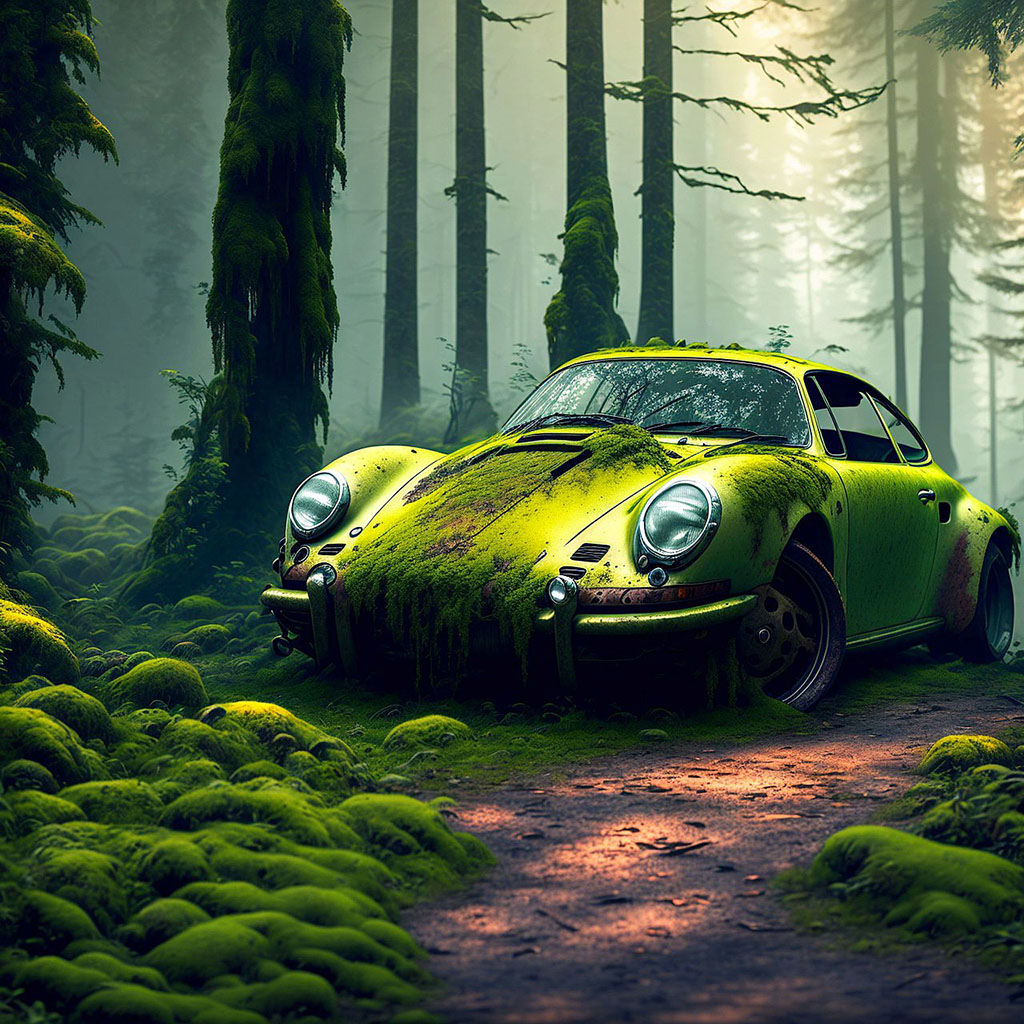
説明するために、私は3つのGPUを数ヶ月間、実質的に24時間年中無休でドリームファクトリーを実行しています。彼らは毎日何千もの画像を作り上げています!私は自分の画像をチェックして、夢の工場Web UIを介して、私の都合の良いときに、私の実行中の仕事をリモートで修正することができます。いくつかのサンプル(すべてはすべて、解像度を1024x1024に減らす以外の夢からまっすぐに)):
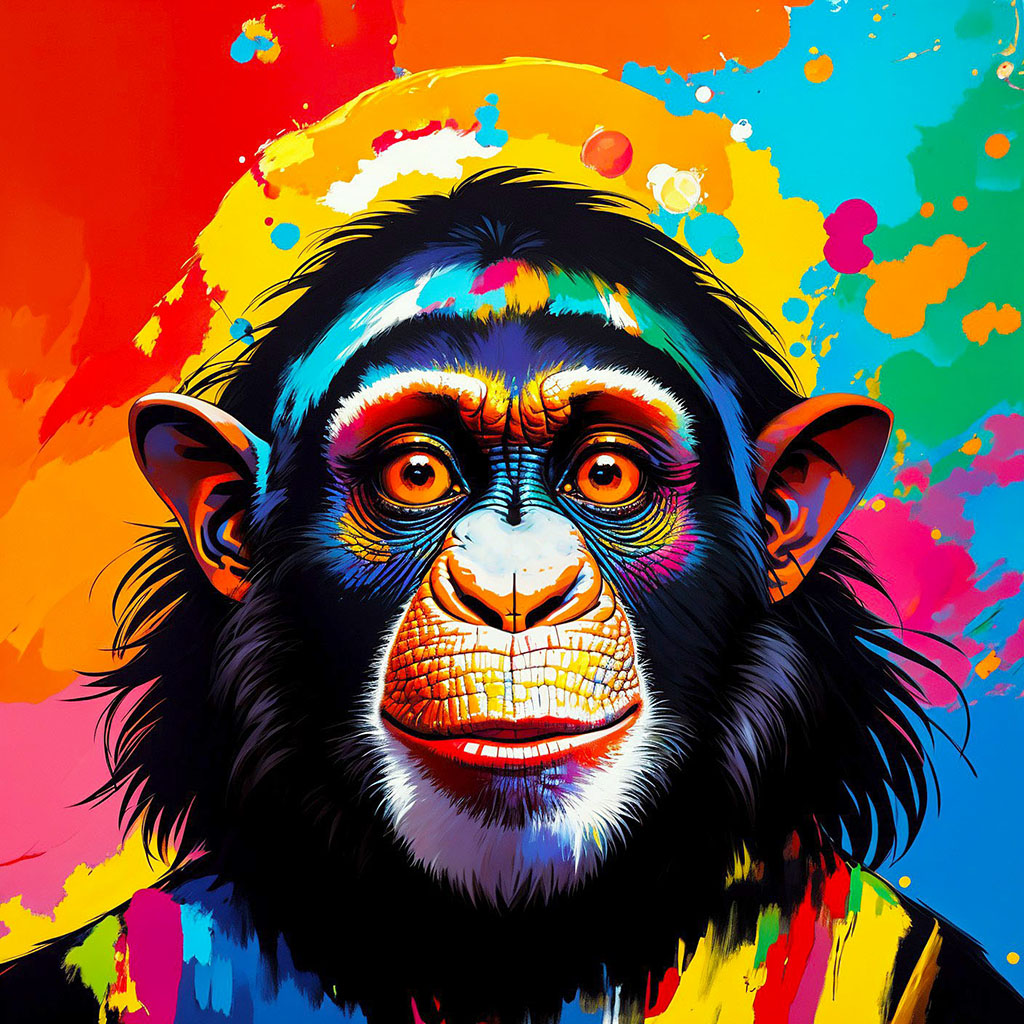 | 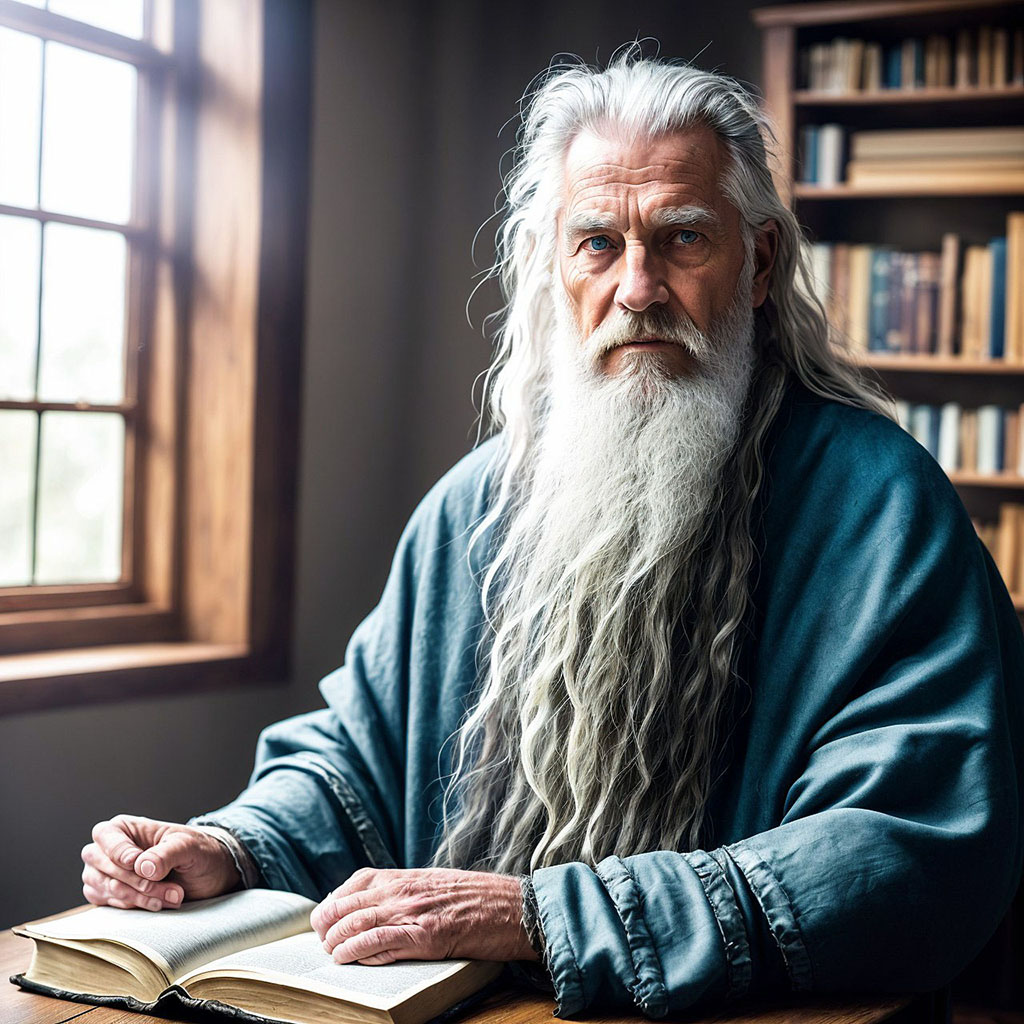 | 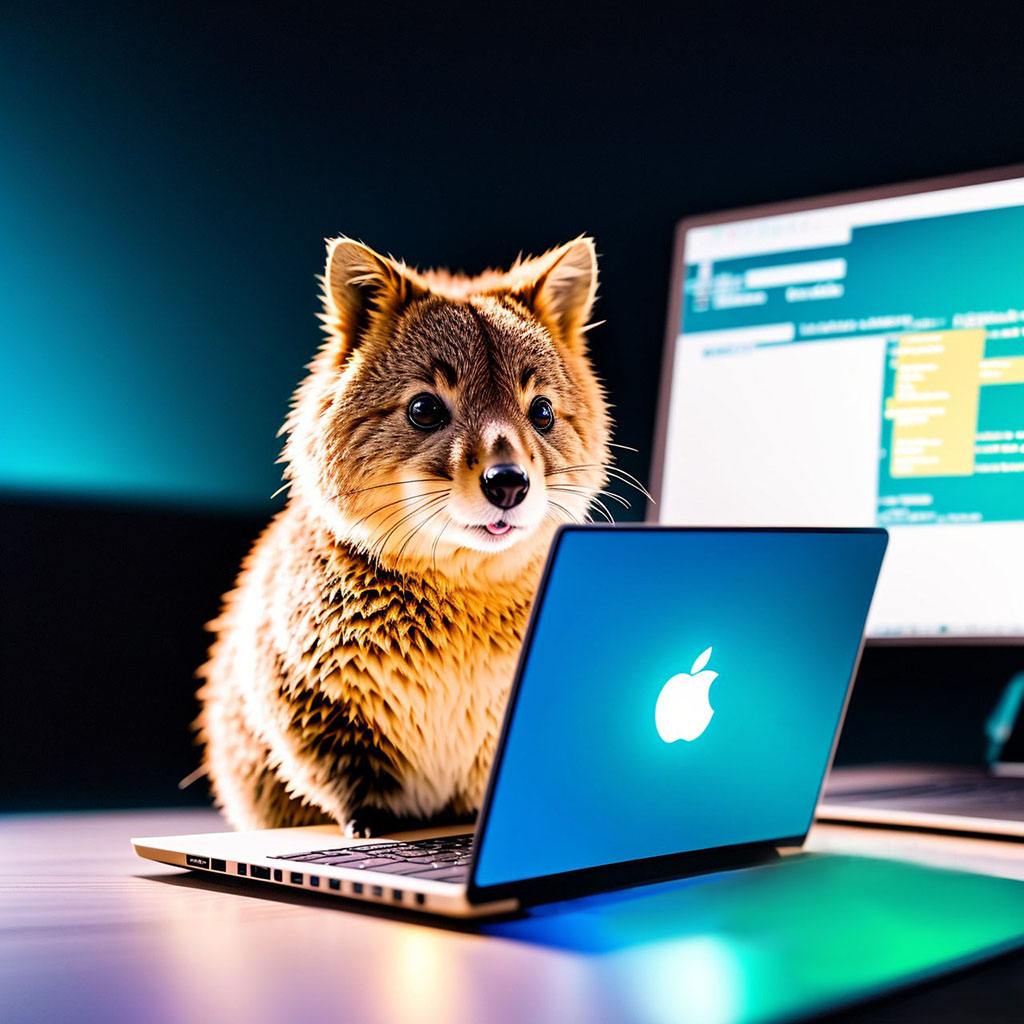 | 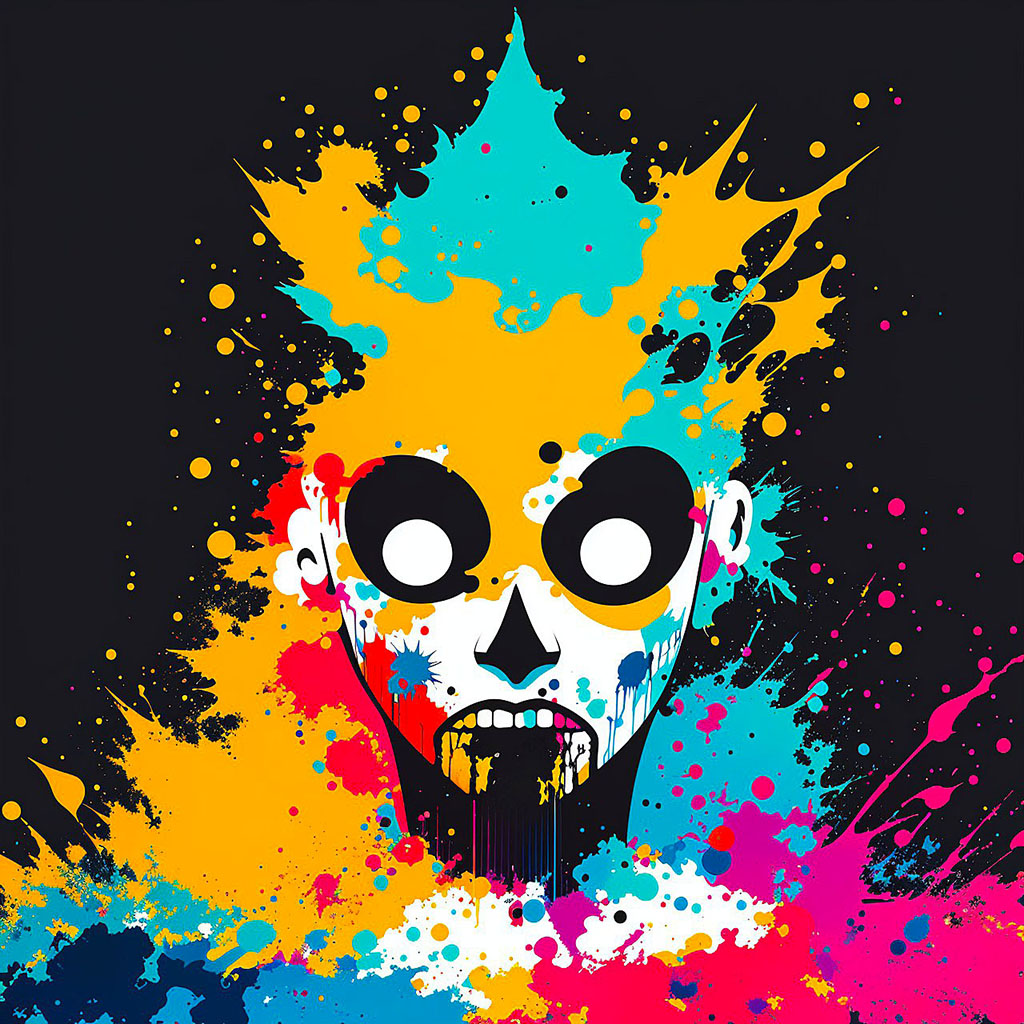 |
 |  |  |  |
 |  |  |  |
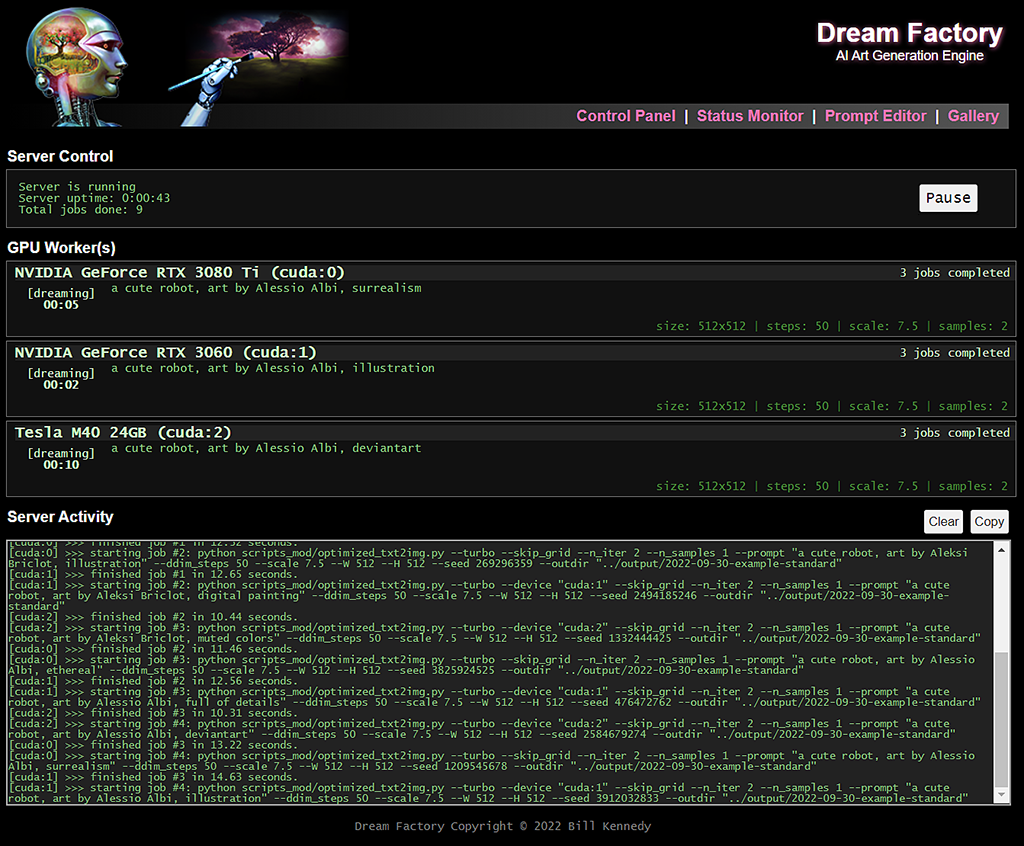
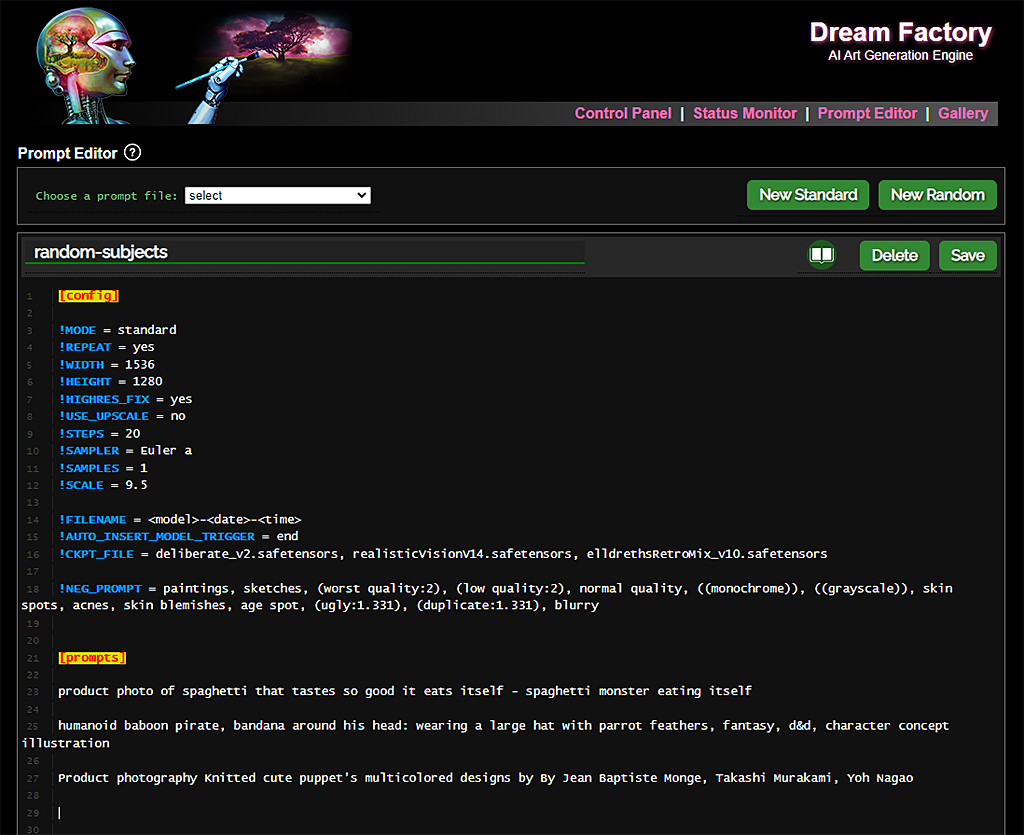
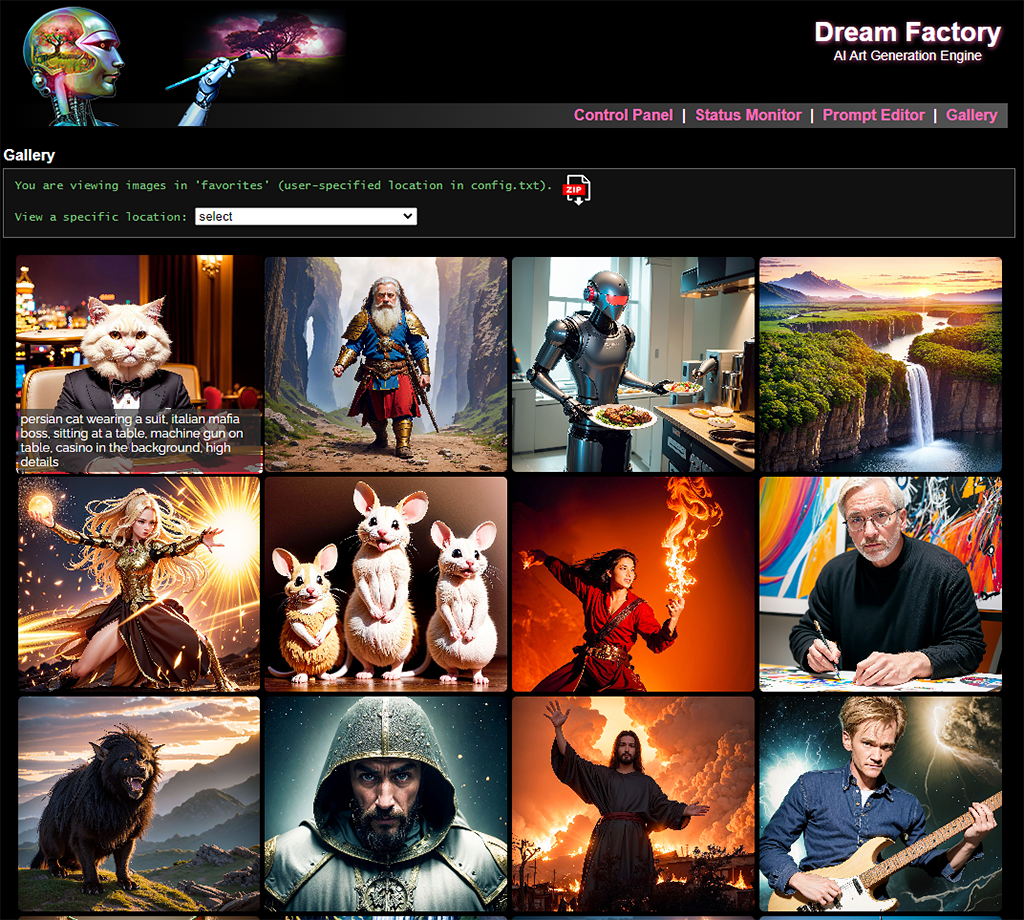
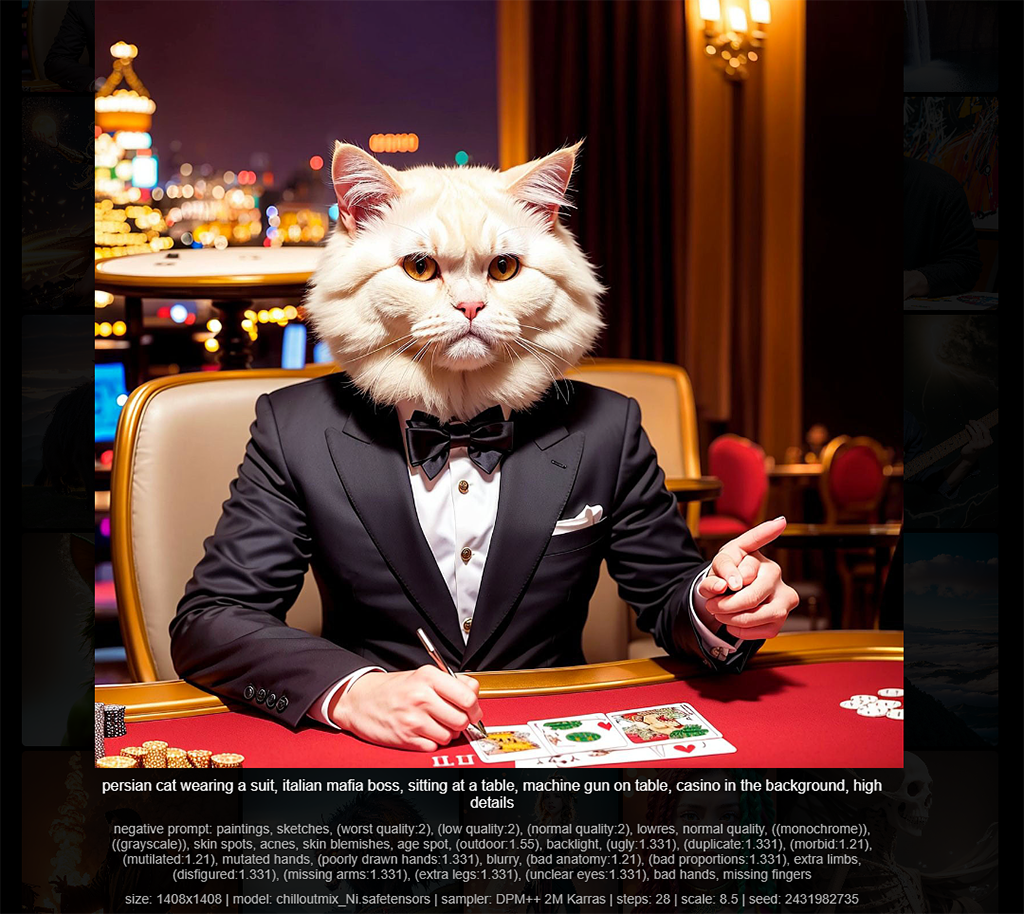
いくつかのUIスクリーンショット:
 |  |  |  |
少なくとも1つのNvidia GPUが必要であり、できればかなりの量のVRAMが必要です。 3GBのVRAMでは、512x512の画像を生成するのに十分なはずですが、GPUメモリを増やすと、より大きな画像を作成できます(および/またはより速く作成できます)。
また、動作する自動1111安定した拡散WebUIも必要です。
これらの指示は、8〜12GB VRAMの範囲のさまざまな最新のNvidia GPUを備えたいくつかのWindows 10デスクトップ、および古いNvidia Tesla M40 GPU(24GB VRAM)を備えたUbuntuサーバー20.04.3システムでテストされました。
[1]アナコンダをインストールし、ルート端子を開き、新しい環境を作成します(およびアクティブ化します)。
 conda create --name dream-factory python=3.10
conda activate dream-factory
[2]必要なPythonパッケージをいくつかインストールします。
conda install -c anaconda git urllib3
[3]このリポジトリをクローンし、そのディレクトリに切り替えます。
 git clone https://github.com/rbbrdckybk/dream-factory
cd dream-factory
[4]含まれたセットアップスクリプトを実行して、インストールの残りを自動的に完了します。
python setup.py
[5] config.txtファイルを編集して、自動1111 SDインストールへのフルパスを指定します。
あなたは終わった! Dream Factoryをテストしようとする前に、Automatic1111のインストールが適切に機能することを確認してください。さらに、Auto1111の「設定」タブのすべてが好みに合わせて構成されていることを確認してください。DreamFactoryは、そこに設定したオプションを自動的に継承します。
Auto1111のインストールで個々の画像を生成できることを確認したら、テストを実行して、Dream Factoryがこれを実行することで機能していることを確認できます(繰り返しますが、Main Dream-Factoryフォルダーから):
python dream-factory.py --prompt_file prompts/example-standard.prompts
これにより、GPUが自動的に作業を開始するように事前にロードされた簡単な例プロンプトファイルを使用して、Webインターフェイスを起動するはずです。最初の実行では、いくつかの大きなファイル(合計で〜2GB)が自動的にダウンロードされるため、事態が発生するまで数分かかる場合があります。
最終的には、 出力フォルダーに画像が表示されている必要があります(または、Web UI内の「ギャラリー」リンクをクリックして、そこに監視できます)。画像を取得している場合、すべてが適切に機能しており、次のセクションに進むことができます。
Anacondaの立ち上げやコマンドラインウィンドウを毎回開くのではなく、Dream Factoryを開始する簡単なオプションを作成したい場合は、次の手順に従うことができます。
[1] Windowsエクスプローラーを開き、この場所を参照します。[ユーザー名]はWindowsユーザー名です。
C:Users[username]anaconda3Scripts
そこにあるactivate.batファイルのコピーを作成し、 activate-dream-factory.batに名前を付けます。
[2]作成したばかりのactivate-dream-factory.batファイルを編集し、これらの行をファイルの最後に追加します。
 @CALL echo Starting Dream Factory...
@CALL conda.bat activate dream-factory
@CALL cd "[full path to your Dream Factory folder]"
@CALL python dream-factory.py
@CALL pause
[Dream Factoryフォルダーへのフルパス]を、Dream Factoryをインストールしたパス(例:C:ユーザー[Windowsユーザー名] Dream-Factory)に置き換えます。
ファイルを保存して閉じます。
[3]このファイルにショートカットをデスクトップ(またはどこでも)に配置します。クリックすると、Dream Factoryが発売されるはずです。
手順は、セットアップを完了し、インストールが適切に機能することを確認したと仮定します。
夢の工場を始めてください:
python dream-factory.py
ブラウザを介してhttp:// localhost:8080(config.txtのポートを変更しなかったと仮定して)にアクセスしない場合、Web UIは自動的に開く必要があります。 GPUは自動的に初期化を開始します(各GPUは、スタンドアロンモードでAuto1111を起動するのにかかる限り時間がかかります)。
上部NAVの「コントロールパネル」を参照し、ドロップダウンを介して2つの例のプロンプトファイルのいずれかを選択します。 GPU(S)は、初期化が完了したらすぐに選択した場合でも作業を開始する必要があります。 「ステータスモニター」に戻って参照でき、GPUが選択したプロンプトファイルから作業が割り当てられていることがわかります。上部のナビゲーションで「ギャラリー」を閲覧すると、完成したときに画像が表示されます。
プロンプトファイルはDream Factoryの中心であり、GPUにしたい作業を定義します。それらは、あなたが望むようにシンプルまたは複雑にすることができます。
新しいプロンプトファイルを作成する前に、Dream Factoryに含まれている2つの例のプロンプトファイルを見てみましょう。上部NAVで「プロンプトエディター」をクリックすることから始めて、「プロンプトファイルを選択します」で「標準の標準」を選択します。」ドロップダウン。
エディターへのプロンプトファイルのロードが表示されます。プロンプトファイルには、安定した拡散設定を定義するディレクティブを備えたオプションの[config]セクションと、プロンプト(または他の[プロンプト]セクションと組み合わせるプロンプトのセクション)を含む少なくとも1つの[プロンプト]セクションがあります。
例ファイルには、各[config]ディレクティブが何をするか、[プロンプト]セクションがどのように結合するかをかなり明確にするコメントが含まれています。明確でない指令に関するヘルプについては、以下のコマンドリファレンスを参照してください。
統合されたエディターを使用してプロンプトファイルを作成できます(上部NAVの[プロンプトエディター]をクリックしてから、「新しい標準」または「新しいランダム」をクリックして新しいファイルを起動します)。コモンディレクティブとconfig.txtに含まれるデフォルト設定を含むスケルトンを使用して、プロンプトファイルが自動的に作成されます。
作成後、エディターの上部にある名前をクリックして新しい名前を入力してから「名前を変更」するだけで、プロンプトファイルを変更できます。
ご希望の場合は、選択したテキストエディターを使用して外部からプロンプトファイルを作成することもできます(.prompt拡張機能で名前を付けて、プロンプトフォルダーに配置します)。 notepad ++を使用した場合、.promptファイルにコンテキストに敏感なハイライトを追加するDream-factory/prompts/notepad_pluginフォルダーにプラグインがあります。
これらのディレクティブは、標準およびランダムプロンプトファイルの両方の[config]セクションでのみ有効です。
これらのディレクティブは、標準プロンプトファイルとランダムプロンプトの両方の[構成]セクションと、標準プロンプトファイルの[プロンプト]セクション(!モード=標準)の両方で有効です。
これらのディレクティブは、標準プロンプトファイルの[config]セクション(!モード=標準)でのみ有効です。
これらのディレクティブは、ランダムプロンプトファイル(!モード=ランダム)の[config]セクションでのみ有効です。
最後に、これらの特別な指令はプロセスプロンプトファイル(!モード=プロセス)でのみ有効です。
コマンドヘルプと使用例:
プロンプトファイルモードを標準(デフォルト)またはランダムのいずれかに設定します。標準のプロンプトファイルは、可能な限りすべての[プロンプト]セクションの組み合わせを繰り返して機能し、ランダムプロンプトファイルは[プロンプト]セクションからランダムにプロンプトを選択するだけです。プロンプト/example-standard.prompts and Prompts/ExampleRandom.Promptsを参照してください。各モードの仕組みの詳細なウォークスルーを参照してください。
!MODE = standard
Dream Factoryを使用して、高度なユーザーが既存の画像(例:バッチアップスケーリング、メタデータタグ付け、名前変更など)にバッチ処理タスクを設定できるようにする!モードの3番目のオプションが存在することに注意してください。プロセスの例を見ることができます。プロムプスファイルはこちらです。
[プロンプト]セクションに参加するときに使用される区切り文字を設定します(デフォルトはスペースです)。たとえば、2つの[プロンプト]セクションがあり、1つ目のトップエントリが「A Portrait of」であり、2番目の上部エントリは「A Cat」である場合、2つのセクションを組み合わせると、終了します。 「猫の肖像」の場合は、!delim = ""。
!DELIM = " "
ピクセル単位で出力画像幅を設定します(デフォルトは512です)。これは64の倍数でなければならないことに注意してください!
!WIDTH = 512
ピクセル単位で出力画像の高さを設定します(デフォルトは512です)。これは64の倍数でなければならないことに注意してください!
!HEIGHT = 512
Auto1111 HighResの修正を有効または無効にします。有効なオプションはYESまたはNO (デフォルト)です。これは、512x512よりも大幅に高い解像度で画像を生成する場合に有効にする必要があります。
!HIGHRES_FIX = no
2023-09-22の時点で、Dream Factory config.txtファイルには、 hires_fix_modeオプションがあり、簡単な(デフォルト)またはAdvancedを指定できるようにします。 HIRES_FIX_MODE = advancedを設定すると、初期の画像生成サイズを指定する機能と、最終サイズを決定するスケーリングファクターを有効にします(以下のHighRes_scale_factorを参照)。
デフォルトのシンプルモードでは、希望の最終出力画像サイズと中間ステップに.promptsファイルの幅と!高さを設定するだけで、自動的に処理されます。
除去手順の数(デフォルト= 20)。通常、より多くの手順により、処理時間のコストで画質が向上します。
!STEPS = 20
また、範囲(例えば!ステップ= 30-55)を指定することもでき、範囲内のランダム値がプロンプトの実行時に選択されます。
使用するサンプラー(デフォルトはDPM ++ 2Mです)。これは、Auto1111SD WebUIで利用可能なオプションと正確に一致する必要があります。 Ctrl+Hを押すか、エディターの右上隅にあるヘルプアイコンをクリックして、使用可能なサンプラーの参照リストを表示できます(サンプラーをクリックしてクリップボードにコピーして、エディターに簡単に貼り付けることができます)。
!SAMPLER = DPM++ 2M
使用するスケジューラ(デフォルトは自動です)。これは、Auto1111 WebUI(均一、カラス、指数、ポリエクセンゼルス、SGMユニフォーム)の値と一致する必要があります。
!SCHEDULER = Karras
デフォルトに戻るように、何にも設定されていないか、自動に設定します。
ガイダンススケール、または安定した拡散がテキストプロンプトに従うことがどれだけ密接に必要か。デフォルトは7.5で、一般的に言えば有用な値は5〜30です。
!SCALE = 7.5
また、範囲(例えば!スケール= 5.5-9)を指定することもでき、範囲内のランダム値がプロンプトの実行時に選択されます。
次のプロンプトに移動する前に、各プロンプトの作成する画像の数(デフォルト= 1)。以下のbatch_sizeオプションとは異なり、これを増やす際のGPUメモリに関して追加のコストはありません。これを増やすと、処理時間がライナーの増加があります(例:!サンプル= 10は、!サンプル= 1の10倍かかります)。
!SAMPLES = 1
各GPUに並行して生成したい画像の数(デフォルト= 1)。 batch_sizeの各増加には、より多くのGPU VRAMが必要になり、この値を高く設定しすぎると、GPUがメモリとクラッシュがなくなります。ただし、十分なVRAMがあることを知っている限り、これを1を超えて増加させることで中程度の速度向上を達成できます。これは高度な設定であり、新しいプロンプトファイルテンプレートに含まれていませんが、プロンプトファイルに手動で追加することができます。 。
!BATCH_SIZE = 1
デフォルトのランダムノイズではなく、除去プロセスの出発点として使用する画像を設定します。これは、(Dream Factory Base Directoryに対して)相対的なパスまたは絶対パスである可能性があり、これを何にも設定しても、以前に設定された入力画像がクリアされます。
 !INPUT_IMAGE = C:imagesdog.png                         # specifies the full path to an input image
!INPUT_IMAGE = cat.jpg                                   # specifies an input image 'cat.jpg' in the DF home directory
!INPUT_IMAGE =                                           # specifies no input image should be used
この指令に画像のディレクトリを渡すこともできることに注意してください。
!INPUT_IMAGE = C:images
ディレクトリが渡されると、フォルダー内のすべての画像が続くプロンプトに適用されます。
入力画像の影響の強度を設定します。有効な値は0-1(デフォルト= 0.75)です。 0に近い値は、入力画像と非常によく似た出力画像になり、1に近い値は類似性が低い画像になります。一般に、0.2〜0.8の間の値が最も便利です。これは、最終画像が低解像度の初期化画像をどの程度密接に反映するかを示すために!highres_fix = yesでも使用されることに注意してください。
!STRENGTH = 0.75
また、範囲(例えば!強度= 0.55-0.75)を指定することもでき、範囲内のランダム値がプロンプトの実行時に選択されます。
使用するモデルを設定します。カスタムモデルは、Auto1111インストールの適切なモデルディレクトリにインストールする必要があります。 Ctrl+Hを押すか、エディターの右上隅にあるヘルプアイコンをクリックして、使用可能なモデルの参照リストを表示できます(モデルをクリックしてクリップボードにコピーして、エディターに簡単に貼り付けることができます)。これをNothingに設定すると、config.txtファイルに設定したモデルがデフォルトに戻ります(デフォルトを設定していない場合は、何もしません!)。
また、多くの人がここにコンマ区切りモデルのリストを設定しています。標準モードでは、Dream Factoryは最初のモデル、次に2番目のモデルなどですべてのプロンプトをレンダリングします。ランダムモードでは、Dream Factoryは50プロンプトごとにモデルを切り替えます(このインターバルをConfig.txtファイルで変更できます)。
また、ここで予約された単語「All」を使用することもでき、Dream Factoryは利用可能なすべてのモデルを自動的に回転させます。
[config]セクションで複数のモデルしか指定できないことに注意してください。モデルの回転は他の場所ではサポートされていません!
 !CKPT_FILE = analog-style.ckpt                           # sets a new model to use
!CKPT_FILE = sd-v1-5-vae.ckpt, analog-style.ckpt         # sets 2 models to rotate between
!CKPT_FILE = all                                         # will rotate between all of your models
!CKPT_FILE =                                             # sets the default model specified in your config.txt
注:これは、統合されたリファレンスで利用可能な有効なサーバー値でサブストリングマッチを使用するため、たとえば「SD_1.5 dreamshaper_4bakedvae.safetensors [7f16bbcd80]」の場合、参照レポートであり、 ckpt_file = dreamshaper_4bakedvae.safeTensorsを設定します。それ。
使用するvaeを設定します。これを何も設定して、自動VAEの使用(またはAUTO1111設定の設定が指定するもの)に戻ります。
 !VAE = vae-ft-mse-840000-ema-pruned.ckpt
!VAE =
注:サブストリングマッチはここで有効です。たとえば、vae-ft-mse-840000の設定には、Vae-ft-mse-840000-ema-pruned.ckptが見つかります。
それに続くすべてのプロンプトに使用するネガティブプロンプトを指定します(ほとんどのディレクティブを標準プロンプトファイルの[プロンプト]セクションに直接配置できることを忘れないでください!)。使用する傾向がある「キャッチオール」ネガティブプロンプトがある場合は、config.txtファイルで指定でき、作成した新しいプロンプトファイルのデフォルトとして入力されます。これを何にも設定すると、負のプロンプトがクリアされます。
!NEG_PROMPT = watermark, blurry, out of focus
Model-Triggers.txtファイルで設定されている「トリガーワード」を必要とするカスタムモデルで使用するために使用します(以下のカスタムモデルを参照)。これにより、自動挿入トリガーワードの配置を制御できます。有効なオプションは開始(デフォルト)、 End 、 First_Comma 、 Keyword:[キーワードを置き換える]とオフです:「Start」はプロンプトの前面にトリガーワードを配置します。最初のコンマの後に(またはプロンプトにコンマがない場合は最後に)、 'キーワード:'は、プロンプトの指定されたキーワード/フレーズをモデルトリガーワードに置き換え、「オフ」は自動挿入を完全に無効にします。
!AUTO_INSERT_MODEL_TRIGGER = start
これにより、有効なhighRES_CKPT_FILEが関連するトリガーワードで設定されていると仮定して、HighRES_PROMPTへの自動トリガー挿入の動作も制御することに注意してください。
画像作成で使用するシード値を指定します。この値は通常、ランダムに選択されます - 同じシード値を持つ同じ設定を使用すると、まったく同じ出力画像が生成されるはずです。これを何にも設定すると、ランダムシード値を使用する必要があることが示されます(デフォルト)。これは高度な設定であり、新しいプロンプトファイルテンプレートには含まれていませんが、プロンプトファイルに手動で追加できます。
!SEED = 42
すべての出力画像を自動的にアップスケーリングする必要があるかどうか。アップスケーリングにはかなりの時間がかかる可能性があるため、一般に、選択した画像のサブセットでのみこれを行いたいと思うでしょう。有効なオプションはYESまたはNO (デフォルト)です。
!USE_UPSCALE = no
使用するアップスケーリングモデルを設定します。
!UPSCALE_MODEL = esrgan
これは、Auto1111でインストールしたアップスカラーでサブストリングマッチを実行することに注意してください。この場合、 ESRGAN_4X *を選択する必要があります(デフォルトでもあります)。
in !mode = process .promptsファイルでは、 upscale_model = sdまたは!upscale_model = ultimateをさらに指定できます。
SDは、安定した拡散のIMG2IMGエンジンを使用して画像をアップスケールする特別なオプションです。これには他の方法よりもはるかに時間がかかり、大きな画像サイズに到達するには多くのGPU VRAMが必要です(2048x2048画像を出力するにはVRAMの〜12GBが必要です)が、詳細を追加する機能を備えた高品質の結果が得られる可能性があります。 use!upscale_sd_strength = xxx(デフォルトは0.3)を使用して、!upscale_model = sdで除去強度を制御します。
このオプションは、Auto1111のHighRESの修正方法と非常に同様に機能します。画像を撮影し、安定した拡散を使用して大きなバージョンを作成し、使用される除去強度に応じて画像をわずかに変更できます(ほとんどの場合、0.3のデフォルト値は元のデフォルト値を非常に近くに留める必要があります)。
 !UPSCALE_MODEL = sd
!UPSCALE_SD_STRENGTH = 0.3
!upscale_model = sdを使用するには、最初にMAX_OUTPUT_SIZEをDream Factory config.txtファイルに追加する必要があります(説明についてはconfig-default.txtを参照)。
Ultimateは、自動1111のインストールに究極のSDアップスケール拡張機能を追加する必要がある特別なオプションです。
インストールしたら、次のディレクティブで拡張機能の設定を制御できます(以下の例では、除去強度を0.28に設定し、ESRGAN_4Xをアップスカラーとして使用し、元の画像を2.5X係数でアップスケールします)。
 !UPSCALE_MODEL = ultimate
!UPSCALE_SD_STRENGTH = 0.28
!UPSCALE_ULT_MODEL = esrgan
!UPSCALE_AMOUNT = 2.5
詳細については、Dream Factory /Prompts Directoryのexample-process.promptsファイルの下部を参照してください。
!upscale_model = ultimateを使用するには、最初に究極のSDアップスケール拡張機能をAuto1111にインストールする必要があります。
高級する要因。セット!upscale_amount = 2は、画像の幅と高さを2倍にします(解像度が4倍になります)。 !use_upscale = yesでない限り効果はありません。
!UPSCALE_AMOUNT = 2
コードフォーマーの可視性は、出力画像上の向上します。有効な値は0-1の間です。これを0に設定すると、CodeFormerの拡張機能が完全に無効になります。 !use_upscale = yesでない限り効果はありません。
!UPSCALE_CODEFORMER_AMOUNT = 0.50
出力画像上のGFPGANフェイスエンハンスメントの可視性。有効な値は0-1の間です。これを0に設定すると、GFPGANエンハンスメントが完全に無効になります。 !use_upscale = yesでない限り効果はありません。
!UPSCALE_GFPGAN_AMOUNT = 0.50
アップスケーリングするときは、元の(非アップスケーリング)画像も保持しますか?有効なオプションはYESまたはNO (デフォルト)です。はいに設定されている場合、オリジナルはメイン出力フォルダーから /オリジナルサブディレクトリに保存されます。 !use_upscale = yesでない限り効果はありません。
!UPSCALE_KEEP_ORG = no
カスタム出力ファイル名を指定できます。次の変数を使用できます。画像が作成されると、それらは記入されます。
<ad-model><ad-strength><cn-img><cn-model><date><date-year><date-month><date-day><height><hr-model><input-img><lora><model><neg-prompt><prompt><sampler><scheduler><scale><seed><steps><strength><styles><time><width>プロセスモードファイルでは、以下が利用可能です。
<upscale-model><upscale-sd-strength>ファイル拡張子(.jpg)が自動的に追加されます。
!FILENAME = <date-year><date-month><date-day>-<model>-<width>x<height>-<prompt>
上記の例では、たとえば20230209-Deliberte_V11-768x1280-A-Photo-of-a-cute-cat.jpgの出力ファイル名が生成される場合があります。
<input-img>および<cn-img> (controlnet input Image)は、ベースファイル名のみになることに注意してください(サブディレクトリまたはファイル拡張機能はありません)。
カスタムファイル名は200文字で切り捨てられます(ファイルの拡張機能と、ファイルを一意にするために必要な数値パディングは含まれません)。
クリップスキップ値を設定します。デフォルトは1であり、ほとんどのモデルはそこに設定されて最適に機能します。ただし、一部のモデルでは、他の値で最適な結果をもたらす場合があります。
!CLIP_SKIP = 2
これをNothing(!Clip_skip =)に設定してクリアすることができます。
シームレスなタイルモードを有効または無効にします。有効にすると、出力画像は、目に見える縫い目/エッジのないタイルに適しています。
!SEAMLESS_TILING = on
無効化するためにオフに設定します(デフォルト)。
ControlNetで使用する入力画像を設定します。
!CONTROLNET_INPUT_IMAGE = posesexamplesopenpose-standing_arms_in_front.png
上記の例では、ControlNet入力画像としてOpenPose-Standing_Arms_in_front.pngを使用します。コントロールネット拡張子がインストールされていない場合、および/または!controlnet_modelディレクティブを介してコントロールネットモデルも指定しない場合、これは効果がないことに注意してください。
別のディレクティブを発行することにより、以前に設定された入力画像をクリアできます。
この指令に画像のディレクトリを渡すこともできることに注意してください。
!CONTROLNET_INPUT_IMAGE = posesexamples
ディレクトリが渡されると、フォルダー内のすべての画像が続くプロンプトに適用されます。
使用するコントロールネットモデルを設定します。
!CONTROLNET_MODEL = openpose
統合エディター内のControl-H(または適切なボタンを押す)を押して、利用可能なControlNetモデルを表示する参照を開くことができます。コントロールネット拡張子がインストールされていない場合、および/または!controlnet_input_imageディレクティブを介してコントロールネット入力画像を指定しない場合、コントロールネットモデルの設定は効果がありません。
Dream Factoryに!controlnet_input_image filenameからモデルを抽出する場合は、オプションで!controlnet_model(またはauto、[default] )のAutoを指定できます。これを機能させるには[ControlNet model to use]-[rest of filename].ext次の形式で画像を名前を付ける必要があります。たとえば、 OpenPose-Standing_Arms_in_front.pngという名前の画像は、!controlnet_model = autoの場合、openposeモデルを使用する必要があることを示します。
!CONTROLNET_MODEL = auto, depth
この例では、Dream Factoryは、ファイル名から使用するモデルを抽出し、ファイル名に有効なモデルが含まれていなかった場合、デフォルトモデルとして「深さ」にフォールバックを抽出しようとします。デフォルトの指定はオプションですが、モデルをファイル名から識別できず、デフォルトが存在しない場合、ControlNetは無効になります。
注:これは、統合された参照を介して使用可能な有効なサーバー値でサブストリングマッチを使用するため、たとえば「control_canny-fp16」が参照レポートの場合、 controlnet_model = cannyを設定します。
使用するコントロールネットプリプロセッサを設定します。これは、通常の画像から情報を「抽出」するために使用されるため、対応するControlNetモデルで使用できます。事前に生成されたポーズ(Dream Factory Posesフォルダーに含まれる例など)を使用している場合は、これを設定する必要はありません(または、デフォルトの「none」に設定できます)。
!CONTROLNET_PRE = openpose
統合エディター内のControl-H(または適切なボタンを押す)を押して、利用可能なControlNet Preprocessorsを表示する参照を開くことができます。コントロールネット拡張子がインストールされていない場合、および/または!controlnet_input_imageディレクティブを介してコントロールネット入力画像を指定しない場合、ControlNet Preprocessorの設定は効果がありません。
CN拡張V1.1.09の時点では、推測モードはサポートされなくなりました - 交換については以下を参照してください!
これを使用して、controlnetを使用するときに(yes)またはdisable(no、default、 "nonprompt Mode")を有効にします。
!CONTROLNET_GUESSMODE = yes
ここで推測モードについて読むことができます。
これを使用して、ControlNetにControlNet以上のプロンプトを支持するように指示したり、その逆も同様であるか、バランスの取れたアプローチを取ってください。オプションは、「バランス」(デフォルト)、「プロンプト」(プロンプトを支持するため)、または「 ControlNet 」(ControlNetを有利にするため)です。
!CONTROLNET_CONTROLMODE = balanced
ここでコントロールモードについて読むことができます。
これを使用して、controlnetを使用するときに(はい)または無効にする(no、デフォルト)ピクセルパーフェクトモードを有効にします。これを有効にすると、指定した画像の高さと幅(幅と!高さ)を使用して、ControlNetの前処理画像を生成します。
!CONTROLNET_PIXELPERFECT = yes
これを使用して、controlnetを使用するときに(はい)または無効にします(いいえ、デフォルト)低VRAMモードを有効にします。
!CONTROLNET_LOWVRAM = yes
これは、VRAMが少ないGPUがある場合に役立つ場合があります。
これを使用して、コントロールネットの重みを設定します(デフォルト= 1.0; 0-2の間に設定)。
!CONTROLNET_WEIGHT = 1.0
Dream Factoryが入力画像のサイズまたはControlNet入力画像のサイズに基づいて、出力画像を自動的にサイズすることができます。有効なオプションは、 match_input_image_size 、 match_controlnet_image_size 、 match_input_image_aspect_ratio 、 match_controlnet_image_aspect_ratio 、 sesize_longest_dimension:[size] 、またはoff (default)です。
 # output image will be set to the same size as your input image, regardless of any !WIDTH & !HEIGHT directives
!AUTO_SIZE = match_input_image_size

# output image will use the larger of your !WIDTH & !HEIGHT directives as the longer output dimension
# the shorter output dimension will be calculated so that the output image has the same aspect ratio as the ControlNet input image
!AUTO_SIZE = match_controlnet_image_aspect_ratio

# the output image will be re-sized so that the longer of your !WIDTH/!HEIGHT settings becomes the size specified here
# the shorter dimension will be calculated to maintain the same aspect ratio as the original !WIDTH/!HEIGHT settings
# useful if you have an existing prompt file full of size directives and want to quickly change the size on all of them
!AUTO_SIZE = resize_longest_dimension: 1280
すべての再サイジングにより、64で割り切れる画像寸法が発生することに注意してください(両方の寸法は、64号線ごとに最も近い分裂可能な数に丸められます)。
たとえば、 !auto_size = match_controlnet_image_aspect_ratioで、widthとheightの両方を1408に設定し、1920x1080 Controlnet入力画像(16:9アスペクト比)を渡すと、結果の出力イメージは1408x768になります。大きな寸法は、幅と高さの設定の大きい方に設定されており、より小さな次元が16:9のアスペクト比にできるだけ近いと計算され、64で均等に分割されます。
埋め込まれたIPTCメタデータに画像のタイトルを設定します。通常、画像をカタログ化などにIPTC標準を使用する他のアプリケーションにエクスポートする予定がある場合にのみ便利です。
IPTC_TITLE = Super awesome AI kitten image!
いつものように、これを何にも設定してクリアします。
埋め込まれたIPTCメタデータに画像の説明を設定します。通常、画像をカタログ化などにIPTC標準を使用する他のアプリケーションにエクスポートする予定がある場合にのみ便利です。
IPTC_DESCRIPTION = This is an excellent AI image of a cute kitten.
いつものように、これを何にも設定してクリアします。
埋め込まれたIPTCメタデータに画像のキーワードを設定します。一般に、カタログなどにIPTC標準を使用する他のアプリケーションに画像をエクスポートすることを計画している場合にのみ便利です。キーワードは、コンマ分離リストである必要があります。
IPTC_KEYWORDS = ai, kitten, cute
いつものように、これを何にも設定してクリアします。
埋め込みIPTCメタデータに画像の著作権ステートメントを設定します。通常、画像をカタログ化などにIPTC標準を使用する他のアプリケーションにエクスポートする予定がある場合にのみ便利です。
IPTC_COPYRIGHT = Copyright © 2023 Super Awesome Image Studio
いつものように、これを何にも設定してクリアします。
プロンプトファイルのすべての可能な組み合わせが完了した後、画像の作成を継続するかどうかをDream Factoryに伝えます。オプションはyes (デフォルト)またはnoです。 NOに設定すると、Dream Factoryはすべてのプロンプトが完了した後にアイドル状態になります。
!REPEAT = yes
現在のファイルが処理が終了したときに、別のプロンプトファイルを読み込むことができます。パスを含めないでください。 Dream Factoryは、config.txtファイルで指定されているプロンプトの場所にあるプロンプトファイルを自動的に探します。これは、ランダムプロンプトファイルまたは標準のプロンプトファイルで効果がないことに注意してください!repeat =はい、これらのファイルは永久に実行されるためです。
!NEXT_PROMPT_FILE = example-random
.proMptsファイル拡張子は、省略すると自動的に追加されます。
ランダムモードプロンプトファイルを使用する場合、使用する最小スケール値を設定します。 !min_scaleおよび!max_scaleが異なる値に設定されている場合、Dream Factoryは各プロンプトに対してそれらの間にランダムな値を選択します。
!MIN_SCALE = 6.0
非推奨 - 代わりに!scale = xx -xx.xフォーマットを使用することを検討してください。
When using random mode prompt files, sets the maximum !SCALE value to use. If !MIN_SCALE and !MAX_SCALE are set to different values, Dream Factory will choose a random value between them for each prompt.
!MIN_SCALE = 18.5
Deprecated - consider using !SCALE = xx - xx.x format instead.
When using random mode prompt files, sets the minimum !STRENGTH value to use. If !MIN_STRENGTH and !MAX_STRENGTH are set to different values, Dream Factory will choose a random value between them for each prompt.
!MIN_STRENGTH = 0.45
Deprecated - consider using !STRENGTH = 0.xx - 0.xx format instead.
When using random mode prompt files, sets the maximum !STRENGTH value to use. If !MIN_STRENGTH and !MAX_STRENGTH are set to different values, Dream Factory will choose a random value between them for each prompt.
!MAX_STRENGTH = 0.80
Deprecated - consider using !STRENGTH = 0.xx - 0.xx format instead.
When using random mode prompt files, sets a directory that random input images should be pulled from. If this is set, Dream Factory will choose a random input image to use for each prompt.
 !RANDOM_INPUT_IMAGE_DIR = C:images                      # specifies the full path to a directory containing input images
!RANDOM_INPUT_IMAGE_DIR = images                         # specifies a relative path to a directory containing input images
!RANDOM_INPUT_IMAGE_DIR =                                # specifies no input images should be used
Special directive valid only in !MODE = process .prompts files, and only when used with !UPSCALE_MODEL = sd . This directive allows you to specify a different model to use (eg instead of the model used to create the original image) when performing an SD upscale.
!OVERRIDE_CKPT_FILE = juggernaut
Note: substring matches are valid here. In the example, "juggernaut" would match with the first valid model file that contains the string "juggernaut".
Special directive valid only in !MODE = process .prompts files, and only when used with !UPSCALE_MODEL = sd . This directive allows you to specify a different VAE to use (eg instead of the VAE used to create the original image) when performing an SD upscale.
!OVERRIDE_VAE = vae-ft-mse-840000-ema-pruned
Note: substring matches are valid here. In the example, "vae-ft-mse-840000-ema-pruned" would match with the first valid VAE file that contains the string "vae-ft-mse-840000-ema-pruned".
Special directive valid only in !MODE = process .prompts files, and only has any effect when used with !UPSCALE_MODEL = sd . This directive allows you to override the value set for MAX_OUTPUT_SIZE in your config.txt file (see config-default.txt for detailed explanation).
!OVERRIDE_MAX_OUTPUT_SIZE = 2,000,000
Special directive valid only in !MODE = process .prompts files, and only has any effect when used with !UPSCALE_MODEL = sd . This directive allows you to specify a different sampler to use (eg instead of the sampler used to create the original image) when performing an SD upscale.
!OVERRIDE_SAMPLER = DPM++ 2M Karras
Special directive valid only in !MODE = process .prompts files, and only has any effect when used with !UPSCALE_MODEL = sd . This directive allows you to specify a different number of steps (eg instead of the step value used to create the original image) when performing an SD upscale.
!OVERRIDE_STEPS = 40
Note that you're overriding the number of steps used to create the original image, not setting the number of steps to use for the actual upscaling (which is determined by a combination of the step value and the !UPSCALE_SD_STRENGTH). So for example, if the original image was created with 120 steps, and you set !OVERRIDE_STEPS = 40 in a !PROCESS_MODE SD upscale job that uses !UPSCALE_SD_STRENGTH = 0.30 , then the final output image will have ~13 steps (40 * 0.3) instead of 40 steps (120 * 0.3).
Allows you to set the denoising strength when using either of the special !MODE = process upscaling methods ( !UPSCALE_MODEL = ultimate or !UPSCALE_MODEL = sd ).
!UPSCALE_SD_STRENGTH = 0.28
Allows you to set the upscale model to use when controlling the Ultimate SD Upscale extension via !UPSCALE_MODEL = ultimate in a !MODE = process .prompts file.
!UPSCALE_ULT_MODEL = remacri
Note that substring matches are allowed. In this example, the first valid Auto1111 upscaler that contains the string 'remacri' (case insensitive) will be used.
Allows for use of Automatic1111 styles in your Dream Factory prompts. Use a comma-separated list for multiple styles. You may also set !STYLES to random x to have Dream Factory choose x styles randomly each time a prompt is executed ( !STYLES = random implies a single random style). Set !STYLES to nothing to clear it.
 !STYLES = pop art
!STYLES = pop art, victorian, neopunk
!STYLES = random
!STYLES = random 4
!STYLES =
Note: Substrings are ok (eg: !STYLES = pop will match with a "pop art" style if it exists in your Auto1111 style catalog).
Allows you to specify a scaling factor to apply to your initial images in order to determine the final output size. For example, if your !WIDTH and !HEIGHT are both set to 1024, and you set !HIGHRES_SCALE_FACTOR = 1.5 , then the final output image size will be 1536x1536. This has no effect unless !HIGHRES_FIX = yes is also set in your .prompts file, and you've set HIRES_FIX_MODE = advanced in your Dream Factory config.txt file.
!HIGHRES_SCALE_FACTOR = 1.25
Set to nothing to clear it (the default of 2.0 will be used if you set HIGHRES_FIX = yes in advanced mode without specifying your own HIGHRES_SCALE_FACTOR).
Allows you to specify an upscaler to use for during the highres fix portion of image generation. This has no effect unless !HIGHRES_FIX = yes is also set in your .prompts file.
!HIGHRES_UPSCALER = ESRGAN_4x
Set to nothing to clear it ( Latent will be used as a default if you don't set anything here and use HIGHRES_FIX = yes ).
Allows you to specify a different model to use during the highres fix portion of image generation. Note that you can mix and match SDXL and SD 1.5 models here (eg do your initial generation with SDXL and then use a SD 1.5 model for the highres fix)! This has no effect unless !HIGHRES_FIX = yes is also set in your .prompts file.
!HIGHRES_CKPT_FILE = epicrealism
You may also use a comma-separated list of models. If you also use multiple models for your main model (!CKPT_FILE), then all possible combinations will be generated.
!HIGHRES_CKPT_FILE = epicrealism, deliberate, dreamshaper
Substring matches on model filenames are ok (hashes will work, too). Set to nothing to clear it ( Latent will be used as a default if you don't set anything here and use HIGHRES_FIX = yes ).
Not currently working; Auto1111 doesn't have an API setting for this yet! Allows you to specify a different VAE to use during the highres fix portion of image generation. This has no effect unless !HIGHRES_FIX = yes is also set in your .prompts file.
!HIGHRES_VAE = vae-ft-mse-840000-ema-pruned
Substring matches on VAE filenames are ok. Set to nothing to clear it.
Allows you to specify a different sampler to use during the highres fix portion of image generation. This has no effect unless !HIGHRES_FIX = yes is also set in your .prompts file.
!HIGHRES_SAMPLER = Euler a
Set to nothing to clear it (if you don't set anything here and use HIGHRES_FIX = yes , then the sampler that was used during the initial generation will be used).
Allows you to specify a different scheduler to use during the highres fix portion of image generation. This has no effect unless !HIGHRES_FIX = yes is also set in your .prompts file.
!HIGHRES_SCHEDULER = Karras
Set to nothing or Automatic to clear it (if you don't set anything here and use HIGHRES_FIX = yes , then the sampler that was used during the initial generation will be used).
Allows you to specify a different number of steps during the highres fix portion of image generation. This has no effect unless !HIGHRES_FIX = yes is also set in your .prompts file.
!HIGHRES_STEPS = 20
Set to nothing to clear it (if you don't set anything here and use HIGHRES_FIX = yes , then the step count that was used during the initial generation will be used).
Allows you to specify a different prompt during the highres fix portion of image generation. This has no effect unless !HIGHRES_FIX = yes is also set in your .prompts file.
!HIGHRES_PROMPT = highly detailed
You may also set this to <remove loras> , which will use the main prompt with all LoRA/hypernet references removed. This is useful if you're using a SDXL main model & LoRA(s) and want to use a SD 1.5 model for your high-res fix (in which case the SDXL LoRAs wouldn't be compatible with the SD 1.5 model),例えば。
!HIGHRES_PROMPT = <remove loras>
Finally, you can use the special token within !HIGHRES_PROMPT to reference the original/main prompt. Useful if you want to add to the original prompt in some way.
!HIGHRES_PROMPT = <prompt>, highly detailed, 8k
Set to nothing to clear it (if you don't set anything here and use HIGHRES_FIX = yes , then the prompt that was used during the initial generation will be used).
Allows you to specify a different negative prompt during the highres fix portion of image generation. This has no effect unless !HIGHRES_FIX = yes is also set in your .prompts file.
!HIGHRES_NEG_PROMPT = ugly
You may also use the special token <neg_prompt> within !HIGHRES_NEG_PROMPT to reference the original/main negative prompt. Useful if you want to add to the original negative prompt in some way.
!HIGHRES_NEG_PROMPT = <neg_prompt>, illustration, drawing
Set to nothing to clear it (if you don't set anything here and use HIGHRES_FIX = yes , then the negative prompt that was used during the initial generation will be used).
Allows you to specify a refiner model to use.
!REFINER_CKPT_FILE = sd_xl_base_1.0_refiner
Substring matches on model filenames are ok (hashes will work, too). Set to nothing to clear it.
Allows you to specify when the refiner model should be switched to during image generation (0 - 1). For example, setting 0.50 here will perform the switch exactly halfway into generation.
!REFINER_SWITCH = 0.75
Set to nothing to clear it (if you don't set anything here but use !REFINER_CKPT_FILE , then 0.8 will be used as a default).
Allows you to control the ADetailer extension via Dream Factory directives. Note that you must have installed the ADetailer extension to use these!
 !ADETAILER_USE = yes
!ADETAILER_MODEL = face_yolov8n.pt
The above commands are the minimum required to activate ADetailer. Note that there is currently no way to verify that the value provided to !ADETAILER_MODEL is valid via API calls, so if you supply an invalid model here, you'll see errors (you can see a list of your available models via your Auto1111 UI )!
Set !ADETAILER_USE to no to deactivate ADetailer.
In addition, the following optional directives allow for additional control:
 # set these to use a specific checkpoint and/or vae during the ADetailer step
# substring matches are ok here
!ADETAILER_CKPT_FILE = deliberate
!ADETAILER_VAE = vae-ft-mse-840000-ema-pruned

# set these to use a specific prompt/negative prompt during the ADetailer step
# these will target only the area that ADetailer inpaints (e.g. faces, hands, etc)
!ADETAILER_PROMPT = detailed studio portrait of a middle-aged man
!ADETAILER_NEG_PROMPT = hands, cartoon, cgi, render, illustration, painting, drawing

# set these to override default ADetailer values
!ADETAILER_STRENGTH = 0.75
!ADETAILER_SCALE = 7.5
!ADETAILER_SAMPLER = Euler
!ADETAILER_CLIP_SKIP = 1
Note that you may use these ADetailer directives in either normal (!MODE = standard) or process (!MODE = process) .prompts files. The most efficient workflow is to probably generate initial images without ADetailer enabled, and then set up a process .prompts file to batch process a folder of selected images (eg to fix faces/hands/etc).
You can click 'Gallery' in the top nav from any page to see the images that Dream Factory has produced for you. By default, you'll be looking at the most recently-created 200 images (the max number of images to display can be changed in your config.txt file via the GALLERY_MAX_IMAGES setting). You can also select a specific output folder to browse via the dropdown near the top of the page.
When selecting a specific folder to browse, a zip icon will appear next to the folder name. Clicking this will download the entire folder of images as a .zip file.
Clicking any image will open an expanded view of that image, and also display the selected image's associated metadata. While viewing an image, there are several additional commands available - these are represented by icons located over the image. Mousing over each icon will bring up a help bubble explaining the how each works, along with the command's associated hotkey (eg: left and right arrow keys to browse images, 'del' to delete an image, etc.).
When deleting images via the hotkey (the 'del' key), note that the confirmation dialog is disabled to allow you to quickly delete large numbers of images (clicking the delete icon above the image will prompt you to confirm the deletion via an additional popup )。 If you accidentally delete images that you meant to keep, you can recover them in your [dream factory]/server/temp folder before you shut Dream Factory down (this folder is cleaned out on every shutdown!).
While Dream Factory is not really intended to be used on mobile devices, you can swipe left and right when viewing images in the gallery to quickly browse. Swiping down while viewing an image will bring up the delete confirmation dialog. Swipe interactions have only been tested on Chrome for Android and aren't guaranteed to work properly on other mobile platforms.
Some usage scenarios for more advanced users can be found here.
Wildcard files are simple text files placed into your dream-factory/prompts/wildcards directory. You can reference these wildcards by using __[wildcard filename]__ (that's 2 underscores, followed by the wildcard filename without the .txt extension, followed by 2 more underscores) from within any of your prompt file [prompts] sections. When Dream Factory builds the final prompt, it'll replace the wildcard reference with a random line from the file.
You can press ctrl+h or click the help button when editing prompt files with the integrated editor to see a list of your available wildcards (click one to copy it to the clipboard for easy inclusion in your prompt files!).
An example colors.txt file is included. Specifying __colors__ in any of your prompts will pull in a random color.
Nested wildcards (references to wildcards within a wildcard file) are permitted (as of 2023-02-16).
Any custom models that you've placed in your Auto1111 models directory are available to use within Dream Factory via the !CKPT_FILE directive. For models that require a trigger word (for example, the Mo-Di model requires you to place the phrase 'modern disney style' somewhere in your prompt), you can have Dream Factory automatically insert these for you.
After each Dream Factory startup (after the first GPU is fully initialized), a model-triggers.txt file will be created/updated in your Dream Factory root folder. Each of your available models should show up in this file, followed by a comma. To associate a trigger phrase/token with a model, simply place it after the comma for that model's entry. For example, the following entry would associate 'modern disney style' with the model named 'moDi-v1-pruned.ckpt':
moDi-v1-pruned.ckpt [ccf3615f], modern disney style
You can control the placement of the auto-inserted trigger word with !AUTO_INSERT_MODEL_TRIGGER.
Note that if you have Civitai integration enabled, entries in your model-triggers.txt file will take precedence over trigger words scraped from Civitai.
If you've installed any textual inversion embeddings into your Auto1111 SD webui, you can reference them via the integrated prompt editor's built-in help.
Just press ctrl+h or click the help button when editing prompt files with the integrated editor to see a list of your available embeddings (click one to copy it to the clipboard for easy inclusion in your prompt files!).
(2023-03-13 Note: this should be considered WIP - the editor reference pages are pretty rough and there may be some bugs!)
If you've installed the Auto1111 ControlNet extension and have at least one of ControlNet pre-trained models installed, then ControlNet functionality should automatically be enabled within Dream Factory.
You can reference current ControlNet prompt file directives here.
Note that at minimum, you'll need to set both !CONTROLNET_INPUT_IMAGE and !CONTROLNET_MODEL in your prompt file to activate ControlNet.
If you have a library of ControlNet poses, you may place them into the poses directory located off your main Dream Factory folder. Pose image files may be organized into their own folders (no more than one level deep).
Optional: you may additionally create a previews sub-directory in each of these folders. Within the previews sub-folder, you may place a rendered image that corresponds to each pose file - these previews must be named the same as the pose file (though you may have different image formats; currently .jpg or .png will work). These previews will appear alongside the pose image files in the Dream Factory integrated prompt editor reference.
Check out the posesexamples Dream Factory folder for a couple examples of pose image files, and their corresponding preview files. You should be able to view these within the Dream Factory prompt file editor reference area (press control-H while editing any prompt file to open).
You can update Dream Factory to the latest version by typing:
python setup.py --update
Fixes for common issues may be found here.
Due to Automatic's lack of a clear license for his Automatic1111 repo, I've elected to not package Dream Factory with it's own version of the Automatic1111 SD webui. If Automatic makes significant changes to Automatic1111 in the future, it's possible that Dream Factory may stop working. I'll try to keep this updated with the hash to the latest known-working version of Automatic1111 in case issues arise.
You can grab a known-compatible version of Automatic1111's SD webui by going to your Auto1111 installation directory and typing this at the command-line:
git checkout 82a973c04367123ae98bd9abdf80d9eda9b910e2
If you get an error that the hash reference is not a tree, run git pull and try again.
If/when you want to go back to the latest version, you can just run git checkout master .
(updated 2024-07-27, previous supported hash: bef51aed032c0aaa5cfd80445bc4cf0d85b408b5)





