dream factory
1.0.0

Multi-Threaded GUI Manager สำหรับการสร้างงานศิลปะที่สร้างขึ้นด้วย Ai-GPUs ด้วยการสนับสนุน GPU หลายตัว
สิ่งนี้มุ่งเป้าไปที่ผู้ใช้ที่ต้องการสร้างงานศิลปะ AI จำนวนมาก ด้วยเวลาที่น้อยที่สุด หากคุณกำลังมองหา repo ที่จะช่วยให้คุณใช้เวลาหลายชั่วโมงในการปรับแต่งภาพเดียวจนกว่าจะสมบูรณ์ ดีที่สุดของทั้งสองโลก!) หากคุณมีความคิดที่รวดเร็วนับร้อยและต้องการอย่างง่ายดายและรวดเร็ว (ดีเท่าที่ GPU ของคุณสามารถจัดการได้!) เห็นพวกเขาแสดงในรูปแบบและ/หรือสไตล์ที่แตกต่างกันหลายร้อยรายการนี่เป็นสิ่งที่คุณต้องการ
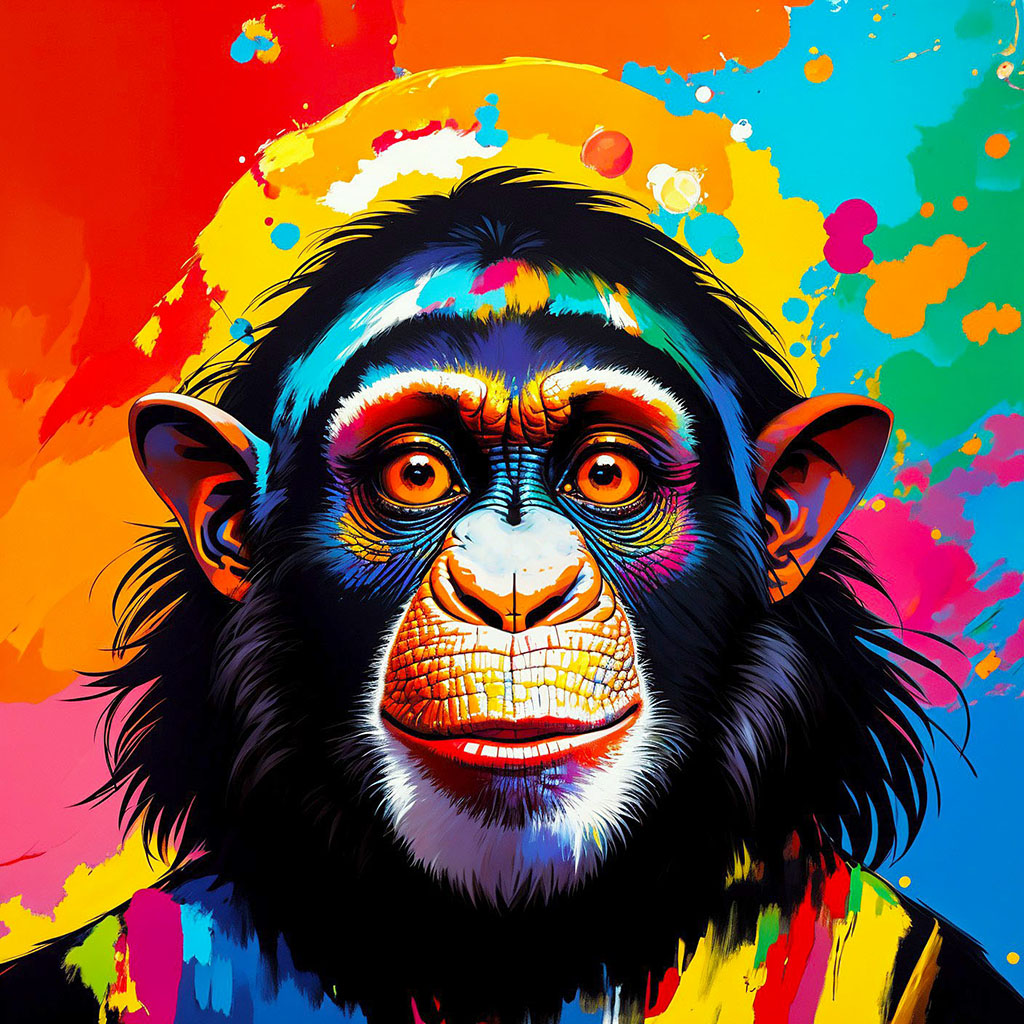
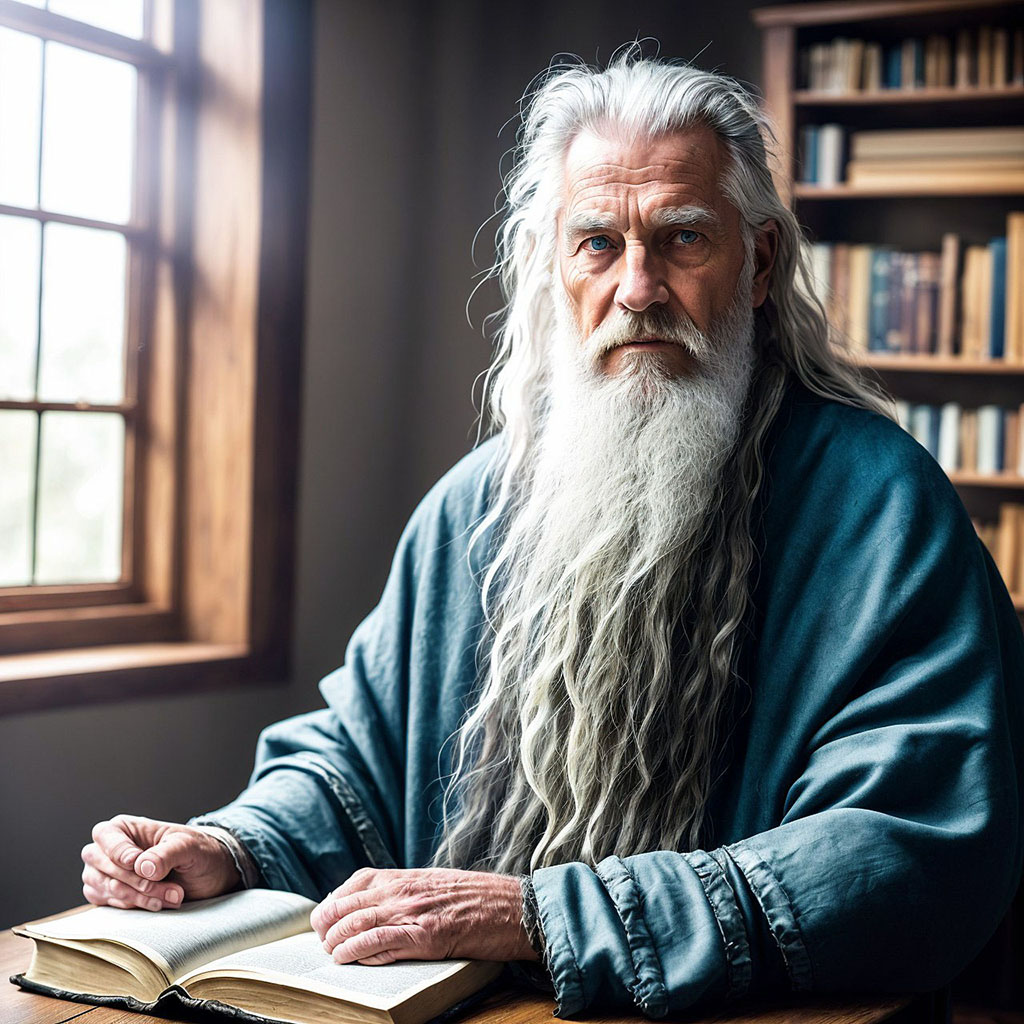
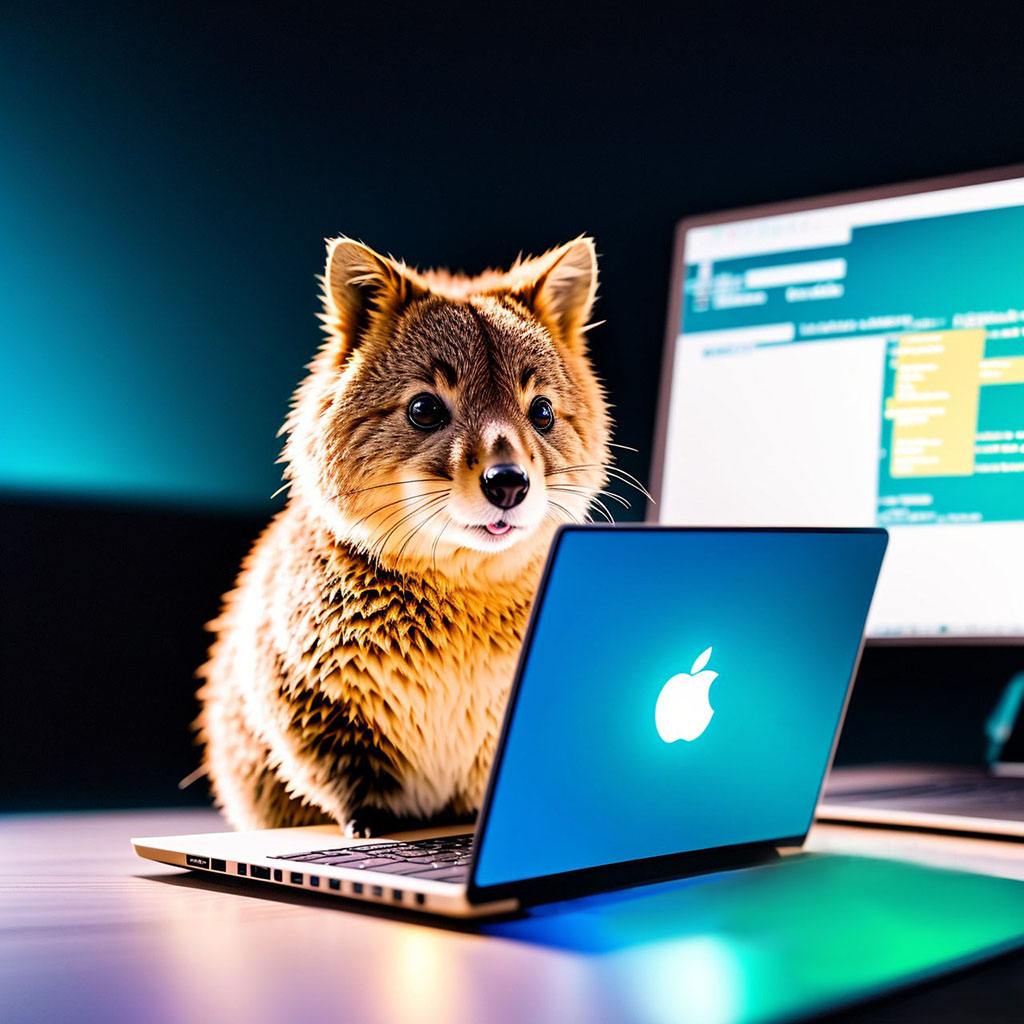
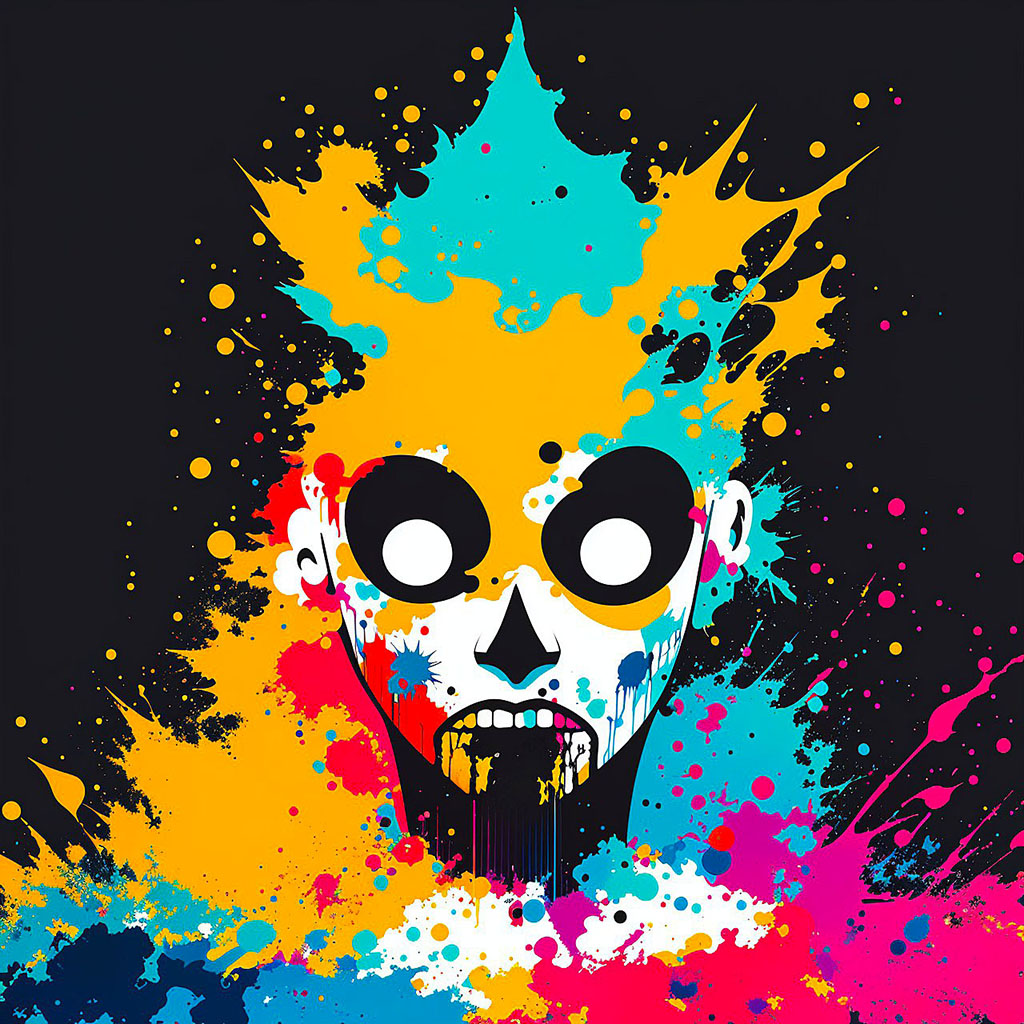
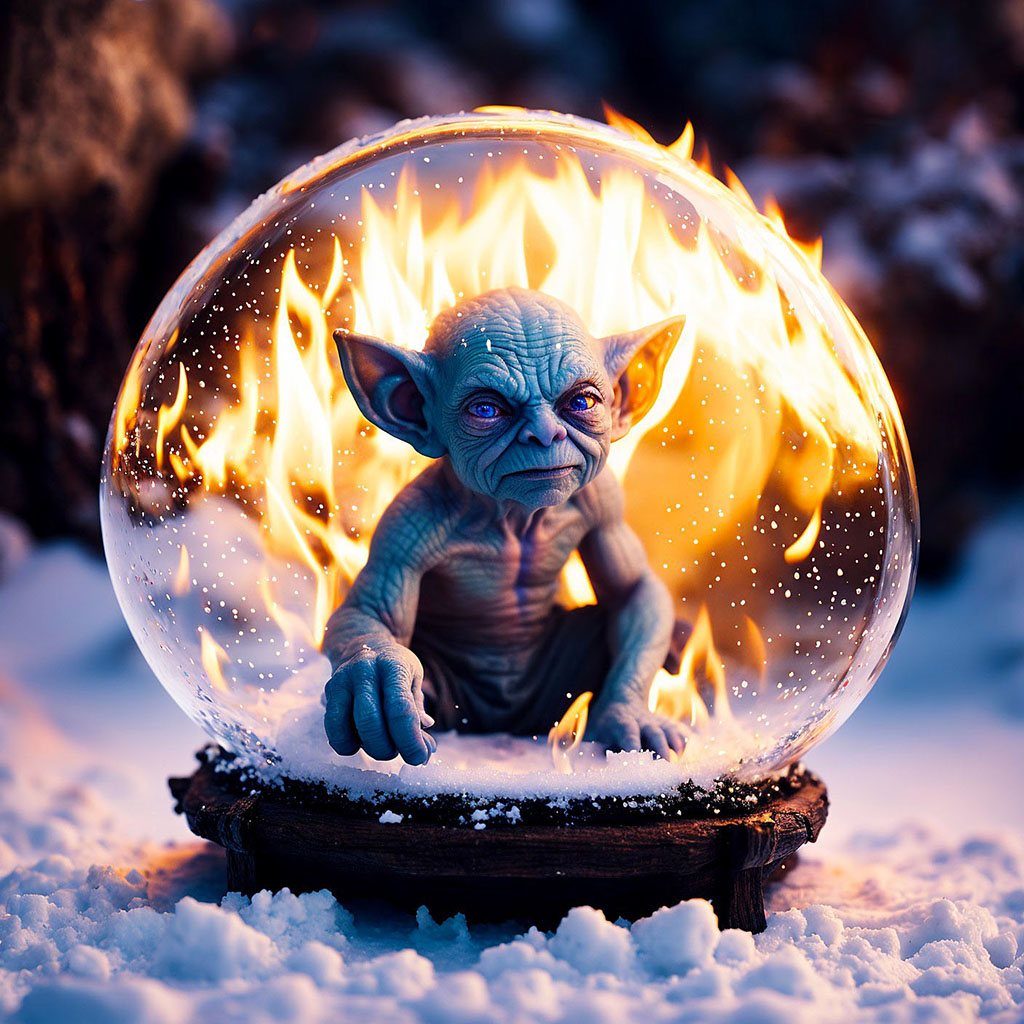
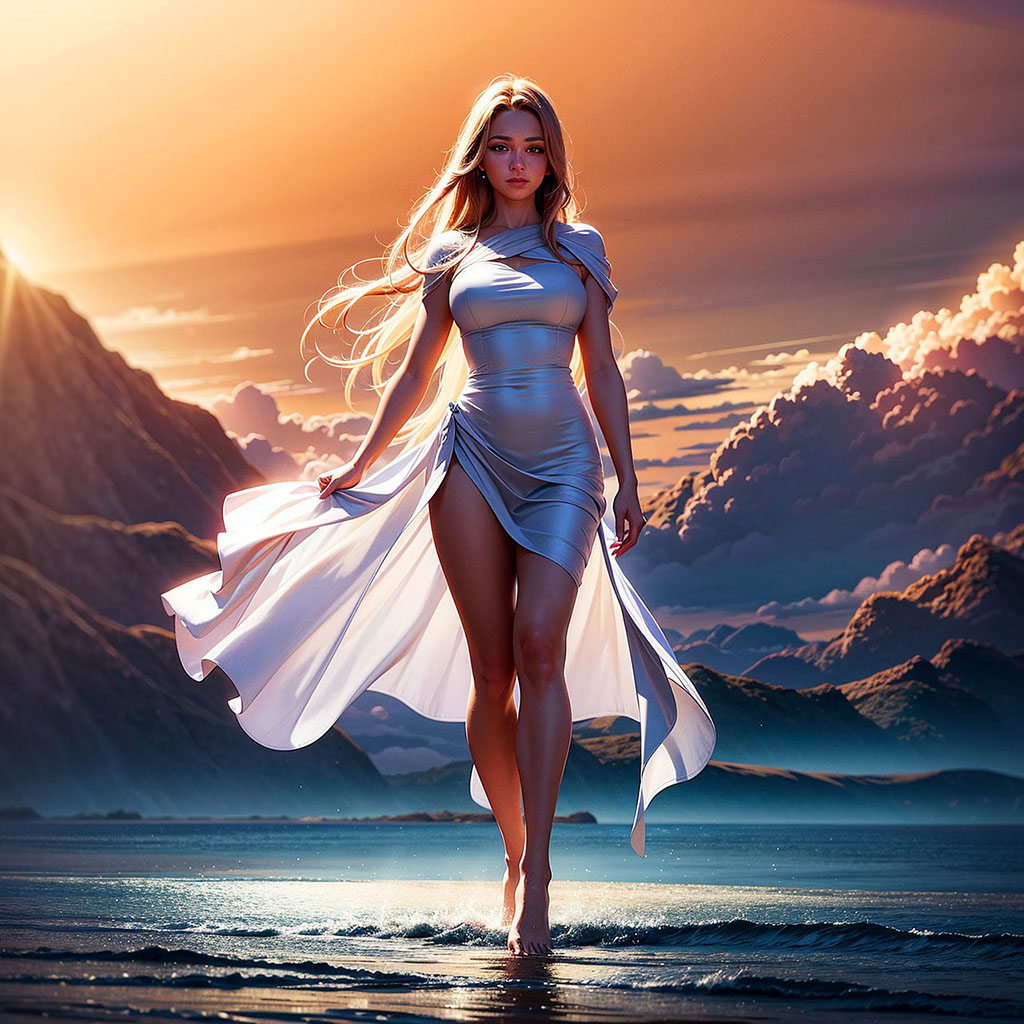
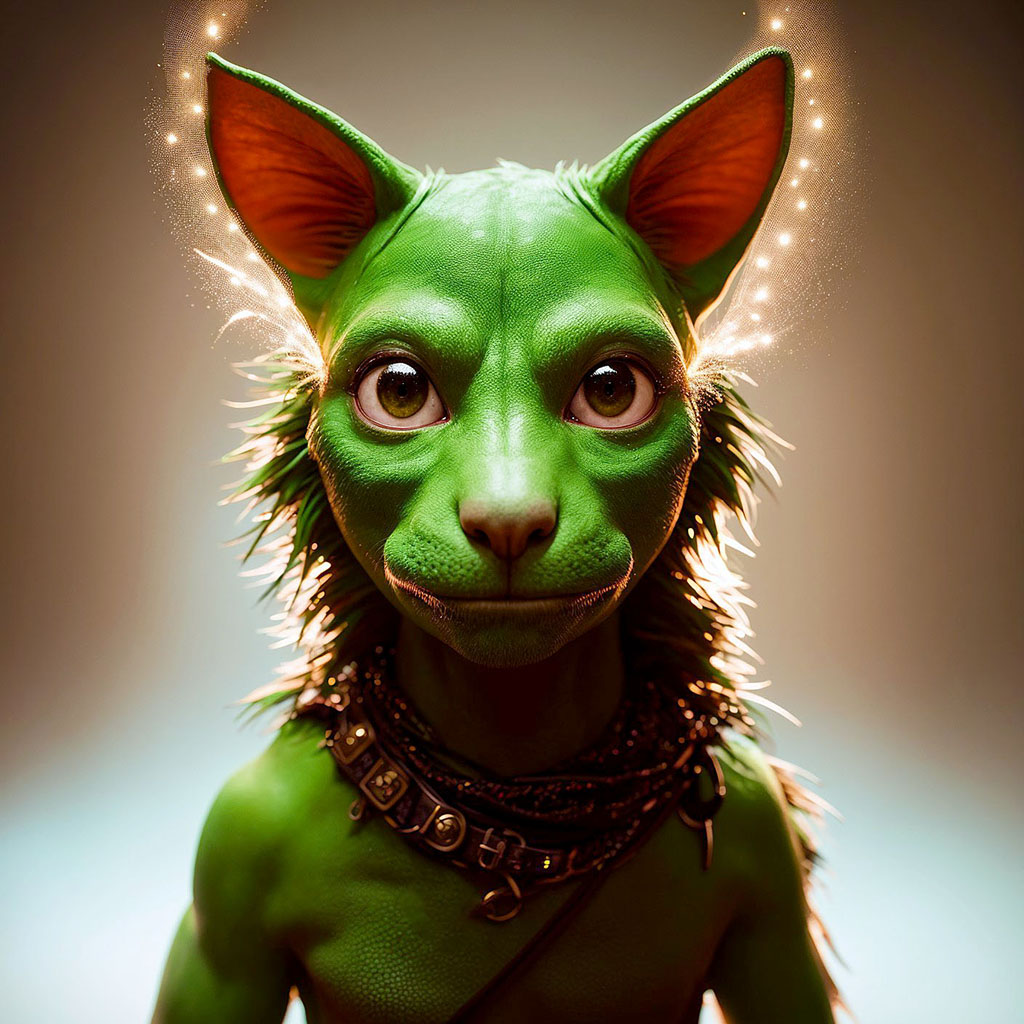
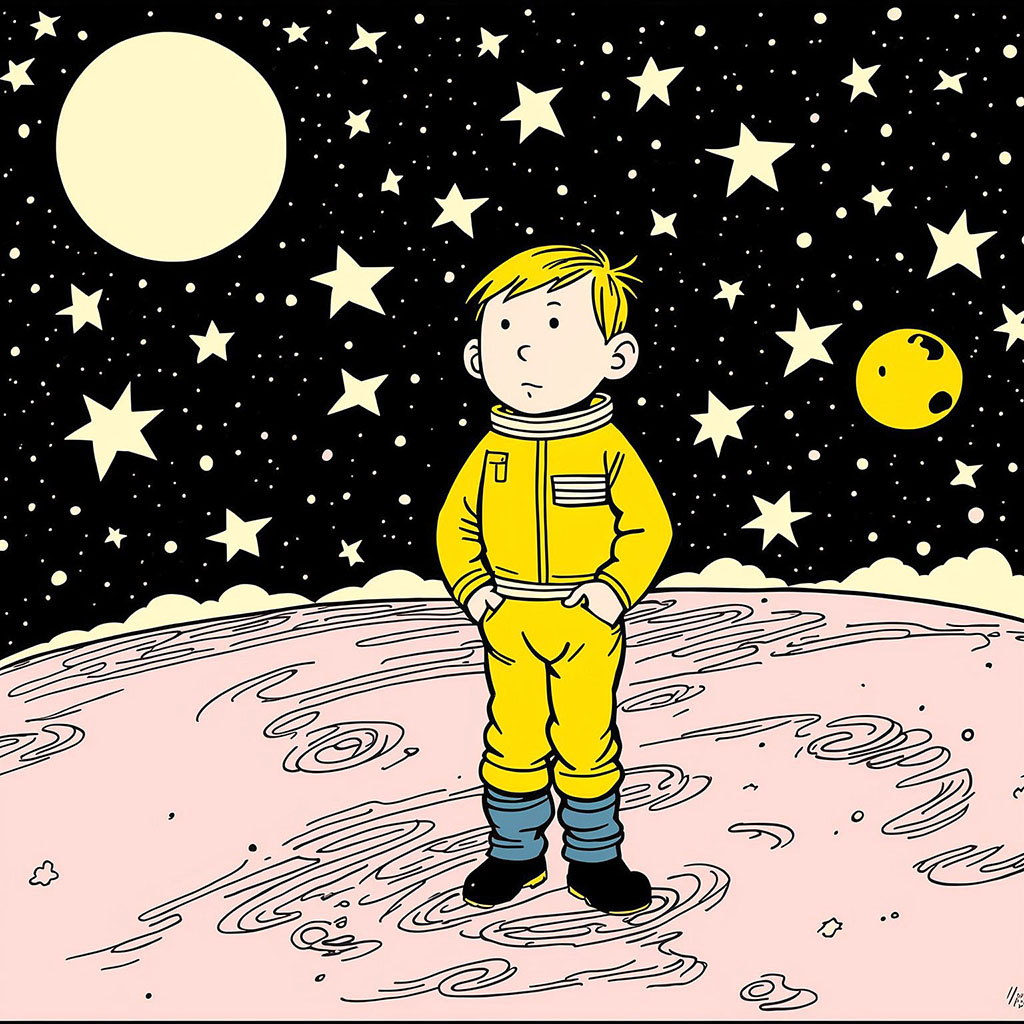
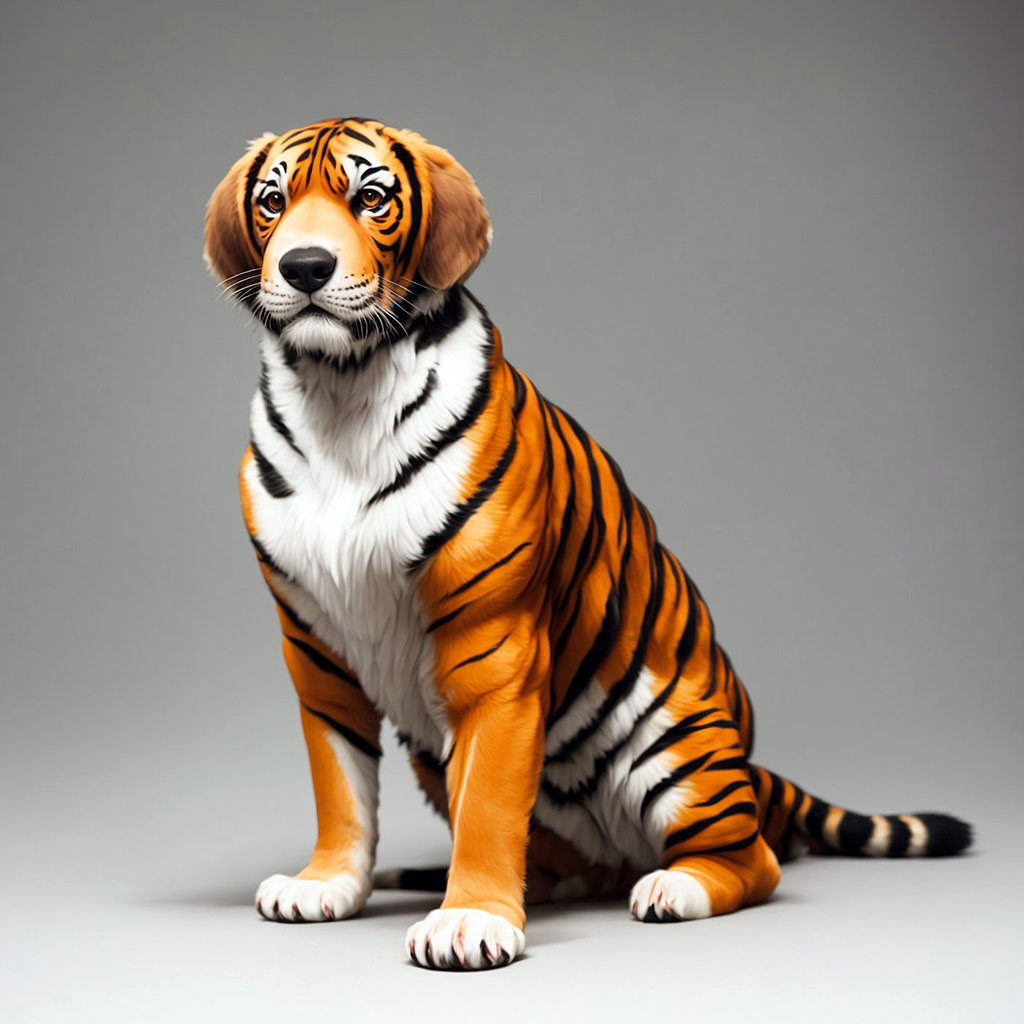
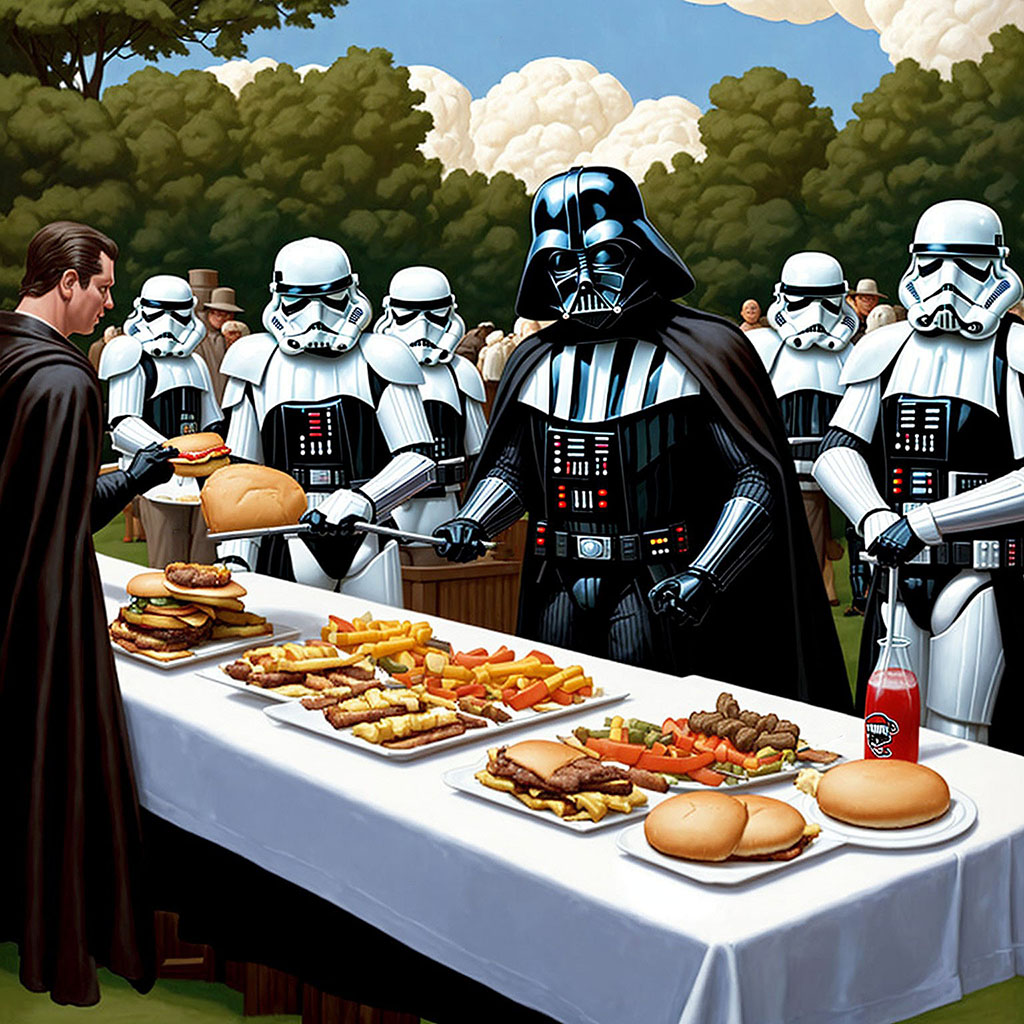
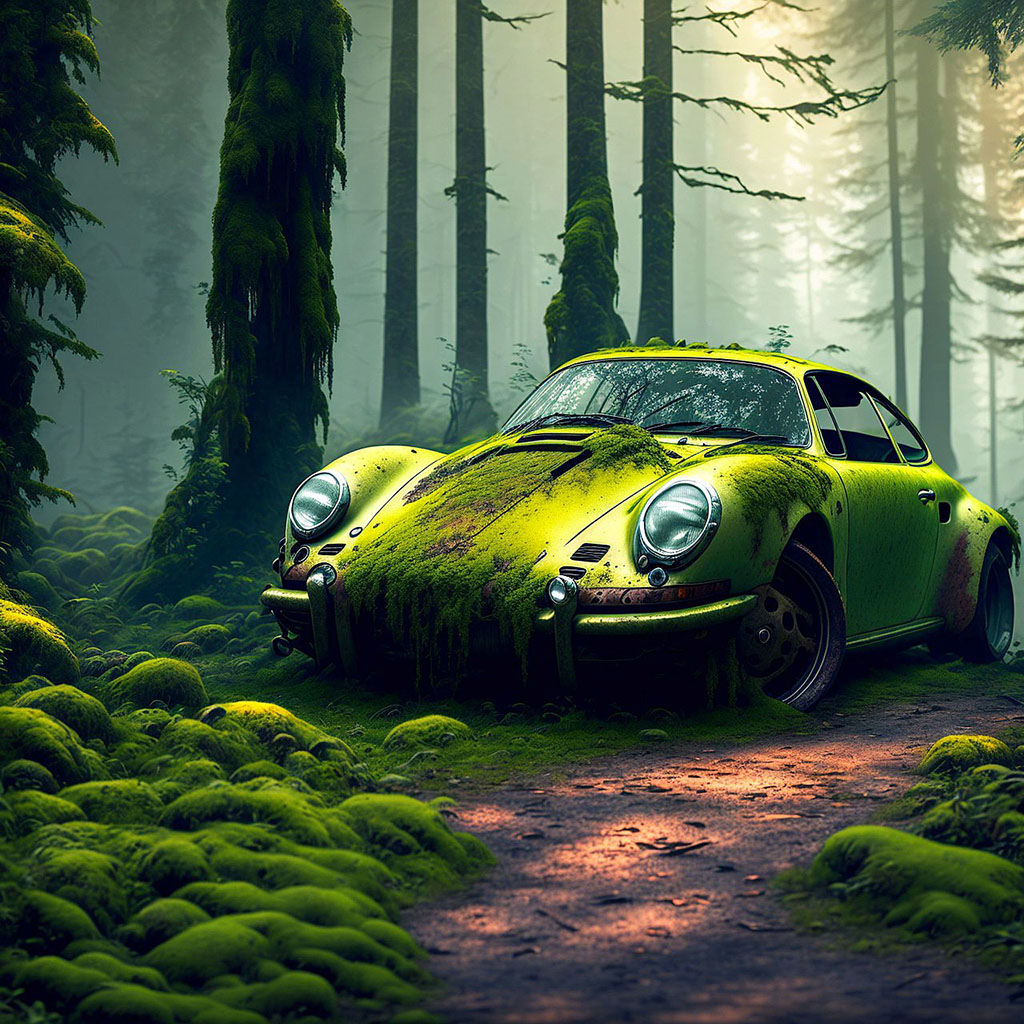
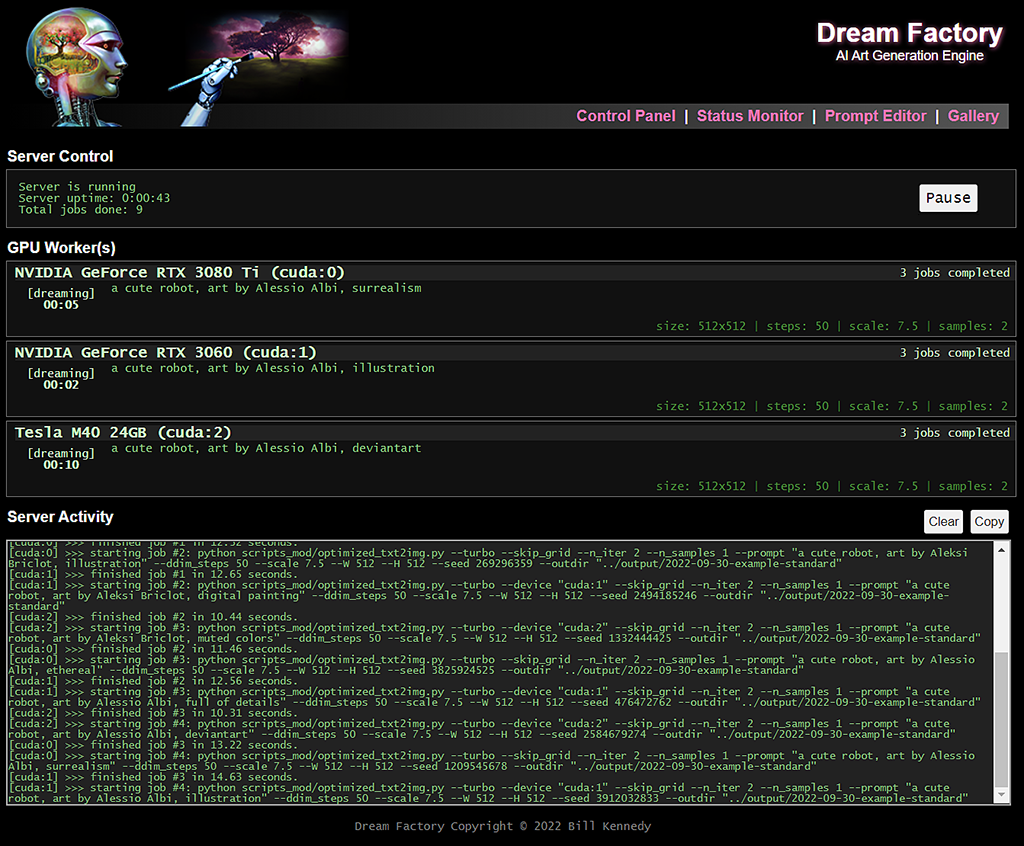
เพื่อแสดงให้เห็นว่าฉันมีสาม GPU ที่ใช้งาน Dream Factory ไม่ได้รับการดูแลแทบทุก 24/7 เป็นเวลาสองสามเดือน - พวกเขาปั่นป่วนภาพหลายพันภาพทุกวัน! ฉันสามารถตรวจสอบภาพของฉันและทำการปรับเปลี่ยนงานที่ทำงานของฉันจากระยะไกลตามความสะดวกของฉันผ่านทาง Dream Factory Web UI ตัวอย่างบางส่วน (ทั้งหมดตรงจาก Dream Factory นอกเหนือจากการลดความละเอียดเป็น 1024x1024):
 |  |  |  |
 |  |  |  |
 |  |  |  |
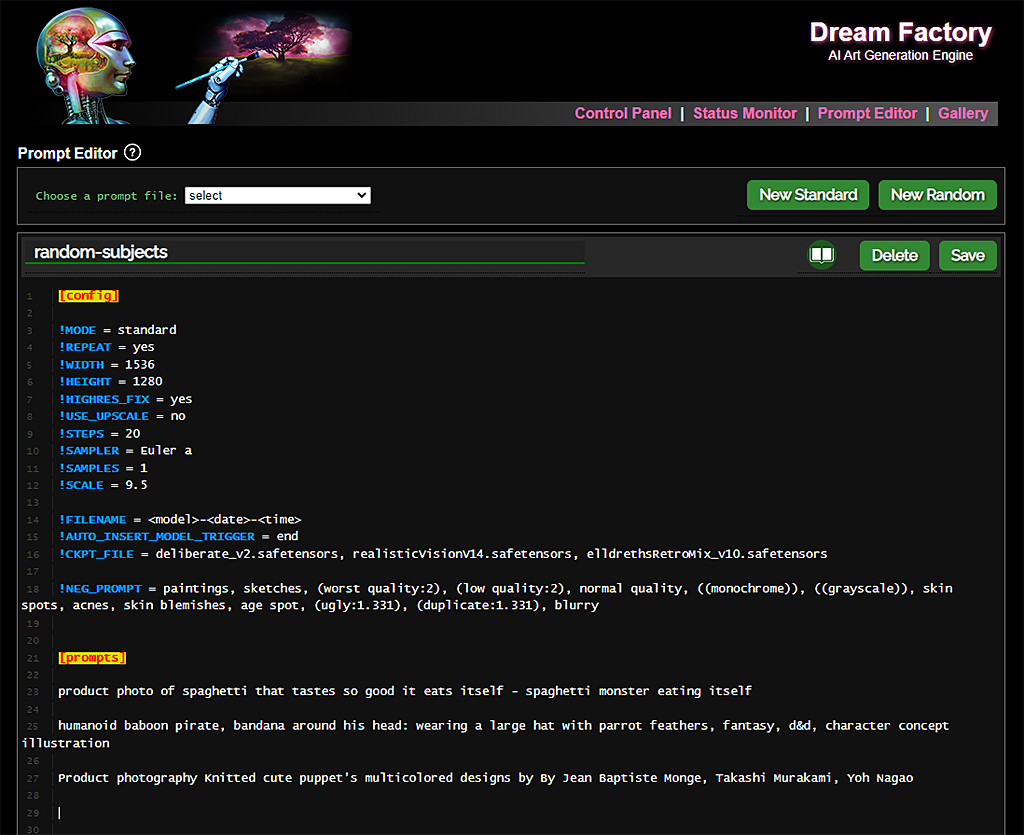
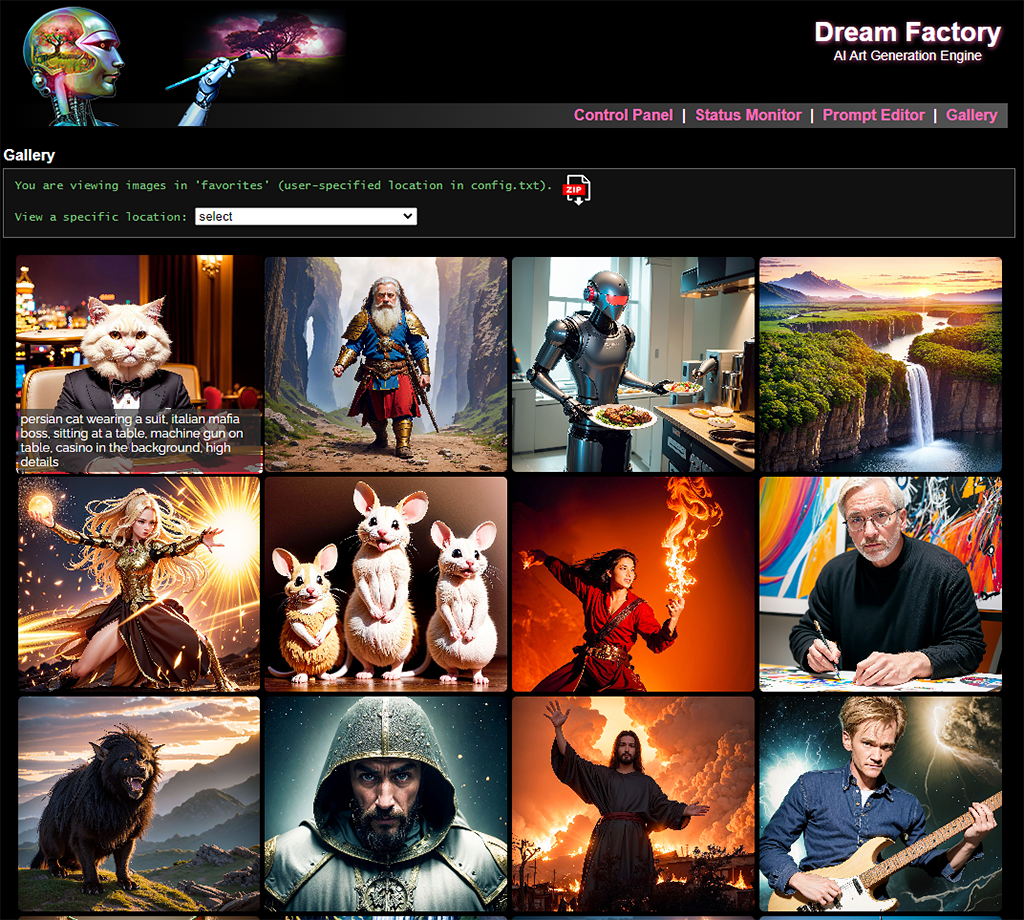
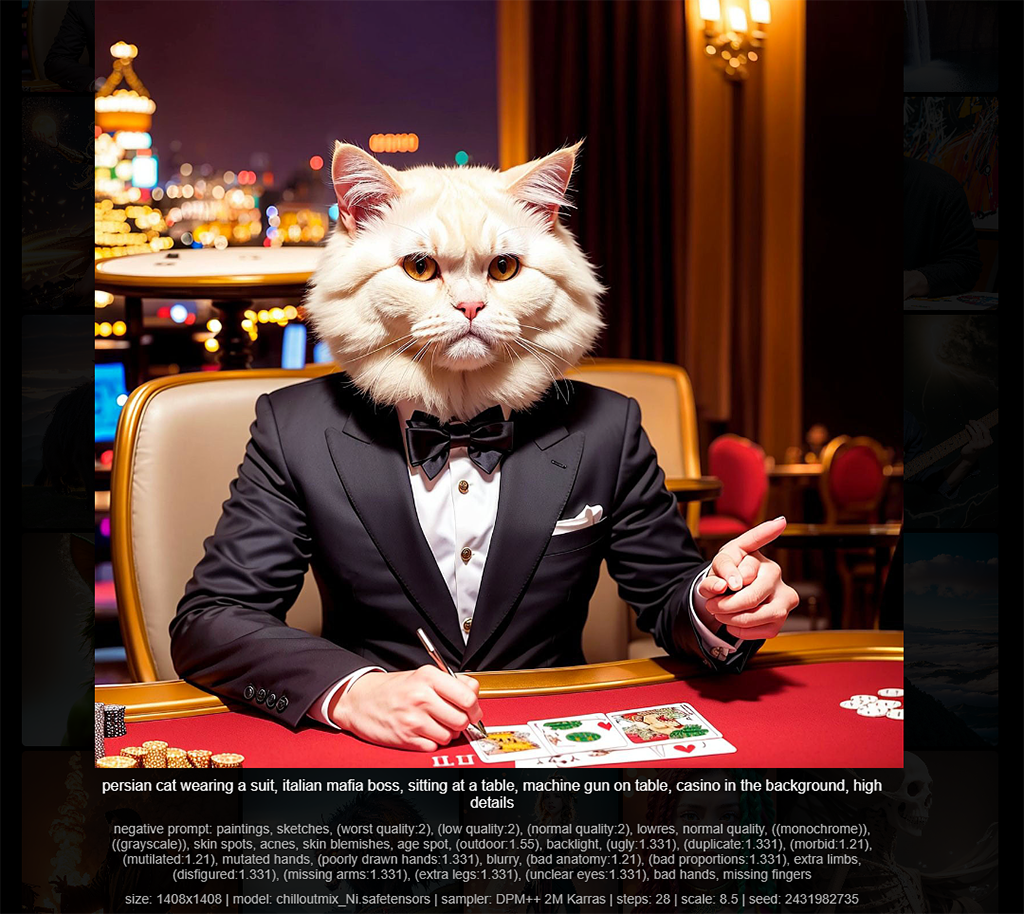
ภาพหน้าจอ UI บางภาพ:
 |  |  |  |
คุณจะต้องใช้ Nvidia GPU อย่างน้อยหนึ่งรายการโดยเฉพาะอย่างยิ่งด้วย VRAM ในปริมาณที่เหมาะสม 3GB ของ VRAM ควรเพียงพอที่จะสร้างภาพ 512x512 แต่หน่วยความจำ GPU เพิ่มเติมจะช่วยให้คุณสร้างภาพที่ใหญ่ขึ้น (และ/หรือสร้างได้เร็วขึ้น)
นอกจากนี้คุณยังต้องใช้ WebUI การแพร่กระจายที่มีความเสถียร Automatic1111
คำแนะนำเหล่านี้ได้รับการทดสอบบนเดสก์ท็อป Windows 10 หลายแห่งที่มีความหลากหลายของ NVIDIA GPU ที่ทันสมัยตั้งแต่ 8-12GB VRAM และบนเซิร์ฟเวอร์ Ubuntu 20.04.3 พร้อม Nvidia Tesla M40 GPU (24GB VRAM)
[1] ติดตั้ง Anaconda เปิดเทอร์มินัลรูทและสร้างสภาพแวดล้อมใหม่ (และเปิดใช้งาน):
 conda create --name dream-factory python=3.10
conda activate dream-factory
[2] ติดตั้งแพ็คเกจ Python ที่จำเป็น:
conda install -c anaconda git urllib3
[3] โคลนที่เก็บนี้และเปลี่ยนไปใช้ไดเรกทอรี:
 git clone https://github.com/rbbrdckybk/dream-factory
cd dream-factory
[4] เรียกใช้สคริปต์การตั้งค่าที่รวมอยู่เพื่อให้ส่วนที่เหลือของการติดตั้งเสร็จสมบูรณ์โดยอัตโนมัติ:
python setup.py
[5] แก้ไขไฟล์ config.txt ของคุณเพื่อระบุเส้นทางเต็มไปยังการติดตั้ง Automatic1111 SD ของคุณ:
เสร็จแล้ว! ตรวจสอบให้แน่ใจว่าการติดตั้ง Automatic1111 ของคุณทำงานได้อย่างถูกต้องก่อนที่จะพยายามทดสอบ Dream Factory นอกจากนี้ตรวจสอบให้แน่ใจว่าทุกอย่างในแท็บ "การตั้งค่า" ของ Auto1111 ได้รับการกำหนดค่าตามความชอบของคุณเนื่องจาก Dream Factory จะสืบทอดตัวเลือกใด ๆ ที่คุณตั้งไว้โดยอัตโนมัติ
เมื่อคุณได้ตรวจสอบแล้วว่าคุณสามารถสร้างภาพแต่ละภาพด้วยการติดตั้ง Auto1111 ของคุณแล้วคุณสามารถทำการทดสอบเพื่อให้แน่ใจว่าโรงงาน Dream กำลังทำงานโดยการเรียกใช้สิ่งนี้ (อีกครั้งจากโฟลเดอร์หลัก ของ Dream-Factory ):
python dream-factory.py --prompt_file prompts/example-standard.prompts
สิ่งนี้ควรเริ่มต้นเว็บอินเตอร์เฟสด้วยไฟล์พรอมต์ตัวอย่างง่าย ๆ ที่โหลดไว้ล่วงหน้าว่า GPU ของคุณควรเริ่มทำงานโดยอัตโนมัติ ในการเรียกใช้ครั้งแรกไฟล์ขนาดใหญ่หลายไฟล์ (ทั้งหมด ~ 2GB) จะถูกดาวน์โหลดโดยอัตโนมัติดังนั้นอาจใช้เวลาสองสามนาทีก่อนที่สิ่งต่างๆจะเริ่มเกิดขึ้น
ในที่สุดคุณควรเห็นภาพที่ปรากฏในโฟลเดอร์ output ของคุณ (หรือคุณสามารถคลิกที่ลิงค์ "แกลเลอรี่" ภายในเว็บ UI และดูพวกเขาที่นั่น) หากคุณได้รับภาพทุกอย่างทำงานได้อย่างถูกต้องและคุณสามารถไปยังส่วนถัดไปได้
หากคุณต้องการสร้างตัวเลือกที่ง่ายในการเริ่มต้น Dream Factory แทนที่จะจัดการกับการเปิดตัว Anaconda และ/หรือเปิดหน้าต่างบรรทัดคำสั่งทุกครั้งคุณสามารถทำตามขั้นตอนเหล่านี้:
[1] เปิด Windows Explorer และเรียกดูตำแหน่งนี้โดยที่ [ชื่อผู้ใช้] เป็นชื่อผู้ใช้ Windows ของคุณ:
C:Users[username]anaconda3Scripts
สร้างสำเนาของไฟล์ activate.bat ที่คุณพบที่นั่นและตั้งชื่อมัน activate-dream-factory.bat
[2] แก้ไขไฟล์ activate-dream-factory.bat ที่คุณเพิ่งสร้างและเพิ่มบรรทัดเหล่านี้ลงในตอนท้ายของไฟล์:
 @CALL echo Starting Dream Factory...
@CALL conda.bat activate dream-factory
@CALL cd "[full path to your Dream Factory folder]"
@CALL python dream-factory.py
@CALL pause
แทนที่ [Path Full Path ไปยังโฟลเดอร์ Dream Factory ของคุณ] ด้วยเส้นทางที่คุณติดตั้ง Dream Factory ใน (เช่น: C: users [ชื่อผู้ใช้ Windows ของคุณ] Dream-Factory)
บันทึกไฟล์และปิด
[3] วางทางลัดลงในไฟล์นี้บนเดสก์ท็อปของคุณ (หรือที่ใดก็ตาม) คลิกควรเปิดโรงงาน Dream
คำแนะนำสมมติว่าคุณติดตั้งเสร็จสมบูรณ์และตรวจสอบว่าการติดตั้งของคุณทำงานได้อย่างถูกต้อง
เริ่มต้นโรงงานในฝันด้วย:
python dream-factory.py
เว็บ UI ควรเปิดโดยอัตโนมัติหากไม่ไปที่ http: // localhost: 8080 (สมมติว่าคุณไม่ได้เปลี่ยนพอร์ตใน config.txt) ผ่านเบราว์เซอร์ของคุณ GPU ของคุณจะเริ่มต้นการเริ่มต้นโดยอัตโนมัติ (GPU แต่ละตัวจะใช้เวลาประมาณตราบเท่าที่ใช้ในการเปิดตัว Auto1111 ในโหมดสแตนด์อโลน)
เรียกดู 'แผงควบคุม' ใน NAV ด้านบนและเลือกไฟล์พรอมต์หนึ่งในสองตัวอย่างผ่านทางดรอปดาวน์ GPU ของคุณควรเริ่มทำงานกับสิ่งที่คุณเลือกทันทีที่พวกเขาเริ่มต้นเสร็จสิ้น คุณสามารถเรียกดูกลับไปที่ 'การตรวจสอบสถานะ' และควรเห็นว่า GPU ของคุณกำลังได้รับมอบหมายงานจากไฟล์พรอมต์ที่เลือก หากคุณเรียกดู 'แกลเลอรี่' ใน NAV ด้านบนคุณจะเห็นภาพที่ปรากฏเมื่อเสร็จสมบูรณ์
ไฟล์ที่รวดเร็วเป็นหัวใจของโรงงานในฝันและกำหนดงานที่คุณต้องการให้ GPU ของคุณทำ พวกเขาสามารถเรียบง่ายหรือซับซ้อนเท่าที่คุณต้องการ
ก่อนที่เราจะได้สร้างไฟล์พรอมต์ใหม่ลองมาดูไฟล์พรอมต์สองตัวอย่างที่รวมอยู่ใน Dream Factory เริ่มต้นด้วยการคลิก 'ตัวแก้ไขพรอมต์' ใน NAV ด้านบนจากนั้นเลือก 'ตัวอย่างมาตรฐาน' ใน 'เลือกไฟล์พรอมต์:' ดรอปดาวน์
คุณควรเห็นโหลดไฟล์พรอมต์ลงในตัวแก้ไข ไฟล์พรอมต์มีส่วน [config] เสริมที่ด้านบนพร้อมคำสั่งที่กำหนดการตั้งค่าการแพร่กระจายที่เสถียรของคุณและอย่างน้อยหนึ่งส่วน [พรอมต์] ที่มีพรอมต์ (หรือส่วนของพรอมต์ที่จะรวมกับส่วน [พรอมต์] อื่น ๆ )
ไฟล์ตัวอย่างมีความคิดเห็นที่ควรทำให้ชัดเจนว่าแต่ละคำสั่ง [config] แต่ละคำสั่งทำอย่างไรและส่วน [พรอมต์] จะรวมกันอย่างไร ดูคำสั่งอ้างอิงด้านล่างเพื่อขอความช่วยเหลือเกี่ยวกับคำสั่งใด ๆ ที่ไม่ชัดเจน
คุณสามารถสร้างไฟล์พรอมต์โดยใช้ตัวแก้ไขแบบรวม (คลิก 'ตัวแก้ไขพรอมต์' ใน NAV ด้านบนจากนั้นคลิก 'มาตรฐานใหม่' หรือ 'ใหม่สุ่ม' เพื่อเริ่มไฟล์ใหม่) ไฟล์พรอมต์จะถูกสร้างขึ้นโดยอัตโนมัติด้วยโครงกระดูกที่มีคำสั่งทั่วไปและการตั้งค่าเริ่มต้นที่มีอยู่ใน config.txt ของคุณ
หลังจากการสร้างไฟล์พรอมต์สามารถเปลี่ยนชื่อได้เพียงคลิกที่ชื่อที่ด้านบนของตัวแก้ไขป้อนชื่อใหม่จากนั้นคลิก 'เปลี่ยนชื่อ'
หากคุณต้องการคุณยังสามารถสร้างไฟล์พรอมต์ภายนอกโดยใช้ตัวแก้ไขข้อความที่คุณเลือก (ตั้งชื่อด้วยส่วนขยาย. prompt และวางไว้ในโฟลเดอร์พรอมต์ของคุณ) หากคุณใช้ Notepad ++ มีปลั๊กอินในโฟลเดอร์ Dream-Factory/Prompts/Notepad_Plugin ที่จะเพิ่มการเน้นที่ไวต่อบริบทให้กับไฟล์. PROMPT
คำสั่งเหล่านี้ใช้ได้เฉพาะในส่วน [config] ของไฟล์พรอมต์มาตรฐานและแบบสุ่ม:
คำสั่งเหล่านี้ใช้ได้ทั้งในส่วน [config] ของไฟล์พรอมต์มาตรฐานและแบบสุ่ม และ ในส่วน [พรอมต์] ของไฟล์พรอมต์ มาตรฐาน (! โหมด = มาตรฐาน):
คำสั่งเหล่านี้ใช้ได้เฉพาะในส่วน [config] ของไฟล์พรอมต์ มาตรฐาน (! mode = Standard):
คำสั่งเหล่านี้ใช้ได้เฉพาะในส่วน [config] ของไฟล์พรอมต์ แบบสุ่ม (! โหมด = สุ่ม):
ในที่สุดคำสั่งพิเศษเหล่านี้จะใช้ได้เฉพาะในไฟล์พรอมต์ กระบวนการ (! โหมด = กระบวนการ):
คำสั่งความช่วยเหลือและตัวอย่างการใช้งาน:
ตั้งค่าโหมดไฟล์พรอมต์เป็น มาตรฐาน (เริ่มต้น) หรือ สุ่ม ไฟล์พรอมต์มาตรฐานทำงานโดยการวนซ้ำผ่านชุดค่าผสม [พรอมต์] ทั้งหมดที่เป็นไปได้และไฟล์พรอมต์แบบสุ่มเพียงเลือกพรอมต์โดยสุ่มจากส่วน [พรอมต์] ดูพรอมต์/ตัวอย่างมาตรฐาน Prompts และ Prompts/Example-Random.prompts สำหรับคำแนะนำโดยละเอียดของวิธีการทำงานของแต่ละโหมด
!MODE = standard
โปรดทราบว่าตัวเลือกที่สามสำหรับโหมดมีอยู่ ( ! โหมด = กระบวนการ ) ที่ช่วยให้ผู้ใช้ขั้นสูงสามารถตั้งค่างานการประมวลผลแบบแบทช์บนภาพที่มีอยู่ (เช่น: แบทช์การเพิ่มขึ้นการปรับอัตราการติดแท็กเมตาการเปลี่ยนชื่อ ฯลฯ ) โดยใช้ Dream Factory คุณสามารถดูตัวอย่างกระบวนการ. prompts ได้ที่นี่
ตั้งค่าตัวคั่นที่จะใช้เมื่อเข้าร่วมส่วน [พรอมต์] (ค่าเริ่มต้นคือพื้นที่) ตัวอย่างเช่นหากคุณมีสองส่วน [พรอมต์] และรายการด้านบนในครั้งแรกคือ "ภาพบุคคล" และรายการยอดนิยมในวินาทีคือ "แมว" จากนั้นเมื่อทั้งสองส่วนรวมกันคุณจะจบ ขึ้นกับ "ภาพเหมือนของแมว" ถ้า! delim = ""
!DELIM = " "
ตั้งค่าความกว้างของภาพเอาต์พุตเป็นพิกเซล (ค่าเริ่มต้นคือ 512) โปรดทราบว่านี่จะต้องเป็นหลายอย่างของ 64!
!WIDTH = 512
ตั้งค่าความสูงของภาพเอาต์พุตเป็นพิกเซล (ค่าเริ่มต้นคือ 512) โปรดทราบว่านี่จะต้องเป็นหลายอย่างของ 64!
!HEIGHT = 512
เปิดใช้งานหรือปิดใช้งานการแก้ไข Highres Auto1111 ตัวเลือกที่ถูกต้องคือ ใช่ หรือ ไม่ใช่ (ค่าเริ่มต้น) สิ่งนี้ควรเปิดใช้งานเมื่อสร้างภาพที่ความละเอียดสูงกว่า 512x512 อย่างมีนัยสำคัญ
!HIGHRES_FIX = no
ณ ปี 2023-09-22 มีตัวเลือก HIRES_FIX_MODE ในไฟล์ dream Factory config.txt ที่ช่วยให้คุณระบุ ง่าย (ค่าเริ่มต้น) หรือ ขั้นสูง หากคุณตั้ง HIRES_FIX_MODE = advanced คุณจะเปิดใช้งานความสามารถในการระบุขนาดการสร้างภาพเริ่มต้นของคุณรวมถึงปัจจัยการปรับขนาดที่กำหนดขนาดสุดท้าย (ดู ! HighRes_Scale_Factor ด้านล่าง)
ในโหมด Simple เริ่มต้นคุณเพียงแค่ตั้งค่าความกว้างและความสูงในไฟล์. prompts ไปยังขนาดภาพเอาต์พุตสุดท้ายที่คุณต้องการและขั้นตอนกลางจะได้รับการจัดการสำหรับคุณโดยอัตโนมัติ
จำนวนขั้นตอน denoising (ค่าเริ่มต้น = 20) ขั้นตอนเพิ่มเติมโดยทั่วไปจะปรับปรุงคุณภาพของภาพไปยังจุดที่ค่าใช้จ่ายในการประมวลผลเวลา
!STEPS = 20
นอกจากนี้คุณยังสามารถระบุช่วง (เช่น steps = 30-55) และค่าสุ่มภายในช่วงของคุณจะถูกเลือกเมื่อดำเนินการพรอมต์
ตัวอย่างที่จะใช้ (ค่าเริ่มต้นคือ DPM ++ 2M) สิ่งนี้จะต้องตรงกับตัวเลือกที่มีอยู่ใน Auto1111 SD Webui ของคุณอย่างแน่นอน คุณสามารถกด Ctrl+H หรือคลิกที่ไอคอน Help ที่มุมขวาบนของตัวแก้ไขเพื่อดูรายการอ้างอิงของตัวอย่างที่มีอยู่ (คลิกที่ตัวอย่างเพื่อคัดลอกไปยังคลิปบอร์ดเพื่อให้คุณสามารถวางลงในตัวแก้ไขได้อย่างง่ายดาย)
!SAMPLER = DPM++ 2M
ตัวกำหนดตารางเวลาที่จะใช้ (ค่าเริ่มต้นเป็นไปโดยอัตโนมัติ) สิ่งนี้จะต้องตรงกับค่าจาก Auto1111 WebUI (เครื่องแบบ, Karras, Exponential, Polyexponential, SGM Uniform)
!SCHEDULER = Karras
ตั้งค่าเป็นอะไรหรืออัตโนมัติเพื่อกลับไปที่ค่าเริ่มต้น
มาตราส่วนคำแนะนำหรือความใกล้ชิดที่คุณต้องการให้การแพร่กระจายที่มั่นคงเพื่อทำตามข้อความของคุณ ค่าเริ่มต้นคือ 7.5 และค่าที่มีประโยชน์โดยทั่วไปอยู่ระหว่าง 5 - 30
!SCALE = 7.5
นอกจากนี้คุณยังสามารถระบุช่วง (เช่น Scale = 5.5 - 9) และค่าสุ่มภายในช่วงของคุณจะถูกเลือกเมื่อดำเนินการพรอมต์
มีกี่ภาพในการสร้างพรอมต์แต่ละครั้งก่อนที่จะย้ายไปยังภาพถัดไป (ค่าเริ่มต้น = 1) ซึ่งแตกต่างจากตัวเลือก BATCH_SIZE ด้านล่างไม่มีค่าใช้จ่ายเพิ่มเติมในแง่ของหน่วยความจำ GPU เมื่อเพิ่มสิ่งนี้ จะมีการเพิ่มขึ้นของเวลาในการประมวลผลเมื่อเพิ่มสิ่งนี้ (เช่น:! ตัวอย่าง = 10 จะใช้เวลานานถึงสิบเท่า! ตัวอย่าง = 1)
!SAMPLES = 1
จำนวนภาพที่คุณต้องการให้ GPU แต่ละตัวผลิตแบบขนาน (ค่าเริ่มต้น = 1) กี่ภาพ การเพิ่มขึ้นของ BATCH_SIZE แต่ละครั้งจะต้องใช้ GPU VRAM มากขึ้นและการตั้งค่านี้สูงเกินไปจะทำให้ GPUs หมดหน่วยความจำและความผิดพลาด อย่างไรก็ตามตราบใดที่คุณรู้ว่าคุณมี VRAM เพียงพอคุณสามารถได้รับความเร็วในระดับปานกลางโดยเพิ่มขึ้นเกิน 1 นี่คือการตั้งค่าขั้นสูงและไม่รวมอยู่ในเทมเพลตไฟล์พรอมต์ใหม่ แต่คุณอาจเพิ่มลงในไฟล์พรอมต์ของคุณด้วยตนเอง .
!BATCH_SIZE = 1
ตั้งค่าภาพให้ใช้เป็นจุดเริ่มต้นสำหรับกระบวนการ denoising แทนที่จะเป็นสัญญาณรบกวนแบบสุ่มเริ่มต้น นี่อาจเป็นญาติ (กับไดเรกทอรีฐานโรงงานในฝัน) หรือเส้นทางสัมบูรณ์และการตั้งค่าสิ่งนี้ให้เป็นอะไรที่จะล้างรูปภาพอินพุตที่ตั้งไว้ก่อนหน้านี้
 !INPUT_IMAGE = C:imagesdog.png                         # specifies the full path to an input image
!INPUT_IMAGE = cat.jpg                                   # specifies an input image 'cat.jpg' in the DF home directory
!INPUT_IMAGE =                                           # specifies no input image should be used
โปรดทราบว่าคุณอาจผ่านไดเรกทอรีภาพไปยังคำสั่งนี้:
!INPUT_IMAGE = C:images
หากมีการผ่านไดเรกทอรีภาพทุกภาพในโฟลเดอร์จะถูกนำไปใช้กับพรอมต์ที่ตามมา
ตั้งค่าความแข็งแรงของภาพอินพุต ค่าที่ถูกต้องคือ 0-1 (ค่าเริ่มต้น = 0.75) ค่าใกล้เคียงกับ 0 จะส่งผลให้ภาพเอาต์พุตคล้ายกับภาพอินพุตและค่าใกล้เคียงกับ 1 จะส่งผลให้ภาพมีความคล้ายคลึงน้อยลง โดยทั่วไปค่าระหว่าง 0.2 - 0.8 มีประโยชน์มากที่สุด โปรดทราบว่าสิ่งนี้ยังใช้เมื่อ! Highres_fix = ใช่เพื่อระบุว่าภาพสุดท้ายควรสะท้อนภาพการเริ่มต้นความละเอียดต่ำอย่างใกล้ชิด
!STRENGTH = 0.75
นอกจากนี้คุณยังสามารถระบุช่วง (เช่นความแข็งแกร่ง = 0.55 - 0.75) และค่าสุ่มภายในช่วงของคุณจะถูกเลือกเมื่อดำเนินการพรอมต์
ตั้งค่าโมเดลที่จะใช้ ควรติดตั้งโมเดลที่กำหนดเองใด ๆ ในไดเรกทอรีโมเดลที่เหมาะสมของการติดตั้ง Auto1111 ของคุณ คุณสามารถกด Ctrl+H หรือคลิกที่ไอคอน Help ที่มุมขวาบนของตัวแก้ไขเพื่อดูรายการอ้างอิงของรุ่นที่มีอยู่ (คลิกที่รุ่นเพื่อคัดลอกไปยังคลิปบอร์ดเพื่อให้คุณสามารถวางลงในตัวแก้ไขได้อย่างง่ายดาย) การตั้งค่าสิ่งนี้เป็นสิ่งใดจะเป็นค่าเริ่มต้นกลับไปเป็นรุ่นใดก็ตามที่คุณตั้งไว้ในไฟล์ config.txt ของคุณ (หากคุณยังไม่ได้ตั้งค่าเริ่มต้นการตั้งค่าสิ่งนี้เป็นสิ่งที่จะไม่ทำอะไรเลย!)
คุณหลายคนตั้งรายการโมเดลที่คั่นด้วยเครื่องหมายจุลภาคที่นี่ ในโหมดมาตรฐาน Dream Factory จะแสดงผลทั้งหมดด้วยรุ่นแรกจากนั้นรุ่นที่สองและอื่น ๆ ในโหมดสุ่ม Dream Factory จะสลับโมเดลทุก 50 แจ้ง (ช่วงเวลานี้สามารถเปลี่ยนแปลงได้ในไฟล์ config.txt ของคุณ)
นอกจากนี้คุณยังสามารถใช้คำที่สงวนไว้ "All" ที่นี่และ Dream Factory จะหมุนผ่านทุกรุ่นที่มีอยู่ของคุณโดยอัตโนมัติ
โปรดทราบว่าคุณสามารถระบุมากกว่าหนึ่งรุ่นในส่วน [config]; การหมุนรุ่นไม่รองรับที่อื่น!
 !CKPT_FILE = analog-style.ckpt                           # sets a new model to use
!CKPT_FILE = sd-v1-5-vae.ckpt, analog-style.ckpt         # sets 2 models to rotate between
!CKPT_FILE = all                                         # will rotate between all of your models
!CKPT_FILE =                                             # sets the default model specified in your config.txt
หมายเหตุ: สิ่งนี้ใช้การจับคู่สตริงย่อยบนค่าเซิร์ฟเวอร์ที่ถูกต้องผ่านการอ้างอิงแบบรวมดังนั้นตัวอย่างเช่น 'SD_1.5 Dreamshaper_4bakedvae.safetensors [7F16BBCD80]' คือสิ่งที่รายงานอ้างอิงจากนั้นตั้งค่า ! มัน.
ตั้งค่า VAE ให้ใช้ ตั้งค่าสิ่งนี้ให้เป็นสิ่งที่จะกลับไปใช้การใช้ VAE อัตโนมัติ (หรือการตั้งค่าการกำหนดค่า Auto1111 ของคุณระบุไว้)
 !VAE = vae-ft-mse-840000-ema-pruned.ckpt
!VAE =
หมายเหตุ: การจับคู่ย่อยมีผลที่นี่ การตั้งค่า ! vae = vae-ft-mse-840000 จะพบ vae-ft-mse-840000-ema-pruned.ckpt ตัวอย่างเช่น
ระบุพรอมต์เชิงลบที่จะใช้สำหรับพรอมต์ทั้งหมดที่ตามมา (จำไว้ว่าคุณสามารถวางคำสั่งส่วนใหญ่ลงในส่วน [พรอมต์] ของไฟล์พรอมต์มาตรฐาน!) หากคุณมีพรอมต์เชิงลบ 'catch-all' ที่คุณมักจะใช้คุณสามารถระบุได้ในไฟล์ config.txt ของคุณและมันจะถูกเติมเป็นค่าเริ่มต้นบนไฟล์พรอมต์ใหม่ที่คุณสร้าง การตั้งค่าสิ่งนี้ให้เป็นอะไรจะทำให้พรอมต์ติดลบ
!NEG_PROMPT = watermark, blurry, out of focus
สำหรับใช้กับโมเดลที่กำหนดเองที่ต้องใช้ 'Trigger Word' ที่ตั้งค่าไว้ในไฟล์ model-triggers.txt ของคุณ (ดูโมเดลที่กำหนดเองด้านล่าง) สิ่งนี้ช่วยให้คุณสามารถควบคุมตำแหน่งของคำเรียกทริกเกอร์ที่ใส่โดยอัตโนมัติ ตัวเลือกที่ถูกต้องคือ การเริ่มต้น (ค่าเริ่มต้น), สิ้นสุด , first_comma , คำหลัก: [คำหลักที่จะแทนที่] และ ปิด : 'เริ่ม' จะใส่คำทริกเกอร์ที่ด้านหน้าของพรอมต์ 'สิ้นสุด' จะวางไว้ในตอนท้าย 'first_comma' จะวางไว้หลังจากเครื่องหมายจุลภาคครั้งแรก (หรือในตอนท้ายหากไม่มีเครื่องหมายจุลภาคในพรอมต์) 'คำหลัก:' จะแทนที่คำหลัก/วลีที่ระบุในพรอมต์ด้วยคำทริกเกอร์โมเดลและ 'ปิด' จะปิดการใช้งาน การแทรกซึมอัตโนมัติทั้งหมด
!AUTO_INSERT_MODEL_TRIGGER = start
โปรดทราบว่าสิ่งนี้จะควบคุมพฤติกรรมของการแทรกทริกเกอร์อัตโนมัติลงใน Highres_Prompt ของคุณ (ถ้ามี) โดยสมมติว่ามีการตั้งค่า HighRes_Ckpt_File ที่ถูกต้องด้วยคำทริกเกอร์ที่เกี่ยวข้อง
ระบุค่าเมล็ดที่จะใช้ในการสร้างภาพ โดยปกติค่านี้จะถูกเลือกโดยการสุ่ม - โดยใช้การตั้งค่าเดียวกันกับค่าเมล็ดเดียวกันควรสร้างภาพเอาต์พุตเดียวกัน การตั้งค่าสิ่งนี้เป็นสิ่งใดที่จะบ่งบอกว่าควรใช้ค่าเมล็ดสุ่ม (ค่าเริ่มต้น) นี่คือการตั้งค่าขั้นสูงและไม่รวมอยู่ในเทมเพลตไฟล์พรอมต์ใหม่ แต่คุณอาจเพิ่มลงในไฟล์พรอมต์ของคุณด้วยตนเอง
!SEED = 42
ไม่ว่าภาพเอาต์พุตทุกภาพควรจะอยู่ในระดับโดยอัตโนมัติหรือไม่ การปรับขนาดอาจใช้เวลาเป็นจำนวนมากดังนั้นโดยทั่วไปคุณต้องการทำสิ่งนี้ในชุดย่อยของภาพที่เลือก ตัวเลือกที่ถูกต้องคือ ใช่ หรือ ไม่ใช่ (ค่าเริ่มต้น)
!USE_UPSCALE = no
ตั้งค่าโมเดลการลดขนาดที่จะใช้
!UPSCALE_MODEL = esrgan
โปรดทราบว่าสิ่งนี้จะดำเนินการจับคู่ย่อยบน upscalers ใด ๆ ที่คุณติดตั้งด้วย Auto1111 ในกรณีนี้ควรเลือก ESRGAN_4X * (และเป็นค่าเริ่มต้นด้วย)
ใน ! โหมด = กระบวนการ . prompts ไฟล์คุณอาจระบุเพิ่มเติม ! UPSCALE_MODEL = SD หรือ ! UPSCALE_MODEL = Ultimate
SD เป็นตัวเลือกพิเศษที่ใช้เอ็นจิ้น IMG2IMG ของการแพร่กระจายอย่างเสถียรเพื่อเพิ่มระดับภาพของคุณ สิ่งนี้จะใช้เวลานานกว่าวิธีอื่น ๆ และต้องใช้ GPU VRAM จำนวนมากในการเข้าถึงขนาดภาพขนาดใหญ่ (~ 12GB ของ VRAM จำเป็นต้องส่งออก 2048x2048 ภาพ) แต่อาจสร้างผลลัพธ์ที่มีคุณภาพสูงขึ้นด้วยความสามารถในการเพิ่มรายละเอียด ใช้! UPSCALE_SD_Strength = XXX (ค่าเริ่มต้นคือ 0.3) เพื่อควบคุมความแข็งแรงของ denoising ด้วย! UPSCALE_MODEL = SD
ตัวเลือกนี้ทำงานได้คล้ายกับวิธีการแก้ไข Highres ใน Auto1111 ช่วยให้คุณสามารถถ่ายภาพและใช้การแพร่กระจายที่เสถียรเพื่อสร้างเวอร์ชันที่ใหญ่กว่าการเปลี่ยนภาพเล็กน้อยขึ้นอยู่กับความแข็งแรงของ denoising ที่ใช้ (ค่าเริ่มต้น 0.3 ควรอยู่ใกล้กับต้นฉบับมากในกรณีส่วนใหญ่)
 !UPSCALE_MODEL = sd
!UPSCALE_SD_STRENGTH = 0.3
หากต้องการใช้! UPSCALE_MODEL = SD คุณต้องเพิ่ม MAX_OUTPUT_SIZE ลงในไฟล์ dream Factory config.txt ของคุณ (ดู config-default.txt สำหรับคำอธิบาย)
Ultimate เป็นตัวเลือกพิเศษที่ต้องใช้ส่วนขยาย Ultimate SD Upscale ที่จะเพิ่มในการติดตั้ง Automatic1111 ของคุณ
เมื่อติดตั้งแล้วคุณสามารถควบคุมการตั้งค่าส่วนขยายด้วยคำสั่งต่อไปนี้ (ในตัวอย่างด้านล่างเราตั้งค่าความแข็งแรง denoising เป็น 0.28 ใช้ ESRGAN_4X เป็น Upscaler ของเรา
 !UPSCALE_MODEL = ultimate
!UPSCALE_SD_STRENGTH = 0.28
!UPSCALE_ULT_MODEL = esrgan
!UPSCALE_AMOUNT = 2.5
ดูที่ด้านล่างของไฟล์ตัวอย่าง Process.prompts ในไดเรกทอรีโรงงาน Dream Dream /Prompts สำหรับข้อมูลเพิ่มเติม
หากต้องการใช้! UPSCALE_MODEL = Ultimate คุณต้องติดตั้งส่วนขยาย Ultimate SD Upscale ไปยัง Auto1111
ปัจจัยที่จะหรูโดย การตั้งค่า! UPSCALE_AMOUNT = 2 จะเพิ่มความกว้างและความสูงเป็นสองเท่าของภาพ (ส่งผลให้ความละเอียดเป็นสี่เท่า) ไม่มีผลเว้นแต่! use_upscale = ใช่
!UPSCALE_AMOUNT = 2
การมองเห็นการเพิ่มประสิทธิภาพของ CodeFormer Face บนภาพเอาต์พุต ค่าที่ถูกต้องอยู่ระหว่าง 0-1 การตั้งค่าสิ่งนี้เป็น 0 ปิดใช้งานการปรับปรุง CodeFormer ทั้งหมด ไม่มีผลเว้นแต่! use_upscale = ใช่
!UPSCALE_CODEFORMER_AMOUNT = 0.50
การมองเห็นการเพิ่มประสิทธิภาพของใบหน้า GFPGAN บนภาพเอาต์พุต ค่าที่ถูกต้องอยู่ระหว่าง 0-1 การตั้งค่าสิ่งนี้เป็น 0 ปิดใช้งานการปรับปรุง GFPGAN ทั้งหมด ไม่มีผลเว้นแต่! use_upscale = ใช่
!UPSCALE_GFPGAN_AMOUNT = 0.50
เมื่อยกระดับให้เก็บภาพต้นฉบับ (ไม่เพิ่มระดับ) ด้วยเช่นกัน? ตัวเลือกที่ถูกต้องคือ ใช่ หรือ ไม่ใช่ (ค่าเริ่มต้น) หากตั้งค่าเป็นใช่ต้นฉบับจะถูกเก็บไว้ในไดเรกทอรีย่อย /ต้นฉบับปิดโฟลเดอร์เอาต์พุตหลัก ไม่มีผลเว้นแต่! use_upscale = ใช่
!UPSCALE_KEEP_ORG = no
อนุญาตให้คุณระบุชื่อไฟล์เอาต์พุตที่กำหนดเอง คุณอาจใช้ตัวแปรต่อไปนี้ พวกเขาจะถูกเติมเมื่อสร้างภาพ:
<ad-model><ad-strength><cn-img><cn-model><date><date-year><date-month><date-day><height><hr-model><input-img><lora><model><neg-prompt><prompt><sampler><scheduler><scale><seed><steps><strength><styles><time><width>ในไฟล์โหมด กระบวนการ ต่อไปนี้พร้อมใช้งาน:
<upscale-model><upscale-sd-strength>ส่วนขยายไฟล์ (.jpg) จะถูกเพิ่มโดยอัตโนมัติ
!FILENAME = <date-year><date-month><date-day>-<model>-<width>x<height>-<prompt>
ตัวอย่างข้างต้นอาจสร้างชื่อไฟล์เอาต์พุตของ 20230209-deliberate_v11-768x1280-a-photo-of-a-cat.jpg ตัวอย่างเช่น
โปรดทราบว่า <input-img> และ <cn-img> (ภาพอินพุต Controlnet) จะเป็นชื่อไฟล์พื้นฐานเท่านั้น (ไม่มีไดเรกทอรีย่อยหรือส่วนขยายไฟล์)
ชื่อไฟล์ที่กำหนดเองจะถูกตัดทอนที่ 200 อักขระ (ไม่รวมถึงส่วนขยายไฟล์และการขยายตัวเลขที่จำเป็นเพื่อให้ไฟล์ไม่ซ้ำกัน)
ตั้งค่าคลิปข้าม ค่าเริ่มต้นคือ 1 และรุ่นส่วนใหญ่ทำงานได้ดีที่สุดกับมัน อย่างไรก็ตามบางรุ่นอาจให้ผลลัพธ์ที่ดีที่สุดกับค่าอื่น ๆ
!CLIP_SKIP = 2
คุณสามารถตั้งค่าสิ่งนี้ให้เป็นอะไร (! clip_skip =) เพื่อล้างมัน
เปิดใช้งานหรือปิดใช้งานโหมดการปูกระเบื้องที่ไร้รอยต่อ เมื่อเปิดใช้งานภาพเอาต์พุตจะเหมาะสำหรับการปูกระเบื้องโดยไม่ต้องมองเห็นตะเข็บ/ขอบที่มองเห็นได้
!SEAMLESS_TILING = on
ตั้งค่าเป็น ปิด เพื่อปิดการใช้งาน (ค่าเริ่มต้น)
ตั้งค่าภาพอินพุตสำหรับใช้กับ ControlNet
!CONTROLNET_INPUT_IMAGE = posesexamplesopenpose-standing_arms_in_front.png
ตัวอย่างข้างต้นจะใช้ OpenPose-Standing_ARMS_IN_FRONT.PNG เป็นภาพอินพุต ControlNet โปรดทราบว่าสิ่งนี้จะไม่มีผลถ้าคุณไม่ได้ติดตั้งส่วนขยายการควบคุมและ/หรือคุณไม่ได้ระบุโมเดล ControlNet ผ่าน Directive ControlNet_Model
คุณอาจล้างรูปภาพอินพุตก่อนหน้านี้โดยการออกคำสั่งอื่นเพื่อตั้งค่าเป็นอะไร (! ControlNet_Input_image =)
โปรดทราบว่าคุณอาจผ่านไดเรกทอรีภาพไปยังคำสั่งนี้:
!CONTROLNET_INPUT_IMAGE = posesexamples
หากมีการผ่านไดเรกทอรีภาพทุกภาพในโฟลเดอร์จะถูกนำไปใช้กับพรอมต์ที่ตามมา
ตั้งค่าโมเดล ControlNet ที่จะใช้
!CONTROLNET_MODEL = openpose
คุณสามารถกด Control-H (หรือกดปุ่มที่เหมาะสม) ภายในตัวแก้ไขแบบรวมเพื่อเปิดการอ้างอิงที่แสดงรุ่น ControlNet ที่มีอยู่ของคุณ โปรดทราบว่าการตั้งค่าโมเดล ControlNet จะไม่มีผลถ้าคุณไม่ได้ติดตั้ง ControlNet Extension และ/หรือคุณไม่ได้ระบุภาพอินพุต ControlNet ผ่านคำสั่ง CONTROLNET_INPUT_IMAGE
โปรดทราบว่าคุณอาจเลือก Auto สำหรับ! ControlNet_Model (หรือ อัตโนมัติ, [ค่าเริ่มต้น] ) หากคุณต้องการให้โรงงานในฝันแยกโมเดลออกจากชื่อไฟล์ของคุณ! controlnet_input_image คุณต้องตั้งชื่อภาพของคุณในรูปแบบต่อไปนี้เพื่อให้การทำงาน: [ControlNet model to use]-[rest of filename].ext ตัวอย่างเช่นรูปภาพที่ชื่อว่า OpenPose-Standing_ARMS_IN_FRONT.PNG จะระบุว่าควรใช้โมเดล OpenPose เมื่อ! ControlNet_Model = อัตโนมัติ
!CONTROLNET_MODEL = auto, depth
ในตัวอย่างนี้ Directive โรงงาน Dream จะพยายามแยกโมเดลที่จะใช้จากชื่อไฟล์ของคุณและทางเลือกกลับไปที่ 'ความลึก' เป็นรุ่นเริ่มต้นหากชื่อไฟล์ของคุณไม่มีโมเดลที่ถูกต้อง การระบุค่าเริ่มต้นนั้นเป็นทางเลือก แต่หากไม่สามารถมองเห็นโมเดลจากชื่อไฟล์ของคุณและไม่มีค่าเริ่มต้นอยู่จะปิดการใช้งาน ControlNet
หมายเหตุ: สิ่งนี้ใช้การจับคู่สตริงย่อยบนค่าเซิร์ฟเวอร์ที่ถูกต้องที่มีอยู่ผ่านการอ้างอิงแบบรวมดังนั้นตัวอย่างเช่นถ้า 'control_canny-FP16' คือสิ่งที่รายงานอ้างอิงจากนั้นตั้งค่า !
ตั้งค่าตัวประมวลผล preprocessor ControlNet ให้ใช้ สิ่งนี้ใช้ในการ "แยก" ข้อมูลจากภาพปกติเพื่อให้สามารถใช้กับโมเดล ControlNet ที่สอดคล้องกันได้ หากคุณใช้ท่าโพสต์ที่สร้างไว้ล่วงหน้า (เช่นตัวอย่างที่มีอยู่ในโฟลเดอร์ Poses Factory Dream) คุณไม่จำเป็นต้องตั้งค่านี้ (หรือคุณสามารถตั้งค่าเป็นค่าเริ่มต้นของ 'ไม่มี')
!CONTROLNET_PRE = openpose
คุณสามารถกด Control-H (หรือกดปุ่มที่เหมาะสม) ภายในตัวแก้ไขแบบรวมเพื่อเปิดการอ้างอิงที่แสดงการประมวลผลล่วงหน้า ControlNet ที่มีอยู่ของคุณ โปรดทราบว่าการตั้งค่าตัวประมวลผลล่วงหน้า ControlNet จะไม่มีผลถ้าคุณไม่ได้ติดตั้ง ControlNet Extension และ/หรือคุณไม่ได้ระบุภาพอินพุต ControlNet ผ่านคำสั่ง! ControlNet_Input_Image
Guessmode ไม่ได้รับการสนับสนุนอีกต่อไปเป็น CN Extension v1.1.09 - ดูด้านล่างสำหรับการเปลี่ยน!
ใช้สิ่งนี้เพื่อเปิดใช้งาน (ใช่) หรือปิดการใช้งาน (ไม่ค่าเริ่มต้น) โหมดเดา (หรือ "โหมดที่ไม่ใช่ prompt") เมื่อใช้ ControlNet
!CONTROLNET_GUESSMODE = yes
คุณสามารถอ่านเกี่ยวกับโหมดเดาได้ที่นี่
ใช้สิ่งนี้เพื่อบอก ControlNet เพื่อสนับสนุนพรอมต์ของคุณมากกว่า ControlNet หรือในทางกลับกันหรือใช้วิธีการที่สมดุล ตัวเลือกคือ ' สมดุล ' (ค่าเริ่มต้น), ' พรอมต์ ' (เพื่อสนับสนุนพรอมต์ของคุณมากขึ้น) หรือ ' Controlnet ' (เพื่อสนับสนุนการควบคุมเพิ่มเติม)
!CONTROLNET_CONTROLMODE = balanced
คุณสามารถอ่านเกี่ยวกับโหมดควบคุมได้ที่นี่
ใช้สิ่งนี้เพื่อเปิดใช้งาน (ใช่) หรือปิดการใช้งาน (ไม่ค่าเริ่มต้น) โหมด Perfect Perfect เมื่อใช้ ControlNet เมื่อเปิดใช้งานสิ่งนี้ความสูงและความกว้างของภาพที่คุณระบุ (พร้อม! ความกว้างและความสูง) จะถูกใช้เพื่อสร้างภาพที่ประมวลผลล่วงหน้าของ ControlNet
!CONTROLNET_PIXELPERFECT = yes
ใช้สิ่งนี้เพื่อเปิดใช้งาน (ใช่) หรือปิดการใช้งาน (ไม่ค่าเริ่มต้น) โหมด VRAM ต่ำเมื่อใช้ ControlNet
!CONTROLNET_LOWVRAM = yes
สิ่งนี้อาจเป็นประโยชน์หากคุณมี GPU ที่มี VRAM น้อยกว่า
ใช้สิ่งนี้เพื่อตั้งค่าน้ำหนักของ ControlNet (ค่าเริ่มต้น = 1.0; ตั้งค่าระหว่าง 0-2)
!CONTROLNET_WEIGHT = 1.0
ช่วยให้คุณมี Dream Factory ปรับขนาดภาพเอาต์พุตของคุณโดยอัตโนมัติตามขนาดของภาพอินพุตหรือรูปภาพอินพุต ControlNet ตัวเลือกที่ถูกต้องคือ match_input_image_size , match_controlnet_image_size , match_input_image_aspect_ratio , match_controlnet_image_aspect_ratio , resize_longest_dimension: [ขนาด] หรือ ปิด (ค่าเริ่มต้น)
 # output image will be set to the same size as your input image, regardless of any !WIDTH & !HEIGHT directives
!AUTO_SIZE = match_input_image_size

# output image will use the larger of your !WIDTH & !HEIGHT directives as the longer output dimension
# the shorter output dimension will be calculated so that the output image has the same aspect ratio as the ControlNet input image
!AUTO_SIZE = match_controlnet_image_aspect_ratio

# the output image will be re-sized so that the longer of your !WIDTH/!HEIGHT settings becomes the size specified here
# the shorter dimension will be calculated to maintain the same aspect ratio as the original !WIDTH/!HEIGHT settings
# useful if you have an existing prompt file full of size directives and want to quickly change the size on all of them
!AUTO_SIZE = resize_longest_dimension: 1280
โปรดทราบว่าการชุมนุมทั้งหมดจะส่งผลให้ขนาดภาพที่หารด้วย 64 (ทั้งสองมิติจะถูกปัดเศษลงไปที่หมายเลขที่หารด้วย -64 ที่หารได้ที่ใกล้ที่สุด)
ตัวอย่างเช่นด้วย ! auto_size = match_controlnet_image_aspect_ratio ถ้าคุณตั้งค่าทั้งความกว้างและความสูงของคุณเป็น 1408 และผ่านภาพอินพุตควบคุม 1920x1080 (อัตราส่วน 16: 9) ภาพเอาท์พุทผลลัพธ์จะอยู่ที่ 1408x768 มิติที่ใหญ่กว่าได้ถูกตั้งค่าเป็นขนาดใหญ่ของการตั้งค่าความกว้างและความสูงของคุณและมิติที่เล็กกว่าได้รับการคำนวณให้ใกล้เคียงที่สุดเท่าที่จะทำได้กับอัตราส่วน 16: 9 ที่มีขนาดเล็กลงซึ่งแบ่งออกเป็น 64
ตั้งค่าชื่อของภาพในข้อมูลเมตา IPTC แบบฝังตัว โดยทั่วไปจะมีประโยชน์เฉพาะเมื่อคุณวางแผนที่จะส่งออกรูปภาพของคุณไปยังแอปพลิเคชันอื่น ๆ ที่ใช้มาตรฐาน IPTC สำหรับการจัดทำแคตตาล็อก ฯลฯ
IPTC_TITLE = Super awesome AI kitten image!
ตั้งสิ่งนี้ให้เป็นอะไรเพื่อล้างมันตามปกติ
ตั้งค่าคำอธิบายของภาพในข้อมูลเมตา IPTC แบบฝังตัว โดยทั่วไปจะมีประโยชน์เฉพาะเมื่อคุณวางแผนที่จะส่งออกรูปภาพของคุณไปยังแอปพลิเคชันอื่น ๆ ที่ใช้มาตรฐาน IPTC สำหรับการจัดทำแคตตาล็อก ฯลฯ
IPTC_DESCRIPTION = This is an excellent AI image of a cute kitten.
ตั้งสิ่งนี้ให้เป็นอะไรเพื่อล้างมันตามปกติ
ตั้งค่าคำหลักของรูปภาพในข้อมูลเมตา IPTC แบบฝังตัว โดยทั่วไปจะมีประโยชน์เฉพาะเมื่อคุณวางแผนที่จะส่งออกรูปภาพของคุณไปยังแอปพลิเคชันอื่น ๆ ที่ใช้มาตรฐาน IPTC สำหรับการจัดทำแคตตาล็อก ฯลฯ คำหลักควรเป็นรายการที่คั่นด้วยเครื่องหมายจุลภาค
IPTC_KEYWORDS = ai, kitten, cute
ตั้งสิ่งนี้ให้เป็นอะไรเพื่อล้างมันตามปกติ
ตั้งค่าคำสั่งลิขสิทธิ์ของภาพในข้อมูลเมตา IPTC แบบฝังตัว โดยทั่วไปจะมีประโยชน์เฉพาะเมื่อคุณวางแผนที่จะส่งออกรูปภาพของคุณไปยังแอปพลิเคชันอื่น ๆ ที่ใช้มาตรฐาน IPTC สำหรับการจัดทำแคตตาล็อก ฯลฯ
IPTC_COPYRIGHT = Copyright © 2023 Super Awesome Image Studio
ตั้งสิ่งนี้ให้เป็นอะไรเพื่อล้างมันตามปกติ
บอกกับ Dream Factory ว่าจะผลิตภาพต่อไปหรือไม่หลังจากเสร็จสิ้นชุดค่าผสมที่เป็นไปได้ทั้งหมดในไฟล์พรอมต์ ตัวเลือกคือ ใช่ (เริ่มต้น) หรือ ไม่ หากตั้งค่าเป็น NO โรงงานในฝันจะไม่ได้ใช้งานหลังจากเสร็จสิ้นการแจ้งเตือนทั้งหมด
!REPEAT = yes
อนุญาตให้คุณระบุไฟล์พรอมต์อื่นเพื่อโหลดเมื่อไฟล์ปัจจุบันเสร็จสิ้นการประมวลผล ไม่รวมเส้นทาง Dream Factory จะค้นหาไฟล์พรอมต์โดยอัตโนมัติในตำแหน่งที่มาจากตำแหน่งที่ระบุไว้ในไฟล์ config.txt ของคุณ โปรดทราบว่าสิ่งนี้จะไม่มีผลในไฟล์พรอมต์แบบสุ่มหรือไฟล์พรอมต์มาตรฐานด้วย ! repea = ใช่ เนื่องจากไฟล์เหล่านั้นจะทำงานตลอดไป
!NEXT_PROMPT_FILE = example-random
ส่วนขยายไฟล์. prompts จะถูกผนวกเข้าโดยอัตโนมัติหากคุณละเว้น
เมื่อใช้ไฟล์พรอมต์โหมดสุ่มตั้งค่าระดับต่ำสุด! ที่จะใช้ ถ้า! min_scale และ! max_scale ถูกตั้งค่าเป็นค่าที่แตกต่างกันโรงงาน Dream จะเลือกค่าสุ่มระหว่างพวกเขาสำหรับแต่ละพรอมต์
!MIN_SCALE = 6.0
Deprecated - consider using !SCALE = xx - xx.x format instead.
When using random mode prompt files, sets the maximum !SCALE value to use. If !MIN_SCALE and !MAX_SCALE are set to different values, Dream Factory will choose a random value between them for each prompt.
!MIN_SCALE = 18.5
Deprecated - consider using !SCALE = xx - xx.x format instead.
When using random mode prompt files, sets the minimum !STRENGTH value to use. If !MIN_STRENGTH and !MAX_STRENGTH are set to different values, Dream Factory will choose a random value between them for each prompt.
!MIN_STRENGTH = 0.45
Deprecated - consider using !STRENGTH = 0.xx - 0.xx format instead.
When using random mode prompt files, sets the maximum !STRENGTH value to use. If !MIN_STRENGTH and !MAX_STRENGTH are set to different values, Dream Factory will choose a random value between them for each prompt.
!MAX_STRENGTH = 0.80
Deprecated - consider using !STRENGTH = 0.xx - 0.xx format instead.
When using random mode prompt files, sets a directory that random input images should be pulled from. If this is set, Dream Factory will choose a random input image to use for each prompt.
 !RANDOM_INPUT_IMAGE_DIR = C:images                      # specifies the full path to a directory containing input images
!RANDOM_INPUT_IMAGE_DIR = images                         # specifies a relative path to a directory containing input images
!RANDOM_INPUT_IMAGE_DIR =                                # specifies no input images should be used
Special directive valid only in !MODE = process .prompts files, and only when used with !UPSCALE_MODEL = sd . This directive allows you to specify a different model to use (eg instead of the model used to create the original image) when performing an SD upscale.
!OVERRIDE_CKPT_FILE = juggernaut
Note: substring matches are valid here. In the example, "juggernaut" would match with the first valid model file that contains the string "juggernaut".
Special directive valid only in !MODE = process .prompts files, and only when used with !UPSCALE_MODEL = sd . This directive allows you to specify a different VAE to use (eg instead of the VAE used to create the original image) when performing an SD upscale.
!OVERRIDE_VAE = vae-ft-mse-840000-ema-pruned
Note: substring matches are valid here. In the example, "vae-ft-mse-840000-ema-pruned" would match with the first valid VAE file that contains the string "vae-ft-mse-840000-ema-pruned".
Special directive valid only in !MODE = process .prompts files, and only has any effect when used with !UPSCALE_MODEL = sd . This directive allows you to override the value set for MAX_OUTPUT_SIZE in your config.txt file (see config-default.txt for detailed explanation).
!OVERRIDE_MAX_OUTPUT_SIZE = 2,000,000
Special directive valid only in !MODE = process .prompts files, and only has any effect when used with !UPSCALE_MODEL = sd . This directive allows you to specify a different sampler to use (eg instead of the sampler used to create the original image) when performing an SD upscale.
!OVERRIDE_SAMPLER = DPM++ 2M Karras
Special directive valid only in !MODE = process .prompts files, and only has any effect when used with !UPSCALE_MODEL = sd . This directive allows you to specify a different number of steps (eg instead of the step value used to create the original image) when performing an SD upscale.
!OVERRIDE_STEPS = 40
Note that you're overriding the number of steps used to create the original image, not setting the number of steps to use for the actual upscaling (which is determined by a combination of the step value and the !UPSCALE_SD_STRENGTH). So for example, if the original image was created with 120 steps, and you set !OVERRIDE_STEPS = 40 in a !PROCESS_MODE SD upscale job that uses !UPSCALE_SD_STRENGTH = 0.30 , then the final output image will have ~13 steps (40 * 0.3) instead of 40 steps (120 * 0.3).
Allows you to set the denoising strength when using either of the special !MODE = process upscaling methods ( !UPSCALE_MODEL = ultimate or !UPSCALE_MODEL = sd ).
!UPSCALE_SD_STRENGTH = 0.28
Allows you to set the upscale model to use when controlling the Ultimate SD Upscale extension via !UPSCALE_MODEL = ultimate in a !MODE = process .prompts file.
!UPSCALE_ULT_MODEL = remacri
Note that substring matches are allowed. In this example, the first valid Auto1111 upscaler that contains the string 'remacri' (case insensitive) will be used.
Allows for use of Automatic1111 styles in your Dream Factory prompts. Use a comma-separated list for multiple styles. You may also set !STYLES to random x to have Dream Factory choose x styles randomly each time a prompt is executed ( !STYLES = random implies a single random style). Set !STYLES to nothing to clear it.
 !STYLES = pop art
!STYLES = pop art, victorian, neopunk
!STYLES = random
!STYLES = random 4
!STYLES =
Note: Substrings are ok (eg: !STYLES = pop will match with a "pop art" style if it exists in your Auto1111 style catalog).
Allows you to specify a scaling factor to apply to your initial images in order to determine the final output size. For example, if your !WIDTH and !HEIGHT are both set to 1024, and you set !HIGHRES_SCALE_FACTOR = 1.5 , then the final output image size will be 1536x1536. This has no effect unless !HIGHRES_FIX = yes is also set in your .prompts file, and you've set HIRES_FIX_MODE = advanced in your Dream Factory config.txt file.
!HIGHRES_SCALE_FACTOR = 1.25
Set to nothing to clear it (the default of 2.0 will be used if you set HIGHRES_FIX = yes in advanced mode without specifying your own HIGHRES_SCALE_FACTOR).
Allows you to specify an upscaler to use for during the highres fix portion of image generation. This has no effect unless !HIGHRES_FIX = yes is also set in your .prompts file.
!HIGHRES_UPSCALER = ESRGAN_4x
Set to nothing to clear it ( Latent will be used as a default if you don't set anything here and use HIGHRES_FIX = yes ).
Allows you to specify a different model to use during the highres fix portion of image generation. Note that you can mix and match SDXL and SD 1.5 models here (eg do your initial generation with SDXL and then use a SD 1.5 model for the highres fix)! This has no effect unless !HIGHRES_FIX = yes is also set in your .prompts file.
!HIGHRES_CKPT_FILE = epicrealism
You may also use a comma-separated list of models. If you also use multiple models for your main model (!CKPT_FILE), then all possible combinations will be generated.
!HIGHRES_CKPT_FILE = epicrealism, deliberate, dreamshaper
Substring matches on model filenames are ok (hashes will work, too). Set to nothing to clear it ( Latent will be used as a default if you don't set anything here and use HIGHRES_FIX = yes ).
Not currently working; Auto1111 doesn't have an API setting for this yet! Allows you to specify a different VAE to use during the highres fix portion of image generation. This has no effect unless !HIGHRES_FIX = yes is also set in your .prompts file.
!HIGHRES_VAE = vae-ft-mse-840000-ema-pruned
Substring matches on VAE filenames are ok. Set to nothing to clear it.
Allows you to specify a different sampler to use during the highres fix portion of image generation. This has no effect unless !HIGHRES_FIX = yes is also set in your .prompts file.
!HIGHRES_SAMPLER = Euler a
Set to nothing to clear it (if you don't set anything here and use HIGHRES_FIX = yes , then the sampler that was used during the initial generation will be used).
Allows you to specify a different scheduler to use during the highres fix portion of image generation. This has no effect unless !HIGHRES_FIX = yes is also set in your .prompts file.
!HIGHRES_SCHEDULER = Karras
Set to nothing or Automatic to clear it (if you don't set anything here and use HIGHRES_FIX = yes , then the sampler that was used during the initial generation will be used).
Allows you to specify a different number of steps during the highres fix portion of image generation. This has no effect unless !HIGHRES_FIX = yes is also set in your .prompts file.
!HIGHRES_STEPS = 20
Set to nothing to clear it (if you don't set anything here and use HIGHRES_FIX = yes , then the step count that was used during the initial generation will be used).
Allows you to specify a different prompt during the highres fix portion of image generation. This has no effect unless !HIGHRES_FIX = yes is also set in your .prompts file.
!HIGHRES_PROMPT = highly detailed
You may also set this to <remove loras> , which will use the main prompt with all LoRA/hypernet references removed. This is useful if you're using a SDXL main model & LoRA(s) and want to use a SD 1.5 model for your high-res fix (in which case the SDXL LoRAs wouldn't be compatible with the SD 1.5 model), ตัวอย่างเช่น.
!HIGHRES_PROMPT = <remove loras>
Finally, you can use the special token within !HIGHRES_PROMPT to reference the original/main prompt. Useful if you want to add to the original prompt in some way.
!HIGHRES_PROMPT = <prompt>, highly detailed, 8k
Set to nothing to clear it (if you don't set anything here and use HIGHRES_FIX = yes , then the prompt that was used during the initial generation will be used).
Allows you to specify a different negative prompt during the highres fix portion of image generation. This has no effect unless !HIGHRES_FIX = yes is also set in your .prompts file.
!HIGHRES_NEG_PROMPT = ugly
You may also use the special token <neg_prompt> within !HIGHRES_NEG_PROMPT to reference the original/main negative prompt. Useful if you want to add to the original negative prompt in some way.
!HIGHRES_NEG_PROMPT = <neg_prompt>, illustration, drawing
Set to nothing to clear it (if you don't set anything here and use HIGHRES_FIX = yes , then the negative prompt that was used during the initial generation will be used).
Allows you to specify a refiner model to use.
!REFINER_CKPT_FILE = sd_xl_base_1.0_refiner
Substring matches on model filenames are ok (hashes will work, too). Set to nothing to clear it.
Allows you to specify when the refiner model should be switched to during image generation (0 - 1). For example, setting 0.50 here will perform the switch exactly halfway into generation.
!REFINER_SWITCH = 0.75
Set to nothing to clear it (if you don't set anything here but use !REFINER_CKPT_FILE , then 0.8 will be used as a default).
Allows you to control the ADetailer extension via Dream Factory directives. Note that you must have installed the ADetailer extension to use these!
 !ADETAILER_USE = yes
!ADETAILER_MODEL = face_yolov8n.pt
The above commands are the minimum required to activate ADetailer. Note that there is currently no way to verify that the value provided to !ADETAILER_MODEL is valid via API calls, so if you supply an invalid model here, you'll see errors (you can see a list of your available models via your Auto1111 UI)!
Set !ADETAILER_USE to no to deactivate ADetailer.
In addition, the following optional directives allow for additional control:
 # set these to use a specific checkpoint and/or vae during the ADetailer step
# substring matches are ok here
!ADETAILER_CKPT_FILE = deliberate
!ADETAILER_VAE = vae-ft-mse-840000-ema-pruned

# set these to use a specific prompt/negative prompt during the ADetailer step
# these will target only the area that ADetailer inpaints (e.g. faces, hands, etc)
!ADETAILER_PROMPT = detailed studio portrait of a middle-aged man
!ADETAILER_NEG_PROMPT = hands, cartoon, cgi, render, illustration, painting, drawing

# set these to override default ADetailer values
!ADETAILER_STRENGTH = 0.75
!ADETAILER_SCALE = 7.5
!ADETAILER_SAMPLER = Euler
!ADETAILER_CLIP_SKIP = 1
Note that you may use these ADetailer directives in either normal (!MODE = standard) or process (!MODE = process) .prompts files. The most efficient workflow is to probably generate initial images without ADetailer enabled, and then set up a process .prompts file to batch process a folder of selected images (eg to fix faces/hands/etc).
You can click 'Gallery' in the top nav from any page to see the images that Dream Factory has produced for you. By default, you'll be looking at the most recently-created 200 images (the max number of images to display can be changed in your config.txt file via the GALLERY_MAX_IMAGES setting). You can also select a specific output folder to browse via the dropdown near the top of the page.
When selecting a specific folder to browse, a zip icon will appear next to the folder name. Clicking this will download the entire folder of images as a .zip file.
Clicking any image will open an expanded view of that image, and also display the selected image's associated metadata. While viewing an image, there are several additional commands available - these are represented by icons located over the image. Mousing over each icon will bring up a help bubble explaining the how each works, along with the command's associated hotkey (eg: left and right arrow keys to browse images, 'del' to delete an image, etc.).
When deleting images via the hotkey (the 'del' key), note that the confirmation dialog is disabled to allow you to quickly delete large numbers of images (clicking the delete icon above the image will prompt you to confirm the deletion via an additional popup ). If you accidentally delete images that you meant to keep, you can recover them in your [dream factory]/server/temp folder before you shut Dream Factory down (this folder is cleaned out on every shutdown!).
While Dream Factory is not really intended to be used on mobile devices, you can swipe left and right when viewing images in the gallery to quickly browse. Swiping down while viewing an image will bring up the delete confirmation dialog. Swipe interactions have only been tested on Chrome for Android and aren't guaranteed to work properly on other mobile platforms.
Some usage scenarios for more advanced users can be found here.
Wildcard files are simple text files placed into your dream-factory/prompts/wildcards directory. You can reference these wildcards by using __[wildcard filename]__ (that's 2 underscores, followed by the wildcard filename without the .txt extension, followed by 2 more underscores) from within any of your prompt file [prompts] sections. When Dream Factory builds the final prompt, it'll replace the wildcard reference with a random line from the file.
You can press ctrl+h or click the help button when editing prompt files with the integrated editor to see a list of your available wildcards (click one to copy it to the clipboard for easy inclusion in your prompt files!).
An example colors.txt file is included. Specifying __colors__ in any of your prompts will pull in a random color.
Nested wildcards (references to wildcards within a wildcard file) are permitted (as of 2023-02-16).
Any custom models that you've placed in your Auto1111 models directory are available to use within Dream Factory via the !CKPT_FILE directive. For models that require a trigger word (for example, the Mo-Di model requires you to place the phrase 'modern disney style' somewhere in your prompt), you can have Dream Factory automatically insert these for you.
After each Dream Factory startup (after the first GPU is fully initialized), a model-triggers.txt file will be created/updated in your Dream Factory root folder. Each of your available models should show up in this file, followed by a comma. To associate a trigger phrase/token with a model, simply place it after the comma for that model's entry. For example, the following entry would associate 'modern disney style' with the model named 'moDi-v1-pruned.ckpt':
moDi-v1-pruned.ckpt [ccf3615f], modern disney style
You can control the placement of the auto-inserted trigger word with !AUTO_INSERT_MODEL_TRIGGER.
Note that if you have Civitai integration enabled, entries in your model-triggers.txt file will take precedence over trigger words scraped from Civitai.
If you've installed any textual inversion embeddings into your Auto1111 SD webui, you can reference them via the integrated prompt editor's built-in help.
Just press ctrl+h or click the help button when editing prompt files with the integrated editor to see a list of your available embeddings (click one to copy it to the clipboard for easy inclusion in your prompt files!).
(2023-03-13 Note: this should be considered WIP - the editor reference pages are pretty rough and there may be some bugs!)
If you've installed the Auto1111 ControlNet extension and have at least one of ControlNet pre-trained models installed, then ControlNet functionality should automatically be enabled within Dream Factory.
You can reference current ControlNet prompt file directives here.
Note that at minimum, you'll need to set both !CONTROLNET_INPUT_IMAGE and !CONTROLNET_MODEL in your prompt file to activate ControlNet.
If you have a library of ControlNet poses, you may place them into the poses directory located off your main Dream Factory folder. Pose image files may be organized into their own folders (no more than one level deep).
Optional: you may additionally create a previews sub-directory in each of these folders. Within the previews sub-folder, you may place a rendered image that corresponds to each pose file - these previews must be named the same as the pose file (though you may have different image formats; currently .jpg or .png will work). These previews will appear alongside the pose image files in the Dream Factory integrated prompt editor reference.
Check out the posesexamples Dream Factory folder for a couple examples of pose image files, and their corresponding preview files. You should be able to view these within the Dream Factory prompt file editor reference area (press control-H while editing any prompt file to open).
You can update Dream Factory to the latest version by typing:
python setup.py --update
Fixes for common issues may be found here.
Due to Automatic's lack of a clear license for his Automatic1111 repo, I've elected to not package Dream Factory with it's own version of the Automatic1111 SD webui. If Automatic makes significant changes to Automatic1111 in the future, it's possible that Dream Factory may stop working. I'll try to keep this updated with the hash to the latest known-working version of Automatic1111 in case issues arise.
You can grab a known-compatible version of Automatic1111's SD webui by going to your Auto1111 installation directory and typing this at the command-line:
git checkout 82a973c04367123ae98bd9abdf80d9eda9b910e2
If you get an error that the hash reference is not a tree, run git pull and try again.
If/when you want to go back to the latest version, you can just run git checkout master .
(updated 2024-07-27, previous supported hash: bef51aed032c0aaa5cfd80445bc4cf0d85b408b5)





