
In the game Baldur's Gate 3, users will encounter the difficult problem of how to change the dx11 mode in "Baldur's Gate 3", and the solution to this problem is a bit difficult to operate, but don't be afraid, the editor will give you a detailed guide this time Solve this problem.
1. Steam version
1. Right-click Baldur's Gate 3 in Steam and select Properties-General-Launch Options.
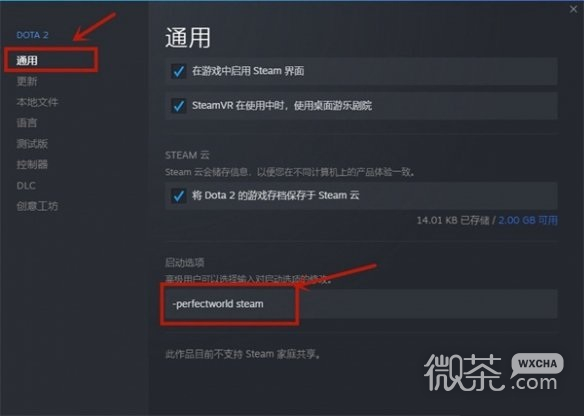
2. Enter -dx11 in the startup item to play the game in dx11 mode.
2. Change in the resource manager
1. Right-click the game icon on the desktop and select the Properties option.
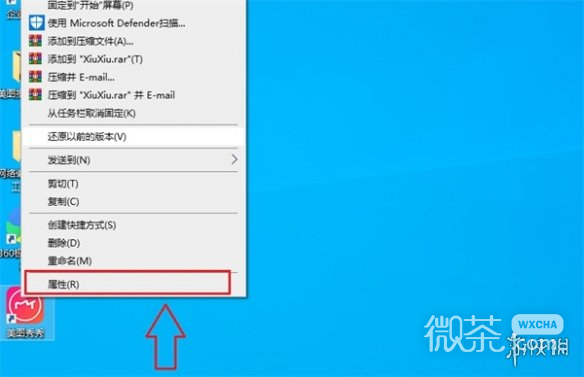
2. Find the target option in the properties, enter -dx11 in the input box, be careful not to touch the original things, and save after entering.
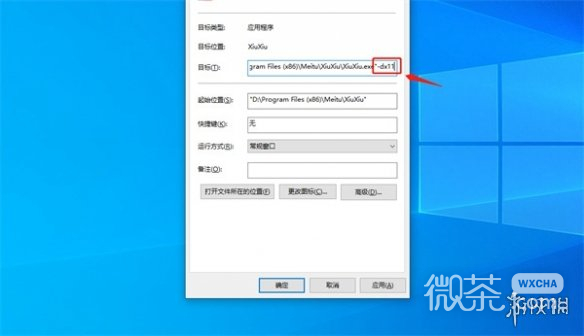
3. At this time, click the desktop icon to open the game, and the game will run in dx11 mode.
The guide to changing dx11 mode in "Baldur's Gate 3" is the latest solution, which can quickly help players solve the problem. I believe this feature can bring you some help, and I hope you can share this guide with other players who encounter difficulties, so that everyone will no longer worry about this problem.