tmux yank
v2.3.0

Copy to the system clipboard in tmux.
Supports:
The easiest way to install tmux-yank is via the Tmux Plugin
Manager.
Add plugin to the list of TPM plugins in .tmux.conf:
set -g @plugin 'tmux-plugins/tmux-yank'Use prefix–I install tmux-yank. You should now
be able to tmux-yank immediately.
When you want to update tmux-yank use prefix–U.
Clone the repository
$ git clone https://github.com/tmux-plugins/tmux-yank ~/clone/pathAdd this line to the bottom of .tmux.conf
run-shell ~/clone/path/yank.tmuxReload the tmux environment
# type this inside tmux
$ tmux source-file ~/.tmux.conf
You should now be able to use tmux-yank immediately.
In order for tmux-yank to work, there must be a program that store data in
the system clipboard.
reattach-to-user-namespaceNote: Some versions of macOS (aka OS X) have been reported to work
without reattach-to-user-namespace. It doesn't hurt to have it installed.
The easiest way to use reattach-to-user-namespace with tmux is use to
use the tmux-sensible
plugin.
To use it manually, use:
# ~/.tmux.conf
set-option -g default-command "reattach-to-user-namespace -l $SHELL"
If you have tmux 1.5 or newer and are using
iTerm2 version 3 or newer then the y
in copy-mode and mouse selection will work without tmux-yank.
To enable this:
Go into iTerm2's preferences.
Go to the "General" tab.
Check "Applications in terminal may access clipboard"
In tmux, ensure set-clipboard is turned on:
$ tmux show-options -g -s set-clipboard
set-clipboard on$ brew install reattach-to-user-namespace$ sudo port install tmux-pasteboardxsel (recommended) or xclip (for X).wl-copy from wl-clipboard (for Wayland)If you have tmux 1.5 or newer and are using xterm, the y in
copy-mode and mouse selection will work without tmux-yank. See the
tmux(1) man page entry for the set-clipboard option.
$ sudo apt-get install xsel # or xclip$ sudo yum install xsel # or xclipputclip which is part of the cygutils-extra package.clip.exe is shipped with Windows Subsystem for Linux.Normal Mode
prefix–y — copies text from the command line to the clipboard.
Works with all popular shells/repls. Tested with:
bash, zsh (with bindkey -e), tcshirb, pry, node, psql, python, php -a,
coffeessh, moshprefix–Y — copy the current pane's current working directory to the clipboard.
Copy Mode
tmux-yank does its best to detect a reasonable choice for a clipboard program on your OS.
If tmux-yank can't detect a known clipboard program then it uses the
@custom_copy_command tmux option as your clipboard program if set.
If you need to always override tmux-yank's choice for a clipboard program,
then you can set @override_copy_command to force tmux-yank to use whatever
you want.
Note that both programs must accept STDIN for the text to be copied.
An example of setting @override_copy_command:
# ~/.tmux.conf

set -g @custom_copy_command 'my-clipboard-copy --some-arg'
# or
set -g @override_copy_command 'my-clipboard-copy --some-arg'
Linux has several cut-and-paste clipboards: primary, secondary, and
clipboard (default in tmux-yank is clipboard).
You can change this by setting @yank_selection:
# ~/.tmux.conf

set -g @yank_selection 'primary' # or 'secondary' or 'clipboard'
With mouse support turned on (see below) the default clipboard for mouse
selections is primary.
You can change this by setting @yank_selection_mouse:
# ~/.tmux.conf

set -g @yank_selection_mouse 'clipboard' # or 'primary' or 'secondary'By default, tmux-yank will exit copy mode after yanking text. If you wish to
remain in copy mode, you can set @yank_action:
# ~/.tmux.conf

set -g @yank_action 'copy-pipe' # or 'copy-pipe-and-cancel' for the defaulttmux-yank has mouse support enabled by default. It will only work if tmux's
built-in mouse support is also enabled (with mouse on since tmux 2.1, or
mode-mouse on in older versions).
To yank with the mouse, click and drag with the primary button to begin selection, and release to yank.
If you would prefer to disable this behavior, or provide your own bindings for
the MouseDragEnd1Pane event, you can do so with:
# ~/.tmux.conf

set -g @yank_with_mouse off # or 'on'
If you want to remain in copy mode after making a mouse selection, set
@yank_action as described above.
If using tmux 2.3 or older and using vi keys then you'll have add the
following configuration setting:
# ~/.tmux.conf

set -g @shell_mode 'vi'
This isn't needed with tmux 2.4 or newer.
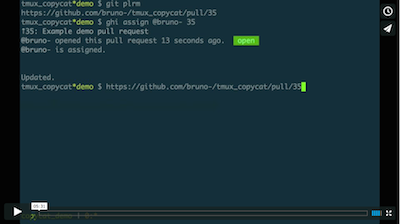
Note: The screen-cast uses Control–y for
"put selection". Use Y in v2.0.0 and later.
MIT





