Suitcase
Alpha 4: Interpreter Mode

灵活的命令行工具,用于立即部署简单命令和脚本的用户界面。
手提箱是一个命令行工具,可以“编程”显示可以触发命令和脚本的SwiftUI接口。
?手提箱直接下载
它类似于快捷方式,但对于MacOS,由命令行驱动。
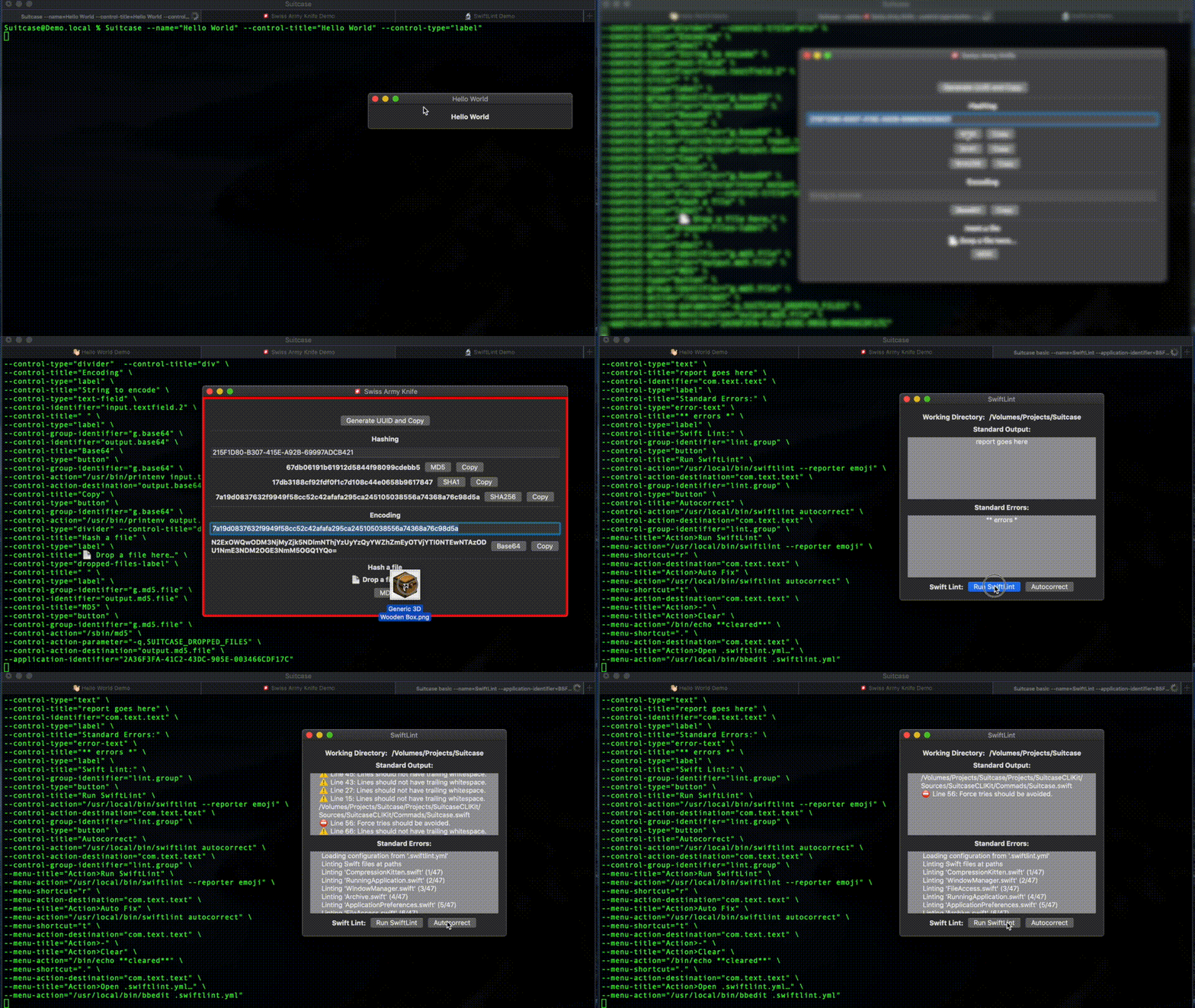
由于其Swiftui的基础,手提箱是一流的Mac公民。开箱即用,黑暗模式,梅纳布尔和拖放。
它的功率和灵活性形成了久经考验的UNIX命令行。您可以在手提箱中可以做的任何事情都可以做,但是使用UI并将命令导出为.command文件,以签到项目或与世界共享。
 OVERVIEW: A flexible command line tool for instantly deploying user interfaces
for simple commands and scripts.

USAGE: Suitcase <subcommand>

OPTIONS:
  --version               Show the version.
  -h, --help              Show help information.

SUBCOMMANDS:
  basic                   Launch a basic Suitcase process, that has a main menu
			  and an icon in the Dock when running.
  utility                 Launch a utility Suitcase process, without a Dock
			  icon or main menu.
basic运行时, basic手提箱过程在码头中有一个主菜单和图标。
请参阅完整的文档。
utility程序手提箱过程没有码头图标或主菜单。它仅由一个主窗口组成。
请参阅完整的文档。
这些示例非常基本,但应该很好地了解如何使用手提箱。更多详细信息可以在集市上找到。如果您有任何疑问,请创建一个问题。如果您创建命令并想分享,请在集市上打开PR。
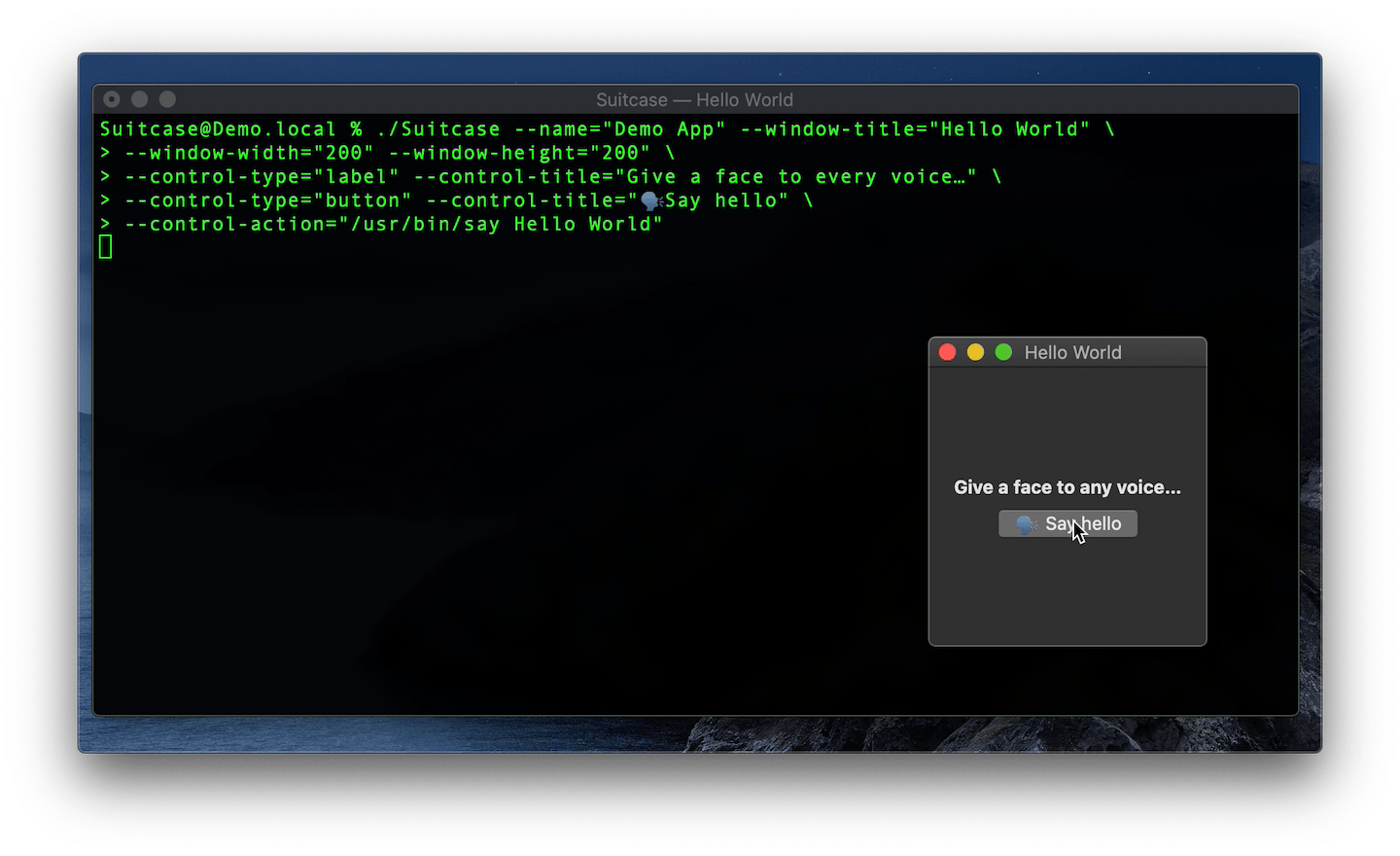
一个简单的示例,该示例由一个按钮组成,当单击时调用say命令。观看此示例中的视频,在行李箱集市上有一个详细的say示例。
$ Suitcase --name= " Demo App " --window-title= " Hello World "
  --window-width= " 200 " --window-height= " 200 "
  --control-type= " label " --control-title= " Give a face to every voice… "
  --control-type= " button "
  --control-title= " ? Say hello "
--control-action= " /usr/bin/say Hello World " 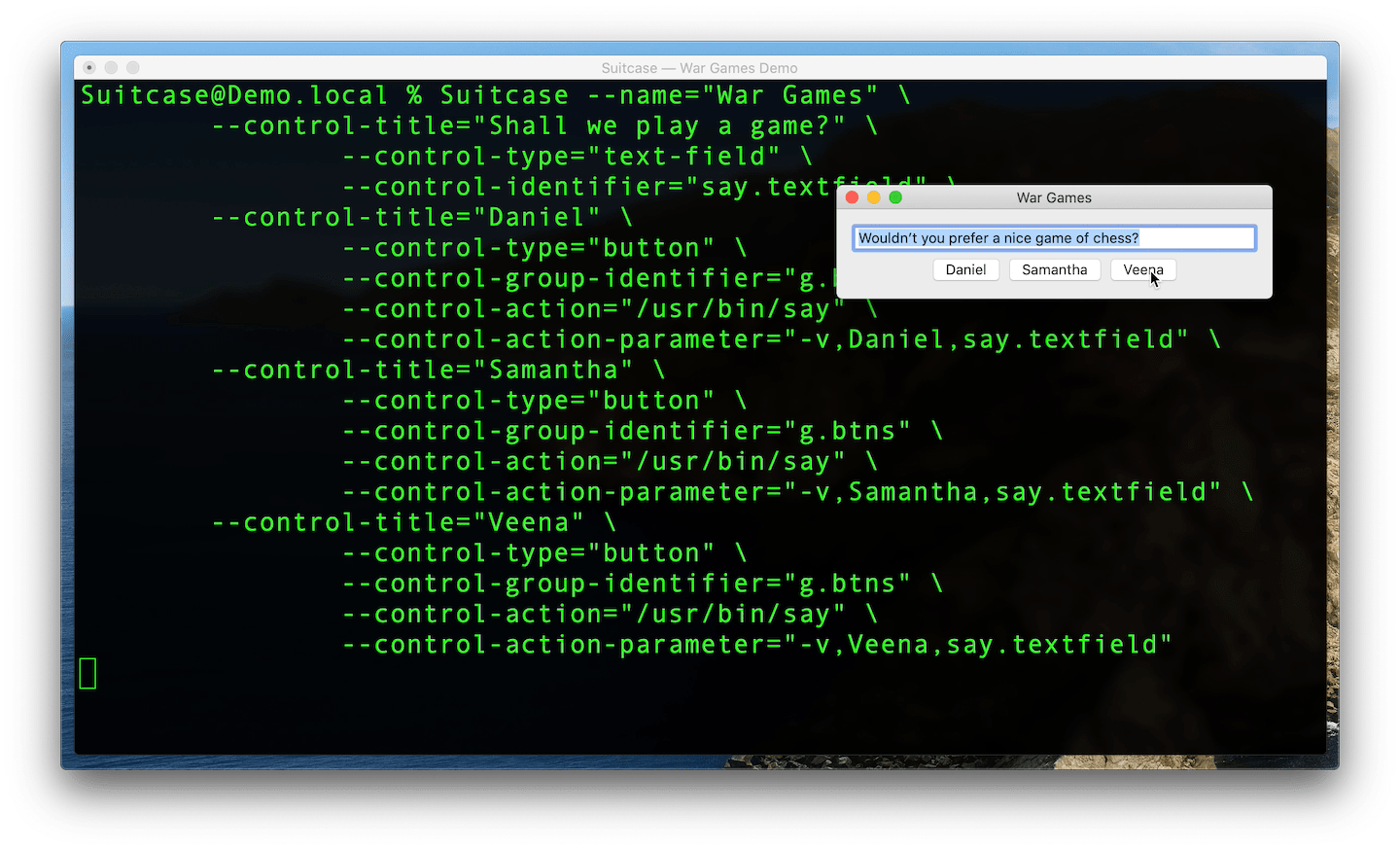
一个更高级的示例使用按钮并将参数传递给say命令。战争游戏的详细解释可以在手提箱集市上找到。
$ Suitcase --name= " War Games "
 --control-title= " Shall we play a game? "
	--control-type= " text-field "
	--control-identifier= " say.textfield "
  --control-title= " Daniel "
	--control-type= " button "
	--control-group-identifier= " g.btns "
	--control-action= " /usr/bin/say "
	--control-action-parameter= " -v,Daniel,say.textfield "
  --control-title= " Samantha "
	--control-type= " button "
	--control-group-identifier= " g.btns "
	--control-action= " /usr/bin/say "
	--control-action-parameter= " -v,Samantha,say.textfield "
  --control-title= " Veena "
	--control-type= " button "
	--control-group-identifier= " g.btns "
	--control-action= " /usr/bin/say "
--control-action-parameter= " -v,Veena,say.textfield " 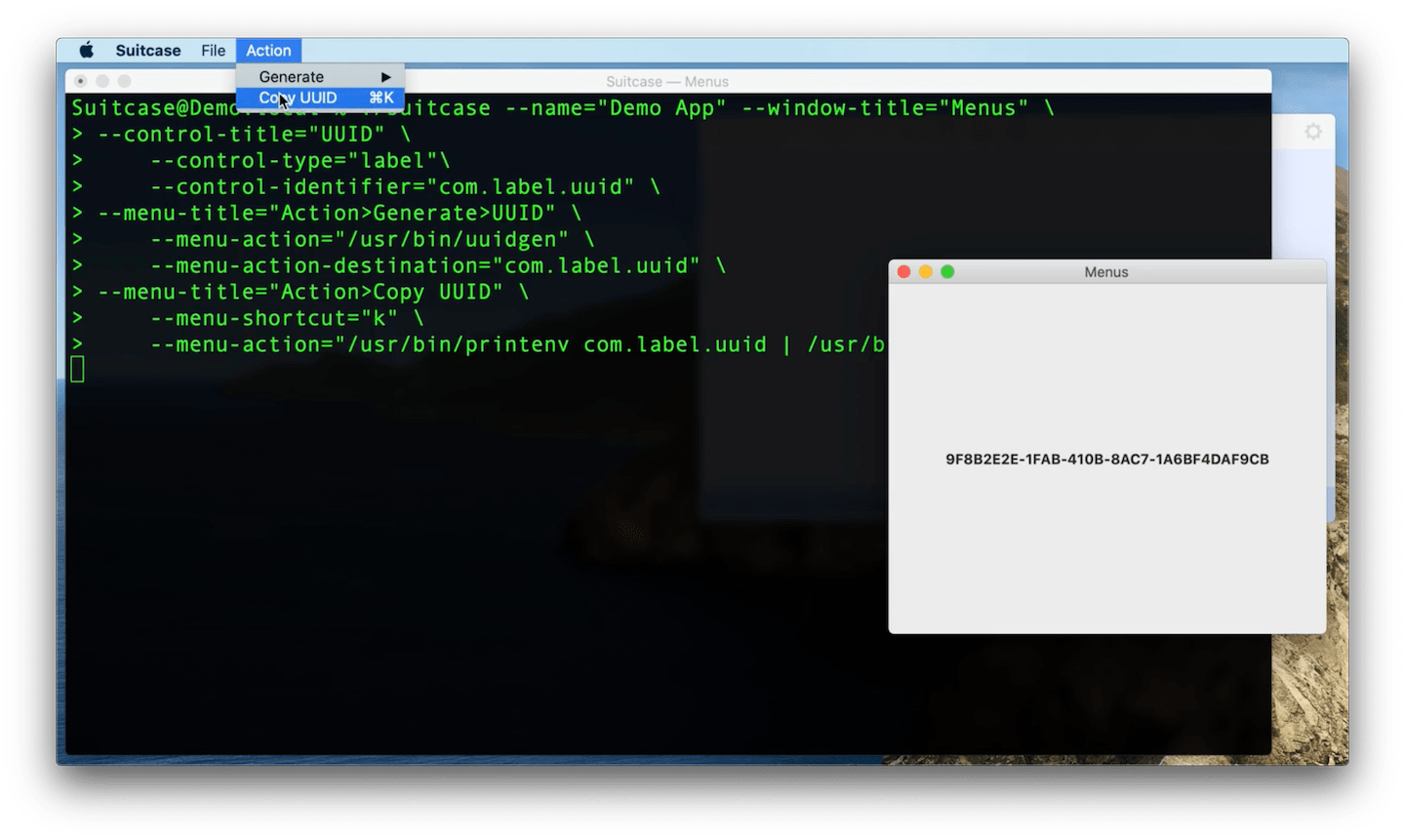
此示例显示了如何创建菜单和子菜单。操作可以以与button s相同的方式附加到任何菜单项上。观看此示例的视频。
菜单项也可以分配一个键盘快捷键。有关更多详细信息,请参见完整的文档。
$ Suitcase --name= " Demo App " --window-title= " Menus "
  --control-title= " UUID "
	--control-type= " label " --control-identifier= " com.label.uuid "
  --menu-title= " Action>Generate>UUID "
	--menu-action= " /usr/bin/uuidgen "
	--menu-action-destination= " com.label.uuid "
  --menu-title= " Action>Copy UUID "
  --menu-shortcut= " k "
--menu-action= " /usr/bin/printenv com.label.uuid | /usr/bin/pbcopy " 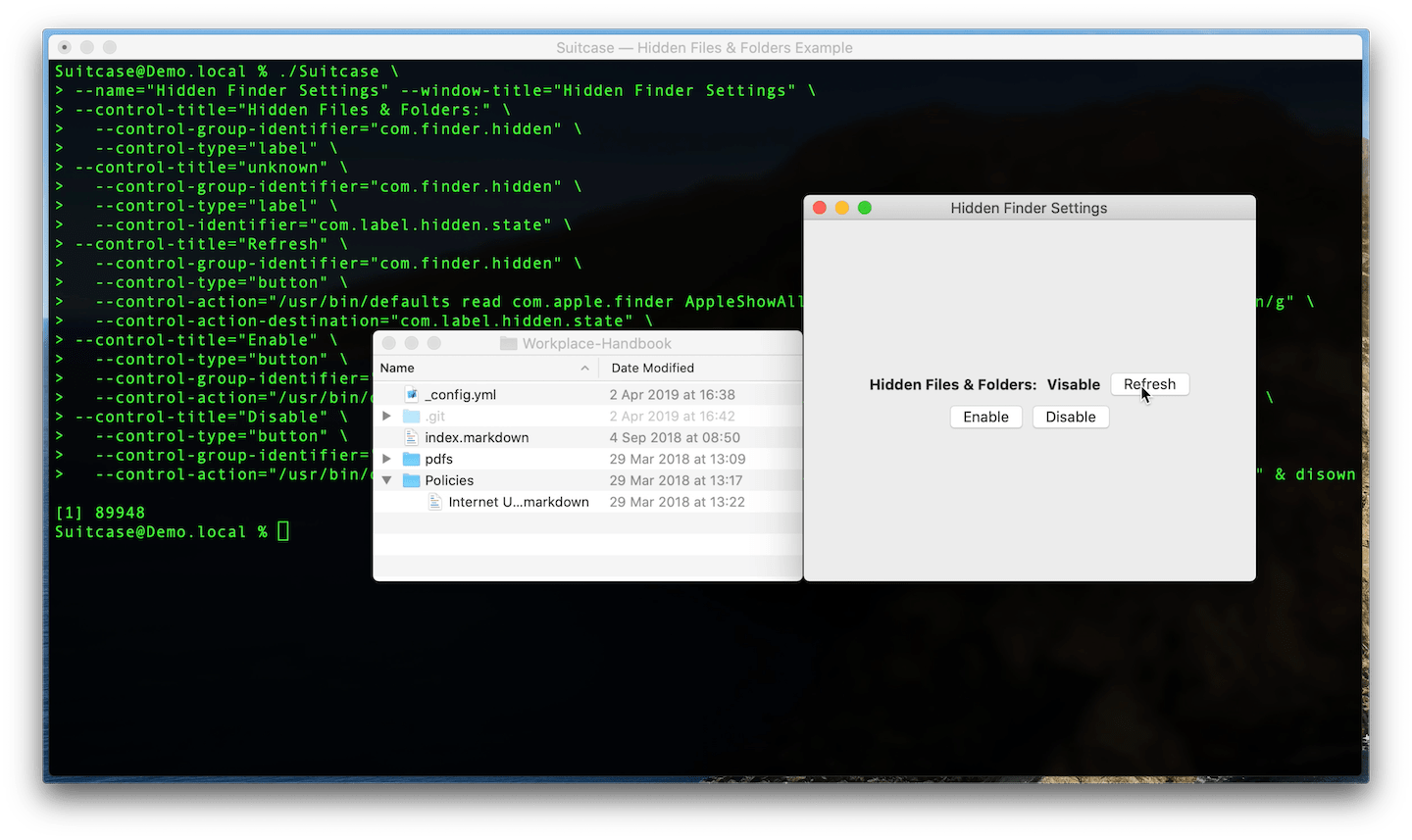
这是一个更有参与的示例,它使用defaults读取MacOS用户默认系统并使用sed设置状态label 。观看此示例的视频。
$ Suitcase --name= " Hidden Finder Settings "
  --control-title= " Hidden Files & Folders: "
	--control-group-identifier= " com.finder.hidden "
	--control-type= " label "
  --control-title= " unknown "
	--control-group-identifier= " com.finder.hidden "
	--control-type= " label "
	--control-identifier= " com.label.hidden.state "
  --control-title= " Refresh "
	--control-group-identifier= " com.finder.hidden "
	--control-type= " button "
	--control-action= " /usr/bin/defaults read com.apple.finder AppleShowAllFiles | /usr/bin/sed s/1/Visible/g;s/0/Hidden/g "
	--control-action-destination= " com.label.hidden.state "
  --control-title= " Enable "
	--control-type= " button "
	--control-group-identifier= " com.finder.hidden.buttons "
	--control-action= " /usr/bin/defaults write com.apple.finder AppleShowAllFiles -bool TRUE & /usr/bin/killall Finder "
  --control-title= " Disable "
	--control-type= " button "
	--control-group-identifier= " com.finder.hidden.buttons "
	--control-action= " /usr/bin/defaults write com.apple.finder AppleShowAllFiles -bool FALSE & /usr/bin/killall Finder "
这就是命令在终端运行的方式。
$ defaults read com.apple.finder AppleShowAllFiles | sed ' s/1/Visible/g;s/0/Hidden/g '该按钮使用&运行两个命令,一个用于写入用户默认值,第二个要重新启动Finder:
$ defaults write com.apple.finder AppleShowAllFiles -bool TRUE杀死发现者并重新启动:
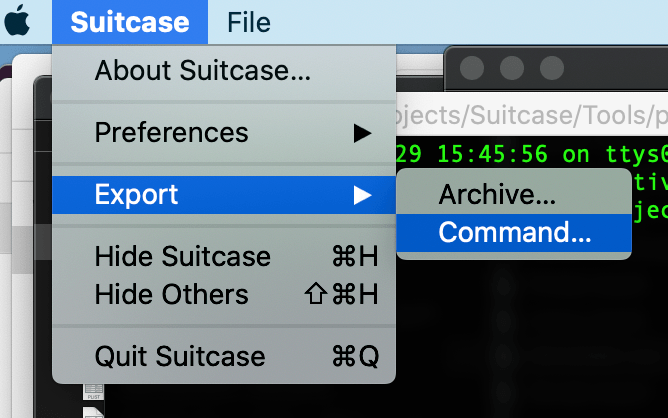
$ killall Finder.command任何手提箱命令都可以作为自动运行.command文件导出。您可以双击此文件以启动手提箱或共享文件(仅是纯文本)。
请创建一个问题。
发行和新闻(@suitcasecli)Richard Stelling(@rjstelling)





