
Collaborate with multiple people to create PPT, doubling the efficiency! The editor of Downcodes will introduce you in detail several practical two-person collaboration methods on computer PPT to help you easily complete team projects. Whether you use the real-time synchronization function of an online collaboration platform, or use a shared document system or email for file transfer, you can meet different collaboration needs. This article will explain in depth how to use Google Slides, PowerPoint Online, Dropbox and other tools, and answer common questions, allowing you to quickly master efficient PPT collaboration skills.
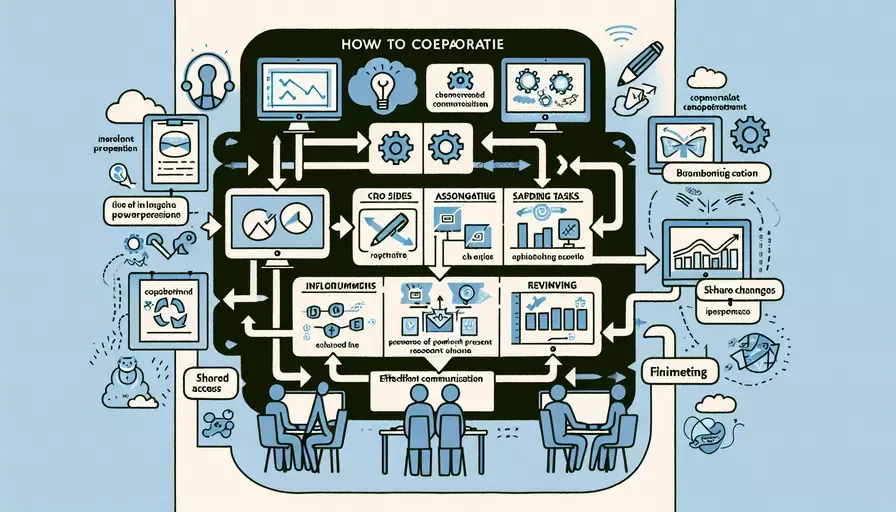
How to collaborate with two people to create PPT on computer? When making PPT, two-person collaboration can be achieved in the following ways: 1. Using an online collaboration platform; 2. Using a shared document system; 3. File transfer collaboration via email. Among them, using an online collaboration platform is the most convenient and fastest way. For example, both Google Slides and Microsoft's PowerPoint Online provide real-time collaboration functions. Users can edit the same document at the same time, and each user's operations will be synchronized to other users' interfaces in real time. The following will introduce in detail how to use online collaboration platforms and other methods for two-person collaboration to produce PPT.
1. Use online collaboration platforms
Google SlidesGoogle Slides is an online presentation production tool provided by Google, and its real-time collaboration function is very powerful. First, everyone involved in the collaboration needs to have a Google account and log in to Google Slides. Then, create or open a PPT file, click the share button in the upper right corner, enter the Google email addresses of other collaborators, set the permissions for editing, and invite them to join the collaboration. After this, all collaborators can edit on the same PPT, and all operations will be synchronized in real time.
PowerPoint OnlinePowerPoint Online is an online version of PowerPoint provided by Microsoft. It is similar to Google Slides and also has real-time collaboration capabilities. Users need to log in to a Microsoft account, then create or open a PPT file in OneDrive or SharePoint Online, click the share button, enter the collaborator's email address, and invite them to join the collaboration. It should be noted that collaborators also need to have a Microsoft account and log in to PowerPoint Online.
2. Use a shared document system
Shared document systems, such as Dropbox, are also a way for two people to collaborate on PPT production. Users need to create a shared folder in Dropbox and then save the PPT file to the folder. All collaborators with access rights can open and edit the PPT file. However, this method requires attention to the file version issue, because Dropbox does not provide real-time synchronization function, and collaborators need to manually refresh the file to see other people's edits.
3. Collaborate on file transfer via email
Email is the most traditional method of file collaboration and is suitable for situations where real-time collaboration is not required or the files are small. During the collaboration process, users can send PPT files as email attachments to collaborators. After the collaborators complete editing, the files can be sent back. The disadvantage of this method is that it is less efficient and may cause confusion in file versions.
The above are several methods for two-person collaboration in computer-generated PPT. Users can choose the most suitable method for collaboration according to their own needs and conditions.
1. How to realize two-person collaboration on the computer to produce PPT?
Question: I want to know how to make PPT collaboratively between two people on the computer. Is there any way to achieve this? Answer: There are several ways to achieve two-person collaboration on the computer to produce PPT. One is to use online collaboration tools, such as Google Slides or Microsoft PowerPoint Online, which allow multiple people to edit the same PPT at the same time. Another method is to use remote desktop sharing software, such as TeamViewer or AnyDesk, to let another collaborator remotely control your computer for PPT production.2. How to make PPT with others and edit it at the same time?
Question: I want to know how to make PPT with others and edit it at the same time. Are there any tools you can recommend? Answer: There are some online collaboration tools that allow you to make PPT with others and edit it in real time. For example, you can use Google Slides or Microsoft PowerPoint Online. These tools allow multiple people to edit the same PPT at the same time, and you can invite others to join in editing by sharing links. In addition, there are some team collaboration tools, such as Trello or Asana, which can help team members coordinate the PPT production process, assign tasks and track progress.3. Can I make PPT on multiple computers at the same time?
Question: I would like to know if I can make PPT on multiple computers at the same time, so that the task can be completed more efficiently? Answer: Yes, you can make PPT on multiple computers at the same time. One way is to use online collaboration tools, such as Google Slides or Microsoft PowerPoint Online, which allow you to log in to the same account on different devices and synchronize your edits in real time. Another method is to use a cloud storage service, such as Dropbox or OneDrive, and install the same folder synchronization client on different computers, so that you can open and edit PPT files on any computer. No matter which method is used, it will make it easier for you to create PPT on multiple computers.I hope the sharing by the editor of Downcodes will be helpful to you, and I wish you smooth PPT production!