openshift install power
v1.12.1

โครงการนี้มีสคริปต์ Bash เพื่อช่วยให้คุณปรับใช้แพลตฟอร์ม OpenShift Container 4.x บนเซิร์ฟเวอร์เสมือนIBM® Power Systems ™บน IBM Cloud (PowerVS) รหัส Terraform ที่ OCP4-upi-Powervs ใช้สำหรับกระบวนการปรับใช้
ตรวจสอบให้แน่ใจว่าอินสแตนซ์ PowerVS ของคุณได้รับการเตรียมไว้สำหรับการปรับใช้กลุ่ม openshift โปรดตรวจสอบลิงค์นี้สำหรับรายละเอียดเพิ่มเติม
นี่คือการสาธิตอย่างรวดเร็ว
ระบบปฏิบัติการ 64 บิตเท่านั้นที่ได้รับการสนับสนุนโดยสคริปต์
สคริปต์ต้องใช้ bash Shell และ Package Manager ที่กำหนดไว้ล่วงหน้า
ต้องใช้ Catalina (10.15) ขึ้นไป
สคริปต์ใช้ HomeBrew Package Manager เพื่อติดตั้งแพ็คเกจที่ต้องการ
จำเป็นต้องใช้ RHEL8/CENTOS8 และสูงกว่าหรือ Ubuntu 16.04 ขึ้นไป
สคริปต์ใช้ตัวจัดการแพ็คเกจเริ่มต้น ( yum/dnf/apt ) ตามการแจกแจง
สคริปต์สามารถทำงานบน Gitbash, ระบบย่อย Windows สำหรับ Linux และ Cygwin Terminals
หากใช้ Cygwin โปรดตรวจสอบให้แน่ใจว่ามีการติดตั้งแพ็คเกจ curl และ unzip คุณจะต้องเรียกใช้การตั้งค่า Cygwin อีกครั้ง
หมายเหตุ: PowerShell ไม่ได้รับการสนับสนุน
$ mkdir ocp-install-dir && cd ocp-install-dir
 $ curl -sL https://raw.githubusercontent.com/ocp-power-automation/openshift-install-power/main/openshift-install-powervs -o ./openshift-install-powervs
$ chmod +x ./openshift-install-powervs
 $ ./openshift-install-powervs

Automation for deploying OpenShift 4.X on PowerVS

Usage:
  openshift-install-powervs [command] [<args> [<value>]]

Available commands:
  setup           Install all the required packages/binaries in current directory
  variables       Interactive way to populate the variables file
  create          Create an OpenShift cluster
  destroy         Destroy an OpenShift cluster
  output          Display the cluster information. Runs terraform output [NAME]
  access-info     Display the access information of installed OpenShift cluster
  help            Display this information

Where <args>:
  -var               Terraform variable to be passed to the create/destroy command
  -var-file          Terraform variable file name in current directory. (By default using var.tfvars)
  -flavor            Cluster compute template to use eg: small, medium, large
  -force-destroy     Not ask for confirmation during destroy command
  -ignore-os-checks  Ignore operating system related checks
  -ignore-warnings   Warning messages will not be displayed. Should be specified first, before any other args.
  -verbose           Enable verbose for terraform console messages
  -all-images        List all the images available during variables prompt
  -trace             Enable tracing of all executed commands
  -version, -v       Display the script version

Environment Variables:
  IBMCLOUD_API_KEY    IBM Cloud API key
  RELEASE_VER         OpenShift release version (Default: 4.15)
  ARTIFACTS_VERSION   Tag or Branch name of ocp4-upi-powervs repository (Default: main)
  RHEL_SUBS_PASSWORD  RHEL subscription password if not provided in variables
  NO_OF_RETRY         Number of retries/attempts to run repeatable actions such as create (Default: 5)

Submit issues at: https://github.com/ocp-power-automation/openshift-install-power/issues
ใช้ภาพคอนเทนเนอร์
หากต้องการใช้รูปภาพที่มีอยู่ในที่เก็บ quay.io/powercloud ให้เรียกใช้คำสั่งต่อไปนี้
docker run -it -e IBMCLOUD_API_KEY="<key>" -v $(pwd):/data quay.io/powercloud/openshift-install-powervs:<valid-tag> create
หรือ
podman run -it -e IBMCLOUD_API_KEY="<key>" -v $(pwd):/data quay.io/powercloud/openshift-install-powervs:<valid-tag> create
แท็กให้ข้อมูลเกี่ยวกับเวอร์ชันรุ่น OCP หรือสถาปัตยกรรมที่รองรับ
ในกรณีที่คุณต้องการสร้างอิมเมจ OpenShift-Install-Powervs ลองดูลิงค์ "การใช้งานด้วยคอนเทนเนอร์" ต่อไปนี้
สคริปต์ถือว่า PowerVs ข้อกำหนดเบื้องต้นสำหรับ OpenShift มีอยู่แล้ว
ในกรณีที่คุณพลาดนี่คือลิงค์ไปยังข้อกำหนดเบื้องต้น
สำหรับการเรียกใช้สคริปต์คุณต้องการสิ่งต่อไปนี้:
ส่งออกคีย์ IBM Cloud API และรหัสผ่านการสมัครสมาชิก RHEL
 $ set +o history
$ export IBMCLOUD_API_KEY='<your API key>'
$ export RHEL_SUBS_PASSWORD='<your RHEL subscription password>'
$ set -o history
เรียกใช้คำสั่ง create
$ ./openshift-install-powervs create
สคริปต์จะตั้งค่าเครื่องมือที่ต้องการและเรียกใช้ในการแจ้งเตือนโหมดอินเทอร์แอคทีฟสำหรับอินพุต
เมื่อคำสั่งข้างต้นเสร็จสมบูรณ์แล้วจะพิมพ์ข้อมูลการเข้าถึงคลัสเตอร์
 Login to bastion: 'ssh -i automation/data/id_rsa [email protected]' and start using the 'oc' command.
To access the cluster on local system when using 'oc' run: 'export KUBECONFIG=/root/ocp-install-dir/automation/kubeconfig'
Access the OpenShift web-console here: https://console-openshift-console.apps.test-ocp-6f2c.ibm.com
Login to the console with user: "kubeadmin", and password: "MHvmI-z5nY8-CBFKF-hmCDJ"
Add the line on local system 'hosts' file:
145.48.43.53 api.test-ocp-6f2c.ibm.com console-openshift-console.apps.test-ocp-6f2c.ibm.com integrated-oauth-server-openshift-authentication.apps.test-ocp-6f2c.ibm.com oauth-openshift.apps.test-ocp-6f2c.ibm.com prometheus-k8s-openshift-monitoring.apps.test-ocp-6f2c.ibm.com grafana-openshift-monitoring.apps.test-ocp-6f2c.ibm.com example.apps.test-ocp-6f2c.ibm.com
ก่อนที่จะเรียกใช้สคริปต์คุณอาจเลือกที่จะแทนที่ตัวแปรสภาพแวดล้อมบางอย่างตามความต้องการของคุณ
โดยค่าเริ่มต้น OpenShift เวอร์ชัน 4.15 ถูกติดตั้ง
หากคุณต้องการติดตั้ง 4.14 ให้ส่งออกตัวแปร RELEASE_VER
$ export RELEASE_VER="4.14"
คุณสามารถหลีกเลี่ยงโหมดการโต้ตอบได้โดยมีไฟล์อินพุตที่จำเป็นในไดเรกทอรีการติดตั้ง
ไฟล์อินพุตที่จำเป็น
ไฟล์ Terraform vars (ชื่อไฟล์: var.tfvars )
ไฟล์คีย์ SSH (ชื่อไฟล์: id_rsa & id_rsa.pub )
ตัวอย่างไฟล์ var.tfvars
 ibmcloud_region = "syd"
ibmcloud_zone = "syd04"
service_instance_id = "123456abc-xzz-2223434343"
rhel_image_name = "rhel-83"
rhcos_image_name = "rhcos-415"
network_name = "ocp-net"
openshift_install_tarball = "https://mirror.openshift.com/pub/openshift-v4/ppc64le/clients/ocp/stable-4.15/openshift-install-linux.tar.gz"
openshift_client_tarball = "https://mirror.openshift.com/pub/openshift-v4/ppc64le/clients/ocp/stable-4.15/openshift-client-linux.tar.gz"
cluster_id_prefix = "test-ocp"
cluster_domain = "xip.io"
storage_type = "nfs"
volume_size = "300"
bastion = {memory = "16", processors = "1", "count" = 1}
bootstrap = {memory = "32", processors = "0.5", "count" = 1}
master = {memory = "32", processors = "0.5", "count" = 3}
worker = {memory = "32", processors = "0.5", "count" = 2}
rhel_subscription_username = "[email protected]"
rhel_subscription_password = "mysubscriptionPassword"
นอกจากนี้คุณยังสามารถส่งไฟล์ Terraform Variables ที่กำหนดเองโดยใช้ตัวเลือก -var-file <filename> ไปยังสคริปต์ คุณยังสามารถใช้ตัวเลือก -var "key=value" เพื่อส่งผ่านตัวแปรเดียว หากตัวแปรเดียวกันได้รับมากกว่าหนึ่งครั้งก่อนหน้านี้จะมาจากซ้าย (ต่ำ) ไปทางขวา (สูง)
ตรวจสอบเส้นทางการเรียนรู้ต่อไปนี้สำหรับการปรับใช้และใช้ OpenShift บน PowerVS
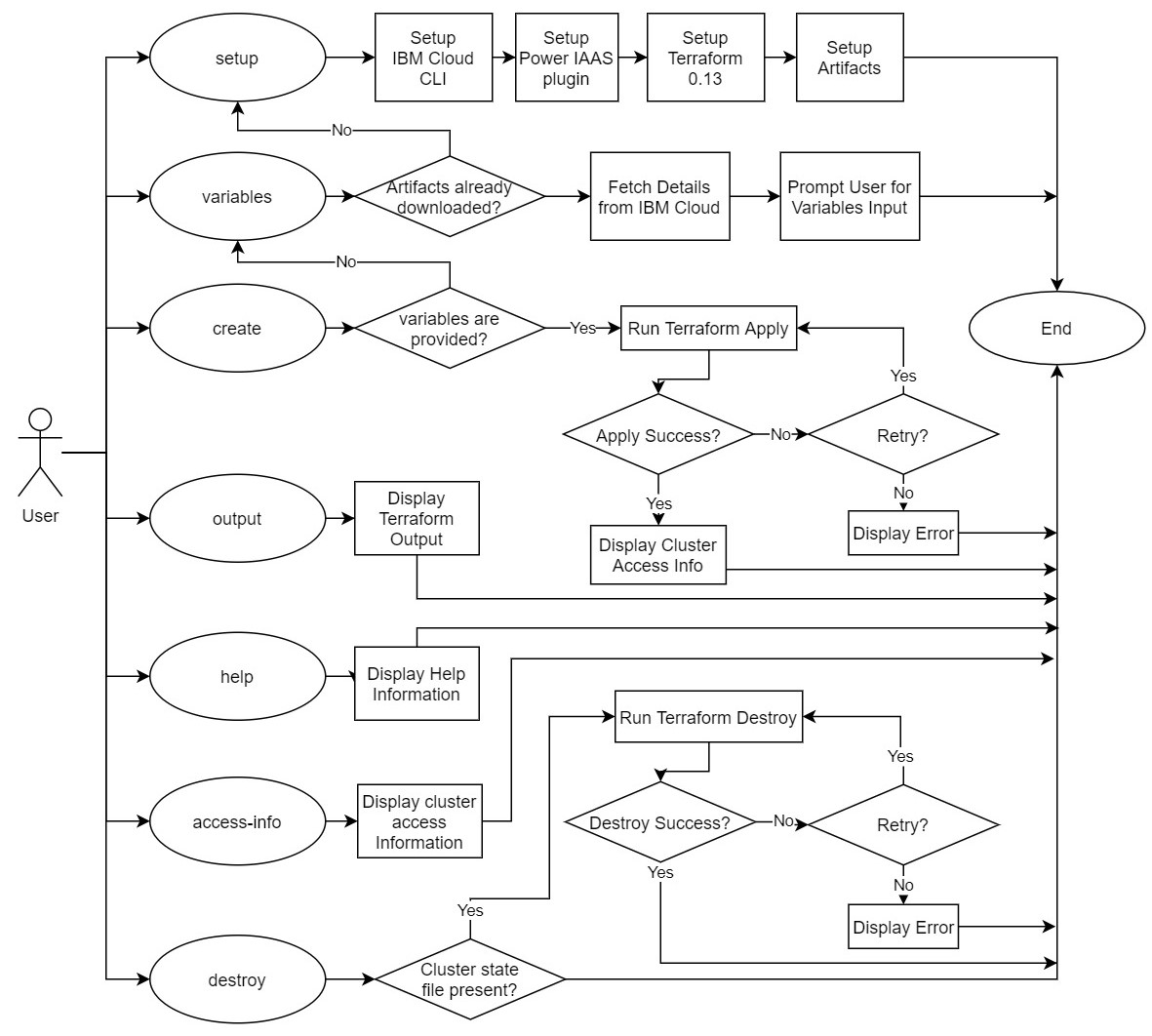
คำสั่งหลักต่อไปนี้ได้รับการสนับสนุนโดยสคริปต์
ด้านล่างนี้เป็นแผนภูมิการไหลแบบง่าย ๆ ที่อธิบายการไหลของแต่ละคำสั่ง
โปรดดูเอกสารที่มีส่วนร่วมสำหรับรายละเอียดเพิ่มเติม ยินดีต้อนรับ PRS มากที่สุด !!





