openshift install power
v1.12.1

This project contains a bash script to help you deploy OpenShift Container Platform 4.X on IBM® Power Systems™ Virtual Server on IBM Cloud (PowerVS). The Terraform code at ocp4-upi-powervs is used for the deployment process.
Ensure your PowerVS instance is prepped for deploying OpenShift Clusters. Please check this link for more details
Here is quick demo.
Only 64bit Operating Systems are supported by the script.
The script requires bash shell and a package manager pre-configured.
Catalina (10.15) and above is required.
The script uses Homebrew package manager to install required packages.
RHEL8/CentOS8 and above or Ubuntu 16.04 and above is required.
The script uses the default package manager (yum/dnf/apt) based on the distribution.
The script can run on GitBash, Windows Subsystem for Linux and Cygwin terminals.
If using Cygwin, then please ensure curl and unzip packages are installed. You will need to run the Cygwin setup again.
Note: PowerShell is Unsupported.
$ mkdir ocp-install-dir && cd ocp-install-dir
$ curl -sL https://raw.githubusercontent.com/ocp-power-automation/openshift-install-power/main/openshift-install-powervs -o ./openshift-install-powervs
$ chmod +x ./openshift-install-powervs
$ ./openshift-install-powervs

Automation for deploying OpenShift 4.X on PowerVS

Usage:
  openshift-install-powervs [command] [<args> [<value>]]

Available commands:
  setup           Install all the required packages/binaries in current directory
  variables       Interactive way to populate the variables file
  create          Create an OpenShift cluster
  destroy         Destroy an OpenShift cluster
  output          Display the cluster information. Runs terraform output [NAME]
  access-info     Display the access information of installed OpenShift cluster
  help            Display this information

Where <args>:
  -var               Terraform variable to be passed to the create/destroy command
  -var-file          Terraform variable file name in current directory. (By default using var.tfvars)
  -flavor            Cluster compute template to use eg: small, medium, large
  -force-destroy     Not ask for confirmation during destroy command
  -ignore-os-checks  Ignore operating system related checks
  -ignore-warnings   Warning messages will not be displayed. Should be specified first, before any other args.
  -verbose           Enable verbose for terraform console messages
  -all-images        List all the images available during variables prompt
  -trace             Enable tracing of all executed commands
  -version, -v       Display the script version

Environment Variables:
  IBMCLOUD_API_KEY    IBM Cloud API key
  RELEASE_VER         OpenShift release version (Default: 4.15)
  ARTIFACTS_VERSION   Tag or Branch name of ocp4-upi-powervs repository (Default: main)
  RHEL_SUBS_PASSWORD  RHEL subscription password if not provided in variables
  NO_OF_RETRY         Number of retries/attempts to run repeatable actions such as create (Default: 5)

Submit issues at: https://github.com/ocp-power-automation/openshift-install-power/issues
Using the Container Image
To use the images present in the quay.io/powercloud repository, run the following command.
docker run -it -e IBMCLOUD_API_KEY="<key>" -v $(pwd):/data quay.io/powercloud/openshift-install-powervs:<valid-tag> create
OR
podman run -it -e IBMCLOUD_API_KEY="<key>" -v $(pwd):/data quay.io/powercloud/openshift-install-powervs:<valid-tag> create
Tags provide information about the release version, ocp version or supported architecture.
In case you need to build the openshift-install-powervs image, check out the following "Usage with Containers" link
The script assumes PowerVS prerequisites for OpenShift are already in place.
In case you missed, here is the link to the prerequisites
For running the script you need the following:
Export the IBM Cloud API Key and RHEL Subscription Password.
$ set +o history
$ export IBMCLOUD_API_KEY='<your API key>'
$ export RHEL_SUBS_PASSWORD='<your RHEL subscription password>'
$ set -o history
Run the create command.
$ ./openshift-install-powervs create
The script will setup the required tools and run in interactive mode prompting for inputs.
Once the above command completes successfully it will print the cluster access information.
Login to bastion: 'ssh -i automation/data/id_rsa [email protected]' and start using the 'oc' command.
To access the cluster on local system when using 'oc' run: 'export KUBECONFIG=/root/ocp-install-dir/automation/kubeconfig'
Access the OpenShift web-console here: https://console-openshift-console.apps.test-ocp-6f2c.ibm.com
Login to the console with user: "kubeadmin", and password: "MHvmI-z5nY8-CBFKF-hmCDJ"
Add the line on local system 'hosts' file:
145.48.43.53 api.test-ocp-6f2c.ibm.com console-openshift-console.apps.test-ocp-6f2c.ibm.com integrated-oauth-server-openshift-authentication.apps.test-ocp-6f2c.ibm.com oauth-openshift.apps.test-ocp-6f2c.ibm.com prometheus-k8s-openshift-monitoring.apps.test-ocp-6f2c.ibm.com grafana-openshift-monitoring.apps.test-ocp-6f2c.ibm.com example.apps.test-ocp-6f2c.ibm.com
Before running the script, you may choose to override some environment variables as per your requirement.
By default OpenShift version 4.15 is installed.
If you want to install 4.14, then export the variable RELEASE_VER.
$ export RELEASE_VER="4.14"
You can avoid the interactive mode by having the required input files available in the install directory
Required input files
Terraform vars file (filename: var.tfvars)
SSH key files (filename: id_rsa & id_rsa.pub)
Example var.tfvars file
ibmcloud_region = "syd"
ibmcloud_zone = "syd04"
service_instance_id = "123456abc-xzz-2223434343"
rhel_image_name = "rhel-83"
rhcos_image_name = "rhcos-415"
network_name = "ocp-net"
openshift_install_tarball = "https://mirror.openshift.com/pub/openshift-v4/ppc64le/clients/ocp/stable-4.15/openshift-install-linux.tar.gz"
openshift_client_tarball = "https://mirror.openshift.com/pub/openshift-v4/ppc64le/clients/ocp/stable-4.15/openshift-client-linux.tar.gz"
cluster_id_prefix = "test-ocp"
cluster_domain = "xip.io"
storage_type = "nfs"
volume_size = "300"
bastion = {memory = "16", processors = "1", "count" = 1}
bootstrap = {memory = "32", processors = "0.5", "count" = 1}
master = {memory = "32", processors = "0.5", "count" = 3}
worker = {memory = "32", processors = "0.5", "count" = 2}
rhel_subscription_username = "[email protected]"
rhel_subscription_password = "mysubscriptionPassword"
You can also pass a custom Terraform variables file using the option -var-file <filename> to the script.
You can also use the option -var "key=value" to pass a single variable.
If the same variable is given more than once then precedence will be from left (low) to right (high).
Check out the following learning path for deploying and using OpenShift on PowerVS
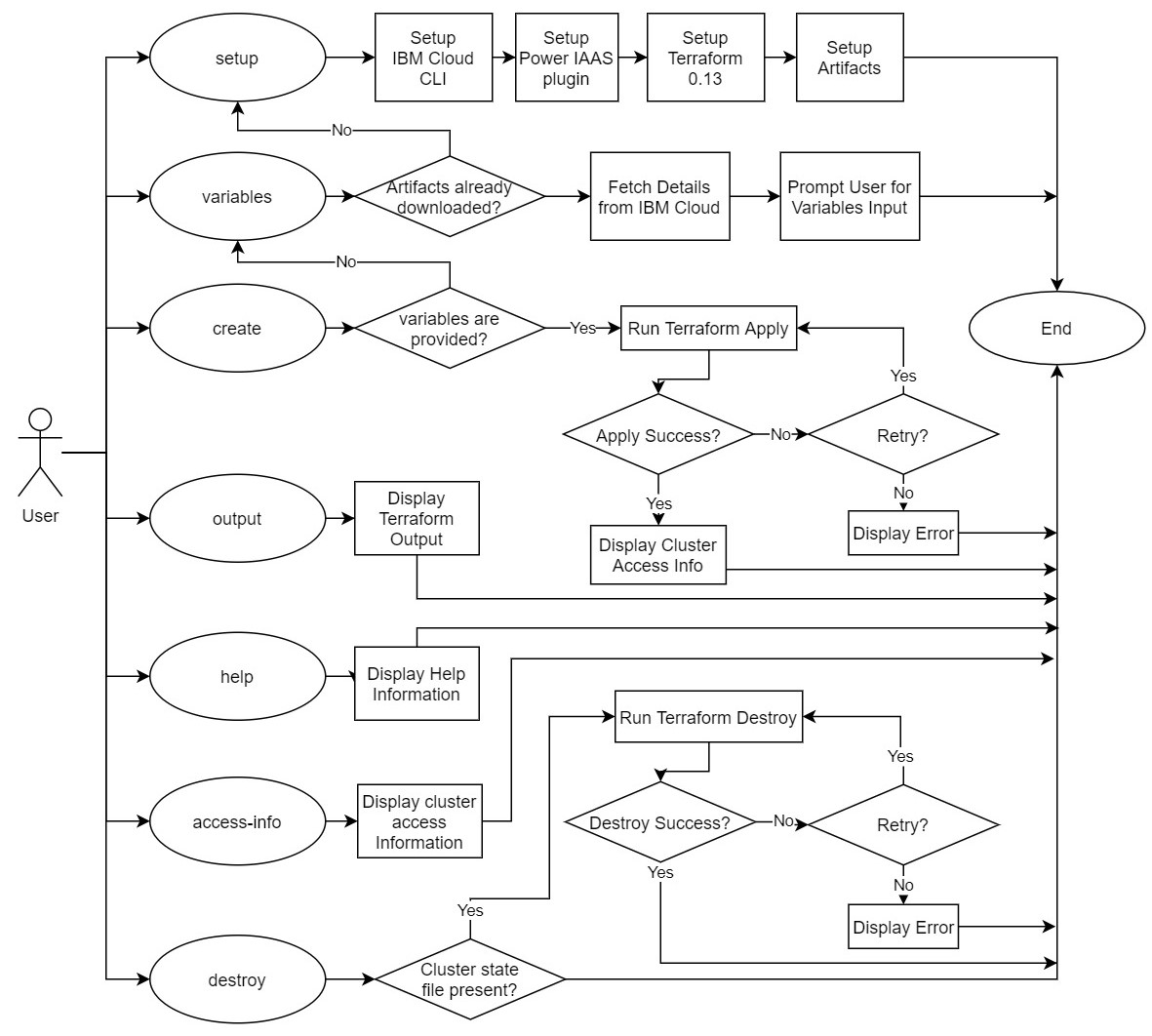
The following core commands are supported by the script.
Below is a simple flow chart explaining the flow of each command.
Please see the contributing doc for more details. PRs are most welcome !!





