openshift install power
v1.12.1

Este proyecto contiene un script bash para ayudarlo a implementar OpenShift Container Platform 4.x en IBM® Power Systems ™ Virtual Server en IBM Cloud (PowerVS). El código Terraform en OCP4-UPI-Powervs se utiliza para el proceso de implementación.
Asegúrese de que su instancia de PowerVS esté preparada para implementar grupos OpenShift. Consulte este enlace para obtener más detalles
Aquí hay una demostración rápida.
Solo los sistemas operativos de 64 bits son compatibles con el script.
El script requiere bash Shell y un Administrador de paquetes preconfigurado.
Se requiere Catalina (10.15) y arriba.
El script utiliza HomeBrew Package Manager para instalar los paquetes requeridos.
Se requiere Rhel8/CentOS8 y arriba o Ubuntu 16.04 y arriba.
El script utiliza el Administrador de paquetes predeterminado ( yum/dnf/apt ) basado en la distribución.
El script puede ejecutarse en el subsistema GitBash, Windows para terminales Linux y Cygwin.
Si usa Cygwin, asegúrese de que se instalen los paquetes curl y unzip . Tendrá que volver a ejecutar la configuración de Cygwin.
Nota: PowerShell no está respaldado .
$ mkdir ocp-install-dir && cd ocp-install-dir
 $ curl -sL https://raw.githubusercontent.com/ocp-power-automation/openshift-install-power/main/openshift-install-powervs -o ./openshift-install-powervs
$ chmod +x ./openshift-install-powervs
 $ ./openshift-install-powervs

Automation for deploying OpenShift 4.X on PowerVS

Usage:
  openshift-install-powervs [command] [<args> [<value>]]

Available commands:
  setup           Install all the required packages/binaries in current directory
  variables       Interactive way to populate the variables file
  create          Create an OpenShift cluster
  destroy         Destroy an OpenShift cluster
  output          Display the cluster information. Runs terraform output [NAME]
  access-info     Display the access information of installed OpenShift cluster
  help            Display this information

Where <args>:
  -var               Terraform variable to be passed to the create/destroy command
  -var-file          Terraform variable file name in current directory. (By default using var.tfvars)
  -flavor            Cluster compute template to use eg: small, medium, large
  -force-destroy     Not ask for confirmation during destroy command
  -ignore-os-checks  Ignore operating system related checks
  -ignore-warnings   Warning messages will not be displayed. Should be specified first, before any other args.
  -verbose           Enable verbose for terraform console messages
  -all-images        List all the images available during variables prompt
  -trace             Enable tracing of all executed commands
  -version, -v       Display the script version

Environment Variables:
  IBMCLOUD_API_KEY    IBM Cloud API key
  RELEASE_VER         OpenShift release version (Default: 4.15)
  ARTIFACTS_VERSION   Tag or Branch name of ocp4-upi-powervs repository (Default: main)
  RHEL_SUBS_PASSWORD  RHEL subscription password if not provided in variables
  NO_OF_RETRY         Number of retries/attempts to run repeatable actions such as create (Default: 5)

Submit issues at: https://github.com/ocp-power-automation/openshift-install-power/issues
Usando la imagen del contenedor
Para usar las imágenes presentes en el repositorio Quay.io/powercloud, ejecute el siguiente comando.
docker run -it -e IBMCLOUD_API_KEY="<key>" -v $(pwd):/data quay.io/powercloud/openshift-install-powervs:<valid-tag> create
O
podman run -it -e IBMCLOUD_API_KEY="<key>" -v $(pwd):/data quay.io/powercloud/openshift-install-powervs:<valid-tag> create
Las etiquetas proporcionan información sobre la versión de versión, la versión OCP o la arquitectura compatible.
En caso de que necesite construir la imagen OpenShift-Install-PowerVS, consulte el siguiente enlace "Uso con contenedores"
El script asume que los requisitos previos de PowerVS para OpenShift ya están en su lugar.
En caso de que te hayas perdido, aquí está el enlace a los requisitos previos
Para ejecutar el script necesitas lo siguiente:
Exporte la clave de API de IBM Cloud y la contraseña de suscripción RHEL.
 $ set +o history
$ export IBMCLOUD_API_KEY='<your API key>'
$ export RHEL_SUBS_PASSWORD='<your RHEL subscription password>'
$ set -o history
Ejecute el comando create .
$ ./openshift-install-powervs create
El script configurará las herramientas requeridas y se ejecutará en modo interactivo que solicita entradas.
Una vez que el comando anterior se complete correctamente, imprimirá la información de acceso al clúster.
 Login to bastion: 'ssh -i automation/data/id_rsa [email protected]' and start using the 'oc' command.
To access the cluster on local system when using 'oc' run: 'export KUBECONFIG=/root/ocp-install-dir/automation/kubeconfig'
Access the OpenShift web-console here: https://console-openshift-console.apps.test-ocp-6f2c.ibm.com
Login to the console with user: "kubeadmin", and password: "MHvmI-z5nY8-CBFKF-hmCDJ"
Add the line on local system 'hosts' file:
145.48.43.53 api.test-ocp-6f2c.ibm.com console-openshift-console.apps.test-ocp-6f2c.ibm.com integrated-oauth-server-openshift-authentication.apps.test-ocp-6f2c.ibm.com oauth-openshift.apps.test-ocp-6f2c.ibm.com prometheus-k8s-openshift-monitoring.apps.test-ocp-6f2c.ibm.com grafana-openshift-monitoring.apps.test-ocp-6f2c.ibm.com example.apps.test-ocp-6f2c.ibm.com
Antes de ejecutar el script, puede optar por anular algunas variables de entorno según sus requisitos.
Por defecto, se instala OpenShift versión 4.15.
Si desea instalar 4.14, exporte la variable RELEASE_VER .
$ export RELEASE_VER="4.14"
Puede evitar el modo interactivo haciendo que los archivos de entrada requeridos estén disponibles en el directorio de instalación
Archivos de entrada requeridos
Archivo vars vars (nombre de archivo: var.tfvars )
Archivos de clave SSH (nombre de archivo: id_rsa e id_rsa.pub )
Ejemplo del archivo var.tfvars
 ibmcloud_region = "syd"
ibmcloud_zone = "syd04"
service_instance_id = "123456abc-xzz-2223434343"
rhel_image_name = "rhel-83"
rhcos_image_name = "rhcos-415"
network_name = "ocp-net"
openshift_install_tarball = "https://mirror.openshift.com/pub/openshift-v4/ppc64le/clients/ocp/stable-4.15/openshift-install-linux.tar.gz"
openshift_client_tarball = "https://mirror.openshift.com/pub/openshift-v4/ppc64le/clients/ocp/stable-4.15/openshift-client-linux.tar.gz"
cluster_id_prefix = "test-ocp"
cluster_domain = "xip.io"
storage_type = "nfs"
volume_size = "300"
bastion = {memory = "16", processors = "1", "count" = 1}
bootstrap = {memory = "32", processors = "0.5", "count" = 1}
master = {memory = "32", processors = "0.5", "count" = 3}
worker = {memory = "32", processors = "0.5", "count" = 2}
rhel_subscription_username = "[email protected]"
rhel_subscription_password = "mysubscriptionPassword"
También puede pasar un archivo de variables TerraForm personalizados utilizando la opción -var-file <filename> al script. También puede usar la opción -var "key=value" para pasar una sola variable. Si se administra la misma variable más de una vez, la precedencia será de izquierda (baja) a la derecha (alta).
Consulte la siguiente ruta de aprendizaje para implementar y usar OpenShift en PowerVS
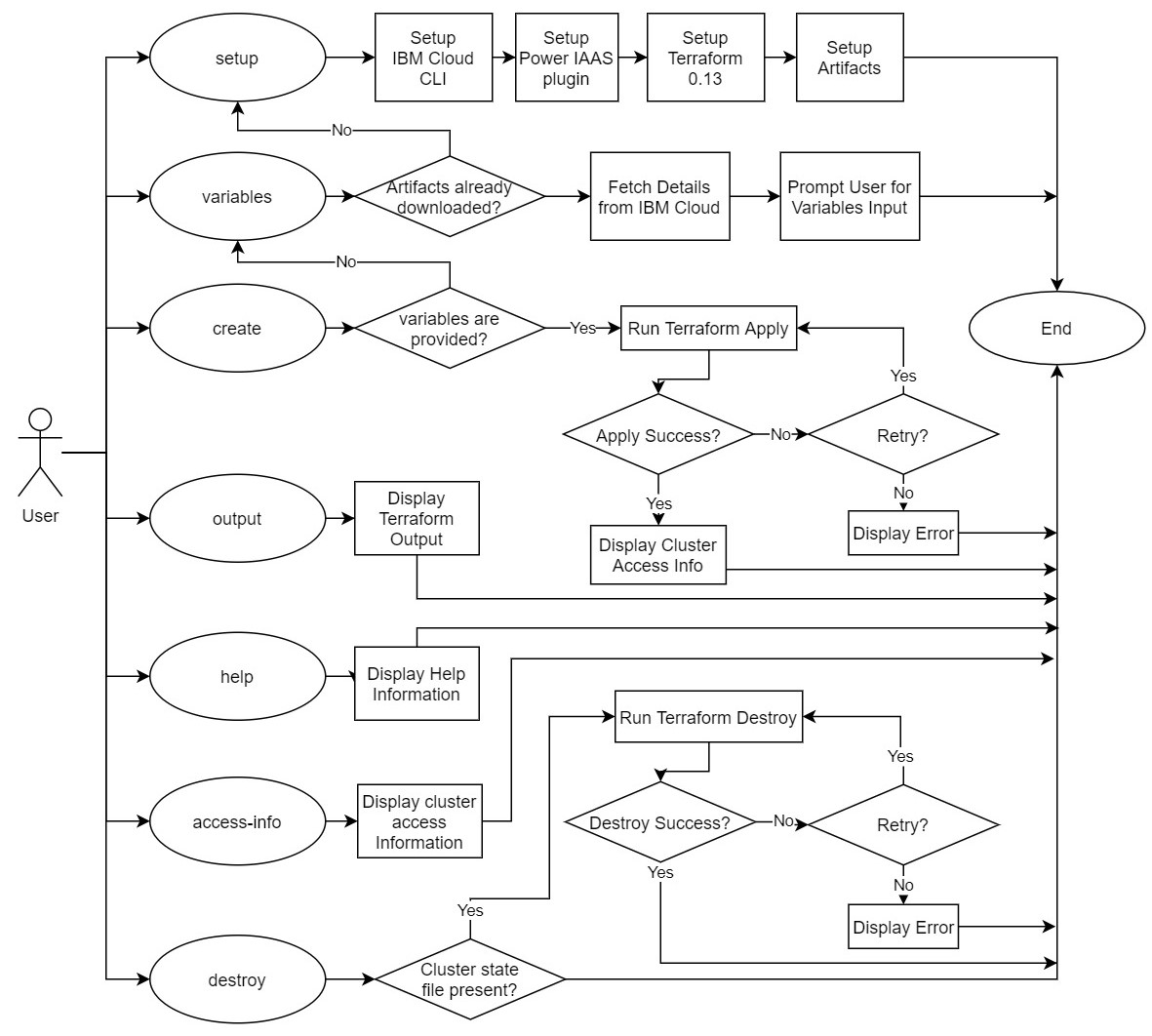
Los siguientes comandos principales son compatibles con el script.
A continuación se muestra un diagrama de flujo simple que explica el flujo de cada comando.
Consulte el documento contribuyente para obtener más detalles. ¡Los PR son bienvenidos!





