openshift install power
v1.12.1

يحتوي هذا المشروع على برنامج نصي Bash لمساعدتك في نشر نظام OpenShift Container 4.x على خادم IBM® Power Systems ™ الافتراضي على IBM Cloud (PowerVS). يتم استخدام رمز terraform في OCP4-UPI-Powervs لعملية النشر.
تأكد من أن مثيل PowerVS الخاص بك يتم إعداده لنشر مجموعات OpenShift. يرجى التحقق من هذا الرابط لمزيد من التفاصيل
هنا عرض سريع.
يتم دعم نظام التشغيل 64 بت فقط بواسطة البرنامج النصي.
يتطلب البرنامج النصي bash Shell ومدير الحزمة المسبق مسبقًا.
كاتالينا (10.15) وما فوق مطلوب.
يستخدم البرنامج النصي مدير حزمة Homebrew لتثبيت الحزم المطلوبة.
مطلوب RHEL8/CentOS8 وما فوق أو Ubuntu 16.04 وما فوق.
يستخدم البرنامج النصي مدير الحزمة الافتراضي ( yum/dnf/apt ) بناءً على التوزيع.
يمكن تشغيل البرنامج النصي على Gitbash و Windows Subsystem لمحطات Linux و Cygwin.
إذا كنت تستخدم cygwin ، يرجى التأكد من تثبيت حزم curl و unzip . ستحتاج إلى تشغيل إعداد Cygwin مرة أخرى.
ملاحظة: PowerShell غير مدعوم .
$ mkdir ocp-install-dir && cd ocp-install-dir
 $ curl -sL https://raw.githubusercontent.com/ocp-power-automation/openshift-install-power/main/openshift-install-powervs -o ./openshift-install-powervs
$ chmod +x ./openshift-install-powervs
 $ ./openshift-install-powervs

Automation for deploying OpenShift 4.X on PowerVS

Usage:
  openshift-install-powervs [command] [<args> [<value>]]

Available commands:
  setup           Install all the required packages/binaries in current directory
  variables       Interactive way to populate the variables file
  create          Create an OpenShift cluster
  destroy         Destroy an OpenShift cluster
  output          Display the cluster information. Runs terraform output [NAME]
  access-info     Display the access information of installed OpenShift cluster
  help            Display this information

Where <args>:
  -var               Terraform variable to be passed to the create/destroy command
  -var-file          Terraform variable file name in current directory. (By default using var.tfvars)
  -flavor            Cluster compute template to use eg: small, medium, large
  -force-destroy     Not ask for confirmation during destroy command
  -ignore-os-checks  Ignore operating system related checks
  -ignore-warnings   Warning messages will not be displayed. Should be specified first, before any other args.
  -verbose           Enable verbose for terraform console messages
  -all-images        List all the images available during variables prompt
  -trace             Enable tracing of all executed commands
  -version, -v       Display the script version

Environment Variables:
  IBMCLOUD_API_KEY    IBM Cloud API key
  RELEASE_VER         OpenShift release version (Default: 4.15)
  ARTIFACTS_VERSION   Tag or Branch name of ocp4-upi-powervs repository (Default: main)
  RHEL_SUBS_PASSWORD  RHEL subscription password if not provided in variables
  NO_OF_RETRY         Number of retries/attempts to run repeatable actions such as create (Default: 5)

Submit issues at: https://github.com/ocp-power-automation/openshift-install-power/issues
باستخدام صورة الحاوية
لاستخدام الصور الموجودة في مستودع quay.io/powercloud ، قم بتشغيل الأمر التالي.
docker run -it -e IBMCLOUD_API_KEY="<key>" -v $(pwd):/data quay.io/powercloud/openshift-install-powervs:<valid-tag> create
أو
podman run -it -e IBMCLOUD_API_KEY="<key>" -v $(pwd):/data quay.io/powercloud/openshift-install-powervs:<valid-tag> create
توفر العلامات معلومات حول إصدار الإصدار أو إصدار OCP أو الهندسة المعمارية المدعومة.
في حال كنت بحاجة إلى إنشاء صورة OpenShift-Install-Powervs ، تحقق من رابط "الاستخدام مع الحاويات" التالي
يفترض البرنامج النصي المتطلبات الأساسية لـ PowerVS لـ OpenShift بالفعل.
في حال فاتتك ، إليك رابط المتطلبات المسبقة
لتشغيل البرنامج النصي ، تحتاج إلى ما يلي:
تصدير مفتاح IBM Cloud API وكلمة مرور الاشتراك RHEL.
 $ set +o history
$ export IBMCLOUD_API_KEY='<your API key>'
$ export RHEL_SUBS_PASSWORD='<your RHEL subscription password>'
$ set -o history
تشغيل الأمر create .
$ ./openshift-install-powervs create
سيقوم البرنامج النصي بإعداد الأدوات المطلوبة ويتم تشغيله في الوضع التفاعلي الذي يدفع للمدخلات.
بمجرد اكتمال الأمر أعلاه بنجاح ، فإنه سيطبع معلومات الوصول إلى الكتلة.
 Login to bastion: 'ssh -i automation/data/id_rsa [email protected]' and start using the 'oc' command.
To access the cluster on local system when using 'oc' run: 'export KUBECONFIG=/root/ocp-install-dir/automation/kubeconfig'
Access the OpenShift web-console here: https://console-openshift-console.apps.test-ocp-6f2c.ibm.com
Login to the console with user: "kubeadmin", and password: "MHvmI-z5nY8-CBFKF-hmCDJ"
Add the line on local system 'hosts' file:
145.48.43.53 api.test-ocp-6f2c.ibm.com console-openshift-console.apps.test-ocp-6f2c.ibm.com integrated-oauth-server-openshift-authentication.apps.test-ocp-6f2c.ibm.com oauth-openshift.apps.test-ocp-6f2c.ibm.com prometheus-k8s-openshift-monitoring.apps.test-ocp-6f2c.ibm.com grafana-openshift-monitoring.apps.test-ocp-6f2c.ibm.com example.apps.test-ocp-6f2c.ibm.com
قبل تشغيل البرنامج النصي ، يمكنك اختيار تجاوز بعض متغيرات البيئة وفقًا لمتطلباتك.
بشكل افتراضي ، يتم تثبيت OpenShift الإصدار 4.15.
إذا كنت ترغب في تثبيت 4.14 ، فعليك تصدير RELEASE_VER المتغير.
$ export RELEASE_VER="4.14"
يمكنك تجنب الوضع التفاعلي من خلال توفير ملفات الإدخال المطلوبة في دليل التثبيت
ملفات الإدخال المطلوبة
ملف Vars terraform (اسم الملف: var.tfvars )
ملفات مفتاح SSH (اسم الملف: id_rsa & id_rsa.pub )
مثال ملف var.tfvars
 ibmcloud_region = "syd"
ibmcloud_zone = "syd04"
service_instance_id = "123456abc-xzz-2223434343"
rhel_image_name = "rhel-83"
rhcos_image_name = "rhcos-415"
network_name = "ocp-net"
openshift_install_tarball = "https://mirror.openshift.com/pub/openshift-v4/ppc64le/clients/ocp/stable-4.15/openshift-install-linux.tar.gz"
openshift_client_tarball = "https://mirror.openshift.com/pub/openshift-v4/ppc64le/clients/ocp/stable-4.15/openshift-client-linux.tar.gz"
cluster_id_prefix = "test-ocp"
cluster_domain = "xip.io"
storage_type = "nfs"
volume_size = "300"
bastion = {memory = "16", processors = "1", "count" = 1}
bootstrap = {memory = "32", processors = "0.5", "count" = 1}
master = {memory = "32", processors = "0.5", "count" = 3}
worker = {memory = "32", processors = "0.5", "count" = 2}
rhel_subscription_username = "[email protected]"
rhel_subscription_password = "mysubscriptionPassword"
يمكنك أيضًا تمرير ملف متغيرات terraform مخصص باستخدام خيار -var-file <filename> إلى البرنامج النصي. يمكنك أيضًا استخدام الخيار -var "key=value" لتمرير متغير واحد. إذا تم إعطاء نفس المتغير أكثر من مرة ، فستكون الأسبقية من اليسار (منخفضة) إلى اليمين (عالية).
تحقق من مسار التعلم التالي لنشر واستخدام OpenShift على PowerVs
يتم دعم الأوامر الأساسية التالية بواسطة البرنامج النصي.
يوجد أدناه مخطط تدفق بسيط يشرح تدفق كل أمر.
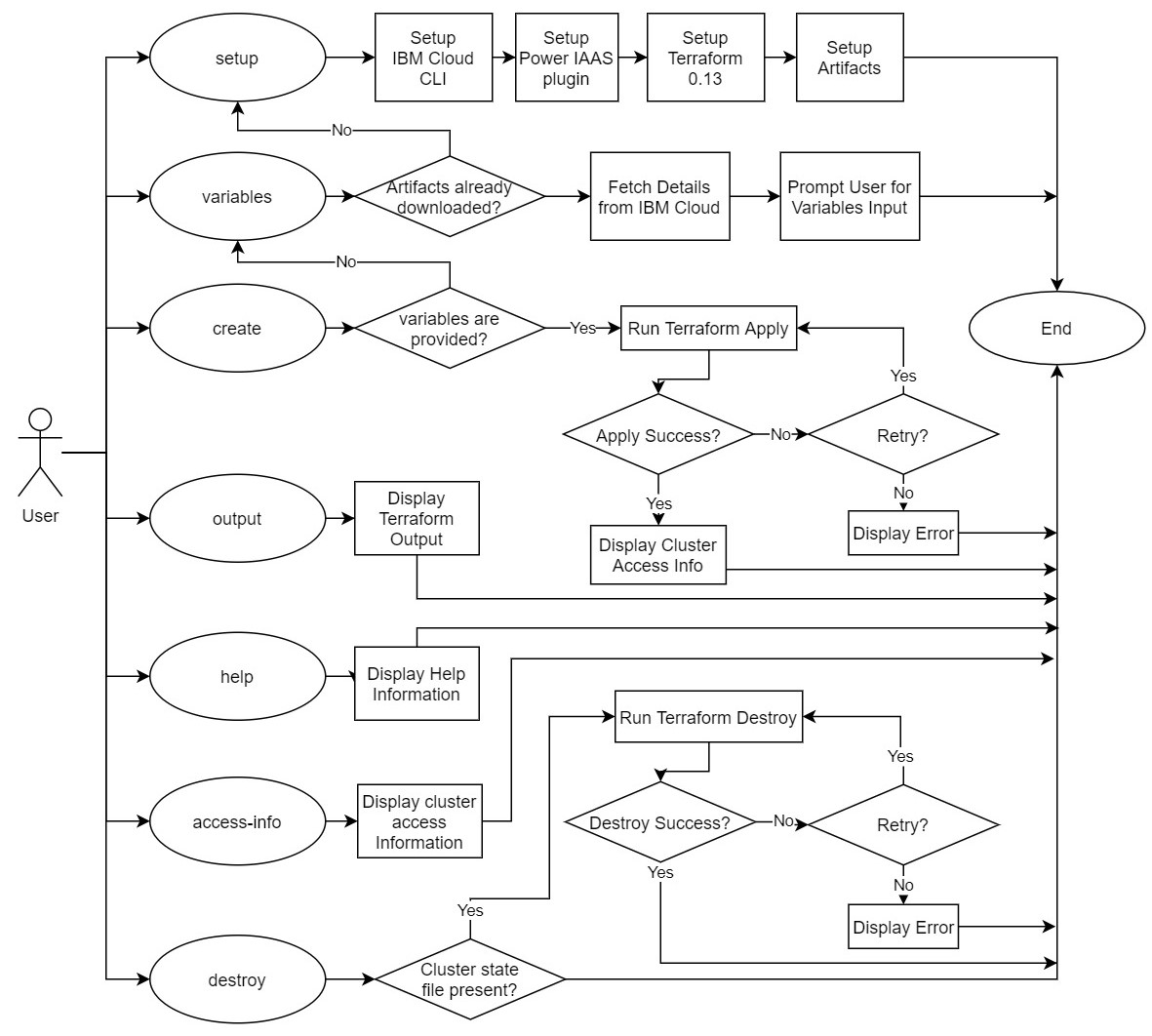
يرجى الاطلاع على المستند المساهم لمزيد من التفاصيل. PRS نرحب للغاية !!





