Flutter AssetsAudioPlayer
1.0.0

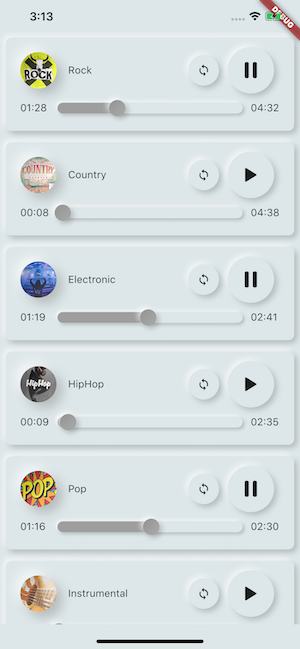
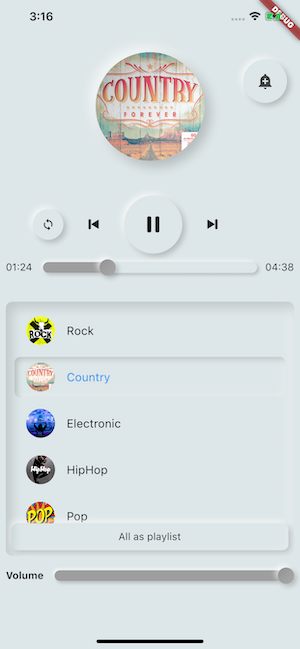
Flutter(Android / iOS / Web / MacOS)から直接アセットファイルに(同時に)保存されている音楽 /オーディオを再生します。
また、URL、ラジオ/ライブストリーム、ローカルファイルを使用して、ネットワークから再生オーディオファイルを使用することもできます
Android&iOSに通知を表示でき、Bluetoothアクションが処理されます
 flutter :
  assets :
    - assets/audios/
AssetsAudioPlayer . newPlayer (). open (
Audio ( "assets/audios/song1.mp3" ),
autoStart : true ,
showNotification : true ,
);
 dependencies :
  assets_audio_player : ^3.0.8
flutter: ">=3.3.0" 、SDKをアップグレードしてください
あなたはパッケージが好きですか?私にコフィを買う:)
| オーディオソース | アンドロイド | iOS | ウェブ | macos |
|---|---|---|---|---|
| ?§assetファイル(アセットパス) | ✅ | ✅ | ✅ | ✅ |
| ネットワークファイル(URL) | ✅ | ✅ | ✅ | ✅ |
| ?ローカルファイル(パス) | ✅ | ✅ | ✅ | ✅ |
| ?ネットワークライブストリーム /ラジオ(URL) (デフォルト、HLS、ダッシュ、SmoothStream ) | ✅ | ✅ | ✅ | ✅ |
| 特徴 | アンドロイド | iOS | ウェブ | macos |
|---|---|---|---|---|
| ?複数のプレイヤー | ✅ | ✅ | ✅ | ✅ |
| ?オープンプレイリスト | ✅ | ✅ | ✅ | ✅ |
| システム通知 | ✅ | ✅ | ||
| Bluetoothアクション | ✅ | ✅ | ||
| ?システムサイレントモードを尊重します | ✅ | ✅ | ||
| ?電話で一時停止します | ✅ | ✅ |
| コマンド | アンドロイド | iOS | ウェブ | macos |
|---|---|---|---|---|
| ▶プレイ | ✅ | ✅ | ✅ | ✅ |
| ⏸一時停止 | ✅ | ✅ | ✅ | ✅ |
| ⏹や停止 | ✅ | ✅ | ✅ | ✅ |
| ⏩(位置)を求めます | ✅ | ✅ | ✅ | ✅ |
| ⏪⏩SeekBy(位置) | ✅ | ✅ | ✅ | ✅ |
| ⏩フォワード(速度) | ✅ | ✅ | ✅ | ✅ |
| ⏪巻き戻し(速度) | ✅ | ✅ | ✅ | ✅ |
| ⏭次へ | ✅ | ✅ | ✅ | ✅ |
| prev | ✅ | ✅ | ✅ | ✅ |
| ウィジェット | アンドロイド | iOS | ウェブ | macos |
|---|---|---|---|---|
| ?オーディオウィジェット | ✅ | ✅ | ✅ | ✅ |
| ?ウィジェットビルダー | ✅ | ✅ | ✅ | ✅ |
| ? Audioplayer Builders Extension | ✅ | ✅ | ✅ | ✅ |
| プロパティ | アンドロイド | iOS | ウェブ | macos |
|---|---|---|---|---|
| ?ループ | ✅ | ✅ | ✅ | ✅ |
| ?シャッフル | ✅ | ✅ | ✅ | ✅ |
| ?ボリュームを取得/設定します | ✅ | ✅ | ✅ | ✅ |
| play速度を取得/設定します | ✅ | ✅ | ✅ | ✅ |
| pitchピッチを取得/設定します | ✅ |
| リスナー | アンドロイド | iOS | ウェブ | macos |
|---|---|---|---|---|
| ?リスナーオンフィージー(完了) | ✅ | ✅ | ✅ | ✅ |
| ?リスナーCurrentPosition | ✅ | ✅ | ✅ | ✅ |
| ?リスナーが終了しました | ✅ | ✅ | ✅ | ✅ |
| ?リスナーバッファリング | ✅ | ✅ | ✅ | ✅ |
| ?リスナーボリューム | ✅ | ✅ | ✅ | ✅ |
| リスナープレイスピード | ✅ | ✅ | ✅ | ✅ |
| ?リスナーピッチ | ✅ |
assets_audio_playerを使用すると、曲をメディアキャッシュにコピーする必要はありません。資産から直接開くことができます。
 flutter :
  assets :
- assets/audios/ final assetsAudioPlayer = AssetsAudioPlayer ();
assetsAudioPlayer. open (
Audio ( "assets/audios/song1.mp3" ),
);URLからネットワークソングを再生することもできます
 final assetsAudioPlayer = AssetsAudioPlayer ();

try {
    await assetsAudioPlayer. open (
        Audio . network ( "http://www.mysite.com/myMp3file.mp3" ),
    );
} catch (t) {
    //mp3 unreachable
}URLのライブストリーム /ラジオ
ネットワークとの主な違い、一時停止/再生すると、ライブストリームでは、現在の時間に再開されます
 final assetsAudioPlayer = AssetsAudioPlayer ();

try {
    await assetsAudioPlayer. open (
        Audio . liveStream ( MY_LIVESTREAM_URL ),
    );
} catch (t) {
    //stream unreachable
}ファイルから曲を再生します
 //create a new player
final assetsAudioPlayer = AssetsAudioPlayer ();

assetsAudioPlayer. open (
    Audio . file ( FILE_URI ),
);
ファイルURIについては、https://pub.dev/packages/path_providerをご覧ください
assetsAudioPlayer. playOrPause ();
assetsAudioPlayer. play ();
assetsAudioPlayer. pause ();
assetsAudioPlayer. seek ( Duration to);
assetsAudioPlayer. seekBy ( Duration by);assetsAudioPlayer. forwardRewind ( double speed);
//if positive, forward, if negative, rewind assetsAudioPlayer. stop ();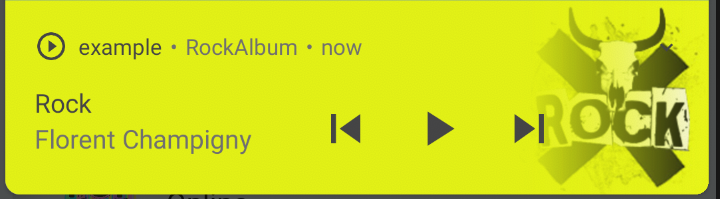
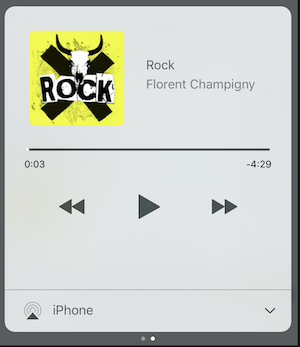
iOSでは、 MPNowPlayingInfoCenterを使用します
 final audio = Audio . network ( "/assets/audio/country.mp3" ,
    metas : Metas (
            title :  "Country" ,
            artist : "Florent Champigny" ,
            album : "CountryAlbum" ,
            image : MetasImage . asset ( "assets/images/country.jpg" ), //can be MetasImage.network
          ),
   );
showNotification: true _player. open (audio, showNotification : true )カスタムアイコン(Androidのみ)
android/res/drawable内にこれらのアイコンを追加してください!!!フラッター資産ではありません!!!!
 await _assetsAudioPlayer. open (
        myAudio,
        showNotification : true ,
        notificationSettings : NotificationSettings (
            customStopIcon : AndroidResDrawable (name : "ic_stop_custom" ),
            customPauseIcon : AndroidResDrawable (name : "ic_pause_custom" ),
            customPlayIcon : AndroidResDrawable (name : "ic_play_custom" ),
            customPrevIcon : AndroidResDrawable (name : "ic_prev_custom" ),
            customNextIcon : AndroidResDrawable (name : "ic_next_custom" ),
        )
そして、リリースモードのためにこれらのリソースを保持するようにProguardに伝えることを忘れないでください
(リソースを維持する部品)
https://sites.google.com/a/android.com/tools/tech-docs/new-buildsystem/resource-shrinking
<? xml version = " 1.0 " encoding = " utf-8 " ?>
< resources xmlns : tools = " http://schemas.android.com/tools "
tools:keep= " @drawable/ic_next_custom, @drawable/ic_prev_custom, @drawable/ic_pause_custom, @drawable/ic_play_custom, @drawable/ic_stop_custom " />アイコンをAndroidのresフォルダー(Android/App/SRC/MAIN/RES)に追加します
このアイコンをAndroidManifest(Android/app/src/main/androidmanifest.xml)に参照してください
< meta-data
     android : name = " assets.audio.player.notification.icon "
     android : resource = " @drawable/ic_music_custom " />
アクションアイコンを変更することもできます
 <meta-data
    android:name="assets.audio.player.notification.icon.play"
    android:resource="@drawable/ic_play_custom"/>
<meta-data
    android:name="assets.audio.player.notification.icon.pause"
    android:resource="@drawable/ic_pause_custom"/>
<meta-data
    android:name="assets.audio.player.notification.icon.stop"
    android:resource="@drawable/ic_stop_custom"/>
<meta-data
    android:name="assets.audio.player.notification.icon.next"
    android:resource="@drawable/ic_next_custom"/>
<meta-data
    android:name="assets.audio.player.notification.icon.prev"
    android:resource="@drawable/ic_prev_custom"/>
メインを追加します
 AssetsAudioPlayer . setupNotificationsOpenAction ((notification) {
    //custom action
    return true ; //true : handled, does not notify others listeners
                 //false : enable others listeners to handle it
});
次に、ウィジェットにカスタムアクションが必要な場合
 AssetsAudioPlayer . addNotificationOpenAction ((notification) {
   //custom action
   return false ; //true : handled, does not notify others listeners
                 //false : enable others listeners to handle it
});通知アクションを有効/無効にできます
 open ( AUDIO ,
   showNotification : true ,
   notificationSettings : NotificationSettings (
       prevEnabled : false , //disable the previous button

       //and have a custom next action (will disable the default action)
       customNextAction : (player) {
         print ( "next" );
       }
   )

)オーディオ作成後、電話してください
audio. updateMetas (
       player : _assetsAudioPlayer, //add the player if the audio is actually played
       title : "My new title" ,
       artist : "My new artist" ,
       //if I not provide a new album, it keep the old one
       image : MetasImage . network (
         //my new image url
       ),
);それらを機能させるために通知を有効にする必要があります
利用可能なリモートコマンド:
(今のところAndroidのみ)
曲/プレイリストを開いている間、戦略を追加します
assetsAudioPlayer. open (
   ...
  headPhoneStrategy : HeadPhoneStrategy .pauseOnUnplug,
  //headPhoneStrategy: HeadPhoneStrategy.none, //default
  //headPhoneStrategy: HeadPhoneStrategy.pauseOnUnplugPlayOnPlug,
)
Bluetoothでも動作させたい場合は、AndroidManifest.xml内にBluetoothの許可を追加する必要があります。
< uses-permission android : name = " android.permission.BLUETOOTH " />Assetsaudioplayer.newplayer()を使用して新しいAssetsaudioplayerを作成できます。
これにより、2曲を同時に再生できます
あなたはあなたが望むだけ多くのプレーヤーを持つことができます!
 ///play 3 songs in parallel
AssetsAudioPlayer . newPlayer (). open (
    Audio ( "assets/audios/song1.mp3" )
);
AssetsAudioPlayer . newPlayer (). open (
    Audio ( "assets/audios/song2.mp3" )
);

//another way, with create, open, play & dispose the player on finish
AssetsAudioPlayer . playAndForget (
    Audio ( "assets/audios/song3.mp3" )
);各プレーヤーには一意の生成されたidがあり、手動で取得または作成できます
final player = AssetsAudioPlayer . withId (id : "MY_UNIQUE_ID" );assetsAudioPlayer. open (
Playlist (
audios : [
Audio ( "assets/audios/song1.mp3" ),
Audio ( "assets/audios/song2.mp3" )
]
),
loopMode : LoopMode .playlist //loop the full playlist
);
assetsAudioPlayer. next ();
assetsAudioPlayer. prev ();
assetsAudioPlayer. playlistPlayAtIndex ( 1 );オーディオを再生するためにもっとフラッター方法が必要な場合は、 AudioWidgetを試してください!
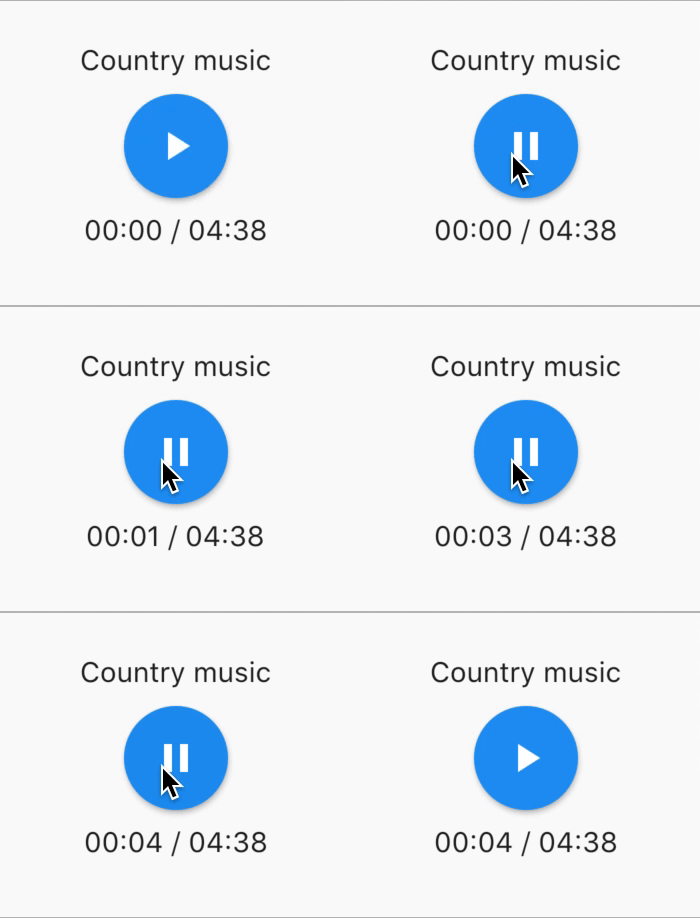
 //inside a stateful widget

bool _play = false ;

@override
Widget build ( BuildContext context) {
  return AudioWidget . assets (
     path : "assets/audios/country.mp3" ,
     play : _play,
     child : RaisedButton (
           child : Text (
               _play ? "pause" : "play" ,
           ),
           onPressed : () {
               setState (() {
                 _play = ! _play;
               });
           }
      ),
      onReadyToPlay : (duration) {
          //onReadyToPlay
      },
      onPositionChanged : (current, duration) {
          //onPositionChanged
      },
  );
}
どうやって?停止 ? audiowidget?
ツリーからオーディオを削除するだけです!または単にplay: false
すべてのリスナーは、RXDARTを使用してストリームを公開し、AssetSaudiOplayerはValueObservable(最後に発現したアイテムへの同期アクセスを提供する観察可能)として一部のリスナーを公開します。
 //The current playing audio, filled with the total song duration
assetsAudioPlayer.current //ValueObservable<PlayingAudio>

//Retrieve directly the current played asset
final PlayingAudio playing = assetsAudioPlayer.current.value;

//Listen to the current playing song
assetsAudioPlayer.current. listen ((playingAudio){
    final asset = playingAudio.assetAudio;
    final songDuration = playingAudio.duration;
}) //Listen to the current playing song
final duration = assetsAudioPlayer.current.value.duration;assetsAudioPlayer.currentPosition //ValueObservable<Duration>
//retrieve directly the current song position
final Duration position = assetsAudioPlayer.currentPosition.value;
return StreamBuilder (
stream : assetsAudioPlayer.currentPosition,
builder : (context, asyncSnapshot) {
final Duration duration = asyncSnapshot.data;
return Text (duration. toString ());
}),または、PlayerBuilderを使用してください!
 PlayerBuilder . currentPosition (
     player : _assetsAudioPlayer,
     builder : (context, duration) {
       return Text (duration. toString ());
     }
)
またはプレーヤービルダー拡張機能
_assetsAudioPlayer. builderCurrentPosition (
     builder : (context, duration) {
       return Text (duration. toString ());
     }
)現在のMediaplayer Playing状態を表すブールの観測可能
assetsAudioPlayer.isPlaying // ValueObservable<bool>

//retrieve directly the current player state
final bool playing = assetsAudioPlayer.isPlaying.value;

//will follow the AssetsAudioPlayer playing state
return StreamBuilder (
    stream : assetsAudioPlayer.isPlaying,
    builder : (context, asyncSnapshot) {
        final bool isPlaying = asyncSnapshot.data;
        return Text (isPlaying ? "Pause" : "Play" );
    }),
または、PlayerBuilderを使用してください!
 PlayerBuilder . isPlaying (
     player : _assetsAudioPlayer,
     builder : (context, isPlaying) {
       return Text (isPlaying ? "Pause" : "Play" );
     }
)
またはプレーヤービルダー拡張機能
_assetsAudioPlayer. builderIsPlaying (
     builder : (context, isPlaying) {
       return Text (isPlaying ? "Pause" : "Play" );
     }
)ボリュームを変更する(0.0〜1.0)
assetsAudioPlayer. setVolume ( 0.5 );メディアプレーヤーは、システム「 respectSilentModeモード」(振動、ミュート、通常)に従うことができますtrue
_player. open ( PLAYABLE , respectSilentMode : true );https://developer.android.com/reference/android/media/audiomanager.html?hl=fr#getringermode()
https://developer.apple.com/documentation/avfoundation/avaudiosessesscategorysoloambient
ボリュームを聞いてください
 return StreamBuilder (
    stream : assetsAudioPlayer.volume,
    builder : (context, asyncSnapshot) {
        final double volume = asyncSnapshot.data;
        return Text ( "volume : $ volume " );
    }),
または、PlayerBuilderを使用してください!
 PlayerBuilder . volume (
     player : _assetsAudioPlayer,
     builder : (context, volume) {
       return Text ( "volume : $ volume " );
     }
)現在の曲が再生されたときに呼ばれ、
完成したばかりの演奏オーディオを提供します
assetsAudioPlayer.playlistAudioFinished //ValueObservable<Playing>

assetsAudioPlayer.playlistAudioFinished. listen (( Playing playing){

})
完全なプレイリストが再生されたときに呼び出されます
assetsAudioPlayer.playlistFinished //ValueObservable<bool>

assetsAudioPlayer.playlistFinished. listen ((finished){

}) final LoopMode loopMode = assetsAudioPlayer.loop;
// possible values
// LoopMode.none : not looping
// LoopMode.single : looping a single audio
// LoopMode.playlist : looping the fyll playlist
assetsAudioPlayer. setLoopMode ( LoopMode .single);
assetsAudioPlayer.loopMode. listen ((loopMode){
//listen to loop
})
assetsAudioPlayer. toggleLoop (); //toggle the value of loopingassetsAudioPlayer. setPlaySpeed ( 1.5 );
assetsAudioPlayer.playSpeed. listen ((playSpeed){
//listen to playSpeed
})
//change play speed for a particular Audio
Audio audio = Audio . network (
url,
playSpeed : 1.5
);
assetsAudioPlayer. open (audio);assetsAudioPlayer. setPitch ( 1.2 );
assetsAudioPlayer.pitch. listen ((pitch){
//listen to pitch
})
//change pitch for a particular Audio
Audio audio = Audio . network (
url,
pitch : 1.2
);
assetsAudioPlayer. open (audio);デフォルトでは、エラーを再生すると、オーディオが停止します
ただし、カスタム動作を追加できます
_player.onErrorDo = (handler){
  handler.player. stop ();
};
別のオーディオを開きます
_player.onErrorDo = (handler){
  handler.player. open ( ANOTHER_AUDIO );
};
同じ位置で再び開けてみてください
_player.onErrorDo = (handler){
  handler.player. open (
      handler.playlist. copyWith (
        startIndex : handler.playlistIndex
      ),
      seek : handler.currentPosition
  );
}; AndroidはHTTPS呼び出しのみを許可します。HTTPを使用している場合はエラーが発生します。インターネットの許可を追加することを忘れないでください。SEETSEESCLEARTEXTTRAFFIC usesCleartextTraffic="true"
 <?xml version="1.0" encoding="utf-8"?>
<manifest ...>
    <uses-permission android:name="android.permission.INTERNET" />
    <application
        ...
        android:usesCleartextTraffic="true"
        ...>
        ...
    </application>
</manifest>
iOSはHTTPS呼び出しのみを許可します。HTTPを使用している場合はエラーが発生します。info.plistを編集してNSAppTransportSecurity NSAllowsArbitraryLoadsに設定することを忘れないでください
 <key>NSAppTransportSecurity</key>
<dict>
    <key>NSAllowsArbitraryLoads</key>
    <true/>
</dict>
macOSでHTTP呼び出しを有効にするには、 info.plistに入力/出力コール機能を追加する必要があります。
 <key>NSAppTransportSecurity</key>
<dict>
    <key>NSAllowsArbitraryLoads</key>
    <true/>
</dict>
<key>UIBackgroundModes</key>
<array>
    <string>audio</string>
    <string>fetch</string>
</array>
<key>com.apple.security.network.client</key>
<true/>
そしてあなたの中で
Runner/DebugProfile.entitlements
追加
 <key>com.apple.security.network.client</key>
<true/>
完全なRunner/DebugProfile.entitlements
 <?xml version="1.0" encoding="UTF-8"?>
<!DOCTYPE plist PUBLIC "-//Apple//DTD PLIST 1.0//EN" "http://www.apple.com/DTDs/PropertyList-1.0.dtd">
<plist version="1.0">
<dict>
	<key>com.apple.security.app-sandbox</key>
	<true/>
	<key>com.apple.security.cs.allow-jit</key>
	<true/>
	<key>com.apple.security.network.server</key>
	<true/>
	<key>com.apple.security.network.client</key>
	<true/>
</dict>
</plist>
サンプルで使用されるすべての音楽はhttps://www.freemusicarchive.org/から来ました





