Starling Spatial Deactivator
vator v0.3

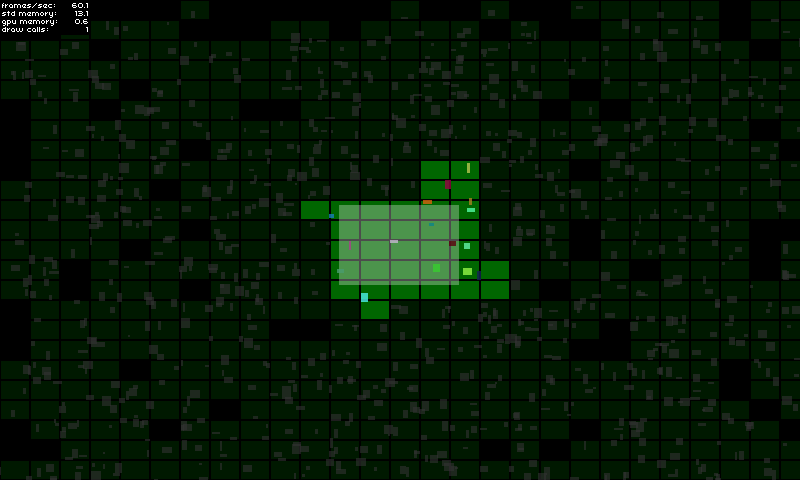
This Starling extension is an approach to solve 2D spatial activation / deactivation of game objects. It is meant to take care of showing / hiding game elements that are outside of the screen for example, but not only... You will be able to basically do whatever you want with a game object when it is considered as active or inactive.
This library could be useful for you if:
For further details about the implementation, please have a look at the demo page.
Try it here!
GameManager:private var _deactivator:SpatialDeactivator;
private var _activeAreaAABB:Rectangle = new Rectangle(0, 0, 120, 80);
public function MyGameManager()
{
// Create the spatial deactivator
_deactivator = new SpatialDeactivator(_activeAreaAABB.width * 0.25, _activeAreaAABB.height * 0.25);
Starling.current.juggler.add(_deactivator);
}
// Called at each frame...
public function update():void
{
// Update active area when needed
_activeAreaAABB.x = ...; // Your complex stuff here
_activeAreaAABB.y = ...; // Your complex stuff here
_activeAreaAABB.width = ...; // Your complex stuff here
_activeAreaAABB.height = ...; // Your complex stuff here
// IMPORTANT TIP: Update only if AABB has changed!
_deactivator.updateActiveArea(_activeAreaAABB);
}
public function get deactivator():SpatialDeactivator
{
return _deactivator;
}GameObject:private var _spatialElement:SpatialElement;
public function MyGameObject(gameManager:MyGameManager)
{
// Setup game object core components
_mySprite = ...;
_myPhysicalBody = ...;
// IMPORTANT: Make sure that the object starts inactive!
// The deactivator will take care of activating it right away if needed.
onSpatialElementActivityChanged(false);
// Create spatial element
_spatialElement = new SpatialElement(gameManager.deactivator);
_spatialElement.activityChangedCallback = onSpatialElementActivityChanged;
// Initial position update
updatePosition();
}
// Called during frame update...
public function updatePosition():void
{
// Update game object position & size
x = ...; // Your complex stuff here
y = ...; // Your complex stuff here
width = ...; // Your complex stuff here
height = ...; // Your complex stuff here
// IMPORTANT TIP: Update only if AABB has changed!
_spatialElement.updateAABB(x, y, width, height);
}
private function onSpatialElementActivityChanged(active:Boolean):void
{
// Activate / deactivate your object as you want.
_mySprite.visible = active;
_myPhysicalBody.enable = active;
...
}Important notes:
Debug mode will help you to see if you have chosen the right configuration (see important aspects below).
You can enable it simply like this:
_deactivator = new SpatialDeactivator(32, 32, true);

if(_deactivator.debugSprite)
addChild(_deactivator.debugSprite);Just clone or download the repository and copy/paste the src/ch folder into your src directory or add the src/ folder to your class path.
One important point to make this tool efficient for you is to find the correct chunk size to best fit to your needs.
You can test & see what's the best for you by enabling the debug mode (see section).
I personally use a ratio of 0.25 compared to the active area size.
new SpatialDeactivator(_activeAreaAABB.width * 0.25, _activeAreaAABB.height * 0.25);If your active area corresponds to the camera view, using margin could be useful to anticipate activation of upcoming game objects.
private var _margin:Number = 20;
private var _activeAreaAABB:Rectangle = new Rectangle(0, 0, 120 + _margin, 80 + _margin);
...
_activeAreaAABB.x = x - _margin * 0.5;
_activeAreaAABB.y = y - _margin * 0.5;
deactivator.updateActiveArea(_activeAreaAABB);The size of a spatial element should cover the entire size of your game object to make sure that the game object doesn't become inactive too early or active too lately. If needed, the size of your spatial elements can be a bit bigger than your game objects bounds as well:
_spatialElement.updateAABB(x - margin * 0.5, y - margin * 0.5, width + margin, height + margin);