amiko_csharp
20230910.3

Windows的Amiko,用C#編寫。現在可以在Microsoft Store中提供應用程序!
| 姓名 | 語言 | 建造 |
|---|---|---|
| Amiko Desitin | 德意志(Schweiz) | 建立在Azure Pipelines |
| 喜劇的desitin | 弗朗索瓦(瑞士) | 建立在Azure Pipelines |
也可以使用MacOS的另一個版本。參見Amiko-OSX。
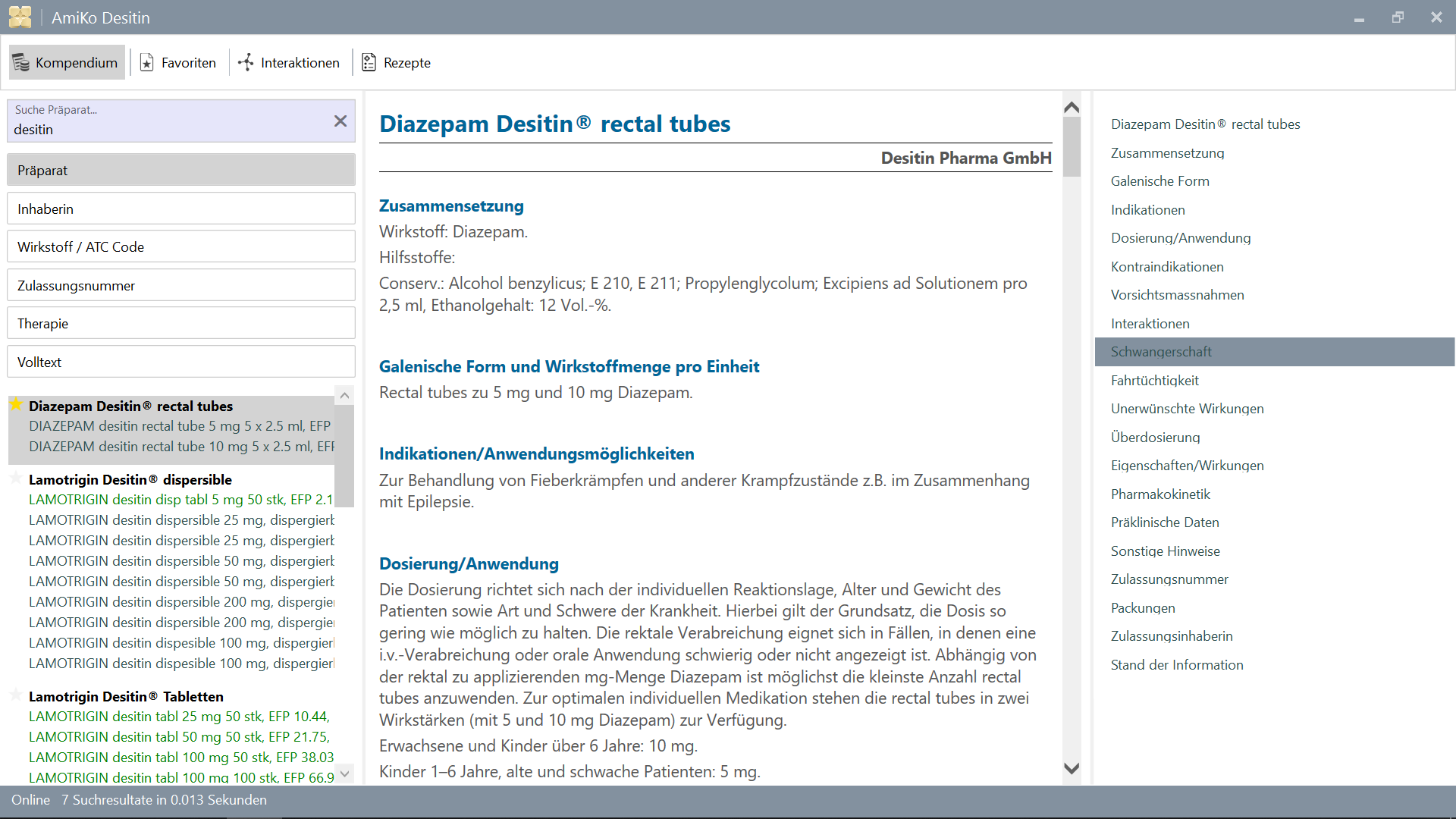
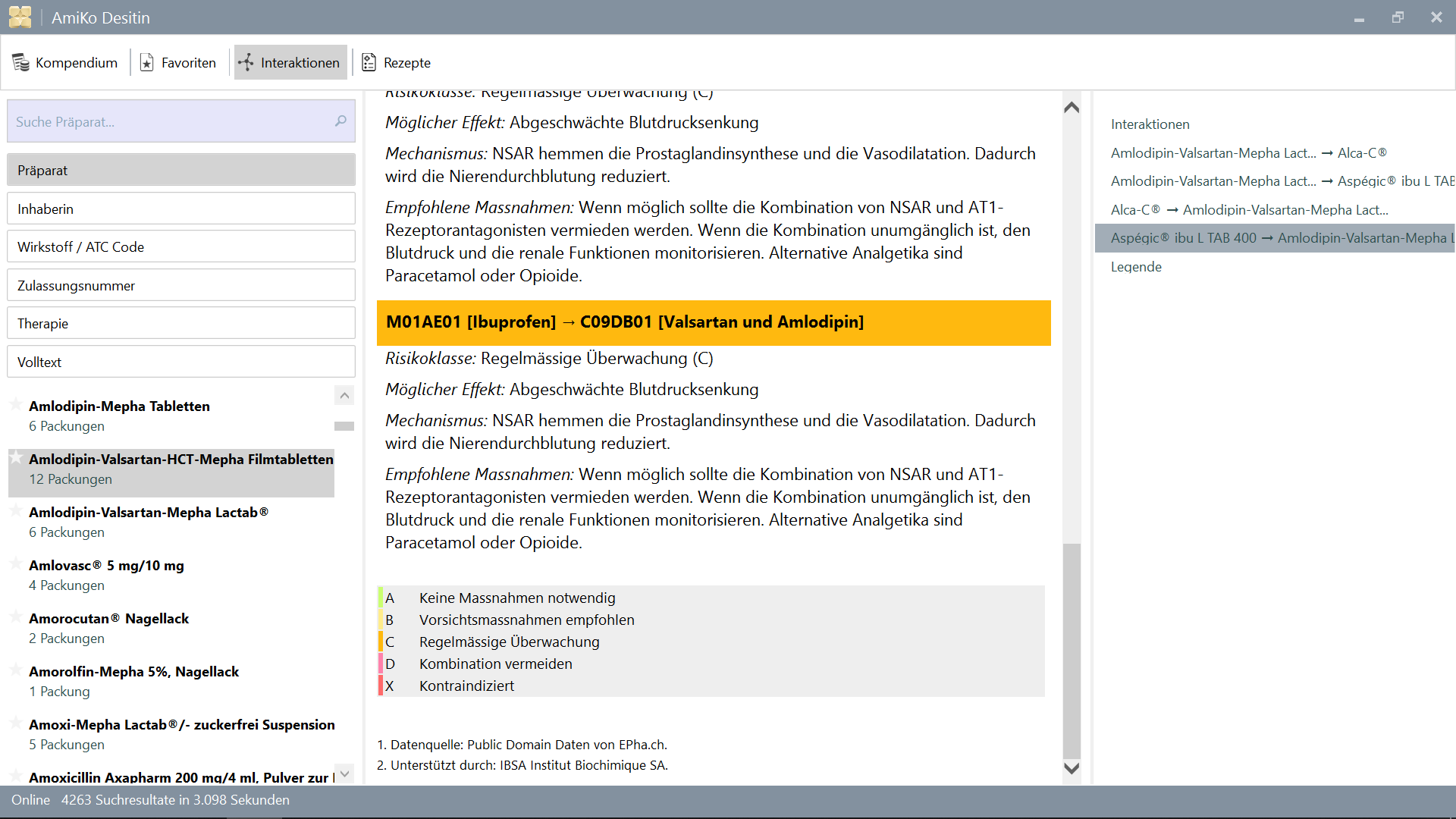
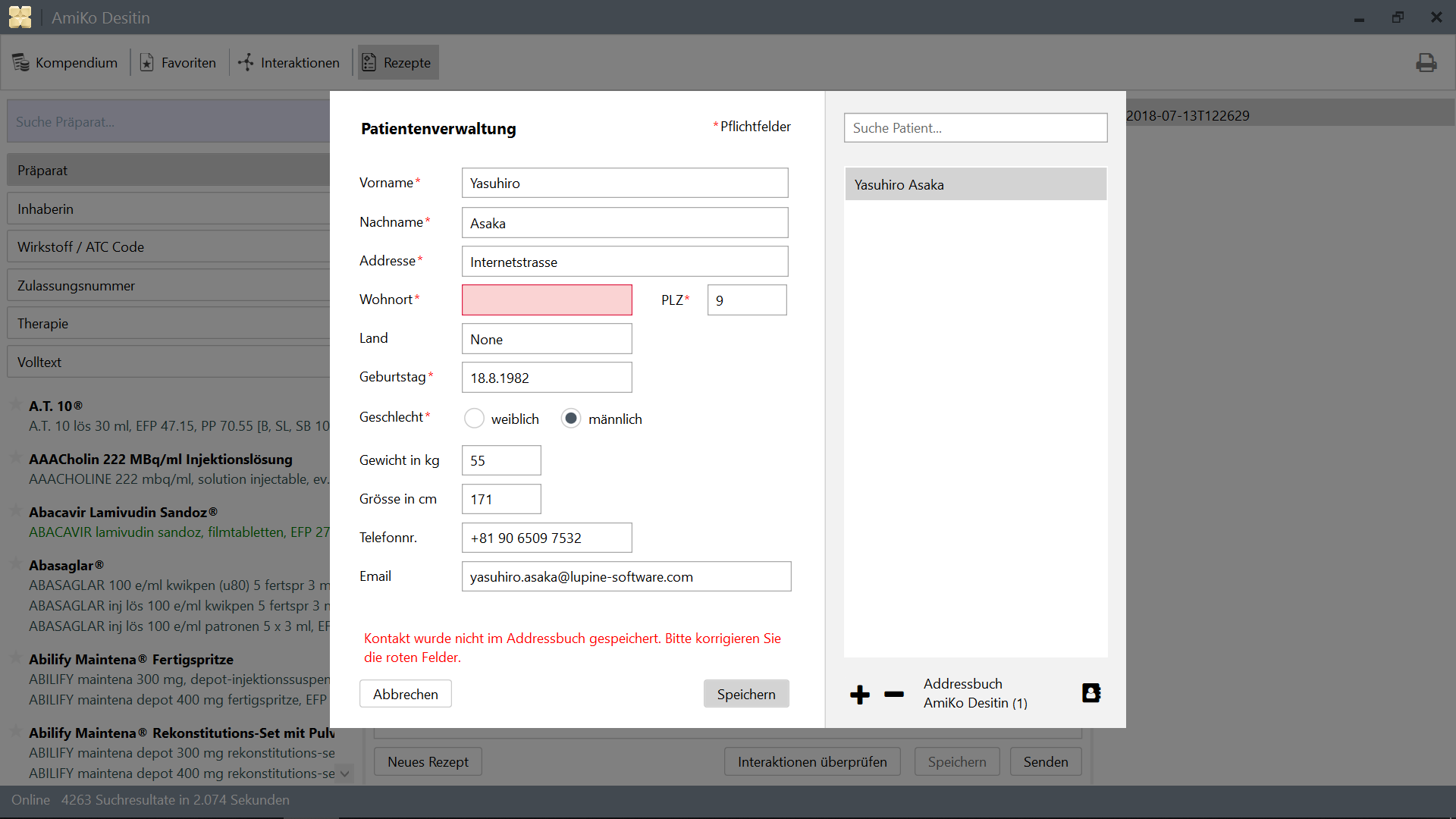
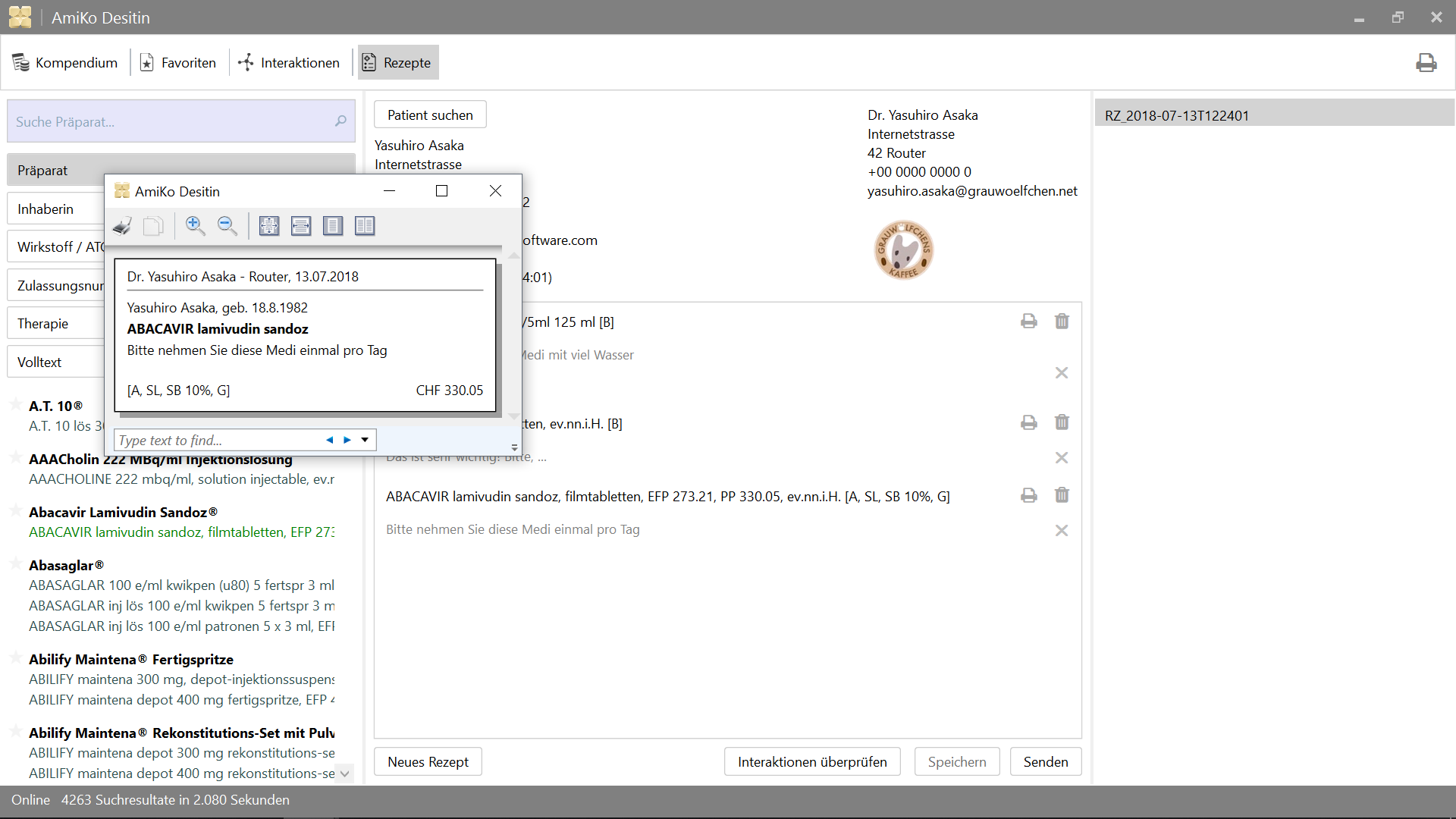
15'913藥物相互作用搜索作者:
所有數據可以每天更新。
>= 4.6.2>= 14.02.1.105 )2.0.7 )4.6.2 )或只是設置Visual Studio >= 2015
並進行測試。
>= 3.10.1 )>= 3.8.0 )用於釋放。
10.0.17134.0 )如果您在Windows上查看Linux上的源代碼,則似乎必須在Windows上閱讀。您仍然可以使用MSBuild或Visual Studio等在Windows上的Windows上構建它,但是您無法從Windows側修改現有文件。
請參閱:不要使用Windows應用程序和工具更改Linux文件。
/mnt上的Linux上也可讀 /可編輯) 首先,您需要將數據庫和CSV文件放入Data目錄。使用這些文件構建應用程序後,您可以通過應用程序的功能進行更新。
可以通過使用PowerShell運行download.ps1或:
$ cd /path/to/project
% mkdir -p AmiKoWindows/Data/{de,fr}

# AmiKoDesitin
$ cd AmiKoWindows/Data/de
$ curl -sLO http://pillbox.oddb.org/amiko_report_de.html

$ curl -sLO http://pillbox.oddb.org/amiko_db_full_idx_de.zip
$ curl -sLO http://pillbox.oddb.org/amiko_frequency_de.db.zip
$ curl -sLO http://pillbox.oddb.org/drug_interactions_csv_de.zip
$ unzip amiko_db_full_idx_de.zip
$ unzip amiko_frequency_de.db.zip
$ unzip drug_interactions_csv_de.zip

# CoMedDesitin
$ cd AmiKoWindows/Data/fr
$ curl -sLO http://pillbox.oddb.org/amiko_report_fr.html

$ curl -sLO http://pillbox.oddb.org/amiko_db_full_idx_fr.zip
$ curl -sLO http://pillbox.oddb.org/amiko_frequency_fr.db.zip
$ curl -sLO http://pillbox.oddb.org/drug_interactions_csv_fr.zip
$ unzip amiko_db_full_idx_fr.zip
$ unzip amiko_frequency_fr.db.zip
$ unzip drug_interactions_csv_fr.zip *:我們購買了Glyphish圖標並為此項目進行了修改。它沒有在GPL-3.0 (作為圖標)下重新分佈。由於它不是開源項目,因此您不能將它們作為該項目的圖標,只能將它們用作我們的源代碼的一部分。參見glyphish-license.txt。
如果您已經在Windows上的Linux上檢查了該項目, NuGet無法正確處理Windows上的PowerShell上的長路徑。因此,您需要在命令提示符或PowerShell(使用/c )上使用mklink和環境變量設置符號鏈接。
請參閱:Nuget和長文件名支持#3324。
 # This is project location, for example environment variable `AmiKo` is set as:
# C:Users<USER>AppDataLocalPackagesTheDebian...LocalStaterootfs
#   home<user>pathtoproject

C:Windowssystem32> cd C:Users<USER>

# Or `cmd /c mklink /D AmiKo %AmiKo%` on PowerShell
C:Users<USER>> mklink /d AmiKo %AmiKo%
C:Users<USER>> cd AmiKo
C:Users<USER>AmiKo>
然後,您可以將軟件包( Packages )下載。在Powershell上:
 # Downloads NuGet.exe (windows x86 Commandline) here
C:Users < USER > AmiKo > . NuGet.exe install " AmiKoWindows/packages.config "
在Windows上的Linux上,它不會影響長路徑名問題。在bash上(窗戶上的Linux帶有單聲道):
 # You can just do it (e.g. `/usr/local/bin/nuget.exe`)
user@host:/path/to/project $ nuget install AmiKoWindows/packages.configGoogleConstants.cs.sample to AmiKoWindowsSourceGoogleConstants.csAmiKoWindowsSourceHINClientHINClientCredentials.cs.sample to AmiKoWindowsSourceHINClientHINClientCredentials.cs在此步驟中,您可能需要在Windows上使用PowerShell。
Debug或Release )AnyCPU , x86或x64 。)Trace或無) 您需要從此處安裝Microsoft Build Tools 2015 。
使用>= 14.0 (由Microsoft Build Tools 2015安裝一個)。或者,您可能需要使用特殊命令提示符,例如Developer Command Prompt for VS 2017 。
 # Check the location of `MSBuild.exe`
PS C:Users.. . > Resolve-Path HKLM:SOFTWAREMicrosoftMSBuildToolsVersion * | Get-ItemProperty - Name MSBuildToolsPath

MSBuildToolsPath : C:Program Files (x86)MSBuild 14.0 binamd64
PSPath           : Microsoft.PowerShell.CoreRegistry::HKEY_LOCAL_MACHINESOFTWAREMicrosoftMSBuildToolsVersions 14.0
...

MSBuildToolsPath : C:WindowsMicrosoft.NETFramework64v4. 0.30319
PSPath           : Microsoft.PowerShell.CoreRegistry::HKEY_LOCAL_MACHINESOFTWAREMicrosoftMSBuildToolsVersions 4.0
...使用MSBuild在PowerShell上構建(您需要為MSBuild.exe設置路徑):
 # AmiKoDesitin
PS C:Users... > MSBuild.exe .AmiKoWindowsAmiKoDesitin.csproj / t: Clean
PS C:Users... > MSBuild.exe .AmiKoWindowsAmiKoDesitin.csproj / t:Build / p:Configuration = Debug

# CoMedDesitin
PS C:Users... > MSBuild.exe .AmiKoWindowsCoMedDesitin.csproj / t: Clean
PS C:Users... > MSBuild.exe .AmiKoWindowsCoMedDesitin.csproj / t:Build / p:Configuration = Debug然後,您可以在bin目錄中啟動或殺死{AmiKo|CoMed}Desitin.exe :
 # AmiKoDesitin
PS C:Users... > Start-Process ' .AmiKoWindowsbinDebugAmiKoAmiKo Desitin.exe '
PS C:Users... > Get-Process ' AmiKo Desitin ' | Stop-Process
PS C:Users... > taskkill / im ' AmiKo Desitin.exe ' / f

# CoMedDesitin
PS C:Users... > Start-Process ' .AmiKoWindowsbinDebugAmiKoCoMed Desitin.exe '
PS C:Users... > Get-Process ' CoMed Desitin ' | Stop-Process
PS C:Users... > taskkill / im ' CoMed Desitin.exe ' / f
還有一個腳本可以構建和調用該應用程序。
 # AmiKoDesitin (Debug is default)
PS C:Users... > PowerShell.exe - ExecutionPolicy Bypass - File .BuildAndRun.ps1 " AmiKo "

# CoMedDesitin
PS C:Users... > PowerShell.exe - ExecutionPolicy Bypass - File .BuildAndRun.ps1 " CoMed " " Debug "最後,您需要使用DebugView或WinDbg等調試應用程序(set /p:Log=Trace for Trace)
1. AmiKoWindows -> Navigate {AmiKoDesitin|CoMedDesitin} -> Properties (Right Click)
  a. Set assembly name
  b. Set assembly information (Title, Product, Assembly version, File version)
2. Confirm Signing Tab
3. Check Security
4. Set target project using `Set as StartUp Project` (Right Click on the Solution Name)
5. Clean Solution (both projects)
5. Rebuild target project (AmiKoDesitin or CoMedDesitin)
6. (Publish)或者您可以將其添加到您的路徑
C:Program Files (x86)Microsoft Visual Studio2017CommunityMSBuild15.0Binamd64
這也將從您的源目錄起作用
 PS C:Users...> MSBuild.exe .AmiKoWindowsAmiKoDesitin.csproj /t:Clean
PS C:Users...> MSBuild.exe .AmiKoWindowsAmiKoDesitin.csproj /t:Build /p:Configuration=Debug
PS C:Users...> Start-Process '.AmiKoWindowsbinDebugAmiKoAmiKo Desitin.exe'

# or just do
PS C:Users...> PowerShell.exe -ExecutionPolicy Bypass -File .BuildAndRun.ps1 "AmiKo"
MakeMsi.ps1與PowerShell;C:Program Files (x86)WiX Toolset v3.11binAmikoWindowsbinReleaseAmiko-InstallerAmiko-Installer.msiAmikoWindowsbinReleaseComed-InstallerComed-Installer.msi您將需要以下步驟。
MakeRelease.ps1將exe二進制轉換為appxPackage.ps1重新包裝資產從Microsoft Store下載Desktop App Converter 。然後使用MakeRelease.ps1腳本和您的簽名證書和鑰匙。 (在PowerShell中以管理員的身份運行)
在製作發布之前,請在以下文件中檢查構建配置和版本等。
AmiKoWindows/{AmiKoDesitin.appx.manifest,CoMedDesitin.appx.manifest}AmiKoWindows/Properties/AssemblyInfo.csMakeRelease.ps1 # As Administrator
# AmiKoDesitin
PS C:Users... > PowerShell.exe - ExecutionPolicy Bypass - File .MakeRelease.ps1 " AmiKo " " Debug "
PS C:Users... > PowerShell.exe - ExecutionPolicy Bypass - File .MakeRelease.ps1 " AmiKo " " Release "
# CoMedDesitin
PS C:Users... > PowerShell.exe - ExecutionPolicy Bypass - File .MakeRelease.ps1 " CoMed " " Debug "
PS C:Users... > PowerShell.exe - ExecutionPolicy Bypass - File .MakeRelease.ps1 " CoMed " " Release " Appx將在AmiKoWindows/bin/{Debug,Release}/Output/{AmiKo,CoMed}中生成。
當前, desktopappConverter的-AppFileTypes選項預期無法用於外配置。雖然修復AppxManifest.xml 。
小路:
AmiKoWindows/bin/Release/Output/yweseeGmbH.AmiKo/PackageFiles/AppxManifest.xmlAmiKoWindows/bin/Release/Output/yweseeGmbH.CoMedDesitin/PackageFiles/AppxManifest.xml # add missing entries `Extensions`
<Applications>
<Application>
...
<Extensions>
<uap:Extension Category="windows.fileTypeAssociation">
<uap:FileTypeAssociation Name="amk">
<uap:Logo>AssetsSquare44x44Logo.scale-100.png</uap:Logo>
<uap:SupportedFileTypes>
<uap:FileType>.amk</uap:FileType>
</uap:SupportedFileTypes>
</uap:FileTypeAssociation>
</uap:Extension>
</Extensions>
</Application>
</Applications>
Package.ps1腳本也執行此步驟。如果您想再次手動執行此操作。您可以遵循以下說明:
 # As Administrator

# AmiKoDesitin
PS C:Users... > PowerShell.exe - ExecutionPolicy Bypass - File .Package.ps1 " AmiKo " " Debug "
PS C:Users... > PowerShell.exe - ExecutionPolicy Bypass - File .Package.ps1 " AmiKo " " Release "

# CoMedDesitin
PS C:Users... > PowerShell.exe - ExecutionPolicy Bypass - File .Package.ps1 " CoMed " " Debug "
PS C:Users... > PowerShell.exe - ExecutionPolicy Bypass - File .Package.ps1 " CoMed " " Release "
或者,
'C:Program Files (x86)Windows Kits10bin10.0.17134.0x64{makepri,makeappx}.exe' (版本10.0.17134AmiKoWindows/bin/Release/Output/yweseeGmbH.AmiKo/PackageFilesAmiKoWindows/Assets/ AmiKoWindows/bin/Release/Output/yweseeGmbH.AmiKo/PackageFiles/Assets/ (覆蓋)中的所有資產MakeAppx.exe重新包裝 # e.g. AmiKoDesitin
# Change directory into **PackageFiles**
PS C:Users... > cd AmiKoWindows / bin / Release / Output / yweseeGmbH.AmiKo / PackageFiles
PS C:Users... > rm .Assets - r - fo
PS C:Users... > cp ..........Assets .
# MakePri.exe
PS C:Users... > ' makepri.exe ' createconfig / cf priconfig.xml / dq de - CH
# It seems that it needs absolute path...
PS C:Users... > ' makepri.exe ' new
/ pr C:Users < user > pathtoamiko_csharpAmiKoWindowsbinReleaseOutputyweseeGmbH.AmiKoPackageFiles
/ cf C:Users < user > pathtoamiko_csharpAmiKoWindowsbinReleaseOutputyweseeGmbH.AmiKoPackageFilespriconfig.xml
# MakeAppx.exe
PS C:Users... > ' makeappx.exe ' pack / d . / p " AmiKo Desitin "
# Replace appx
PS C:Users... > Move-Item - Path " AmiKoWindowsbinReleaseOutputyweseeGmbH.AmiKoPackageFilesAmiKo Desitin.appx " `
- Destination " AmiKoWindowsbinReleaseOutputyweseeGmbH.AmiKoyweseeGmbH.AmiKo.appx " - Force # Sign (again)
PS C:Users... > signtool.exe sign / fd < HASH ALGORITHM > / a / f < PFX > / p < PASSWORD > < FILE > .appx注意:您需要通過證書嚮導將此pfx證書安裝到本地機器上的受信任人員中。使用importpfx.exe importpfx.exe -f "somePfx.pfx" -p "somePassword" -t MACHINE -s "TRUSTEDPEOPLE"
清潔構建的緩存數據或資源等(對於調試,.exe)
PS C:Users... > taskkill / im ' AmiKo Desitin.exe ' / f
PS C:Users... > MSBuild.exe .AmiKoWindowsAmiKoDesitin.csproj / t: Clean

PS C:Users... > taskkill / im ' CoMed Desitin.exe ' / f
PS C:Users... > MSBuild.exe .AmiKoWindowsCoMedDesitin.csproj / t: Clean # Just delete these directories (or delete `user.config` in there)
PS C:Users... > rm ' C:Users<USER>AppDataLocalyweseeAmiKo Desitin.exe* ' -f - fo
PS C:Users... > rm ' C:Users<USER>AppDataLocalyweseeCoMed Desitin.exe* ' -f - fo # e.g. Profile Photo (for debug, .exe)
PS C:Users... > rm ' C:Users<USER>AppDataRoamingyweseeAmiKo Desitin*.png ' -f - fo
PS C:Users... > rm ' C:Users<USER>AppDataRoamingyweseeCoMed Desitin*.png ' -f - fo重置地址簿條目和處方文件( .amk文件)。
 # AmiKoDesitin (for debug, .exe)
PS C:Users... > taskkill / im ' AmiKo Desitin.exe ' / f
PS C:Users... > rm ' C:Users<USER>AppDataLocalTempamiko* ' - r - fo
PS C:Users... > rm ' C:Users<USER>AppDataRoamingyweseeAmiko Desitinamk* ' - r - fo
PS C:Users... > rm .AmiKoWindowsbinDebugAmiKo * - r - fo

# CoMedDesitin (for debug, .exe)
PS C:Users... > taskkill / im ' CoMed Desitin.exe ' / f
PS C:Users... > rm ' C:Users<USER>AppDataLocalTempcomed* ' - r - fo
PS C:Users... > rm ' C:Users<USER>AppDataRoamingyweseeCoMed Desitinamk* ' - r - fo
PS C:Users... > rm .AmiKoWindowsbinDebugCoMed * - r - fo請參閱AmiKoWindows.Tests中的項目。測試用Nunit編寫。
PS C:Users... > taskkill / im ' MSBuild.exe ' / f

# AmiKoDesitin
PS C:Users... > MSBuild.exe .AmiKoWindows.TestsAmiKoDesitin.Test.csproj / t: Clean
PS C:Users... > MSBuild.exe .AmiKoWindows.TestsAmiKoDesitin.Test.csproj / t:Build / p:Configuration = Debug / p:Platform = x64
PS C:Users... > .PackageNUnit.ConseleRunner. 3.8 . 0 tools nunit3-console.exe .AmiKoWindows.TestsbinDebugAmiKoAmiKoDesitin.Test.dll -- output TestOutput.log

# CoMedDesitin
PS C:Users... > MSBuild.exe .AmiKoWindows.TestsCoMedDesitin.Test.csproj / t: Clean
PS C:Users... > MSBuild.exe .AmiKoWindows.TestsCoMedDesitin.Test.csproj / t:Build / p:Configuration = Debug / p:Platform = x64
PS C:Users... > .PackageNUnit.ConsoleRunner. 3.8 . 0 tools nunit3-console.exe .AmiKoWindows.TestsbinDebugCoMedCoMedDesitin.Test.dll -- output TestOutput.log或者,您可以只使用RunTest.ps1執行測試。
 # AmiKoDesitin
PS C:Users... > PowerShell.exe - ExecutionPolicy Bypass - File .RunTest.ps1 " AmiKo "

# CoMedDesitin
PS C:Users... > PowerShell.exe - ExecutionPolicy Bypass - File .RunTest.ps1 " CoMed " GPL-3.0
AmiKo for Windows
Copyright (c) ywesee GmbH請聯繫:
[email protected]
+41 43 540 05 50




