amiko_csharp
20230910.3

AmiKo for Windows, written in C#. Applications are available in the Microsoft store now!
| Name | Language | Build |
|---|---|---|
| AmiKo Desitin | Deutsch (Schweiz) | Build in Azure Pipelines |
| CoMed Desitin | Français (Suisse) | Build in Azure Pipelines |
Another version for the macOS is also available. See AmiKo-OSX.
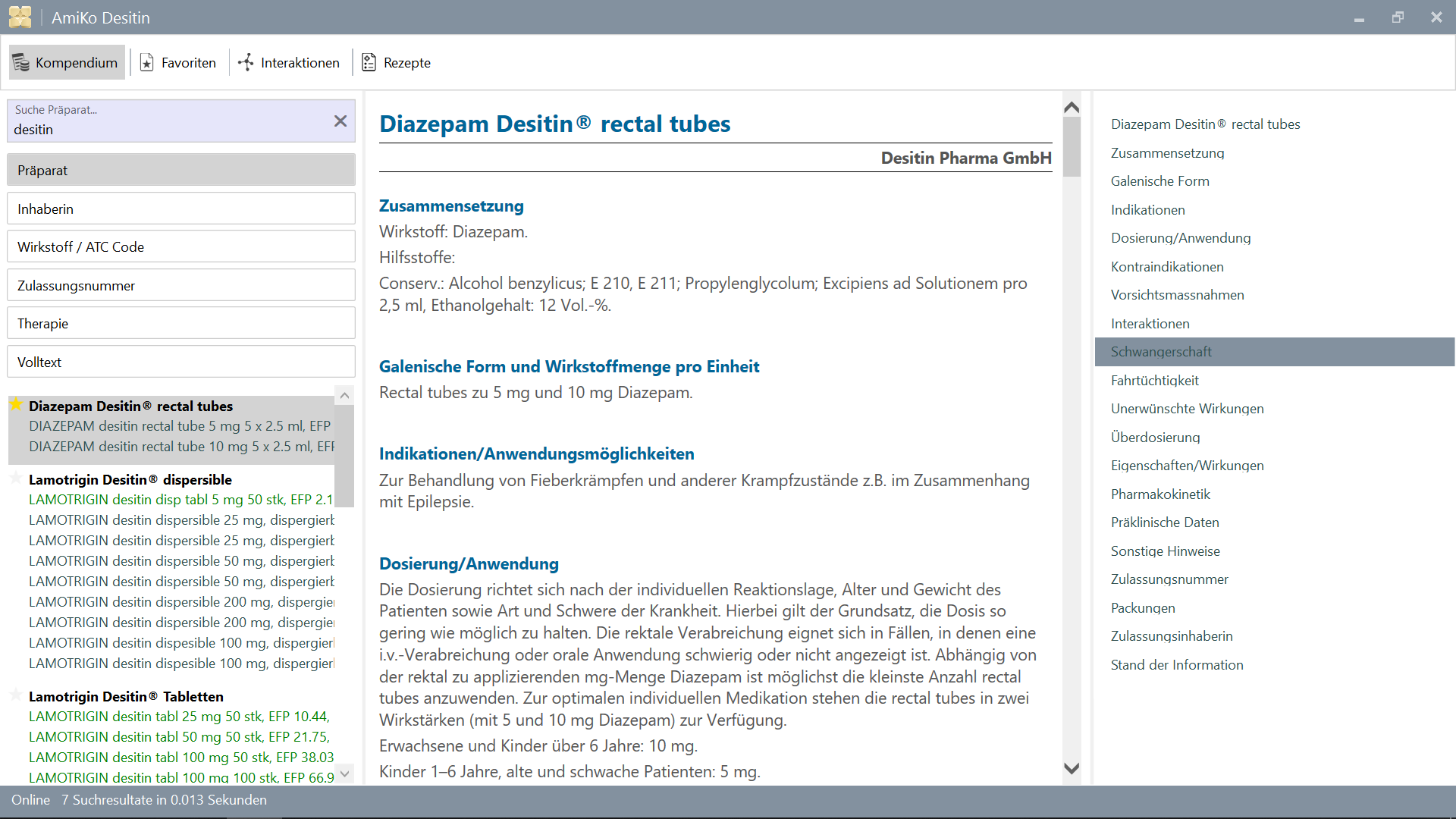
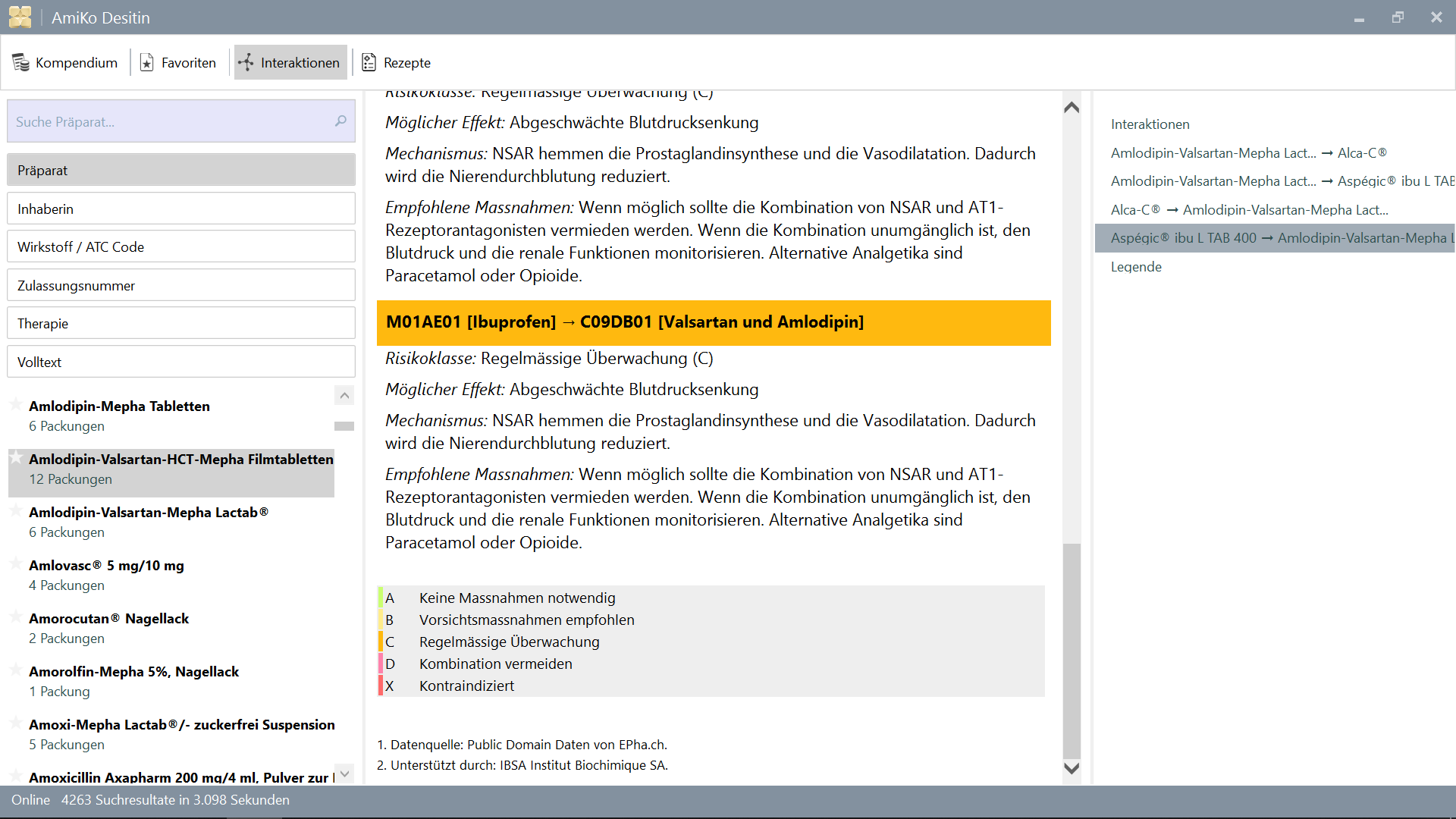
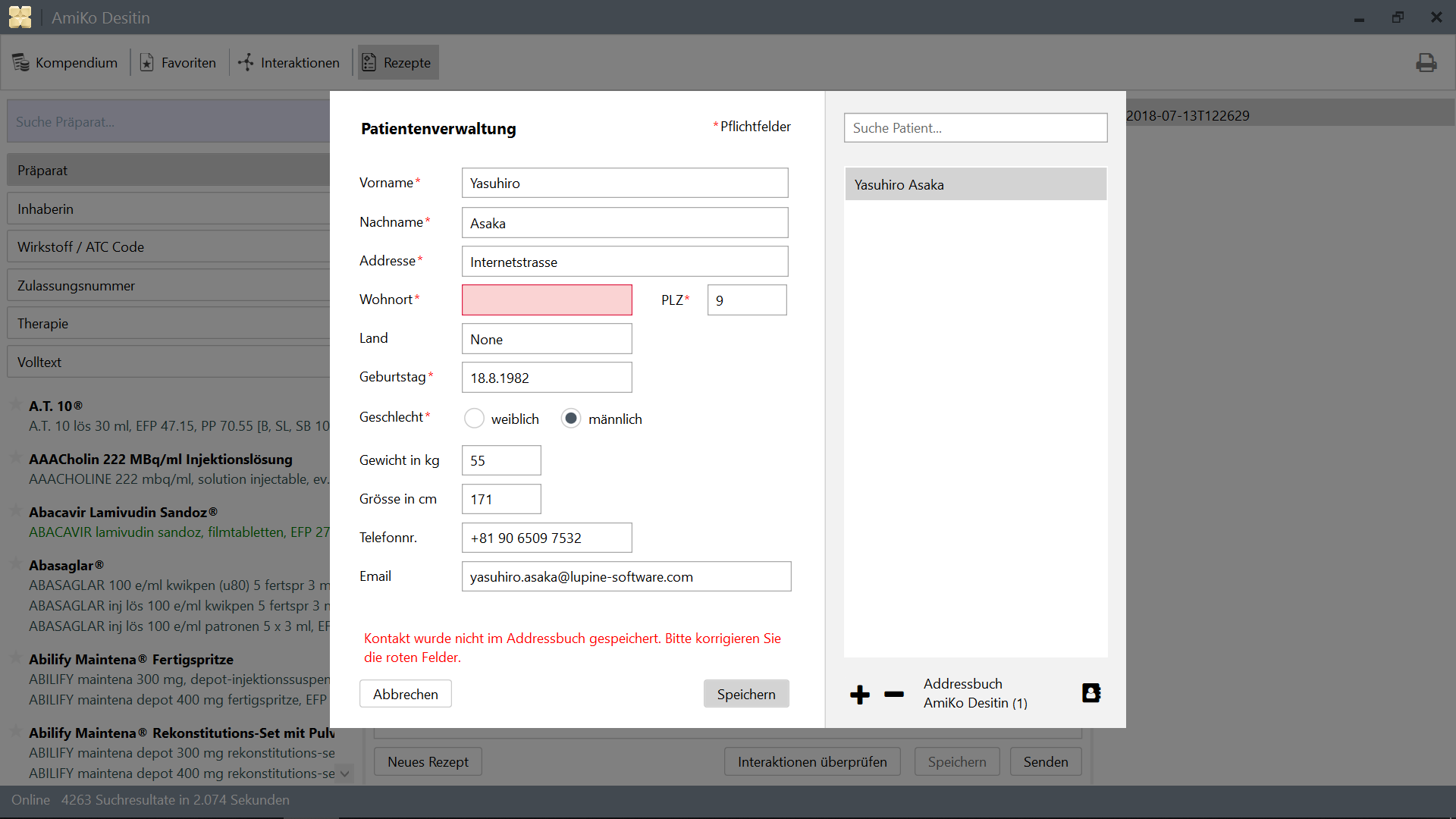
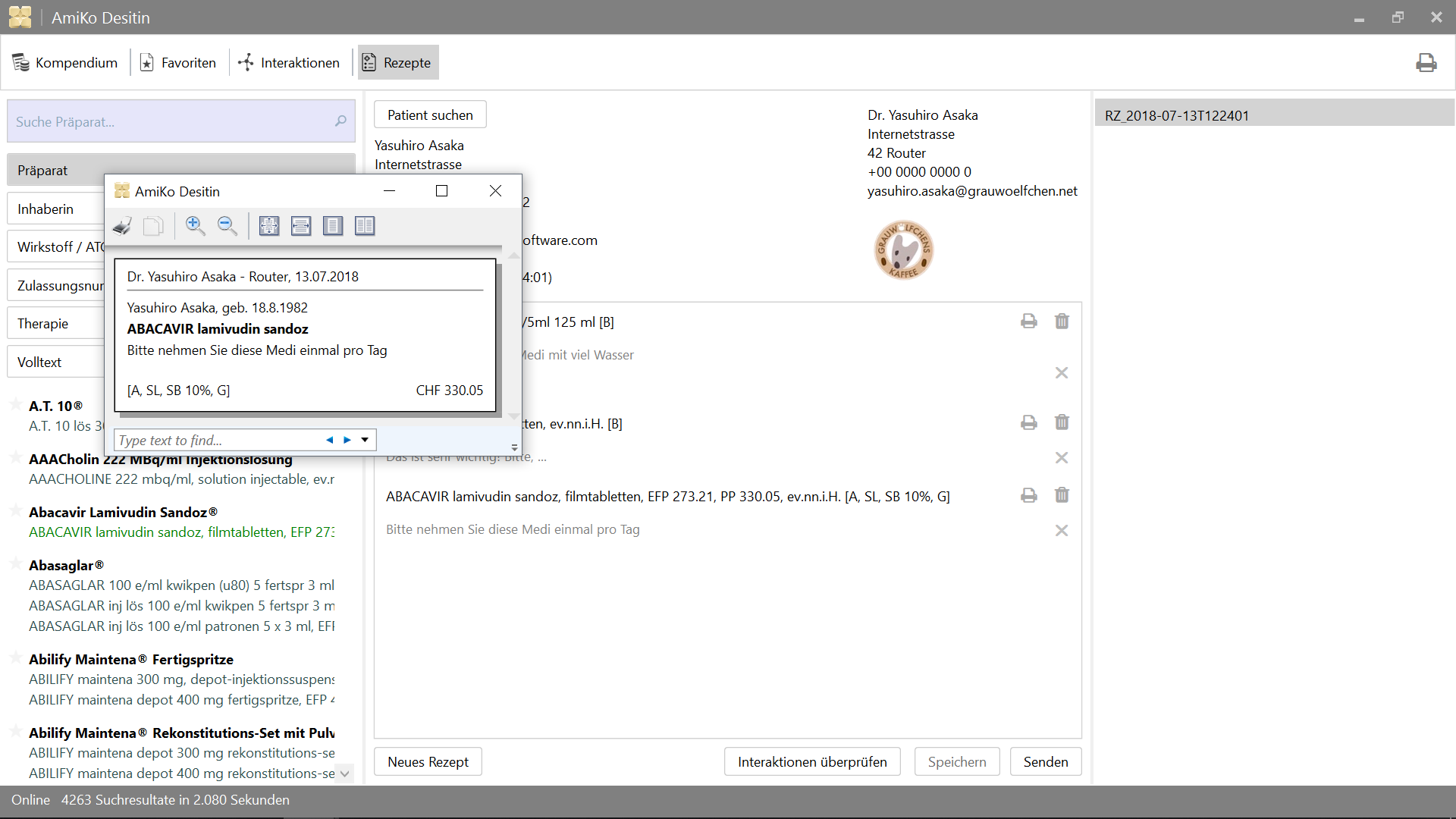
15'913 Drug-Drug InteractionsSearch by:
All data can be updated on daily basis.
>= 4.6.2>= 14.02.1.105)2.0.7)4.6.2)Or just setup Visual Studio >= 2015
And for testing.
>= 3.10.1)>= 3.8.0)For release.
10.0.17134.0)If you check out the source code on Linux on Windows, it seems that it must be readonly on Windows. You can still build it on there on Windows using MSBuild or Visual Studio etc., but you cannot modify existing files on there from Windows side.
See: Do not change Linux files using Windows apps and tools.
/mnt)At first, you need to put database and csv files into Data directory.
Once you have built the app with these files, you can update it via the feature
of the app.
It can be done by running download.ps1 with Powershell, or:
$ cd /path/to/project
% mkdir -p AmiKoWindows/Data/{de,fr}

# AmiKoDesitin
$ cd AmiKoWindows/Data/de
$ curl -sLO http://pillbox.oddb.org/amiko_report_de.html

$ curl -sLO http://pillbox.oddb.org/amiko_db_full_idx_de.zip
$ curl -sLO http://pillbox.oddb.org/amiko_frequency_de.db.zip
$ curl -sLO http://pillbox.oddb.org/drug_interactions_csv_de.zip
$ unzip amiko_db_full_idx_de.zip
$ unzip amiko_frequency_de.db.zip
$ unzip drug_interactions_csv_de.zip

# CoMedDesitin
$ cd AmiKoWindows/Data/fr
$ curl -sLO http://pillbox.oddb.org/amiko_report_fr.html

$ curl -sLO http://pillbox.oddb.org/amiko_db_full_idx_fr.zip
$ curl -sLO http://pillbox.oddb.org/amiko_frequency_fr.db.zip
$ curl -sLO http://pillbox.oddb.org/drug_interactions_csv_fr.zip
$ unzip amiko_db_full_idx_fr.zip
$ unzip amiko_frequency_fr.db.zip
$ unzip drug_interactions_csv_fr.zip*: We have purchased Glyphish icons and modified them for this project. It's
not redistributed under GPL-3.0 (as icons). Because it's not open
source project, you cannot take them as icons from this project, can just use
them as a part of our source code. See Glyphish-License.txt.
If you have checked out the project on Linux on Windows, NuGet can't handle
long path on the PowerShell on Windows, correctly. So you need to set symbolic
link using mklink and environment variable on Command Prompt or PowerShell
(using /c).
See: NuGet and long file name support #3324.
# This is project location, for example environment variable `AmiKo` is set as:
# C:Users<USER>AppDataLocalPackagesTheDebian...LocalStaterootfs
#   home<user>pathtoproject

C:Windowssystem32> cd C:Users<USER>

# Or `cmd /c mklink /D AmiKo %AmiKo%` on PowerShell
C:Users<USER>> mklink /d AmiKo %AmiKo%
C:Users<USER>> cd AmiKo
C:Users<USER>AmiKo>
And then, you can download packages (into Packages).
on PowerShell:
# Downloads NuGet.exe (windows x86 Commandline) here
C:Users<USER>AmiKo> .NuGet.exe install "AmiKoWindows/packages.config"
On Linux on Windows, it's not affected to long path name problem. on Bash (Linux on Windows with Mono):
# You can just do it (e.g. `/usr/local/bin/nuget.exe`)
user@host:/path/to/project $ nuget install AmiKoWindows/packages.configGoogleConstants.cs.sample to AmiKoWindowsSourceGoogleConstants.csAmiKoWindowsSourceHINClientHINClientCredentials.cs.sample to AmiKoWindowsSourceHINClientHINClientCredentials.csFrom this step, you may need to use PowerShell on Windows.
Debug or Release)AnyCPU, x86 or x64.)Trace or None)You would need to install Microsoft Build Tools 2015 from here.
Use >= 14.0 (installed one by Microsoft Build Tools 2015). Or, you may want
to use special command prompt like Developer Command Prompt for VS 2017
bundled in Visual Studio.
# Check the location of `MSBuild.exe`
PS C:Users... > Resolve-Path HKLM:SOFTWAREMicrosoftMSBuildToolsVersion* | Get-ItemProperty -Name MSBuildToolsPath

MSBuildToolsPath : C:Program Files (x86)MSBuild14.0binamd64
PSPath           : Microsoft.PowerShell.CoreRegistry::HKEY_LOCAL_MACHINESOFTWAREMicrosoftMSBuildToolsVersions14.0
...

MSBuildToolsPath : C:WindowsMicrosoft.NETFramework64v4.0.30319
PSPath           : Microsoft.PowerShell.CoreRegistry::HKEY_LOCAL_MACHINESOFTWAREMicrosoftMSBuildToolsVersions4.0
...
Build with MSBuild on PowerShell (You need to set PATH for MSBuild.exe):
# AmiKoDesitin
PS C:Users...> MSBuild.exe .AmiKoWindowsAmiKoDesitin.csproj /t:Clean
PS C:Users...> MSBuild.exe .AmiKoWindowsAmiKoDesitin.csproj /t:Build /p:Configuration=Debug

# CoMedDesitin
PS C:Users...> MSBuild.exe .AmiKoWindowsCoMedDesitin.csproj /t:Clean
PS C:Users...> MSBuild.exe .AmiKoWindowsCoMedDesitin.csproj /t:Build /p:Configuration=Debug
And then, you can start or kill {AmiKo|CoMed}Desitin.exe in bin directory like this:
# AmiKoDesitin
PS C:Users...> Start-Process '.AmiKoWindowsbinDebugAmiKoAmiKo Desitin.exe'
PS C:Users...> Get-Process 'AmiKo Desitin' | Stop-Process
PS C:Users...> taskkill /im 'AmiKo Desitin.exe' /f

# CoMedDesitin
PS C:Users...> Start-Process '.AmiKoWindowsbinDebugAmiKoCoMed Desitin.exe'
PS C:Users...> Get-Process 'CoMed Desitin' | Stop-Process
PS C:Users...> taskkill /im 'CoMed Desitin.exe' /f
There is also a script to build and invoke the application.
# AmiKoDesitin (Debug is default)
PS C:Users...> PowerShell.exe -ExecutionPolicy Bypass -File .BuildAndRun.ps1 "AmiKo"

# CoMedDesitin
PS C:Users...> PowerShell.exe -ExecutionPolicy Bypass -File .BuildAndRun.ps1 "CoMed" "Debug"
Finally, You need to debug the app with DebugView or WinDbg etc. (Set /p:Log=Trace for Trace)
1. AmiKoWindows -> Navigate {AmiKoDesitin|CoMedDesitin} -> Properties (Right Click)
  a. Set assembly name
  b. Set assembly information (Title, Product, Assembly version, File version)
2. Confirm Signing Tab
3. Check Security
4. Set target project using `Set as StartUp Project` (Right Click on the Solution Name)
5. Clean Solution (both projects)
5. Rebuild target project (AmiKoDesitin or CoMedDesitin)
6. (Publish)or you can add this to your Path
C:Program Files (x86)Microsoft Visual Studio2017CommunityMSBuild15.0Binamd64
and this will work as well from your Source Directory
PS C:Users...> MSBuild.exe .AmiKoWindowsAmiKoDesitin.csproj /t:Clean
PS C:Users...> MSBuild.exe .AmiKoWindowsAmiKoDesitin.csproj /t:Build /p:Configuration=Debug
PS C:Users...> Start-Process '.AmiKoWindowsbinDebugAmiKoAmiKo Desitin.exe'

# or just do
PS C:Users...> PowerShell.exe -ExecutionPolicy Bypass -File .BuildAndRun.ps1 "AmiKo"
MakeMsi.ps1 with Powershell
;C:Program Files (x86)WiX Toolset v3.11binAmikoWindowsbinReleaseAmiko-InstallerAmiko-Installer.msiAmikoWindowsbinReleaseComed-InstallerComed-Installer.msiYou would need following steps.
MakeRelease.ps1Package.ps1Download Desktop App Converter from Microsoft Store. And then use
MakeRelease.ps1 script with your signing certificate and key. (In PowerShell run as Administrator)
Before making release build, check build configuration and version etc. in following files.
AmiKoWindows/{AmiKoDesitin.appx.manifest,CoMedDesitin.appx.manifest}AmiKoWindows/Properties/AssemblyInfo.csMakeRelease.ps1# As Administrator
# AmiKoDesitin
PS C:Users...> PowerShell.exe -ExecutionPolicy Bypass -File .MakeRelease.ps1 "AmiKo" "Debug"
PS C:Users...> PowerShell.exe -ExecutionPolicy Bypass -File .MakeRelease.ps1 "AmiKo" "Release"
# CoMedDesitin
PS C:Users...> PowerShell.exe -ExecutionPolicy Bypass -File .MakeRelease.ps1 "CoMed" "Debug"
PS C:Users...> PowerShell.exe -ExecutionPolicy Bypass -File .MakeRelease.ps1 "CoMed" "Release"Appx will be generated in
AmiKoWindows/bin/{Debug,Release}/Output/{AmiKo,CoMed}.
Currently, -AppFileTypes option of DesktopAppConverter does not work
expectedly for out configurations. Although fix AppxManifest.xml manually.
Path:
AmiKoWindows/bin/Release/Output/yweseeGmbH.AmiKo/PackageFiles/AppxManifest.xmlAmiKoWindows/bin/Release/Output/yweseeGmbH.CoMedDesitin/PackageFiles/AppxManifest.xml# add missing entries `Extensions`
<Applications>
<Application>
...
<Extensions>
<uap:Extension Category="windows.fileTypeAssociation">
<uap:FileTypeAssociation Name="amk">
<uap:Logo>AssetsSquare44x44Logo.scale-100.png</uap:Logo>
<uap:SupportedFileTypes>
<uap:FileType>.amk</uap:FileType>
</uap:SupportedFileTypes>
</uap:FileTypeAssociation>
</uap:Extension>
</Extensions>
</Application>
</Applications>
Package.ps1 script does also this step. If you want manually do it again. you can follow these instructions:
# As Administrator

# AmiKoDesitin
PS C:Users...> PowerShell.exe -ExecutionPolicy Bypass -File .Package.ps1 "AmiKo" "Debug"
PS C:Users...> PowerShell.exe -ExecutionPolicy Bypass -File .Package.ps1 "AmiKo" "Release"

# CoMedDesitin
PS C:Users...> PowerShell.exe -ExecutionPolicy Bypass -File .Package.ps1 "CoMed" "Debug"
PS C:Users...> PowerShell.exe -ExecutionPolicy Bypass -File .Package.ps1 "CoMed" "Release"
Or,
'C:Program Files (x86)Windows Kits10bin10.0.17134.0x64{makepri,makeappx}.exe' exist (Version 10.0.17134, and set also PATH, as you need)AmiKoWindows/bin/Release/Output/yweseeGmbH.AmiKo/PackageFilesAmiKoWindows/Assets/ to AmiKoWindows/bin/Release/Output/yweseeGmbH.AmiKo/PackageFiles/Assets/ (Overwrite)MakeAppx.exe# e.g. AmiKoDesitin
# Change directory into **PackageFiles**
PS C:Users...> cd AmiKoWindows/bin/Release/Output/yweseeGmbH.AmiKo/PackageFiles
PS C:Users...> rm .Assets -r -fo
PS C:Users...> cp ..........Assets .
# MakePri.exe
PS C:Users...> 'makepri.exe' createconfig /cf priconfig.xml /dq de-CH
# It seems that it needs absolute path...
PS C:Users...> 'makepri.exe' new
/pr C:Users<user>pathtoamiko_csharpAmiKoWindowsbinReleaseOutputyweseeGmbH.AmiKoPackageFiles
/cf C:Users<user>pathtoamiko_csharpAmiKoWindowsbinReleaseOutputyweseeGmbH.AmiKoPackageFilespriconfig.xml
# MakeAppx.exe
PS C:Users...> 'makeappx.exe' pack /d . /p "AmiKo Desitin"
# Replace appx
PS C:Users...> Move-Item -Path "AmiKoWindowsbinReleaseOutputyweseeGmbH.AmiKoPackageFilesAmiKo Desitin.appx" `
-Destination "AmiKoWindowsbinReleaseOutputyweseeGmbH.AmiKoyweseeGmbH.AmiKo.appx" -Force# Sign (again)
PS C:Users...> signtool.exe sign /fd <HASH ALGORITHM> /a /f <PFX> /p <PASSWORD> <FILE>.appxNOTE:
You need to install this pfx certificate into Trusted People on Local
Machine via Certificate Wizard.
Use importpfx.exe importpfx.exe -f "somePfx.pfx" -p "somePassword" -t MACHINE -s "TRUSTEDPEOPLE"
To clean built cache data or resources etc. (for debug, .exe)
PS C:Users...> taskkill /im 'AmiKo Desitin.exe' /f
PS C:Users...> MSBuild.exe .AmiKoWindowsAmiKoDesitin.csproj /t:Clean

PS C:Users...> taskkill /im 'CoMed Desitin.exe' /f
PS C:Users...> MSBuild.exe .AmiKoWindowsCoMedDesitin.csproj /t:Clean# Just delete these directories (or delete `user.config` in there)
PS C:Users...> rm 'C:Users<USER>AppDataLocalyweseeAmiKo Desitin.exe*' -f -fo
PS C:Users...> rm 'C:Users<USER>AppDataLocalyweseeCoMed Desitin.exe*' -f -fo# e.g. Profile Photo (for debug, .exe)
PS C:Users...> rm 'C:Users<USER>AppDataRoamingyweseeAmiKo Desitin*.png' -f -fo
PS C:Users...> rm 'C:Users<USER>AppDataRoamingyweseeCoMed Desitin*.png' -f -foTo reset AddressBook entries and Prescriptions files (.amk files).
# AmiKoDesitin (for debug, .exe)
PS C:Users...> taskkill /im 'AmiKo Desitin.exe' /f
PS C:Users...> rm 'C:Users<USER>AppDataLocalTempamiko*' -r -fo
PS C:Users...> rm 'C:Users<USER>AppDataRoamingyweseeAmiko Desitinamk*' -r -fo
PS C:Users...> rm .AmiKoWindowsbinDebugAmiKo* -r -fo

# CoMedDesitin (for debug, .exe)
PS C:Users...> taskkill /im 'CoMed Desitin.exe' /f
PS C:Users...> rm 'C:Users<USER>AppDataLocalTempcomed*' -r -fo
PS C:Users...> rm 'C:Users<USER>AppDataRoamingyweseeCoMed Desitinamk*' -r -fo
PS C:Users...> rm .AmiKoWindowsbinDebugCoMed* -r -foSee projects in AmiKoWindows.Tests. Tests are written in NUnit.
PS C:Users...> taskkill /im 'MSBuild.exe' /f

# AmiKoDesitin
PS C:Users...> MSBuild.exe .AmiKoWindows.TestsAmiKoDesitin.Test.csproj /t:Clean
PS C:Users...> MSBuild.exe .AmiKoWindows.TestsAmiKoDesitin.Test.csproj /t:Build /p:Configuration=Debug /p:Platform=x64
PS C:Users...> .PackageNUnit.ConseleRunner.3.8.0toolsnunit3-console.exe .AmiKoWindows.TestsbinDebugAmiKoAmiKoDesitin.Test.dll --output TestOutput.log

# CoMedDesitin
PS C:Users...> MSBuild.exe .AmiKoWindows.TestsCoMedDesitin.Test.csproj /t:Clean
PS C:Users...> MSBuild.exe .AmiKoWindows.TestsCoMedDesitin.Test.csproj /t:Build /p:Configuration=Debug /p:Platform=x64
PS C:Users...> .PackageNUnit.ConsoleRunner.3.8.0toolsnunit3-console.exe .AmiKoWindows.TestsbinDebugCoMedCoMedDesitin.Test.dll --output TestOutput.log
Or you can just execute tests using RunTest.ps1 like this.
# AmiKoDesitin
PS C:Users...> PowerShell.exe -ExecutionPolicy Bypass -File .RunTest.ps1 "AmiKo"

# CoMedDesitin
PS C:Users...> PowerShell.exe -ExecutionPolicy Bypass -File .RunTest.ps1 "CoMed"GPL-3.0
AmiKo for Windows
Copyright (c) ywesee GmbHPlease contact:
[email protected]
+41 43 540 05 50




