amiko_csharp
20230910.3

Amiko para Windows, escrito en C#. ¡Las aplicaciones están disponibles en Microsoft Store ahora!
| Nombre | Idioma | Construir |
|---|---|---|
| Amiko desitin | Deutsch (Schweiz) | Construir en tuberías de Azure |
| Desitin comido | Français (Suisse) | Construir en tuberías de Azure |
También está disponible otra versión para MacOS. Ver AMIKO-OSX.
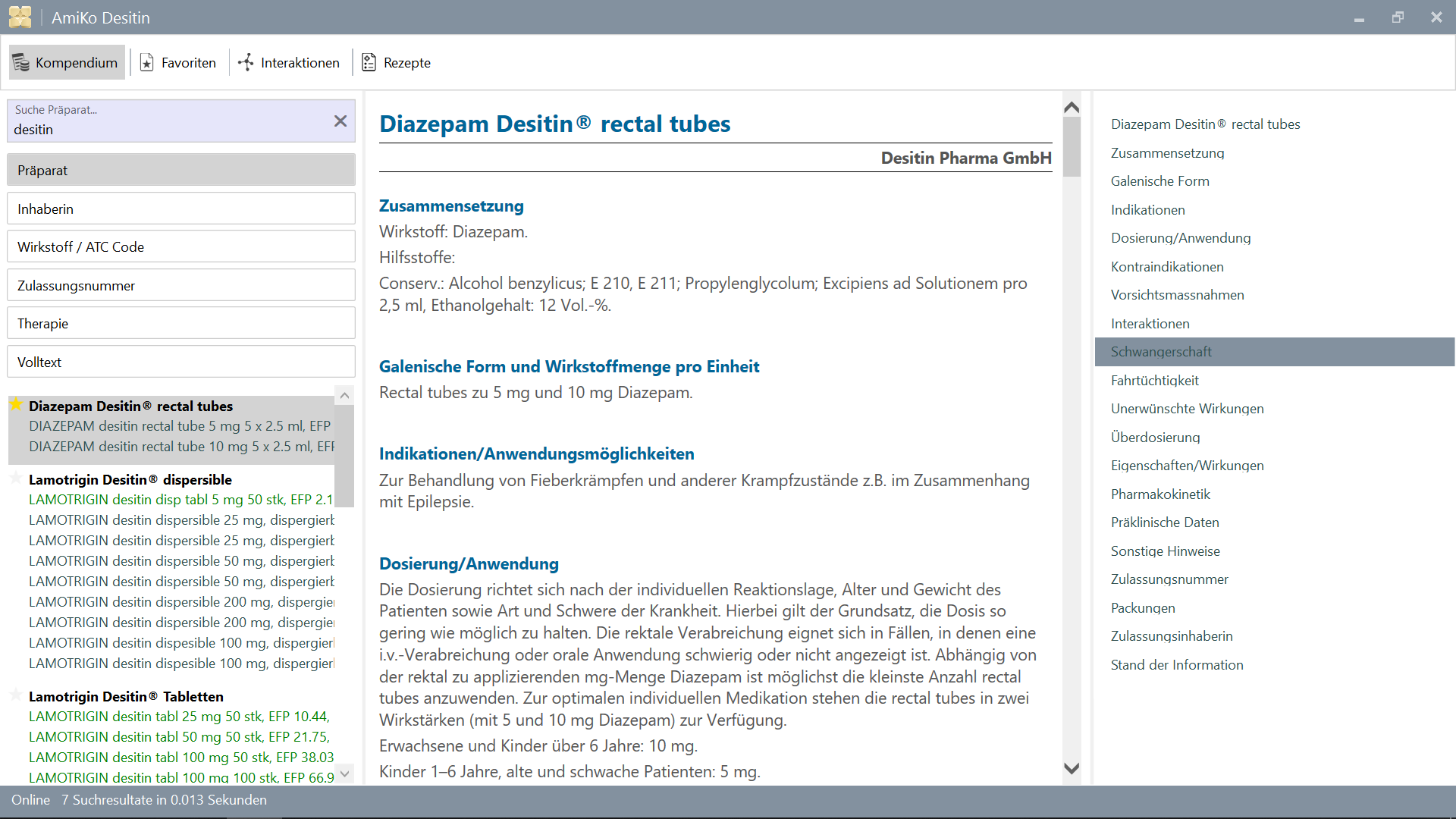
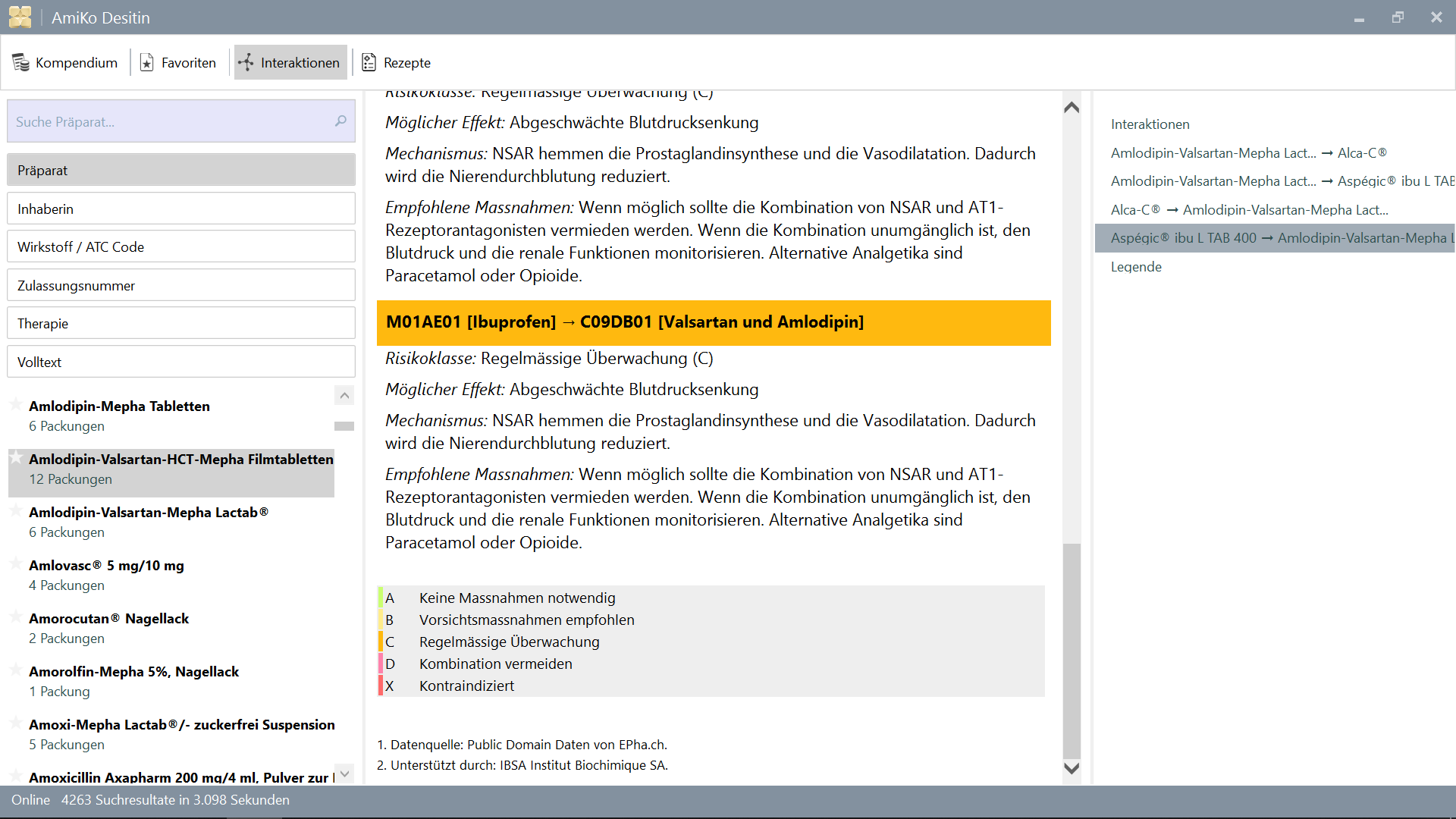
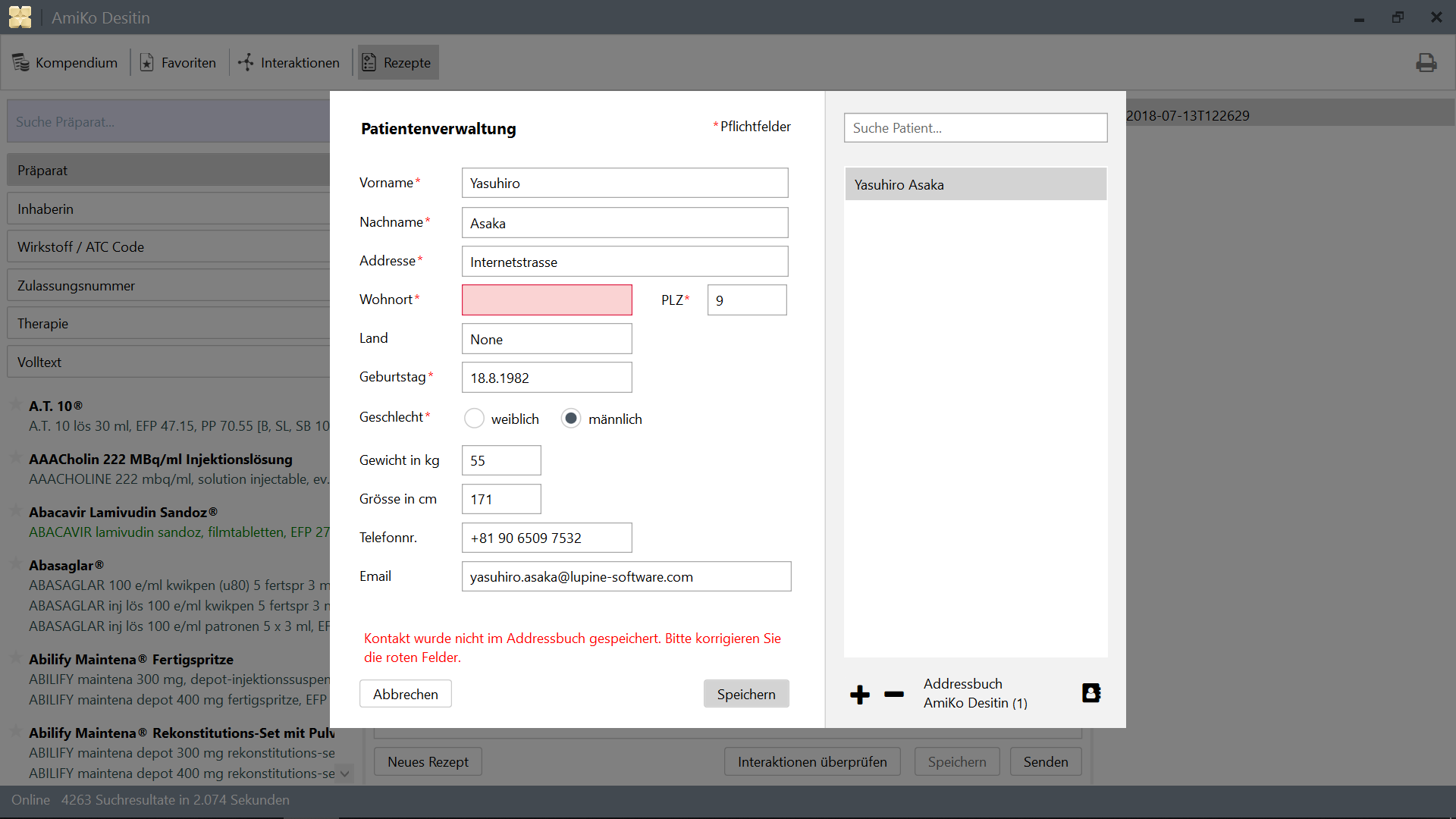
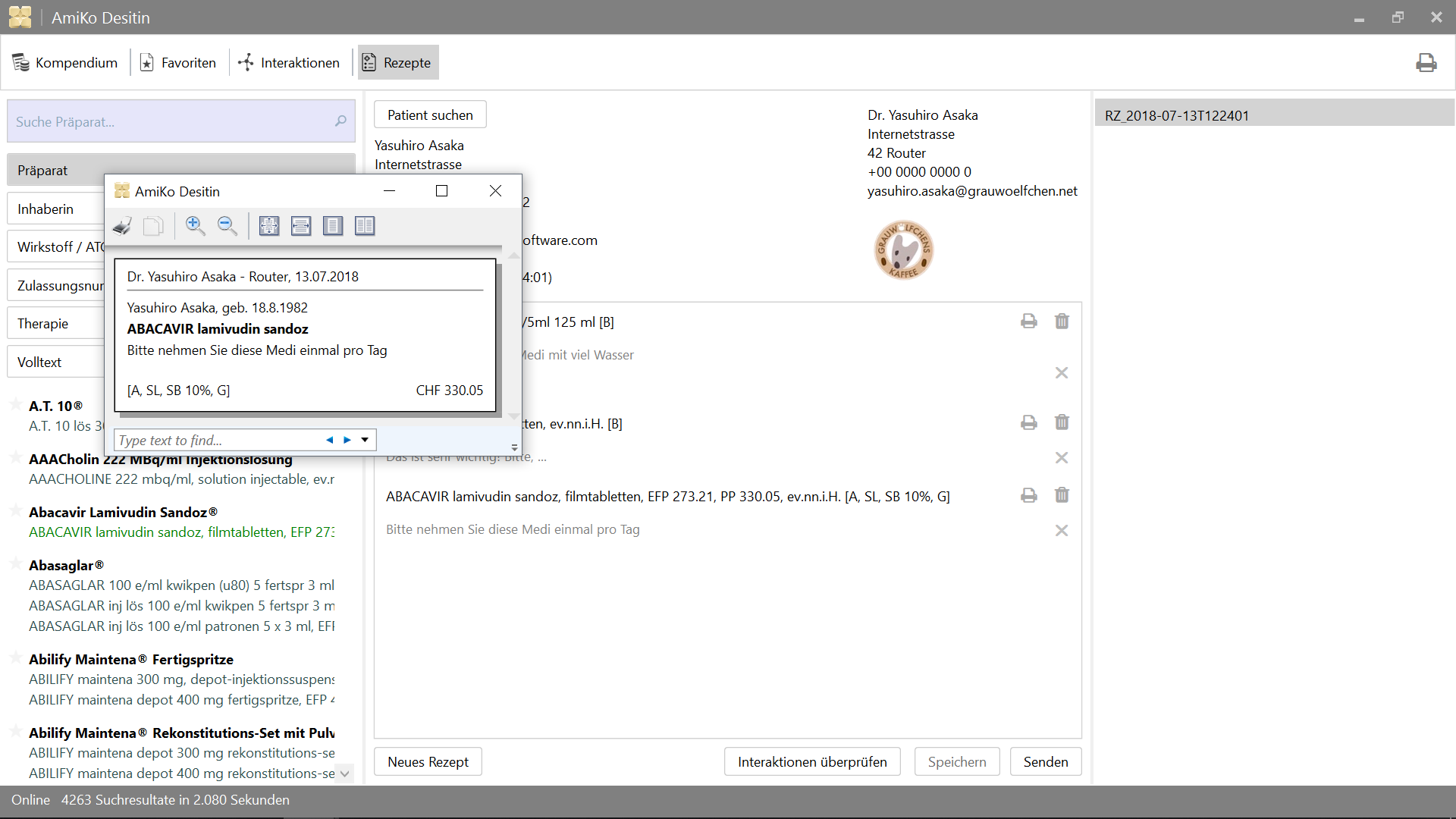
15'913 interacciones fármacos de drogasBuscar por:
Todos los datos se pueden actualizar a diario.
>= 4.6.2>= 14.02.1.105 )2.0.7 )4.6.2 ) O simplemente configurar Visual Studio >= 2015
Y para las pruebas.
>= 3.10.1 )>= 3.8.0 )Para su liberación.
10.0.17134.0 )Si consulta el código fuente en Linux en Windows, parece que debe ser lectura en Windows. Todavía puede construirlo allí en Windows usando MSBuild o Visual Studio, etc., pero no puede modificar los archivos existentes en el lado de Windows.
Consulte: No cambie los archivos Linux utilizando aplicaciones y herramientas de Windows.
/mnt ) Al principio, debe colocar archivos de base de datos y CSV en el directorio Data . Una vez que haya creado la aplicación con estos archivos, puede actualizarla a través de la función de la aplicación.
Se puede hacer ejecutando download.ps1 con PowerShell o:
$ cd /path/to/project
% mkdir -p AmiKoWindows/Data/{de,fr}

# AmiKoDesitin
$ cd AmiKoWindows/Data/de
$ curl -sLO http://pillbox.oddb.org/amiko_report_de.html

$ curl -sLO http://pillbox.oddb.org/amiko_db_full_idx_de.zip
$ curl -sLO http://pillbox.oddb.org/amiko_frequency_de.db.zip
$ curl -sLO http://pillbox.oddb.org/drug_interactions_csv_de.zip
$ unzip amiko_db_full_idx_de.zip
$ unzip amiko_frequency_de.db.zip
$ unzip drug_interactions_csv_de.zip

# CoMedDesitin
$ cd AmiKoWindows/Data/fr
$ curl -sLO http://pillbox.oddb.org/amiko_report_fr.html

$ curl -sLO http://pillbox.oddb.org/amiko_db_full_idx_fr.zip
$ curl -sLO http://pillbox.oddb.org/amiko_frequency_fr.db.zip
$ curl -sLO http://pillbox.oddb.org/drug_interactions_csv_fr.zip
$ unzip amiko_db_full_idx_fr.zip
$ unzip amiko_frequency_fr.db.zip
$ unzip drug_interactions_csv_fr.zip *: Hemos comprado iconos glifoses y los modificamos para este proyecto. No se redistribuye bajo GPL-3.0 (como iconos). Debido a que no es un proyecto de código abierto, no puede tomarlos como iconos de este proyecto, puede usarlos como parte de nuestro código fuente. Ver glifish-license.txt.
Si ha revisado el proyecto en Linux en Windows, NuGet no puede manejar la ruta larga en PowerShell en Windows, correctamente. Por lo tanto, debe establecer un enlace simbólico usando mklink y variable de entorno en el símbolo del sistema o PowerShell (usando /c ).
Consulte: Soporte de nombre de archivo Nuget y Long #3324.
 # This is project location, for example environment variable `AmiKo` is set as:
# C:Users<USER>AppDataLocalPackagesTheDebian...LocalStaterootfs
#   home<user>pathtoproject

C:Windowssystem32> cd C:Users<USER>

# Or `cmd /c mklink /D AmiKo %AmiKo%` on PowerShell
C:Users<USER>> mklink /d AmiKo %AmiKo%
C:Users<USER>> cd AmiKo
C:Users<USER>AmiKo>
Y luego, puede descargar paquetes (en Packages ). En PowerShell:
 # Downloads NuGet.exe (windows x86 Commandline) here
C:Users < USER > AmiKo > . NuGet.exe install " AmiKoWindows/packages.config "
En Linux en Windows, no se ve afectado al problema de nombre de ruta larga. en Bash (Linux en Windows con mono):
 # You can just do it (e.g. `/usr/local/bin/nuget.exe`)
user@host:/path/to/project $ nuget install AmiKoWindows/packages.configGoogleConstants.cs.sample a AmiKoWindowsSourceGoogleConstants.csAmiKoWindowsSourceHINClientHINClientCredentials.cs.sample a AmiKoWindowsSourceHINClientHINClientCredentials.csDesde este paso, es posible que deba usar PowerShell en Windows.
Debug o Release )AnyCPU , x86 o x64 .)Trace o ninguno) Debería instalar Microsoft Build Tools 2015 desde aquí.
Use >= 14.0 (instalado uno por Microsoft Build Tools 2015 ). O bien, es posible que desee utilizar el símbolo del sistema especial como Developer Command Prompt for VS 2017 Bundled en Visual Studio.
 # Check the location of `MSBuild.exe`
PS C:Users.. . > Resolve-Path HKLM:SOFTWAREMicrosoftMSBuildToolsVersion * | Get-ItemProperty - Name MSBuildToolsPath

MSBuildToolsPath : C:Program Files (x86)MSBuild 14.0 binamd64
PSPath           : Microsoft.PowerShell.CoreRegistry::HKEY_LOCAL_MACHINESOFTWAREMicrosoftMSBuildToolsVersions 14.0
...

MSBuildToolsPath : C:WindowsMicrosoft.NETFramework64v4. 0.30319
PSPath           : Microsoft.PowerShell.CoreRegistry::HKEY_LOCAL_MACHINESOFTWAREMicrosoftMSBuildToolsVersions 4.0
...
Construir con MSBuild en PowerShell (necesita configurar ruta para MSBuild.exe ):
 # AmiKoDesitin
PS C:Users... > MSBuild.exe .AmiKoWindowsAmiKoDesitin.csproj / t: Clean
PS C:Users... > MSBuild.exe .AmiKoWindowsAmiKoDesitin.csproj / t:Build / p:Configuration = Debug

# CoMedDesitin
PS C:Users... > MSBuild.exe .AmiKoWindowsCoMedDesitin.csproj / t: Clean
PS C:Users... > MSBuild.exe .AmiKoWindowsCoMedDesitin.csproj / t:Build / p:Configuration = Debug
Y luego, puedes comenzar o matar {AmiKo|CoMed}Desitin.exe en el directorio bin como este:
 # AmiKoDesitin
PS C:Users... > Start-Process ' .AmiKoWindowsbinDebugAmiKoAmiKo Desitin.exe '
PS C:Users... > Get-Process ' AmiKo Desitin ' | Stop-Process
PS C:Users... > taskkill / im ' AmiKo Desitin.exe ' / f

# CoMedDesitin
PS C:Users... > Start-Process ' .AmiKoWindowsbinDebugAmiKoCoMed Desitin.exe '
PS C:Users... > Get-Process ' CoMed Desitin ' | Stop-Process
PS C:Users... > taskkill / im ' CoMed Desitin.exe ' / f
También hay un script para construir e invocar la aplicación.
 # AmiKoDesitin (Debug is default)
PS C:Users... > PowerShell.exe - ExecutionPolicy Bypass - File .BuildAndRun.ps1 " AmiKo "

# CoMedDesitin
PS C:Users... > PowerShell.exe - ExecutionPolicy Bypass - File .BuildAndRun.ps1 " CoMed " " Debug "
Finalmente, debe depurar la aplicación con DebugView o WinDbg etc. (set /p:Log=Trace para traza)
1. AmiKoWindows -> Navigate {AmiKoDesitin|CoMedDesitin} -> Properties (Right Click)
  a. Set assembly name
  b. Set assembly information (Title, Product, Assembly version, File version)
2. Confirm Signing Tab
3. Check Security
4. Set target project using `Set as StartUp Project` (Right Click on the Solution Name)
5. Clean Solution (both projects)
5. Rebuild target project (AmiKoDesitin or CoMedDesitin)
6. (Publish)o puedes agregar esto a tu camino
C:Program Files (x86)Microsoft Visual Studio2017CommunityMSBuild15.0Binamd64
y esto funcionará también desde su directorio fuente
 PS C:Users...> MSBuild.exe .AmiKoWindowsAmiKoDesitin.csproj /t:Clean
PS C:Users...> MSBuild.exe .AmiKoWindowsAmiKoDesitin.csproj /t:Build /p:Configuration=Debug
PS C:Users...> Start-Process '.AmiKoWindowsbinDebugAmiKoAmiKo Desitin.exe'

# or just do
PS C:Users...> PowerShell.exe -ExecutionPolicy Bypass -File .BuildAndRun.ps1 "AmiKo"
MakeMsi.ps1 con PowerShell;C:Program Files (x86)WiX Toolset v3.11binAmikoWindowsbinReleaseAmiko-InstallerAmiko-Installer.msiAmikoWindowsbinReleaseComed-InstallerComed-Installer.msiNecesitaría los siguientes pasos.
MakeRelease.ps1Package.ps1 Descargue Desktop App Converter desde Microsoft Store. Y luego use el script MakeRelease.ps1 con su certificado de firma y clave. (En PowerShell Run como administrador)
Antes de realizar la versión de lanzamiento, verifique la configuración de compilación y la versión, etc. en los siguientes archivos.
AmiKoWindows/{AmiKoDesitin.appx.manifest,CoMedDesitin.appx.manifest}AmiKoWindows/Properties/AssemblyInfo.csMakeRelease.ps1 # As Administrator
# AmiKoDesitin
PS C:Users... > PowerShell.exe - ExecutionPolicy Bypass - File .MakeRelease.ps1 " AmiKo " " Debug "
PS C:Users... > PowerShell.exe - ExecutionPolicy Bypass - File .MakeRelease.ps1 " AmiKo " " Release "
# CoMedDesitin
PS C:Users... > PowerShell.exe - ExecutionPolicy Bypass - File .MakeRelease.ps1 " CoMed " " Debug "
PS C:Users... > PowerShell.exe - ExecutionPolicy Bypass - File .MakeRelease.ps1 " CoMed " " Release " APPX se generará en AmiKoWindows/bin/{Debug,Release}/Output/{AmiKo,CoMed} .
Actualmente, la opción -AppFileTypes de DesktoPAppConverter no funciona esperadamente para las configuraciones. Aunque arregle AppxManifest.xml manualmente.
Camino:
AmiKoWindows/bin/Release/Output/yweseeGmbH.AmiKo/PackageFiles/AppxManifest.xmlAmiKoWindows/bin/Release/Output/yweseeGmbH.CoMedDesitin/PackageFiles/AppxManifest.xml # add missing entries `Extensions`
<Applications>
<Application>
...
<Extensions>
<uap:Extension Category="windows.fileTypeAssociation">
<uap:FileTypeAssociation Name="amk">
<uap:Logo>AssetsSquare44x44Logo.scale-100.png</uap:Logo>
<uap:SupportedFileTypes>
<uap:FileType>.amk</uap:FileType>
</uap:SupportedFileTypes>
</uap:FileTypeAssociation>
</uap:Extension>
</Extensions>
</Application>
</Applications>
El script Package.ps1 también hace este paso. Si quieres volver a hacerlo manualmente. Puede seguir estas instrucciones:
 # As Administrator

# AmiKoDesitin
PS C:Users... > PowerShell.exe - ExecutionPolicy Bypass - File .Package.ps1 " AmiKo " " Debug "
PS C:Users... > PowerShell.exe - ExecutionPolicy Bypass - File .Package.ps1 " AmiKo " " Release "

# CoMedDesitin
PS C:Users... > PowerShell.exe - ExecutionPolicy Bypass - File .Package.ps1 " CoMed " " Debug "
PS C:Users... > PowerShell.exe - ExecutionPolicy Bypass - File .Package.ps1 " CoMed " " Release "
O,
'C:Program Files (x86)Windows Kits10bin10.0.17134.0x64{makepri,makeappx}.exe' existen (versión 10.0.17134 , y establece también ruta , como necesita)AmiKoWindows/bin/Release/Output/yweseeGmbH.AmiKo/PackageFilesAmiKoWindows/Assets/ a AmiKoWindows/bin/Release/Output/yweseeGmbH.AmiKo/PackageFiles/Assets/ (sobrescribir)MakeAppx.exe # e.g. AmiKoDesitin
# Change directory into **PackageFiles**
PS C:Users... > cd AmiKoWindows / bin / Release / Output / yweseeGmbH.AmiKo / PackageFiles
PS C:Users... > rm .Assets - r - fo
PS C:Users... > cp ..........Assets .
# MakePri.exe
PS C:Users... > ' makepri.exe ' createconfig / cf priconfig.xml / dq de - CH
# It seems that it needs absolute path...
PS C:Users... > ' makepri.exe ' new
/ pr C:Users < user > pathtoamiko_csharpAmiKoWindowsbinReleaseOutputyweseeGmbH.AmiKoPackageFiles
/ cf C:Users < user > pathtoamiko_csharpAmiKoWindowsbinReleaseOutputyweseeGmbH.AmiKoPackageFilespriconfig.xml
# MakeAppx.exe
PS C:Users... > ' makeappx.exe ' pack / d . / p " AmiKo Desitin "
# Replace appx
PS C:Users... > Move-Item - Path " AmiKoWindowsbinReleaseOutputyweseeGmbH.AmiKoPackageFilesAmiKo Desitin.appx " `
- Destination " AmiKoWindowsbinReleaseOutputyweseeGmbH.AmiKoyweseeGmbH.AmiKo.appx " - Force # Sign (again)
PS C:Users... > signtool.exe sign / fd < HASH ALGORITHM > / a / f < PFX > / p < PASSWORD > < FILE > .appx Nota: Debe instalar este certificado pfx en personas de confianza en la máquina local a través del asistente de certificado. Use importpfx.exe importpfx.exe -f "somePfx.pfx" -p "somePassword" -t MACHINE -s "TRUSTEDPEOPLE"
Para limpiar los datos o recursos de caché construidos, etc. (para la depuración, .exe)
PS C:Users... > taskkill / im ' AmiKo Desitin.exe ' / f
PS C:Users... > MSBuild.exe .AmiKoWindowsAmiKoDesitin.csproj / t: Clean

PS C:Users... > taskkill / im ' CoMed Desitin.exe ' / f
PS C:Users... > MSBuild.exe .AmiKoWindowsCoMedDesitin.csproj / t: Clean # Just delete these directories (or delete `user.config` in there)
PS C:Users... > rm ' C:Users<USER>AppDataLocalyweseeAmiKo Desitin.exe* ' -f - fo
PS C:Users... > rm ' C:Users<USER>AppDataLocalyweseeCoMed Desitin.exe* ' -f - fo # e.g. Profile Photo (for debug, .exe)
PS C:Users... > rm ' C:Users<USER>AppDataRoamingyweseeAmiKo Desitin*.png ' -f - fo
PS C:Users... > rm ' C:Users<USER>AppDataRoamingyweseeCoMed Desitin*.png ' -f - fo Para restablecer las entradas del libro de direcciones y los archivos de recetas (archivos .amk ).
 # AmiKoDesitin (for debug, .exe)
PS C:Users... > taskkill / im ' AmiKo Desitin.exe ' / f
PS C:Users... > rm ' C:Users<USER>AppDataLocalTempamiko* ' - r - fo
PS C:Users... > rm ' C:Users<USER>AppDataRoamingyweseeAmiko Desitinamk* ' - r - fo
PS C:Users... > rm .AmiKoWindowsbinDebugAmiKo * - r - fo

# CoMedDesitin (for debug, .exe)
PS C:Users... > taskkill / im ' CoMed Desitin.exe ' / f
PS C:Users... > rm ' C:Users<USER>AppDataLocalTempcomed* ' - r - fo
PS C:Users... > rm ' C:Users<USER>AppDataRoamingyweseeCoMed Desitinamk* ' - r - fo
PS C:Users... > rm .AmiKoWindowsbinDebugCoMed * - r - fo Ver proyectos en AmiKoWindows.Tests . Las pruebas se escriben en Nunit.
PS C:Users... > taskkill / im ' MSBuild.exe ' / f

# AmiKoDesitin
PS C:Users... > MSBuild.exe .AmiKoWindows.TestsAmiKoDesitin.Test.csproj / t: Clean
PS C:Users... > MSBuild.exe .AmiKoWindows.TestsAmiKoDesitin.Test.csproj / t:Build / p:Configuration = Debug / p:Platform = x64
PS C:Users... > .PackageNUnit.ConseleRunner. 3.8 . 0 tools nunit3-console.exe .AmiKoWindows.TestsbinDebugAmiKoAmiKoDesitin.Test.dll -- output TestOutput.log

# CoMedDesitin
PS C:Users... > MSBuild.exe .AmiKoWindows.TestsCoMedDesitin.Test.csproj / t: Clean
PS C:Users... > MSBuild.exe .AmiKoWindows.TestsCoMedDesitin.Test.csproj / t:Build / p:Configuration = Debug / p:Platform = x64
PS C:Users... > .PackageNUnit.ConsoleRunner. 3.8 . 0 tools nunit3-console.exe .AmiKoWindows.TestsbinDebugCoMedCoMedDesitin.Test.dll -- output TestOutput.log
O simplemente puede ejecutar pruebas usando RunTest.ps1 como esta.
 # AmiKoDesitin
PS C:Users... > PowerShell.exe - ExecutionPolicy Bypass - File .RunTest.ps1 " AmiKo "

# CoMedDesitin
PS C:Users... > PowerShell.exe - ExecutionPolicy Bypass - File .RunTest.ps1 " CoMed " GPL-3.0
AmiKo for Windows
Copyright (c) ywesee GmbHPóngase en contacto con:
[email protected]
+41 43 540 05 50




